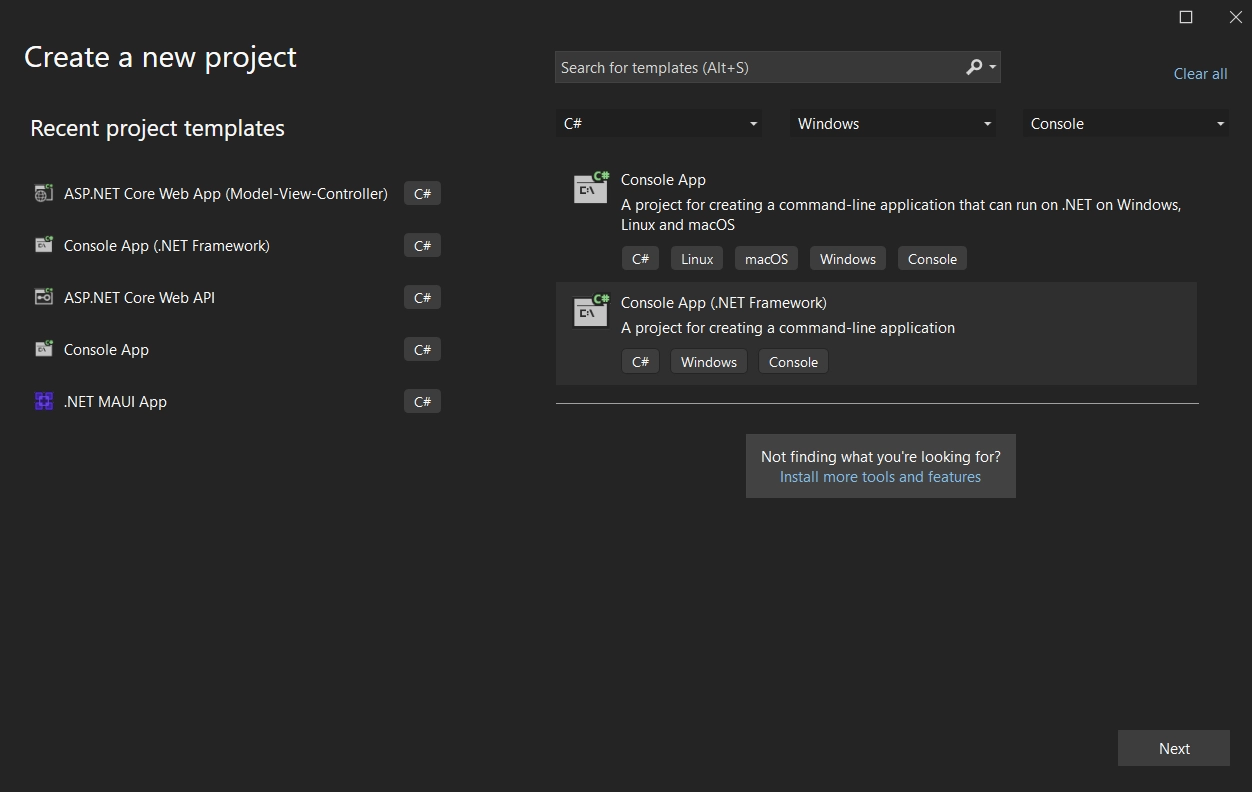
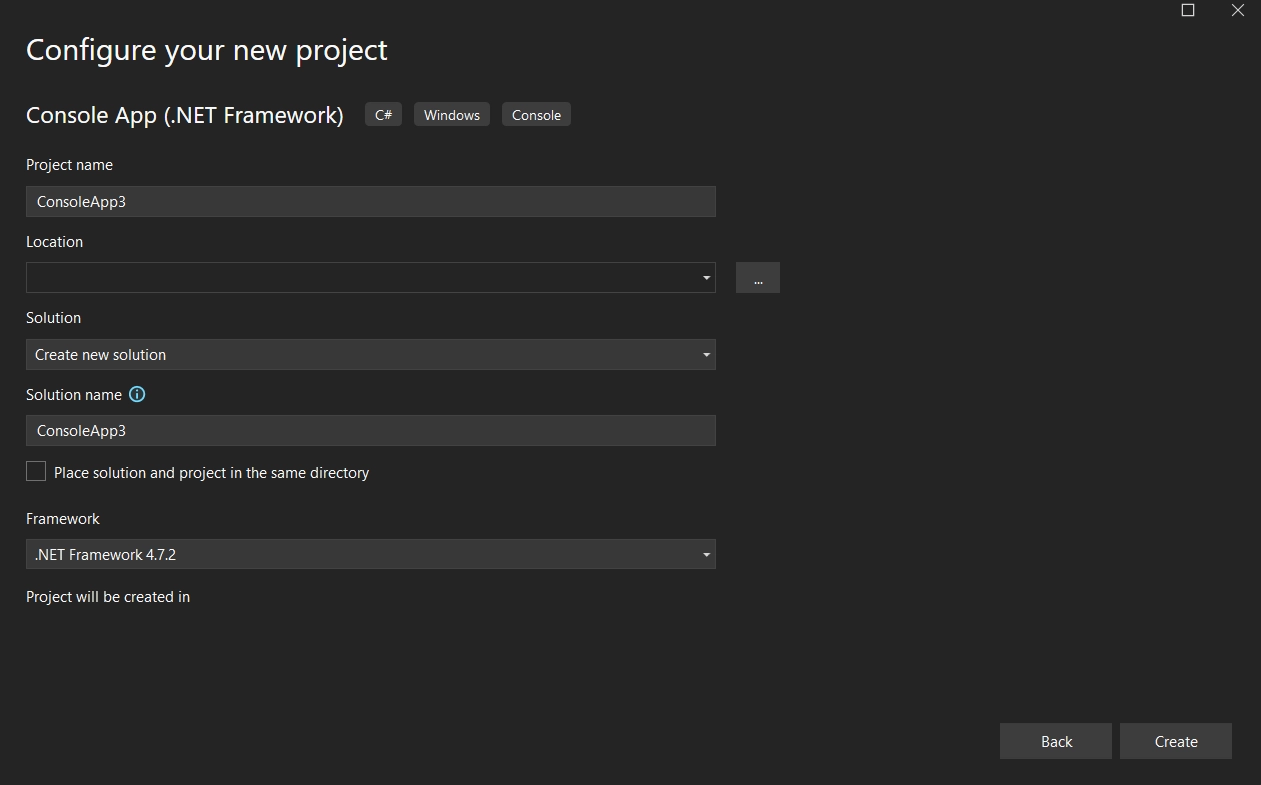
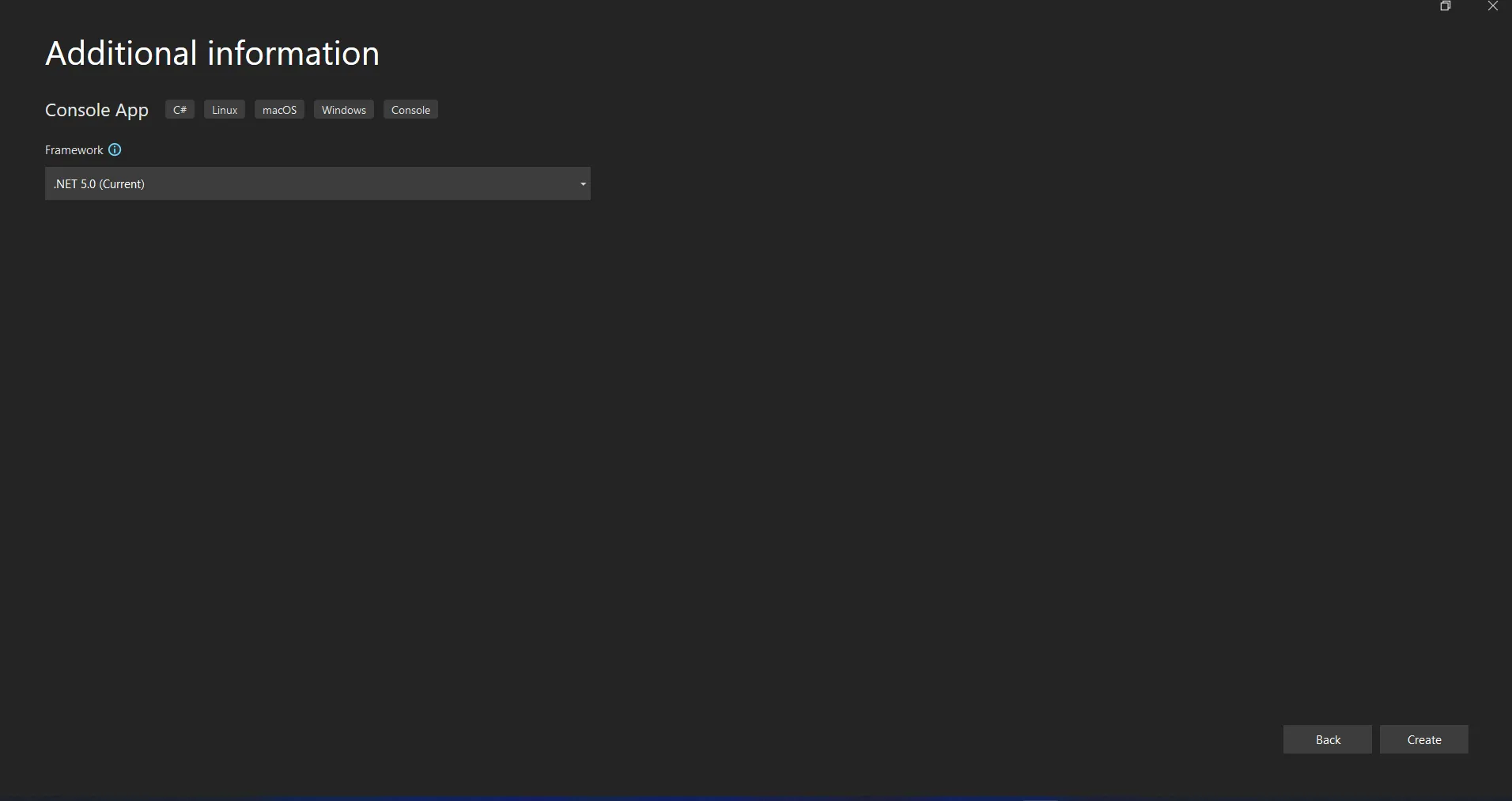
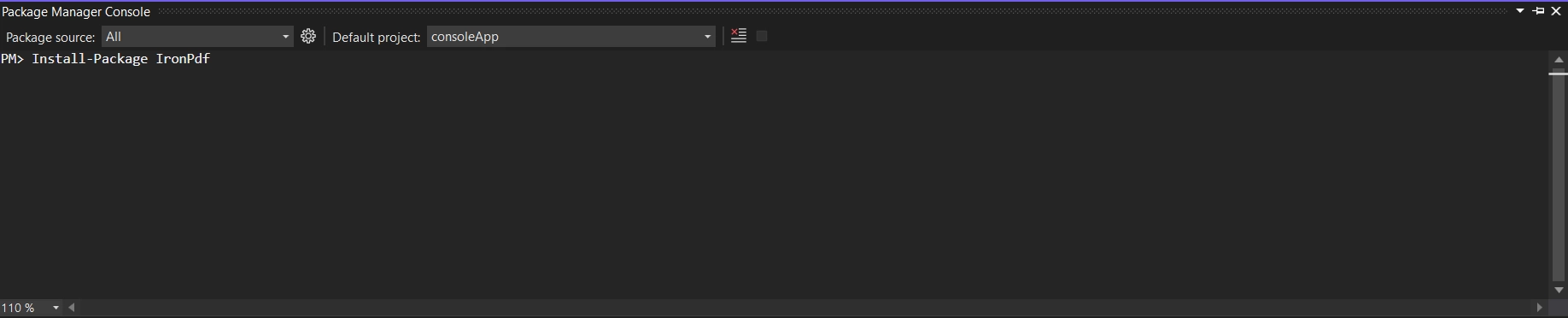
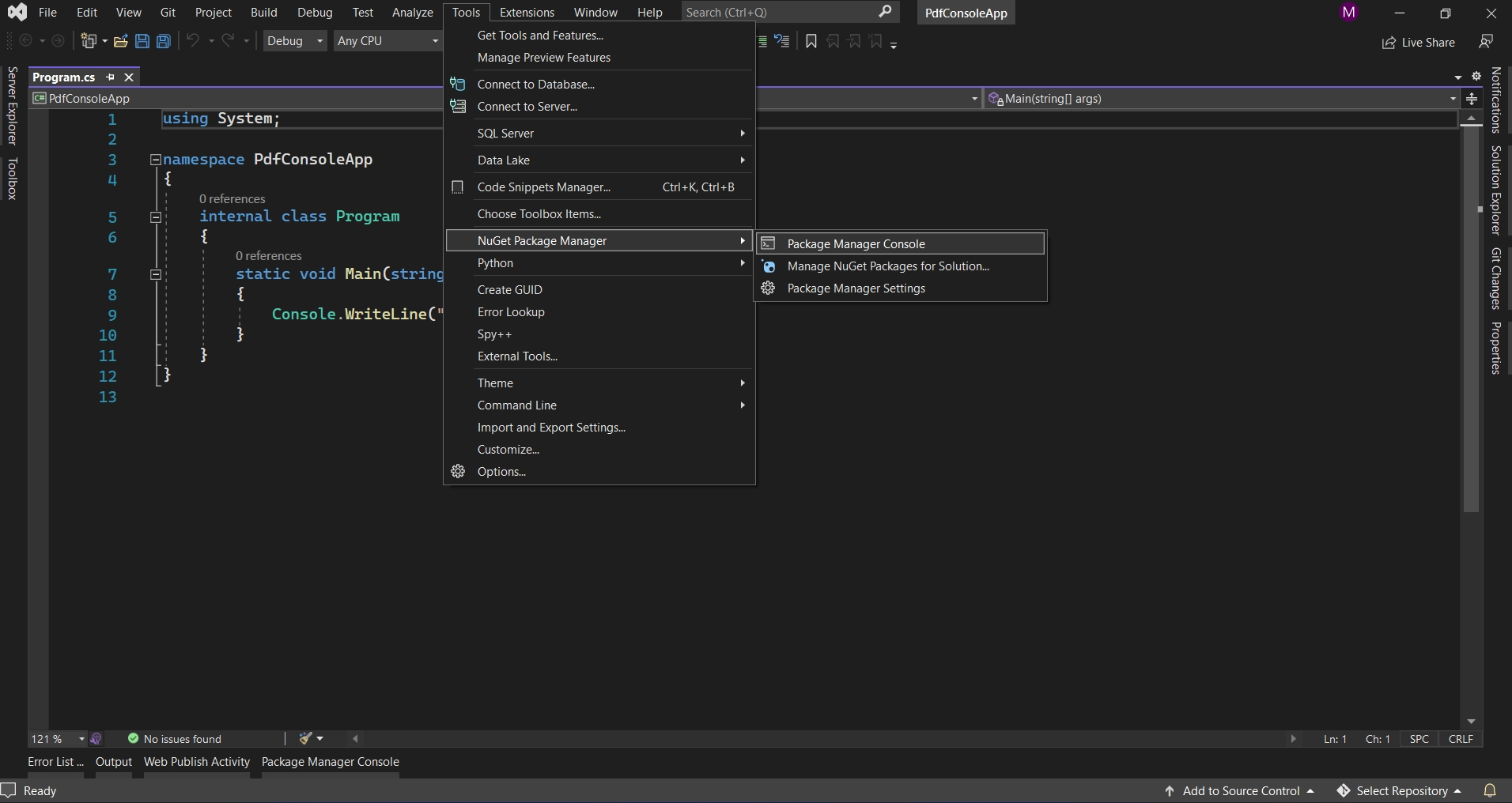
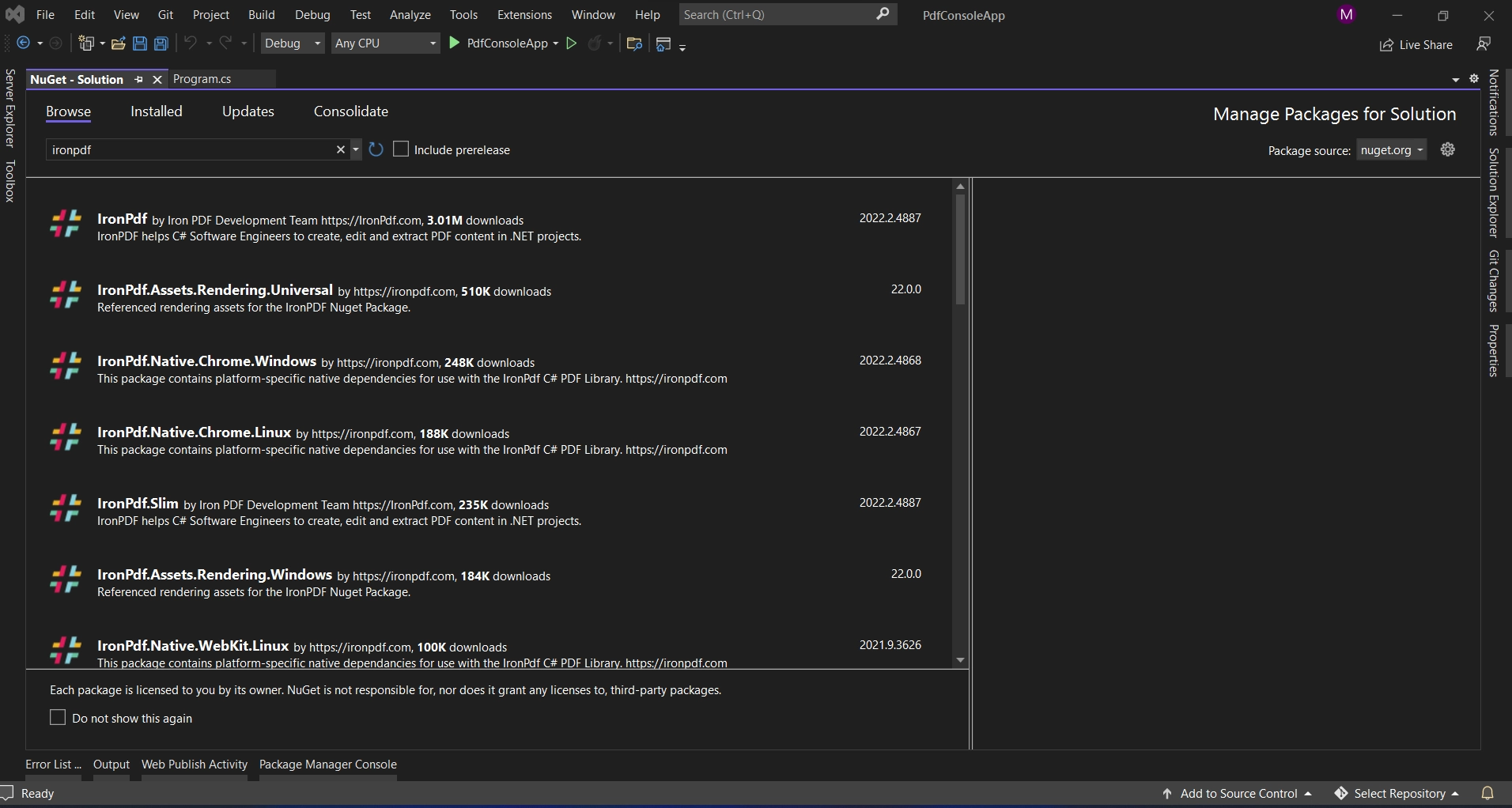
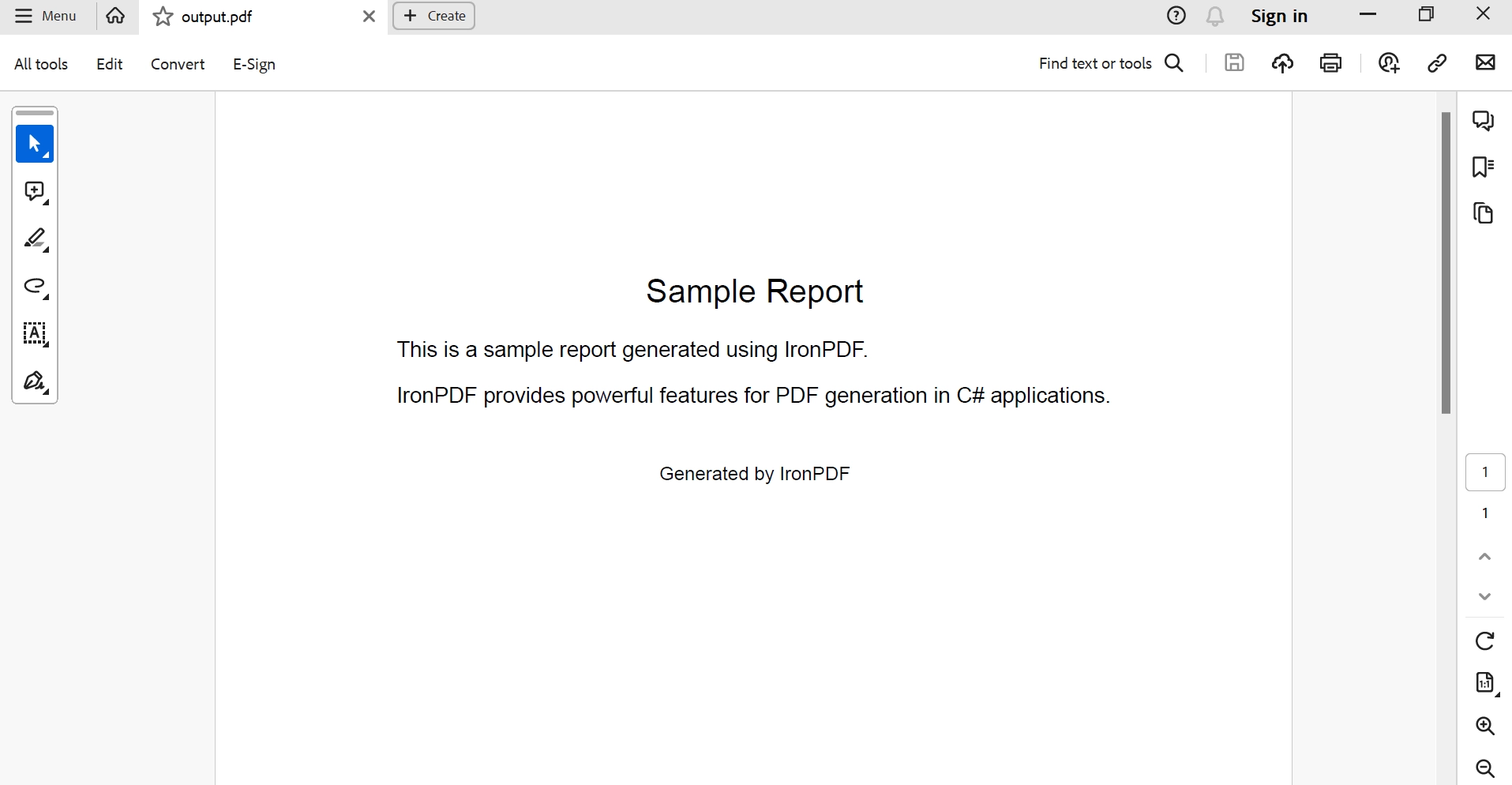
IRONPDF 사용 How to Create Reporting Application in C# 커티스 차우 업데이트됨:6월 22, 2025 다운로드 IronPDF NuGet 다운로드 DLL 다운로드 윈도우 설치 프로그램 무료 체험 시작하기 LLM용 사본 LLM용 사본 LLM용 마크다운 형식으로 페이지를 복사하세요 ChatGPT에서 열기 ChatGPT에 이 페이지에 대해 문의하세요 제미니에서 열기 제미니에게 이 페이지에 대해 문의하세요 Grok에서 열기 Grok에게 이 페이지에 대해 문의하세요 혼란 속에서 열기 Perplexity에게 이 페이지에 대해 문의하세요 공유하다 페이스북에 공유하기 트위터에 공유하기 LinkedIn에 공유하기 URL 복사 이메일로 기사 보내기 In software development, producing .NET reports, invoices, SQL Server reporting services, and other kinds of documentation is a standard necessity, particularly in business settings. Efficient production and management of papers or page reports are essential, ranging from financial statements to customer invoicing. Well-liked in the Microsoft ecosystem, C# has a plethora of libraries and .NET reporting tools to handle these kinds of jobs. One of the most potent of them is IronPDF, which can be used to create PDF documents in C# applications with ease. In this article, we are going to use IronPDF in a reporting application with C#. How to Create a Reporting Application in C\ Choose IronPDF and add the C# reporting tool to your development environment. With the help of IronPDF's tools, create interactive reports that include text, tables, and charts. Use IronPDF's data binding features to link your reports to pertinent data sources, such as databases or APIs. To prepare data for enterprise reporting, implement any necessary data processing logic (such as computations or filtering) within your C# code. To ensure your reports are accurate and useful, preview and test them using real data. Easily incorporate the produced reports into your C# application by utilizing IronPDF's features. To put your application to real use, deploy it to your production environment along with the reports that IronPDF created. IronPDF About IronPDF's Features and Benefits is a robust .NET reporting tool that empowers developers and .NET report designers with versatile solutions for generating, viewing, and designing reports within .NET applications. Developers may easily create, edit, generate reports, and render PDF documents within their applications with the help of the C# library IronPDF. Created by Iron Software, IronPDF makes it easier to create PDFs from any type of C# content, including HTML, ASPX, and MVC views. When developers want to add PDF production capabilities to their projects, they often turn to this tool because of its user-friendly API and strong features. IronPDF provides easy-to-use features for .NET report viewers so that users may interact and navigate with reports created inside their apps with ease. A fluid and responsive user experience is guaranteed while viewing financial accounts, sales reports, or analytics data using IronPDF. IronPDF gives developers the ability to design and create visually attractive reports right within their applications with its integrated .NET report designers and reporting tools. With IronPDF's smooth integration with SQL Server, developers may use database data from SQL Servers to create dynamic reports or share reports. IronPDF provides reliable reporting capabilities and smooth communication, regardless of whether it is integrating with SQL Server Reporting Services (SSRS) or retrieving data directly from SQL Server. Features of IronPDF Convert HTML to PDF: IronPDF enables the easy conversion of HTML information into PDF files with excellent quality. With the formatting and layout of the original information intact, developers and report designers can create PDFs straight from HTML strings, URLs, or local files. PDF Manipulation: Using IronPDF, programmers can add, remove, or change text, images, annotations, and pages in existing PDF documents. This makes it possible to create PDFs dynamically and customize them to meet certain needs using a report viewer. PDF Splitting and Merging: IronPDF helps with PDF splitting and merging. It can split a PDF document into several smaller files or combine multiple PDF documents into one file. Large collections of PDFs can be effectively managed and organized with the help of this report designer tool. Security and Encryption for PDF Documents: IronPDF offers complete support for applying different security settings as well as password-protected PDF encryption in the reporting solution. Developers are in charge of limiting access to private data and ensuring the privacy of PDF material. PDF Forms and Form Fields: With IronPDF, you can create and complete interactive PDF forms that include form fields like radio buttons, text boxes, checkboxes, and dropdown menus. This functionality is crucial for creating dynamic forms and gathering user input in PDF documents. Text Extraction: IronPDF enables automated text content extraction from PDF documents for developers. Document management systems and data processing apps can function better thanks to this feature, which allows text analysis, search, and indexing within PDF files. Image Extraction: With IronPDF, developers can easily obtain, display data, and manipulate image assets included within PDF files by extracting photos from PDF documents. Workflows involving content extraction and image processing will benefit from this capability. PDF Compression: IronPDF has integrated compression methods to minimize the size of PDF documents without sacrificing quality. With the help of this functionality, PDF files are optimized for web applications to perform better, load faster, and store more efficiently. End-User Report Designer: IronPDF includes an end-user report designer in addition to .NET reports, enabling non-technical users to produce and modify reports without the need for developer assistance. To know more about IronPDF check the IronPDF Documentation. Creating a New Project in Visual Studio To launch a Visual Studio application, use the File menu from the top and choose File. Then click "New Project," then choose "Console application." Enter the project name in the text field after choosing the file location path. Click the Create button and choose the required .NET Framework as seen in the sample below. The Visual Studio project's organization will then depend on the chosen application. To add code and construct the application, just open the program.cs file. The internet application, Windows, or console can all be utilized. After that, the library may be added, allowing us to create new reporting tools. Install IronPDF Library Using Visual Studio Tool, select NuGet Package Manager from the Tools Menu. Enter the Package Manager interface to access the package management terminal console. # Example command to install a NuGet package # Note: Replace `PACKAGE_NAME` with the actual package name you intend to install. Install-Package IronPdf # Example command to install a NuGet package # Note: Replace `PACKAGE_NAME` with the actual package name you intend to install. Install-Package IronPdf SHELL After downloading and installing the package, it can now be utilized in the ongoing project. You can also use the Package Manager method. Installing the package directly into the solution is possible with Visual Studio's NuGet Package Manager option. The image below demonstrates how to launch the NuGet Package Manager. Use the NuGet website's search box to locate packages. Simply look up "IronPDF" in the package manager, as seen in the screenshot below: The list of relevant search results is displayed in the image above. Adjust these settings to install the software on your machine. Create a Report Application Using IronPDF Here is some sample C# code that shows you how to use IronPDF to build a basic reporting tool. We'll create reports with a header, some text, and a footer in this example. using IronPdf; using System; namespace ConsoleApp { internal class Program { static void Main(string[] args) { // Create an instance of HtmlToPdf to render HTML content var renderer = new IronPdf.HtmlToPdf(); // Define HTML content for the report data source string htmlContent = @" <html> <head> <style> body { font-family: Arial, sans-serif; margin: 40px; } .header { text-align: center; font-size: 24px; margin-bottom: 20px; } .content { margin-bottom: 40px; } .footer { text-align: center; font-size: 14px; } </style> </head> <body> <div class='header'> Sample Report </div> <div class='content'> <p>This is a sample report generated using IronPDF.</p> <p>IronPDF provides powerful features for PDF generation in C# applications.</p> </div> <div class='footer'> Generated by IronPDF </div> </body> </html> "; // Render the HTML content into a PDF document var pdfDocument = renderer.RenderHtmlAsPdf(htmlContent); // Save the rendered PDF document to a file pdfDocument.SaveAs("output.pdf"); // Dispose of the renderer object to free resources renderer.Dispose(); // Display a success message Console.WriteLine("Report generated successfully!"); } } } using IronPdf; using System; namespace ConsoleApp { internal class Program { static void Main(string[] args) { // Create an instance of HtmlToPdf to render HTML content var renderer = new IronPdf.HtmlToPdf(); // Define HTML content for the report data source string htmlContent = @" <html> <head> <style> body { font-family: Arial, sans-serif; margin: 40px; } .header { text-align: center; font-size: 24px; margin-bottom: 20px; } .content { margin-bottom: 40px; } .footer { text-align: center; font-size: 14px; } </style> </head> <body> <div class='header'> Sample Report </div> <div class='content'> <p>This is a sample report generated using IronPDF.</p> <p>IronPDF provides powerful features for PDF generation in C# applications.</p> </div> <div class='footer'> Generated by IronPDF </div> </body> </html> "; // Render the HTML content into a PDF document var pdfDocument = renderer.RenderHtmlAsPdf(htmlContent); // Save the rendered PDF document to a file pdfDocument.SaveAs("output.pdf"); // Dispose of the renderer object to free resources renderer.Dispose(); // Display a success message Console.WriteLine("Report generated successfully!"); } } } $vbLabelText $csharpLabel In the above code, first, we import the IronPdf namespace to the project. Then we create a new object for HtmlToPdf. We then create an HTML string for the sample report. Right now we are using a static string, but if required, we could also build a dynamic report that pulls data from a data source or report server. We pass the HTML string into the method RenderHtmlAsPdf which belongs to the renderer object created earlier. We then save the report by using the method SaveAs, passing the file name as a parameter. After saving the report document, we dispose of the created object. With this, we can create any number of .NET reporting tools. Below are the output-generated reports from the above code. To learn more about the IronPDF code, refer to How to Create PDFs using HTML. Conclusion Conclusively, IronPDF is a robust and adaptable .NET reporting tool that provides developers with all the solutions they need to create, view, and design reports inside their applications. IronPDF is the preferred option for .NET developers looking to improve their reporting capabilities because of its smooth integration, cutting-edge features, and compatibility with SQL Server. IronPDF also expands its capabilities to include .NET reporting solutions, giving developers a plethora of possibilities to personalize and adjust reports to fulfill specific business needs. A permanent license, upgrade options, and a year of software maintenance are all included in IronPDF's $799 Lite edition. The watermarked trial period allows users to assess the product in practical settings. Visit the IronPDF Licensing Information to find out more about IronPDF's pricing, licensing, and free trial. Go to the Iron Software Website to learn more about Iron Software. 자주 묻는 질문 C#에서 HTML을 PDF로 변환하려면 어떻게 해야 하나요? IronPDF의 RenderHtmlAsPdf 메서드를 사용하여 HTML 문자열을 PDF로 변환할 수 있습니다. 또한 RenderHtmlFileAsPdf를 사용하여 HTML 파일을 PDF로 변환할 수도 있습니다. .NET 보고 도구란 무엇인가요? IronPDF와 같은 .NET 보고 도구를 사용하면 개발자가 C# 애플리케이션 내에서 PDF 문서를 생성, 편집 및 관리할 수 있습니다. HTML을 PDF로 변환, 문서 조작, SQL Server와 같은 데이터베이스와의 통합과 같은 기능을 지원합니다. C#으로 리포팅 애플리케이션을 만들려면 어떻게 해야 하나요? C#으로 보고 애플리케이션을 만들려면 IronPDF를 사용하여 대화형 보고서를 디자인하고, 데이터 소스에 바인딩하고, 포괄적인 PDF 조작 도구 세트를 사용하여 이러한 보고서를 애플리케이션에 통합할 수 있습니다. PDF 문서를 C#에서 SQL Server와 통합하려면 어떻게 해야 하나요? IronPDF는 SQL Server와의 원활한 통합을 통해 개발자가 SQL Server 데이터베이스에서 직접 데이터를 가져오는 동적 보고서를 만들 수 있도록 지원합니다. 이러한 통합은 최신의 데이터 기반 보고서를 생성하는 데 도움이 됩니다. C#용 PDF 라이브러리의 주요 기능은 무엇인가요? IronPDF와 같은 PDF 라이브러리의 주요 기능에는 HTML을 PDF로 변환, 문서 병합 및 분할, 암호화, 대화형 양식 생성, 텍스트 및 이미지 추출, 동적 보고서 생성을 위한 SQL Server와의 통합 기능 등이 포함됩니다. Visual Studio에 PDF 라이브러리를 설치하려면 어떻게 해야 하나요? NuGet 패키지 관리자를 사용하여 Visual Studio에서 IronPDF를 설치할 수 있습니다. 패키지 관리자 콘솔에서 Install-Package IronPdf 명령을 실행하거나 NuGet 패키지 관리자 UI에서 'IronPDF'를 찾습니다. C#의 라이브러리를 사용하여 PDF 문서를 보호할 수 있나요? 예, IronPDF를 사용하면 PDF 문서에 다양한 보안 설정과 암호로 보호되는 암호화를 적용하여 민감한 데이터를 보호하고 문서 프라이버시를 유지할 수 있습니다. 이 PDF 라이브러리에 무료 평가판이 제공되나요? IronPDF는 사용자가 라이브러리의 기능을 평가할 수 있도록 워터마크가 있는 PDF가 포함된 평가판을 제공합니다. 가격 및 라이선스에 대한 자세한 내용은 IronPDF 라이선스 정보 페이지를 참조하세요. PDF 도구의 라이트 에디션이란 무엇인가요? IronPDF Lite 에디션은 영구 라이선스, 업그레이드 옵션, 1년간의 소프트웨어 유지 관리가 포함된 비용 효율적인 솔루션을 제공하여 보고 기능을 향상시키려는 개발자에게 적합합니다. 이 PDF 도구 사용에 대한 더 많은 리소스는 어디에서 찾을 수 있나요? IronPDF 사용에 대해 자세히 알아보려면 개발자를 위한 종합적인 리소스와 지원을 제공하는 IronPDF 설명서 또는 Iron 소프트웨어 웹사이트를 방문하세요. IronPDF는 .NET 10과 호환되나요? 예. IronPDF는 .NET 10(및 .NET 9, 8, 7, 6, 5, .NET Core, .NET Standard 및 .NET Framework)과 완벽하게 호환되며 Windows, macOS, Linux, Docker 및 Azure 환경을 포함한 모든 주요 플랫폼에서 즉시 작동합니다. 커티스 차우 지금 바로 엔지니어링 팀과 채팅하세요 기술 문서 작성자 커티스 차우는 칼턴 대학교에서 컴퓨터 과학 학사 학위를 취득했으며, Node.js, TypeScript, JavaScript, React를 전문으로 하는 프론트엔드 개발자입니다. 직관적이고 미적으로 뛰어난 사용자 인터페이스를 만드는 데 열정을 가진 그는 최신 프레임워크를 활용하고, 잘 구성되고 시각적으로 매력적인 매뉴얼을 제작하는 것을 즐깁니다. 커티스는 개발 분야 외에도 사물 인터넷(IoT)에 깊은 관심을 가지고 있으며, 하드웨어와 소프트웨어를 통합하는 혁신적인 방법을 연구합니다. 여가 시간에는 게임을 즐기거나 디스코드 봇을 만들면서 기술에 대한 애정과 창의성을 결합합니다. 관련 기사 업데이트됨 1월 22, 2026 How to Create PDF Documents in .NET with IronPDF: Complete Guide Discover effective methods to create PDF files in C# for developers. Enhance your coding skills and streamline your projects. Read the article now! 더 읽어보기 업데이트됨 1월 21, 2026 How to Merge PDF Files in VB.NET: Complete Tutorial Merge PDF VB NET with IronPDF. Learn to combine multiple PDF files into one document using simple VB.NET code. Step-by-step examples included. 더 읽어보기 업데이트됨 1월 21, 2026 C# PDFWriter Tutorial: Create PDF Documents in .NET Learn to create PDFs efficiently using C# PDFWriter with this step-by-step guide for developers. Read the article to enhance your skills today! 더 읽어보기 How to Read a PDF Line By Line in C#How to Create Report in ASP .NET

업데이트됨 1월 22, 2026 How to Create PDF Documents in .NET with IronPDF: Complete Guide Discover effective methods to create PDF files in C# for developers. Enhance your coding skills and streamline your projects. Read the article now! 더 읽어보기
업데이트됨 1월 21, 2026 How to Merge PDF Files in VB.NET: Complete Tutorial Merge PDF VB NET with IronPDF. Learn to combine multiple PDF files into one document using simple VB.NET code. Step-by-step examples included. 더 읽어보기
업데이트됨 1월 21, 2026 C# PDFWriter Tutorial: Create PDF Documents in .NET Learn to create PDFs efficiently using C# PDFWriter with this step-by-step guide for developers. Read the article to enhance your skills today! 더 읽어보기