




업데이트됨 2026년 9월 4일
월별 계정 명세서를 PDF 문서로 생성하기
개발자는 IronPDF C# PDF 라이브러리를 사용하여 외부 서비스에 의존하지 않고도 .NET 프로젝트 내에서 HTML을 신뢰할 수 있는 PDF 파일로 변환할 수 있습니다.
더 읽어보기

보고서는 데이터를 구조적이고 시각적으로 매력적인 형식으로 제시하는 데 필수적입니다. 판매 데이터, 분석 또는 재무 요약 등 보고서 생성은 웹 어플리케이션에서 일반적인 요구 사항입니다. Microsoft는 RDLC 보고서 서비스를 제공하며, 웹 폼 리포트 뷰어 컨트롤을 사용하여 웹 애플리케이션에 통합할 수 있습니다. 하지만 이 과정은 종종 복잡하고 시간이 많이 걸립니다.
이때 IronPDF가 등장합니다. IronPDF는 ASP.NET 및 기타 웹 프레임워크에서 PDF 보고서 생성을 단순화하는 다재다능한 라이브러리로, 강력한 기능과 사용의 용이성을 제공합니다. 이 기사에서는 IronPDF를 사용하여 ASP.NET에서 보고서를 생성하는 방법을 탐구할 것입니다.
IronPDF는 ASP.NET 및 기타 웹 프레임워크에서 PDF 문서 생성을 단순화하는 다재다능한 라이브러리입니다. 풍부한 기능 세트와 직관적인 API를 제공하여 개발자가 동적 보고서, 송장, 영수증 등을 직접 웹 애플리케이션에서 생성하는데 이상적인 선택입니다. IronPDF를 사용하면 개발자는 HTML, CSS 및 심지어 Razor 보기를 고품질의 PDF 문서로 쉽게 변환하여 ASP.NET 프로젝트에 보고 기능을 원활하게 통합할 수 있습니다.
시작하기 전에 다음 요건을 확인하십시오:
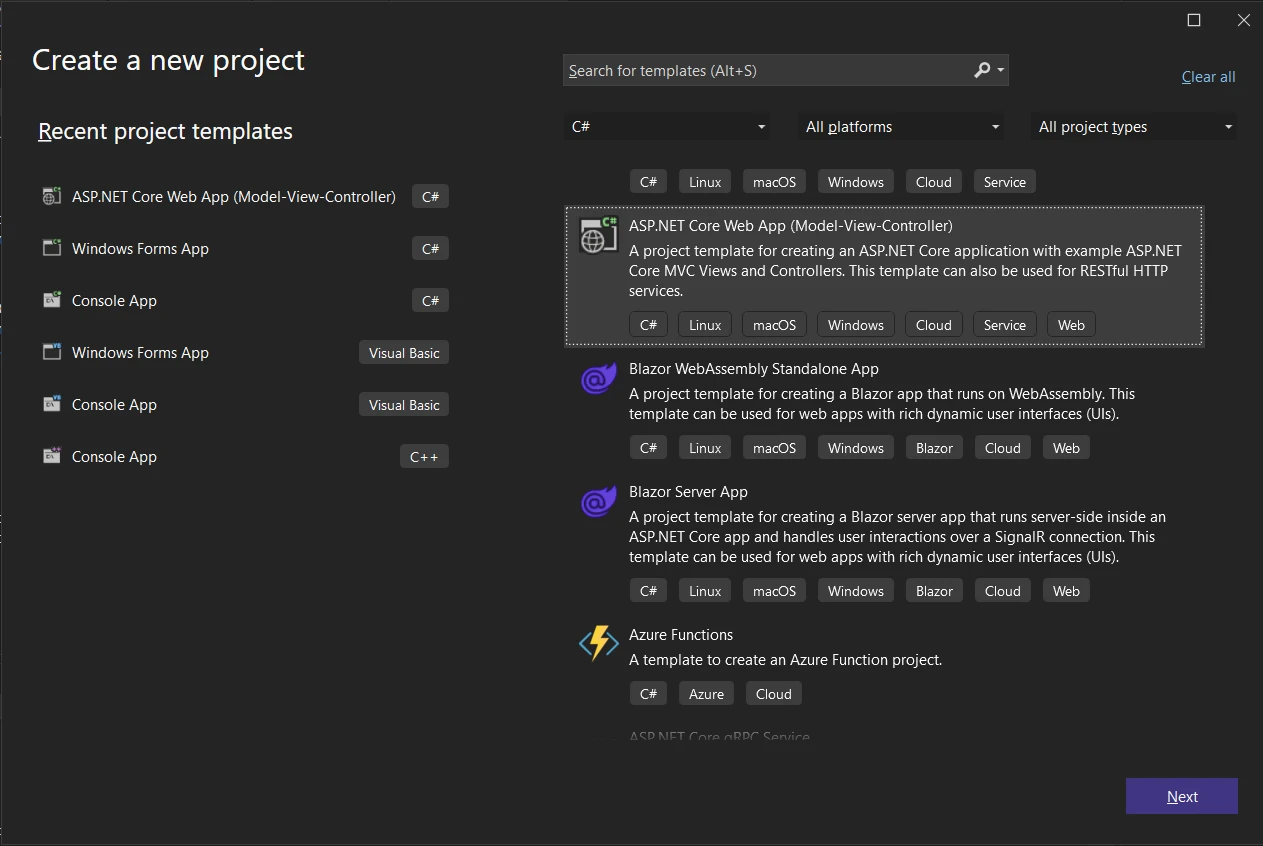
Visual Studio를 열고 새로운 ASP.NET Core 프로젝트를 생성하십시오.
원하는 프로젝트 템플릿을 선택하십시오 (예: MVC 또는 Razor 페이지).
프로젝트 이름, 위치, 프레임워크 버전과 같은 프로젝트 설정을 구성하세요.
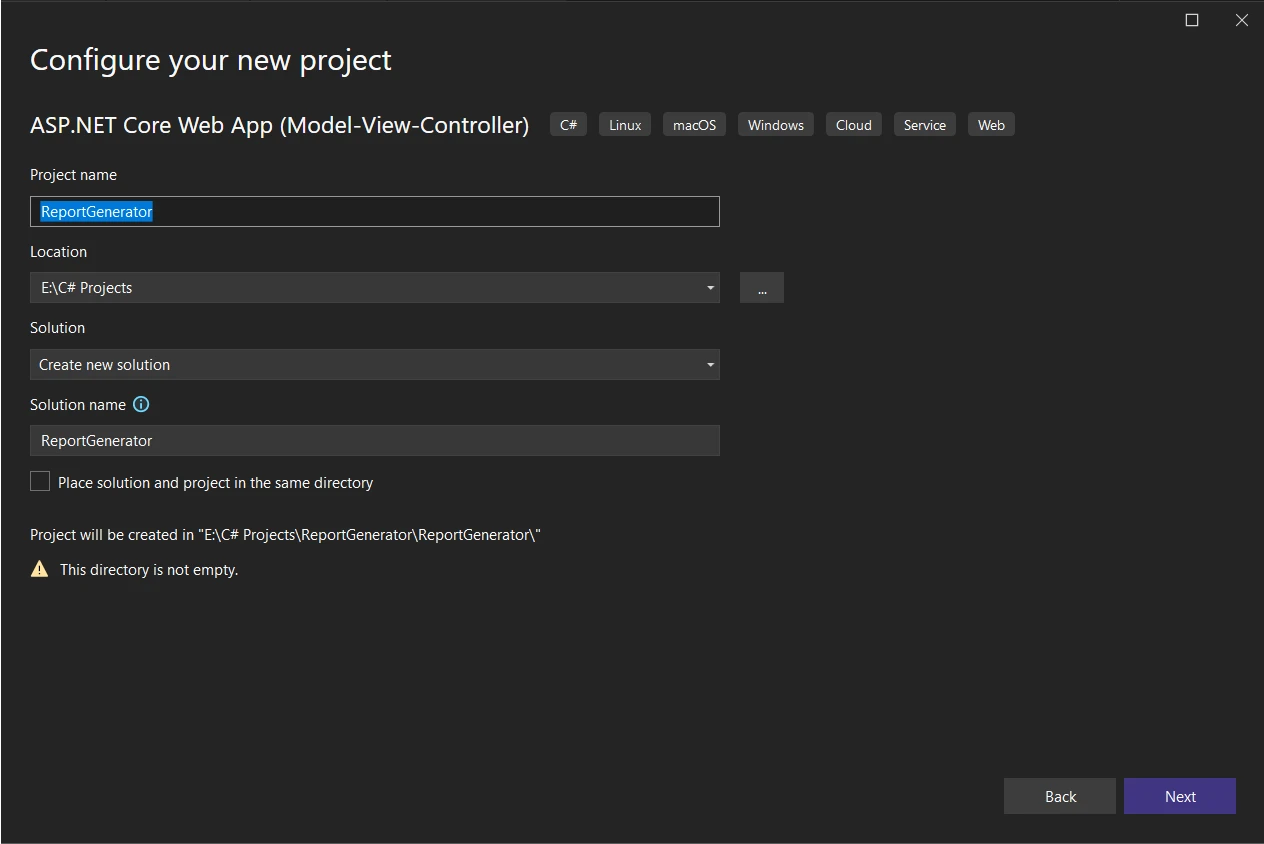
"생성"을 클릭하여 프로젝트 구조를 만듭니다.
다음으로, NuGet 패키지 관리자를 사용하여 IronPDF 및 해당 MVC 확장 패키지를 설치해 봅시다.
솔루션 탐색기를 마우스 오른쪽 버튼으로 클릭하여 솔루션용 NuGet 패키지 관리자를 엽니다. "IronPDF" 및 "IronPdf.Extensions.Mvc.Core"을 검색합니다.
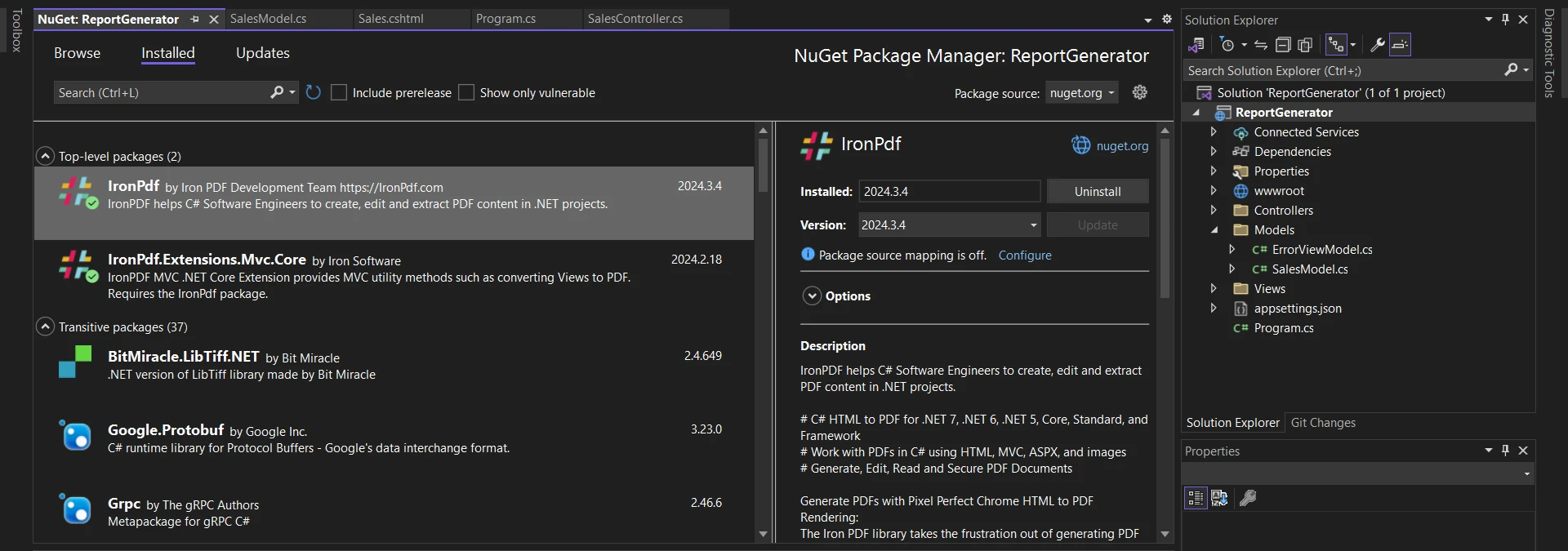
두 패키지를 솔루션에 설치합니다.
이제 IronPDF를 사용하여 ASP.NET 프로젝트에서 PDF 보고서를 생성하는 단계를 알아보겠습니다. 뷰를 보고서로 변환하기 전에 새 PDF 형식의 보고서를 생성하고 다운로드하기 위한 데이터 소스를 만들기 위한 모델, 뷰 및 컨트롤러가 필요합니다.
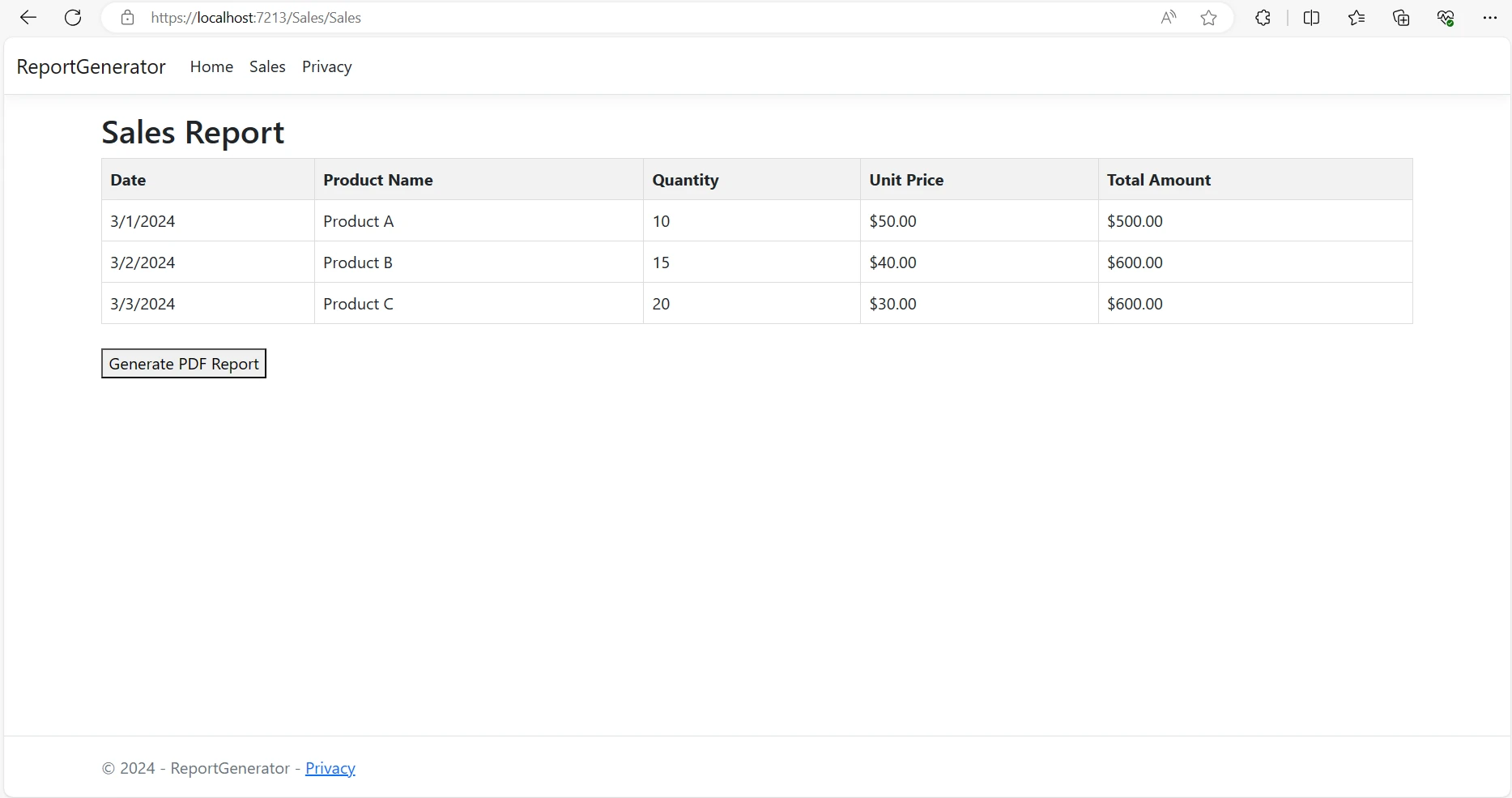
먼저 판매 데이터를 나타내기 위한 모델 클래스(SalesModel.cs)를 만듭니다. 이 샘플 SalesModel 클래스에는 날짜, 제품 이름, 수량, 단가 및 총 금액과 같은 속성이 포함됩니다. Microsoft SQL Server 또는 MySQL Server와 같은 데이터 소스에서 정보를 검색할 때 유용합니다.
namespace ReportGenerator.Models
{
    public class SalesModel
    {
        public DateTime Date { get; set; }
        public string ProductName { get; set; }
        public int Quantity { get; set; }
        public decimal UnitPrice { get; set; }
        public decimal TotalAmount => Quantity * UnitPrice;
    }
}Namespace ReportGenerator.Models
Public Class SalesModel
Public Property [Date]() As DateTime
Public Property ProductName() As String
Public Property Quantity() As Integer
Public Property UnitPrice() As Decimal
Public ReadOnly Property TotalAmount() As Decimal
Get
Return Quantity * UnitPrice
End Get
End Property
End Class
End Namespace다음으로, 판매 데이터를 표 형식으로 표시하고 PDF 보고서를 생성할 수 있는 버튼을 제공하기 위한 Razor 뷰(Sales.cshtml)를 만듭니다.
<!-- Sales.cshtml -->
@model List<SalesModel>
<!DOCTYPE html>
<html>
<head>
    <title>Sales Report</title>
    <style>
        table {
            border-collapse: collapse;
            width: 100%;
        }
        th, td {
            border: 1px solid #dddddd;
            text-align: left;
            padding: 8px;
        }
        th {
            background-color: #f2f2f2;
        }
    </style>
</head>
<body>
    <h2>Sales Report</h2>
    <table>
        <tr>
            <th>Date</th>
            <th>Product Name</th>
            <th>Quantity</th>
            <th>Unit Price</th>
            <th>Total Amount</th>
        </tr>
        @foreach (var item in Model)
        {
            <tr>
                <td>@item.Date.ToShortDateString()</td>
                <td>@item.ProductName</td>
                <td>@item.Quantity</td>
                <td>@item.UnitPrice.ToString("C")</td>
                <td>@item.TotalAmount.ToString("C")</td>
            </tr>
        }
    </table>
    <br />
    @using (Html.BeginForm("GeneratePdf", "Sales", FormMethod.Post))
    {
        <button type="submit">Generate PDF Report</button>
    }
</body>
</html>이제 Views->Shared 폴더에 있는 _Layout.cshtml 파일에 Sales를 메뉴 항목으로 추가하여 보고서 마법사 보기를 만듭니다:
<!— Layout.cshtml —>
<li class="nav-item">
    <a class="nav-link text-dark" asp-area="" asp-controller="Sales" asp-action="Sales">Sales</a>
</li>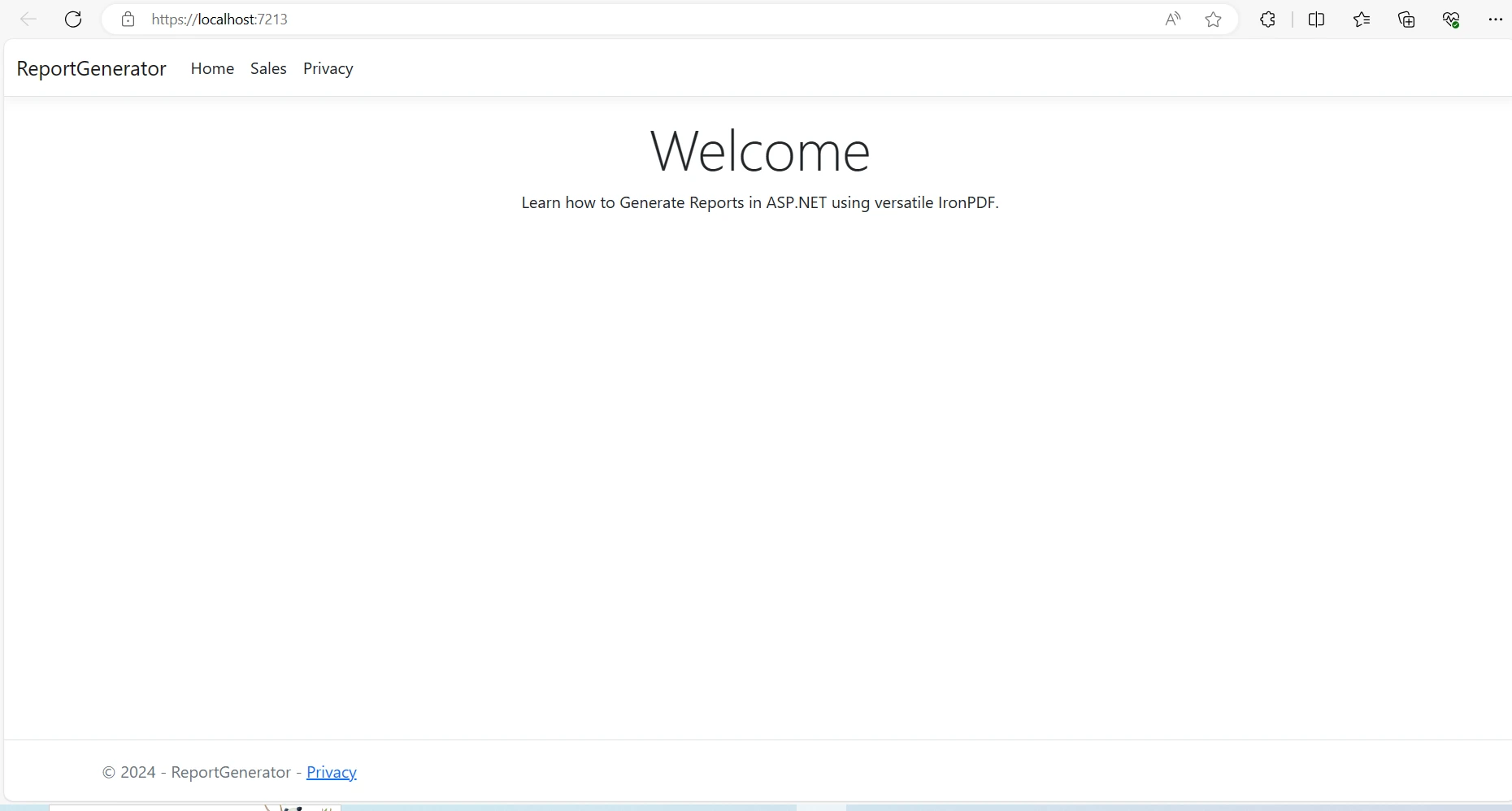
Program.cs 파일에 뷰 렌더 서비스를 등록하는 것은 종속성 주입이 제대로 작동하기 위해 필수입니다. Program.cs 파일에 다음 코드를 추가하여 IRazorViewRenderer 서비스를 등록합니다:
// Register the IRazorViewRenderer service
builder.Services.AddSingleton<IRazorViewRenderer, RazorViewRenderer>();' Register the IRazorViewRenderer service
builder.Services.AddSingleton(Of IRazorViewRenderer, RazorViewRenderer)()판매 뷰를 렌더링하고 PDF 보고서를 생성할 수 있는 작업을 가진 컨트롤러(SalesController.cs)를 구현합니다. IronPDF가 제공하는 IRazorViewRenderer 서비스를 컨트롤러 생성자에 주입합니다.
using ReportGenerator.Models;
namespace ReportGenerator.Controllers
{
    public class SalesController : Controller
    {
        private readonly IRazorViewRenderer _viewRenderService;
        private readonly List<SalesModel> salesData;

        public SalesController(IRazorViewRenderer viewRenderService)
        {
            _viewRenderService = viewRenderService;
            // Example data with sales information
            salesData = new List<SalesModel>
            {
                new SalesModel { Date = DateTime.Parse("2024-03-01"), ProductName = "Product A", Quantity = 10, UnitPrice = 50.00m },
                new SalesModel { Date = DateTime.Parse("2024-03-02"), ProductName = "Product B", Quantity = 15, UnitPrice = 40.00m },
                new SalesModel { Date = DateTime.Parse("2024-03-03"), ProductName = "Product C", Quantity = 20, UnitPrice = 30.00m }
                // Add more data as needed
            };
        }

        public IActionResult Sales()
        {
            // Renders the sales view with the sales data
            return View(salesData);
        }
    }
}Imports ReportGenerator.Models
Namespace ReportGenerator.Controllers
Public Class SalesController
Inherits Controller
Private ReadOnly _viewRenderService As IRazorViewRenderer
Private ReadOnly salesData As List(Of SalesModel)
Public Sub New(viewRenderService As IRazorViewRenderer)
_viewRenderService = viewRenderService
' Example data with sales information
salesData = New List(Of SalesModel) From {
New SalesModel With {.Date = DateTime.Parse("2024-03-01"), .ProductName = "Product A", .Quantity = 10, .UnitPrice = 50.0D},
New SalesModel With {.Date = DateTime.Parse("2024-03-02"), .ProductName = "Product B", .Quantity = 15, .UnitPrice = 40.0D},
New SalesModel With {.Date = DateTime.Parse("2024-03-03"), .ProductName = "Product C", .Quantity = 20, .UnitPrice = 30.0D}
' Add more data as needed
}
End Sub
Public Function Sales() As IActionResult
' Renders the sales view with the sales data
Return View(salesData)
End Function
End Class
End Namespace위 코드에서 생성자 내부에서 IRazorViewRenderer 서비스가 개인 필드 _viewRenderService에 할당됩니다. 또한, 컨트롤러는 데모 목적으로 판매 정보를 나타내는 SalesModel 클래스의 인스턴스를 포함하는 salesData라는 리스트를 초기화합니다.
Sales() 작업 메서드는 salesData 리스트를 모델로 전달하여 "Sales"라는 이름의 뷰를 반환합니다. 이 작업은 사용자가 표 형식 또는 다른 원하는 레이아웃으로 판매 정보를 시각화할 수 있도록 관련 뷰에서 판매 데이터를 렌더링합니다.
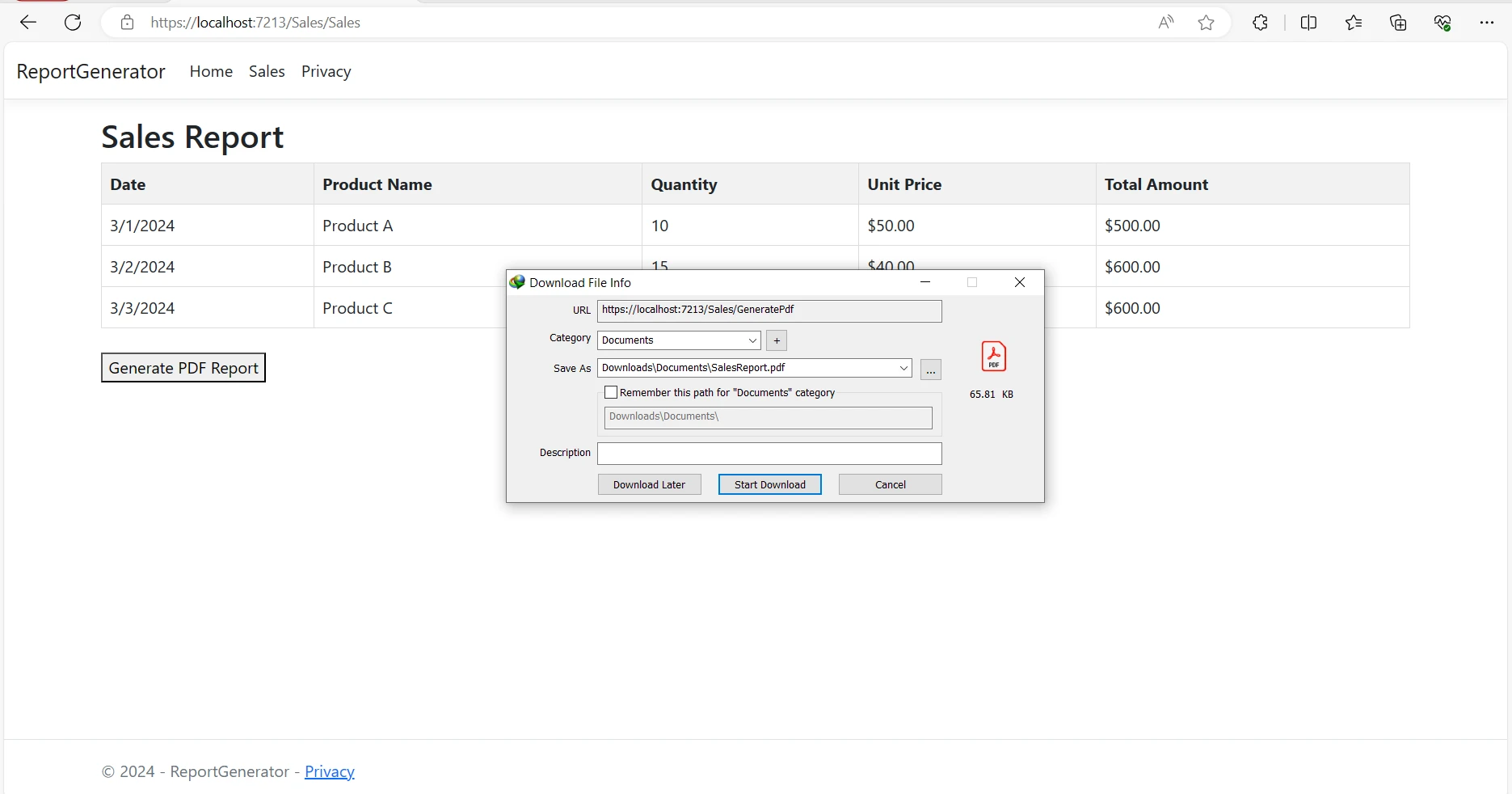
컨트롤러의 GeneratePdf 작업에서 IronPDF의 ChromePdfRenderer를 사용하여 Razor 뷰를 PDF 보고서 문서로 렌더링합니다. 적절한 응답 헤더를 설정하고 클라이언트에게 PDF 파일을 반환합니다.
public FileContentResult GeneratePdf()
{
    // Set license key for IronPDF
    License.LicenseKey = "YOUR-LICENSE-KEY-HERE";

    // Initialize the ChromePdfRenderer
    ChromePdfRenderer renderer = new ChromePdfRenderer();

    // Render the Sales Razor view to a PDF document
    PdfDocument pdf = renderer.RenderRazorViewToPdf(_viewRenderService, "Views/Sales/Sales.cshtml", salesData);

    // Set HTTP response header to display the PDF inline
    Response.Headers.Append("Content-Disposition", "inline");

    // Return the PDF document as a FileContentResult
    return File(pdf.BinaryData, "application/pdf", "SalesReport.pdf");
}Public Function GeneratePdf() As FileContentResult
' Set license key for IronPDF
License.LicenseKey = "YOUR-LICENSE-KEY-HERE"
' Initialize the ChromePdfRenderer
Dim renderer As New ChromePdfRenderer()
' Render the Sales Razor view to a PDF document
Dim pdf As PdfDocument = renderer.RenderRazorViewToPdf(_viewRenderService, "Views/Sales/Sales.cshtml", salesData)
' Set HTTP response header to display the PDF inline
Response.Headers.Append("Content-Disposition", "inline")
' Return the PDF document as a FileContentResult
Return File(pdf.BinaryData, "application/pdf", "SalesReport.pdf")
End Function위 코드의 작동을 자세히 이해해 봅시다:
RenderRazorViewToPdf() 메서드가 지정된 Razor 뷰(Views/Sales/Sales.cshtml)를 PDF 문서로 렌더링하기 위해 호출됩니다. 뷰의 모델로 salesData 변수가 사용됩니다.Response.Headers.Append("Content-Disposition", "inline");전반적으로 이 메서드는 Razor 뷰에서 PDF 보고서를 생성하는 과정을 효율적으로 조정하여 ASP.NET 애플리케이션에 통합하여 보고 기능을 향상시키기에 적합합니다.
IronPDF가 PDF 보고서 생성 과정 및 기타 PDF 관련 작업을 어떻게 용이하게 하는지에 대한 자세한 정보는 문서 페이지를 방문하십시오.
본 기사에서는 IronPDF가 ASP.NET 응용 프로그램에서 PDF 보고서 생성 과정을 어떻게 간단하게 만드는지 알아보았습니다. 위 단계별 가이드를 따라, IronPDF를 ASP.NET 프로젝트에 신속하게 통합하고 동적 PDF 보고서를 손쉽게 생성할 수 있습니다.
풍부한 기능 세트와 원활한 통합을 통해 IronPDF는 개발자가 사용자 및 비즈니스의 요구를 충족하는 전문 품질의 보고서를 작성할 수 있도록 지원합니다.

커티스 차우는 칼턴 대학교에서 컴퓨터 과학 학사 학위를 취득했으며, Node.js, TypeScript, JavaScript, React를 전문으로 하는 프론트엔드 개발자입니다. 직관적이고 미적으로 뛰어난 사용자 인터페이스를 만드는 데 열정을 가진 그는 최신 프레임워크를 활용하고, 잘 구성되고 시각적으로 매력적인 매뉴얼을 제작하는 것을 즐깁니다.



IronPDF는 IRON SUITE 의 일부입니다.
10개의 .NET API 제품, 당신의 사무 문서를 위해

PDF 파일을 HTML처럼 빠르게 변환해야 할 때.


