


ASP .NET PDF 파일 인쇄 작업

IronPDF는 .NET 개발자가 세 줄의 C# 코드만으로 HTML을 PDF로 변환할 수 있게 합니다. Chrome 렌더링 엔진을 사용하여 전체 CSS 및 JavaScript 지원을 통해 픽셀-완벽한 출력을 보장하며, PDF 생성을 표준 웹 콘텐츠 작성만큼 간단하게 만듭니다.
IronPDF라는 효과적인 .NET PDF 라이브러리를 사용하면 HTML 콘텐츠를 픽셀-완벽한 PDF 문서로 변환하는데 코드가 거의 필요하지 않습니다. 복잡한 API를 배우거나 렌더링 문제를 해결할 필요 없이 소스 콘텐츠를 정확하게 복제한 깔끔하고 전문적인 PDF를 얻을 수 있습니다.
이 기사를 끝까지 읽으면 전문적으로 PDF 문서를 자신 있게 생성할 수 있게 됩니다. 청구서 생성, 복잡한 보고서 생성, 동적 콘텐츠에서 PDF 문서 구성 여부에 관계없이 IronPDF가 모두 가능합니다. 라이브러리의 완전한 문서화와 광범위한 기능은 C#에서 PDF 생성에 이상적인 선택입니다.
.NET 애플리케이션에서 PDF 문서를 빠르게 생성하는 방법은?
.NET PDF 생성 환경에 상당한 변화가 있었습니다. 현대 개발자는 텍스트와 그래픽을 수동으로 배치하는 것보다 더 효율적인 방식으로 PDF 문서를 생성해야 합니다. 현재 웹 개발 기술을 사용하여, HTML을 PDF로 변환하는 것이 업계 표준이 되었고, 일관되게 높은 품질의 결과를 제공합니다.
IronPDF는 전체적인 Chrome 렌더링 엔진을 사용함으로써 .NET 생태계에서 두드러집니다. 즉, PDF가 Chrome 브라우저에서 렌더링되는 것과 동일하게 나타납니다. 모든 CSS 애니메이션, 각 JavaScript 상호 작용, 모든 웹 글꼴이 완벽하게 표시됩니다. 렌더링 옵션은 출력에 대한 폭넓은 제어를 제공합니다.
개발자들은 종종 계산된 총액을 포함한 동적 청구서를 생성하고, 차트와 그래프가 포함된 규정 보고서를 생성하거나, 웹 컨텐츠를 다운로드 가능한 문서로 변환하는 데 PDF 생성을 사용합니다. 시각적 매력을 위해 현대 웹 표준을 사용하는 PDF 문서를 만들고자 한다면, IronPDF가 적합합니다.
.NET 프로젝트에 IronPDF를 어떻게 설치합니까?
IronPDF가 시작되는 데는 5분도 채 걸리지 않습니다. NuGet을 통해 라이브러리를 사용할 수 있으며, ASP.NET Core 애플리케이션, Windows Forms 또는 콘솔 애플리케이션을 작성하든 간에 설치가 간단합니다. 설치 가이드에서는 단계별 지침을 제공합니다.
패키지 관리자 UI를 사용하여 설치하는 방법은?
패키지 관리자 UI를 통해 IronPDF를 추가하려면:
- Visual Studio에서, 솔루션 탐색기에서 프로젝트를 마우스 오른쪽 버튼으로 클릭한 후 "Manage NuGet Packages"를 선택하십시오.
- "Browse" 탭을 클릭하고 "IronPDF"를 검색하십시오.

- 결과에서 IronPDF 패키지를 선택하고 '설치'를 클릭하세요.

패키지 관리자는 모든 종속성을 자동으로 처리하여, .NET PDF 라이브러리가 즉시 PDF 문서를 생성할 준비가 되도록 합니다.
패키지 관리자 콘솔에서 사용하는 명령은 무엇인가요?
명령 행을 선호하는 개발자를 위해, Visual Studio에서 패키지 관리자 콘솔을 열고 다음을 실행하십시오:
Install-Package IronPdf
또는 .NET CLI를 사용 중인 경우:
dotnet add package IronPdf
두 명령은 IronPDF의 최신 안정 버전과 필요한 모든 종속성을 다운로드합니다.
설치 후 IronPDF를 어떻게 구성할 수 있나요?
설치 후, 애플리케이션 시작 시 라이선스 키를 적용하세요.
IronPdf.License.LicenseKey = "YOUR-LICENSE-KEY";IronPdf.License.LicenseKey = "YOUR-LICENSE-KEY";IronPdf.License.LicenseKey = "YOUR-LICENSE-KEY"개발 및 테스트는 항상 무료이므로, 구매 전에 라이브러리를 충분히 평가할 수 있습니다. 프로덕션 배포를 위해서는 IronPDF 라이선스 페이지에서 옵션을 검토하세요. 무료 체험판 라이선스로 시작할 수도 있습니다.
HTML에서 처음으로 PDF 파일을 생성하는 방법은?
이 섹션은 모든 PDF 생성 시나리오에 동력을 부여하는 기본적인 접근 방식을 설명합니다. 아래 코드는 몇 줄 만에 작동하는 PDF를 생성합니다.
using IronPdf;

// Instantiate the Chrome PDF renderer
var renderer = new ChromePdfRenderer();

// Create a PDF from an HTML string
PdfDocument doc = renderer.RenderHtmlAsPdf("<h1>Hello, PDF World!</h1><p>This is my first IronPDF document.</p>");

// Save the PDF to disk
doc.SaveAs("my-first-pdf.pdf");
using IronPdf;
// Instantiate the Chrome PDF renderer
var renderer = new ChromePdfRenderer();
// Create a PDF from an HTML string
PdfDocument doc = renderer.RenderHtmlAsPdf("<h1>Hello, PDF World!</h1><p>This is my first IronPDF document.</p>");
// Save the PDF to disk
doc.SaveAs("my-first-pdf.pdf");Imports IronPdf
' Instantiate the Chrome PDF renderer
Dim renderer As New ChromePdfRenderer()
' Create a PDF from an HTML string
Dim doc As PdfDocument = renderer.RenderHtmlAsPdf("<h1>Hello, PDF World!</h1><p>This is my first IronPDF document.</p>")
' Save the PDF to disk
doc.SaveAs("my-first-pdf.pdf")ChromePdfRenderer는 IronPDF와 함께 .NET에서 PDF 생성을 시작하는 지점입니다. 어떤 HTML 문자열이든 RenderHtmlAsPdf에 전달하면, 사용할 수 있는 PdfDocument를 반환합니다. 그 다음 SaveAs가 디스크에 PDF를 작성합니다. 렌더러는 HTML 요소 변환과 기본 스타일 적용, 제대로 형식화된 PDF 문서 생성 등 복잡성을 자동으로 처리합니다. 더 고급 시나리오를 위해서는 HTML 문자열을 PDF로 변환을 탐색해 보세요.

PDF 생성에서 복잡한 HTML을 다루는 방법은?
실제 PDF는 더 정교한 HTML를 요구합니다. IronPDF로 전문적인 문서를 생성하는 방법은 다음과 같습니다. 헤더 및 푸터를 추가하거나 브랜드화를 위해 워터마크를 적용할 수도 있습니다:
using IronPdf;

var renderer = new ChromePdfRenderer();
string html = @"
<!DOCTYPE html>
<html>
<head>
    <style>
        body { font-family: Arial, sans-serif; margin: 40px; }
        .header { color: #2c3e50; border-bottom: 2px solid #3498db; }
        .invoice-details { margin: 20px 0; }
        .table { width: 100%; border-collapse: collapse; }
        .table th, .table td { padding: 10px; border: 1px solid #ddd; }
        .table th { background-color: #f8f9fa; }
        .total { font-weight: bold; font-size: 1.2em; color: #27ae60; }
    </style>
</head>
<body>
    <h1 class='header'>Invoice #INV-2024-001</h1>
    <div class='invoice-details'>
        <p><strong>Date:</strong> January 15, 2024</p>
        <p><strong>Client:</strong> Acme Corporation</p>
    </div>
    <table class='table'>
        <thead>
            <tr>
                <th>Item</th>
                <th>Quantity</th>
                <th>Price</th>
                <th>Total</th>
            </tr>
        </thead>
        <tbody>
            <tr>
                <td>Professional Services</td>
                <td>10 hours</td>
                <td>$150/hour</td>
                <td>$1,500.00</td>
            </tr>
            <tr>
                <td>Software License</td>
                <td>1</td>
                <td>$500.00</td>
                <td>$500.00</td>
            </tr>
        </tbody>
    </table>
    <p class='total'>Total Due: $2,000.00</p>
</body>
</html>";

var pdf = renderer.RenderHtmlAsPdf(html);
pdf.SaveAs("professional-invoice.pdf");
using IronPdf;
var renderer = new ChromePdfRenderer();
string html = @"
<!DOCTYPE html>
<html>
<head>
<style>
body { font-family: Arial, sans-serif; margin: 40px; }
.header { color: #2c3e50; border-bottom: 2px solid #3498db; }
.invoice-details { margin: 20px 0; }
.table { width: 100%; border-collapse: collapse; }
.table th, .table td { padding: 10px; border: 1px solid #ddd; }
.table th { background-color: #f8f9fa; }
.total { font-weight: bold; font-size: 1.2em; color: #27ae60; }
</style>
</head>
<body>
<h1 class='header'>Invoice #INV-2024-001</h1>
<div class='invoice-details'>
<p><strong>Date:</strong> January 15, 2024</p>
<p><strong>Client:</strong> Acme Corporation</p>
</div>
<table class='table'>
<thead>
<tr>
<th>Item</th>
<th>Quantity</th>
<th>Price</th>
<th>Total</th>
</tr>
</thead>
<tbody>
<tr>
<td>Professional Services</td>
<td>10 hours</td>
<td>$150/hour</td>
<td>$1,500.00</td>
</tr>
<tr>
<td>Software License</td>
<td>1</td>
<td>$500.00</td>
<td>$500.00</td>
</tr>
</tbody>
</table>
<p class='total'>Total Due: $2,000.00</p>
</body>
</html>";
var pdf = renderer.RenderHtmlAsPdf(html);
pdf.SaveAs("professional-invoice.pdf");Imports IronPdf
Dim renderer As New ChromePdfRenderer()
Dim html As String = "
<!DOCTYPE html>
<html>
<head>
<style>
body { font-family: Arial, sans-serif; margin: 40px; }
.header { color: #2c3e50; border-bottom: 2px solid #3498db; }
.invoice-details { margin: 20px 0; }
.table { width: 100%; border-collapse: collapse; }
.table th, .table td { padding: 10px; border: 1px solid #ddd; }
.table th { background-color: #f8f9fa; }
.total { font-weight: bold; font-size: 1.2em; color: #27ae60; }
</style>
</head>
<body>
<h1 class='header'>Invoice #INV-2024-001</h1>
<div class='invoice-details'>
<p><strong>Date:</strong> January 15, 2024</p>
<p><strong>Client:</strong> Acme Corporation</p>
</div>
<table class='table'>
<thead>
<tr>
<th>Item</th>
<th>Quantity</th>
<th>Price</th>
<th>Total</th>
</tr>
</thead>
<tbody>
<tr>
<td>Professional Services</td>
<td>10 hours</td>
<td>$150/hour</td>
<td>$1,500.00</td>
</tr>
<tr>
<td>Software License</td>
<td>1</td>
<td>$500.00</td>
<td>$500.00</td>
</tr>
</tbody>
</table>
<p class='total'>Total Due: $2,000.00</p>
</body>
</html>"
Dim pdf = renderer.RenderHtmlAsPdf(html)
pdf.SaveAs("professional-invoice.pdf")이 예제는 IronPDF가 CSS 스타일이 포함된 완전한 HTML 문서를 어떻게 처리하는지 보여줍니다. 렌더러는 전체 문서 구조를 처리하고, 테두리, 색상 및 간격을 포함한 모든 CSS 규칙을 적용하며, 스타일링이 적용된 적절히 형식화된 테이블을 생성하고, 헤더와 콘텐츠의 시각적 계층 구조를 유지합니다. 결과 PDF 문서는 Chrome에서 HTML을 열었을 때와 동일하게 보입니다.

전문적인 청구서 및 보고서를 작성할 준비가 되었습니까? 무료 체험판을 시작하고 IronPDF가 비즈니스 애플리케이션을 위해 PDF 생성을 어떻게 간소화하는지 확인해 보십시오.
더 나은 PDF를 위한 렌더링 옵션을 구성하는 방법은?
IronPDF는 RenderingOptions 속성을 통해 렌더링 프로세스에 대한 광범위한 제어를 제공합니다. 이 옵션에는 맞춤형 용지 크기, 페이지 방향 및 CSS 미디어 타입이 포함됩니다:
using IronPdf;

var renderer = new ChromePdfRenderer();

// Configure rendering options for professional PDF output
renderer.RenderingOptions.PaperSize = IronPdf.Rendering.PdfPaperSize.A4;
renderer.RenderingOptions.MarginTop = 25;
renderer.RenderingOptions.MarginBottom = 25;
renderer.RenderingOptions.MarginLeft = 20;
renderer.RenderingOptions.MarginRight = 20;
renderer.RenderingOptions.PrintHtmlBackgrounds = true;
renderer.RenderingOptions.CreatePdfFormsFromHtml = true;
renderer.RenderingOptions.CssMediaType = IronPdf.Rendering.PdfCssMediaType.Print;

string html = @"
<!DOCTYPE html>
<html>
<head>
    <style>
        body { font-family: 'Segoe UI', sans-serif; margin: 0; }
        .header { background: #2c3e50; color: white; padding: 20px; text-align: center; }
        .content { padding: 20px; }
        .section { margin-bottom: 30px; }
        .section h2 { border-bottom: 2px solid #3498db; color: #3498db; padding-bottom: 5px; }
        .table { width: 100%; border-collapse: collapse; margin-top: 15px; }
        .table th, .table td { border: 1px solid #ddd; padding: 10px; }
        .table th { background-color: #f8f9fa; }
        .footer { text-align: center; font-size: 0.9em; color: #888; margin-top: 40px; }
    </style>
</head>
<body>
    <div class='header'>
        <h1>Monthly Report -- February 2024</h1>
    </div>
    <div class='content'>
        <div class='section'>
            <h2>Overview</h2>
            <p>This report provides a summary of sales performance, client engagement, and feedback.</p>
        </div>
        <div class='section'>
            <h2>Sales Data</h2>
            <table class='table'>
                <thead>
                    <tr>
                        <th>Product</th>
                        <th>Units Sold</th>
                        <th>Unit Price</th>
                        <th>Total</th>
                    </tr>
                </thead>
                <tbody>
                    <tr>
                        <td>Software License</td>
                        <td>120</td>
                        <td>$99</td>
                        <td>$11,880</td>
                    </tr>
                    <tr>
                        <td>Consulting Hours</td>
                        <td>80</td>
                        <td>$150</td>
                        <td>$12,000</td>
                    </tr>
                </tbody>
            </table>
        </div>
    </div>
    <div class='footer'>
        <p>Confidential -- For Internal Use Only</p>
    </div>
</body>
</html>
";

var pdf = renderer.RenderHtmlAsPdf(html);
pdf.SaveAs("configured-output.pdf");
using IronPdf;
var renderer = new ChromePdfRenderer();
// Configure rendering options for professional PDF output
renderer.RenderingOptions.PaperSize = IronPdf.Rendering.PdfPaperSize.A4;
renderer.RenderingOptions.MarginTop = 25;
renderer.RenderingOptions.MarginBottom = 25;
renderer.RenderingOptions.MarginLeft = 20;
renderer.RenderingOptions.MarginRight = 20;
renderer.RenderingOptions.PrintHtmlBackgrounds = true;
renderer.RenderingOptions.CreatePdfFormsFromHtml = true;
renderer.RenderingOptions.CssMediaType = IronPdf.Rendering.PdfCssMediaType.Print;
string html = @"
<!DOCTYPE html>
<html>
<head>
<style>
body { font-family: 'Segoe UI', sans-serif; margin: 0; }
.header { background: #2c3e50; color: white; padding: 20px; text-align: center; }
.content { padding: 20px; }
.section { margin-bottom: 30px; }
.section h2 { border-bottom: 2px solid #3498db; color: #3498db; padding-bottom: 5px; }
.table { width: 100%; border-collapse: collapse; margin-top: 15px; }
.table th, .table td { border: 1px solid #ddd; padding: 10px; }
.table th { background-color: #f8f9fa; }
.footer { text-align: center; font-size: 0.9em; color: #888; margin-top: 40px; }
</style>
</head>
<body>
<div class='header'>
<h1>Monthly Report -- February 2024</h1>
</div>
<div class='content'>
<div class='section'>
<h2>Overview</h2>
<p>This report provides a summary of sales performance, client engagement, and feedback.</p>
</div>
<div class='section'>
<h2>Sales Data</h2>
<table class='table'>
<thead>
<tr>
<th>Product</th>
<th>Units Sold</th>
<th>Unit Price</th>
<th>Total</th>
</tr>
</thead>
<tbody>
<tr>
<td>Software License</td>
<td>120</td>
<td>$99</td>
<td>$11,880</td>
</tr>
<tr>
<td>Consulting Hours</td>
<td>80</td>
<td>$150</td>
<td>$12,000</td>
</tr>
</tbody>
</table>
</div>
</div>
<div class='footer'>
<p>Confidential -- For Internal Use Only</p>
</div>
</body>
</html>
";
var pdf = renderer.RenderHtmlAsPdf(html);
pdf.SaveAs("configured-output.pdf");Imports IronPdf
Dim renderer As New ChromePdfRenderer()
' Configure rendering options for professional PDF output
renderer.RenderingOptions.PaperSize = IronPdf.Rendering.PdfPaperSize.A4
renderer.RenderingOptions.MarginTop = 25
renderer.RenderingOptions.MarginBottom = 25
renderer.RenderingOptions.MarginLeft = 20
renderer.RenderingOptions.MarginRight = 20
renderer.RenderingOptions.PrintHtmlBackgrounds = True
renderer.RenderingOptions.CreatePdfFormsFromHtml = True
renderer.RenderingOptions.CssMediaType = IronPdf.Rendering.PdfCssMediaType.Print
Dim html As String = "
<!DOCTYPE html>
<html>
<head>
<style>
body { font-family: 'Segoe UI', sans-serif; margin: 0; }
.header { background: #2c3e50; color: white; padding: 20px; text-align: center; }
.content { padding: 20px; }
.section { margin-bottom: 30px; }
.section h2 { border-bottom: 2px solid #3498db; color: #3498db; padding-bottom: 5px; }
.table { width: 100%; border-collapse: collapse; margin-top: 15px; }
.table th, .table td { border: 1px solid #ddd; padding: 10px; }
.table th { background-color: #f8f9fa; }
.footer { text-align: center; font-size: 0.9em; color: #888; margin-top: 40px; }
</style>
</head>
<body>
<div class='header'>
<h1>Monthly Report -- February 2024</h1>
</div>
<div class='content'>
<div class='section'>
<h2>Overview</h2>
<p>This report provides a summary of sales performance, client engagement, and feedback.</p>
</div>
<div class='section'>
<h2>Sales Data</h2>
<table class='table'>
<thead>
<tr>
<th>Product</th>
<th>Units Sold</th>
<th>Unit Price</th>
<th>Total</th>
</tr>
</thead>
<tbody>
<tr>
<td>Software License</td>
<td>120</td>
<td>$99</td>
<td>$11,880</td>
</tr>
<tr>
<td>Consulting Hours</td>
<td>80</td>
<td>$150</td>
<td>$12,000</td>
</tr>
</tbody>
</table>
</div>
</div>
<div class='footer'>
<p>Confidential -- For Internal Use Only</p>
</div>
</body>
</html>
"
Dim pdf = renderer.RenderHtmlAsPdf(html)
pdf.SaveAs("configured-output.pdf")이러한 렌더링 옵션은 용지 크기와 방향, 전문적인 레이아웃을 위한 여백 설정, 배경 색상 및 이미지 렌더링, HTML 입력으로부터 양식 필드 생성을 선택하는 데 정밀한 제어를 제공합니다. CssMediaType.Print 설정은 특히 유용하며, 인쇄에 특정한 CSS 규칙을 적용하여 생성된 PDF가 화면 디스플레이가 아닌 인쇄 출력에 적합한 스타일링을 사용하도록 합니다.

웹 페이지를 PDF로 변환하는 방법은?
웹 페이지를 PDF로 변환하는 것은 IronPDF의 가장 효과적인 기능 중 하나입니다. 웹 컨텐츠를 아카이브하거나, 온라인 대시보드에서 보고서를 생성하거나, 애플리케이션의 페이지에서 PDF를 생성해야 할 때, IronPDF가 모두 처리합니다. 다음 예제는 어떻게 공용 URL을 PDF 문서로 렌더링하는지를 보여줍니다:
using IronPdf;

// Create a new ChromePdfRenderer instance
var renderer = new ChromePdfRenderer();

// Configure rendering options for a web page
renderer.RenderingOptions.EnableJavaScript = true;
renderer.RenderingOptions.WaitFor.JavaScript(3000); // Wait 3 seconds for JavaScript to load
renderer.RenderingOptions.CssMediaType = IronPdf.Rendering.PdfCssMediaType.Print;

// Convert any public webpage to PDF
var pdf = renderer.RenderUrlAsPdf("https://www.wikipedia.org");
pdf.SaveAs("wikipedia-homepage.pdf");
using IronPdf;
// Create a new ChromePdfRenderer instance
var renderer = new ChromePdfRenderer();
// Configure rendering options for a web page
renderer.RenderingOptions.EnableJavaScript = true;
renderer.RenderingOptions.WaitFor.JavaScript(3000); // Wait 3 seconds for JavaScript to load
renderer.RenderingOptions.CssMediaType = IronPdf.Rendering.PdfCssMediaType.Print;
// Convert any public webpage to PDF
var pdf = renderer.RenderUrlAsPdf("https://www.wikipedia.org");
pdf.SaveAs("wikipedia-homepage.pdf");Imports IronPdf
' Create a new ChromePdfRenderer instance
Dim renderer As New ChromePdfRenderer()
' Configure rendering options for a web page
renderer.RenderingOptions.EnableJavaScript = True
renderer.RenderingOptions.WaitFor.JavaScript(3000) ' Wait 3 seconds for JavaScript to load
renderer.RenderingOptions.CssMediaType = IronPdf.Rendering.PdfCssMediaType.Print
' Convert any public webpage to PDF
Dim pdf = renderer.RenderUrlAsPdf("https://www.wikipedia.org")
pdf.SaveAs("wikipedia-homepage.pdf")RenderUrlAsPdf 메서드는 지정된 URL로 이동하여 페이지가 완전히 로드되기를 기다린 후, 페이지에서 JavaScript를 실행하고 렌더링된 출력을 PDF로 캡처합니다. 이 프로세스는 실제 Chrome 브라우저 엔진을 사용하여 원래 웹페이지와의 높은 정확성을 보장합니다.

로컬 파일과 리소스는 어떻게 처리합니까?
IronPDF는 로컬 HTML 파일도 변환할 수 있어 템플릿에서 PDF를 생성하기에 적합합니다:
using IronPdf;

var renderer = new ChromePdfRenderer();

// Render a local HTML file
string filename = "report-template.html";
var pdf = renderer.RenderHtmlFileAsPdf(filename);
pdf.SaveAs("report.pdf");
using IronPdf;
var renderer = new ChromePdfRenderer();
// Render a local HTML file
string filename = "report-template.html";
var pdf = renderer.RenderHtmlFileAsPdf(filename);
pdf.SaveAs("report.pdf");Imports IronPdf
Dim renderer As New ChromePdfRenderer()
' Render a local HTML file
Dim filename As String = "report-template.html"
Dim pdf = renderer.RenderHtmlFileAsPdf(filename)
pdf.SaveAs("report.pdf")RenderHtmlFileAsPdf 메서드는 이미지, CSS 파일 및 JavaScript 라이브러리의 상대 경로를 자동으로 해결합니다. 이 접근 방식은 동적 데이터를 활용하여 사전 설계된 HTML 템플릿으로 채워진 템플릿 기반 PDF 생성에 잘 작동합니다. 보다 복잡한 문서 작업에 대해서는 PDF 병합 또는 분할 방법을 확인하십시오.

JavaScript 콘텐츠를 어떻게 처리합니까?
현대 웹 애플리케이션은 동적 콘텐츠 생성을 위해 주로 JavaScript에 의존합니다. IronPDF는 JavaScript로 풍부한 페이지에서 PDF 문서를 생성해야 할 때 이러한 시나리오를 처리합니다:
using IronPdf;

var renderer = new ChromePdfRenderer();

// Configure JavaScript rendering for PDF generation
renderer.RenderingOptions.EnableJavaScript = true;
renderer.RenderingOptions.WaitFor.RenderDelay(2000); // Wait 2 seconds for JS to execute

// Convert a JavaScript-heavy page to PDF
var htmlFile = "TestFiles/JS-example.html";
var pdf = renderer.RenderHtmlFileAsPdf(htmlFile);
pdf.SaveAs("javascript-example.pdf");
using IronPdf;
var renderer = new ChromePdfRenderer();
// Configure JavaScript rendering for PDF generation
renderer.RenderingOptions.EnableJavaScript = true;
renderer.RenderingOptions.WaitFor.RenderDelay(2000); // Wait 2 seconds for JS to execute
// Convert a JavaScript-heavy page to PDF
var htmlFile = "TestFiles/JS-example.html";
var pdf = renderer.RenderHtmlFileAsPdf(htmlFile);
pdf.SaveAs("javascript-example.pdf");Imports IronPdf
Dim renderer As New ChromePdfRenderer()
' Configure JavaScript rendering for PDF generation
renderer.RenderingOptions.EnableJavaScript = True
renderer.RenderingOptions.WaitFor.RenderDelay(2000) ' Wait 2 seconds for JS to execute
' Convert a JavaScript-heavy page to PDF
Dim htmlFile As String = "TestFiles/JS-example.html"
Dim pdf = renderer.RenderHtmlFileAsPdf(htmlFile)
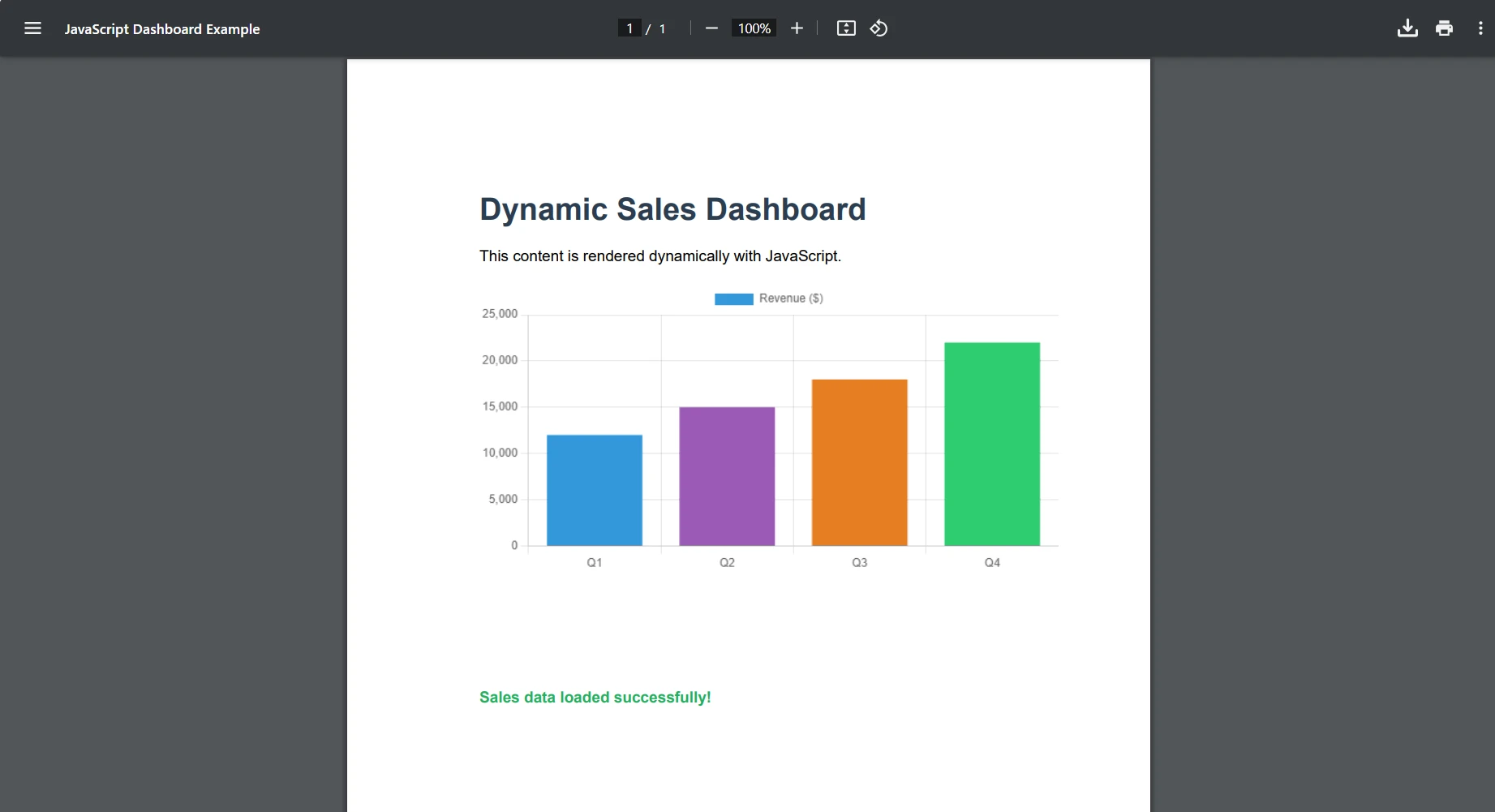
pdf.SaveAs("javascript-example.pdf")EnableJavaScript를 활성화하고 짧은 RenderDelay을 추가하면 ChromePdfRenderer이 차트 및 애니메이션과 같은 동적 스크립트가 실행을 완료할 때까지 기다렸다가 PDF를 캡처합니다. IronPDF는 모든 현대 JavaScript 프레임워크 및 라이브러리를 지원합니다. 귀하의 애플리케이션이 React, Angular, Vue.js, 또는 기본 JavaScript를 사용할 때, Chrome 렌더링 엔진은 표준 브라우저에서와 동일한 실행을 수행합니다.
문서에 어떤 고급 PDF 기능을 추가할 수 있습니까?
IronPDF는 기본 PDF를 전문적이고 안전하며 대화형 문서로 변환하는 정교한 기능을 제공합니다. 다음 표는 가장 일반적으로 사용되는 기능을 요약한 것입니다:
| 특징 | 설명 | 안내서 |
|---|---|---|
| 워터마크 | 브랜딩 및 규정을 위한 텍스트 또는 이미지 워터마크 추가 | 워터마크 안내서 |
| 디지털 서명 | X.509 인증서로 PDF에 서명하여 진정성을 확인하세요 | 서명 안내서 |
| 머리글과 바닥글 | 일관된 머리글, 바닥글 및 페이지 번호 삽입 | 머리글 안내서 |
| PDF 양식 | 대화형 양식 필드를 생성 및 채우기 | 양식 가이드 |
| 병합 및 분할 | 여러 PDF를 결합하거나 페이지 제어를 통해 큰 파일을 분할하세요 | 병합/분할 안내서 |
| PDF를 이미지로 변환 | 미리보기를 위해 PDF 페이지를 고품질 이미지로 렌더링 | PDF를 이미지로 변환하는 가이드 |
| 텍스트 추출 | 기존 PDF 문서에서 텍스트 콘텐츠 추출 | 텍스트 추출 안내서 |
이러한 각 기능은 일관된 API를 통해 제공되어, 워터마크, 서명 또는 양식 필드를 추가하는 작업이 기본 PDF 생성에서 이미 알고 있는 코딩 패턴을 따릅니다. IronPDF 기능 페이지는 사용 가능한 기능의 전체 목록을 제공합니다.
다양한 플랫폼에서 IronPDF를 어떻게 사용합니까?
IronPDF의 범용성은 단순히 C# 및 .NET을 넘어 확장되어, 다양한 기술 스택을 가진 조직에 실용적인 솔루션을 제공합니다.
IronPDF는 어떤 .NET 플랫폼을 지원합니까?
IronPDF는 Microsoft의 .NET 문서에 정의된 모든 최신 .NET 플랫폼에서 실행됩니다:
- .NET Framework 4.6.2 이상
- .NET Core 2.0 이상
- .NET Standard 2.0 이상
- .NET 5, 6, 7, 8, 9, 그리고 10
기존 .NET Framework 애플리케이션을 유지 관리하거나, 최신 .NET 10 마이크로서비스를 구축하거나, 최대 호환성을 위해 .NET Standard를 목표로 하든, IronPDF는 모든 곳에서 동일한 API를 사용합니다. 코드를 변경하지 않고 Windows, Linux, macOS, Docker 컨테이너 또는 클라우드 플랫폼에 배포하십시오.
어떤 프로그래밍 언어로 IronPDF를 사용할 수 있습니까?
IronPDF는 여러 프로그래밍 언어에서 사용할 수 있습니다:
- IronPDF Java용: .NET 버전과의 완전한 기능 동등성
- IronPDF Python용: 데이터 과학 및 웹 애플리케이션을 위한 파이써닉 API
- IronPDF Node.js용: 서버 측 PDF 생성을 위한 JavaScript 친화적 인터페이스
- VB.NET 및 F#: .NET 생태계 내에서의 일급 지원
각 언어 버전은 동일한 고품질 Chrome 렌더링 엔진과 전체 기능 세트를 유지하여 구현 언어에 관계없이 일관된 PDF 출력을 보장합니다. PDF Association에 의해 게시된 PDF 사양은 IronPDF가 최대 호환성을 위해 목표로 하는 형식 표준을 정의합니다.
도움말과 문서를 어디에서 찾을 수 있습니까?
IronPDF의 직관적인 API를 사용하더라도 가끔은 지원이 필요할 수 있습니다. Iron Software는 귀하의 성공을 보장하기 위해 광범위한 리소스를 제공합니다.
공식 문서를 어디에서 찾을 수 있습니까?
공식 문서는 IronPDF의 모든 측면을 다룹니다, 기본 HTML에서 PDF 변환부터 디지털 서명 및 양식 생성과 같은 고급 기능까지. 각 기능에는 작동하는 코드 예제, 자세한 설명, 모범 사례가 포함되어 있습니다. 특정 시나리오의 경우, 사용법 문서가 일반적인 작업에 대한 단계별 지침을 제공합니다.
어떤 지원 옵션이 있나요?
문제가 발생하면, 다음 지원 채널을 이용할 수 있습니다:
- 24/7 실시간 채팅: 라이브러리에 익숙한 엔지니어로부터 즉각적인 지원을 받으세요
- 이메일 지원: 복잡한 기술적 질문에 대한 상세한 답변
- GitHub 이슈: 버그를 보고하고 기능을 요청하여 직접 개발팀과 소통
엔지니어링 팀은 IronPDF를 매일 사용하는 개발자로 구성되어 있어 실용적이고 실행 가능한 솔루션을 제공합니다.
라이센싱 및 가격 옵션은 무엇인가요?
IronPDF 투명하고 개발자 친화적인 라이선스를 제공합니다.
- 개발용 무료: 전체 기능을 테스트 및 개발에 사용 가능하며 무료 체험판 라이센스 포함
- 프로덕션 라이센스: 숨겨진 비용 없는 간단한 가격 설정 -- 라이센스 페이지 참조
- 로열티 프리 재배포: 추가 비용 없이 애플리케이션을 배포하세요
- 1년 지원 및 업데이트: 모든 라이센스는 완전한 지원 포함
올바른 .NET용 PDF 라이브러리를 선택하는 방법은?
IronPDF는 .NET에서 PDF 생성 문제를 간단한 과정으로 변화시킵니다. Chrome 기반 렌더링 엔진을 통해 HTML 소스와 동일하게 보이는 픽셀 완벽한 PDF를 얻을 수 있습니다. 직관적인 API 덕분에 첫 번째 PDF를 몇 시간 만에 아니라 몇 분 만에 생성할 수 있습니다.
PDF 라이브러리를 평가할 때 다음 요소를 고려하세요:
- 렌더링 충실도: IronPDF는 실제 Chrome 엔진을 사용하여 CSS와 JavaScript를 올바르게 처리하여 우회 방법 없이 작동
- 플랫폼 지원: Windows, Linux, macOS 및 Docker 컨테이너에서 동일한 코드 실행
- API 일관성: 단일 API가 HTML 문자열, URL, 로컬 파일 및 PDF를 이미지로 변환하고 텍스트 추출과 같은 고급 작업을 다룹니다.
- 문서 및 예제: IronPDF 문서에는 수백 가지 시나리오에 대한 작동 코드 샘플이 포함되어 있습니다
청구 시스템, 보고서 생성기, 문서 아카이브 혹은 PDF 출력이 필요한 모든 애플리케이션을 구축하든, IronPDF는 필요한 도구를 제공합니다. 라이브러리가 PDF 생성 요구 사항을 어떻게 처리하는지 직접 경험하기 위해 무료 체험판 라이센스로 시작하세요.
자주 묻는 질문
C#으로 PDF를 어떻게 만들 수 있나요?
IronPDF 라이브러리를 사용하여 C#으로 PDF를 만들 수 있으며, HTML 콘텐츠를 몇 줄의 코드로 PDF 문서로 변환할 수 있습니다.
PDF 생성을 위해 IronPDF를 사용하는 이점은 무엇입니까?
IronPDF는 복잡한 API를 배우거나 JavaScript 호환성 문제를 겪지 않고도 HTML 콘텐츠의 픽셀 완벽한 렌더링을 보장하는 간소화된 PDF 생성 방법을 제공합니다.
IronPDF를 .NET 프로젝트에 쉽게 통합할 수 있나요?
예, IronPDF는 .NET 프로젝트에 쉽게 통합되도록 설계되어 개발자가 깨끗하고 전문적인 PDF를 쉽게 생성할 수 있습니다.
IronPDF는 HTML에서 PDF로 변환을 지원하나요?
IronPDF는 HTML 콘텐츠를 PDF로 원활하게 변환할 수 있으며, 개발자가 PDF 형식으로 원래 콘텐츠의 무결성과 레이아웃을 유지할 수 있도록 합니다.
IronPDF는 복잡한 HTML 콘텐츠도 처리할 수 있나요?
IronPDF는 복잡한 HTML 콘텐츠를 처리할 수 있으며 생성된 PDF 문서의 소스 자료를 정확하게 복제할 수 있습니다.
IronPDF 사용 시 렌더링 문제가 있나요?
IronPDF는 렌더링 문제를 방지하도록 설계되어 원래 HTML 콘텐츠와 정확히 일치하는 PDF를 생성하기 위한 신뢰할 수 있는 솔루션을 제공합니다.
다른 PDF 라이브러리보다 IronPDF를 선택하는 이유는 무엇입니까?
IronPDF는 최소한의 코드 요구 사항으로 사용이 용이하며 복잡한 API를 다루거나 렌더링 문제 해결이 필요 없도록 하여 개발자에게 이상적인 선택을 제공합니다.
IronPDF와 호환되는 프로그래밍 언어는 무엇인가요?
IronPDF는 C#과 호환되며 다양한 .NET 애플리케이션에서 사용할 수 있으므로 PDF 생성에 유용한 도구입니다.
IronPDF는 전문적인 PDF 문서 생성을 적합하게 할 수 있나요?
예, IronPDF는 전문적인 PDF 문서를 생성하기에 적합하며, 깨끗하고 소스 콘텐츠를 정확하게 반영합니다.
IronPDF를 사용하여 HTML을 PDF로 변환하기 위해 몇 줄의 코드가 필요하나요?
IronPDF를 사용하면 C# 코드 단 세 줄로 HTML을 PDF로 변환할 수 있으므로 이 과정은 빠르고 효율적입니다.
.NET 10 지원: IronPDF는 .NET 10과 완벽히 호환되나요?
예, IronPDF는 .NET 10과 완벽히 호환됩니다 — 이는 동일한 API를 .NET Framework, .NET Core, .NET 5-9 및 .NET 10 전반에서 사용하여 코드를 변경하지 않고도 Windows, Linux, macOS 및 클라우드 플랫폼에 배포할 수 있습니다.







 무료로 시작하세요
 무료로 시작하세요
 무료 라이브 데모 예약하기





 신용카드나 계정 생성은 필요하지 않습니다.










