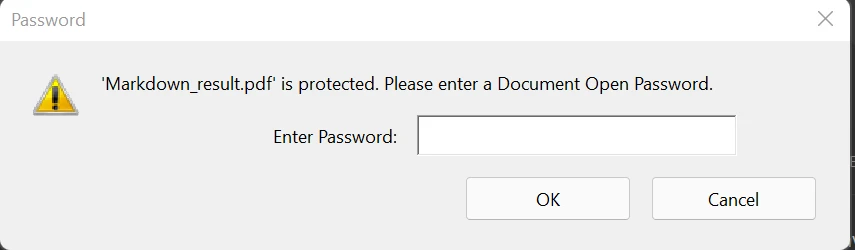
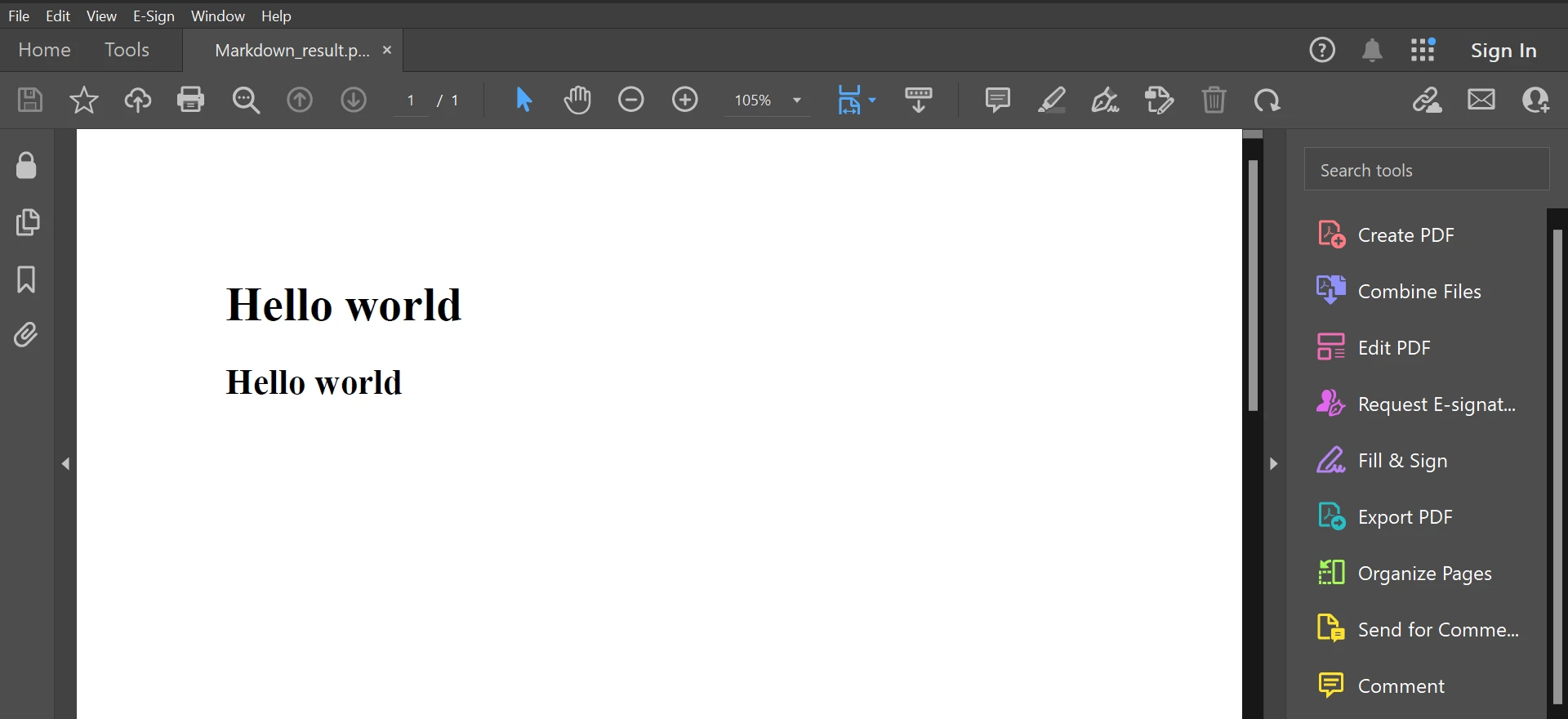
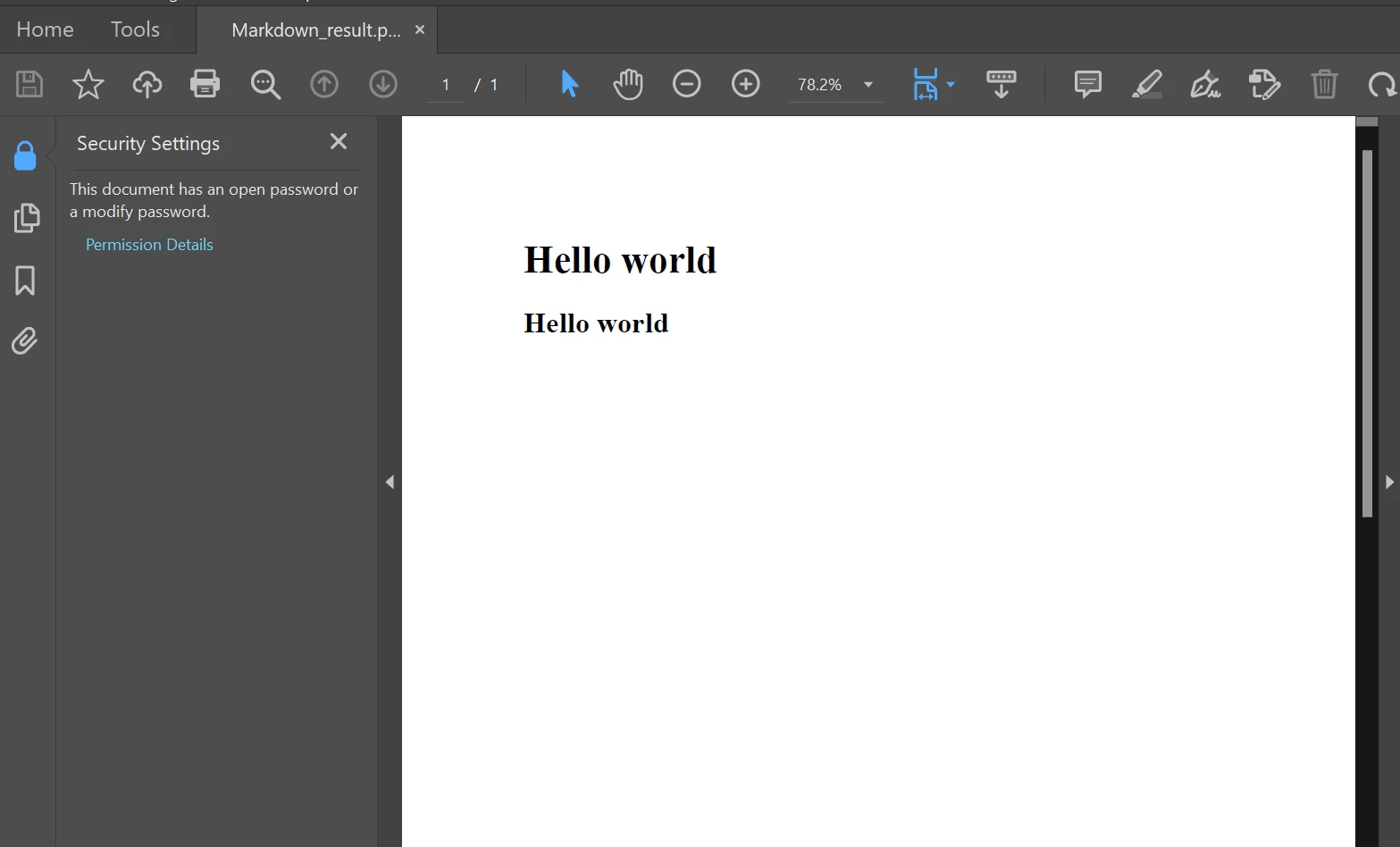
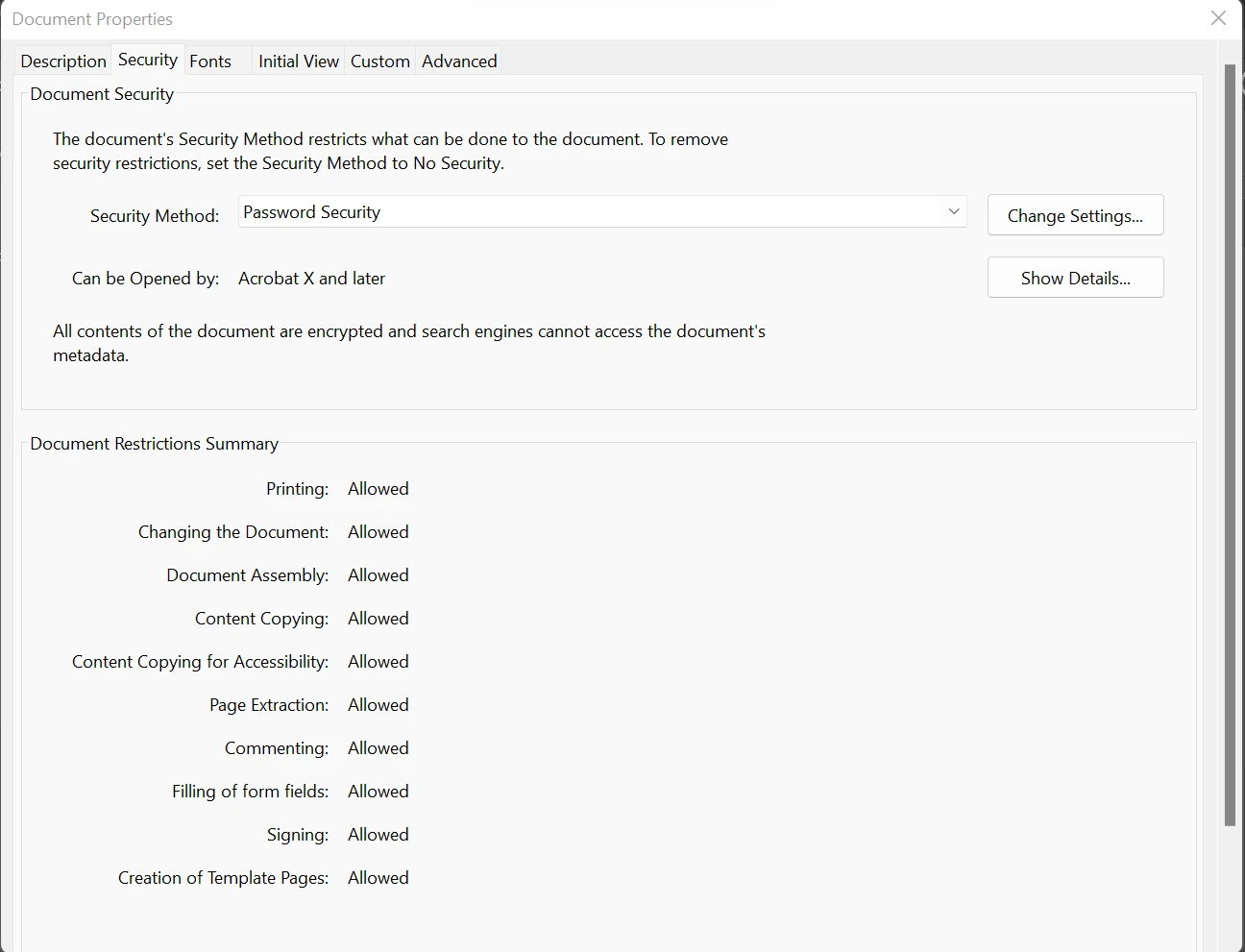
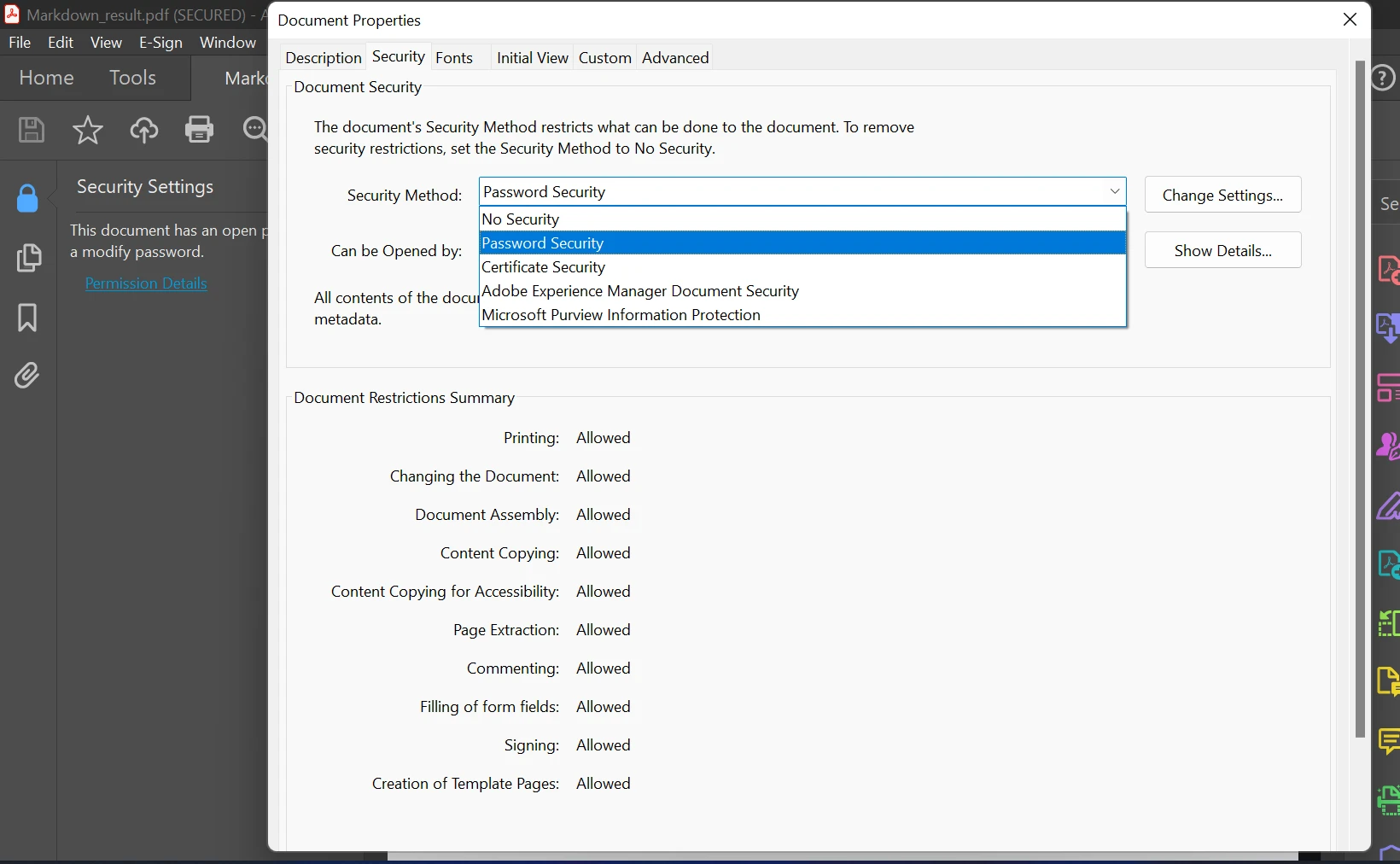
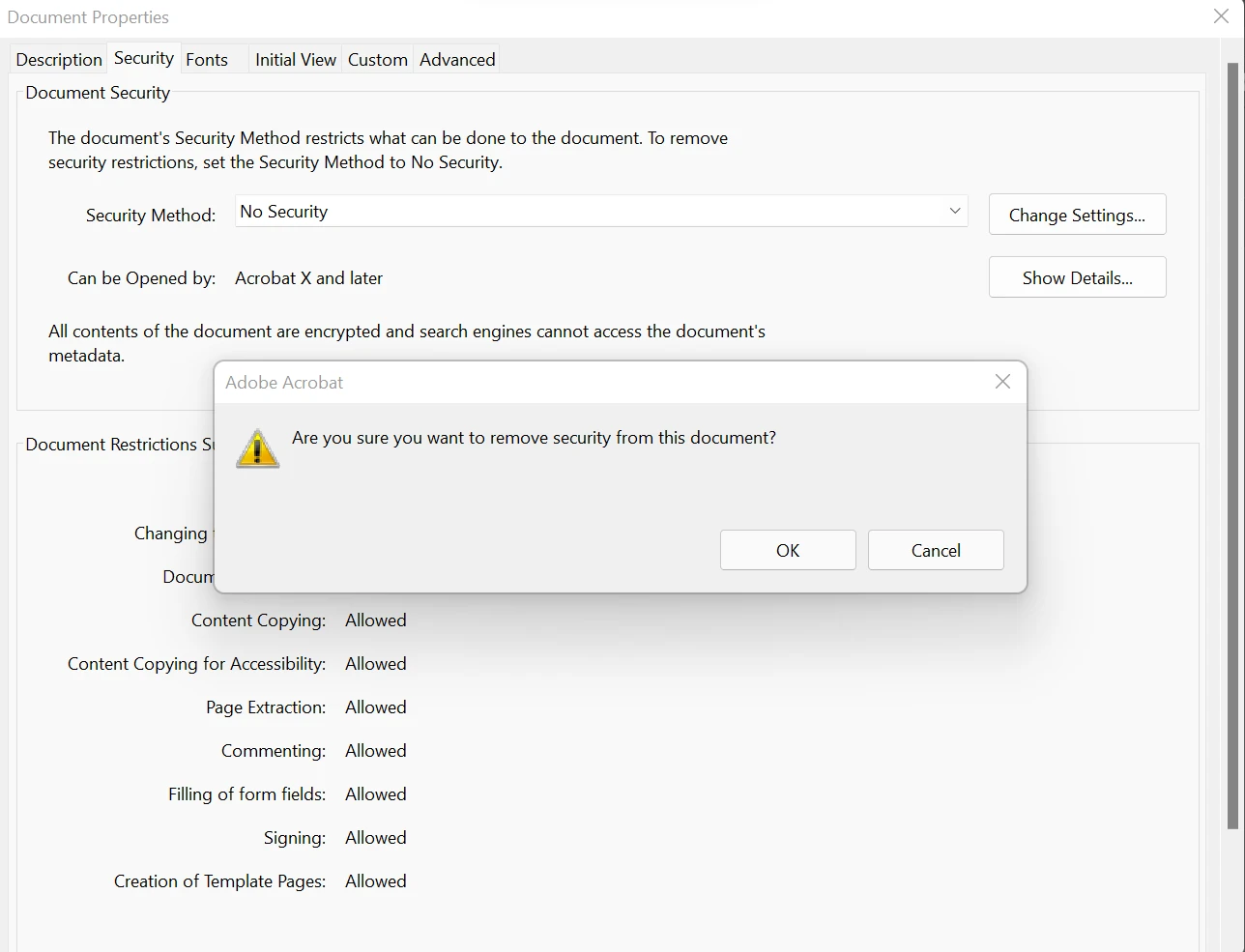
IRONPDF 사용 How to Unsecure a PDF (Beginner Tutorial) 커티스 차우 업데이트됨:6월 20, 2025 다운로드 IronPDF NuGet 다운로드 DLL 다운로드 윈도우 설치 프로그램 무료 체험 시작하기 LLM용 사본 LLM용 사본 LLM용 마크다운 형식으로 페이지를 복사하세요 ChatGPT에서 열기 ChatGPT에 이 페이지에 대해 문의하세요 제미니에서 열기 제미니에게 이 페이지에 대해 문의하세요 Grok에서 열기 Grok에게 이 페이지에 대해 문의하세요 혼란 속에서 열기 Perplexity에게 이 페이지에 대해 문의하세요 공유하다 페이스북에 공유하기 트위터에 공유하기 LinkedIn에 공유하기 URL 복사 이메일로 기사 보내기 This post will evaluate the tools required to quickly unlock PDF files. Please note that this post simply aims to make it easier for you to access PDF files before explaining how to remove passwords and open the original secured PDF file. Remove Password Protection using Adobe Acrobat Pro DC One of the more well-known solutions on the market for PDF files is Adobe Acrobat. You can browse, modify, and even generate new PDF files with Adobe Acrobat DC. Android, Windows, and Mac devices can all use this program. On all systems, files can be accessed. Impressive capabilities in Adobe Acrobat make it possible for only people to create PDF documents that are output in their finished, polished state. Adobe Reader is quite effective and can swiftly remove passwords from secured PDF document files in addition to the many editing tools it has. The software tool Adobe can convert a secured PDF to an unsecured PDF easily. This makes it a unique find because Adobe Acrobat is the only tool of its kind available today. Let's look at how Adobe Acrobat can be used to remove secured PDF file passwords. STEP 1 Click on the required PDF file to open it. If the document has a password, a dialog will appear requesting the password. Enter the document password in the password dialog. Password Dialog If you enter the correct password, it will open a new file like the image below. Opened Secured File STEP 2 Click the padlock symbol. It is the icon located below the "Home" option on the left side of the screen. Lock STEP 3 Click on "Permission Details." The "Security Settings" window will appear. Security Settings STEP 4 Click on the "Security Method" box. An option called "Password Security" will appear. Password Security STEP 5 Choose "No Security" from the drop-down menu. No Security STEP 6 If prompted to enter the password again, enter it once more. After entering the password for the PDF, click "OK" twice. Your PDF won't have a password lock on it anymore, as long as your password was entered correctly. Click the floppy disk-shaped symbol at the top of the screen to save the PDF. Alternatively, you can select "File," then "Save" or "Save As." To learn more about Adobe Acrobat, visit the Adobe Acrobat official website. IronPDF IronPDF is a powerful PDF converter and API framework for PDF editing and processing, designed to make it simple for developers to swiftly produce, read, and edit PDF documents. The IronPDF .NET package converts HTML to PDF using the Chrome engine and supports Xamarin, Blazor, Unity, HoloLens apps, Windows Forms, HTML, ASPX, Razor HTML, .NET Core, ASP.NET, and WPF, among all the restrictions and several web components that the library supports. Both ASP.NET online applications and traditional Windows Applications can use Microsoft .NET and .NET Core programs. IronPDF enables the creation of visually appealing PDFs with a header and footer using HTML5, JavaScript, CSS, and pictures. The API library also contains a powerful HTML-to-PDF converter that works well with PDF, as well as a standalone PDF conversion engine that is independent of any outside sources. The IronPDF library supports a variety of inputs for the production of PDFs, including image files, HTML, HTML5, ASPX, and Razor/MVC View. It offers tools for creating interactive PDF files, completing and submitting interactive forms, splitting PDF files, extracting text and images, searching for text, and rasterizing PDF pages to images. In addition to using user-agents, proxies, cookies, HTTP headers, and form variables for authentication behind HTML login forms, the library also offers the use of links as the foundation for PDF documents. IronPDF offers both secured and unsecured PDF creation. The IronPDF PDF library allows users to read and edit existing PDF documents, extract images from PDF files, add text, graphics, bookmarks, watermarks, headers, and footers to PDF files, split and combine pages in a new or current PDF document, and create PDF objects from text without requiring Acrobat Reader. Both CSS media files and CSS files can be converted into PDF documents. Users of IronPDF can edit existing PDF forms and upload new ones. Remove Password Protection using IronPDF IronPDF can remove the security settings of PDF files with just a few lines of code. The sample code below demonstrates how to remove password protection from a PDF file. using IronPdf; // Load the PDF document from file, specifying the password PdfDocument pdf = PdfDocument.FromFile("resilt.pdf", "*****"); // Remove passwords and encryption from the PDF document pdf.SecuritySettings.RemovePasswordsAndEncryption(); // Save the unsecured PDF to a new file pdf.SaveAs("result.pdf"); using IronPdf; // Load the PDF document from file, specifying the password PdfDocument pdf = PdfDocument.FromFile("resilt.pdf", "*****"); // Remove passwords and encryption from the PDF document pdf.SecuritySettings.RemovePasswordsAndEncryption(); // Save the unsecured PDF to a new file pdf.SaveAs("result.pdf"); $vbLabelText $csharpLabel This code snippet demonstrates: Using Namespaces: The IronPDF namespace is included to utilize its classes and methods. Loading a PDF: The PdfDocument.FromFile method loads the PDF file specified by the file path. The second parameter allows for specifying a password if the document is secured. Removing Security: The RemovePasswordsAndEncryption method is called on pdf.SecuritySettings to strip the PDF of any passwords and encryption. Saving the Modified PDF: Finally, the modified PDF is saved to a new file using the SaveAs method. For more tutorials, please visit the IronPDF tutorial examples. Conclusion In conclusion, this tutorial allows us to learn that Adobe Acrobat can be expensive as an active subscription is required to use its password feature. On the other hand, the IronPDF library provides a free license for development and offers a range of licenses for purchase to suit the developer's needs. The Lite package, which costs $799 upfront, has no ongoing expenses and comes with a perpetual license, a free trial of IronPDF, a year of product support, upgrades, and options for SaaS and OEM redistribution. These licenses can be used for production, staging, and development and are one-time investments. Additionally, IronPDF offers extra time-limited free licenses and free licenses that prevent redistribution. For a complete overview of IronPDF's pricing and licensing details, please visit the IronPDF licensing page. 자주 묻는 질문 C#을 사용하여 PDF에서 비밀번호를 제거하려면 어떻게 해야 하나요? IronPDF를 사용하여 C#으로 된 PDF에서 비밀번호를 제거할 수 있습니다. IronPDF의 라이브러리를 사용하여 PDF 문서를 로드하고 몇 줄의 C# 코드로 비밀번호 보호를 제거한 다음 보안되지 않은 PDF를 저장합니다. IronPDF로 PDF의 보안을 해제하는 단계는 무엇인가요? IronPDF로 PDF의 보안을 해제하려면 먼저 IronPDF의 라이브러리를 사용하여 보안 PDF 문서를 로드한 다음 코드를 사용하여 암호 보호를 제거하고 마지막으로 문서를 보안 해제된 PDF 파일로 저장합니다. PDF 파일의 잠금을 해제하는 비용 효율적인 방법은 무엇인가요? IronPDF를 사용하면 PDF 파일의 잠금을 해제할 수 있는 비용 효율적인 방법입니다. 구독할 필요 없이 무료 개발 라이선스와 일회성 구매 옵션을 제공하며, C# 코드로 간단한 프로세스를 제공합니다. IronPDF로 기존 PDF 문서를 편집할 수 있나요? 예, IronPDF를 사용하면 기존 PDF 문서를 편집할 수 있습니다. 텍스트, 그래픽, 워터마크, 머리글 및 바닥글을 추가하여 PDF를 읽고, 수정하고, 조작할 수 있습니다. IronPDF는 PDF 생성을 위해 어떤 파일 형식을 처리할 수 있나요? IronPDF는 이미지 파일, HTML, HTML5, ASPX, Razor/MVC View 등 PDF 생성을 위한 다양한 입력 형식을 지원합니다. IronPDF를 사용하려면 정기 결제가 필요한가요? 아니요, IronPDF는 반복 결제가 필요하지 않습니다. 일회성 결제 옵션과 무료 개발 라이선스가 포함된 영구 라이선스를 제공합니다. Adobe Acrobat Pro DC보다 IronPDF를 사용하면 어떤 이점이 있나요? IronPDF는 구독이 필요하지 않으므로 Adobe Acrobat Pro DC를 대체할 수 있는 비용 효율적인 대안입니다. 무료 개발 라이선스와 반복 비용이 없는 일회성 구매 옵션을 제공합니다. IronPDF 사용에 대한 자세한 내용은 어디에서 확인할 수 있나요? IronPDF 웹사이트의 튜토리얼 예제 페이지를 방문하면 IronPDF 사용에 대한 더 많은 튜토리얼을 찾을 수 있습니다. IronPDF는 보안 해제 PDF를 포함하여 곧 출시될 .NET 10 릴리스와 완벽하게 호환되나요? 예 - IronPDF는 이미 .NET 10을 준수하며 모든 최신 런타임 버전을 지원합니다. 추가 해결 방법 없이 .NET 10 프로젝트에서 보안되지 않은 PDF를 로드하고, 암호/암호화를 제거하고, 저장할 수 있습니다. (ironpdf.com) IronPDF를 사용하여 .NET 10 프로젝트의 PDF에서 비밀번호 보호를 제거하려면 어떻게 해야 하나요? .NET 10 프로젝트에서는 IronPDF의 최신 버전(.NET 10`을 지원하는)을 참조하여 암호 보호를 제거할 수 있습니다. 커티스 차우 지금 바로 엔지니어링 팀과 채팅하세요 기술 문서 작성자 커티스 차우는 칼턴 대학교에서 컴퓨터 과학 학사 학위를 취득했으며, Node.js, TypeScript, JavaScript, React를 전문으로 하는 프론트엔드 개발자입니다. 직관적이고 미적으로 뛰어난 사용자 인터페이스를 만드는 데 열정을 가진 그는 최신 프레임워크를 활용하고, 잘 구성되고 시각적으로 매력적인 매뉴얼을 제작하는 것을 즐깁니다. 커티스는 개발 분야 외에도 사물 인터넷(IoT)에 깊은 관심을 가지고 있으며, 하드웨어와 소프트웨어를 통합하는 혁신적인 방법을 연구합니다. 여가 시간에는 게임을 즐기거나 디스코드 봇을 만들면서 기술에 대한 애정과 창의성을 결합합니다. 관련 기사 업데이트됨 1월 22, 2026 How to Create PDF Documents in .NET with IronPDF: Complete Guide Discover effective methods to create PDF files in C# for developers. Enhance your coding skills and streamline your projects. Read the article now! 더 읽어보기 업데이트됨 1월 21, 2026 How to Merge PDF Files in VB.NET: Complete Tutorial Merge PDF VB NET with IronPDF. Learn to combine multiple PDF files into one document using simple VB.NET code. Step-by-step examples included. 더 읽어보기 업데이트됨 1월 21, 2026 C# PDFWriter Tutorial: Create PDF Documents in .NET Learn to create PDFs efficiently using C# PDFWriter with this step-by-step guide for developers. Read the article to enhance your skills today! 더 읽어보기 How to Display PDF From Byte Array in BlazorHow to Parse PDF File in VB.NET

업데이트됨 1월 22, 2026 How to Create PDF Documents in .NET with IronPDF: Complete Guide Discover effective methods to create PDF files in C# for developers. Enhance your coding skills and streamline your projects. Read the article now! 더 읽어보기
업데이트됨 1월 21, 2026 How to Merge PDF Files in VB.NET: Complete Tutorial Merge PDF VB NET with IronPDF. Learn to combine multiple PDF files into one document using simple VB.NET code. Step-by-step examples included. 더 읽어보기
업데이트됨 1월 21, 2026 C# PDFWriter Tutorial: Create PDF Documents in .NET Learn to create PDFs efficiently using C# PDFWriter with this step-by-step guide for developers. Read the article to enhance your skills today! 더 읽어보기