




업데이트됨 2026년 5월 8일
월별 계정 명세서를 PDF 문서로 생성하기
개발자는 IronPDF C# PDF 라이브러리를 사용하여 외부 서비스에 의존하지 않고도 .NET 프로젝트 내에서 HTML을 신뢰할 수 있는 PDF 파일로 변환할 수 있습니다.
더 읽어보기

IronPDF는 Chrome 기반의 렌더링 엔진을 제공하여 HTML, CSS 및 JavaScript를 .NET Core 애플리케이션에서 PDF 문서로 변환하고, 간단한 NuGet 설치로 Windows, Linux 및 Docker 컨테이너에서 크로스 플랫폼 배포를 지원합니다.
.NET Core 애플리케이션에서 PDF 문서를 작성하려면 HTML 콘텐츠를 처리하고, 서식을 유지하며, 크로스 플랫폼 배포를 지원하는 PDF 라이브러리가 필요합니다. ASP.NET Core 웹 API 또는 콘솔 애플리케이션을 개발하는 경우, 강력한 .NET Core PDF 생성기는 다양한 소스로부터 문서를 생성하는 전체 과정을 간소화합니다. 이는 엄청난 시간 절약을 제공합니다.
무료 체험판을 시작하고, 개발자들이 왜 IronPDF를 생명 필수적인 PDF 생성의 프로덕션 환경에서 선택하는지 확인하십시오.
IronPDF는 포괄적인 .NET Core PDF 라이브러리로 두드러집니다. 이를 통해 Chrome 렌더링 엔진을 사용하여 픽셀 단위로 정확한 PDF 문서를 생성합니다. 이 접근 방식은 복잡한 PDF API를 배우거나 레이아웃 문제로 고군분투할 필요가 없음을 의미합니다; 기존 HTML 및 CSS 기술을 활용하여 PDF 파일을 생성할 수 있습니다. 라이브러리의 풍부한 문서 및 코드 예제는 구현을 쉽게 만들어 줍니다.
IronPDF는 전통적으로 복잡한 PDF 생성 작업을 모든 .NET 개발자가 구현할 수 있는 간단한 코드로 변환합니다. 라이브러리는 HTML 문자열, 파일 또는 URL을 직접 PDF 형식으로 변환하기 위해 ChromePdfRenderer 클래스를 사용합니다. 이 유연한 API 접근 방식은 다양한 플랫폼에서 높은 성능을 유지하면서 광범위한 사용자 지정 옵션을 제공합니다.
진정한 힘은 IronPDF가 HTML 콘텐츠를 전문적인 PDF 파일로 변환하는 방식을 다루는 데 있습니다. 요소를 수동으로 배치하거나 그릴 필요가 없으며, 개발자는 CSS 스타일링이 포함된 표준 HTML을 작성하고, 라이브러리가 변환을 매끄럽게 처리합니다. 출력된 PDF 파일은 단순한 텍스트 이미지가 아닙니다; 사용자가 텍스트를 선택하고 검색할 수 있는 완전한 기능의 문서입니다. 컨테이너화된 배포에서는 공통 문제인 폰트 관리 및 UTF-8 문자 인코딩을 제거하여 Docker 환경에 대한 중요한 고려 사항입니다.
기본적인 PDF 생성 외에도 IronPDF의 고급 편집 도구를 사용하여 PDF 문서를 편집할 수 있습니다. 이것들과 함께, 문서 병합, 워터마크 추가, 주석 추가 등이 가능합니다. 라이브러리는 문서 인증을 위한 디지털 서명과 네트워크 전송을 위한 파일 크기를 최적화하기 위한 PDF 압축을 지원합니다. 관련 튜토리얼을 확인하여 이러한 도구에 대한 보다 많은 예제 소스 코드를 확인하세요. DevOps 팀을 위해, 이러한 기능은 외부 의존성 없이 자동화된 문서 처리 워크플로우를 가능하게 합니다.
Visual Studio에서 IronPDF를 시작하려면 단 하나의 NuGet Install-Package만 필요합니다. NuGet 패키지 관리자 콘솔을 열고 '기본 프로젝트' 드롭다운에서 프로젝트 이름이 선택되어 있는지 확인한 다음, 다음 명령을 실행하십시오:
이 단일 NuGet 패키지는 .NET Core 애플리케이션에서 PDF 파일을 생성, 편집, 생성하는 데 필요한 모든 기능을 제공합니다. 설치는 프로젝트가 Windows, Linux, 및 Docker 환경에서 PDF 생성을 위해 자동으로 설정됩니다. .NET Framework 4.6.2+, .NET Core 3.1+, 및 .NET Standard 2.0+를 포함한 다양한 .NET 버전을 지원합니다. 컨테이너화된 배포의 경우, 패키지에는 크기가 최소화된 이미지에 최적화된 네이티브 종속성이 포함됩니다. IronPdf.Slim 변형은 엄격한 크기 제약이 있는 환경에서도 추가적인 배포 유연성을 제공합니다.
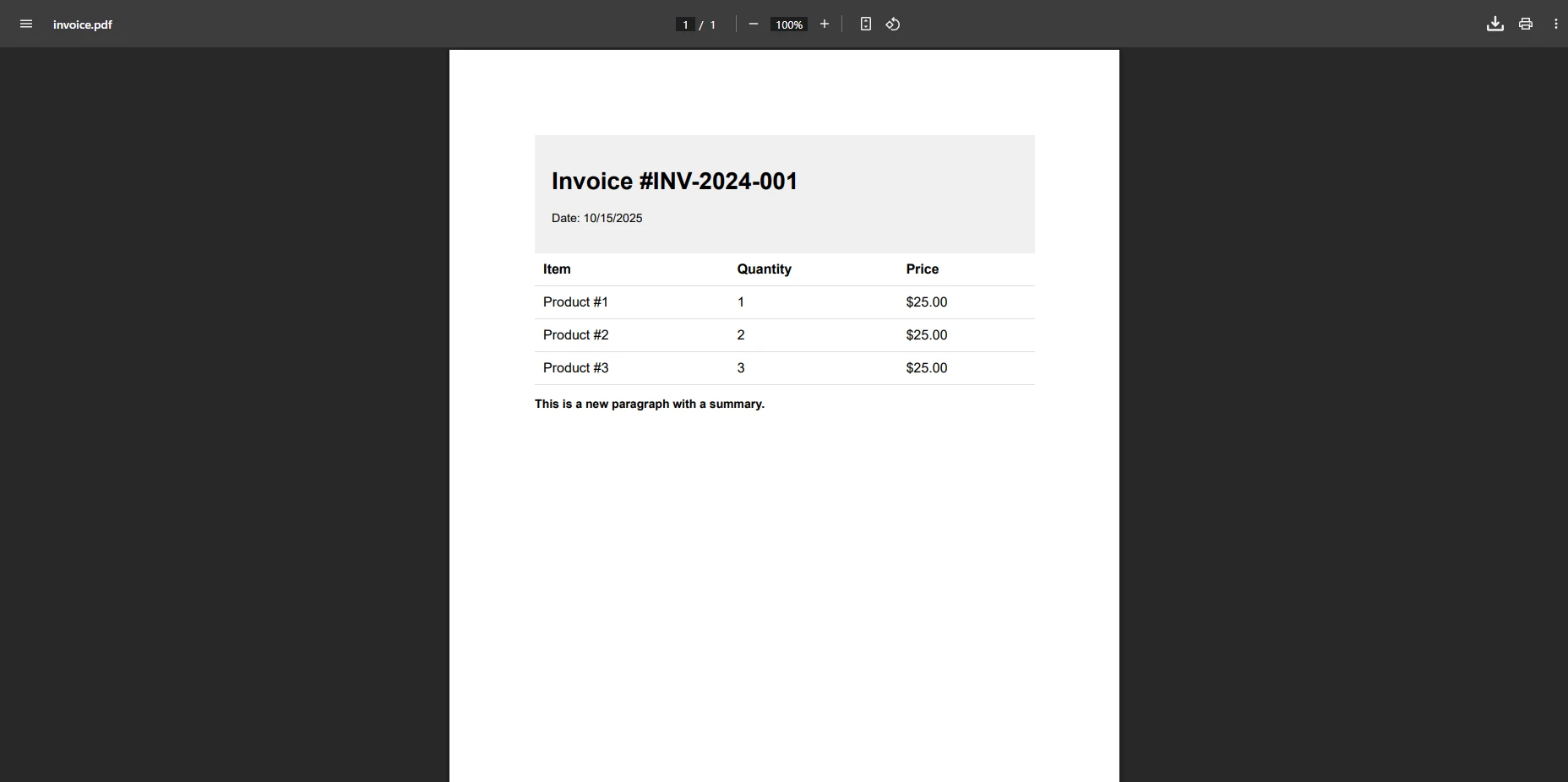
실제 인보이스 문서 예제를 사용하여 PDF 문서를 생성해 봅시다. 이는 HTML 콘텐츠에서 적절한 서식과 데이터 바인딩을 사용하여 PDF 파일을 생성하는 방법을 보여줍니다.
using IronPdf;
using System.IO;
using System.Text;
// Initialize the Chrome renderer
var renderer = new ChromePdfRenderer();
// Configure rendering options
renderer.RenderingOptions.MarginTop = 25;
renderer.RenderingOptions.MarginBottom = 25;
renderer.RenderingOptions.PaperSize = IronPdf.Rendering.PdfPaperSize.A4;
// Create HTML content for invoice
var htmlBuilder = new StringBuilder();
htmlBuilder.Append(@"
    <html>
    <head>
        <style>
            body { font-family: Arial, sans-serif; font-size: 14px; }
            .invoice-header { background: #f0f0f0; padding: 20px; }
            table { width: 100%; border-collapse: collapse; }
            th, td { padding: 10px; text-align: left; border-bottom: 1px solid #ddd; }
        </style>
    </head>
    <body>
        <div class='invoice-header'>
            <h1>Invoice #INV-2024-001</h1>
            <p>Date: " + DateTime.Now.ToString("MM/dd/yyyy") + @"</p>
        </div>
        <table>
            <tr><th>Item</th><th>Quantity</th><th>Price</th></tr>");
// Example of dynamically adding table rows with a for loop
for (int i = 0; i < 3; i++)
{
    htmlBuilder.Append($"<tr><td>Product #{i + 1}</td><td>{i + 1}</td><td>$25.00</td></tr>");
}
htmlBuilder.Append(@"
        </table>
        <p><strong>This is a new paragraph with a summary.</strong></p>
    </body>
    </html>");
// Generate PDF from HTML string
PdfDocument pdfObject = renderer.RenderHtmlAsPdf(htmlBuilder.ToString());
// Save the PDF file
pdfObject.SaveAs("invoice.pdf");Imports IronPdf
Imports System.IO
Imports System.Text
' Initialize the Chrome renderer
Dim renderer As New ChromePdfRenderer()
' Configure rendering options
renderer.RenderingOptions.MarginTop = 25
renderer.RenderingOptions.MarginBottom = 25
renderer.RenderingOptions.PaperSize = IronPdf.Rendering.PdfPaperSize.A4
' Create HTML content for invoice
Dim htmlBuilder As New StringBuilder()
htmlBuilder.Append("
<html>
<head>
<style>
body { font-family: Arial, sans-serif; font-size: 14px; }
.invoice-header { background: #f0f0f0; padding: 20px; }
table { width: 100%; border-collapse: collapse; }
th, td { padding: 10px; text-align: left; border-bottom: 1px solid #ddd; }
</style>
</head>
<body>
<div class='invoice-header'>
<h1>Invoice #INV-2024-001</h1>
<p>Date: " & DateTime.Now.ToString("MM/dd/yyyy") & "</p>
</div>
<table>
<tr><th>Item</th><th>Quantity</th><th>Price</th></tr>")
' Example of dynamically adding table rows with a for loop
For i As Integer = 0 To 2
htmlBuilder.Append($"<tr><td>Product #{i + 1}</td><td>{i + 1}</td><td>$25.00</td></tr>")
Next
htmlBuilder.Append("
</table>
<p><strong>This is a new paragraph with a summary.</strong></p>
</body>
</html>")
' Generate PDF from HTML string
Dim pdfObject As PdfDocument = renderer.RenderHtmlAsPdf(htmlBuilder.ToString())
' Save the PDF file
pdfObject.SaveAs("invoice.pdf")이 코드는 HTML 마크업과 동적 데이터를 결합하여 전문적인 인보이스 문서를 생성합니다. CSS에 사용자 지정 글꼴 크기를 추가하고, for 루프를 사용하여 동적으로 생성된 테이블 행을 포함시킨 방법을 주목하세요. 또한 새로운 문단 요소도 추가했습니다. RenderHtmlAsPdf 메서드는 생성된 파일에 대한 완전한 제어를 제공하는 PdfDocument 객체를 반환합니다. 보다 고급 HTML에서 PDF로의 시나리오를 위해 HTML에서 PDF로 튜토리얼을 탐색하세요. 렌더링 옵션은 여백, 종이 크기, 및 뷰포트 설정에 대한 광범위한 제어를 제공합니다.
아래 그림은 우리의 예제 인보이스가 완벽하게 PDF 문서 형식으로 렌더링된 모습을 보여줍니다.
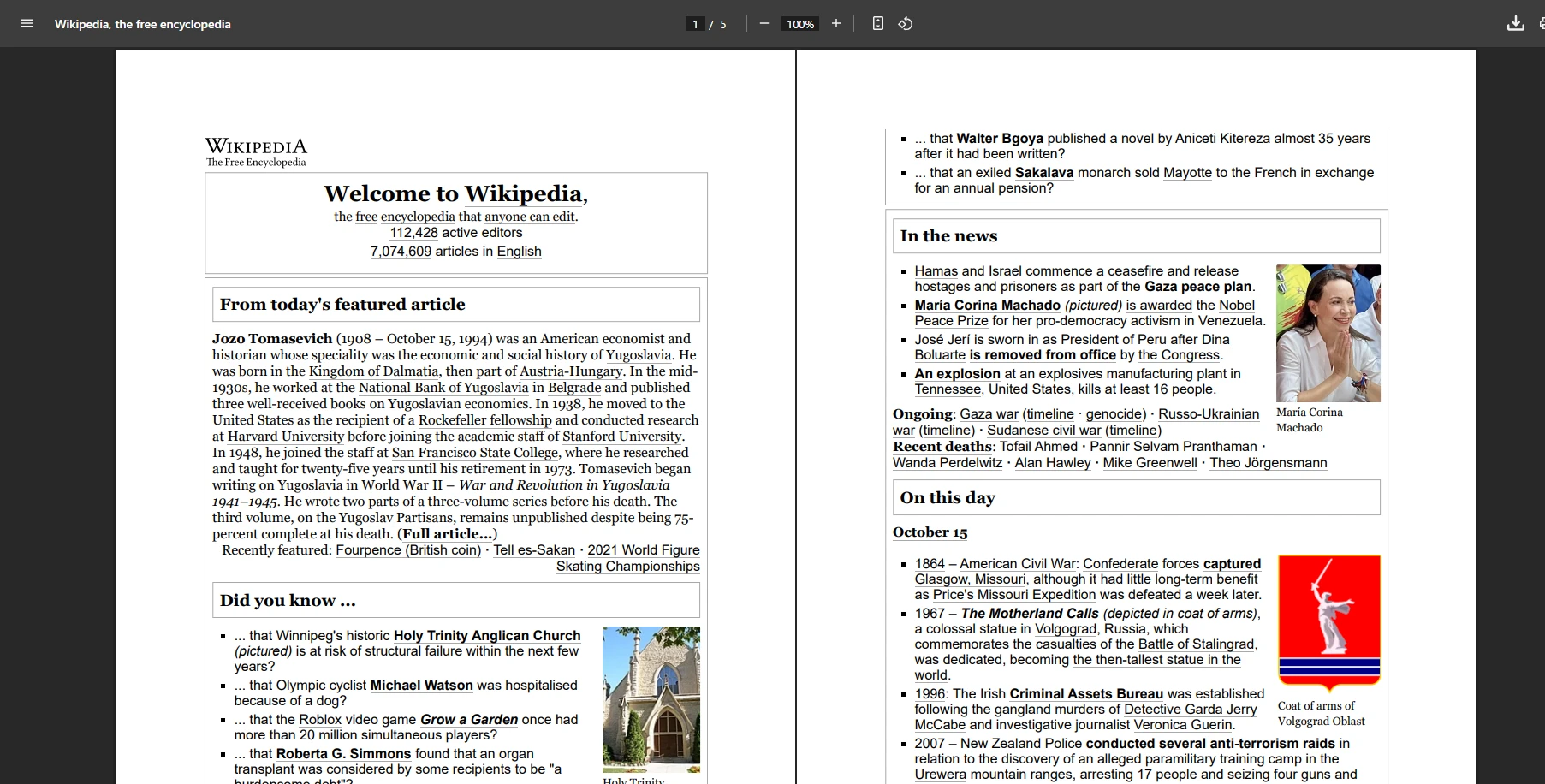
IronPDF는 기존 웹 페이지를 PDF 파일로 변환하는 데 뛰어납니다. 이 기능은 보고 대시보드나 웹 기반 양식에서 PDF 문서를 생성할 때 매우 유용합니다.
// Create a new ChromePdfRenderer instance
var renderer = new ChromePdfRenderer();
// Set custom page size and margins
renderer.RenderingOptions.PaperSize = IronPdf.Rendering.PdfPaperSize.A4;
renderer.RenderingOptions.PrintHtmlBackgrounds = true;
renderer.RenderingOptions.EnableJavaScript = true;
renderer.RenderingOptions.CssMediaType = IronPdf.Rendering.PdfCssMediaType.Print;
renderer.RenderingOptions.WaitFor.RenderDelay(1000);
// Convert a URL to PDF
PdfDocument pdfDocument = renderer.RenderUrlAsPdf("___PROTECTED_URL_51___");
// Save to file path
string filePath = Path.Combine(Directory.GetCurrentDirectory(), "webpage.pdf");
pdfDocument.SaveAs(filePath);
// For containerized environments, consider using environment variables
string outputPath = Environment.GetEnvironmentVariable("PDF_OUTPUT_PATH") ?? "/app/output";
pdfDocument.SaveAs(Path.Combine(outputPath, "webpage.pdf"));' Create a new ChromePdfRenderer instance
Dim renderer As New ChromePdfRenderer()
' Set custom page size and margins
renderer.RenderingOptions.PaperSize = IronPdf.Rendering.PdfPaperSize.A4
renderer.RenderingOptions.PrintHtmlBackgrounds = True
renderer.RenderingOptions.EnableJavaScript = True
renderer.RenderingOptions.CssMediaType = IronPdf.Rendering.PdfCssMediaType.Print
renderer.RenderingOptions.WaitFor.RenderDelay(1000)
' Convert a URL to PDF
Dim pdfDocument As PdfDocument = renderer.RenderUrlAsPdf("___PROTECTED_URL_51___")
' Save to file path
Dim filePath As String = Path.Combine(Directory.GetCurrentDirectory(), "webpage.pdf")
pdfDocument.SaveAs(filePath)
' For containerized environments, consider using environment variables
Dim outputPath As String = Environment.GetEnvironmentVariable("PDF_OUTPUT_PATH")
If String.IsNullOrEmpty(outputPath) Then
outputPath = "/app/output"
End If
pdfDocument.SaveAs(Path.Combine(outputPath, "webpage.pdf"))라이브러리는 JavaScript 실행을 처리하고 이미지 및 스타일시트 같은 외부 리소스를 로드하며 변환 중 반응형 레이아웃을 유지합니다. 이는 기존 웹 애플리케이션에서 보고서를 만드는 데 적합합니다. WaitFor 구성은 모든 동적 콘텐츠가 렌더링 전에 로드되도록 보장합니다. 인증이 필요한 사이트의 경우, IronPDF는 쿠키, HTTP 헤더, 및 TLS 웹 사이트 로그인을 지원합니다. 자세한 가이드에서 URL을 PDF로 변환하는 방법에 대해 더 알아보세요.
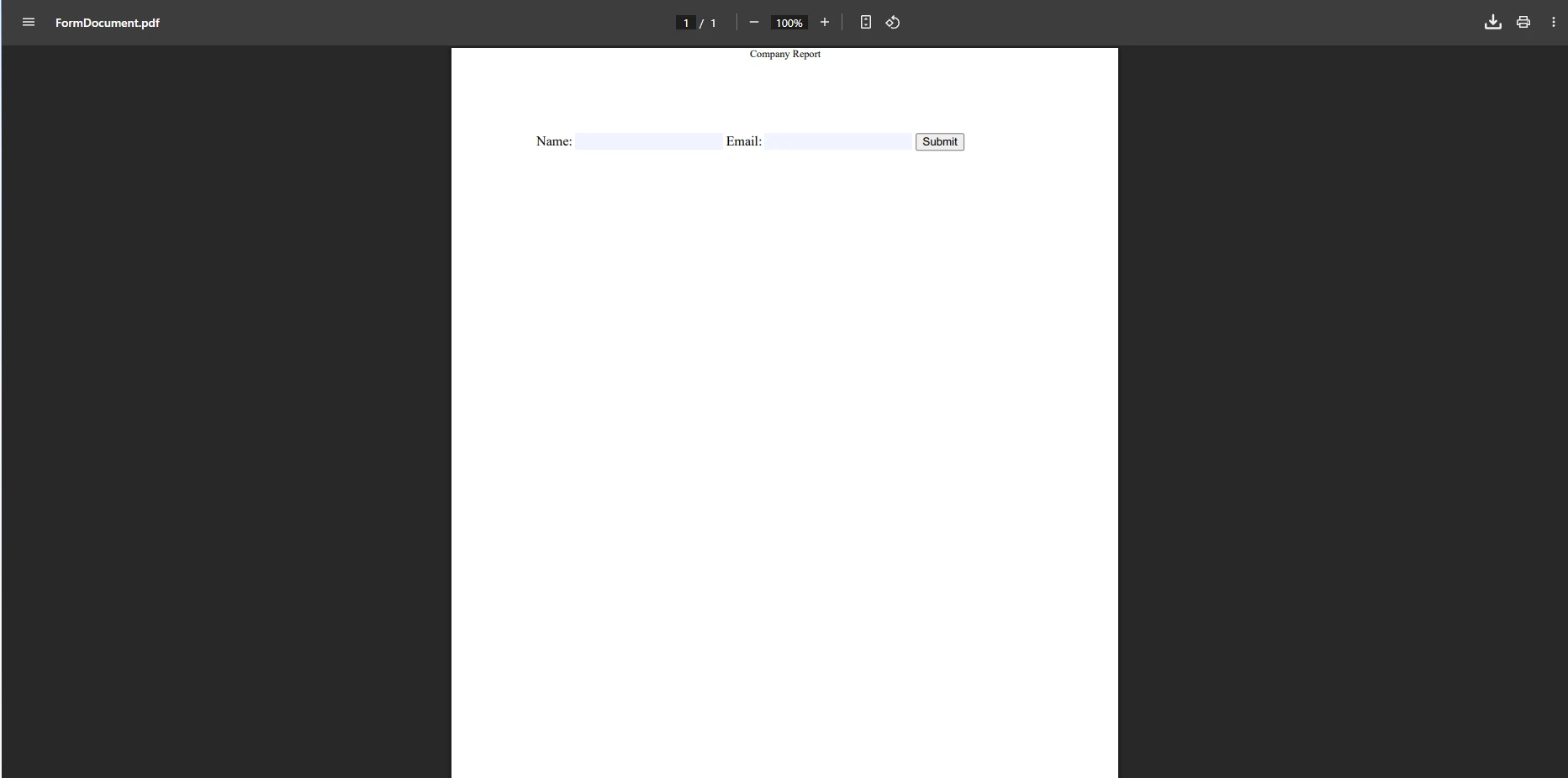
전문적 PDF 문서는 종종 기본 콘텐츠 이상의 추가 요소가 필요합니다. IronPDF는 머리글, 바닥글, 워터마크로 PDF 문서를 강화하는 방법을 제공합니다. 머리글 및 바닥글 API는 문서 프레젠테이션에 대한 완벽한 제어를 제공합니다:
// Create renderer with advanced options
var renderer = new ChromePdfRenderer();
// Add headers and footers
renderer.RenderingOptions.HtmlHeader = new HtmlHeaderFooter
{
    MaxHeight = 25,
    HtmlFragment = "<div style='text-align:center'>Company Report</div>"
};
renderer.RenderingOptions.HtmlFooter = new HtmlHeaderFooter
{
    MaxHeight = 25,
    HtmlFragment = "<div>Page {page} of {total-pages}</div>"
};
// Generate PDF with form fields
renderer.RenderingOptions.CreatePdfFormsFromHtml = true;
string formHtml = @"
    <form>
        <label>Name: <input type='text' name='name' /></label>
        <label>Email: <input type='email' name='email' /></label>
        <button type='submit'>Submit</button>
    </form>";
PdfDocument formDocument = renderer.RenderHtmlAsPdf(formHtml);
// Add metadata for document management systems
formDocument.MetaData.Author = "Automated System";
formDocument.MetaData.CreationDate = DateTime.Now;
formDocument.SaveAs("form-document.pdf");' Create renderer with advanced options
Dim renderer As New ChromePdfRenderer()
' Add headers and footers
renderer.RenderingOptions.HtmlHeader = New HtmlHeaderFooter With {
.MaxHeight = 25,
.HtmlFragment = "<div style='text-align:center'>Company Report</div>"
}
renderer.RenderingOptions.HtmlFooter = New HtmlHeaderFooter With {
.MaxHeight = 25,
.HtmlFragment = "<div>Page {page} of {total-pages}</div>"
}
' Generate PDF with form fields
renderer.RenderingOptions.CreatePdfFormsFromHtml = True
Dim formHtml As String = "
<form>
<label>Name: <input type='text' name='name' /></label>
<label>Email: <input type='email' name='email' /></label>
<button type='submit'>Submit</button>
</form>"
Dim formDocument As PdfDocument = renderer.RenderHtmlAsPdf(formHtml)
' Add metadata for document management systems
formDocument.MetaData.Author = "Automated System"
formDocument.MetaData.CreationDate = DateTime.Now
formDocument.SaveAs("form-document.pdf")이 예제는 모든 페이지에 일관된 머리글을 추가하고 PDF 문서 내에서 인터랙티브한 양식 필드를 생성하는 방법을 보여줍니다. 시스템은 페이지 번호와 폼 필드 렌더링을 자동으로 처리합니다. 복잡한 양식의 경우, 기존의 PDF 양식을 프로그램적으로 채울 수도 있습니다. 메타데이터 속성은 문서 관리 시스템과의 통합을 가능하게 합니다.
여러 PDF 생성 요청을 처리하는 웹 애플리케이션의 경우, 비동기 작업이 응답성을 향상시킵니다:
public async Task<byte[]> GeneratePdfAsync(string htmlContent)
{
    var renderer = new ChromePdfRenderer();
    // Configure for optimal performance
    renderer.RenderingOptions.CssMediaType = IronPdf.Rendering.PdfCssMediaType.Print;
    // Generate PDF asynchronously
    PdfDocument pdf = await renderer.RenderHtmlAsPdfAsync(htmlContent);
    // Return as byte array for API responses
    return pdf.BinaryData;
}
// Usage in ASP.NET Core controller
[HttpPost]
public async Task<IActionResult> CreateInvoice([FromBody] InvoiceData data)
{
    string html = BuildInvoiceHtml(data);
    byte[] pdfBytes = await GeneratePdfAsync(html);
    return File(pdfBytes, "application/pdf", "invoice.pdf");
}
// Health check endpoint for monitoring
[HttpGet("/health/pdf-generator")]
public async Task<IActionResult> HealthCheck()
{
    try
    {
        var renderer = new ChromePdfRenderer();
        var testPdf = await renderer.RenderHtmlAsPdfAsync("<p>Test</p>");
        return Ok(new { status = "healthy", renderer = "operational" });
    }
    catch (Exception ex)
    {
        return StatusCode(503, new { status = "unhealthy", error = ex.Message });
    }
}Public Async Function GeneratePdfAsync(htmlContent As String) As Task(Of Byte())
Dim renderer = New ChromePdfRenderer()
' Configure for optimal performance
renderer.RenderingOptions.CssMediaType = IronPdf.Rendering.PdfCssMediaType.Print
' Generate PDF asynchronously
Dim pdf As PdfDocument = Await renderer.RenderHtmlAsPdfAsync(htmlContent)
' Return as byte array for API responses
Return pdf.BinaryData
End Function
' Usage in ASP.NET Core controller
<HttpPost>
Public Async Function CreateInvoice(<FromBody> data As InvoiceData) As Task(Of IActionResult)
Dim html As String = BuildInvoiceHtml(data)
Dim pdfBytes As Byte() = Await GeneratePdfAsync(html)
Return File(pdfBytes, "application/pdf", "invoice.pdf")
End Function
' Health check endpoint for monitoring
<HttpGet("/health/pdf-generator")>
Public Async Function HealthCheck() As Task(Of IActionResult)
Try
Dim renderer = New ChromePdfRenderer()
Dim testPdf = Await renderer.RenderHtmlAsPdfAsync("<p>Test</p>")
Return Ok(New With {Key .status = "healthy", Key .renderer = "operational"})
Catch ex As Exception
Return StatusCode(503, New With {Key .status = "unhealthy", Key .error = ex.Message})
End Try
End Function이 패턴은 ASP.NET Core 애플리케이션이 파일 생성을 효율적으로 수행할 수 있게 하여, 이전 웹 기술에서 파일 생성을 자주 까다롭게 했던 것보다 훨씬 향상되었습니다. 바이트 배열 출력은 클라이언트에게 파일을 직접 반환해야 하는 API 엔드포인트에 완벽하게 작동합니다. 고용량 시나리오에서는 병렬 PDF 생성 및 멀티 스레드 렌더링 기술을 탐색하십시오. 상태 확인 엔드포인트는 컨테이너화된 배포에 필수적인 모니터링을 제공합니다.
File() 메서드가 PDF를 올바른 application/pdf 콘텐츠 타입으로 반환하는 예를 보세요. 이렇게 하면 브라우저가 응답을 올바르게 처리합니다. 큰 PDF 문서나 여러 동시 요청을 처리할 때, 이 비동기 접근은 최적의 시스템 성능을 유지합니다. 메모리가 제한된 환경의 경우, 디스크에 저장하지 않고 직접 PDF를 스트리밍할 수 있습니다. 비동기 패턴에 대한 더 많은 통찰력을 원한다면 공식 ASP.NET Core 문서를 참조하세요.
IronPDF는 다양한 환경에서의 배포를 지원합니다. Docker 컨테이너의 경우, Docker 배포 가이드에 설명된 대로 Dockerfile에 필요한 종속성을 포함하십시오. 라이브러리는 Windows Server, Linux 배포판 및 Azure 및 AWS와 같은 클라우드 플랫폼에서 원활하게 작동합니다. 각 환경에 맞는 폰트 및 렌더링을 위한 특정 구성 요구 사항이 있을 수 있지만, 핵심 API는 일관성을 유지합니다. Kubernetes 배포의 경우, PDF 렌더링을 응용 프로그램 파드에서 분리하기 위해 원격 엔진 구성을 사용하는 것을 고려하십시오. .NET Core 배포에 대한 Microsoft 문서는 프로덕션 환경에 대한 추가 모범 사례를 제공합니다.
# Example multi-stage Dockerfile for IronPDF
FROM mcr.microsoft.com/dotnet/sdk:8.0 AS build
WORKDIR /source

# Copy and restore
COPY *.csproj .
RUN dotnet restore

# Copy and publish
COPY . .
RUN dotnet publish -c Release -o /app

# Runtime image
FROM mcr.microsoft.com/dotnet/aspnet:8.0
WORKDIR /app
COPY --from=build /app .

# Install IronPDF dependencies for Linux
RUN apt-get update \
    && apt-get install -y libgdiplus libc6-dev \
    && apt-get clean \
    && rm -rf /var/lib/apt/lists/*

EXPOSE 80
ENTRYPOINT ["dotnet", "YourApp.dll"]IronPDF는 .NET Core에서 복잡한 문제였던 PDF 생성을 간단한 구현으로 전환합니다. HTML 콘텐츠 지원, 풍부한 기능 세트, 일관된 크로스 플랫폼 성능으로 개발자들이 신뢰할 수 있는 PDF 문서를 생성해야 할 때 이상적인 선택입니다. 라이브러리의 성능 최적화 기능은 컨테이너화된 환경에서 효율적인 리소스 사용을 보장하며, Linux ARM에 대한 네이티브 지원은 최신 클라우드 인프라에 배포할 수 있게 합니다.
자체 PDF 문서 생성기를 구현할 준비가 되셨나요? 제한 없이 모든 기능을 탐색할 수 있는 무료 체험판을 시작하세요. 문서는 전문적인 PDF 파일을 만들기 위한 광범위한 예제 및 가이드를 제공합니다. 청구서 시스템을 구축하든, 복잡한 보고서를 생성하든, 기존 웹 콘텐츠를 변환하든, IronPDF는 픽셀 완벽한 결과를 제공하기 위한 도구를 제공합니다. 데모를 확인하여 실세계 구현을 보십시오.
프로덕션 배포를 위해, 프로젝트 규모에 맞는 라이선스 옵션을 탐색하세요. 품질 PDF 라이브러리에 대한 투자는 개발 시간을 줄이고 귀하의 모든 .NET 애플리케이션에서 일관되고 전문적인 출력을 통해 배당금을 지급합니다. 장기 지원과 업그레이드을 위한 라이선스 확장을 고려하십시오.

커티스 차우는 칼턴 대학교에서 컴퓨터 과학 학사 학위를 취득했으며, Node.js, TypeScript, JavaScript, React를 전문으로 하는 프론트엔드 개발자입니다. 직관적이고 미적으로 뛰어난 사용자 인터페이스를 만드는 데 열정을 가진 그는 최신 프레임워크를 활용하고, 잘 구성되고 시각적으로 매력적인 매뉴얼을 제작하는 것을 즐깁니다.



IronPDF는 IRON SUITE 의 일부입니다.
10개의 .NET API 제품, 당신의 사무 문서를 위해











PDF 파일을 HTML처럼 빠르게 변환해야 할 때.


