푸터 콘텐츠로 바로가기
JAVA용 IRONPDF 사용

Java에서 Excel 파일을 PDF로 변환하는 방법

This article will deep dive into the process of converting an Excel workbook to PDF using Java by converting the Excel file to an HTML format and then using IronPDF for Java to convert the HTML to a PDF.

IronPDF for Java

IronPDF for Java is a powerful, easy-to-use library that allows developers to generate, read, and edit PDF files with ease, streamlining their work and making it more efficient than ever before. Let's explore how IronPDF for Java has transformed the world of PDF management and the benefits it offers to developers.

With IronPDF, developers can now perform a wide range of PDF-related tasks with just a few lines of code. This includes generating PDFs from HTML or images, merging PDF files using Java and splitting PDFs in Java projects, adding watermarks to PDFs or annotations within PDFs, and extracting text or images from PDFs from existing PDFs.

IronPDF also supports advanced features such as form filling in PDF documents, applying digital signatures to PDFs, and PDF encryption, ensuring that developers have all the tools they need to create secure and professional PDF documents.

Steps to Convert Excel to PDF

Step 1: Convert Excel Spreadsheet Data to HTML

The first step in the transformation process is to convert the Excel file into an HTML document. This may seem like an unnecessary step, but it is crucial in ensuring a smooth experience. By converting Excel to HTML, it is possible to maintain the file’s formatting, including tables, fonts, and colors.

Microsoft Excel provides an easy way to accomplish this task. Simply follow these steps:

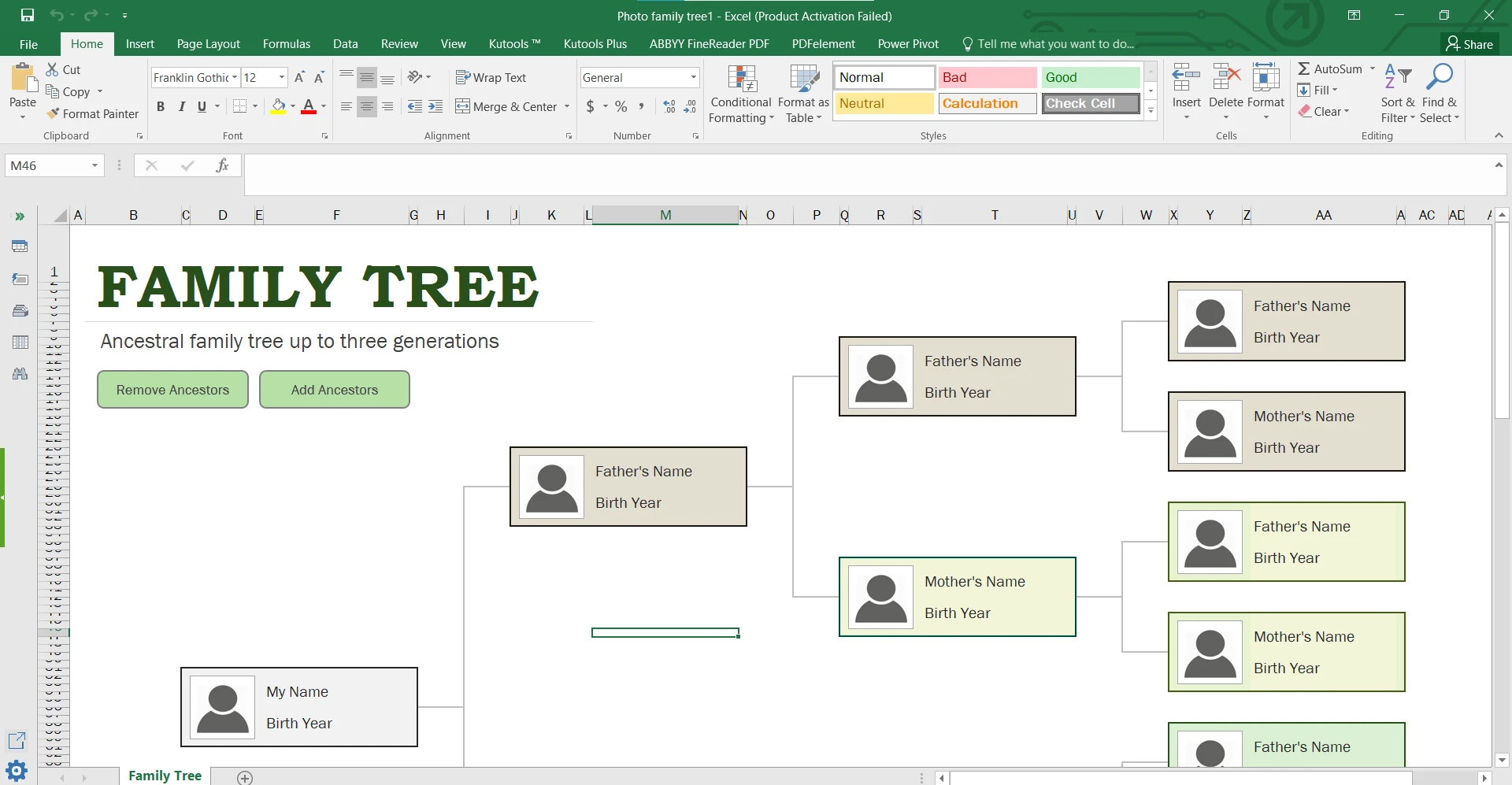
  1. Open your Excel file.

    How to Convert Excel File to PDF in Java, Figure 1: The sample Excel file The sample Excel file

  2. Click on "File" in the top left corner.
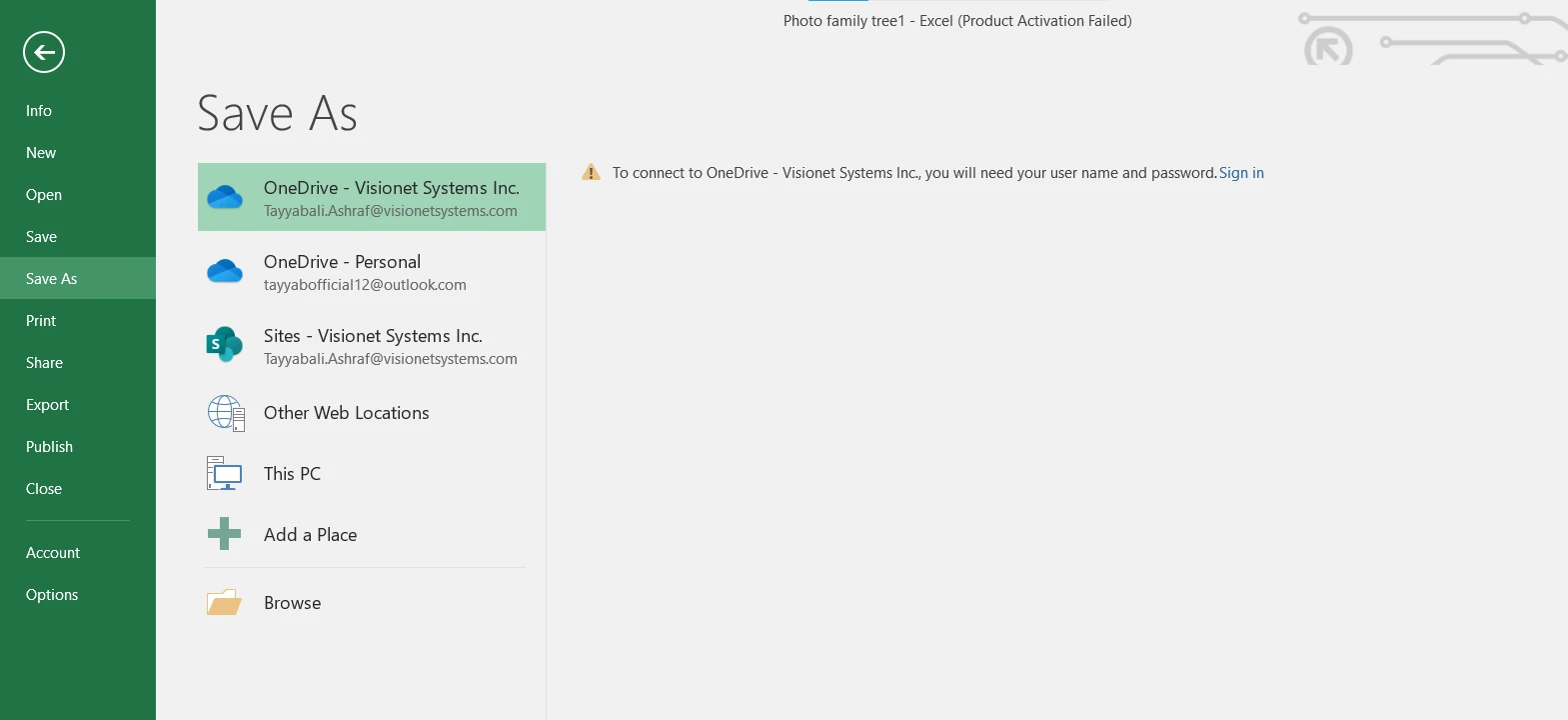
  3. Select "Save As" from the dropdown menu.

    How to Convert Excel File to PDF in Java, Figure 2: Save As dialog Save As dialog

  4. Choose the location where you want to save the HTML file.
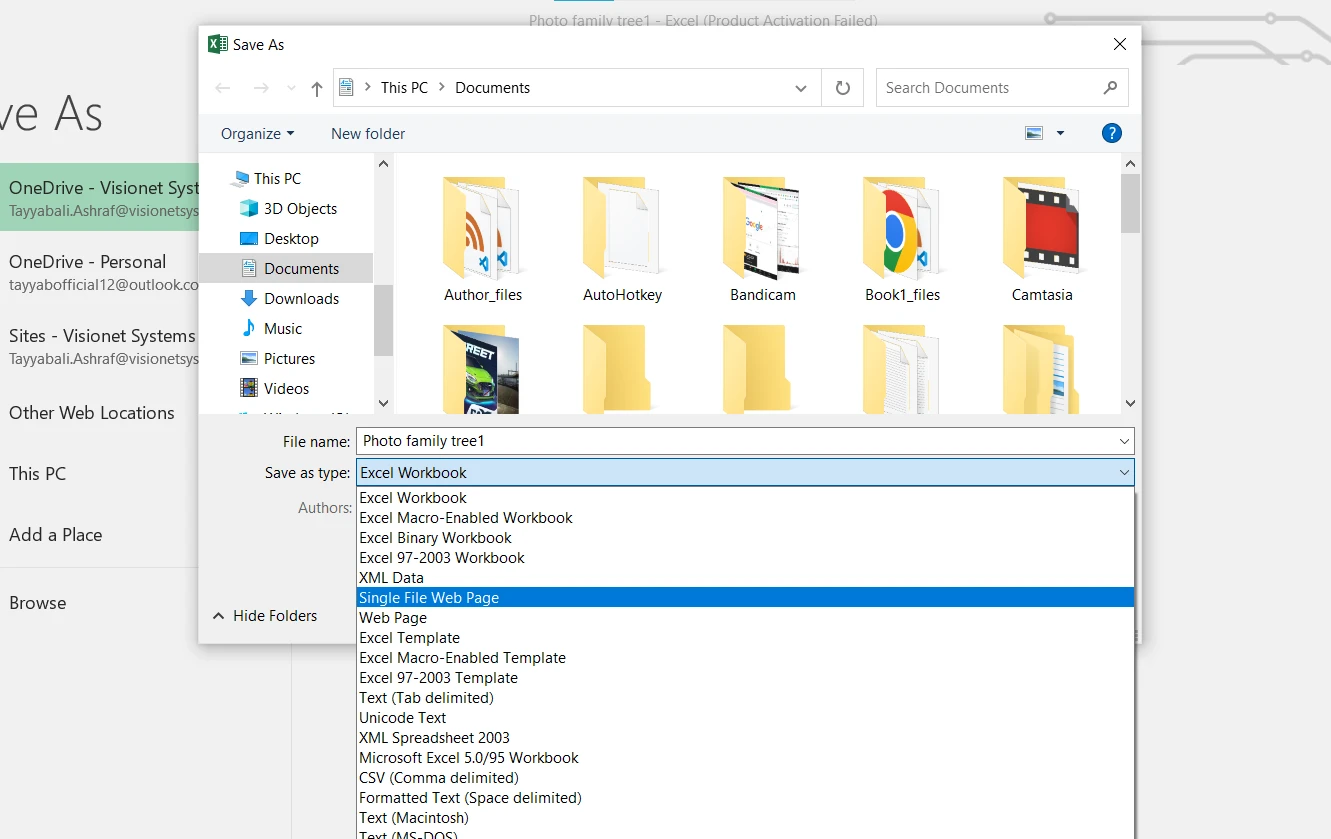
  5. In the "Save as type" dropdown menu, select "Single File Web Page".

    How to Convert Excel File to PDF in Java, Figure 3: Select an option to save as an HTML file Select an option to save as an HTML file

  6. Click "Save".

Voilà! Your Excel file has been transformed into an HTML document, ready for the next stage of the conversion process.

Step 2: Add IronPDF in Maven Project

To add IronPDF in a Maven project, you need to include the IronPDF dependency in your project's pom.xml file. This can be done by adding the following code snippet to the dependencies section of the pom.xml file:

<dependency>
    <groupId>com.ironsoftware</groupId>
    <artifactId>ironpdf</artifactId>
    <version>5.0.0</version>
</dependency>
<dependency>
    <groupId>com.ironsoftware</groupId>
    <artifactId>ironpdf</artifactId>
    <version>5.0.0</version>
</dependency>
XML

In the code above, the groupId specifies the group or organization that the library belongs to, artifactId specifies the library itself, and version specifies the specific version of the library to use.

Once you have added the above code snippet to your pom.xml file and saved it, the IronPDF library will be automatically downloaded from the Maven Central Repository when you build your project using Maven. You can then start using the IronPDF library in your Java code.

Step 3: Converting HTML to PDF with IronPDF for Java

With the above freshly created HTML file in hand, it is possible now to convert it to a PDF using IronPDF for Java.

Import the necessary IronPDF classes

import com.ironsoftware.ironpdf.*;

import java.io.IOException;
import java.nio.file.Paths;
import com.ironsoftware.ironpdf.*;

import java.io.IOException;
import java.nio.file.Paths;
JAVA

This imports the required IronPDF classes and other necessary Java classes for handling file paths and input-output exceptions.

Apply your IronPDF license key

License.setLicenseKey("YOUR-LICENSE-KEY");
JAVA

This line sets your IronPDF license key, which you would have received when purchasing the library. Replace "YOUR-LICENSE-KEY" with your actual license key.

Set a log path for IronPDF:

Settings.setLogPath(Paths.get("C:/tmp/IronPdfEngine.log"));
JAVA

This line sets the log path for IronPDF. The log file will store any diagnostic messages, errors, or warnings generated during the conversion process. In this example, the log file is saved in the C:/tmp/ directory with the name IronPdfEngine.log.

Render HTML as a PDF:

PdfDocument myPdf = PdfDocument.renderHtmlFileAsPdf("excelToHtml.html");
JAVA

This line uses the renderHtmlFileAsPdf method documentation to convert the HTML file (named "excelToHtml.html") to a PdfDocument class reference. The resulting PDF document is stored in the myPdf variable.

Save the PdfDocument to a file:

myPdf.saveAs(Paths.get("ExcelToPdf.pdf"));
JAVA

Finally, this line saves the PdfDocument object as a PDF file with the name "ExcelToPdf.pdf". The Paths.get method is used to specify the file path. In this case, the PDF file will be saved in the same directory as the Java program.

Let's have a look over the complete Java code:

import com.ironsoftware.ironpdf.*;

import java.io.IOException;
import java.nio.file.Paths;

public class ExcelToPdfConverter {

    public static void main(String[] args) {
        // Apply your license key
        License.setLicenseKey("YOUR-LICENSE-KEY");

        // Set a log path
        Settings.setLogPath(Paths.get("C:/tmp/IronPdfEngine.log"));

        try {
            // Render the HTML as a PDF and store it in myPdf as type PdfDocument
            PdfDocument myPdf = PdfDocument.renderHtmlFileAsPdf("excelToHtml.html");

            // Save the PdfDocument to a file
            myPdf.saveAs(Paths.get("ExcelToPdf.pdf"));
        } catch (IOException e) {
            // Handle potential I/O errors
            e.printStackTrace();
        }
    }
}
import com.ironsoftware.ironpdf.*;

import java.io.IOException;
import java.nio.file.Paths;

public class ExcelToPdfConverter {

    public static void main(String[] args) {
        // Apply your license key
        License.setLicenseKey("YOUR-LICENSE-KEY");

        // Set a log path
        Settings.setLogPath(Paths.get("C:/tmp/IronPdfEngine.log"));

        try {
            // Render the HTML as a PDF and store it in myPdf as type PdfDocument
            PdfDocument myPdf = PdfDocument.renderHtmlFileAsPdf("excelToHtml.html");

            // Save the PdfDocument to a file
            myPdf.saveAs(Paths.get("ExcelToPdf.pdf"));
        } catch (IOException e) {
            // Handle potential I/O errors
            e.printStackTrace();
        }
    }
}
JAVA

The above code starts with an Excel file that might have been inaccessible to some users due to compatibility issues. Then converts it to an HTML document, preserving its formatting and structure. Finally, IronPDF for Java is used to generate a universally accessible PDF file that maintains the original formatting and can be easily shared with others. You can also convert Excel to PDF using IronPDF for C# developers.

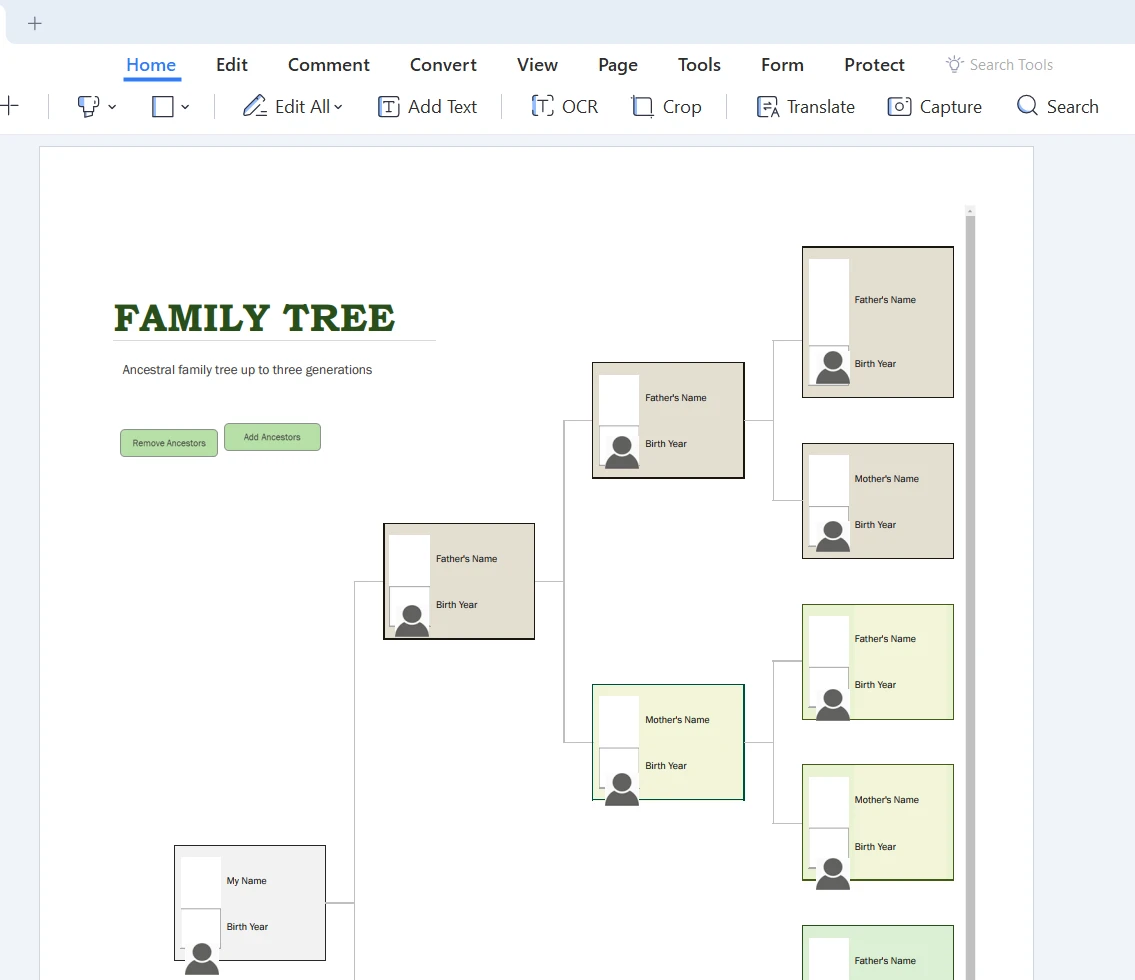
Output File

How to Convert Excel File to PDF in Java, Figure 4: The output PDF file The output PDF file

Why Convert Excel Files to PDF?

Let's discuss the reasons why you might want to convert Excel files to PDF format using Java. Here are some common reasons:

Professional presentation: PDFs are ideal for sharing data in a professional manner, as they preserve the original formatting of your Excel spreadsheets.

Security: PDFs offer better security options compared to Excel, such as password protection and restrictions on editing, copying, or printing.

Compatibility: PDFs can be opened on almost any device, ensuring that the recipient can easily view the file without any compatibility issues.

A Real-Life Example: Jane the Analyst

To truly understand the benefits of using Java to convert Excel to PDF, let's look at a real-life example. Jane is a data analyst working for a multinational corporation. She is responsible for creating monthly performance reports that are shared with her team and upper management. The reports include various charts, tables, and conditional formatting.

Before discovering Java-based Excel to PDF conversion tools, Jane used to create PDFs by printing her Excel files as PDFs, which often resulted in formatting issues and missing charts. This led to countless hours of frustration and wasted time, as she would have to reformat the PDFs to ensure they were accurate and presentable.

Once Jane started using Java-based Excel to PDF conversion tools, her life changed for the better. The process of converting Excel files to HTML and then to PDF using Java-based tools not only preserved the formatting of her reports but also saved her hours of manual labor. She could now focus on analyzing the data and improving her team's performance instead of struggling with file conversions.

Conclusion

In conclusion, converting Excel to PDF using Java-based tools is a simple and efficient process. By first converting the Excel file to an HTML format and then converting the HTML to a PDF using Java-based tools, you can create easily accessible and professional PDF documents from your Excel files.

If you're interested in trying out Java-based Excel to PDF conversion tools, there are various libraries available, such as the IronPDF library. IronPDF offers a free trial license to test their library, and pricing starts at $liteLicense for a license.

자주 묻는 질문

Java를 사용하여 Excel을 PDF로 변환하려면 어떻게 해야 하나요?

먼저 Excel 파일을 HTML 문서로 저장한 다음 Java용 IronPDF를 사용하여 HTML을 PDF로 변환하면 Java에서 Excel 파일을 PDF로 변환할 수 있습니다. 이 프로세스를 통해 표, 글꼴, 색상을 포함한 원래 서식이 유지됩니다.

Excel을 PDF로 변환할 때 중간 단계로 HTML을 사용하는 이유는 무엇인가요?

HTML은 Excel 파일의 서식을 유지하는 데 도움이 되기 때문에 중간 단계로 사용되며, IronPDF를 사용하여 PDF로 변환할 때 표, 글꼴, 색상과 같은 모든 요소가 정확하게 표현되도록 보장합니다.

Excel을 PDF로 변환할 때 IronPDF를 사용하면 어떤 이점이 있나요?

IronPDF는 서식을 잃지 않고 Excel 파일을 PDF로 원활하게 변환할 수 있는 방법을 제공합니다. 양식 채우기, 디지털 서명, PDF 암호화와 같은 고급 기능을 제공하여 문서 보안과 디바이스 간 호환성을 향상시킵니다.

IronPDF는 Java에서 디지털 서명을 처리할 수 있나요?

예, IronPDF는 디지털 서명을 지원하므로 Java에서 프로그래밍 방식으로 PDF에 서명할 수 있습니다. 이 기능은 문서의 진위성과 무결성을 보장합니다.

IronPDF를 Maven 프로젝트에 통합하려면 어떻게 해야 하나요?

IronPDF를 Maven 프로젝트에 통합하려면 `pom.xml` 파일에 IronPDF 종속성을 추가하세요. 이렇게 하면 Java 애플리케이션에서 PDF 생성 및 조작을 위한 IronPDF의 기능에 액세스할 수 있습니다.

PDF 출력이 예상과 다를 경우 어떤 문제 해결 단계가 도움이 될 수 있나요?

Excel 파일을 HTML 문서로 올바르게 저장했는지, 모든 종속성이 Maven 프로젝트에서 올바르게 구성되었는지 확인하세요. 변환 프로세스 중 오류나 경고가 있는지 IronPDF에서 설정한 로그 파일을 확인하세요.

IronPDF는 문서 프레젠테이션과 보안을 어떻게 개선하나요?

IronPDF는 변환하는 동안 Excel 파일의 원본 형식을 유지하여 문서 프레젠테이션을 향상시키고 PDF 문서에 암호화 및 디지털 서명을 추가할 수 있도록 하여 보안을 강화합니다.

Jane과 같은 데이터 분석가의 생산성을 향상시키는 데 IronPDF를 어떻게 사용했나요?

Jane과 같은 데이터 분석가는 IronPDF를 사용하여 Excel 보고서를 PDF로 효율적으로 변환함으로써 서식을 보존하고 수동 조정에 소요되는 시간을 절약할 수 있습니다. 이를 통해 데이터 분석에 집중하고 팀 성과를 향상시킬 수 있습니다.

커티스 차우
기술 문서 작성자

커티스 차우는 칼턴 대학교에서 컴퓨터 과학 학사 학위를 취득했으며, Node.js, TypeScript, JavaScript, React를 전문으로 하는 프론트엔드 개발자입니다. 직관적이고 미적으로 뛰어난 사용자 인터페이스를 만드는 데 열정을 가진 그는 최신 프레임워크를 활용하고, 잘 구성되고 시각적으로 매력적인 매뉴얼을 제작하는 것을 즐깁니다.


커티스는 개발 분야 외에도 사물 인터넷(IoT)에 깊은 관심을 가지고 있으며, 하드웨어와 소프트웨어를 통합하는 혁신적인 방법을 연구합니다. 여가 시간에는 게임을 즐기거나 디스코드 봇을 만들면서 기술에 대한 애정과 창의성을 결합합니다.