

Python에서 PDF 파일을 만드는 방법

PDF (Portable Document Format) is the most popular digital file format for sending and receiving data online. It is mainly used to preserve the data formatting and secure the data with an encrypted password. The .pdf extension is independent of software applications, hardware, or operating systems.
In this article, we are going to create a PDF file in the Python programming language. There are a bunch of online options available but here we will use a Python library for creating PDF files. Following are the two famous libraries to generate PDF documents with single or multiple pages in Python:
- Reportlab
- PDFKit
From the above-mentioned PDF python libraries, we can use anyone to generate PDFs.
How to Create a PDF File in Python?
Let's have a look at both libraries one by one.
Creating PDF Files using Reportlab library
Reportlab library is a free open-source PDF toolkit that can be used to easily create PDF files. It provides a bunch of drawing tools for adding images and text at a certain position on multiple pages. You can also create encrypted PDF files using the encryptCanvas method.
Installation
To install Reportlab, the pip package manager is required. It automatically downloads and installs the requested package using the pip command. Simply type the following command in Windows cmd or PowerShell:
pip install reportlabpip install reportlabNote: While installing Python, it must be added to the path environment variable in order to execute the above command from anywhere in cmd or PowerShell. Pip is recommended to be used for Python 3+, as it is the updated version.
Open a New Python File
To use the Reportlab library, we need to write the code in a Python file and execute it to create PDF files.
- Search and open Python default IDLE shell from the Windows search bar and press Ctrl + N or select "New File" from the File tab. This will open the text editor for writing the code.
- Next, save the file with the appropriate name. I'm naming it "createpdf.py".
Python Code for Creating PDF
The following code will draw document elements and generate a PDF within seconds:
# Importing required modules from ReportLab
from reportlab.pdfgen import canvas
from reportlab.pdfbase.ttfonts import TTFont
from reportlab.pdfbase import pdfmetrics
from reportlab.lib import colors

# File and document attributes
fileName = 'sample.pdf'
documentTitle = 'sample'
title = 'Create PDF'
subTitle = 'Using ReportLab !!'

# Creating a PDF object
pdf = canvas.Canvas(fileName)

# Setting the title of the document
pdf.setTitle(documentTitle)

# Registering a TrueType font
pdfmetrics.registerFont(TTFont('abc', 'Arial.ttf'))

# Creating the title by setting its font and placing it on the canvas
pdf.setFont('abc', 36)
pdf.drawCentredString(300, 770, title)

# Creating the subtitle by setting its font, color, and placing it on the canvas
pdf.setFillColorRGB(0, 0, 255)  # Set color to blue
pdf.setFont("Courier-Bold", 24)
pdf.drawCentredString(290, 720, subTitle)

# Saving the PDF
pdf.save()
# Importing required modules from ReportLab
from reportlab.pdfgen import canvas
from reportlab.pdfbase.ttfonts import TTFont
from reportlab.pdfbase import pdfmetrics
from reportlab.lib import colors
# File and document attributes
fileName = 'sample.pdf'
documentTitle = 'sample'
title = 'Create PDF'
subTitle = 'Using ReportLab !!'
# Creating a PDF object
pdf = canvas.Canvas(fileName)
# Setting the title of the document
pdf.setTitle(documentTitle)
# Registering a TrueType font
pdfmetrics.registerFont(TTFont('abc', 'Arial.ttf'))
# Creating the title by setting its font and placing it on the canvas
pdf.setFont('abc', 36)
pdf.drawCentredString(300, 770, title)
# Creating the subtitle by setting its font, color, and placing it on the canvas
pdf.setFillColorRGB(0, 0, 255) # Set color to blue
pdf.setFont("Courier-Bold", 24)
pdf.drawCentredString(290, 720, subTitle)
# Saving the PDF
pdf.save()Code Explanation
After importing all the modules and packages, we first initialized all the content which will be written to a PDF file.
fileName = 'sample.pdf'
documentTitle = 'sample'
title = 'Create PDF'
subTitle = 'Using ReportLab !!'fileName = 'sample.pdf'
documentTitle = 'sample'
title = 'Create PDF'
subTitle = 'Using ReportLab !!'Now, we create the PDF canvas, set the document title, and then add a centered title and subtitle on the canvas with appropriate fonts and sizes.
# Creating a PDF object
pdf = canvas.Canvas(fileName)

# Setting the title of the document
pdf.setTitle(documentTitle)

# Registering a TrueType font
pdfmetrics.registerFont(TTFont('abc', 'Arial.ttf'))

# Creating the title by setting its font and placing it on the canvas
pdf.setFont('abc', 36)
pdf.drawCentredString(300, 770, title)

# Creating the subtitle by setting its font, color, and placing it on the canvas
pdf.setFillColorRGB(0, 0, 255)  # Set color to blue
pdf.setFont("Courier-Bold", 24)
pdf.drawCentredString(290, 720, subTitle)
# Creating a PDF object
pdf = canvas.Canvas(fileName)
# Setting the title of the document
pdf.setTitle(documentTitle)
# Registering a TrueType font
pdfmetrics.registerFont(TTFont('abc', 'Arial.ttf'))
# Creating the title by setting its font and placing it on the canvas
pdf.setFont('abc', 36)
pdf.drawCentredString(300, 770, title)
# Creating the subtitle by setting its font, color, and placing it on the canvas
pdf.setFillColorRGB(0, 0, 255) # Set color to blue
pdf.setFont("Courier-Bold", 24)
pdf.drawCentredString(290, 720, subTitle)Finally, we save the PDF file when everything is drawn on the canvas.
# Saving the PDF
pdf.save()
# Saving the PDF
pdf.save()We can also use drawString and drawText methods to create a simple PDF file using Reportlab in Python.
Create PDF files using PDFKit Library
PDFKit library is one of the best approaches when it comes to creating PDF files in Python. It can create PDF files using HTML code. You can render simple and complex HTML files or HTML from URLs to a pixel-perfect printable PDF page. However, PDFKit integrates wkhtmltopdf features to convert HTML to PDF. To install wkhtmltopdf for Windows, Linux, and Mac, visit this link.
Note: In Windows OS, wkhtmltopdf will be installed in program files.
Installation
Use the following command to install PDFKit:
pip install pdfkitpip install pdfkitCreating PDF Files From URL
Creating PDF files using PDFKit is very simple and a one-line process.
import pdfkit

# Convert a webpage from a URL to a PDF file
pdfkit.from_url('http://google.com', 'out.pdf')
import pdfkit
# Convert a webpage from a URL to a PDF file
pdfkit.from_url('http://google.com', 'out.pdf')Creating PDF Files From HTML Files
import pdfkit

# Convert an HTML file to a PDF file
pdfkit.from_file('index.html', 'out.pdf')
import pdfkit
# Convert an HTML file to a PDF file
pdfkit.from_file('index.html', 'out.pdf')Creating PDF Files From HTML Templates
You can pass HTML templates as a string to convert them to a PDF as an output file.
import pdfkit

# HTML content to convert to PDF
html_string = """
    <html>
        <head>
        <meta name="pdfkit-page-size" content="Legal"/>
        <meta name="pdfkit-orientation" content="Landscape"/>
        </head>
        <body>Hello World!</body>
    </html>
    """

# Convert HTML string to a PDF file
pdfkit.from_string(html_string, 'out.pdf')
import pdfkit
# HTML content to convert to PDF
html_string = """
<html>
<head>
<meta name="pdfkit-page-size" content="Legal"/>
<meta name="pdfkit-orientation" content="Landscape"/>
</head>
<body>Hello World!</body>
</html>
"""
# Convert HTML string to a PDF file
pdfkit.from_string(html_string, 'out.pdf')PDFKit allows you to easily create PDFs in Python using HTML templates.
The IronPDF Library
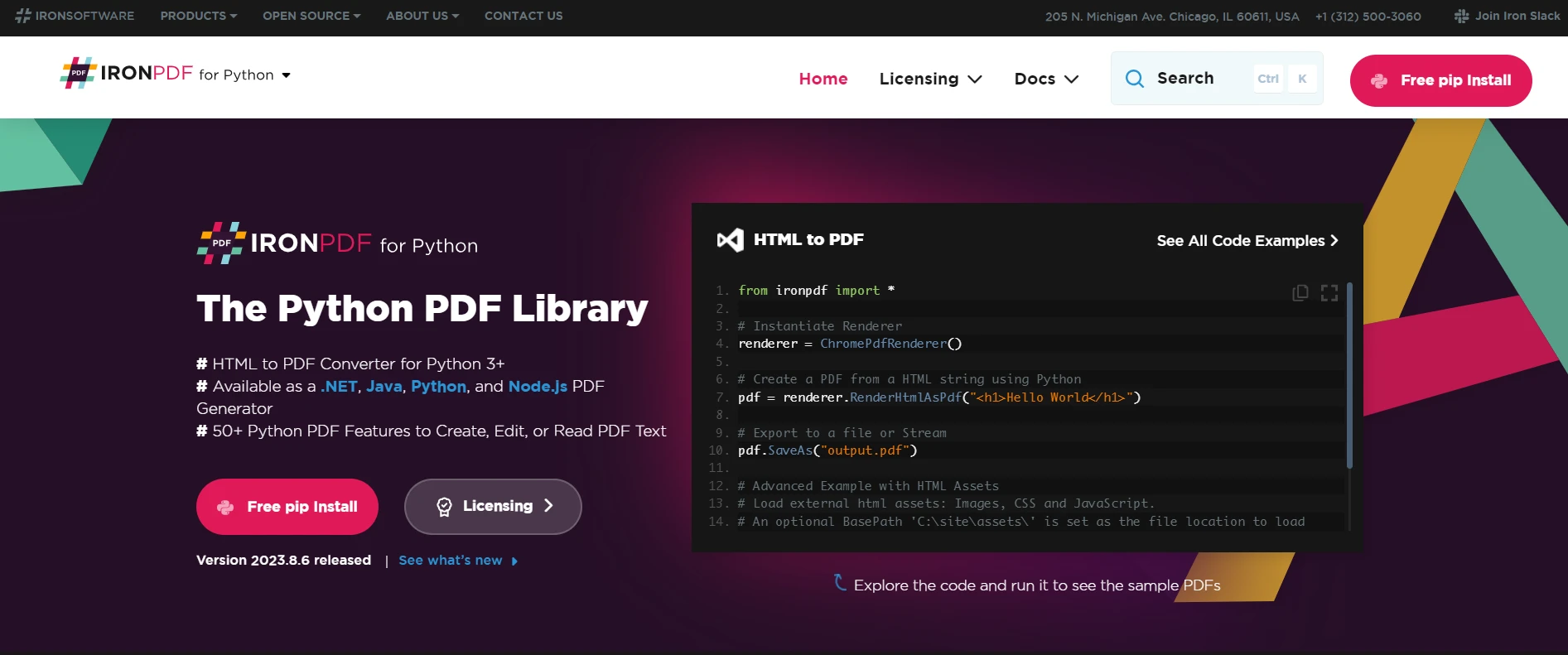
IronPDF is a useful tool to create PDF files in .NET projects. A common use of this library is "HTML to PDF" rendering, where HTML is used as the design language for rendering a PDF document.
IronPDF uses a .NET Chromium engine to render HTML pages to PDF files. With HTML to PDF conversion, there is no need to use complex APIs to position or design PDFs. IronPDF also supports all standard web page technologies: HTML, ASPX, JS, CSS, and images.
It also enables you to create a .NET PDF library using HTML5, CSS, JavaScript, and images. You can edit, stamp, and add headers and footers to a PDF effortlessly. Furthermore, it makes it very easy to read PDF text and extract images.
To get started with IronPDF, you need to install the NuGet package (ensure this step is authenticated or run in a .NET development environment):
pip install ironpdf
The following example helps you create a PDF directly from a URL:
from ironpdf import ChromePdfRenderer

# Instantiate Renderer
renderer = ChromePdfRenderer()

# Create a PDF from a URL
pdf = renderer.RenderUrlAsPdf("https://ironpdf.com/")

# Export to a file
pdf.SaveAs("url.pdf")
from ironpdf import ChromePdfRenderer
# Instantiate Renderer
renderer = ChromePdfRenderer()
# Create a PDF from a URL
pdf = renderer.RenderUrlAsPdf("https://ironpdf.com/")
# Export to a file
pdf.SaveAs("url.pdf")The following code will help you create a PDF file from HTML code along with any CSS or JavaScript:
from ironpdf import ChromePdfRenderer

# Instantiate Renderer
renderer = ChromePdfRenderer()

# Create a PDF from an HTML string using Python
pdf = renderer.RenderHtmlAsPdf("<h1>Hello World</h1>")

# Export to a file
pdf.SaveAs("output.pdf")

# Advanced Example with HTML Assets
# Load external HTML assets: Images, CSS, and JavaScript.
# An optional BasePath is set as the file location to load assets from
myAdvancedPdf = renderer.RenderHtmlAsPdf("<img src='icons/iron.png'>", base_path=r"C:\site\assets")
myAdvancedPdf.SaveAs("html-with-assets.pdf")
from ironpdf import ChromePdfRenderer
# Instantiate Renderer
renderer = ChromePdfRenderer()
# Create a PDF from an HTML string using Python
pdf = renderer.RenderHtmlAsPdf("<h1>Hello World</h1>")
# Export to a file
pdf.SaveAs("output.pdf")
# Advanced Example with HTML Assets
# Load external HTML assets: Images, CSS, and JavaScript.
# An optional BasePath is set as the file location to load assets from
myAdvancedPdf = renderer.RenderHtmlAsPdf("<img src='icons/iron.png'>", base_path=r"C:\site\assets")
myAdvancedPdf.SaveAs("html-with-assets.pdf")You can see from the above code that it's quite simple and clean. Very few lines of code are needed to create a PDF file from HTML code. It's a fast, reliable, and time-saving solution with accurate results.
Download IronPDF and try it for free. After the trial period, licensing starts at $799.







 무료로 시작하세요
 무료로 시작하세요
 무료 라이브 데모 예약하기



 신용카드나 계정 생성은 필요하지 않습니다.









