Python의 PDFtoText: 단계별 튜토리얼
PDF files stand as one of the most popular formats of digital documents. They are favored for their compatibility across different systems and their ability to preserve the formatting of complex documents.
In data management, converting PDF documents into editable formats or extracting text for analysis is invaluable. This conversion process enables businesses and individuals to mine and leverage data otherwise locked within static documents.
Python, with its extensive ecosystem of libraries, offers an accessible and powerful way to manipulate PDF files. Whether it's extracting data, converting PDF files, or automating the generation of reports, Python's simplicity and rich tools make it a go-to language for PDF processing tasks.
What is IronPDF?
IronPDF is a comprehensive PDF Rendering library for Python developers to facilitate interaction with PDF files. It provides a robust set of tools that allow for the creation, manipulation, and conversion of PDF documents within the Python programming environment.
IronPDF bridges the ease of Python scripting and the document management capabilities required for PDF processing, thus enabling developers to incorporate PDF functionalities directly into their applications.
System Requirements and Installation Guide
Before installing IronPDF, ensure that your system meets the following requirements:
- Python 3.x installed on your system.
- Access to pip (Python package installer) for easy installation.
- .NET framework if you are running on a Windows system, as IronPDF relies on .NET to function.
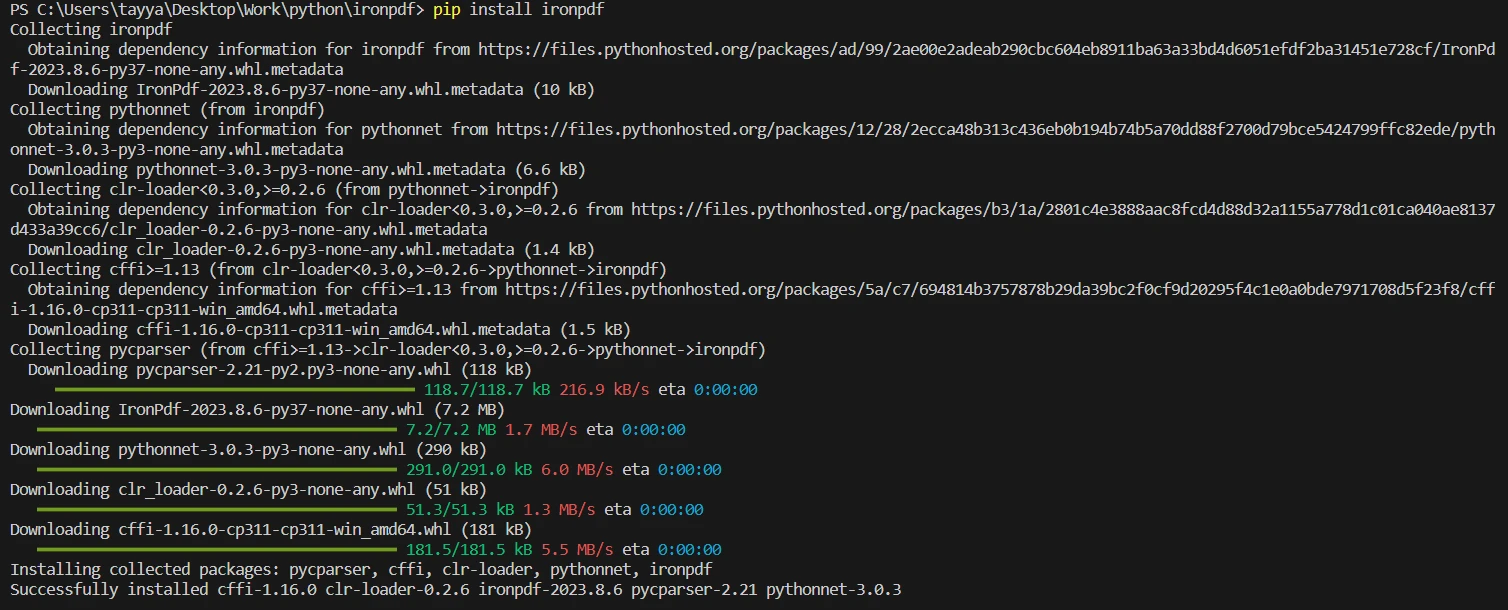
Once you have confirmed that your system meets these requirements, you can install IronPDF using pip. Open your command line or terminal and run the following command:
pip install ironpdf

Ensure you are using the latest version of the IronPDF for Python library. This command will download and install the IronPDF library and all required dependencies in your Python environment.
Convert PDF to Text: A Step-by-Step Tutorial
Step 1: Importing IronPDF
from ironpdf import *from ironpdf import *This code snippet starts with an import statement that brings all the necessary components from the IronPDF library into your Python script. It is essential for accessing the classes and methods provided by IronPDF that allow you to work with PDF files.
Step 2: Setting Up Logging
# Enable debugging for IronPDF
Logger.EnableDebugging = True
# Specify the log file path
Logger.LogFilePath = "Custom.log"
# Set logging mode to log all events
Logger.LoggingMode = Logger.LoggingModes.All# Enable debugging for IronPDF
Logger.EnableDebugging = True
# Specify the log file path
Logger.LogFilePath = "Custom.log"
# Set logging mode to log all events
Logger.LoggingMode = Logger.LoggingModes.AllLogger.EnableDebugging = True: Enables the debugging feature within the IronPDF library to track operations, which is crucial for troubleshooting.
Logger.LogFilePath = "Custom.log": Specifies the path and name of the log file where debugging information will be written. Ensure the directory is writable.
- Logger.LoggingMode = Logger.LoggingModes.All: Sets the logging mode to record all events including info-level logs, warnings, and errors. This comprehensive logging aids in debugging.
Step 3: Loading the PDF Document
# Load an existing PDF document
pdf = PdfDocument.FromFile("content.pdf")# Load an existing PDF document
pdf = PdfDocument.FromFile("content.pdf")PdfDocument.FromFile("content.pdf"): Loads the PDF file named "content.pdf" into the environment by creating a PdfDocument object.
- The pdf variable now holds your PDF document and allows you to perform various operations.
Step 4: Extracting Text from the Entire Document
# Extract all text from the PDF document
all_text = pdf.ExtractAllText()
# Print the extracted text
print(all_text)# Extract all text from the PDF document
all_text = pdf.ExtractAllText()
# Print the extracted text
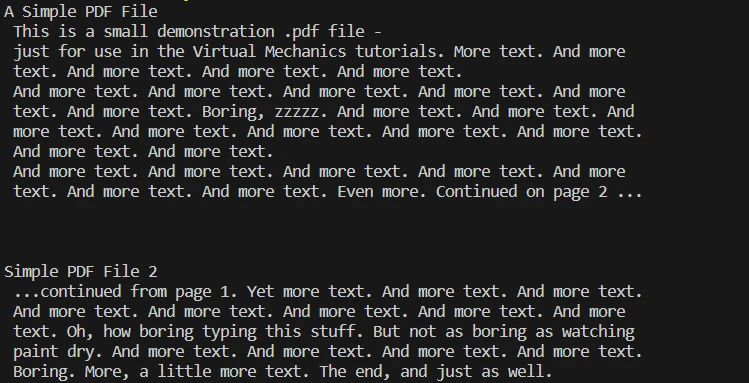
print(all_text)pdf.ExtractAllText(): Extracts all the textual content from the document. The text is then stored in the variable all_text.
- print(all_text): Prints the extracted text to the console, verifying the text extraction process.

Step 5: Extracting Text from a Specific Page
# Load an existing PDF document (already loaded, but shown for clarity)
pdf = PdfDocument.FromFile("content.pdf")
# Extract text from a specific page in the document
page_text = pdf.ExtractTextFromPage(1)
# Print the extracted text from the specific page
print(page_text)# Load an existing PDF document (already loaded, but shown for clarity)
pdf = PdfDocument.FromFile("content.pdf")
# Extract text from a specific page in the document
page_text = pdf.ExtractTextFromPage(1)
# Print the extracted text from the specific page
print(page_text)PdfDocument.FromFile("content.pdf"): Demonstrates the need for a PDF file object (the PdfDocument object) to extract text. This line isn't necessary if the document has already been loaded in a continuous script.
pdf.ExtractTextFromPage(1): Extracts text from the second page (index 1) of the PDF.
- The example assumes you would print the extracted text to verify the operation: print(page_text).
This tutorial provides a clear pathway for developers to convert the contents of PDF files into text, whether you need to process the entire document or just individual pages, using the IronPDF library in Python.
Complete Code Snippet
Here is the complete code which you can use:
from ironpdf import *
# Add your License key here
License.LicenseKey = "License-Code"
# Enable debugging for IronPDF
Logger.EnableDebugging = True
# Specify the log file path
Logger.LogFilePath = "Custom.log"
# Set logging mode to log all events
Logger.LoggingMode = Logger.LoggingModes.All
# Load an existing PDF document
pdf = PdfDocument.FromFile("sample.pdf")
# Extract all text from the PDF document
all_text = pdf.ExtractAllText()
# Print the extracted text
print(all_text)from ironpdf import *
# Add your License key here
License.LicenseKey = "License-Code"
# Enable debugging for IronPDF
Logger.EnableDebugging = True
# Specify the log file path
Logger.LogFilePath = "Custom.log"
# Set logging mode to log all events
Logger.LoggingMode = Logger.LoggingModes.All
# Load an existing PDF document
pdf = PdfDocument.FromFile("sample.pdf")
# Extract all text from the PDF document
all_text = pdf.ExtractAllText()
# Print the extracted text
print(all_text)Advanced Features for PDF Files
Convert PDF Files to Other Formats
IronPDF doesn't only handle text extraction. One of its key features is the ability to convert PDF files into other formats, which can be particularly useful for sharing and presenting information in different mediums.
Print and Manage PDF Documents
Managing a PDF file print job directly from Python is invaluable regarding physical documentation. IronPDF provides this capability, streamlining the process from digital to physical with just a few commands.
Handling Scanned PDF Files
For scanned PDF files, IronPDF offers specialized methods to extract text, which can be a challenging task due to the nature of the content being an image rather than selectable text. This extends the library's utility to broader document management tasks.
The Evolution of PDF Processing Technologies
PDF processing technologies have evolved rapidly, from simple text extraction to complex data handling and more interactive document manipulation. The focus is shifting towards automation, artificial intelligence, and cloud-based services, enabling more dynamic and intelligent document processing solutions.
IronPDF will likely evolve in tandem, incorporating these cutting-edge technologies to stay relevant and robust.
Conclusion: Streamlining Your Workflow with IronPDF
IronPDF simplifies converting PDFs to text and streamlines workflows, making it a valuable asset for developers and businesses.
IronPDF stands out for its ability to seamlessly integrate into Python environments, its robust text extraction from both standard and scanned PDFs, and its high fidelity in maintaining the original document's format.
The library's logging and debugging capabilities further aid in developing reliable applications for PDF manipulation.
After converting a PDF to text, the following steps involve leveraging the extracted data. This could mean integrating the text into databases, performing data analysis, feeding it into reporting tools, or utilizing it for machine learning.
With the textual data in a more accessible format, the possibilities for processing and using this information expand significantly, opening doors to new insights and operational efficiencies.
IronPDF offers a 30-day free trial, allowing you to explore and evaluate its full functionalities before committing. This trial period is an excellent opportunity for developers to experience first-hand how IronPDF can streamline their PDF workflows.
자주 묻는 질문
Python으로 PDF에서 텍스트를 추출하려면 어떻게 해야 하나요?
IronPDF를 사용하여 Python으로 PDF에서 텍스트를 추출할 수 있습니다. PdfDocument.FromFile('filename.pdf')를 사용하여 PDF 문서를 로드하고 pdf.ExtractAllText()를 사용하여 텍스트를 추출합니다.
Python에서 PDF 처리를 위해 IronPDF를 사용하면 어떤 이점이 있나요?
IronPDF는 텍스트 추출, 문서 조작 및 변환을 위한 강력한 도구를 제공하며 Python 환경에 원활하게 통합됩니다. 스캔한 PDF를 처리하고 PDF를 다른 형식으로 변환하는 고급 기능이 포함되어 있습니다.
Python에 IronPDF를 설치하려면 어떻게 하나요?
IronPDF를 설치하려면 Python 3.x와 pip가 설치되어 있는지 확인하세요. 명령줄 또는 터미널에서 pip install ironpdf 명령을 실행합니다.
IronPDF는 스캔한 PDF 파일을 처리할 수 있나요?
예, IronPDF에는 스캔한 PDF 파일에서 텍스트를 추출하는 특수한 방법이 있어 콘텐츠가 이미지 형식인 문서로 작업할 수 있습니다.
Python에서 IronPDF를 사용하기 위한 시스템 요구 사항은 무엇인가요?
IronPDF를 사용하려면 Python 3.x, pip(Python 패키지 설치 관리자), Windows 시스템을 사용하는 경우 .NET 프레임워크가 필요합니다.
IronPDF를 사용하여 PDF를 다른 형식으로 변환하려면 어떻게 해야 하나요?
IronPDF를 사용하면 변환 방법을 활용하여 PDF를 다양한 형식으로 변환할 수 있어 Python 애플리케이션에서 문서 관리의 유연성을 향상시킬 수 있습니다.
IronPDF에 무료 평가판이 있나요?
예, IronPDF는 30일 무료 평가판을 제공하여 개발자가 구매하기 전에 기능을 탐색하고 평가할 수 있습니다.
IronPDF를 사용할 때 로깅이 중요한 이유는 무엇인가요?
작업 추적, 문제 해결, 정보 수준 로그, 경고 및 오류를 포함한 모든 이벤트를 기록하여 디버깅에 도움이 되므로 IronPDF에 로그인하는 것은 매우 중요합니다.
IronPDF는 Python에서 워크플로 자동화를 어떻게 향상시키나요?
IronPDF는 PDF-텍스트 변환을 간소화하고 Python 프로젝트에 원활하게 통합하여 생산성과 운영 효율성을 향상시킴으로써 워크플로우 자동화를 강화합니다.