푸터 콘텐츠로 바로가기
PYTHON용 IRONPDF 사용

Python을 사용하여 PDF 보고서를 만드는 방법

In today's data-driven world, producing comprehensive and visually appealing reports is crucial for businesses and organizations to communicate insights effectively. Python, with its myriad libraries and flexibility, provides a robust foundation for data analysis and manipulation. However, developers often search for powerful tools to simplify the process of creating professional reports. IronPDF offers a solution to bridge the gap in PDF file generation. This post will discuss how we can use Python to create PDFs using IronPDF, showcasing research efforts on the Python library.

How to Use Python to Create PDF Reports

  1. Create a new Python project.
  2. Download the IronPDF library and import IronPDF.
  3. Create an instance of IronPDF.
  4. Render HyperText Markup Language as PDF.
  5. Save the PDF to a file.
  6. Optionally, open the PDF in the default viewer.

IronPDF

With IronPDF, data scientists can expedite report generation, traditionally a time-consuming task. IronPDF allows for the transformation of a DataFrame into aesthetically pleasing PDF reports so that they can communicate findings efficiently without extensive formatting.

This speeds up the discovery process by allowing data scientists to focus on analysis and exploration. The use of IronPDF eliminates the need for static images and manual file preparation, openening the door to the potential for including interactive graphs in PDF reports (although IronPDF itself does not natively provide this functionality). This has the potential to enhance user interaction with reports and data presentation even further.

IronPDF for Python package simplifies creating and modifying PDF reports in Python applications. By converting HTML code, webpage content (URLs), or even existing HTML files into properly formatted PDF documents, it functions as a bridge. For added security, you can modify layouts, include tables and images, and even password protect vital reports. With seamless integration into Python scripts, IronPDF becomes a valuable tool for producing insightful and polished PDF reports.

Features of IronPDF

  • PDF Generation: Using Python code, IronPDF enables dynamic PDF document creation. You can start from scratch or convert existing HTML information, including web pages or templates, into PDF format.
  • HTML to PDF Conversion: IronPDF maintains the original HTML's layout, styles, and elements while converting it to PDF format. This functionality allows for generating PDF invoices, reports, and other documents using HTML templates.
  • PDF Manipulation: IronPDF can manipulate PDF documents. It can merge multiple PDFs into one, split a PDF into different documents, extract pages, and add or remove pages.
  • Text and Image Rendering: Render text and images contained in PDF documents using IronPDF. This includes embedding text with specified fonts, sizes, and colors, and adding images.
  • Security and Encryption: IronPDF offers features to secure PDF documents. Password-protect encryption can be imposed to control access, restrict printing or copying, and configure other security options.

Keep in mind that IronPDF's availability and functionality in Python may change over time, so consult IronPDF's official documentation or other resources for the most accurate and current information.

New Project in PyCharm

This session will use PyCharm, an IDE for developing Python programs.

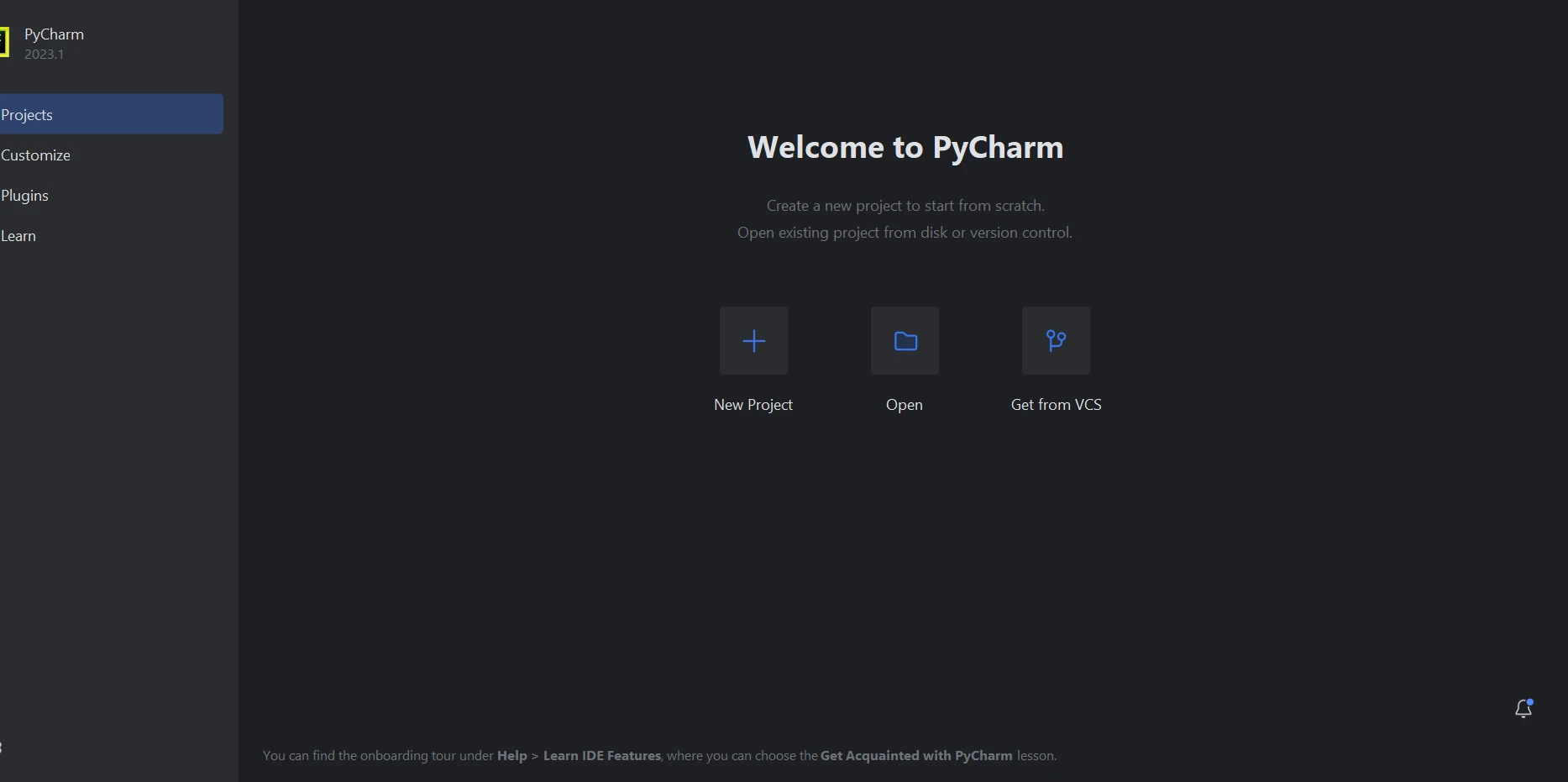
After launching PyCharm IDE, choose "New Project".

How to Use Python to Create PDF Reports: Figure 1 - PyCharm

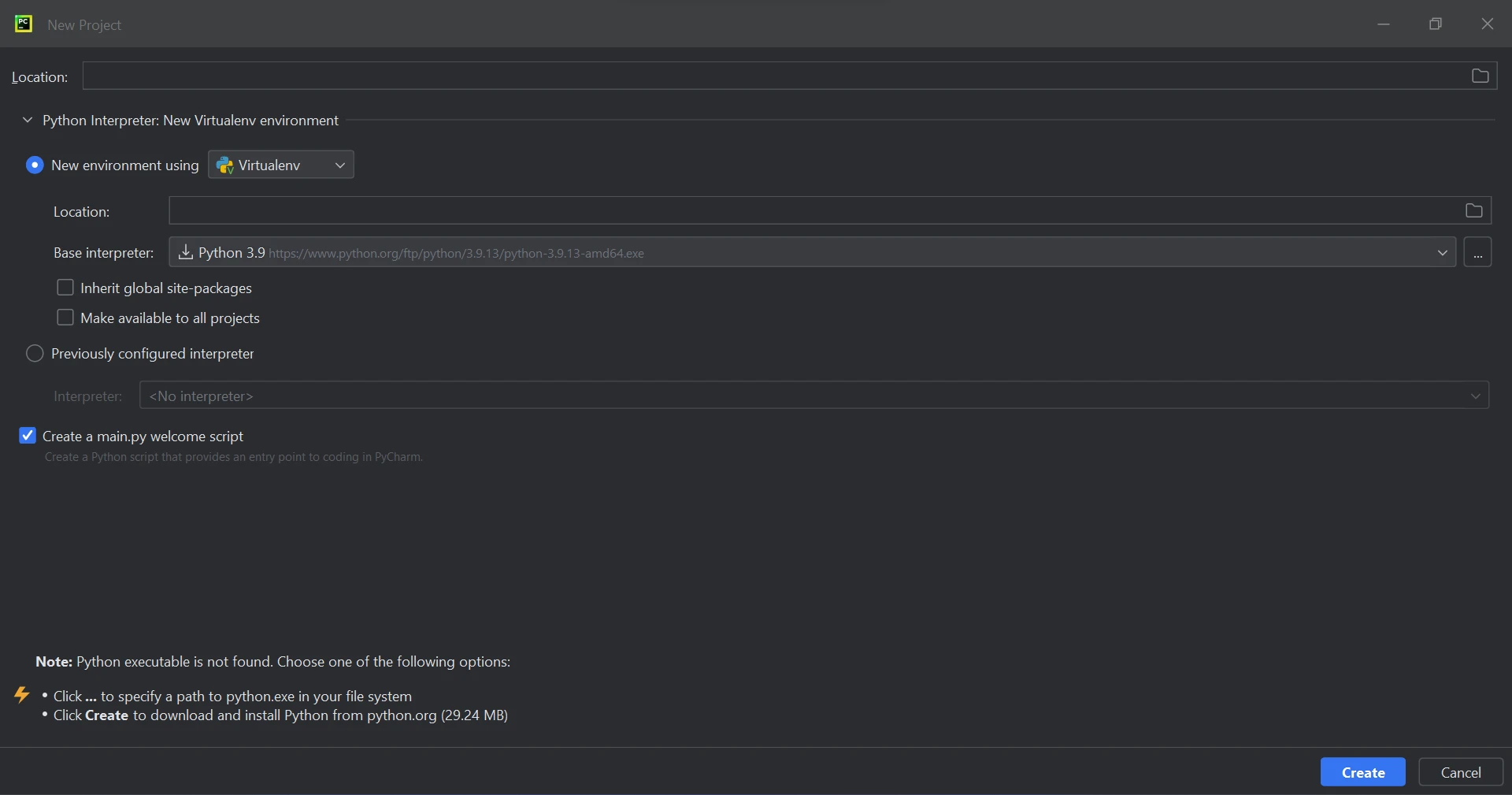
By selecting "New Project," you can customize the project's location and environment in a new window. The following screenshot shows this new window in action.

How to Use Python to Create PDF Reports: Figure 2 - New Project

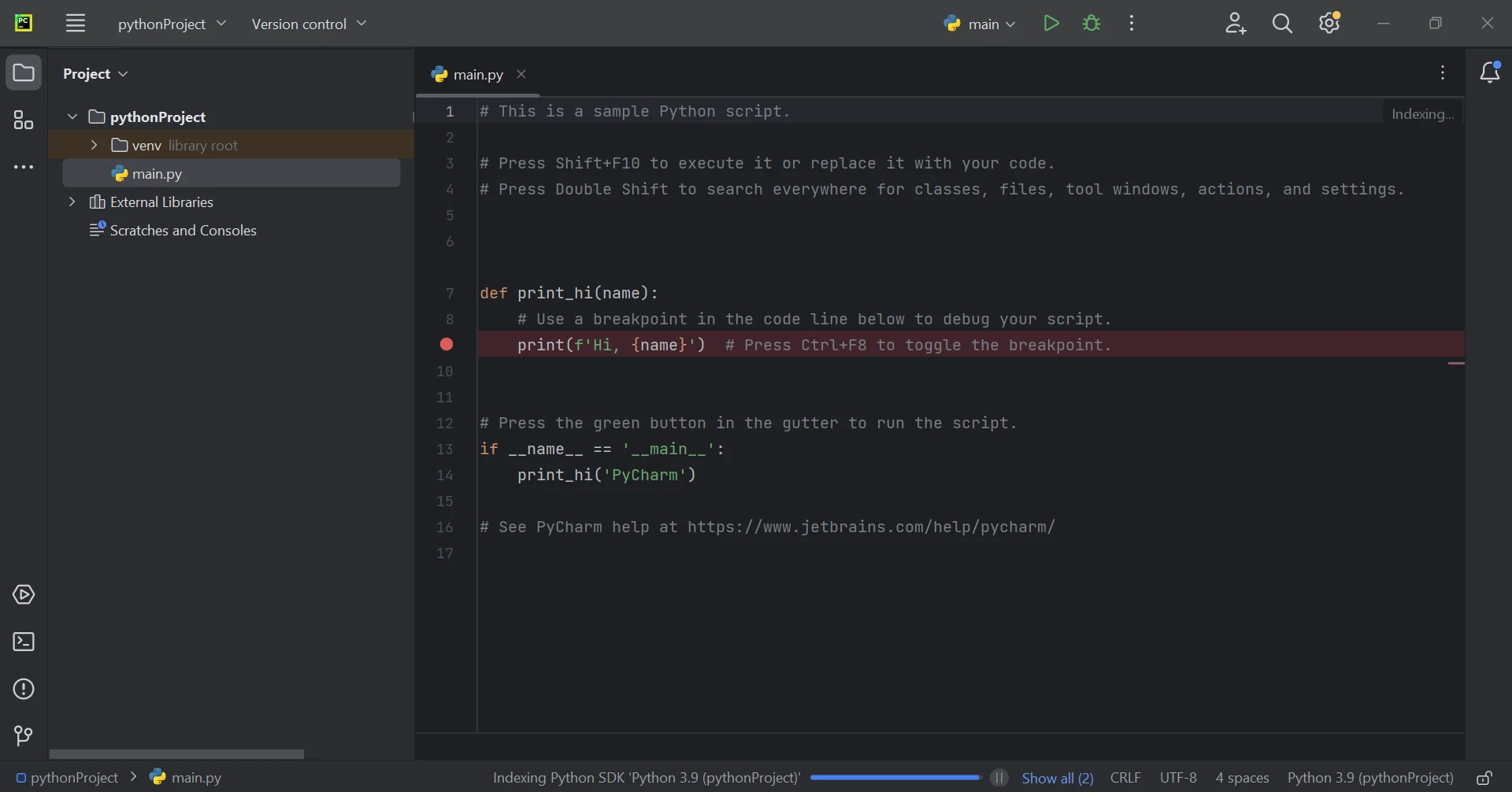
Click the "Create" button to start a new project after choosing the project location and setting the Python environment. Once created, the project will open in a new tab.

How to Use Python to Create PDF Reports: Figure 3 - New Tab

Requirements to Use IronPDF

Ensure the following prerequisites are met before reviewing code examples:

  • Python: IronPDF requires Python version 3.7 or higher.
  • .NET 6.0 Runtime: IronPDF's core features rely on the .NET 6.0 runtime environment. Download and install the appropriate runtime from the official .NET website based on your operating system.
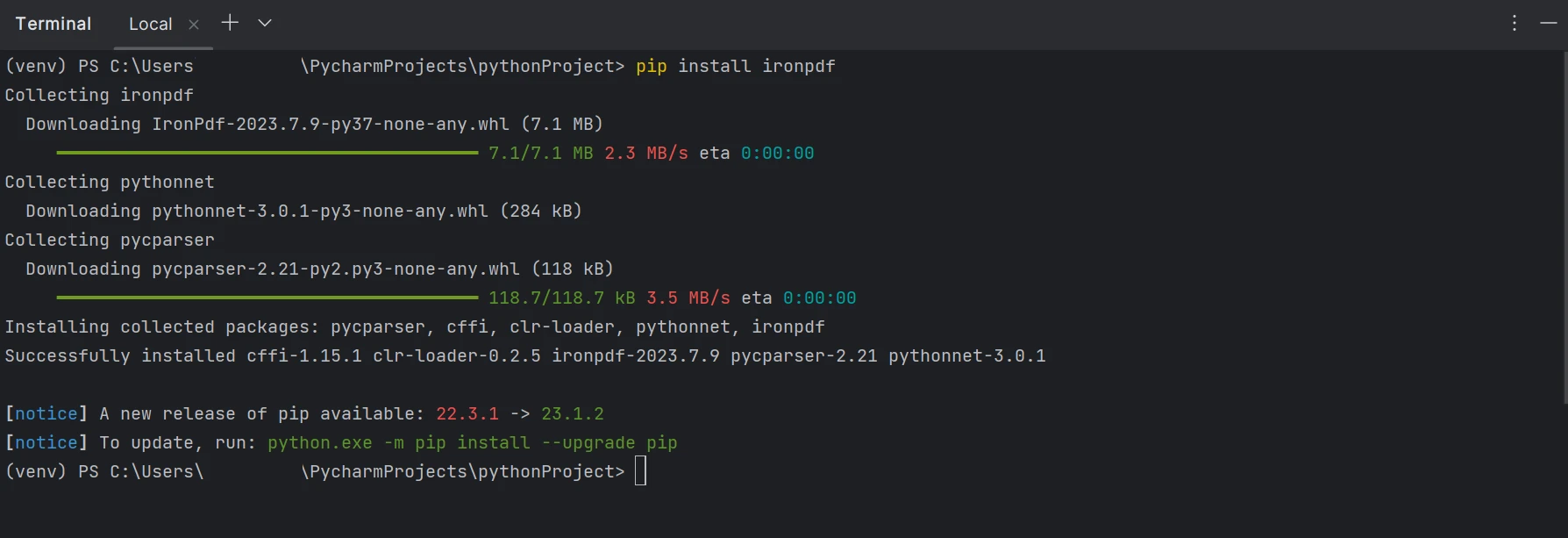
  • Installation of the IronPDF Library: Install the IronPDF library in your Python environment using the pip package manager. Run the following command in an open terminal or command prompt:
 pip install ironpdf

The screenshot below shows how the 'IronPDF' package is configured.

How to Use Python to Create PDF Reports: Figure 4 - Install IronPDF

Generating a Basic PDF Report from HTML String

Let's start with a basic example that shows how to transform an HTML string into a PDF report. Here's the Python code:

from ironpdf import ChromePdfRenderer

# Define the HTML content of your report
html_content = """
# Sales Report - Q1 2024
<p>This report summarizes sales figures for the first quarter of 2024.</p>
<table>
    <thead>
        <tr>
            <th>Product</th>
            <th>Quantity Sold</th>
            <th>Total Revenue</th>
        </tr>
    </thead>
    <tbody>
        <tr>
            <td>Widget A</td>
            <td>100</td>
            <td>$1000</td>
        </tr>
        <tr>
            <td>Widget B</td>
            <td>75</td>
            <td>$750</td>
        </tr>
    </tbody>
</table>
"""

# Create a ChromePdfRenderer instance
renderer = ChromePdfRenderer()

# Render the HTML string as a PDF document
pdf = renderer.RenderHtmlAsPdf(html_content)

# Save the PDF document with a filename
pdf.saveAs("sales_report.pdf")
print("PDF report generated successfully!")
from ironpdf import ChromePdfRenderer

# Define the HTML content of your report
html_content = """
# Sales Report - Q1 2024
<p>This report summarizes sales figures for the first quarter of 2024.</p>
<table>
    <thead>
        <tr>
            <th>Product</th>
            <th>Quantity Sold</th>
            <th>Total Revenue</th>
        </tr>
    </thead>
    <tbody>
        <tr>
            <td>Widget A</td>
            <td>100</td>
            <td>$1000</td>
        </tr>
        <tr>
            <td>Widget B</td>
            <td>75</td>
            <td>$750</td>
        </tr>
    </tbody>
</table>
"""

# Create a ChromePdfRenderer instance
renderer = ChromePdfRenderer()

# Render the HTML string as a PDF document
pdf = renderer.RenderHtmlAsPdf(html_content)

# Save the PDF document with a filename
pdf.saveAs("sales_report.pdf")
print("PDF report generated successfully!")
PYTHON

This code begins by defining the HTML string that outlines the report's structure and data. Next, a ChromePdfRenderer instance is created, serving as the conversion engine from HTML to PDF. The RenderHtmlAsPdf function then creates a PDF document from the HTML string. Finally, the created PDF is saved with a specified filename using the saveAs function.

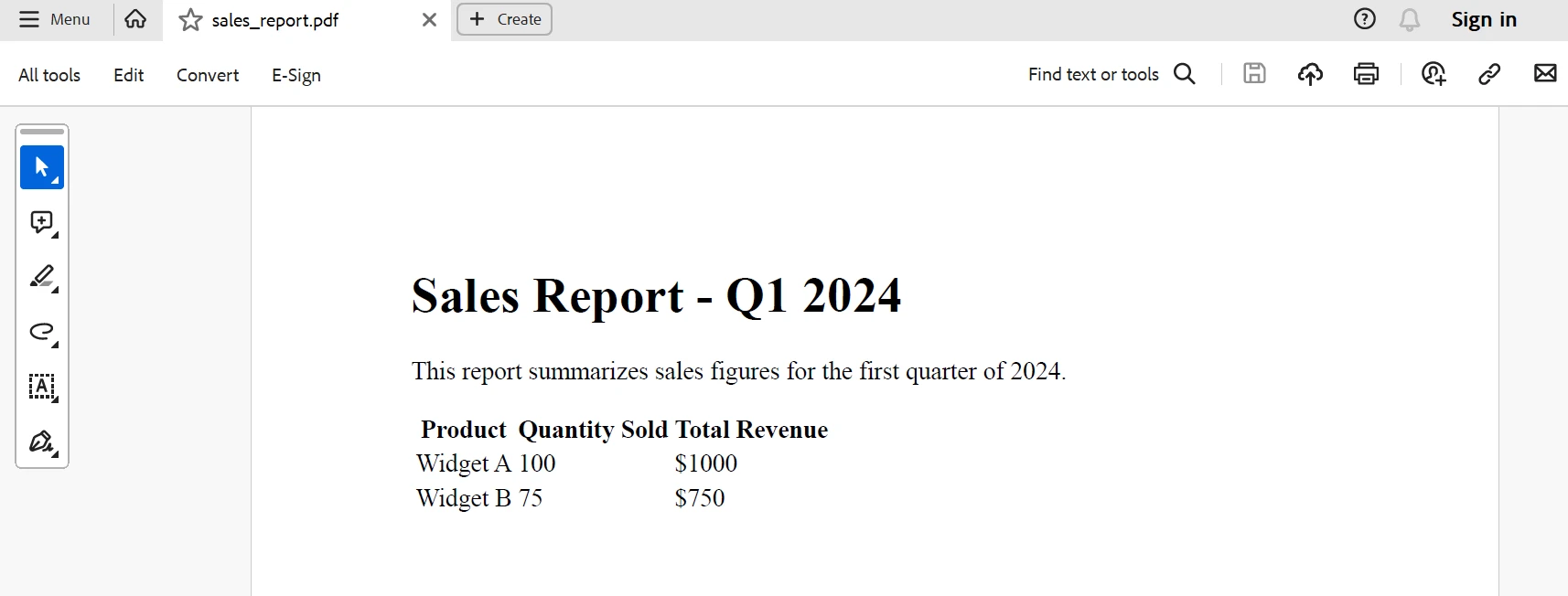
Below is the output report generated from the above code.

How to Use Python to Create PDF Reports: Figure 5 - Report Output

Creating a PDF Report from an HTML File

IronPDF is a convenient option if you prefer storing report content in a separate HTML file. Here's a Python script example:

from ironpdf import ChromePdfRenderer

# Define the path to your HTML report file
html_file_path = "report.html"

# Create a ChromePdfRenderer instance
renderer = ChromePdfRenderer()

# Render the HTML file as a PDF document
pdf = renderer.RenderHtmlFileAsPdf(html_file_path)

# Save the PDF document with a filename
pdf.saveAs("report.pdf")
print("PDF report generated from HTML file!")
from ironpdf import ChromePdfRenderer

# Define the path to your HTML report file
html_file_path = "report.html"

# Create a ChromePdfRenderer instance
renderer = ChromePdfRenderer()

# Render the HTML file as a PDF document
pdf = renderer.RenderHtmlFileAsPdf(html_file_path)

# Save the PDF document with a filename
pdf.saveAs("report.pdf")
print("PDF report generated from HTML file!")
PYTHON

This code specifies the HTML file containing the layout and data for your report. Next, the RenderHtmlFileAsPdf function is called, passing in the file path. The subsequent steps for saving the PDF are identical to those in the previous example.

Generating a PDF Report from a URL

With IronPDF, you may generate PDF reports using content sourced from websites. Here's how to make this happen:

from ironpdf import ChromePdfRenderer

# Define the URL of the web page you want to convert
url = "https://www.example.com/report"

# Create a ChromePdfRenderer instance
renderer = ChromePdfRenderer()

# Render the URL content as a PDF
pdf = renderer.RenderUrlAsPdf(url)

# Save the PDF document with a filename
pdf.saveAs("web_report.pdf")
print("PDF report generated from URL!")
from ironpdf import ChromePdfRenderer

# Define the URL of the web page you want to convert
url = "https://www.example.com/report"

# Create a ChromePdfRenderer instance
renderer = ChromePdfRenderer()

# Render the URL content as a PDF
pdf = renderer.RenderUrlAsPdf(url)

# Save the PDF document with a filename
pdf.saveAs("web_report.pdf")
print("PDF report generated from URL!")
PYTHON

To learn more about IronPDF code, refer to this link.

Conclusion

For Python developers aiming to easily and professionally create PDF reports, IronPDF opens a world of possibilities. By integrating Python and IronPDF, developers can leverage the power of .NET within their Python environment, allowing for seamless integration and robust PDF generation capabilities. Whether creating invoices, financial reports, or business insights, IronPDF enables Python developers to produce polished PDF reports that clearly and professionally convey information. With its performance, versatility, and usability, IronPDF is a pivotal tool for enhancing document generation in Python applications.

The $799 Lite bundle includes a permanent license, a year of software support, and offers upgrade options, with restrictions on redistribution and time. For more information about trial edition cost and licensing, visit the IronPDF website. Discover more about Iron Software's offerings by clicking here.

자주 묻는 질문

PDF 보고서를 만들도록 Python 프로젝트를 설정하려면 어떻게 해야 하나요?

PDF 보고서를 만들기 위한 Python 프로젝트를 설정하려면 먼저 pip 패키지 관리자를 사용하여 IronPDF 라이브러리를 설치합니다. 시스템에 Python 3.7 이상과 .NET 6.0 런타임이 설치되어 있는지 확인합니다. 그런 다음 IronPDF를 Python 스크립트로 가져와서 PDF 문서 생성을 시작합니다.

Python에서 HTML 문자열을 PDF 문서로 변환하는 데는 어떤 단계가 포함되나요?

Python에서 HTML 문자열을 PDF로 변환하려면 HTML 콘텐츠를 정의하고, ChromePdfRenderer 인스턴스를 생성하고, RenderHtmlAsPdf 메서드를 사용하여 HTML을 렌더링한 다음 saveAs 함수로 문서를 저장합니다.

이 라이브러리를 사용하여 웹 페이지를 PDF로 변환할 수 있나요?

예, IronPDF의 RenderUrlAsPdf 메서드를 사용하여 웹 페이지를 PDF로 변환할 수 있습니다. 여기에는 웹 페이지 URL을 메서드에 전달하면 콘텐츠가 PDF 문서로 렌더링됩니다.

IronPDF는 PDF 변환 중에 HTML의 레이아웃과 스타일을 관리할 수 있나요?

IronPDF는 PDF로 변환하는 동안 HTML의 원본 레이아웃, 스타일 및 복잡한 요소를 보존하므로 HTML 템플릿에서 송장 및 보고서와 같은 문서를 생성하는 데 이상적입니다.

IronPDF는 기존 PDF 문서 수정을 위해 어떤 기능을 제공하나요?

IronPDF는 여러 PDF 병합, PDF를 별도의 문서로 분할, 페이지 추가 또는 제거 등 다양한 PDF 수정이 가능하여 포괄적인 문서 조작이 가능합니다.

이 PDF 라이브러리에서 사용할 수 있는 보안 기능이 있나요?

예, IronPDF는 비밀번호 보호 및 암호화를 포함한 보안 기능을 제공하여 문서 액세스를 제어하고 인쇄 또는 복사와 같은 특정 작업을 제한할 수 있습니다.

Python에서 보고서를 생성할 때 IronPDF를 사용하면 어떤 이점이 있나요?

Python에서 보고서 생성에 IronPDF를 사용하면 전문적이고 미적으로도 만족스러운 PDF 문서를 만들 수 있습니다. 프로세스를 간소화하고 Python 스크립트와 잘 통합되며 레이아웃 보존 및 문서 보안과 같은 기능을 제공합니다.

IronPDF는 PDF 문서에서 텍스트와 이미지를 모두 렌더링할 수 있나요?

예, IronPDF는 특정 글꼴, 크기 및 색상으로 텍스트 렌더링을 지원하며 PDF 문서 내에 이미지를 삽입할 수 있어 문서 디자인에 유연성을 제공합니다.

Python으로 작업하는 데이터 과학자에게 IronPDF가 어떻게 도움이 될 수 있나요?

IronPDF는 데이터 분석 결과를 세련된 PDF 보고서로 변환하여 데이터 인사이트를 전문적인 방식으로 쉽게 제시할 수 있도록 함으로써 데이터 과학자에게 유용합니다.

IronPDF는 대화형 PDF 요소 생성을 지원하나요?

IronPDF는 정적 PDF 보고서 작성에는 탁월하지만 기본적으로 대화형 그래프나 요소를 지원하지 않습니다. 개발자는 상호 작용을 위해 추가 도구를 사용해야 할 수 있습니다.

커티스 차우
기술 문서 작성자

커티스 차우는 칼턴 대학교에서 컴퓨터 과학 학사 학위를 취득했으며, Node.js, TypeScript, JavaScript, React를 전문으로 하는 프론트엔드 개발자입니다. 직관적이고 미적으로 뛰어난 사용자 인터페이스를 만드는 데 열정을 가진 그는 최신 프레임워크를 활용하고, 잘 구성되고 시각적으로 매력적인 매뉴얼을 제작하는 것을 즐깁니다.


커티스는 개발 분야 외에도 사물 인터넷(IoT)에 깊은 관심을 가지고 있으며, 하드웨어와 소프트웨어를 통합하는 혁신적인 방법을 연구합니다. 여가 시간에는 게임을 즐기거나 디스코드 봇을 만들면서 기술에 대한 애정과 창의성을 결합합니다.