

Python에서 PDF를 PNG로 변환하는 방법

The requirement to convert file formats is ubiquitous in the field of digital document management. Transforming PDF (Portable Document Format) files into PNG (Portable Network Graphics) files is one of the conversion tasks that comes up more often. This article explains why this conversion is necessary, what approaches are available, and how to use IronPDF with Python to accomplish this operation effectively. In this article, we are going to use IronPDF for Python to split PDF into PNG image files.
How to Convert PDF to PNG in Python
- Verify that IronPDF is set up in the Python environment.
- Add the IronPDF classes that your Python script needs.
- Open the PDF file from ironpdf.
- Convert every PDF page to a PNG image.
- Adjust the naming conventions and output file paths.
- To start the conversion process and create PNG images from the PDF file, run your Python script.
What is a PDF?
Portable Document Format is referred to as PDF. The purpose of Adobe's 1993 creation of the PDF was to allow documents—including those with text formatting and inline images—to be shared without regard to operating systems, hardware, or application software. Because they consistently and reliably preserve document integrity across several devices, PDFs are widely used.
What is a PNG?
The acronym PNG denotes Portable Network Graphics. It is a file format for raster graphics that allows for lossless data compression. PNGs are frequently used for web graphics because they offer transparent and crisp images. PNG is the best format for graphics that need clear lines and detailed images because it maintains its quality even after numerous saves, unlike JPEG and other formats.
Why Convert PDF to PNG?
There are multiple justifications for wanting to convert a PDF to PNG:
- Web Use: PNG files work better on websites. All web browsers support them and they load faster.
- Image Processing: PNG files are simpler to work with in a variety of image editing programs when doing tasks involving image processing or editing.
- Presentation: Including PDF pages in presentations or other papers can be made simpler by converting them to PNG images.
- Compatibility: PNG files are more readily available for rapid viewing because they can be opened by almost any image viewer.
A variety of tools, including desktop programs and web converters, are available to convert PDFs to PNGs. Programmatic solutions using Python libraries like IronPDF provide greater flexibility and automation options for developers and power users.
What is IronPDF for Python
Though it was created for .NET, IronPDF is a feature-rich PDF library that can also be used in Python via the Python .NET library. Through this integration, Python developers may take advantage of IronPDF's robust functionality for producing, modifying, and converting PDF documents. Users can create PDFs from HTML, split and merge PDFs, apply watermarks, extract text and images, and convert PDFs to image formats like JPEG and PNG. IronPDF is a tool for a wide range of PDF operations.
The library is a significant resource for developers who require sophisticated PDF manipulation capabilities in their Python programs because of its high performance and wide functionality. With IronPDF and Python, developers can automate and simplify difficult PDF processing jobs, increasing workflow productivity and document management efficiency.

Features of IronPDF
HTML to PDF Conversion
Create professional-quality PDF documents from HTML content, including CSS and JavaScript. This is helpful for creating bills, reports, and screenshots of site material.
Merging and Splitting PDF Files
Merge several PDF files into one, or divide one PDF file into several ones.
Page management allows you to rearrange, add, or remove pages from a PDF file.
Converting PDF Files to Images
Convert PDF pages to sharp PNG or JPEG pictures by exporting them as PNG or JPEG files. Making thumbnails or previews is a great usage for this capability.
Extract Text from PDF
Text extraction allows you to take text out of PDF files for further usage or analysis.
Extract Images from PDF Files
From PDF documents, extract embedded images.
Form Handling
Manage form submissions more easily by using programming to fill up and extract data from PDF forms.
Password Protection
To make sure documents are secure, add or remove password protection from PDFs. Manage permissions to restrict the printing, copying, and editing of the PDF.
Custom Headers and Footers
You can include page numbers and dates in the headers and footers of PDFs.
CSS Styling
When creating a PDF from HTML, use CSS to style the information.
Batch Processing
Manage batch processes for big numbers of PDF files in an effective manner.
Superior Output
Verify that the PDF and image outputs are of a caliber appropriate for usage in a professional setting.
Setup Environment
Prerequisites
Make sure the following are installed on your computer before beginning the guide:
- IronPDF for Python requires the .NET 6.0 SDK to be installed on your computer because it was developed with it.
- Python 3.0+: To follow the examples in this tutorial, you must have Python 3.0 or a later version installed.
- pip: Install the Python package installer pip first, as IronPDF depends on it.
New Project in PyCharm
PyCharm, an IDE for Python programming, will be used in this session.
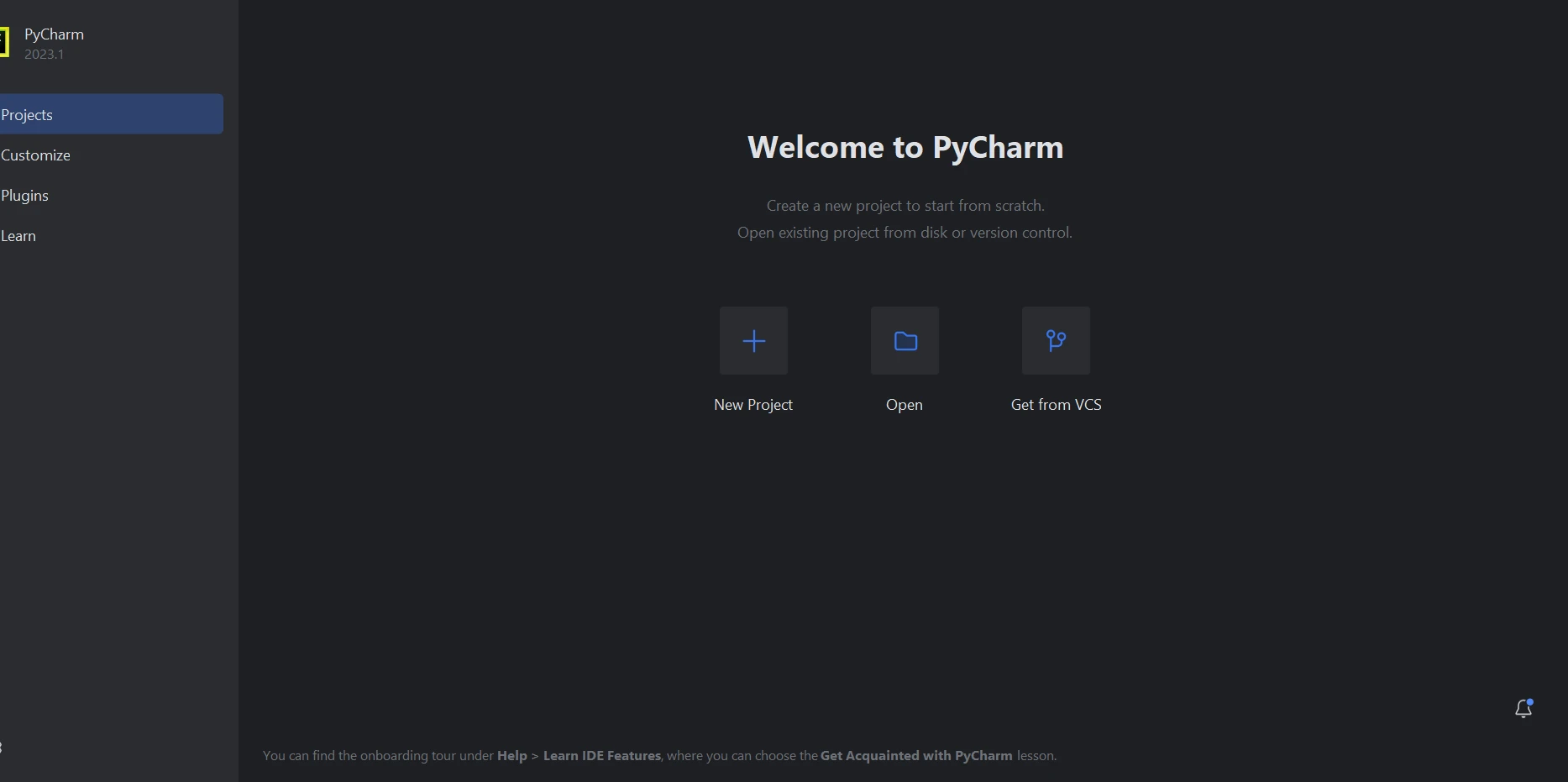
Once the PyCharm IDE has launched, select "New Project".
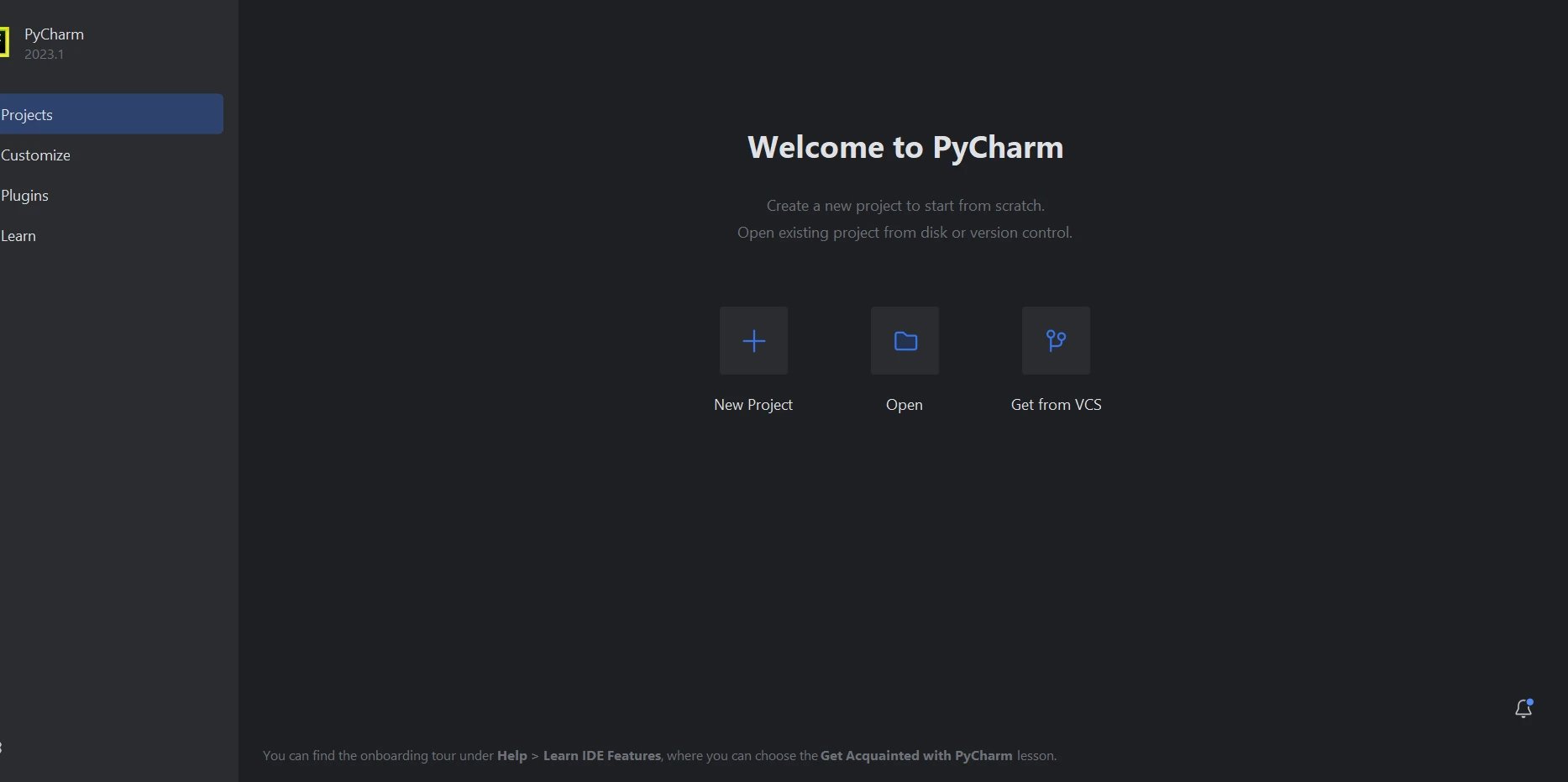
Selecting "New Project" opens a new window where you may adjust the project's surroundings and position. This new window is operational as seen in the screenshot below.
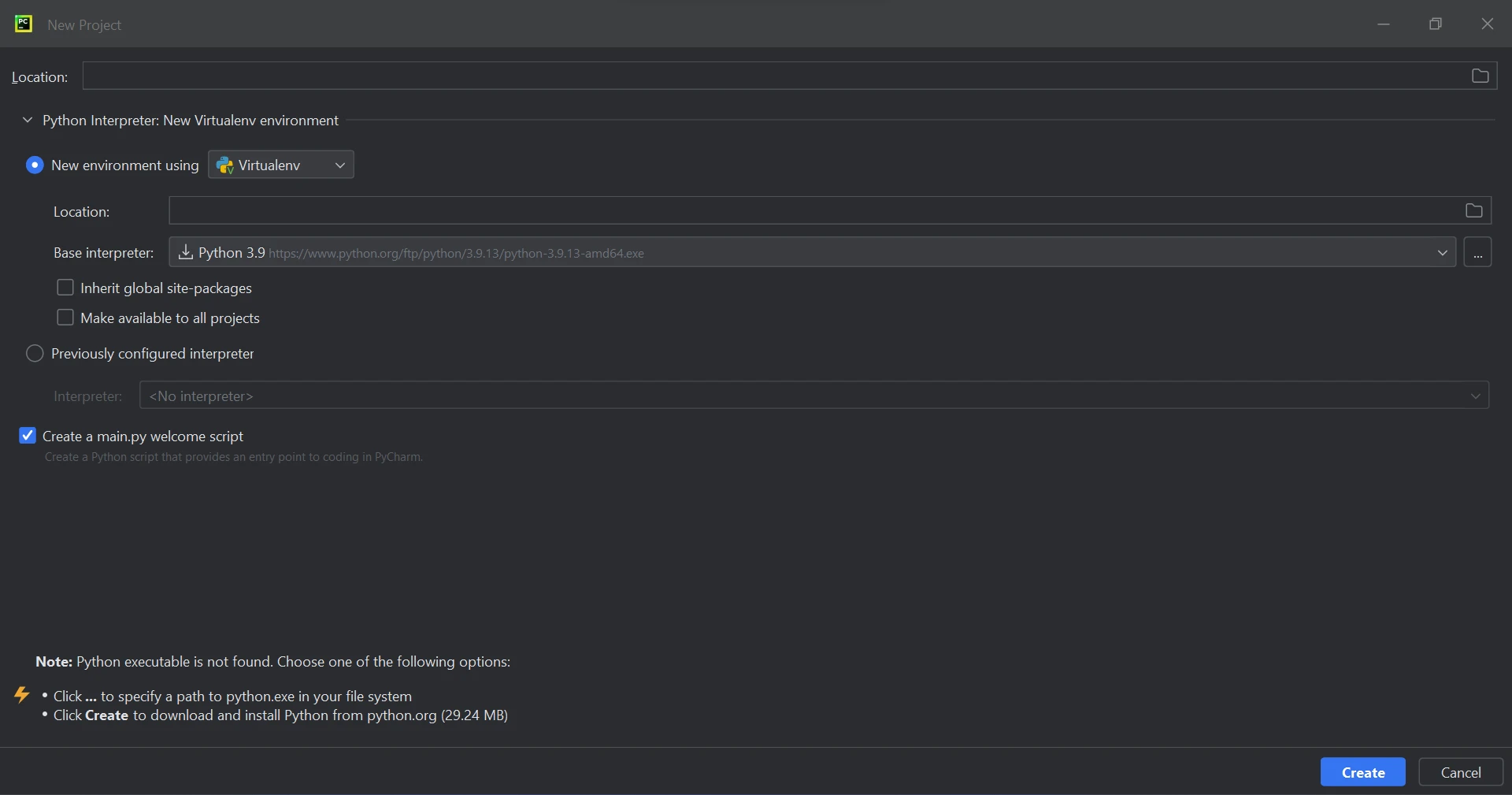
Click on "Create" to start a new project after choosing the project location and environment route. The application creation window will open in a new tab as a result. We will be using Python 3.9 for this course.
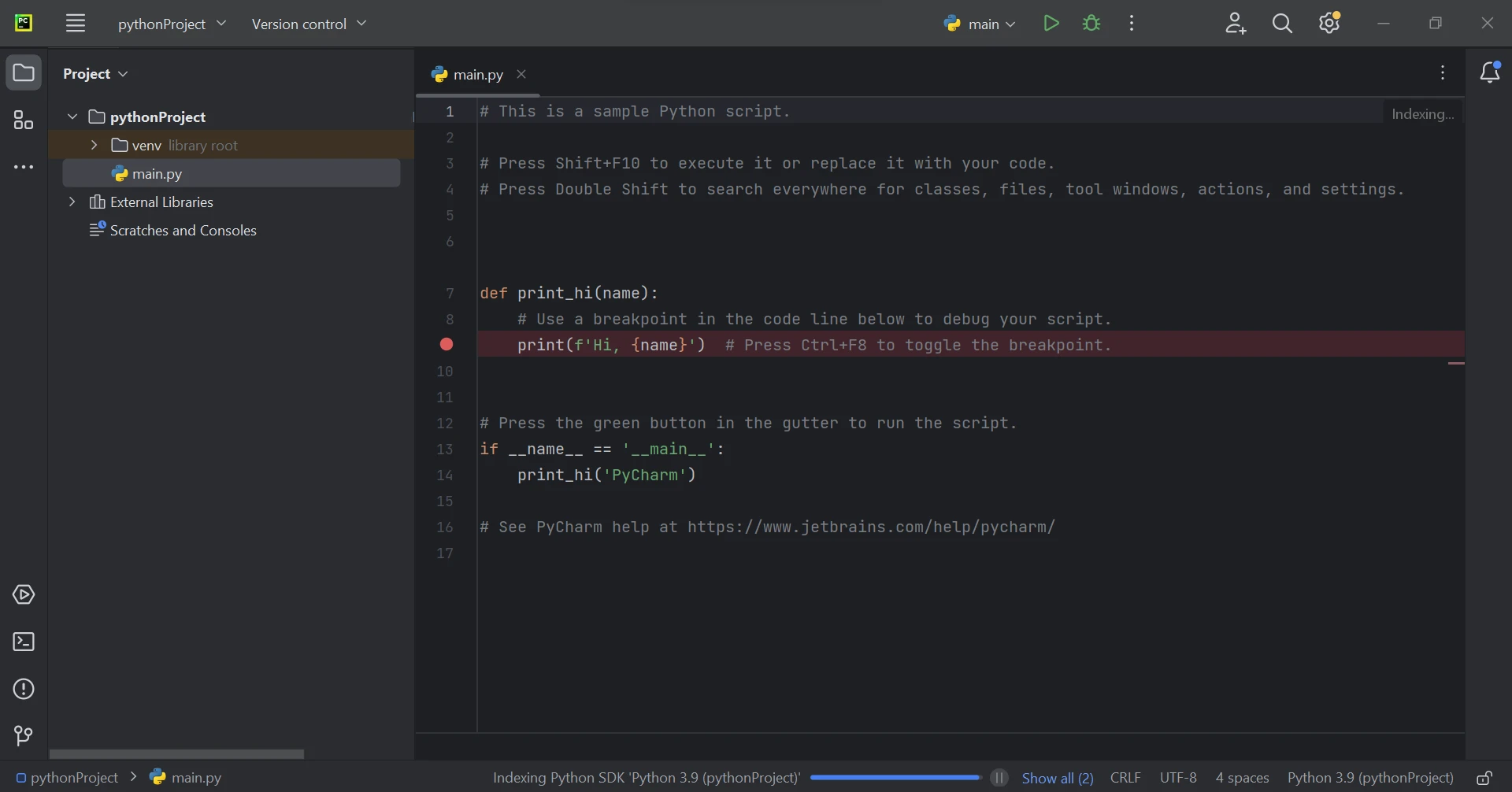
IronPDF Library Setup
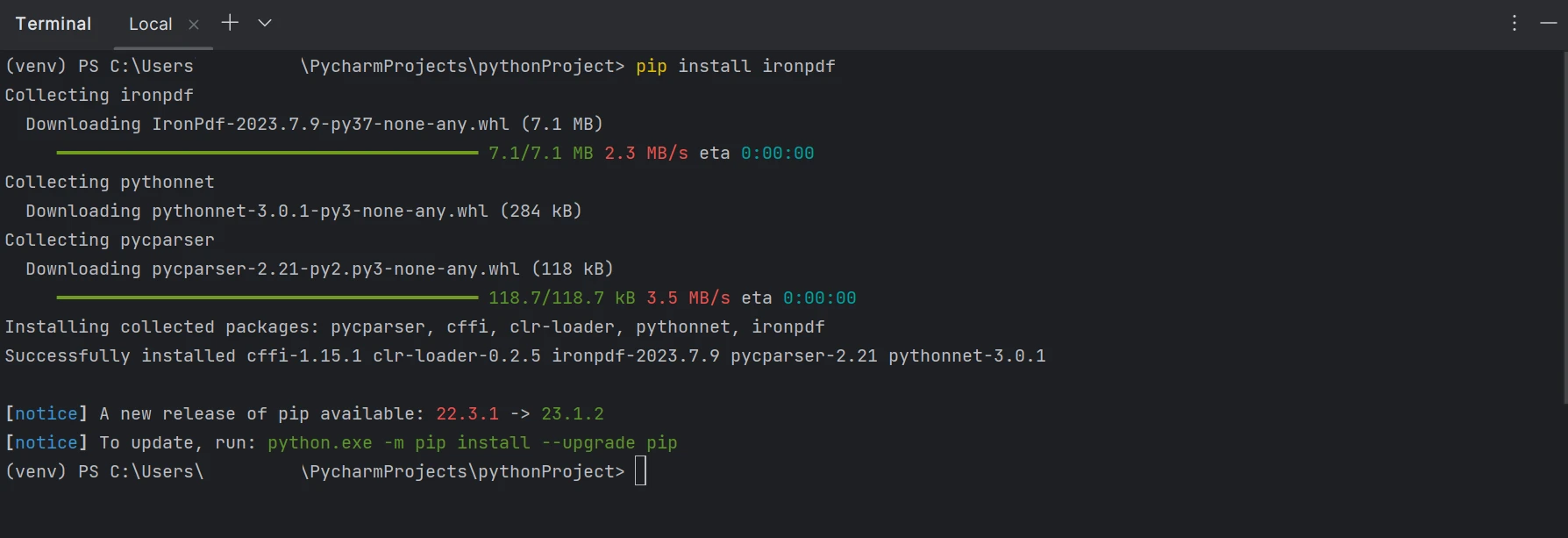
Creating, editing, and opening files with the '.pdf' extension requires the installation of the 'IronPDF' package. Open PyCharm's terminal window and type the following command to install this package:
pip install ironpdf
The 'IronPDF' package's configuration is seen in the screenshot below.
Split PDF Page to PNG Using IronPDF
The code example below shows how to use Python's IronPDF library to convert a PDF document into PNG images. An explanation of each line is given below.
from ironpdf import *
# Set your IronPDF License Key here
License.LicenseKey = "YOUR KEY HERE"

# Load the PDF document from a specified file path
pdf = PdfDocument.FromFile("Example.pdf")

# Convert each page of the PDF to a separate PNG image
pdf.RasterizeToImageFiles("image\\*.png")
from ironpdf import *
# Set your IronPDF License Key here
License.LicenseKey = "YOUR KEY HERE"
# Load the PDF document from a specified file path
pdf = PdfDocument.FromFile("Example.pdf")
# Convert each page of the PDF to a separate PNG image
pdf.RasterizeToImageFiles("image\\*.png")The script starts by importing all necessary classes and functions from the IronPDF library. The IronPDF license key is then set up, which is necessary to enable the library's features. However, in this case, an empty string is given, which might suggest a trial version or default free usage. The PdfDocument.FromFile function is used to load the PDF document from a specified file path ("Example.pdf") into an instance of the PdfDocument class. This completes the main operation and gets the PDF ready for further processing.
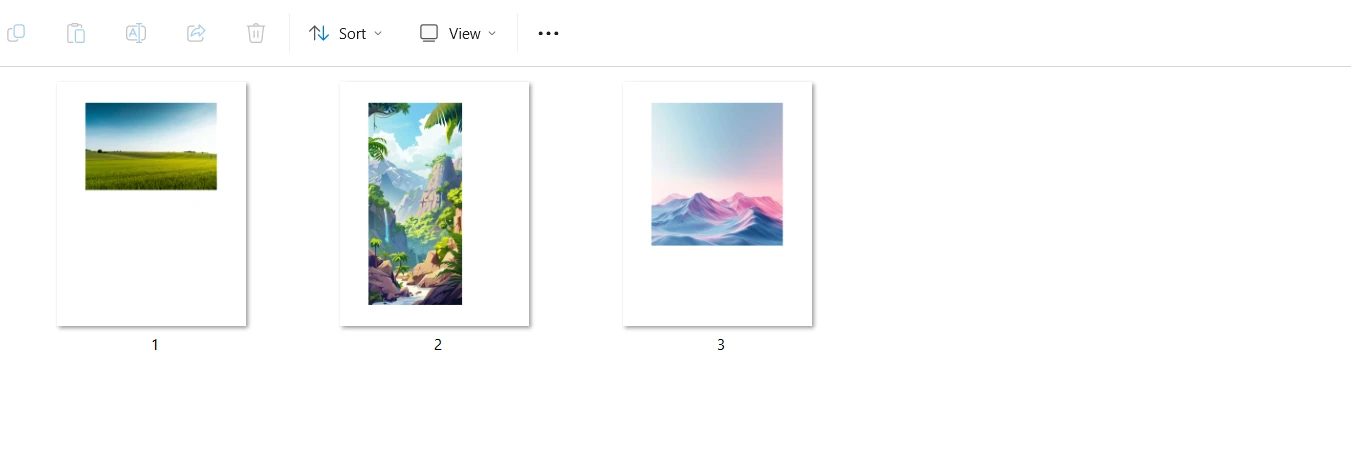
The last step is to use the RasterizeToImageFiles function, which accepts a file path pattern ("image\*.png") as an argument, to turn each PDF page into a separate PNG picture. The generated images are to be saved in the "image" directory, with the image file for each page being named consecutively, according to this pattern. This technique effectively converts the PDF pages into separate, high-quality PNG files, making it useful for creating visual representations of the PDF material, including thumbnails and previews, as well as for additional image processing tasks.
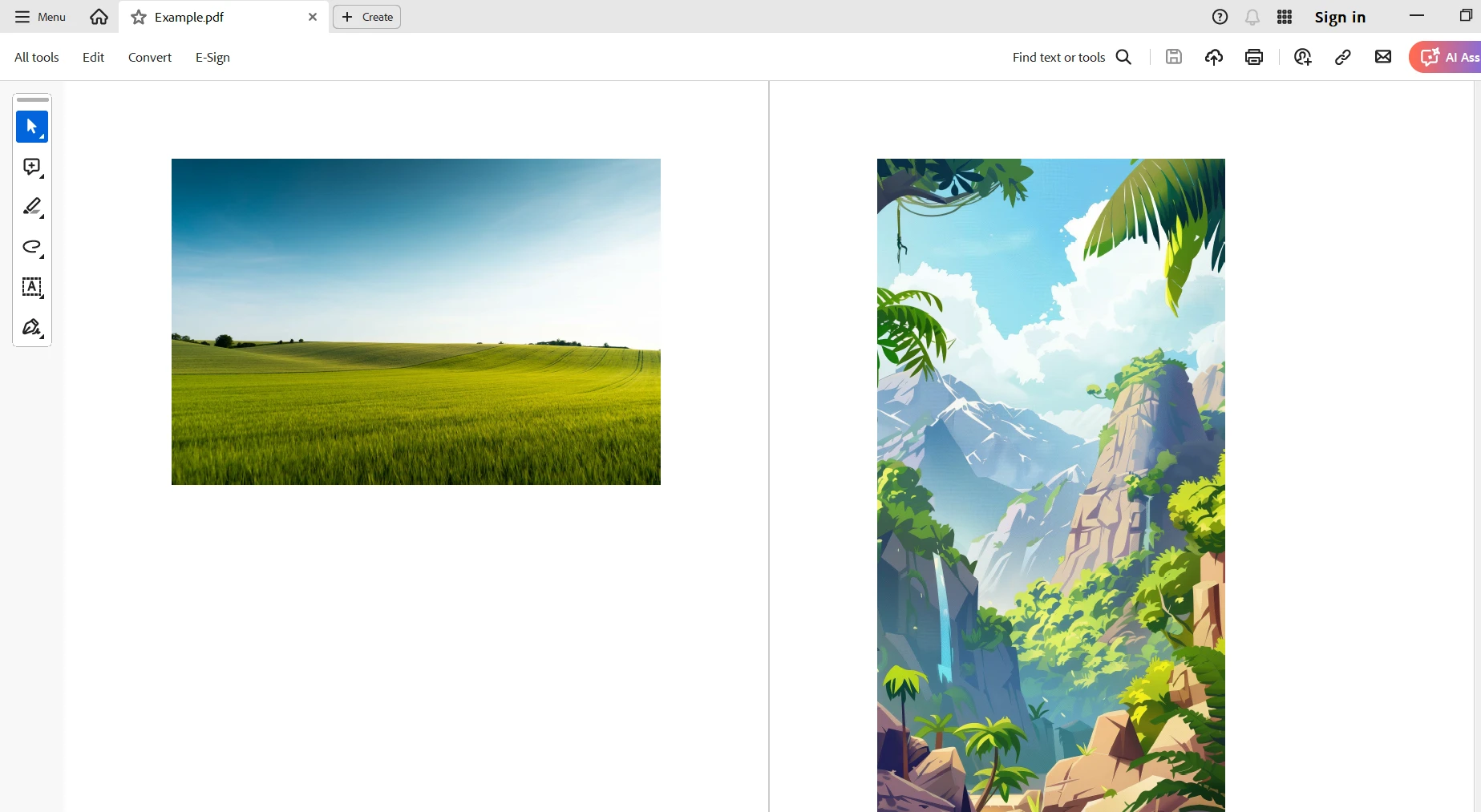
Below is the sample PDF which we use to split the pages.
Below is the output when the pages are split into separate PNG images.
Conclusion
In conclusion, a reliable and effective option for a range of document processing requirements is to use IronPDF in Python to convert PDF documents to PNG images. Developers may effortlessly utilize IronPDF's robust functionality with the Python .NET interface, which enables them to automate the extraction of PDF material into picture formats.
Furthermore, IronPDF's ability to handle intricate PDF features like form filling, encryption, and comments expands its usefulness beyond simple conversion jobs and qualifies it for workflows including the whole administration of documents.
All things considered, IronPDF makes the process of converting PDFs to PNGs simpler because of its user-friendly API and strong performance, enabling programmers to effectively and reliably incorporate document processing features into their Python programs.
IronPDF for Python offers free licensing page. Click this link to learn more about Iron Software's other products.
자주 묻는 질문
Python을 사용하여 PDF를 PNG로 변환하려면 어떻게 해야 하나요?
Python을 사용하여 PDF를 PNG로 변환하려면 IronPDF를 활용하면 됩니다. PdfDocument.FromFile을 사용하여 PDF 문서를 로드한 다음 RasterizeToImageFiles 메서드를 사용하여 각 페이지를 PNG 이미지로 변환합니다.
PDF를 PNG 이미지로 변환하면 어떤 이점이 있나요?
PNG 파일은 빠르게 로드되고 고품질을 유지하므로 PDF를 PNG 이미지로 변환하는 것이 웹 사용에 유리합니다. 편집하기 쉽고 대부분의 이미지 뷰어와 호환되므로 프레젠테이션 및 디지털 문서 관리에 이상적입니다.
Python용 IronPDF를 사용하려면 어떤 설정이 필요하나요?
Python용 IronPDF를 사용하려면 .NET 6.0 SDK, Python 3.0+ 및 pip가 필요합니다. 이 설정을 통해 IronPDF를 설치하고 PDF 처리 작업을 위해 Python 환경에 통합할 수 있습니다.
Python용 IronPDF는 PDF를 이미지로 변환하는 것 이외의 작업을 수행할 수 있나요?
예, Python용 IronPDF는 HTML을 PDF로 변환, PDF 병합 및 분할, 텍스트 및 이미지 추출, 양식 처리 등 다양한 작업을 수행할 수 있습니다.
IronPDF가 PDF를 PNG로 변환하는 데 적합한 이유는 무엇인가요?
IronPDF는 복잡한 문서 처리 작업을 간소화하고 고품질 이미지 출력을 보장하는 강력한 기능과 사용자 친화적인 API로 인해 PDF를 PNG로 변환하는 데 적합합니다.
Python에서 IronPDF로 작업할 때 IDE를 사용하는 것이 권장되나요?
필수는 아니지만 PyCharm과 같은 IDE를 사용하면 효율적인 프로젝트 관리 및 코드 편집을 위한 도구를 제공함으로써 IronPDF의 개발 경험을 향상시킬 수 있습니다.
IronPDF는 PNG 변환에서 어떻게 고품질을 보장하나요?
IronPDF는 PDF 페이지를 선명한 이미지로 변환하여 썸네일, 미리 보기를 만들고 전문가 수준의 이미지 품질을 유지하는 데 적합한 고품질 PNG 변환을 보장합니다.
IronPDF는 개발자를 위한 무료 라이선스 옵션을 제공하나요?
예, IronPDF는 무료 라이선스 옵션을 제공하여 개발자가 기능을 살펴볼 수 있도록 합니다. 자세한 라이선스 정보는 Iron Software 웹사이트에서 확인할 수 있습니다.
PNG 파일의 일반적인 용도는 무엇인가요?
PNG 파일은 무손실 압축, 투명도 기능 및 선명한 이미지 품질로 인해 웹 그래픽에 일반적으로 사용되며 디지털 프레젠테이션 및 문서 관리에 이상적입니다.









 무료로 시작하세요
 무료로 시작하세요
 무료 라이브 데모 예약하기



 신용카드나 계정 생성은 필요하지 않습니다.









