using IronPdf;

// Disable local disk access or cross-origin requests
Installation.EnableWebSecurity = true;

// Instantiate Renderer
var renderer = new ChromePdfRenderer();

// Create a PDF from a HTML string using C#
var pdf = renderer.RenderHtmlAsPdf("<h1>Hello World</h1>");

// Export to a file or Stream
pdf.SaveAs("output.pdf");

// Advanced Example with HTML Assets
// Load external html assets: Images, CSS and JavaScript.
// An optional BasePath 'C:\site\assets\' is set as the file location to load assets from
var myAdvancedPdf = renderer.RenderHtmlAsPdf("<img src='icons/iron.png'>", @"C:\site\assets\");
myAdvancedPdf.SaveAs("html-with-assets.pdf");
using IronPdf;// Disable local disk access or cross-origin requestsInstallation.EnableWebSecurity = true;// Instantiate Renderervar renderer = new ChromePdfRenderer();// Create a PDF from a HTML string using C#var pdf = renderer.RenderHtmlAsPdf("<h1>Hello World</h1>");// Export to a file or Streampdf.SaveAs("output.pdf");// Advanced Example with HTML Assets// Load external html assets: Images, CSS and JavaScript.// An optional BasePath 'C:\site\assets\' is set as the file location to load assets fromvar myAdvancedPdf = renderer.RenderHtmlAsPdf("<img src='icons/iron.png'>", @"C:\site\assets\");myAdvancedPdf.SaveAs("html-with-assets.pdf");
PM >Install-Package IronPdf
Install-Package IronPdf
AKTUALNOŚCI DLA PROGRAMISTÓW
C# String Replace (jak to działa dla programistów)
Niezależnie od tego, czy dopiero zaczynasz przygodę z programowaniem, czy po prostu chcesz lepiej zrozumieć, jak manipulować ciągami znaków w języku C#, trafiłeś we właściwe miejsce. W tym samouczku będziemy eksplorować metodę `replace` w C#, używając powiązanych przykładów z życia codziennego i opowiadań, co sprawia, że jest to wciągające i łatwe do śledzenia.
## Podstawy: Czym jest ciąg znaków?
Zanim zagłębimy się w metodę 'string `replace`', najpierw przyjrzyjmy się podstawom ciągów. Ciąg znaków to sekwencja znaków, która może zawierać litery, cyfry i symbole. W C# ciągi są reprezentowane przez typ danych `string`. Są one niezbędne do obsługi tekstu w programie i zawierają mnóstwo wbudowanych metod do manipulowania nim. Jedną z takich metod jest metoda "replace", na której skupimy się w tym samouczku.
## Przedstawiamy metodę Replace
Wyobraź sobie, że piszesz aplikację, która wymaga od użytkowników wprowadzenia zdania. Twoja aplikacja musi zastępować określone słowa lub znaki nowymi. W tym miejscu przydaje się metoda `replace` w C#.
Metoda `replace` to wbudowana funkcja, która pozwala zastąpić wszystkie wystąpienia określonego znaku Unicode lub podciągu nowym ciągiem. Załóżmy, że masz następujący ciąg znaków: "I love ice cream". Chcesz zastąpić słowo "ice" słowem "chocolate", aby utworzyć nowy ciąg znaków o treści "I love chocolate cream". Metoda replace sprawia, że zadanie to jest łatwe i wydajne.
## Korzystanie z metody Replace: przewodnik krok po kroku
Aby skorzystać z metody replace, wykonaj następujące proste kroki:
1. Zadeklaruj zmienną typu string zawierającą tekst źródłowy.
2. Wywołaj metodę `replace` dla określonego ciągu, podając znak lub podciąg do zastąpienia i nowy ciąg.
3. Zapisz wynik w nowej zmiennej typu string lub zaktualizuj oryginalny ciąg znaków.
Oto przykład kodu ilustrujący te kroki:
```csharp
// Declare the original text
string originalText = "I love ice cream.";

// Use the Replace method to replace 'ice' with 'chocolate'
string newText = originalText.Replace("ice", "chocolate");

// Output the modified string
Console.WriteLine(newText);
```
Ten fragment kodu wyświetliłby zmodyfikowany ciąg znaków: "Uwielbiam krem czekoladowy".
### Różne warianty metody Replace
W języku C# istnieją dwie przeciążone wersje metody replace, aby zaspokoić różne potrzeby. Przyjrzyjmy się im bliżej:
### Zastępowanie określonego znaku Unicode
Pierwsza wersja metody replace pozwala na zastąpienie określonego znaku Unicode nowym znakiem. Składnia dla tej wersji jest następująca:
```csharp
public string Replace(char oldChar, char newChar);
```
Oto przykład ilustrujący jego zastosowanie:
```csharp
// Original string with numbers
string originalText = "H3ll0 W0rld!";
// Replace '3' with 'e' and '0' with 'o'
string newText = originalText.Replace('3', 'e').Replace('0', 'o');
// Output the modified string
Console.WriteLine(newText);
```
Wynik to: "Hello World!"
### Zastępowanie podciągu
Druga wersja metody `replace` pozwala na zastąpienie określonego podciągu nowym ciągiem. Składnia dla tej wersji jest następująca:
```csharp
public string Replace(string oldValue, string newValue);
```
Oto przykład ilustrujący jego zastosowanie:
```csharp
// Original string
string originalText = "I have a red car and a red hat.";
// Replace "red" with "blue"
string newText = originalText.Replace("red", "blue");
// Output the modified string
Console.WriteLine(newText);
```
Wynik brzmiałby: "Mam niebieski samochód i niebieską czapkę".
### Wrażliwość na wielkość liter i metoda Replace
Należy pamiętać, że metoda replace rozróżnia wielkość liter. Oznacza to, że jeśli próbujesz zastąpić określony znak Unicode lub podciąg, wielkość liter musi być dokładnie taka sama. Weźmy na przykład następujący fragment kodu:
```csharp
// Original string with mixed casing
string originalText = "Cats are great pets, but some people prefer CATS.";
// Replace uppercase "CATS" with "dogs"
string newText = originalText.Replace("CATS", "dogs");
// Output the modified string
Console.WriteLine(newText);
```
Wynik brzmiałby: "Koty to wspaniałe zwierzęta domowe, ale niektórzy wolą psy".
Zwróć uwagę, że zmieniono tylko wielką literę "CATS", a mała litera "Cats" pozostała bez zmian. Jesli chcesz dokonac zamiany nie uwzgledniajac wielkosci liter, musisz skonwertowac oryginalny lancuch znakow oraz lancuch wyszukiwania do wspolnej wielkosci liter (czy to na duze, czy na male) i nastepnie wykonac zamiane. Oto przykład:
```csharp
// Original string
string originalText = "Cats are great pets, but some people prefer CATS.";
// Convert the original string to lowercase
string lowerCaseText = originalText.ToLower();
// Replace "cats" with "dogs" in the lowercase string
string newText = lowerCaseText.Replace("cats", "dogs");
// Output the modified string
Console.WriteLine(newText);
```
Wynik bylby nastepujacy: 'psy sa swietnymi zwierzetami domowymi, ale niektorzy ludzie wola psy.'
Miej na uwadze, ze to podejscie zmieni rowniez wielkosc liter w calym lancuchu znakow. Jeśli chcesz zachować oryginalną pisownię, możesz użyć metody `Regex.Replace` z flagą `RegexOptions.IgnoreCase`.
### Moc lancuchowego uzywania metod zamiany
Mozesz rowniez polaczyc kilka metod zamiany, aby wykonac kilka zamian w jednej linii kodu. To jest szczegolnie przydatne, kiedy musisz zastapic wiele znakow lub podlancuchow roznymi nowymi lancuchami. Oto przykład:
```csharp
// Original string with numbers
string originalText = "H3ll0 W0rld!";
// Replace '3' with 'e' and '0' with 'o' using chained Replace methods
string newText = originalText.Replace('3', 'e').Replace('0', 'o');
// Output the modified string
Console.WriteLine(newText);
```
Wynik to: "Hello World!"
### Wyrazenia regularne i metoda zamiany
Podczas gdy metoda `replace` jest idealna do prostych zamian ciągów, możesz potrzebować bardziej zaawansowanej funkcjonalności w złożonych scenariuszach. W takich przypadkach możesz użyć wyrażeń regularnych i metody `Regex.Replace` do wykonywania zaawansowanych manipulacji ciągami.
Metoda `Regex.Replace` pozwala na wyszukiwanie wzorca w oryginalnym ciągu i zastąpienie go nowym ciągiem. Mozesz uzyc wyrazen regularnych do dopasowania wzorcow, okreslenia opcji jak nieczulosc na wielkosc liter, a nawet uzycia grup przechwytujacych do dynamicznych zamian.
Oto przykład użycia metody `Regex.Replace` do zastąpienia wszystkich wystąpień wzorca nowym ciągiem:
```csharp
using System.Text.RegularExpressions;
// Original text with numbers
string originalText = "100 cats, 25 dogs, and 50 birds.";
// Regular expression pattern to match one or more digits
string pattern = @"\d+";
// Replace all digit sequences with the word "many"
string newText = Regex.Replace(originalText, pattern, "many");
// Output the modified string
Console.WriteLine(newText);
```
Wynik bylby nastepujacy: 'wiele kotow, wiele psow, i wiele ptakow.'
W tym przykładzie użyliśmy wzorca wyrażenia regularnego `\d+`, aby dopasować dowolną sekwencję jednej lub więcej cyfr i zastąpić ją słowem 'wiele'.
## IronPDF: Generating PDFs with String Replacement in C#
Mozesz wykorzystac potężne [mozliwosci konwersji HTML do PDF](/tutorials/html-to-pdf/) IronPDF w polaczeniu z metoda zamiany lancuchow znakow w C# do tworzenia dynamicznych dokumentow PDF.
```csharp
using IronPdf;
class Program
{
static void Main(string[] args)
{
var renderer = new ChromePdfRenderer();
// Convert HTML String to PDF
var htmlContent = "<h1>Hello, IronPDF!</h1><p>This is a PDF from an HTML string.</p>";
var pdfFromHtmlString = renderer.RenderHtmlAsPdf(htmlContent);
pdfFromHtmlString.SaveAs("HTMLStringToPDF.pdf");
// Convert HTML File to PDF
var htmlFilePath = "path_to_your_html_file.html"; // Specify the path to your HTML file
var pdfFromHtmlFile = renderer.RenderHtmlFileAsPdf(htmlFilePath);
pdfFromHtmlFile.SaveAs("HTMLFileToPDF.pdf");
// Convert URL to PDF
var url = "http://ironpdf.com"; // Specify the URL
var pdfFromUrl = renderer.RenderUrlAsPdf(url);
pdfFromUrl.SaveAs("URLToPDF.pdf");
}
}
```
### Pierwsze kroki z IronPDF
Aby rozpoczac uzycie [IronPDF do generowania PDF](/), najpierw bedziesz musial zainstalowac pakiet NuGet IronPDF. Mozesz to zrobic, uruchamiajac nastepujace polecenie w konsoli Menedzera Pakietow:
```shell
:ProductInstall
```
Lub mozesz wyszukac 'IronPDF' w Menedzerze Pakietow NuGet w Visual Studio i zainstalowac go stad.
### Tworzenie PDF z zamiana lancuchow znakow
Powiedzmy, ze chcesz stworzyc [raport PDF z HTML z zamiana symboli zastepczych](/tutorials/html-to-pdf/), ktory wyswietla spersonalizowane powitania dla roznych uzytkownikow. Mozesz uzyc metody zamiany lancuchow znakow w C# do zastepowania symboli zastepczych w szablonie HTML rzeczywistymi danymi uzytkownika, a nastepnie uzyc IronPDF do konwersji HTML na dokument PDF.
Oto przewodnik krok po kroku jak to zrobic:
Stworz szablon HTML z symbolami zastepczymi dla danych uzytkownika.
```html
<!-- HTML template with placeholders -->
<!DOCTYPE html>
<html>
<head>
<title>Personalized Greeting</title>
</head>
<body>
<h1>Hello, {USERNAME}!</h1>
<p>Welcome to our platform. Your email address is {EMAIL}.</p>
</body>
</html>
```
Uzyj metody zamiany lancuchow znakow w C# do zastepowania symboli zastepczych rzeczywistymi danymi uzytkownika.
```csharp
// Read the HTML template from a file
string htmlTemplate = File.ReadAllText("greeting_template.html");
// Replace placeholders with actual user data
string personalizedHtml = htmlTemplate.Replace("{USERNAME}", "John Doe")
.Replace("{EMAIL}", "john.doe@example.com");
```
Uzyj IronPDF do konwersji spersonalizowanego HTML na dokument PDF.
```csharp
using IronPdf;
var renderer = new ChromePdfRenderer();
// Convert the personalized HTML to a PDF document
PdfDocument pdfDocument = renderer.RenderHtmlAsPdf(personalizedHtml);
// Save the PDF document to a file
pdfDocument.SaveAs("PersonalizedGreeting.PDF");
```
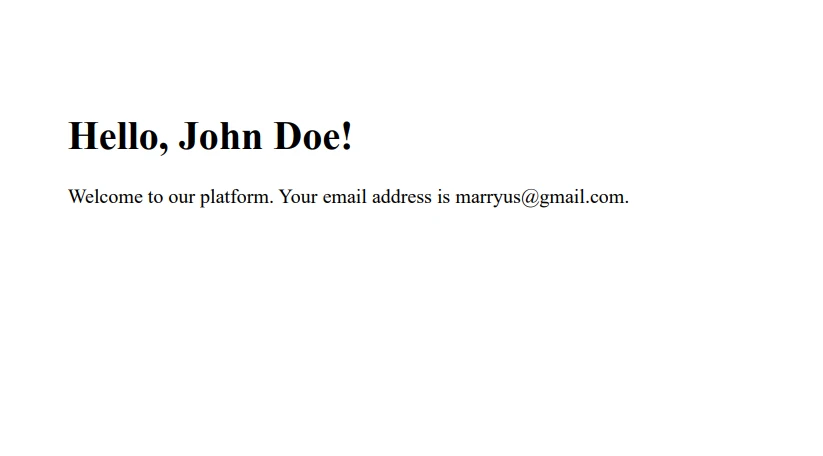
I to wszystko! Pomyślnie utworzyłeś spersonalizowany dokument PDF przy użyciu metody C# `replace` i IronPDF.
### Wnioski
Łącząc moc IronPDF z elastycznością metody C# `replace`, możesz tworzyć dynamiczne dokumenty PDF dostosowane do specyficznych użytkowników lub scenariuszy. To podejscie nie jest ograniczone tylko do spersonalizowanych powitan – mozesz je wykorzystac do generowania faktur, raportow, certyfikatow i wielu innych.
IronPDF oferuje [bezplatna wersje proba IronPDF](trial-license), co pozwala na zbadanie jego mozliwosci bez wstepnych kosztow. Jeśli uznasz, że idealnie pasuje do Twoich potrzeb generowania PDF, licencjonowanie zaczyna się od `$liteLicense`.
Niezależnie od tego, czy dopiero zaczynasz przygodę z programowaniem, czy po prostu chcesz lepiej zrozumieć, jak manipulować ciągami znaków w języku C#, trafiłeś we właściwe miejsce. W tym samouczku będziemy eksplorować metodę replace w C#, używając powiązanych przykładów z życia codziennego i opowiadań, co sprawia, że jest to wciągające i łatwe do śledzenia.
Podstawy: Czym jest ciąg znaków?
Zanim zagłębimy się w metodę 'string replace', najpierw przyjrzyjmy się podstawom ciągów. Ciąg znaków to sekwencja znaków, która może zawierać litery, cyfry i symbole. W C# ciągi są reprezentowane przez typ danych string. Są one niezbędne do obsługi tekstu w programie i zawierają mnóstwo wbudowanych metod do manipulowania nim. Jedną z takich metod jest metoda "replace", na której skupimy się w tym samouczku.
Przedstawiamy metodę Replace
Wyobraź sobie, że piszesz aplikację, która wymaga od użytkowników wprowadzenia zdania. Twoja aplikacja musi zastępować określone słowa lub znaki nowymi. W tym miejscu przydaje się metoda replace w C#.
Metoda replace to wbudowana funkcja, która pozwala zastąpić wszystkie wystąpienia określonego znaku Unicode lub podciągu nowym ciągiem. Załóżmy, że masz następujący ciąg znaków: "I love ice cream". Chcesz zastąpić słowo "ice" słowem "chocolate", aby utworzyć nowy ciąg znaków o treści "I love chocolate cream". Metoda replace sprawia, że zadanie to jest łatwe i wydajne.
Korzystanie z metody Replace: przewodnik krok po kroku
Aby skorzystać z metody replace, wykonaj następujące proste kroki:
Zadeklaruj zmienną typu string zawierającą tekst źródłowy.
Wywołaj metodę replace dla określonego ciągu, podając znak lub podciąg do zastąpienia i nowy ciąg.
Zapisz wynik w nowej zmiennej typu string lub zaktualizuj oryginalny ciąg znaków.
Oto przykład kodu ilustrujący te kroki:
// Declare the original textstring originalText = "I love ice cream.";// Use the Replace method to replace 'ice' with 'chocolate'string newText = originalText.Replace("ice", "chocolate");// Output the modified stringConsole.WriteLine(newText);
// Declare the original text
string originalText = "I love ice cream.";

// Use the Replace method to replace 'ice' with 'chocolate'
string newText = originalText.Replace("ice", "chocolate");

// Output the modified string
Console.WriteLine(newText);
' Declare the original textDim originalText AsString = "I love ice cream."' Use the Replace method to replace 'ice' with 'chocolate'Dim newText AsString = originalText.Replace("ice", "chocolate")' Output the modified stringConsole.WriteLine(newText)
' Declare the original text
Dim originalText As String = "I love ice cream."

' Use the Replace method to replace 'ice' with 'chocolate'
Dim newText As String = originalText.Replace("ice", "chocolate")

' Output the modified string
Console.WriteLine(newText)
Ten fragment kodu wyświetliłby zmodyfikowany ciąg znaków: "Uwielbiam krem czekoladowy".
Różne warianty metody Replace
W języku C# istnieją dwie przeciążone wersje metody replace, aby zaspokoić różne potrzeby. Przyjrzyjmy się im bliżej:
Zastępowanie określonego znaku Unicode
Pierwsza wersja metody replace pozwala na zastąpienie określonego znaku Unicode nowym znakiem. Składnia dla tej wersji jest następująca:
public stringReplace(char oldChar, char newChar);
public string Replace(char oldChar, char newChar);
publicStringReplace(Char oldChar, Char newChar)
public String Replace(Char oldChar, Char newChar)
Oto przykład ilustrujący jego zastosowanie:
// Original string with numbersstring originalText = "H3ll0 W0rld!";// Replace '3' with 'e' and '0' with 'o'string newText = originalText.Replace('3', 'e').Replace('0', 'o');// Output the modified stringConsole.WriteLine(newText);
// Original string with numbers
string originalText = "H3ll0 W0rld!";

// Replace '3' with 'e' and '0' with 'o'
string newText = originalText.Replace('3', 'e').Replace('0', 'o');

// Output the modified string
Console.WriteLine(newText);
' Original string with numbersDim originalText AsString = "H3ll0 W0rld!"' Replace '3' with 'e' and '0' with 'o'Dim newText AsString = originalText.Replace("3"c, "e"c).Replace("0"c, "o"c)' Output the modified stringConsole.WriteLine(newText)
' Original string with numbers
Dim originalText As String = "H3ll0 W0rld!"

' Replace '3' with 'e' and '0' with 'o'
Dim newText As String = originalText.Replace("3"c, "e"c).Replace("0"c, "o"c)

' Output the modified string
Console.WriteLine(newText)
Wynik to: "Hello World!"
Zastępowanie podciągu
Druga wersja metody replace pozwala na zastąpienie określonego podciągu nowym ciągiem. Składnia dla tej wersji jest następująca:
public stringReplace(string oldValue, string newValue);
public string Replace(string oldValue, string newValue);
public String Replace(String oldValue, String newValue)
Oto przykład ilustrujący jego zastosowanie:
// Original stringstring originalText = "I have a red car and a red hat.";// Replace "red" with "blue"string newText = originalText.Replace("red", "blue");// Output the modified stringConsole.WriteLine(newText);
// Original string
string originalText = "I have a red car and a red hat.";

// Replace "red" with "blue"
string newText = originalText.Replace("red", "blue");

// Output the modified string
Console.WriteLine(newText);
' Original stringDim originalText AsString = "I have a red car and a red hat."' Replace "red" with "blue"Dim newText AsString = originalText.Replace("red", "blue")' Output the modified stringConsole.WriteLine(newText)
' Original string
Dim originalText As String = "I have a red car and a red hat."

' Replace "red" with "blue"
Dim newText As String = originalText.Replace("red", "blue")

' Output the modified string
Console.WriteLine(newText)
Wynik brzmiałby: "Mam niebieski samochód i niebieską czapkę".
Wrażliwość na wielkość liter i metoda Replace
Należy pamiętać, że metoda replace rozróżnia wielkość liter. Oznacza to, że jeśli próbujesz zastąpić określony znak Unicode lub podciąg, wielkość liter musi być dokładnie taka sama. Weźmy na przykład następujący fragment kodu:
// Original string with mixed casingstring originalText = "Cats are great pets, but some people prefer CATS.";// Replace uppercase "CATS" with "dogs"string newText = originalText.Replace("CATS", "dogs");// Output the modified stringConsole.WriteLine(newText);
// Original string with mixed casing
string originalText = "Cats are great pets, but some people prefer CATS.";

// Replace uppercase "CATS" with "dogs"
string newText = originalText.Replace("CATS", "dogs");

// Output the modified string
Console.WriteLine(newText);
' Original string with mixed casingDim originalText AsString = "Cats are great pets, but some people prefer CATS."' Replace uppercase "CATS" with "dogs"Dim newText AsString = originalText.Replace("CATS", "dogs")' Output the modified stringConsole.WriteLine(newText)
' Original string with mixed casing
Dim originalText As String = "Cats are great pets, but some people prefer CATS."

' Replace uppercase "CATS" with "dogs"
Dim newText As String = originalText.Replace("CATS", "dogs")

' Output the modified string
Console.WriteLine(newText)
Wynik brzmiałby: "Koty to wspaniałe zwierzęta domowe, ale niektórzy wolą psy".
Zwróć uwagę, że zmieniono tylko wielką literę "CATS", a mała litera "Cats" pozostała bez zmian. Jesli chcesz dokonac zamiany nie uwzgledniajac wielkosci liter, musisz skonwertowac oryginalny lancuch znakow oraz lancuch wyszukiwania do wspolnej wielkosci liter (czy to na duze, czy na male) i nastepnie wykonac zamiane. Oto przykład:
// Original stringstring originalText = "Cats are great pets, but some people prefer CATS.";// Convert the original string to lowercasestring lowerCaseText = originalText.ToLower();// Replace "cats" with "dogs" in the lowercase stringstring newText = lowerCaseText.Replace("cats", "dogs");// Output the modified stringConsole.WriteLine(newText);
// Original string
string originalText = "Cats are great pets, but some people prefer CATS.";

// Convert the original string to lowercase
string lowerCaseText = originalText.ToLower();

// Replace "cats" with "dogs" in the lowercase string
string newText = lowerCaseText.Replace("cats", "dogs");

// Output the modified string
Console.WriteLine(newText);
' Original stringDim originalText AsString = "Cats are great pets, but some people prefer CATS."' Convert the original string to lowercaseDim lowerCaseText AsString = originalText.ToLower()' Replace "cats" with "dogs" in the lowercase stringDim newText AsString = lowerCaseText.Replace("cats", "dogs")' Output the modified stringConsole.WriteLine(newText)
' Original string
Dim originalText As String = "Cats are great pets, but some people prefer CATS."

' Convert the original string to lowercase
Dim lowerCaseText As String = originalText.ToLower()

' Replace "cats" with "dogs" in the lowercase string
Dim newText As String = lowerCaseText.Replace("cats", "dogs")

' Output the modified string
Console.WriteLine(newText)
Wynik bylby nastepujacy: 'psy sa swietnymi zwierzetami domowymi, ale niektorzy ludzie wola psy.'
Miej na uwadze, ze to podejscie zmieni rowniez wielkosc liter w calym lancuchu znakow. Jeśli chcesz zachować oryginalną pisownię, możesz użyć metody Regex.Replace z flagą RegexOptions.IgnoreCase.
Moc lancuchowego uzywania metod zamiany
Mozesz rowniez polaczyc kilka metod zamiany, aby wykonac kilka zamian w jednej linii kodu. To jest szczegolnie przydatne, kiedy musisz zastapic wiele znakow lub podlancuchow roznymi nowymi lancuchami. Oto przykład:
// Original string with numbersstring originalText = "H3ll0 W0rld!";// Replace '3' with 'e' and '0' with 'o' using chained Replace methodsstring newText = originalText.Replace('3', 'e').Replace('0', 'o');// Output the modified stringConsole.WriteLine(newText);
// Original string with numbers
string originalText = "H3ll0 W0rld!";

// Replace '3' with 'e' and '0' with 'o' using chained Replace methods
string newText = originalText.Replace('3', 'e').Replace('0', 'o');

// Output the modified string
Console.WriteLine(newText);
' Original string with numbersDim originalText AsString = "H3ll0 W0rld!"' Replace '3' with 'e' and '0' with 'o' using chained Replace methodsDim newText AsString = originalText.Replace("3"c, "e"c).Replace("0"c, "o"c)' Output the modified stringConsole.WriteLine(newText)
' Original string with numbers
Dim originalText As String = "H3ll0 W0rld!"

' Replace '3' with 'e' and '0' with 'o' using chained Replace methods
Dim newText As String = originalText.Replace("3"c, "e"c).Replace("0"c, "o"c)

' Output the modified string
Console.WriteLine(newText)
Wynik to: "Hello World!"
Wyrazenia regularne i metoda zamiany
Podczas gdy metoda replace jest idealna do prostych zamian ciągów, możesz potrzebować bardziej zaawansowanej funkcjonalności w złożonych scenariuszach. W takich przypadkach możesz użyć wyrażeń regularnych i metody Regex.Replace do wykonywania zaawansowanych manipulacji ciągami.
Metoda Regex.Replace pozwala na wyszukiwanie wzorca w oryginalnym ciągu i zastąpienie go nowym ciągiem. Mozesz uzyc wyrazen regularnych do dopasowania wzorcow, okreslenia opcji jak nieczulosc na wielkosc liter, a nawet uzycia grup przechwytujacych do dynamicznych zamian.
Oto przykład użycia metody Regex.Replace do zastąpienia wszystkich wystąpień wzorca nowym ciągiem:
using System.Text.RegularExpressions;// Original text with numbersstring originalText = "100 cats, 25 dogs, and 50 birds.";// Regular expression pattern to match one or more digitsstring pattern = @"\d+";// Replace all digit sequences with the word "many"string newText = Regex.Replace(originalText, pattern, "many");// Output the modified stringConsole.WriteLine(newText);
using System.Text.RegularExpressions;

// Original text with numbers
string originalText = "100 cats, 25 dogs, and 50 birds.";

// Regular expression pattern to match one or more digits
string pattern = @"\d+";

// Replace all digit sequences with the word "many"
string newText = Regex.Replace(originalText, pattern, "many");

// Output the modified string
Console.WriteLine(newText);
ImportsSystem.Text.RegularExpressions' Original text with numbersPrivate originalText AsString = "100 cats, 25 dogs, and 50 birds."' Regular expression pattern to match one or more digitsPrivate pattern AsString = "\d+"' Replace all digit sequences with the word "many"Private newText AsString = Regex.Replace(originalText, pattern, "many")' Output the modified stringConsole.WriteLine(newText)
Imports System.Text.RegularExpressions

' Original text with numbers
Private originalText As String = "100 cats, 25 dogs, and 50 birds."

' Regular expression pattern to match one or more digits
Private pattern As String = "\d+"

' Replace all digit sequences with the word "many"
Private newText As String = Regex.Replace(originalText, pattern, "many")

' Output the modified string
Console.WriteLine(newText)
Wynik bylby nastepujacy: 'wiele kotow, wiele psow, i wiele ptakow.'
W tym przykładzie użyliśmy wzorca wyrażenia regularnego \d+, aby dopasować dowolną sekwencję jednej lub więcej cyfr i zastąpić ją słowem 'wiele'.
IronPDF: Generating PDFs with String Replacement in C#
Mozesz wykorzystac potężne mozliwosci konwersji HTML do PDF IronPDF w polaczeniu z metoda zamiany lancuchow znakow w C# do tworzenia dynamicznych dokumentow PDF.
using IronPdf;class Program{ static voidMain(string[] args) { var renderer = new ChromePdfRenderer(); // Convert HTML String to PDF var htmlContent = "<h1>Hello, IronPDF!</h1><p>This is a PDF from an HTML string.</p>"; var pdfFromHtmlString = renderer.RenderHtmlAsPdf(htmlContent); pdfFromHtmlString.SaveAs("HTMLStringToPDF.pdf"); // Convert HTML File to PDF var htmlFilePath = "path_to_your_html_file.html"; // Specify the path to your HTML file var pdfFromHtmlFile = renderer.RenderHtmlFileAsPdf(htmlFilePath); pdfFromHtmlFile.SaveAs("HTMLFileToPDF.pdf"); // Convert URL to PDF var url = "http://ironpdf.com"; // Specify the URL var pdfFromUrl = renderer.RenderUrlAsPdf(url); pdfFromUrl.SaveAs("URLToPDF.pdf"); }}
using IronPdf;

class Program
{
    static void Main(string[] args)
    {
        var renderer = new ChromePdfRenderer();

        // Convert HTML String to PDF
        var htmlContent = "<h1>Hello, IronPDF!</h1><p>This is a PDF from an HTML string.</p>";
        var pdfFromHtmlString = renderer.RenderHtmlAsPdf(htmlContent);
        pdfFromHtmlString.SaveAs("HTMLStringToPDF.pdf");

        // Convert HTML File to PDF
        var htmlFilePath = "path_to_your_html_file.html"; // Specify the path to your HTML file
        var pdfFromHtmlFile = renderer.RenderHtmlFileAsPdf(htmlFilePath);
        pdfFromHtmlFile.SaveAs("HTMLFileToPDF.pdf");

        // Convert URL to PDF
        var url = "http://ironpdf.com"; // Specify the URL
        var pdfFromUrl = renderer.RenderUrlAsPdf(url);
        pdfFromUrl.SaveAs("URLToPDF.pdf");
    }
}
ImportsIronPdfFriend Class ProgramShared Sub Main(ByVal args() AsString) Dim renderer = New ChromePdfRenderer() ' Convert HTML String to PDF Dim htmlContent = "<h1>Hello, IronPDF!</h1><p>This is a PDF from an HTML string.</p>" Dim pdfFromHtmlString = renderer.RenderHtmlAsPdf(htmlContent) pdfFromHtmlString.SaveAs("HTMLStringToPDF.pdf") ' Convert HTML File to PDF Dim htmlFilePath = "path_to_your_html_file.html" ' Specify the path to your HTML file Dim pdfFromHtmlFile = renderer.RenderHtmlFileAsPdf(htmlFilePath) pdfFromHtmlFile.SaveAs("HTMLFileToPDF.pdf") ' Convert URL to PDF Dim url = "http://ironpdf.com" ' Specify the URL Dim pdfFromUrl = renderer.RenderUrlAsPdf(url) pdfFromUrl.SaveAs("URLToPDF.pdf") End SubEnd Class
Imports IronPdf

Friend Class Program
	Shared Sub Main(ByVal args() As String)
		Dim renderer = New ChromePdfRenderer()

		' Convert HTML String to PDF
		Dim htmlContent = "<h1>Hello, IronPDF!</h1><p>This is a PDF from an HTML string.</p>"
		Dim pdfFromHtmlString = renderer.RenderHtmlAsPdf(htmlContent)
		pdfFromHtmlString.SaveAs("HTMLStringToPDF.pdf")

		' Convert HTML File to PDF
		Dim htmlFilePath = "path_to_your_html_file.html" ' Specify the path to your HTML file
		Dim pdfFromHtmlFile = renderer.RenderHtmlFileAsPdf(htmlFilePath)
		pdfFromHtmlFile.SaveAs("HTMLFileToPDF.pdf")

		' Convert URL to PDF
		Dim url = "http://ironpdf.com" ' Specify the URL
		Dim pdfFromUrl = renderer.RenderUrlAsPdf(url)
		pdfFromUrl.SaveAs("URLToPDF.pdf")
	End Sub
End Class
Pierwsze kroki z IronPDF
Aby rozpoczac uzycie IronPDF do generowania PDF, najpierw bedziesz musial zainstalowac pakiet NuGet IronPDF. Mozesz to zrobic, uruchamiajac nastepujace polecenie w konsoli Menedzera Pakietow:
PM > Install-Package IronPdf
Install-Package IronPdf
Lub mozesz wyszukac 'IronPDF' w Menedzerze Pakietow NuGet w Visual Studio i zainstalowac go stad.
Tworzenie PDF z zamiana lancuchow znakow
Powiedzmy, ze chcesz stworzyc raport PDF z HTML z zamiana symboli zastepczych, ktory wyswietla spersonalizowane powitania dla roznych uzytkownikow. Mozesz uzyc metody zamiany lancuchow znakow w C# do zastepowania symboli zastepczych w szablonie HTML rzeczywistymi danymi uzytkownika, a nastepnie uzyc IronPDF do konwersji HTML na dokument PDF.
Oto przewodnik krok po kroku jak to zrobic:
Stworz szablon HTML z symbolami zastepczymi dla danych uzytkownika.
<!-- HTML template with placeholders --><!DOCTYPE html><html><head> <title>Personalized Greeting</title></head><body> <h1>Hello, {USERNAME}!</h1> <p>Welcome to our platform. Your email address is {EMAIL}.</p></body></html>
<!-- HTML template with placeholders -->
<!DOCTYPE html>
<html>
<head>
    <title>Personalized Greeting</title>
</head>
<body>
    <h1>Hello, {USERNAME}!</h1>
    <p>Welcome to our platform. Your email address is {EMAIL}.</p>
</body>
</html>
HTML
Uzyj metody zamiany lancuchow znakow w C# do zastepowania symboli zastepczych rzeczywistymi danymi uzytkownika.
// Read the HTML template from a filestring htmlTemplate = File.ReadAllText("greeting_template.html");// Replace placeholders with actual user datastring personalizedHtml = htmlTemplate.Replace("{USERNAME}", "John Doe") .Replace("{EMAIL}", "john.doe@example.com");
// Read the HTML template from a file
string htmlTemplate = File.ReadAllText("greeting_template.html");

// Replace placeholders with actual user data
string personalizedHtml = htmlTemplate.Replace("{USERNAME}", "John Doe")
                                      .Replace("{EMAIL}", "john.doe@example.com");
' Read the HTML template from a fileDim htmlTemplate AsString = File.ReadAllText("greeting_template.html")' Replace placeholders with actual user dataDim personalizedHtml AsString = htmlTemplate.Replace("{USERNAME}", "John Doe").Replace("{EMAIL}", "john.doe@example.com")
' Read the HTML template from a file
Dim htmlTemplate As String = File.ReadAllText("greeting_template.html")

' Replace placeholders with actual user data
Dim personalizedHtml As String = htmlTemplate.Replace("{USERNAME}", "John Doe").Replace("{EMAIL}", "john.doe@example.com")
Uzyj IronPDF do konwersji spersonalizowanego HTML na dokument PDF.
using IronPdf;var renderer = new ChromePdfRenderer();// Convert the personalized HTML to a PDF documentPdfDocument pdfDocument = renderer.RenderHtmlAsPdf(personalizedHtml);// Save the PDF document to a filepdfDocument.SaveAs("PersonalizedGreeting.PDF");
using IronPdf;

var renderer = new ChromePdfRenderer();

// Convert the personalized HTML to a PDF document
PdfDocument pdfDocument = renderer.RenderHtmlAsPdf(personalizedHtml);

// Save the PDF document to a file
pdfDocument.SaveAs("PersonalizedGreeting.PDF");
ImportsIronPdfPrivate renderer = New ChromePdfRenderer()' Convert the personalized HTML to a PDF documentPrivate pdfDocument AsPdfDocument = renderer.RenderHtmlAsPdf(personalizedHtml)' Save the PDF document to a filepdfDocument.SaveAs("PersonalizedGreeting.PDF")
Imports IronPdf

Private renderer = New ChromePdfRenderer()

' Convert the personalized HTML to a PDF document
Private pdfDocument As PdfDocument = renderer.RenderHtmlAsPdf(personalizedHtml)

' Save the PDF document to a file
pdfDocument.SaveAs("PersonalizedGreeting.PDF")
I to wszystko! Pomyślnie utworzyłeś spersonalizowany dokument PDF przy użyciu metody C# replace i IronPDF.
Wnioski
Łącząc moc IronPDF z elastycznością metody C# replace, możesz tworzyć dynamiczne dokumenty PDF dostosowane do specyficznych użytkowników lub scenariuszy. To podejscie nie jest ograniczone tylko do spersonalizowanych powitan – mozesz je wykorzystac do generowania faktur, raportow, certyfikatow i wielu innych.
IronPDF oferuje bezplatna wersje proba IronPDF, co pozwala na zbadanie jego mozliwosci bez wstepnych kosztow. Jeśli uznasz, że idealnie pasuje do Twoich potrzeb generowania PDF, licencjonowanie zaczyna się od $999.
Jacob Mellor jest Chief Technology Officer w Iron Software i wizjonerskim inżynierem, pionierem technologii C# PDF. Jako pierwotny deweloper głównej bazy kodowej Iron Software, kształtuje architekturę produktów firmy od jej początku, przekształcając ją wspólnie z CEO Cameron Rimington w firmę liczącą ponad 50 osób, obsługującą NASA, Teslę i światowe agencje rządowe.














