


C# String Replace (開発者向けの仕組み)

プログラミングに不慣れな方や、C#で文字列を操作する方法をより理解しようとされている方は、ここが最適な場所です。 このチュートリアルでは、C# における replace メソッドを、身近な実例とストーリーテリングを使って探求し、参加しやすくわかりやすくしています。
基本: 文字列とは何か?
"string replace"メソッドに進む前に、まず文字列の基本を探りましょう。 文字列とは、文字、数字、記号を含むことができる文字のシーケンスです。 C# では、文字列は string データ型で表されます。 それらはプログラム内でテキストを扱うために必要不可欠で、多くの組み込みメソッドを持ち、それらを操作できます。 そのようなメソッドの一つが今回のチュートリアルで焦点を当てる"replace"メソッドです。
リプレースメソッドの紹介
ユーザーが文を入力することが求められるアプリケーションを作成していると想像してみてください。 アプリケーションは特定の単語や文字を新しいものに置き換える必要があります。 ここでC# の replace メソッドが役立ちます。
replace メソッドは、指定された Unicode 文字またはサブ文字列を新しい文字列で置換することを可能にする組み込み関数です。 例えば、以下の文字列があるとしましょう: "I love ice cream." この "ice" という単語を "chocolate" に置き換え、新しい文字列 "I love chocolate cream." を作成したい場合、replaceメソッドを使うことでこの作業を簡単かつ効率的に実現できます。
リプレースメソッドの使用: ステップバイステップガイド
リプレースメソッドを使用するには、次の簡単なステップに従ってください:
- 元のテキストを含む文字列変数を宣言します。
- 指定された文字列で
replaceメソッドを呼び出し、置換される文字またはサブ文字列と新しい文字列を指定します。 - 結果を新しい文字列変数に保存するか、元の文字列を更新します。
次のコード例でこれらのステップを示します:
// Declare the original text
string originalText = "I love ice cream.";

// Use the Replace method to replace 'ice' with 'chocolate'
string newText = originalText.Replace("ice", "chocolate");

// Output the modified string
Console.WriteLine(newText);
// Declare the original text
string originalText = "I love ice cream.";
// Use the Replace method to replace 'ice' with 'chocolate'
string newText = originalText.Replace("ice", "chocolate");
// Output the modified string
Console.WriteLine(newText);' Declare the original text
Dim originalText As String = "I love ice cream."
' Use the Replace method to replace 'ice' with 'chocolate'
Dim newText As String = originalText.Replace("ice", "chocolate")
' Output the modified string
Console.WriteLine(newText)このコードスニペットは変更された文字列 "I love chocolate cream." を出力します。
リプレースメソッドのさまざまなバリエーション
C#には、異なるニーズに対応するためにリプレースメソッドの2つのオーバーロードバージョンがあります。 それらをもっと詳しく見てみましょう:
指定されたUnicode文字の置換
リプレースメソッドの最初のバージョンでは、指定されたUnicode文字を新しい文字に置き換えることができます。 このバージョンの構文は以下の通りです:
public string Replace(char oldChar, char newChar);public string Replace(char oldChar, char newChar);public String Replace(Char oldChar, Char newChar)その使用法を示す例です:
// Original string with numbers
string originalText = "H3ll0 W0rld!";

// Replace '3' with 'e' and '0' with 'o'
string newText = originalText.Replace('3', 'e').Replace('0', 'o');

// Output the modified string
Console.WriteLine(newText);
// Original string with numbers
string originalText = "H3ll0 W0rld!";
// Replace '3' with 'e' and '0' with 'o'
string newText = originalText.Replace('3', 'e').Replace('0', 'o');
// Output the modified string
Console.WriteLine(newText);' Original string with numbers
Dim originalText As String = "H3ll0 W0rld!"
' Replace '3' with 'e' and '0' with 'o'
Dim newText As String = originalText.Replace("3"c, "e"c).Replace("0"c, "o"c)
' Output the modified string
Console.WriteLine(newText)出力は: "Hello World!" になります。
サブストリングの置換
replace メソッドの第2バージョンでは、指定されたサブ文字列を新しい文字列で置換することができます。 このバージョンの構文は以下の通りです:
public string Replace(string oldValue, string newValue);public string Replace(string oldValue, string newValue);public String Replace(String oldValue, String newValue)その使用法を示す例です:
// Original string
string originalText = "I have a red car and a red hat.";

// Replace "red" with "blue"
string newText = originalText.Replace("red", "blue");

// Output the modified string
Console.WriteLine(newText);
// Original string
string originalText = "I have a red car and a red hat.";
// Replace "red" with "blue"
string newText = originalText.Replace("red", "blue");
// Output the modified string
Console.WriteLine(newText);' Original string
Dim originalText As String = "I have a red car and a red hat."
' Replace "red" with "blue"
Dim newText As String = originalText.Replace("red", "blue")
' Output the modified string
Console.WriteLine(newText)出力は: "I have a blue car and a blue hat." になります。
大文字小文字の区別とリプレースメソッド
リプレースメソッドが大文字小文字を区別することに注意することが重要です。これは、指定されたUnicode文字やサブストリングを置き換えようとする場合、完全に一致する必要があることを意味します。 例えば、次のコードスニペットを考えてみましょう:
// Original string with mixed casing
string originalText = "Cats are great pets, but some people prefer CATS.";

// Replace uppercase "CATS" with "dogs"
string newText = originalText.Replace("CATS", "dogs");

// Output the modified string
Console.WriteLine(newText);
// Original string with mixed casing
string originalText = "Cats are great pets, but some people prefer CATS.";
// Replace uppercase "CATS" with "dogs"
string newText = originalText.Replace("CATS", "dogs");
// Output the modified string
Console.WriteLine(newText);' Original string with mixed casing
Dim originalText As String = "Cats are great pets, but some people prefer CATS."
' Replace uppercase "CATS" with "dogs"
Dim newText As String = originalText.Replace("CATS", "dogs")
' Output the modified string
Console.WriteLine(newText)出力は: "Cats are great pets, but some people prefer dogs." になります。
大文字の "CATS" のみが置き換えられ、小文字の "Cats" は変更されていないことに注意してください。 大文字小文字を区別しない置換を行いたい場合は、元の文字列と検索文字列を共通の大文字または小文字に変換してから置換を行う必要があります。 以下は例です:
// Original string
string originalText = "Cats are great pets, but some people prefer CATS.";

// Convert the original string to lowercase
string lowerCaseText = originalText.ToLower();

// Replace "cats" with "dogs" in the lowercase string
string newText = lowerCaseText.Replace("cats", "dogs");

// Output the modified string
Console.WriteLine(newText);
// Original string
string originalText = "Cats are great pets, but some people prefer CATS.";
// Convert the original string to lowercase
string lowerCaseText = originalText.ToLower();
// Replace "cats" with "dogs" in the lowercase string
string newText = lowerCaseText.Replace("cats", "dogs");
// Output the modified string
Console.WriteLine(newText);' Original string
Dim originalText As String = "Cats are great pets, but some people prefer CATS."
' Convert the original string to lowercase
Dim lowerCaseText As String = originalText.ToLower()
' Replace "cats" with "dogs" in the lowercase string
Dim newText As String = lowerCaseText.Replace("cats", "dogs")
' Output the modified string
Console.WriteLine(newText)出力は: "dogs are great pets, but some people prefer dogs." になります。
このアプローチは文字列全体の大文字小文字も変更することになるため、元の大文字小文字を保持したい場合は、Regex.Replace メソッドにRegexOptions.IgnoreCase フラグを使用することができます。 元の大文字と小文字を保持したい場合は、RegexOptions.IgnoreCase フラグを使用して Regex.Replace メソッドを利用できます。
置換メソッドのチェーン化の力
これにより、異なる新しい文字列で複数の文字やサブストリングを置き換える必要がある場合に特に便利です。 ### 正規表現とリプレースメソッド 以下は例です:
// Original string with numbers
string originalText = "H3ll0 W0rld!";

// Replace '3' with 'e' and '0' with 'o' using chained Replace methods
string newText = originalText.Replace('3', 'e').Replace('0', 'o');

// Output the modified string
Console.WriteLine(newText);
// Original string with numbers
string originalText = "H3ll0 W0rld!";
// Replace '3' with 'e' and '0' with 'o' using chained Replace methods
string newText = originalText.Replace('3', 'e').Replace('0', 'o');
// Output the modified string
Console.WriteLine(newText);' Original string with numbers
Dim originalText As String = "H3ll0 W0rld!"
' Replace '3' with 'e' and '0' with 'o' using chained Replace methods
Dim newText As String = originalText.Replace("3"c, "e"c).Replace("0"c, "o"c)
' Output the modified string
Console.WriteLine(newText)出力は: "Hello World!" になります。
replaceメソッドは単純な文字列置換に最適ですが、複雑なシナリオの場合はもっと高度な機能が必要かもしれません。
replace メソッドはシンプルな文字列置換には最適ですが、複雑なシナリオにはより高度な機能が必要かもしれません。 そのような場合には、正規表現と Regex.Replace メソッドを用いて高度な文字列操作を行うことができます。
Regex.Replace メソッドを使用することで、元の文字列のパターンを検索し、新しい文字列に置き換えることができます。 Regex.Replaceメソッドを使用してパターンのすべての出現を新しい文字列に置き換える例を示します:
パターンのすべての出現を新しい文字列で置換するために Regex.Replace メソッドを使用した例を以下に示します。
using System.Text.RegularExpressions;

// Original text with numbers
string originalText = "100 cats, 25 dogs, and 50 birds.";

// Regular expression pattern to match one or more digits
string pattern = @"\d+";

// Replace all digit sequences with the word "many"
string newText = Regex.Replace(originalText, pattern, "many");

// Output the modified string
Console.WriteLine(newText);
using System.Text.RegularExpressions;
// Original text with numbers
string originalText = "100 cats, 25 dogs, and 50 birds.";
// Regular expression pattern to match one or more digits
string pattern = @"\d+";
// Replace all digit sequences with the word "many"
string newText = Regex.Replace(originalText, pattern, "many");
// Output the modified string
Console.WriteLine(newText);Imports System.Text.RegularExpressions
' Original text with numbers
Private originalText As String = "100 cats, 25 dogs, and 50 birds."
' Regular expression pattern to match one or more digits
Private pattern As String = "\d+"
' Replace all digit sequences with the word "many"
Private newText As String = Regex.Replace(originalText, pattern, "many")
' Output the modified string
Console.WriteLine(newText)この例では、正規表現パターン\d+ を使用して、1つ以上の数字のシーケンスをマッチングし、"many" という単語に置き換えました。
この例では、1つ以上の数字の並びを一致させる正規表現パターン \d+ を使用し、"many"という単語に置換しました。
IronPDF: Generating PDFs with String Replacement in C
IronPDFの強力なHTMLからPDFへの変換機能を活用して、C#の文字列置換メソッドと組み合わせて動的なPDF文書を作成できます。
using IronPdf;

class Program
{
    static void Main(string[] args)
    {
        var renderer = new ChromePdfRenderer();

        // Convert HTML String to PDF
        var htmlContent = "<h1>Hello, IronPDF!</h1><p>This is a PDF from an HTML string.</p>";
        var pdfFromHtmlString = renderer.RenderHtmlAsPdf(htmlContent);
        pdfFromHtmlString.SaveAs("HTMLStringToPDF.pdf");

        // Convert HTML File to PDF
        var htmlFilePath = "path_to_your_html_file.html"; // Specify the path to your HTML file
        var pdfFromHtmlFile = renderer.RenderHtmlFileAsPdf(htmlFilePath);
        pdfFromHtmlFile.SaveAs("HTMLFileToPDF.pdf");

        // Convert URL to PDF
        var url = "http://ironpdf.com"; // Specify the URL
        var pdfFromUrl = renderer.RenderUrlAsPdf(url);
        pdfFromUrl.SaveAs("URLToPDF.pdf");
    }
}
using IronPdf;
class Program
{
static void Main(string[] args)
{
var renderer = new ChromePdfRenderer();
// Convert HTML String to PDF
var htmlContent = "<h1>Hello, IronPDF!</h1><p>This is a PDF from an HTML string.</p>";
var pdfFromHtmlString = renderer.RenderHtmlAsPdf(htmlContent);
pdfFromHtmlString.SaveAs("HTMLStringToPDF.pdf");
// Convert HTML File to PDF
var htmlFilePath = "path_to_your_html_file.html"; // Specify the path to your HTML file
var pdfFromHtmlFile = renderer.RenderHtmlFileAsPdf(htmlFilePath);
pdfFromHtmlFile.SaveAs("HTMLFileToPDF.pdf");
// Convert URL to PDF
var url = "http://ironpdf.com"; // Specify the URL
var pdfFromUrl = renderer.RenderUrlAsPdf(url);
pdfFromUrl.SaveAs("URLToPDF.pdf");
}
}Imports IronPdf
Friend Class Program
Shared Sub Main(ByVal args() As String)
Dim renderer = New ChromePdfRenderer()
' Convert HTML String to PDF
Dim htmlContent = "<h1>Hello, IronPDF!</h1><p>This is a PDF from an HTML string.</p>"
Dim pdfFromHtmlString = renderer.RenderHtmlAsPdf(htmlContent)
pdfFromHtmlString.SaveAs("HTMLStringToPDF.pdf")
' Convert HTML File to PDF
Dim htmlFilePath = "path_to_your_html_file.html" ' Specify the path to your HTML file
Dim pdfFromHtmlFile = renderer.RenderHtmlFileAsPdf(htmlFilePath)
pdfFromHtmlFile.SaveAs("HTMLFileToPDF.pdf")
' Convert URL to PDF
Dim url = "http://ironpdf.com" ' Specify the URL
Dim pdfFromUrl = renderer.RenderUrlAsPdf(url)
pdfFromUrl.SaveAs("URLToPDF.pdf")
End Sub
End ClassIronPDFを始める
PDF生成のためにIronPDFを使用し始めるには、まずIronPDF NuGetパッケージをインストールする必要があります。 これを行うには、パッケージマネージャーコンソールで次のコマンドを実行します:
Install-Package IronPdf
または、Visual StudioのNuGetパッケージマネージャーで"IronPDF"と検索し、そこからインストールすることもできます。
文字列置換によるPDFの作成
カスタマイズされた挨拶を異なるユーザーに表示するためのPDFレポートをHTMLから作成するとしましょう。 C#の文字列置換メソッドを使用して、HTMLテンプレート内のプレースホルダーを実際のユーザーデータに置き換え、その後IronPDFを使用してHTMLをPDFドキュメントに変換できます。
これを行う手順は次のとおりです:
ユーザーデータ用のプレースホルダーを含むHTMLテンプレートを作成します。
<!DOCTYPE html>
<html>
<head>
    <title>Personalized Greeting</title>
</head>
<body>
    <h1>Hello, {USERNAME}!</h1>
    <p>Welcome to our platform. Your email address is {EMAIL}.</p>
</body>
</html>
<!DOCTYPE html>
<html>
<head>
    <title>Personalized Greeting</title>
</head>
<body>
    <h1>Hello, {USERNAME}!</h1>
    <p>Welcome to our platform. Your email address is {EMAIL}.</p>
</body>
</html>C#の文字列置換メソッドを使用して、プレースホルダーを実際のユーザーデータに置き換えます。
// Read the HTML template from a file
string htmlTemplate = File.ReadAllText("greeting_template.html");

// Replace placeholders with actual user data
string personalizedHtml = htmlTemplate.Replace("{USERNAME}", "John Doe")
                                      .Replace("{EMAIL}", "john.doe@example.com");
// Read the HTML template from a file
string htmlTemplate = File.ReadAllText("greeting_template.html");
// Replace placeholders with actual user data
string personalizedHtml = htmlTemplate.Replace("{USERNAME}", "John Doe")
.Replace("{EMAIL}", "john.doe@example.com");' Read the HTML template from a file
Dim htmlTemplate As String = File.ReadAllText("greeting_template.html")
' Replace placeholders with actual user data
Dim personalizedHtml As String = htmlTemplate.Replace("{USERNAME}", "John Doe").Replace("{EMAIL}", "john.doe@example.com")IronPDFを使用して、パーソナライズされたHTMLをPDFドキュメントに変換します。
using IronPdf;

var renderer = new ChromePdfRenderer();

// Convert the personalized HTML to a PDF document
PdfDocument pdfDocument = renderer.RenderHtmlAsPdf(personalizedHtml);

// Save the PDF document to a file
pdfDocument.SaveAs("PersonalizedGreeting.PDF");
using IronPdf;
var renderer = new ChromePdfRenderer();
// Convert the personalized HTML to a PDF document
PdfDocument pdfDocument = renderer.RenderHtmlAsPdf(personalizedHtml);
// Save the PDF document to a file
pdfDocument.SaveAs("PersonalizedGreeting.PDF");Imports IronPdf
Private renderer = New ChromePdfRenderer()
' Convert the personalized HTML to a PDF document
Private pdfDocument As PdfDocument = renderer.RenderHtmlAsPdf(personalizedHtml)
' Save the PDF document to a file
pdfDocument.SaveAs("PersonalizedGreeting.PDF")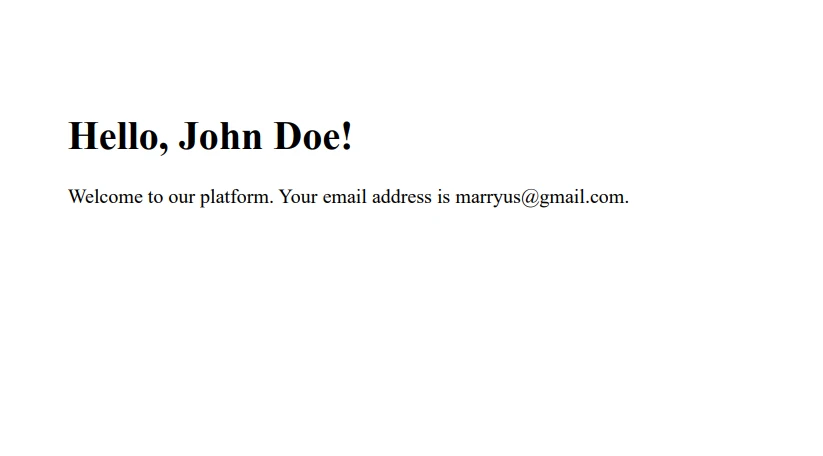
これでおしまいです! C# の replace メソッドとIronPDFを使用して、パーソナライズされたPDFドキュメントを作成しました。
結論
IronPDFの力とC#の replace メソッドの柔軟性を組み合わせることで、特定のユーザーやシナリオに合わせた動的なPDFドキュメントを作成できます。 IronPDFはIronPDFの無料トライアルを提供しており、初期投資なしにその機能を探索できます。
PDF生成のニーズに完璧に合うと思われた場合、ライセンスは$999から開始します。 PDF生成のニーズに最適なフィットと見つけた場合、ライセンスは $999 から始まります。
よくある質問
C#で文字列内の部分文字列をどうやって置換するのでしょうか?
C#では、指定された部分文字列のすべての出現を新しい文字列で置き換えるためにreplaceメソッドを使用できます。アプリケーション内で動的にテキストを更新するタスクに役立ちます。
PDFライブラリはどのようにしてC#で動的PDFを生成するのに役立つでしょうか?
IronPDFのようなPDFライブラリを使用して、HTMLテンプレートのプレースホルダーを実際のデータに置換することで動的なPDFドキュメントを作成できます。これは、PDFに変換する前に内容を更新するためにC#のreplaceメソッドを使って行われます。
C#で複数の文字列を一度に置換することはできますか?
はい、C#では、複数のreplaceメソッドを連結して、単一のコード行で複数の置換を行うことができ、効率的なテキストの包括的な更新を可能にします。
C#で正規表現を使用して置換メソッドを利用することは可能ですか?
はい、より複雑な文字列操作のために、C#でRegex.Replaceメソッドを使用して正規表現を使うことができます。これにより、固定された部分文字列ではなくパターンを検索して置換することができます。
C#でHTMLコンテンツをPDFドキュメントに変換するにはどうすればいいですか?
IronPDFのようなPDFライブラリを使用して、HTML文字列、ファイル、またはURLをPDFドキュメントに変換することができます。これはウェブコンテンツからのレポートや請求書を直接生成するのに便利です。
文字列の置換とPDF生成を組み合わせるユースケースにはどのようなものがありますか?
文字列の置換とPDF生成を組み合わせるのは、HTMLテンプレート内のプレースホルダーを特定のユーザーデータで置換した後、PDFに変換するカスタマイズされた文書(例えば、個別の証明書や請求書)を作成するのに理想的です。
C#プロジェクトにPDF生成ライブラリをインストールし、使用するにはどうすればいいですか?
Visual StudioのNuGetパッケージマネージャーを通じて、ライブラリの名前を検索するか、パッケージマネージャコンソールを使用してインストールコマンドを実行することで、IronPDFのようなPDFライブラリをインストールできます。
置換メソッドにおいて大文字小文字の区別が重要なのはなぜですか?
C#のreplaceメソッドは大文字小文字を区別するため、ソース文字列の文字や部分文字列の大文字小文字が指定された値と完全に一致している必要があります。これにより、置換のためのテキストの準備に影響を与えます。










 無料で始めましょう
 無料で始めましょう
 無料ライブデモを予約
















