Jeśli pracujesz z plikami PDF, prawdopodobnie często będziesz musiał wyodrębniać strony. Na szczęście istnieje szeroki wybór narzędzi, które mogą pomóc w realizacji tego zadania. Użytkownicy wyodrębniają strony PDF z różnych powodów. Oto trzy najpopularniejsze z nich:
Potrzebujesz tylko wybranych stron - jeśli masz duży dokument, a potrzebujesz tylko określonych stron do prezentacji, przesłania lub z jakiegokolwiek innego powodu, będziesz chciał wyodrębnić strony z pliku PDF.
Zmiana kolejności stron w pliku PDF - Możesz odłączyć strony i zmienić ich położenie w dokumencie, jeśli chcesz zmienić numery stron i przenieść niektóre części do nowej sekcji.
Konwersja stron PDF - zamiast konwertować cały plik, możesz wyodrębnić strony PDF, aby oddzielić i przekonwertować konkretną część dokumentu.
Ekstrakcja to proces kopiowania i wklejania wybranych stron z jednego pliku PDF do innego. Treść wyodrębnionych stron obejmuje wszystkie pola formularzy, komentarze i linki do oryginalnej treści strony.
Możesz pozostawić wyodrębnione strony w oryginalnym dokumencie lub usunąć je podczas procesu wyodrębniania, co przypomina wycinanie i wklejanie lub kopiowanie i wklejanie, ale tym razem w skali całych stron.
Jak wyodrębnić strony z plików PDF w programie Adobe Acrobat
Funkcja "Wyodrębnij strony" w programie Adobe Acrobat™ ułatwia podzielenie pliku PDF na dwa lub więcej oddzielnych plików PDF. Strony z istniejącego dokumentu PDF można wyodrębnić i wykorzystać jako podstawę dla jednego nowego dokumentu PDF lub wielu wersji. Podczas wyodrębniania stron masz możliwość zachowania oryginalnych wersji w dokumencie lub ich usunięcia.
Upewnij się, że masz autoryzację do edytowania PDF przed manipulacją jego stronami. Aby to ustalić, przejdź do Plik > Właściwości, a następnie do zakładki Zabezpieczenia. Uprawnienia są wymienione w sekcji "Podsumowanie ograniczeń dokumentu".
Dzięki Adobe Acrobat DC, wyodrębnienie pojedynczej lub wielu stron z pliku PDF jest łatwe (jeśli używasz innego produktu, prawdopodobnie kroki są podobne). Metody są podstawowe, ale mogą być nieco mylące dla użytkowników po raz pierwszy. Oto wszystko, co musisz wiedzieć:
Krok 1
Wybierz Narzędzia > Organizuj strony lub Organizuj strony z prawego panelu po otwarciu PDF w Acrobat DC.
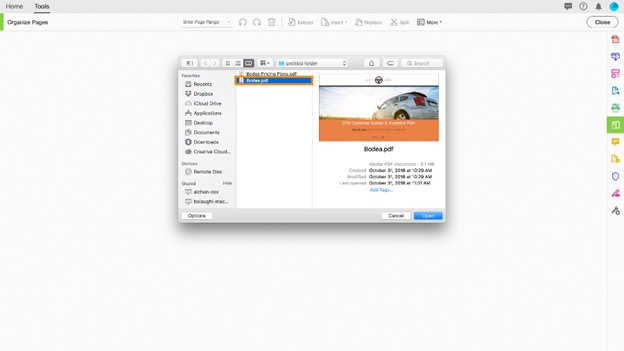
Wyodrębnij strony z pliku PDF krok 3, otwórz plik PDF
W pasku narzędzi wtórnej znajdziesz zestaw narzędzi "Organizuj strony".
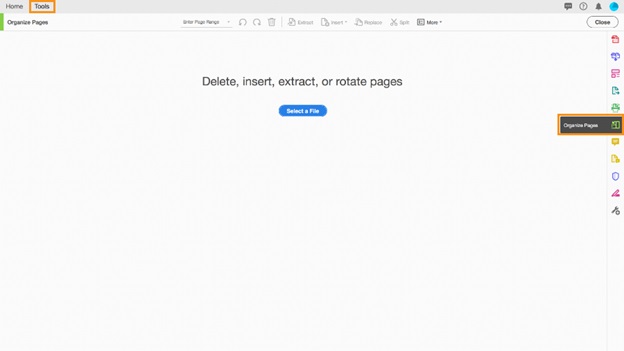
Wyodrębnij strony z pliku PDF krok 1, otwórz narzędzie Organizuj strony
Krok 2
Kliknij "Wyodrębnij" w pasku narzędzi drugorzędnej.
Poniżej paska narzędzi drugorzędnych otwiera się nowy pasek narzędzi z poleceniami związanymi z operacją wyodrębniania.
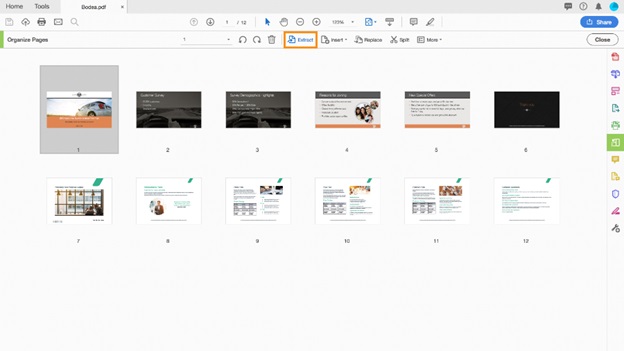
Wyodrębnij strony z pliku PDF krok 4, wybierz Wyodrębnij w górnym menu
Krok 3
Możesz wybrać pojedynczą stronę lub grupę stron do wyodrębnienia:
- Kliknij na pierwszą stronę, którą chcesz wyodrębnić, a następnie przytrzymaj klawisz Shift (Windows i Mac) i kliknij na ostatnią stronę, którą chcesz wyodrębnić, aby podświetlić zestaw.
- Kliknij stronę, którą chcesz wyodrębnić, a następnie przytrzymaj klawisz Ctrl (Windows) lub klawisz Cmd (Mac) podczas klikania każdej dodatkowej strony, którą chcesz wyodrębnić w nowym dokumencie PDF.
Jeśli chcesz usunąć strony z oryginalnego PDF po wyodrębnieniu, zaznacz pole wyboru "Usuń strony po wyodrębnieniu". Aby wyodrębnić każdą podświetloną stronę jako odrębny plik PDF, zaznacz pole wyboru "Wyodrębnij strony jako niezależne pliki".
Wyodrębnij strony z pliku PDF krok 5, podświetl strony
Krok 4
Wykonaj jedno lub więcej z następujących działań w nowym pasku narzędzi przed kliknięciem "Wyodrębnij":
- Wybierz "Usuń strony" po wyodrębnianiu, aby usunąć wyodrębnione strony z dokumentu źródłowego.
- Wybierz "Wyodrębnij strony jako oddzielne pliki", aby stworzyć jednokartkowy PDF z każdej wyodrębnionej strony.
- Zostaw oba pola wyboru niezaznaczone, aby zachować oryginalne strony w dokumencie i stworzyć jeden PDF ze wszystkimi wyodrębnionymi stronami.
Strony, które zostały wyodrębnione, są wklejane do nowego dokumentu.
Krok 5
Wybierz Plik > Zapisz lub Plik > Zapisz jako gdy PDF z wyodrębnionymi stronami otwiera się w nowej karcie, a następnie określ nazwę pliku i lokalizację dla nowego pliku PDF.
Używanie witryn i narzędzi online do wyodrębniania stron z plików PDF i tworzenia nowych plików PDF
Istnieje wiele metod wyodrębniania stron z PDF. Możesz użyć usług witryn online do wyodrębniania lub dzielenia plików PDF.
Te witryny to usługi online działające na różnych platformach i można z nich korzystać wszędzie, jeśli masz laptopa, komputer stacjonarny lub urządzenie mobilne, takie jak iPad, tablet lub smartfon. Witryny są oparte na przeglądarkach, a zatem działają dobrze na wszystkich urządzeniach i w różnych przeglądarkach, w tym Chrome, Firefox, Safari, Opera i innych. Poniżej przedstawione są trzy najlepsze platformy.
Na laptopie, komputerze stacjonarnym lub smartfonie z systemem Windows, otwórz wybraną przeglądarkę i odwiedź dowolną witrynę do wyodrębniania PDF, aby rozpocząć wyodrębnianie, konwertowanie, scalanie i dzielenie plików PDF. Wszystkie urządzenia z systemem Windows z dostępem do internetu mogą odwiedzić tę witrynę.
Mac - komputery stacjonarne i laptopy Mac, podobnie jak Windows, są w pełni zgodne z tymi witrynami. Po prostu otwórz przeglądarkę, przejdź do którejkolwiek z witryn do dzielenia PDF, wybierz narzędzie, załaduj swój plik, dokończ wyodrębnianie i zapisz nowy plik PDF.
Online PDF converters i inne narzędzia PDF dla smartfonów, tabletów i iPadów z systemem Android i iOS są dostosowane do używania na urządzeniach z systemem Android i iOS. Możesz także użyć przeglądarki na swoim Blackberry lub dowolnym smartfonie z dostępem do internetu.
Większość z tych witryn oferuje darmowe narzędzia, które pozwalają na tworzenie własnych plików.
Oto krótki przewodnik, jak korzystać z platform PDF online.
Krok 1
Przejdź do przeglądarki i wpisz "narzędzie do wyodrębniania PDF online".
Krok 2
Wybierz dowolną z platform PDF.
Krok 3
Uruchom "Narzędzie wyodrębniania" na stronie. Możesz wybrać opcję wyodrębniania PDF z menu Wszystkie narzędzia lub z listy strony głównej. Zostaniesz przeniesiony na nową stronę, gdzie możesz dokończyć wyodrębnianie stron z pliku PDF.
Krok 4
Prześlij plik PDF - na nowym ekranie, który się pojawi, kliknij "Wybierz plik" i wybierz plik PDF z komputera lub urządzenia mobilnego. Możesz także bezpośrednio przeciągnąć i upuścić pliki na obszar przesyłania.
Krok 5
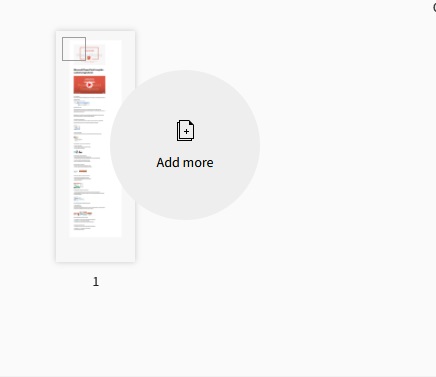
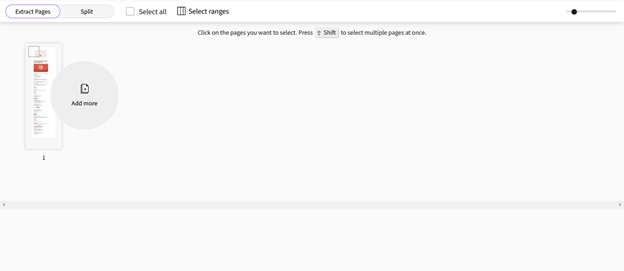
Strona następnie utworzy miniaturki PDF dokumentu. Następnie wybierz strony, które chcesz wyodrębnić z PDF, a następnie kliknij "wyodrębnij strony PDF". Procedura zajmie tylko kilka sekund.
Krok 6
Wybrane strony z PDF zostaną następnie dodane do nowego pliku PDF, który możesz pobrać. Wyodrębnione strony są uporządkowane według numeracji stron, bez zniekształceń.
Jak wyodrębnić strony z dokumentu PDF przy użyciu biblioteki IronPDF C#
IronPDF by Iron Software to najskuteczniejszy i najbardziej innowacyjny sposób na radzenie sobie ze wszystkimi problemami związanymi z PDF w C#. Oferuje wiele funkcji związanych z PDF, w tym wyodrębnianie stron z plików PDF. IronPDF jest Twoją opcją, jeśli szukasz najprostszego sposobu wykonania tego zadania. Za pomocą zaledwie kilku linii kodu, możesz przekształcić dokument PDF z wieloma stronami w jeden plik PDF. Zobacz nasz przykład, aby zobaczyć, jak można go użyć we własnym projekcie.
Klucze licencyjne IronPDF umożliwiają publikację produktu bez potrzeby znaku wodnego.
Cena licencji zaczyna się od $999 i obejmuje rok bezpłatnego wsparcia oraz aktualizacji.
Za pomocą klucza licencyjnego wersji próbnej, możesz również wypróbować IronPDF za darmo.
Dzielenie pojedynczego dokumentu PDF na liczne dokumenty jest proste z IronPDF. Każdy dokument ma po prostu jedną stronę.
Możemy dzielić dokumenty PDF za pomocą IronPDF, wyodrębniając pojedyncze strony lub zakresy stron do nowych obiektów IronPdf.PdfDocument.
// Import the necessary namespaces
using IronPdf;

class Program
{
    static void Main()
    {
        // Load the PDF document from a file
        var pdfDocument = PdfDocument.FromFile("example.pdf");

        // Extract a specific page (for example, page 1)
        var extractedPage = pdfDocument.ExtractPage(1);

        // Save the extracted page as a new PDF file
        extractedPage.SaveAs("extractedPage.pdf");

        // To extract a range of pages, use ExtractPages(start, end)
        var extractedPages = pdfDocument.ExtractPages(1, 3);

        // Save the extracted pages as a new PDF file
        extractedPages.SaveAs("extractedPages.pdf");
    }
}
// Import the necessary namespaces
using IronPdf;

class Program
{
    static void Main()
    {
        // Load the PDF document from a file
        var pdfDocument = PdfDocument.FromFile("example.pdf");

        // Extract a specific page (for example, page 1)
        var extractedPage = pdfDocument.ExtractPage(1);

        // Save the extracted page as a new PDF file
        extractedPage.SaveAs("extractedPage.pdf");

        // To extract a range of pages, use ExtractPages(start, end)
        var extractedPages = pdfDocument.ExtractPages(1, 3);

        // Save the extracted pages as a new PDF file
        extractedPages.SaveAs("extractedPages.pdf");
    }
}
' Import the necessary namespaces
Imports IronPdf
Friend Class Program
Shared Sub Main()
' Load the PDF document from a file
Dim pdfDocument = PdfDocument.FromFile("example.pdf")
' Extract a specific page (for example, page 1)
Dim extractedPage = pdfDocument.ExtractPage(1)
' Save the extracted page as a new PDF file
extractedPage.SaveAs("extractedPage.pdf")
' To extract a range of pages, use ExtractPages(start, end)
Dim extractedPages = pdfDocument.ExtractPages(1, 3)
' Save the extracted pages as a new PDF file
extractedPages.SaveAs("extractedPages.pdf")
End Sub
End Class
' Import the necessary namespaces
Imports IronPdf

Friend Class Program
	Shared Sub Main()
		' Load the PDF document from a file
		Dim pdfDocument = PdfDocument.FromFile("example.pdf")

		' Extract a specific page (for example, page 1)
		Dim extractedPage = pdfDocument.ExtractPage(1)

		' Save the extracted page as a new PDF file
		extractedPage.SaveAs("extractedPage.pdf")

		' To extract a range of pages, use ExtractPages(start, end)
		Dim extractedPages = pdfDocument.ExtractPages(1, 3)

		' Save the extracted pages as a new PDF file
		extractedPages.SaveAs("extractedPages.pdf")
	End Sub
End Class
Ten kod C# pokazuje, jak używać IronPDF do wyodrębniania pojedynczych lub wielu stron z istniejącego dokumentu PDF. Metoda ExtractPage jest używana do uzyskania konkretnej strony, podczas gdy ExtractPages może obsłużyć zakres stron. Po wyodrębnieniu możesz zapisać strony w nowych plikach PDF.
IronPdf.PdfDocument is the C#.NET API.
CopyPage to program, który wyodrębnia strony z jednego lub kilku plików PDF i wkleja je do nowego dokumentu.