using IronPdf;

// Disable local disk access or cross-origin requests
Installation.EnableWebSecurity = true;

// Instantiate Renderer
var renderer = new ChromePdfRenderer();

// Create a PDF from a HTML string using C#
var pdf = renderer.RenderHtmlAsPdf("<h1>Hello World</h1>");

// Export to a file or Stream
pdf.SaveAs("output.pdf");

// Advanced Example with HTML Assets
// Load external html assets: Images, CSS and JavaScript.
// An optional BasePath 'C:\site\assets\' is set as the file location to load assets from
var myAdvancedPdf = renderer.RenderHtmlAsPdf("<img src='icons/iron.png'>", @"C:\site\assets\");
myAdvancedPdf.SaveAs("html-with-assets.pdf");
using IronPdf;// Disable local disk access or cross-origin requestsInstallation.EnableWebSecurity = true;// Instantiate Renderervar renderer = new ChromePdfRenderer();// Create a PDF from a HTML string using C#var pdf = renderer.RenderHtmlAsPdf("<h1>Hello World</h1>");// Export to a file or Streampdf.SaveAs("output.pdf");// Advanced Example with HTML Assets// Load external html assets: Images, CSS and JavaScript.// An optional BasePath 'C:\site\assets\' is set as the file location to load assets fromvar myAdvancedPdf = renderer.RenderHtmlAsPdf("<img src='icons/iron.png'>", @"C:\site\assets\");myAdvancedPdf.SaveAs("html-with-assets.pdf");
Tworzenie plików PDF w C# jest kluczową umiejętnością dla nowoczesnych programistów .NET, niezależnie od tego, czy budujesz raporty finansowe, generujesz dokumenty medyczne, czy produkujesz paragony e-commerce. Z odpowiednią biblioteką .NET do plików PDF możesz przekształcić zawartość HTML w profesjonalne dokumenty PDF za pomocą zaledwie kilku linii kodu, dając ci pełną kontrolę nad strukturą i wyglądem dokumentu.
IronPDF jest zdecydowanie najprostszą i najbardziej użyteczną biblioteką do tworzenia plików PDF w .NET - z niesamowicie łatwą krzywą nauki, która pozwala generować pliki PDF w kilka minut, nie godzin. Ten obszerny przewodnik pokaże ci dokładnie jak tworzyć dokumenty PDF w C# za pomocą IronPDF - potężnego generatora PDF w C#, który produkuje wyniki o idealnej jakości pikseli i obsługuje każdą nowoczesną platformę .NET, w tym nadchodzącą wersję .NET 10 w listopadzie 2025 roku. Pomimo że ten samouczek obejmuje wszystko, od najprostszych przypadków użycia po najzaawansowane scenariusze generowania PDF, nie daj się zastraszyć - zacznij od początku i postępuj dalej. Nauczysz się wielu sposobów, aby generować pliki PDF, począwszy od prostych łańcuchów HTML po złożone wielostronicowe raporty, oraz jak rozwiązywać typowe problemy i optymalizować wydajność dla różnych zadań generowania PDF.
When you need help, IronPDF's support team consists of actual engineers who understand your challenges. With 24/7 live chat support and typical response times under 30 seconds, you're never stuck waiting for answers. This level of support is why developers consistently rate IronPDF as having the best support in the industry. The support team can help with everything fr# How to Create PDFs in C# - The Complete Guide to PDF Generation in .NET
Szybki start: Utwórz swój pierwszy plik PDF w C# (poniżej 2 minut)
Chcesz wygenerować plik PDF teraz? Utwórzmy prosty, ale funkcjonalny dokument PDF, który zademonstruje potęgę nowoczesnego generowania plików PDF w .NET. Najpierw, zainstaluj IronPDF za pośrednictwem Menedżera Pakietów NuGet - ten pojedynczy pakiet zawiera wszystko, czego potrzebujesz, aby natychmiast zacząć tworzyć pliki PDF. IronPDF jest bezpłatny dla deweloperów, więc możesz eksperymentować ze wszystkimi funkcjami przed podjęciem decyzji o zakupie licencji.
PM > Install-Package IronPdf
Install-Package IronPdf
Teraz stwórzmy zawartość PDF za pomocą C#:
using IronPdf;// Instantiate the PDF generator - this is your gateway to PDF creationvar renderer = new ChromePdfRenderer();// Create a PDF from HTML string - yes, it's really this simple!var pdf = renderer.RenderHtmlAsPdf("<h1>Hello World</h1><p>PDF generated successfully!</p>");// Save your newly created PDF documentpdf.SaveAs("my-first-pdf.pdf");Console.WriteLine("PDF generated successfully!");
using IronPdf;

// Instantiate the PDF generator - this is your gateway to PDF creation
var renderer = new ChromePdfRenderer();

// Create a PDF from HTML string - yes, it's really this simple!
var pdf = renderer.RenderHtmlAsPdf("<h1>Hello World</h1><p>PDF generated successfully!</p>");

// Save your newly created PDF document
pdf.SaveAs("my-first-pdf.pdf");

Console.WriteLine("PDF generated successfully!");
ImportsIronPdf' Instantiate the PDF generator - this is your gateway to PDF creationPrivate renderer = New ChromePdfRenderer()' Create a PDF from HTML string - yes, it's really this simple!Private pdf = renderer.RenderHtmlAsPdf("<h1>Hello World</h1><p>PDF generated successfully!</p>")' Save your newly created PDF documentpdf.SaveAs("my-first-pdf.pdf")Console.WriteLine("PDF generated successfully!")
Imports IronPdf

' Instantiate the PDF generator - this is your gateway to PDF creation
Private renderer = New ChromePdfRenderer()

' Create a PDF from HTML string - yes, it's really this simple!
Private pdf = renderer.RenderHtmlAsPdf("<h1>Hello World</h1><p>PDF generated successfully!</p>")

' Save your newly created PDF document
pdf.SaveAs("my-first-pdf.pdf")

Console.WriteLine("PDF generated successfully!")
To wszystko! Właśnie stworzyłeś swój pierwszy dokument PDF w C#. Nie ma potrzeby nauki skomplikowanych API do plików PDF, nie ma zależności serwera do zainstalowania, brak potrzeby opanowania niskopoziomowych poleceń PDF. Tylko HTML na wejściu, PDF na wyjściu - tak powinno wyglądać generowanie plików PDF. Ale to dopiero początek - zobaczmy, dlaczego to podejście jest tak potężne i jak możesz tworzyć bardziej zaawansowane dokumenty PDF.
Jak stworzyc PDF w C#: Szybki Przeglad
Aby stworzyc PDF w C#, mozesz wykorzystac zewnetrzne biblioteki jak IronPDF, QuestPDF czy PDFSharp. Te biblioteki oferuja rozne funkcjonalnosci, w tym tworzenie PDF od podstaw, konwersje HTML na PDF i wiele wiecej.
Oto ogólny zarys procesu:
Zainstaluj bibliotekę PDF: Użyj Menedżera Pakietów NuGet w Visual Studio, aby zainstalować odpowiednią bibliotekę.
Utwórz nowy dokument PDF: Utwórz obiekt dokumentu PDF.
Dodaj zawartość: Dodaj strony, tekst, obrazy i inne elementy do dokumentu.
Zapisz dokument: Określ ścieżkę pliku i zapisz plik PDF.
Oto przykład, jak używać IronPDF:
using IronPdf;public class Example{ public static voidCreatePdf() { // Create a new PDF document var pdf = new ChromePdfRenderer(); // Add some text string htmlContent = "<h1>Hello, PDF!</h1><p>This is a dynamically created PDF.</p>"; // Render HTML to PDF var pdfDocument = pdf.RenderHtmlAsPdf(htmlContent); // Save the PDF pdfDocument.SaveAs("MyDynamicPdf.pdf"); }}
using IronPdf;

public class Example
{
    public static void CreatePdf()
    {
        // Create a new PDF document
        var pdf = new ChromePdfRenderer();

        // Add some text
        string htmlContent = "<h1>Hello, PDF!</h1><p>This is a dynamically created PDF.</p>";

        // Render HTML to PDF
        var pdfDocument = pdf.RenderHtmlAsPdf(htmlContent);

        // Save the PDF
        pdfDocument.SaveAs("MyDynamicPdf.pdf");
    }
}
ImportsIronPdfPublic Class Example PublicShared Sub CreatePdf() ' Create a new PDF document Dim pdf = New ChromePdfRenderer() ' Add some text Dim htmlContent AsString = "<h1>Hello, PDF!</h1><p>This is a dynamically created PDF.</p>" ' Render HTML to PDF Dim pdfDocument = pdf.RenderHtmlAsPdf(htmlContent) ' Save the PDF pdfDocument.SaveAs("MyDynamicPdf.pdf") End SubEnd Class
Imports IronPdf

Public Class Example
	Public Shared Sub CreatePdf()
		' Create a new PDF document
		Dim pdf = New ChromePdfRenderer()

		' Add some text
		Dim htmlContent As String = "<h1>Hello, PDF!</h1><p>This is a dynamically created PDF.</p>"

		' Render HTML to PDF
		Dim pdfDocument = pdf.RenderHtmlAsPdf(htmlContent)

		' Save the PDF
		pdfDocument.SaveAs("MyDynamicPdf.pdf")
	End Sub
End Class
Teraz zagłębmy się w to, dlaczego programiści potrzebują tworzyć pliki PDF i odkryjmy wiele sposobów, w jakie IronPDF upraszcza i wzmacnia ten proces.
Dlaczego programiści mogliby potrzebować tworzyć pliki PDF w C#?
Tworzenie programistyczne plików PDF w C# otwiera świat możliwości dla automatyzacji generowania dokumentów i usprawnienia procesów biznesowych. IronPDF zyskał zaufanie ponad 14 milionów zainstalowanych programistów na całym świecie do wykonywania tych zadań, ponieważ oferuje niezrównaną niezawodność i łatwość użycia do tworzenia plików PDF w .NET. W finansach programiści używają C# do tworzenia faktur PDF, wyciągów i raportów regulacyjnych, które wymagają precyzyjnego formatowania i funkcji bezpieczeństwa. Organizacje opieki zdrowotnejgenerują kartoteki pacjentów, wyniki badań laboratoryjnych i formularze ubezpieczeniowe jako pliki PDF, aby zapewnić integralność dokumentów i zgodność z HIPAA. Platformy e-commerce tworzą paragony PDF, etykiety wysyłkowe i bilety z kodami QR (używając narzędzi takich jak IronQR) osadzonymi bezpośrednio w pliku PDF. Możliwość manipulowania dokumentami PDF w sposób programowy oznacza, że możesz tworzyć, modyfikować i zabezpieczać dokumenty na dużą skalę bez ręcznej interwencji.
Piękno korzystania ze współczesnej biblioteki .NET do plików PDF jak IronPDF polega na tym, że bezproblemowo integruje się z istniejącymi przepływami pracy twojej organizacji. Niezależnie od tego, czy konwertujesz dokumenty Word od swoich użytkowników biznesowych, przekształcasz dokumentację Markdown od swojego zespołu deweloperskiego, czy generujesz pliki PDF z raportów webowych, IronPDF radzi sobie z tym wszystkim. Ta elastyczność organizacyjna jest powodem, dla którego firmy wybierają programistyczne generowanie plików PDF w .NET - eliminuje ręczne tworzenie dokumentów, redukuje błędy, zapewnia spójność wśród wszystkich wygenerowanych plików PDF i oszczędza niezliczone godziny czasu pracowniczego. Zamiast uczyć się zastrzeżonej składni PDF lub ręcznie pozycjonować każdy element, możesz użyć HTML i CSS do projektowania swoich dokumentów. To podejście dramatycznie skraca czas rozwoju i ułatwia utrzymanie spójnego brandingu wśród wszystkich twoich produkowanych plików PDF. Niezależnie od tego, czy tworzysz jedną stronę faktury, czy złożony raport wielotomowy, zasady pozostają takie same - projektuj za pomocą HTML, generuj pliki PDF za pomocą C#.
Konfigurowanie IronPDF w swoim projekcie C#
Zanim przejdziesz do tworzenia plików PDF, upewnij się, że twoje środowisko deweloperskie jest odpowiednio skonfigurowane do optymalnego generowania plików PDF. IronPDF obsługuje wszystkie nowoczesne wersje .NET, w tym .NET 8, .NET 9, i jest już zgodny z nadchodzącą wersją .NET 10 zaplanowaną na listopad 2025 roku (Iron Software współpracuje ściśle z fundacją .NET i Microsoftem, aby zapewnić kompatybilność od pierwszego dnia). Proces konfiguracji jest prosty, ale zrozumienie twoich opcji pomoże wybrać najlepsze podejście dla twoich specyficznych potrzeb.
Metody instalacji
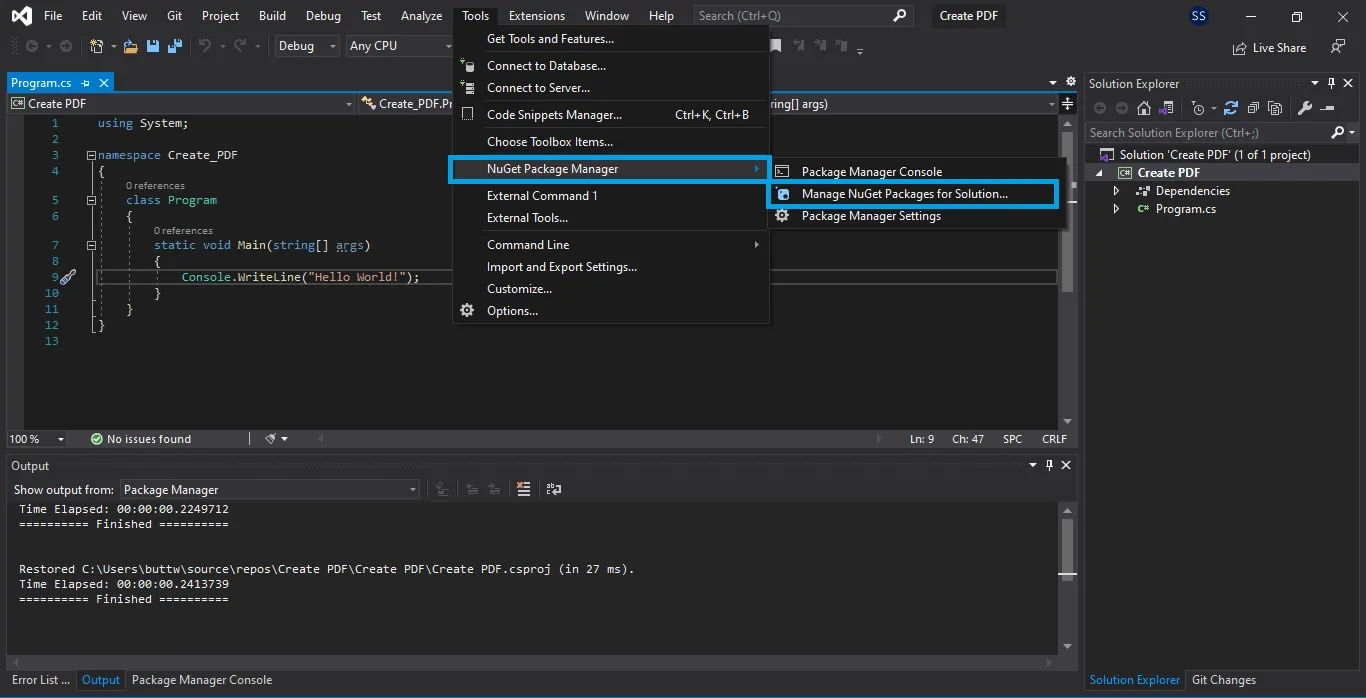
Metoda 1: Menedżer Pakietów Visual Studio (zalecana dla początkujących)
Najłatwiejszym sposobem rozpoczęcia pracy z IronPDF jest korzystanie z wbudowanego Menedżera Pakietów NuGet w Visual Studio. Ten interfejs graficzny upraszcza przeglądanie, instalowanie i zarządzanie zależnościami związanymi z generowaniem plików PDF:
Kliknij prawym przyciskiem myszy swój projekt w Eksploratorze rozwiązań
Wybierz "Zarządzaj pakietami NuGet"
Kliknij "Przeglądarki" i wyszukaj "IronPDF"
Wybierz pakiet IronPDF od Iron Software
Kliknij "Zainstaluj" i zaakceptuj umowę licencyjną
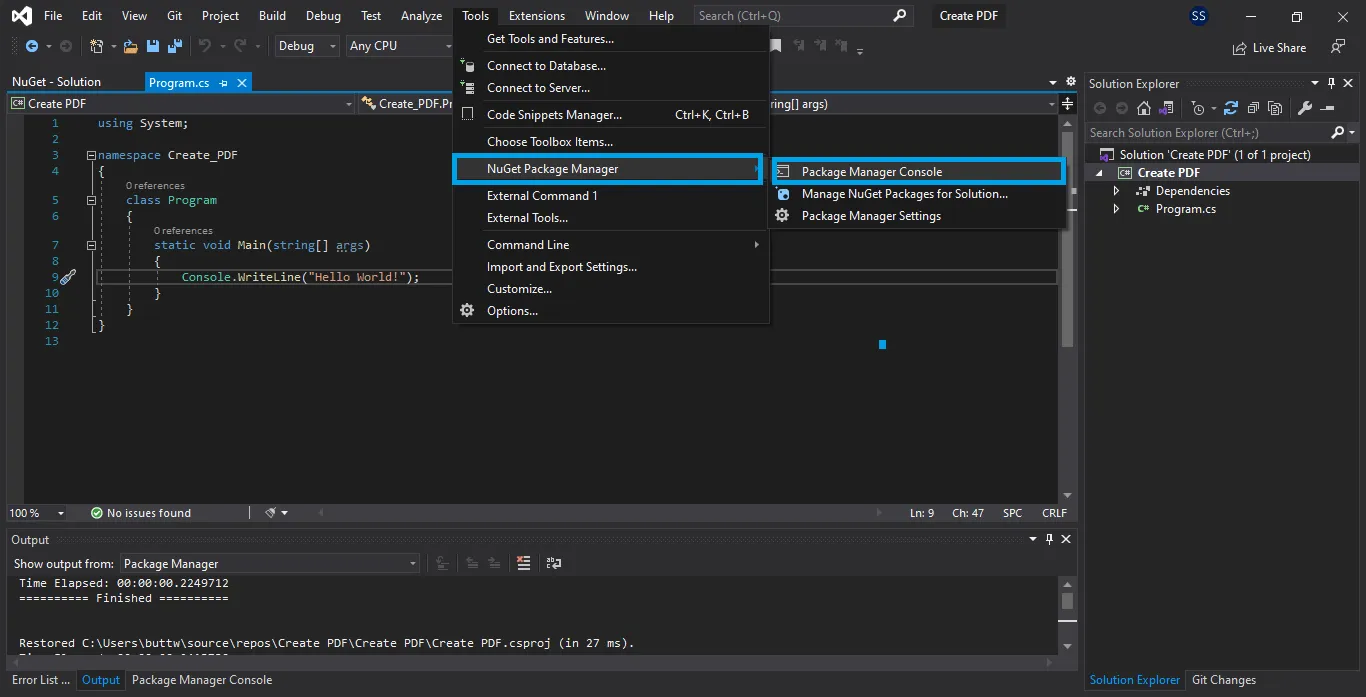
Metoda 2: Konsola Menedżera Pakietów
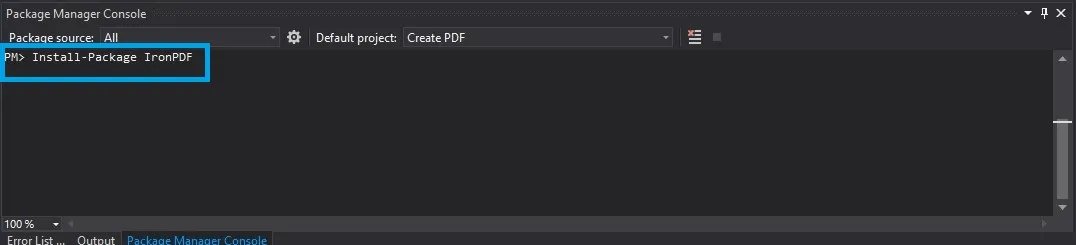
Dla deweloperów, którzy preferują narzędzia wiersza poleceń, konsola Menedżera Pakietów oferuje szybki sposób instalacji IronPDF:
PM > Install-Package IronPdf
Install-Package IronPdf
Metoda 3: .NET CLI (dla rozwoju na różnych platformach)
Jeśli pracujesz na macOS, Linuxie lub wolisz .NET CLI, użyj tego polecenia w katalogu swojego projektu:
> dotnet add package IronPdf
dotnet add package IronPdf
Wybór odpowiedniego pakietu
IronPDF oferuje różne pakiety NuGet zoptymalizowane dla różnych scenariuszy wdrażania. Zrozumienie tych opcji pomaga zminimalizować rozmiar wdrożenia i optymalizować wydajność:
IronPdf: Standardowy pakiet, który zawiera wszystko, czego potrzebujesz dla Windows, macOS i Linux. Idealny dla większości aplikacji.
IronPdf.Slim: Lekki pakiet bazowy, który pobiera komponenty specyficzne dla platformy w czasie działania. Idealny dla wdrożeń w chmurze, gdzie rozmiar pakietu ma znaczenie.
IronPdf.Linux: Optymalizowany specjalnie dla wdrożeń Linux z wszystkimi wymaganymi zależnościami w pakiecie.
IronPdf.MacOs: Dopasowany do środowisk macOS z obsługą natywną Apple Silicon.
Zwróć uwagę: Dla wdrożeń w chmurze na Azure, AWS lub Dockerze, rozważ użycie IronPdf.Slim, aby zmniejszyć rozmiar kontenera. Wymagane komponenty zostaną pobrane automatycznie przy pierwszym użyciu.
Weryfikacja instalacji
Po instalacji, zweryfikuj, czy wszystko działa poprawnie korzystając z tego prostego testu, który tworzy nowy dokument:
using IronPdf;using System.IO;// Test your IronPDF installationvar renderer = new ChromePdfRenderer();var testPdf = renderer.RenderHtmlAsPdf("<p>Installation test successful!</p>");testPdf.SaveAs("test.pdf");if (File.Exists("test.pdf")){Console.WriteLine("IronPDF installed and working correctly!");}
using IronPdf;
using System.IO;

// Test your IronPDF installation
var renderer = new ChromePdfRenderer();
var testPdf = renderer.RenderHtmlAsPdf("<p>Installation test successful!</p>");
testPdf.SaveAs("test.pdf");

if (File.Exists("test.pdf"))
{
    Console.WriteLine("IronPDF installed and working correctly!");
}
ImportsIronPdfImportsSystem.IO' Test your IronPDF installationPrivate renderer = New ChromePdfRenderer()Private testPdf = renderer.RenderHtmlAsPdf("<p>Installation test successful!</p>")testPdf.SaveAs("test.pdf")IfFile.Exists("test.pdf") ThenConsole.WriteLine("IronPDF installed and working correctly!")End If
Imports IronPdf
Imports System.IO

' Test your IronPDF installation
Private renderer = New ChromePdfRenderer()
Private testPdf = renderer.RenderHtmlAsPdf("<p>Installation test successful!</p>")
testPdf.SaveAs("test.pdf")

If File.Exists("test.pdf") Then
	Console.WriteLine("IronPDF installed and working correctly!")
End If
Jakie są różne sposoby generowania plików PDF w C#?
IronPDF zapewnia wiele podejść do budowania dokumentów PDF, z których każde jest dostosowane do różnych scenariuszy i wymagań. Zrozumienie tych metod pomaga wybrać najbardziej efektywne podejście dla twojego konkretnego przypadku użycia, gdy potrzebujesz produkować pliki PDF w .NET. Niezależnie od tego, czy tworzysz pliki PDF od podstaw za pomocą łańcuchów HTML, przekształcasz istniejące pliki, czy przechwytujesz żywe treści internetowe, IronPDF oferuje rozwiązanie jako kompleksowy generator PDF w C#. Zobaczmy każdą metodę szczegółowo z praktycznymi przykładami, które demonstrują rzeczywiste zastosowania przy tworzeniu plików PDF w C#.
1. Utwórz PDF z łańcucha HTML (najbardziej elastyczne)
Tworzenie plików PDF z łańcuchów HTML daje ci pełną kontrolę nad zawartością i stylizacją twojego końcowego dokumentu, gdy potrzebujesz przekształcić zawartość HTML na format PDF. Ta metoda jest idealna do generowania raportów dynamicznych, faktur lub dowolnych dokumentów, gdzie treść zmienia się w oparciu o dane. Możesz przekształcić zawartość HTML w profesjonalne pliki PDF, używając nowoczesnych funkcji HTML5 i CSS3, w tym układów flexbox i grid. Możliwość dynamicznego przekształcania zawartości HTML sprawia, że jest to najbardziej wszechstronne podejście do tworzenia plików PDF w C#:
using IronPdf;using System;using System.Linq;var renderer = new ChromePdfRenderer();// Build dynamic content with datavar customerName = "Acme Corporation";var orderDate = DateTime.Now;var items = new[] { new { Name = "Widget Pro", Price = 99.99m }, new { Name = "Gadget Plus", Price = 149.99m }};// Create HTML with embedded data and modern CSSvar html = $@" <html> <head> <style> body {{font-family: 'Segoe UI', Arial, sans-serif; margin: 40px; color: #333;}} .invoice-header {{display: flex; justify-content: space-between; border-bottom: 2px solid #0066cc; padding-bottom: 20px;}} .items-table {{width: 100%; margin-top: 30px; border-collapse: collapse;}} .items-table th {{background: #f0f0f0; padding: 10px; text-align: left;}} </style> </head> <body> <div class='invoice-header'> <div> <h1>Invoice</h1> <p>Customer: {customerName}</p> </div> <div> <p>Date: {orderDate:yyyy-MM-dd}</p> <p>Invoice #: INV-{orderDate:yyyyMMdd}-001</p> </div> </div> <table class='items-table'> <thead> <tr> <th>Item</th> <th>Price</th> </tr> </thead> <tbody>";foreach (var item in items){ html += $@" <tr> <td>{item.Name}</td> <td>${item.Price:F2}</td> </tr>";}html += @" </tbody> </table> </body> </html>";// Generate the PDF documentvar pdf = renderer.RenderHtmlAsPdf(html);pdf.SaveAs($"invoice-{orderDate:yyyyMMdd}.pdf");
using IronPdf;
using System;
using System.Linq;

var renderer = new ChromePdfRenderer();

// Build dynamic content with data
var customerName = "Acme Corporation";
var orderDate = DateTime.Now;
var items = new[] {
    new { Name = "Widget Pro", Price = 99.99m },
    new { Name = "Gadget Plus", Price = 149.99m }
};

// Create HTML with embedded data and modern CSS
var html = $@"
    <html>
    <head>
        <style>
            body {{font-family: 'Segoe UI', Arial, sans-serif;
                margin: 40px;
                color: #333;}}
            .invoice-header {{display: flex;
                justify-content: space-between;
                border-bottom: 2px solid #0066cc;
                padding-bottom: 20px;}}
            .items-table {{width: 100%;
                margin-top: 30px;
                border-collapse: collapse;}}
            .items-table th {{background: #f0f0f0;
                padding: 10px;
                text-align: left;}}
        </style>
    </head>
    <body>
        <div class='invoice-header'>
            <div>
                <h1>Invoice</h1>
                <p>Customer: {customerName}</p>
            </div>
            <div>
                <p>Date: {orderDate:yyyy-MM-dd}</p>
                <p>Invoice #: INV-{orderDate:yyyyMMdd}-001</p>
            </div>
        </div>

        <table class='items-table'>
            <thead>
                <tr>
                    <th>Item</th>
                    <th>Price</th>
                </tr>
            </thead>
            <tbody>";

foreach (var item in items)
{
    html += $@"
                <tr>
                    <td>{item.Name}</td>
                    <td>${item.Price:F2}</td>
                </tr>";
}

html += @"
            </tbody>
        </table>
    </body>
    </html>";

// Generate the PDF document
var pdf = renderer.RenderHtmlAsPdf(html);
pdf.SaveAs($"invoice-{orderDate:yyyyMMdd}.pdf");
C#
2. Generuj PDF z URL (przechwytywanie strony internetowej)
Czasami musisz przekształcić istniejące strony internetowe w dokumenty PDF - doskonałe do archiwizacji, raportowania lub tworzenia wersji offline treści online. Konwersja URL do PDF w IronPDF używa rzeczywistego silnika Chromium, zapewniając poprawne renderowanie złożonych stron pełnych JavaScript. Ta metoda jest nieoceniona do tworzenia zrzutów pulpitu nawigacyjnego, zapisywania rachunków online lub dokumentówania raportów opartych na sieci:
using IronPdf;var renderer = new ChromePdfRenderer();// Configure rendering options for optimal capturerenderer.RenderingOptions.PaperSize = PdfPaperSize.A4;renderer.RenderingOptions.MarginTop = 25;renderer.RenderingOptions.MarginBottom = 25;// Wait for JavaScript to fully load (important for SPAs)renderer.RenderingOptions.RenderDelay = 2000; // 2 seconds// Enable JavaScript executionrenderer.RenderingOptions.EnableJavaScript = true;// Capture a web page as PDFvar pdf = renderer.RenderUrlAsPdf("https://example.com/dashboard");pdf.SaveAs("dashboard-capture.pdf");// For authenticated pages, you can set cookiesvar cookieManager = renderer.RenderingOptions.CustomCookies;cookieManager["session_id"] = "your-session-token";// Capture authenticated contentvar securePdf = renderer.RenderUrlAsPdf("https://app.example.com/private/report");securePdf.SaveAs("private-report.pdf");
using IronPdf;

var renderer = new ChromePdfRenderer();

// Configure rendering options for optimal capture
renderer.RenderingOptions.PaperSize = PdfPaperSize.A4;
renderer.RenderingOptions.MarginTop = 25;
renderer.RenderingOptions.MarginBottom = 25;

// Wait for JavaScript to fully load (important for SPAs)
renderer.RenderingOptions.RenderDelay = 2000; // 2 seconds

// Enable JavaScript execution
renderer.RenderingOptions.EnableJavaScript = true;

// Capture a web page as PDF
var pdf = renderer.RenderUrlAsPdf("https://example.com/dashboard");
pdf.SaveAs("dashboard-capture.pdf");

// For authenticated pages, you can set cookies
var cookieManager = renderer.RenderingOptions.CustomCookies;
cookieManager["session_id"] = "your-session-token";

// Capture authenticated content
var securePdf = renderer.RenderUrlAsPdf("https://app.example.com/private/report");
securePdf.SaveAs("private-report.pdf");
ImportsIronPdfPrivate renderer = New ChromePdfRenderer()' Configure rendering options for optimal capturerenderer.RenderingOptions.PaperSize = PdfPaperSize.A4renderer.RenderingOptions.MarginTop = 25renderer.RenderingOptions.MarginBottom = 25' Wait for JavaScript to fully load (important for SPAs)renderer.RenderingOptions.RenderDelay = 2000 ' 2 seconds' Enable JavaScript executionrenderer.RenderingOptions.EnableJavaScript = True' Capture a web page as PDFDim pdf = renderer.RenderUrlAsPdf("https://example.com/dashboard")pdf.SaveAs("dashboard-capture.pdf")' For authenticated pages, you can set cookiesDim cookieManager = renderer.RenderingOptions.CustomCookiescookieManager("session_id") = "your-session-token"' Capture authenticated contentDim securePdf = renderer.RenderUrlAsPdf("https://app.example.com/private/report")securePdf.SaveAs("private-report.pdf")
Imports IronPdf

Private renderer = New ChromePdfRenderer()

' Configure rendering options for optimal capture
renderer.RenderingOptions.PaperSize = PdfPaperSize.A4
renderer.RenderingOptions.MarginTop = 25
renderer.RenderingOptions.MarginBottom = 25

' Wait for JavaScript to fully load (important for SPAs)
renderer.RenderingOptions.RenderDelay = 2000 ' 2 seconds

' Enable JavaScript execution
renderer.RenderingOptions.EnableJavaScript = True

' Capture a web page as PDF
Dim pdf = renderer.RenderUrlAsPdf("https://example.com/dashboard")
pdf.SaveAs("dashboard-capture.pdf")

' For authenticated pages, you can set cookies
Dim cookieManager = renderer.RenderingOptions.CustomCookies
cookieManager("session_id") = "your-session-token"

' Capture authenticated content
Dim securePdf = renderer.RenderUrlAsPdf("https://app.example.com/private/report")
securePdf.SaveAs("private-report.pdf")
3. Utwórz PDF z pliku HTML (generacja oparta na szablonie)
Generacja PDF oparta na szablonie jest idealna, gdy masz złożone układy, które projektanci mogą utrzymywać oddzielnie od twojego kodu aplikacji. Przechowując szablony HTML jako pliki, umożliwiasz czysty podział między projektem a logiką. To podejście sprawdza się doskonale przy generowaniu spójnych dokumentów, takich jak certyfikaty, umowy czy standardowe raporty:
using IronPdf;using System.IO;using System;var renderer = new ChromePdfRenderer();// Basic file conversionvar pdf = renderer.RenderHtmlFileAsPdf("Templates/certificate-template.html");pdf.SaveAs("certificate.pdf");// Advanced: Using templates with asset directories// Perfect when your HTML references images, CSS, or JavaScript filesvar basePath = Path.Combine(Directory.GetCurrentDirectory(), "Templates", "Assets");var pdfWithAssets = renderer.RenderHtmlFileAsPdf( "Templates/report-template.html", basePath // IronPDF will resolve relative paths from here);// Even better: Template with placeholdersvar templateHtml = File.ReadAllText("Templates/contract-template.html");templateHtml = templateHtml .Replace("{{ClientName}}", "Tech Innovations Inc.") .Replace("{{ContractDate}}", DateTime.Now.ToString("MMMM dd, yyyy")) .Replace("{{ContractValue}}", "$50,000");var contractPdf = renderer.RenderHtmlAsPdf(templateHtml);contractPdf.SaveAs("contract-final.pdf");
using IronPdf;
using System.IO;
using System;

var renderer = new ChromePdfRenderer();

// Basic file conversion
var pdf = renderer.RenderHtmlFileAsPdf("Templates/certificate-template.html");
pdf.SaveAs("certificate.pdf");

// Advanced: Using templates with asset directories
// Perfect when your HTML references images, CSS, or JavaScript files
var basePath = Path.Combine(Directory.GetCurrentDirectory(), "Templates", "Assets");
var pdfWithAssets = renderer.RenderHtmlFileAsPdf(
    "Templates/report-template.html",
    basePath  // IronPDF will resolve relative paths from here
);

// Even better: Template with placeholders
var templateHtml = File.ReadAllText("Templates/contract-template.html");
templateHtml = templateHtml
    .Replace("{{ClientName}}", "Tech Innovations Inc.")
    .Replace("{{ContractDate}}", DateTime.Now.ToString("MMMM dd, yyyy"))
    .Replace("{{ContractValue}}", "$50,000");

var contractPdf = renderer.RenderHtmlAsPdf(templateHtml);
contractPdf.SaveAs("contract-final.pdf");
ImportsIronPdfImportsSystem.IOImportsSystemPrivate renderer = New ChromePdfRenderer()' Basic file conversionPrivate pdf = renderer.RenderHtmlFileAsPdf("Templates/certificate-template.html")pdf.SaveAs("certificate.pdf")' Advanced: Using templates with asset directories' Perfect when your HTML references images, CSS, or JavaScript filesDim basePath = Path.Combine(Directory.GetCurrentDirectory(), "Templates", "Assets")Dim pdfWithAssets = renderer.RenderHtmlFileAsPdf("Templates/report-template.html", basePath)' Even better: Template with placeholdersDim templateHtml = File.ReadAllText("Templates/contract-template.html")templateHtml = templateHtml.Replace("{{ClientName}}", "Tech Innovations Inc.").Replace("{{ContractDate}}", DateTime.Now.ToString("MMMM dd, yyyy")).Replace("{{ContractValue}}", "$50,000")Dim contractPdf = renderer.RenderHtmlAsPdf(templateHtml)contractPdf.SaveAs("contract-final.pdf")
Imports IronPdf
Imports System.IO
Imports System

Private renderer = New ChromePdfRenderer()

' Basic file conversion
Private pdf = renderer.RenderHtmlFileAsPdf("Templates/certificate-template.html")
pdf.SaveAs("certificate.pdf")

' Advanced: Using templates with asset directories
' Perfect when your HTML references images, CSS, or JavaScript files
Dim basePath = Path.Combine(Directory.GetCurrentDirectory(), "Templates", "Assets")
Dim pdfWithAssets = renderer.RenderHtmlFileAsPdf("Templates/report-template.html", basePath)

' Even better: Template with placeholders
Dim templateHtml = File.ReadAllText("Templates/contract-template.html")
templateHtml = templateHtml.Replace("{{ClientName}}", "Tech Innovations Inc.").Replace("{{ContractDate}}", DateTime.Now.ToString("MMMM dd, yyyy")).Replace("{{ContractValue}}", "$50,000")

Dim contractPdf = renderer.RenderHtmlAsPdf(templateHtml)
contractPdf.SaveAs("contract-final.pdf")
4. Przekształć Markdown w PDF
Markdown stał się standardem do dokumentacji technicznej, plików README i systemów zarządzania treścią. IronPDF ułatwia konwersję zawartości Markdown bezpośrednio na PDF, zachowując formatowanie przy tworzeniu dokumentów o profesjonalnym wyglądzie. Ta funkcja jest szczególnie cenna dla organizacji, które utrzymują swoją dokumentację w formacie Markdown - deweloperzy mogą pisać dokumentację w preferowanym formacie, a system może automatycznie generować pliki PDF do dystrybucji do klientów lub interesariuszy.
using IronPdf;var renderer = new ChromePdfRenderer();// Convert Markdown string to PDFstring markdownContent = @"# Project Documentation## OverviewThis project demonstrates **PDF generation** from _Markdown_ content.### Features- Easy conversion- Preserves formatting- Supports lists and tables| Feature | Status ||---------|--------|| Markdown Support | || Table Rendering | || Code Blocks | |```csharp// Code blocks are preservedvar pdf = RenderMarkdownAsPdf(markdown);\`\`\`";// Render Markdown as PDFvar pdfFromMarkdown = renderer.RenderMarkdownStringAsPdf(markdownContent);pdfFromMarkdown.SaveAs("documentation.pdf");// Convert Markdown file to PDFvar pdfFromFile = renderer.RenderMarkdownFileAsPdf("README.md");pdfFromFile.SaveAs("readme-pdf.pdf");
using IronPdf;

var renderer = new ChromePdfRenderer();

// Convert Markdown string to PDF
string markdownContent = @"
# Project Documentation

## Overview
This project demonstrates **PDF generation** from _Markdown_ content.

### Features
- Easy conversion
- Preserves formatting
- Supports lists and tables

| Feature | Status |
|---------|--------|
| Markdown Support | |
| Table Rendering | |
| Code Blocks | |

```csharp
// Code blocks are preserved
var pdf = RenderMarkdownAsPdf(markdown);
\`\`\`
";

// Render Markdown as PDF
var pdfFromMarkdown = renderer.RenderMarkdownStringAsPdf(markdownContent);
pdfFromMarkdown.SaveAs("documentation.pdf");

// Convert Markdown file to PDF
var pdfFromFile = renderer.RenderMarkdownFileAsPdf("README.md");
pdfFromFile.SaveAs("readme-pdf.pdf");
ImportsIronPdfDim renderer As New ChromePdfRenderer()' Convert Markdown string to PDFDim markdownContent AsString = "# Project Documentation## OverviewThis project demonstrates **PDF generation** from _Markdown_ content.### Features- Easy conversion- Preserves formatting- Supports lists and tables| Feature | Status ||---------|--------|| Markdown Support | || Table Rendering | || Code Blocks | |```csharp// Code blocks are preservedvar pdf = RenderMarkdownAsPdf(markdown);\`\`\`"' Render Markdown as PDFDim pdfFromMarkdown = renderer.RenderMarkdownStringAsPdf(markdownContent)pdfFromMarkdown.SaveAs("documentation.pdf")' Convert Markdown file to PDFDim pdfFromFile = renderer.RenderMarkdownFileAsPdf("README.md")pdfFromFile.SaveAs("readme-pdf.pdf")
Imports IronPdf

Dim renderer As New ChromePdfRenderer()

' Convert Markdown string to PDF
Dim markdownContent As String = "
# Project Documentation

## Overview
This project demonstrates **PDF generation** from _Markdown_ content.

### Features
- Easy conversion
- Preserves formatting
- Supports lists and tables

| Feature | Status |
|---------|--------|
| Markdown Support | |
| Table Rendering | |
| Code Blocks | |

```csharp
// Code blocks are preserved
var pdf = RenderMarkdownAsPdf(markdown);
\`\`\`
"

' Render Markdown as PDF
Dim pdfFromMarkdown = renderer.RenderMarkdownStringAsPdf(markdownContent)
pdfFromMarkdown.SaveAs("documentation.pdf")

' Convert Markdown file to PDF
Dim pdfFromFile = renderer.RenderMarkdownFileAsPdf("README.md")
pdfFromFile.SaveAs("readme-pdf.pdf")
Konwersja z Markdown na PDF jest szczególnie przydatna dla organizacji, które używają systemów kontroli wersji, takich jak Git. Cały twój przepływ pracy z dokumentacją może zostać zautomatyzowany - deweloperzy aktualizują pliki Markdown, potoki CI/CD automatycznie generują dokumenty PDF, a interesariusze otrzymują profesjonalnie sformatowaną dokumentację bez jakiejkolwiek ręcznej interwencji. Ta bezproblemowa integracja z istniejącymi przepływami pracy jest powodem, dla którego wiele zespołów programistów wybiera IronPDF do swoich potrzeb dokumentacyjnych.
5. Przekształć dokumenty Word (DOCX) na PDF
Wiele firm posiada istniejące dokumenty Word, które trzeba przekształcić na PDF do dystrybucji lub archiwizacji. IronPDF zapewnia bezproblemową konwersję DOCX na PDF, zachowując formatowanie, obrazy, a nawet złożone funkcje, takie jak korespondencja seryjna. Ta zdolność jest przełomowa dla organizacji - użytkownicy biznesowi mogą nadal pracować w znajomym Microsoft Word, podczas gdy system automatycznie generuje pliki PDF do zewnętrznej dystrybucji. Funkcja konwersji DOCX na PDF wypełnia lukę między użytkownikami biznesowymi, którzy wolą Word, a potrzebą zabezpieczonych, niemodyfikowalnych dokumentów PDF.
using IronPDF;using System.Collections.Generic;// Simple DOCX to PDF conversionvar docxRenderer = new DocxToPdfRenderer();var pdfFromDocx = docxRenderer.RenderDocxAsPdf("proposal.docx");pdfFromDocx.SaveAs("proposal.pdf");// Advanced: Mail merge functionality for mass document generationvar recipients = new List<Dictionary<string, string>>{ new() { ["Name"] = "John Smith", ["Company"] = "Tech Corp", ["Date"] = "March 15, 2024" }, new() { ["Name"] = "Jane Doe", ["Company"] = "Innovation Inc", ["Date"] = "March 15, 2024" }};// Configure mail merge optionsvar options = new DocxPdfRenderOptions{MailMergeDataSource = recipients,MailMergePrintAllInOnePdfDocument = false // Creates separate PDFs};// Generate personalized PDFs from templateforeach (var recipient in recipients){ var personalizedPdf = docxRenderer.RenderDocxAsPdf("letter-template.docx", options); personalizedPdf.SaveAs($"letter-{recipient["Name"].Replace(" ", "-")}.pdf");}
using IronPDF;
using System.Collections.Generic;

// Simple DOCX to PDF conversion
var docxRenderer = new DocxToPdfRenderer();
var pdfFromDocx = docxRenderer.RenderDocxAsPdf("proposal.docx");
pdfFromDocx.SaveAs("proposal.pdf");

// Advanced: Mail merge functionality for mass document generation
var recipients = new List<Dictionary<string, string>>
{
    new() { ["Name"] = "John Smith", ["Company"] = "Tech Corp", ["Date"] = "March 15, 2024" },
    new() { ["Name"] = "Jane Doe", ["Company"] = "Innovation Inc", ["Date"] = "March 15, 2024" }
};

// Configure mail merge options
var options = new DocxPdfRenderOptions
{
    MailMergeDataSource = recipients,
    MailMergePrintAllInOnePdfDocument = false // Creates separate PDFs
};

// Generate personalized PDFs from template
foreach (var recipient in recipients)
{
    var personalizedPdf = docxRenderer.RenderDocxAsPdf("letter-template.docx", options);
    personalizedPdf.SaveAs($"letter-{recipient["Name"].Replace(" ", "-")}.pdf");
}
ImportsIronPDFImportsSystem.Collections.Generic' Simple DOCX to PDF conversionDim docxRenderer As New DocxToPdfRenderer()Dim pdfFromDocx = docxRenderer.RenderDocxAsPdf("proposal.docx")pdfFromDocx.SaveAs("proposal.pdf")' Advanced: Mail merge functionality for mass document generationDim recipients As New List(OfDictionary(OfString, String)) From { New Dictionary(OfString, String) From {{"Name", "John Smith"}, {"Company", "Tech Corp"}, {"Date", "March 15, 2024"}}, New Dictionary(OfString, String) From {{"Name", "Jane Doe"}, {"Company", "Innovation Inc"}, {"Date", "March 15, 2024"}}}' Configure mail merge optionsDim options As New DocxPdfRenderOptionsWith { .MailMergeDataSource = recipients, .MailMergePrintAllInOnePdfDocument = False ' Creates separate PDFs}' Generate personalized PDFs from templateFor Each recipient In recipients Dim personalizedPdf = docxRenderer.RenderDocxAsPdf("letter-template.docx", options) personalizedPdf.SaveAs($"letter-{recipient("Name").Replace(" ", "-")}.pdf")Next
Imports IronPDF
Imports System.Collections.Generic

' Simple DOCX to PDF conversion
Dim docxRenderer As New DocxToPdfRenderer()
Dim pdfFromDocx = docxRenderer.RenderDocxAsPdf("proposal.docx")
pdfFromDocx.SaveAs("proposal.pdf")

' Advanced: Mail merge functionality for mass document generation
Dim recipients As New List(Of Dictionary(Of String, String)) From {
    New Dictionary(Of String, String) From {{"Name", "John Smith"}, {"Company", "Tech Corp"}, {"Date", "March 15, 2024"}},
    New Dictionary(Of String, String) From {{"Name", "Jane Doe"}, {"Company", "Innovation Inc"}, {"Date", "March 15, 2024"}}
}

' Configure mail merge options
Dim options As New DocxPdfRenderOptions With {
    .MailMergeDataSource = recipients,
    .MailMergePrintAllInOnePdfDocument = False ' Creates separate PDFs
}

' Generate personalized PDFs from template
For Each recipient In recipients
    Dim personalizedPdf = docxRenderer.RenderDocxAsPdf("letter-template.docx", options)
    personalizedPdf.SaveAs($"letter-{recipient("Name").Replace(" ", "-")}.pdf")
Next
Ta funkcja konwersji DOCX jest bezcenna dla automatyzacji przepływów pracy z dokumentami w organizacjach. Rozważ zespół sprzedaży, który tworzy oferty w Word - dzięki IronPDF te oferty mogą być automatycznie przekształcone na PDF z wodnymi znakami, ustawieniami bezpieczeństwa i podpisami cyfrowymi dodanymi programowo. Funkcja korespondencji seryjnej umożliwia masowe tworzenie spersonalizowanych dokumentów PDF - idealna do tworzenia tysięcy spersonalizowanych listów, certyfikatów czy umów bez manualnej interwencji. Ta zdolność integracji to powód, dla którego IronPDF jest zaufany przez przedsiębiorstwa na całym świecie do obsługi ich potrzeb automatyzacji dokumentów.
6. Przekształć obrazy na PDF
Przekształcanie obrazów na PDF jest niezbędne do tworzenia albumów fotograficznych, kompilacji zeskanowanych dokumentów lub raportów opartych na obrazach. IronPDF obsługuje wszystkie główne formaty obrazów i oferuje opcje kontrolowania układu i jakości:
Imports IronPDF
Imports IronPdf.Imaging ' `Install-Package IronPdf`
Imports System.IO

Dim renderer As New ChromePdfRenderer()

' Convert single image to PDF
Dim imagePath As String = "product-photo.jpg"
Dim imageHtml As String = "
    <html>
    <body style='margin: 0; padding: 0;'>
        <img src='" & imagePath & "' style='width: 100%; height: auto;' />
    </body>
    </html>"

Dim imagePdf = renderer.RenderHtmlAsPdf(imageHtml, Path.GetDirectoryName(imagePath))
imagePdf.SaveAs("product-catalog-page.pdf")

' Create multi-page PDF from multiple images
Dim imageFiles = Directory.GetFiles("ProductImages", "*.jpg")
Dim catalogHtml As String = "<html><body style='margin: 0;'>"

For Each image In imageFiles
    catalogHtml &= "
        <div style='page-break-after: always;'>
            <img src='" & Path.GetFileName(image) & "' style='width: 100%; height: auto;' />
            <p style='text-align: center;'>" & Path.GetFileNameWithoutExtension(image) & "</p>
        </div>"
Next

catalogHtml &= "</body></html>"

Dim catalogPdf = renderer.RenderHtmlAsPdf(catalogHtml, "ProductImages")
catalogPdf.SaveAs("product-catalog.pdf")
7. Generuj PDF ze stron ASP.NET
Dla aplikacji webowych, generowanie plików PDF z istniejących widoków zapewnia bezproblemowy sposób tworzenia wersji do pobrania treści webowych. Ta zdolność integracji jest kluczowa dla organizacji, które potrzebują tworzyć pliki PDF z aplikacji webowych - czy to portale klienta generujące wyciągi, pulpity administracyjne produkujące raporty, czy platformy e-learningowe tworzące certyfikaty. IronPDF współpracuje z wszystkimi technologiami ASP.NET, w tym z MVC, Razor Pages i Blazor, czyniąc go doskonałym wyborem dla organizacji już zaangażowanych w ekosystem Microsoft:
// Namespace: Microsoft.AspNetCore.Mvcusing Microsoft.AspNetCore.Mvc;// Namespace: IronPDFusing IronPDF;// Namespace: System.Threading.Tasksusing System.Threading.Tasks;// Namespace: System.IOusing System.IO;// Namespace: Systemusing System;// ASP.NET Core MVC Controllerpublic class ReportController : Controller{ private readonly ChromePdfRenderer _pdfRenderer; publicReportController() { _pdfRenderer = new ChromePdfRenderer(); } public async Task<IActionResult> DownloadReport(int reportId) { // Get your report data var reportData = awaitGetReportData(reportId); // Render view to HTML string var html = awaitRenderViewToStringAsync("Reports/MonthlyReport", reportData); // Convert HTML content to PDF var pdf = _pdfRenderer.RenderHtmlAsPdf(html); // Return as file download returnFile( pdf.BinaryData, "application/pdf", $"report-{reportId}-{DateTime.Now:yyyy-MM}.pdf" ); } private async Task<string> RenderViewToStringAsync(string viewName, object model) {ViewData.Model = model; using var sw = new StringWriter(); var viewResult = ViewEngines.Engines.FindPartialView(ControllerContext, viewName); var viewContext = new ViewContext(ControllerContext, viewResult.View,ViewData,TempData, sw, new HtmlHelperOptions() ); viewResult.View.Render(viewContext, sw); return sw.GetStringBuilder().ToString(); }}
// Namespace: Microsoft.AspNetCore.Mvc
using Microsoft.AspNetCore.Mvc;
// Namespace: IronPDF
using IronPDF;
// Namespace: System.Threading.Tasks
using System.Threading.Tasks;
// Namespace: System.IO
using System.IO;
// Namespace: System
using System;

// ASP.NET Core MVC Controller
public class ReportController : Controller
{
    private readonly ChromePdfRenderer _pdfRenderer;

    public ReportController()
    {
        _pdfRenderer = new ChromePdfRenderer();
    }

    public async Task<IActionResult> DownloadReport(int reportId)
    {
        // Get your report data
        var reportData = await GetReportData(reportId);

        // Render view to HTML string
        var html = await RenderViewToStringAsync("Reports/MonthlyReport", reportData);

        // Convert HTML content to PDF
        var pdf = _pdfRenderer.RenderHtmlAsPdf(html);

        // Return as file download
        return File(
            pdf.BinaryData,
            "application/pdf",
            $"report-{reportId}-{DateTime.Now:yyyy-MM}.pdf"
        );
    }

    private async Task<string> RenderViewToStringAsync(string viewName, object model)
    {
        ViewData.Model = model;
        using var sw = new StringWriter();
        var viewResult = ViewEngines.Engines.FindPartialView(ControllerContext, viewName);
        var viewContext = new ViewContext(
            ControllerContext,
            viewResult.View,
            ViewData,
            TempData,
            sw,
            new HtmlHelperOptions()
        );
        viewResult.View.Render(viewContext, sw);
        return sw.GetStringBuilder().ToString();
    }
}
C#
Jak mogę sprawić, aby moje pliki PDF wyglądały profesjonalnie?
Tworzenie plików PDF to jedno - nadanie im wyglądu profesjonalnego to to, co wyróżnia twoją aplikację, gdy generujesz pliki PDF w .NET. Profesjonalne dokumenty PDF wymagają dbałości o szczegóły w zakresie układu, typografii i spójności brandingu, aby stworzyć właściwe wrażenie. Dzięki rozległym opcjom stylizacji IronPDF i zaawansowanym funkcjom PDF, możesz tworzyć dokumenty, które idealnie odzwierciedlają twoją tożsamość korporacyjną, korzystając z tego potężnego generatora PDF w C#. Możliwości konwersji HTML na PDF zapewniają, że twoje stylizowane dokumenty zachowają swoją atrakcyjność wizualną, gdy zostaną przekształcone w pliki PDF. Zobaczmy funkcje, które przekształcają podstawowe pliki PDF w wyszlifowane, profesjonalne dokumenty, które imponują klientom i interesariuszom.
Nagłówki, stopki i numery stron
Profesjonalne dokumenty potrzebują spójnych nagłówków i stopek, które zapewniają kontekst i nawigację. IronPDF oferuje zarówno proste, tekstowe, jak i złożone, oparte na HTML opcje nagłówków i stopek. Ta elastyczność jest powodem, dla którego organizacje wybierają IronPDF, gdy muszą tworzyć brandowane dokumenty PDF na dużą skalę. Możesz uwzględnić dynamiczne treści, takie jak numery stron, daty i tytuły dokumentów - zapewniając, że każdy wygenerowany PDF spełnia profesjonalne standardy:
using IronPDF;using System;var renderer = new ChromePdfRenderer();// Simple text header and footer with page numbersrenderer.RenderingOptions.TextHeader = new TextHeaderFooter{Text = "Confidential Report - {date}",DrawDividerLine = true,Font = "Arial",FontSize = 12};renderer.RenderingOptions.TextFooter = new TextHeaderFooter{Text = "Page {page} of {total-pages}",DrawDividerLine = true,Font = "Arial",FontSize = 10,CenterText = true};// HTML headers for complex layouts with logosrenderer.RenderingOptions.HtmlHeader = new HtmlHeaderFooter{Html = @" <div style='display: flex; justify-content: space-between; align-items: center; padding: 10px 40px;'> <img src='logo.png' style='height: 40px;' /> <div style='text-align: center;'> <h2 style='margin: 0; color: #333;'>Annual Report 2024</h2> <p style='margin: 0; font-size: 12px; color: #666;'>Confidential</p> </div> <div style='text-align: right; font-size: 11px; color: #666;'> Generated: {date}<br/> Department: Finance </div> </div>",Height = 80,LoadStylesAndCSSFromMainHtmlDocument = true};// Create your PDF with professional headers/footersvar html = @"<h1>Financial Overview</h1><p>Report content here...</p>";var pdf = renderer.RenderHtmlAsPdf(html);pdf.SaveAs("professional-report.pdf");
using IronPDF;
using System;

var renderer = new ChromePdfRenderer();

// Simple text header and footer with page numbers
renderer.RenderingOptions.TextHeader = new TextHeaderFooter
{
    Text = "Confidential Report - {date}",
    DrawDividerLine = true,
    Font = "Arial",
    FontSize = 12
};

renderer.RenderingOptions.TextFooter = new TextHeaderFooter
{
    Text = "Page {page} of {total-pages}",
    DrawDividerLine = true,
    Font = "Arial",
    FontSize = 10,
    CenterText = true
};

// HTML headers for complex layouts with logos
renderer.RenderingOptions.HtmlHeader = new HtmlHeaderFooter
{
    Html = @"
        <div style='display: flex; justify-content: space-between; align-items: center; padding: 10px 40px;'>
            <img src='logo.png' style='height: 40px;' />
            <div style='text-align: center;'>
                <h2 style='margin: 0; color: #333;'>Annual Report 2024</h2>
                <p style='margin: 0; font-size: 12px; color: #666;'>Confidential</p>
            </div>
            <div style='text-align: right; font-size: 11px; color: #666;'>
                Generated: {date}<br/>
                Department: Finance
            </div>
        </div>",
    Height = 80,
    LoadStylesAndCSSFromMainHtmlDocument = true
};

// Create your PDF with professional headers/footers
var html = @"<h1>Financial Overview</h1><p>Report content here...</p>";
var pdf = renderer.RenderHtmlAsPdf(html);
pdf.SaveAs("professional-report.pdf");
ImportsIronPDFImportsSystemDim renderer As New ChromePdfRenderer()' Simple text header and footer with page numbersrenderer.RenderingOptions.TextHeader = New TextHeaderFooterWith { .Text = "Confidential Report - {date}", .DrawDividerLine = True, .Font = "Arial", .FontSize = 12}renderer.RenderingOptions.TextFooter = New TextHeaderFooterWith { .Text = "Page {page} of {total-pages}", .DrawDividerLine = True, .Font = "Arial", .FontSize = 10, .CenterText = True}' HTML headers for complex layouts with logosrenderer.RenderingOptions.HtmlHeader = New HtmlHeaderFooterWith { .Html = " <div style='display: flex; justify-content: space-between; align-items: center; padding: 10px 40px;'> <img src='logo.png' style='height: 40px;' /> <div style='text-align: center;'> <h2 style='margin: 0; color: #333;'>Annual Report 2024</h2> <p style='margin: 0; font-size: 12px; color: #666;'>Confidential</p> </div> <div style='text-align: right; font-size: 11px; color: #666;'> Generated: {date}<br/> Department: Finance </div> </div>", .Height = 80, .LoadStylesAndCSSFromMainHtmlDocument = True}' Create your PDF with professional headers/footersDim html AsString = "<h1>Financial Overview</h1><p>Report content here...</p>"Dim pdf = renderer.RenderHtmlAsPdf(html)pdf.SaveAs("professional-report.pdf")
Imports IronPDF
Imports System

Dim renderer As New ChromePdfRenderer()

' Simple text header and footer with page numbers
renderer.RenderingOptions.TextHeader = New TextHeaderFooter With {
    .Text = "Confidential Report - {date}",
    .DrawDividerLine = True,
    .Font = "Arial",
    .FontSize = 12
}

renderer.RenderingOptions.TextFooter = New TextHeaderFooter With {
    .Text = "Page {page} of {total-pages}",
    .DrawDividerLine = True,
    .Font = "Arial",
    .FontSize = 10,
    .CenterText = True
}

' HTML headers for complex layouts with logos
renderer.RenderingOptions.HtmlHeader = New HtmlHeaderFooter With {
    .Html = "
        <div style='display: flex; justify-content: space-between; align-items: center; padding: 10px 40px;'>
            <img src='logo.png' style='height: 40px;' />
            <div style='text-align: center;'>
                <h2 style='margin: 0; color: #333;'>Annual Report 2024</h2>
                <p style='margin: 0; font-size: 12px; color: #666;'>Confidential</p>
            </div>
            <div style='text-align: right; font-size: 11px; color: #666;'>
                Generated: {date}<br/>
                Department: Finance
            </div>
        </div>",
    .Height = 80,
    .LoadStylesAndCSSFromMainHtmlDocument = True
}

' Create your PDF with professional headers/footers
Dim html As String = "<h1>Financial Overview</h1><p>Report content here...</p>"
Dim pdf = renderer.RenderHtmlAsPdf(html)
pdf.SaveAs("professional-report.pdf")
Te opcje nagłówka i stopki umożliwiają organizacjom utrzymanie spójności marki wśród wszystkich wygenerowanych plików PDF. Niezależnie od tego, czy tworzysz raporty finansowe, czy dokumentację techniczną, profesjonalne nagłówki i stopki zapewniają, że twoje dokumenty spełniają standardy korporacyjne.
Zaawansowane ustawienia strony i kontrola układu
Kontrola nad układem strony jest kluczowa dla tworzenia dokumentów, które drukują się poprawnie i wyglądają profesjonalnie na wszystkich urządzeniach. IronPDF oferuje rozległe opcje ustawień strony, w tym niestandardowe rozmiary, orientacje i marginesy:
var renderer = new ChromePdfRenderer();// Configure page setup for professional printingrenderer.RenderingOptions.PaperSize = PdfPaperSize.A4;renderer.RenderingOptions.PaperOrientation = PdfPaperOrientation.Portrait;// Set margins in millimeters for precise controlrenderer.RenderingOptions.MarginTop = 25;renderer.RenderingOptions.MarginBottom = 25;renderer.RenderingOptions.MarginLeft = 20;renderer.RenderingOptions.MarginRight = 20;// Enable background colors and images (important for branding)renderer.RenderingOptions.PrintHtmlBackgrounds = true;// Use screen media type for vibrant colorsrenderer.RenderingOptions.CssMediaType = PdfCssMediaType.Screen;// Custom page size for special documentsrenderer.RenderingOptions.SetCustomPaperSizeinMilimeters(210, 297); // A4// Enable high-quality renderingrenderer.RenderingOptions.RenderQuality = 100; // 0-100 scale
var renderer = new ChromePdfRenderer();

// Configure page setup for professional printing
renderer.RenderingOptions.PaperSize = PdfPaperSize.A4;
renderer.RenderingOptions.PaperOrientation = PdfPaperOrientation.Portrait;

// Set margins in millimeters for precise control
renderer.RenderingOptions.MarginTop = 25;
renderer.RenderingOptions.MarginBottom = 25;
renderer.RenderingOptions.MarginLeft = 20;
renderer.RenderingOptions.MarginRight = 20;

// Enable background colors and images (important for branding)
renderer.RenderingOptions.PrintHtmlBackgrounds = true;

// Use screen media type for vibrant colors
renderer.RenderingOptions.CssMediaType = PdfCssMediaType.Screen;

// Custom page size for special documents
renderer.RenderingOptions.SetCustomPaperSizeinMilimeters(210, 297); // A4

// Enable high-quality rendering
renderer.RenderingOptions.RenderQuality = 100; // 0-100 scale
Dim renderer = New ChromePdfRenderer()' Configure page setup for professional printingrenderer.RenderingOptions.PaperSize = PdfPaperSize.A4renderer.RenderingOptions.PaperOrientation = PdfPaperOrientation.Portrait' Set margins in millimeters for precise controlrenderer.RenderingOptions.MarginTop = 25renderer.RenderingOptions.MarginBottom = 25renderer.RenderingOptions.MarginLeft = 20renderer.RenderingOptions.MarginRight = 20' Enable background colors and images (important for branding)renderer.RenderingOptions.PrintHtmlBackgrounds = True' Use screen media type for vibrant colorsrenderer.RenderingOptions.CssMediaType = PdfCssMediaType.Screen' Custom page size for special documentsrenderer.RenderingOptions.SetCustomPaperSizeinMilimeters(210, 297) ' A4' Enable high-quality renderingrenderer.RenderingOptions.RenderQuality = 100 ' 0-100 scale
Dim renderer = New ChromePdfRenderer()

' Configure page setup for professional printing
renderer.RenderingOptions.PaperSize = PdfPaperSize.A4
renderer.RenderingOptions.PaperOrientation = PdfPaperOrientation.Portrait

' Set margins in millimeters for precise control
renderer.RenderingOptions.MarginTop = 25
renderer.RenderingOptions.MarginBottom = 25
renderer.RenderingOptions.MarginLeft = 20
renderer.RenderingOptions.MarginRight = 20

' Enable background colors and images (important for branding)
renderer.RenderingOptions.PrintHtmlBackgrounds = True

' Use screen media type for vibrant colors
renderer.RenderingOptions.CssMediaType = PdfCssMediaType.Screen

' Custom page size for special documents
renderer.RenderingOptions.SetCustomPaperSizeinMilimeters(210, 297) ' A4

' Enable high-quality rendering
renderer.RenderingOptions.RenderQuality = 100 ' 0-100 scale
Praca z czcionkami i typografią
Typografia odgrywa kluczową rolę w profesjonalizmie dokumentu. IronPDF obsługuje czcionki internetowe, czcionki niestandardowe i zaawansowane funkcje typograficzne:
var renderer = new ChromePdfRenderer();// HTML with custom fonts and typographyvar html = @" <html> <head> <link href='https://fonts.googleapis.com/css2?family=Roboto:wght@300;400;700&display=swap' rel='stylesheet'> <style> @font-face { font-family: 'CustomBrand'; src: url('BrandFont.ttf') format('truetype'); } body { font-family: 'Roboto', Arial, sans-serif; font-size: 11pt; line-height: 1.6; color: #333; } h1 { font-family: 'CustomBrand', Georgia, serif; font-size: 28pt; color: #0066cc; letter-spacing: -0.5px; } .quote { font-style: italic; font-size: 14pt; color: #666; border-left: 4px solid #0066cc; padding-left: 20px; margin: 20px 0; } </style> </head> <body> # Professional Document <p>This document demonstrates professional typography.</p> <div class='quote'> "Excellence in typography enhances readability and professionalism." </div> </body> </html>";var pdf = renderer.RenderHtmlAsPdf(html, "Assets/Fonts");pdf.SaveAs("typography-demo.pdf");
var renderer = new ChromePdfRenderer();

// HTML with custom fonts and typography
var html = @"
    <html>
    <head>
        <link href='https://fonts.googleapis.com/css2?family=Roboto:wght@300;400;700&display=swap' rel='stylesheet'>
        <style>
            @font-face {
                font-family: 'CustomBrand';
                src: url('BrandFont.ttf') format('truetype');
            }

            body {
                font-family: 'Roboto', Arial, sans-serif;
                font-size: 11pt;
                line-height: 1.6;
                color: #333;
            }

            h1 {
                font-family: 'CustomBrand', Georgia, serif;
                font-size: 28pt;
                color: #0066cc;
                letter-spacing: -0.5px;
            }

            .quote {
                font-style: italic;
                font-size: 14pt;
                color: #666;
                border-left: 4px solid #0066cc;
                padding-left: 20px;
                margin: 20px 0;
            }
        </style>
    </head>
    <body>
        # Professional Document
        <p>This document demonstrates professional typography.</p>
        <div class='quote'>
            "Excellence in typography enhances readability and professionalism."
        </div>
    </body>
    </html>";

var pdf = renderer.RenderHtmlAsPdf(html, "Assets/Fonts");
pdf.SaveAs("typography-demo.pdf");
C#
Przykład z rzeczywistego świata: Jak wygenerować fakturę w formacie PDF?
Stwórzmy kompletny, produkcyjnie gotowy generator faktur, który demonstruje najlepsze praktyki dla tworzenia dokumentów PDF w rzeczywistych aplikacjach. Ten przykład pokazuje, dlaczego tysiące firm wybiera IronPDF jako swój generator PDF w C# do potrzeb generowania faktur - łączy wiążące dane, profesjonalne stylizacje i właściwą strukturę dokumentu w sposób, który jest zarówno potężny, jak i łatwy do utrzymania. Podobne wdrożenia są używane przez platformy e-commerce do generowania milionów faktur miesięcznie, demonstrując skalowalność programistycznego generowania plików PDF w .NET. Możesz dostosować ten kod do własnych zadań tworzenia plików PDF:
using IronPDF;
using System;
using System.Collections.Generic;
using System.Globalization;
using System.Linq;

public class InvoiceGenerator
{
    private readonly ChromePdfRenderer _renderer;

    public InvoiceGenerator()
    {
        _renderer = new ChromePdfRenderer();
        ConfigureRenderer();
    }

    private void ConfigureRenderer()
    {
        // Professional page setup
        _renderer.RenderingOptions.PaperSize = PdfPaperSize.A4;
        _renderer.RenderingOptions.MarginTop = 25;
        _renderer.RenderingOptions.MarginBottom = 25;
        _renderer.RenderingOptions.MarginLeft = 25;
        _renderer.RenderingOptions.MarginRight = 25;
        _renderer.RenderingOptions.PrintHtmlBackgrounds = true;

        // Add footer with page numbers
        _renderer.RenderingOptions.TextFooter = new TextHeaderFooter
        {
            Text = "Page {page} of {total-pages} | Invoice generated on {date}",
            FontSize = 9,
            Font = "Arial",
            CenterText = true
        };
    }

    public void CreateInvoice(Invoice invoice)
    {
        var html = GenerateInvoiceHtml(invoice);
        var pdf = _renderer.RenderHtmlAsPdf(html);

        // Add metadata to the final document
        pdf.MetaData.Title = $"Invoice {invoice.Number}";
        pdf.MetaData.Author = "Your Company Name";
        pdf.MetaData.Subject = $"Invoice for {invoice.CustomerName}";
        pdf.MetaData.Keywords = "invoice, billing, payment";
        pdf.MetaData.CreationDate = DateTime.Now;

        // Save the PDF document
        var fileName = $"Invoice-{invoice.Number}.pdf";
        pdf.SaveAs(fileName);

        Console.WriteLine($"PDF generated successfully: {fileName}");
    }

    private string GenerateInvoiceHtml(Invoice invoice)
    {
        var itemsHtml = string.Join("", invoice.Items.Select(item => @"
            <tr>
                <td style='padding: 12px; border-bottom: 1px solid #eee;'>{item.Description}</td>
                <td style='padding: 12px; border-bottom: 1px solid #eee; text-align: center;'>{item.Quantity}</td>
                <td style='padding: 12px; border-bottom: 1px solid #eee; text-align: right;'>${item.UnitPrice:F2}</td>
                <td style='padding: 12px; border-bottom: 1px solid #eee; text-align: right;'>${item.Total:F2}</td>
            </tr>"));

        return @"
            <html>
            <head>
                <style>
                    * {{box-sizing: border-box;}}
                    body {{font-family: 'Segoe UI', Arial, sans-serif;
                        line-height: 1.6;
                        color: #333;
                        margin: 0;
                        padding: 0;}}
                    .invoice-container {{max-width: 800px;
                        margin: 0 auto;
                        padding: 40px;}}
                    .invoice-header {{display: flex;
                        justify-content: space-between;
                        margin-bottom: 40px;
                        padding-bottom: 20px;
                        border-bottom: 3px solid #0066cc;}}
                    .company-details {{flex: 1;}}
                    .company-details h1 {{color: #0066cc;
                        margin: 0 0 10px 0;
                        font-size: 28px;}}
                    .invoice-details {{flex: 1;
                        text-align: right;}}
                    .invoice-details h2 {{margin: 0 0 10px 0;
                        color: #666;
                        font-size: 24px;}}
                    .invoice-number {{font-size: 18px;
                        color: #0066cc;
                        font-weight: bold;}}
                    .billing-section {{display: flex;
                        justify-content: space-between;
                        margin-bottom: 40px;}}
                    .billing-box {{flex: 1;
                        padding: 20px;
                        background: #f8f9fa;
                        border-radius: 8px;
                        margin-right: 20px;}}
                    .billing-box:last-child {{margin-right: 0;}}
                    .billing-box h3 {{margin: 0 0 15px 0;
                        color: #0066cc;
                        font-size: 16px;
                        text-transform: uppercase;
                        letter-spacing: 1px;}}
                    .items-table {{width: 100%;
                        border-collapse: collapse;
                        margin-bottom: 40px;}}
                    .items-table th {{background: #0066cc;
                        color: white;
                        padding: 12px;
                        text-align: left;
                        font-weight: 600;}}
                    .items-table th:last-child {{text-align: right;}}
                    .totals-section {{display: flex;
                        justify-content: flex-end;
                        margin-bottom: 40px;}}
                    .totals-box {{width: 300px;}}
                    .total-row {{display: flex;
                        justify-content: space-between;
                        padding: 8px 0;
                        border-bottom: 1px solid #eee;}}
                    .total-row.final {{border-bottom: none;
                        border-top: 2px solid #0066cc;
                        margin-top: 10px;
                        padding-top: 15px;
                        font-size: 20px;
                        font-weight: bold;
                        color: #0066cc;}}
                    .payment-terms {{background: #f8f9fa;
                        padding: 20px;
                        border-radius: 8px;
                        margin-bottom: 30px;}}
                    .payment-terms h3 {{margin: 0 0 10px 0;
                        color: #0066cc;}}
                    .footer-note {{text-align: center;
                        color: #666;
                        font-size: 14px;
                        margin-top: 40px;
                        padding-top: 20px;
                        border-top: 1px solid #eee;}}
                </style>
            </head>
            <body>
                <div class='invoice-container'>
                    <div class='invoice-header'>
                        <div class='company-details'>
                            <h1>{invoice.CompanyName}</h1>
                            <p>{invoice.CompanyAddress}<br>
                            {invoice.CompanyCity}, {invoice.CompanyState} {invoice.CompanyZip}<br>
                            Phone: {invoice.CompanyPhone}<br>
                            Email: {invoice.CompanyEmail}</p>
                        </div>
                        <div class='invoice-details'>
                            <h2>INVOICE</h2>
                            <p class='invoice-number'>#{invoice.Number}</p>
                            <p><strong>Date:</strong> {invoice.Date:MMMM dd, yyyy}<br>
                            <strong>Due Date:</strong> {invoice.DueDate:MMMM dd, yyyy}</p>
                        </div>
                    </div>

                    <div class='billing-section'>
                        <div class='billing-box'>
                            <h3>Bill To</h3>
                            <p><strong>{invoice.CustomerName}</strong><br>
                            {invoice.CustomerAddress}<br>
                            {invoice.CustomerCity}, {invoice.CustomerState} {invoice.CustomerZip}<br>
                            {invoice.CustomerEmail}</p>
                        </div>
                        <div class='billing-box'>
                            <h3>Payment Information</h3>
                            <p><strong>Payment Terms:</strong> {invoice.PaymentTerms}<br>
                            <strong>Invoice Status:</strong> <span style='color: #ff6b6b;'>Unpaid</span><br>
                            <strong>Amount Due:</strong> ${invoice.Total:F2}</p>
                        </div>
                    </div>

                    <table class='items-table'>
                        <thead>
                            <tr>
                                <th>Description</th>
                                <th style='text-align: center;'>Quantity</th>
                                <th style='text-align: right;'>Unit Price</th>
                                <th style='text-align: right;'>Total</th>
                            </tr>
                        </thead>
                        <tbody>
                            {itemsHtml}
                        </tbody>
                    </table>

                    <div class='totals-section'>
                        <div class='totals-box'>
                            <div class='total-row'>
                                <span>Subtotal:</span>
                                <span>${invoice.Subtotal:F2}</span>
                            </div>
                            <div class='total-row'>
                                <span>Tax ({invoice.TaxRate:F0}%):</span>
                                <span>${invoice.Tax:F2}</span>
                            </div>
                            <div class='total-row final'>
                                <span>Total Due:</span>
                                <span>${invoice.Total:F2}</span>
                            </div>
                        </div>
                    </div>

                    <div class='payment-terms'>
                        <h3>Payment Terms & Conditions</h3>
                        <p>Payment is due within {invoice.PaymentTerms}. Late payments are subject to a 1.5% monthly service charge.
                        Please make checks payable to {invoice.CompanyName} or pay online at {invoice.CompanyWebsite}.</p>
                    </div>

                    <div class='footer-note'>
                        <p>Thank you for your business! This invoice was generated automatically using our C# PDF generation system.</p>
                        <p>Questions? Contact us at {invoice.CompanyEmail} or {invoice.CompanyPhone}</p>
                    </div>
                </div>
            </body>
            </html>";
    }
}

// Invoice model classes
public class Invoice
{
    public string Number { get; set; }
    public DateTime Date { get; set; }
    public DateTime DueDate { get; set; }
    public string CompanyName { get; set; }
    public string CompanyAddress { get; set; }
    public string CompanyCity { get; set; }
    public string CompanyState { get; set; }
    public string CompanyZip { get; set; }
    public string CompanyPhone { get; set; }
    public string CompanyEmail { get; set; }
    public string CompanyWebsite { get; set; }
    public string CustomerName { get; set; }
    public string CustomerAddress { get; set; }
    public string CustomerCity { get; set; }
    public string CustomerState { get; set; }
    public string CustomerZip { get; set; }
    public string CustomerEmail { get; set; }
    public string PaymentTerms { get; set; }
    public List<InvoiceItem> Items { get; set; }
    public decimal Subtotal => Items.Sum(i => i.Total);
    public decimal TaxRate { get; set; }
    public decimal Tax => Subtotal * (TaxRate / 100);
    public decimal Total => Subtotal + Tax;
}

public class InvoiceItem
{
    public string Description { get; set; }
    public int Quantity { get; set; }
    public decimal UnitPrice { get; set; }
    public decimal Total => Quantity * UnitPrice;
}

// Usage example
var generator = new InvoiceGenerator();
var invoice = new Invoice
{
    Number = "INV-2024-001",
    Date = DateTime.Now,
    DueDate = DateTime.Now.AddDays(30),
    CompanyName = "Your Company Name",
    CompanyAddress = "123 Business Street",
    CompanyCity = "New York",
    CompanyState = "NY",
    CompanyZip = "10001",
    CompanyPhone = "(555) 123-4567",
    CompanyEmail = "billing@yourcompany.com",
    CompanyWebsite = "www.yourcompany.com",
    CustomerName = "Acme Corporation",
    CustomerAddress = "456 Client Avenue",
    CustomerCity = "Los Angeles",
    CustomerState = "CA",
    CustomerZip = "90001",
    CustomerEmail = "accounts@acmecorp.com",
    PaymentTerms = "Net 30",
    TaxRate = 8.5m,
    Items = new List<InvoiceItem>
    {
        new() { Description = "Professional Services - March 2024", Quantity = 40, UnitPrice = 125.00m },
        new() { Description = "Software License (Annual)", Quantity = 1, UnitPrice = 2400.00m },
        new() { Description = "Technical Support", Quantity = 10, UnitPrice = 150.00m }
    }
};

generator.CreateInvoice(invoice);
C#
Jakie zaawansowane funkcje PDF oferuje IronPDF?
IronPDF wychodzi poza podstawowe tworzenie plików PDF w C#, oferując zaawansowane funkcje, które umożliwiają złożone przepływy pracy z dokumentami i funkcjonalność na poziomie przedsiębiorstwa. Te zaawansowane możliwości pozwalają tworzyć interaktywne formularze, zabezpieczać wrażliwe dokumenty i precyzyjnie manipulować istniejącymi plikami PDF, gdy tworzysz pliki PDF w .NET. Te funkcje są powodem, dla którego ponad 14 milionów programistów na całym świecie ufa IronPDF w swoich krytycznych dla działania potrzebach generowania plików PDF. Zrozumienie tych funkcji pomaga budować kompleksowe rozwiązania PDF, które spełniają nawet najbardziej wymagające wymagania - od tworzenia formularzy z możliwością wypełniania po wdrażanie zabezpieczeń na poziomie przedsiębiorstwa w twoich projektach tworzenia plików PDF w C#.
Tworzenie interaktywnych formularzy PDF
Tworzenie formularzy PDF z możliwością wypełniania programowo otwiera możliwości automatyzacji zbierania danych i przepływów pracy z dokumentami. IronPDF może przekształcać formularze HTML w interaktywne formularze PDF, które użytkownicy mogą wypełniać w dowolnym czytniku PDF:
// Namespace: IronPDFusing IronPDF;// Namespace: Systemusing System;var renderer = new ChromePdfRenderer();// Enable form creation from HTMLrenderer.RenderingOptions.CreatePdfFormsFromHtml = true;// Create an interactive form with various input typesvar formHtml = @" <html> <head> <style> body { font-family: Arial, sans-serif; padding: 40px; } .form-group { margin-bottom: 20px; } label { display: block; margin-bottom: 5px; font-weight: bold; } input[type='text'], input[type='email'], select, textarea { width: 100%; padding: 8px; border: 1px solid #ccc; border-radius: 4px; font-size: 14px; } .checkbox-group { margin: 10px 0; } .submit-section { margin-top: 30px; padding-top: 20px; border-top: 2px solid #0066cc; } </style> </head> <body> # Application Form <form> <div class='form-group'> <label for='fullName'>Full Name:</label> <input type='text' id='fullName' name='fullName' required /> </div> <div class='form-group'> <label for='email'>Email Address:</label> <input type='email' id='email' name='email' required /> </div> <div class='form-group'> <label for='department'>Department:</label> <select id='department' name='department'> <option value=''>Select Department</option> <option value='sales'>Sales</option> <option value='marketing'>Marketing</option> <option value='engineering'>Engineering</option> <option value='hr'>Human Resources</option> </select> </div> <div class='form-group'> <label>Interests:</label> <div class='checkbox-group'> <label><input type='checkbox' name='interests' value='training' /> Professional Training</label> <label><input type='checkbox' name='interests' value='conferences' /> Industry Conferences</label> <label><input type='checkbox' name='interests' value='certification' /> Certification Programs</label> </div> </div> <div class='form-group'> <label for='comments'>Additional Comments:</label> <textarea id='comments' name='comments' rows='4'></textarea> </div> <div class='submit-section'> <p><em>Please save this form and email to hr@company.com</em></p> </div> </form> </body> </html>";// Create the PDF with form fieldsvar formPdf = renderer.RenderHtmlAsPdf(formHtml);// Optionally pre-fill form fields programmaticallyformPdf.Form.FindFormField("fullName").Value = "John Smith";formPdf.Form.FindFormField("email").Value = "john.smith@example.com";formPdf.Form.FindFormField("department").Value = "engineering";// Save the interactive formformPdf.SaveAs("application-form.pdf");// You can also read and process submitted formsvar submittedPdf = PdfDocument.FromFile("submitted-form.pdf");var name = submittedPdf.Form.FindFormField("fullName").Value;var email = submittedPdf.Form.FindFormField("email").Value;Console.WriteLine($"Form submitted by: {name} ({email})");
// Namespace: IronPDF
using IronPDF;
// Namespace: System
using System;

var renderer = new ChromePdfRenderer();

// Enable form creation from HTML
renderer.RenderingOptions.CreatePdfFormsFromHtml = true;

// Create an interactive form with various input types
var formHtml = @"
    <html>
    <head>
        <style>
            body { font-family: Arial, sans-serif; padding: 40px; }
            .form-group { margin-bottom: 20px; }
            label { display: block; margin-bottom: 5px; font-weight: bold; }
            input[type='text'], input[type='email'], select, textarea {
                width: 100%;
                padding: 8px;
                border: 1px solid #ccc;
                border-radius: 4px;
                font-size: 14px;
            }
            .checkbox-group { margin: 10px 0; }
            .submit-section {
                margin-top: 30px;
                padding-top: 20px;
                border-top: 2px solid #0066cc;
            }
        </style>
    </head>
    <body>
        # Application Form
        <form>
            <div class='form-group'>
                <label for='fullName'>Full Name:</label>
                <input type='text' id='fullName' name='fullName' required />
            </div>

            <div class='form-group'>
                <label for='email'>Email Address:</label>
                <input type='email' id='email' name='email' required />
            </div>

            <div class='form-group'>
                <label for='department'>Department:</label>
                <select id='department' name='department'>
                    <option value=''>Select Department</option>
                    <option value='sales'>Sales</option>
                    <option value='marketing'>Marketing</option>
                    <option value='engineering'>Engineering</option>
                    <option value='hr'>Human Resources</option>
                </select>
            </div>

            <div class='form-group'>
                <label>Interests:</label>
                <div class='checkbox-group'>
                    <label><input type='checkbox' name='interests' value='training' /> Professional Training</label>
                    <label><input type='checkbox' name='interests' value='conferences' /> Industry Conferences</label>
                    <label><input type='checkbox' name='interests' value='certification' /> Certification Programs</label>
                </div>
            </div>

            <div class='form-group'>
                <label for='comments'>Additional Comments:</label>
                <textarea id='comments' name='comments' rows='4'></textarea>
            </div>

            <div class='submit-section'>
                <p><em>Please save this form and email to hr@company.com</em></p>
            </div>
        </form>
    </body>
    </html>";

// Create the PDF with form fields
var formPdf = renderer.RenderHtmlAsPdf(formHtml);

// Optionally pre-fill form fields programmatically
formPdf.Form.FindFormField("fullName").Value = "John Smith";
formPdf.Form.FindFormField("email").Value = "john.smith@example.com";
formPdf.Form.FindFormField("department").Value = "engineering";

// Save the interactive form
formPdf.SaveAs("application-form.pdf");

// You can also read and process submitted forms
var submittedPdf = PdfDocument.FromFile("submitted-form.pdf");
var name = submittedPdf.Form.FindFormField("fullName").Value;
var email = submittedPdf.Form.FindFormField("email").Value;
Console.WriteLine($"Form submitted by: {name} ({email})");
C#
Bezpieczeństwo generowanych plików PDF
Bezpieczeństwo jest nadrzędne przy pracy z wrażliwymi dokumentami. IronPDF oferuje wszechstronne funkcje bezpieczeństwa, aby chronić twoje pliki PDF przed nieautoryzowanym dostępem lub modyfikacją:
// Namespace: IronPDFusing IronPDF;// Namespace: IronPdf.Editingusing IronPdf.Editing;var renderer = new ChromePdfRenderer();var pdf = renderer.RenderHtmlAsPdf("<h1>Confidential Document</h1><p>Sensitive information...</p>");// Apply password protectionpdf.SecuritySettings.UserPassword = "user123"; // Required to openpdf.SecuritySettings.OwnerPassword = "owner456"; // Required to modify// Set detailed permissionspdf.SecuritySettings.AllowUserCopyPasteContent = false;pdf.SecuritySettings.AllowUserAnnotations = false;pdf.SecuritySettings.AllowUserFormData = true;pdf.SecuritySettings.AllowUserPrinting = PrintPermissions.LowQualityPrint;// Add digital signature for authenticitypdf.SignWithFile( certificatePath: "certificate.pfx", certificatePassword: "certpass123", signingReason: "Document Approval", signingLocation: "New York, NY", signatureImage: new Signature("signature.png") {Width = 150,Height = 50 });// Apply redaction to hide sensitive informationpdf.RedactTextOnPage( pageIndex: 0, searchText: "SSN: ***-**-****", replacementText: "[REDACTED]", caseSensitive: false);// Save the secured PDFpdf.SaveAs("secure-confidential.pdf");
// Namespace: IronPDF
using IronPDF;
// Namespace: IronPdf.Editing
using IronPdf.Editing;

var renderer = new ChromePdfRenderer();
var pdf = renderer.RenderHtmlAsPdf("<h1>Confidential Document</h1><p>Sensitive information...</p>");

// Apply password protection
pdf.SecuritySettings.UserPassword = "user123";      // Required to open
pdf.SecuritySettings.OwnerPassword = "owner456";    // Required to modify

// Set detailed permissions
pdf.SecuritySettings.AllowUserCopyPasteContent = false;
pdf.SecuritySettings.AllowUserAnnotations = false;
pdf.SecuritySettings.AllowUserFormData = true;
pdf.SecuritySettings.AllowUserPrinting = PrintPermissions.LowQualityPrint;

// Add digital signature for authenticity
pdf.SignWithFile(
    certificatePath: "certificate.pfx",
    certificatePassword: "certpass123",
    signingReason: "Document Approval",
    signingLocation: "New York, NY",
    signatureImage: new Signature("signature.png")
    {
        Width = 150,
        Height = 50
    }
);

// Apply redaction to hide sensitive information
pdf.RedactTextOnPage(
    pageIndex: 0,
    searchText: "SSN: ***-**-****",
    replacementText: "[REDACTED]",
    caseSensitive: false
);

// Save the secured PDF
pdf.SaveAs("secure-confidential.pdf");
ImportsIronPDFImportsIronPdf.EditingDim renderer As New ChromePdfRenderer()Dim pdf = renderer.RenderHtmlAsPdf("<h1>Confidential Document</h1><p>Sensitive information...</p>")' Apply password protectionpdf.SecuritySettings.UserPassword = "user123" ' Required to openpdf.SecuritySettings.OwnerPassword = "owner456" ' Required to modify' Set detailed permissionspdf.SecuritySettings.AllowUserCopyPasteContent = Falsepdf.SecuritySettings.AllowUserAnnotations = Falsepdf.SecuritySettings.AllowUserFormData = Truepdf.SecuritySettings.AllowUserPrinting = PrintPermissions.LowQualityPrint' Add digital signature for authenticitypdf.SignWithFile( certificatePath:="certificate.pfx", certificatePassword:="certpass123", signingReason:="Document Approval", signingLocation:="New York, NY", signatureImage:=New Signature("signature.png") With { .Width = 150, .Height = 50 })' Apply redaction to hide sensitive informationpdf.RedactTextOnPage( pageIndex:=0, searchText:="SSN: ***-**-****", replacementText:="[REDACTED]", caseSensitive:=False)' Save the secured PDFpdf.SaveAs("secure-confidential.pdf")
Imports IronPDF
Imports IronPdf.Editing

Dim renderer As New ChromePdfRenderer()
Dim pdf = renderer.RenderHtmlAsPdf("<h1>Confidential Document</h1><p>Sensitive information...</p>")

' Apply password protection
pdf.SecuritySettings.UserPassword = "user123"      ' Required to open
pdf.SecuritySettings.OwnerPassword = "owner456"    ' Required to modify

' Set detailed permissions
pdf.SecuritySettings.AllowUserCopyPasteContent = False
pdf.SecuritySettings.AllowUserAnnotations = False
pdf.SecuritySettings.AllowUserFormData = True
pdf.SecuritySettings.AllowUserPrinting = PrintPermissions.LowQualityPrint

' Add digital signature for authenticity
pdf.SignWithFile(
    certificatePath:="certificate.pfx",
    certificatePassword:="certpass123",
    signingReason:="Document Approval",
    signingLocation:="New York, NY",
    signatureImage:=New Signature("signature.png") With {
        .Width = 150,
        .Height = 50
    }
)

' Apply redaction to hide sensitive information
pdf.RedactTextOnPage(
    pageIndex:=0,
    searchText:="SSN: ***-**-****",
    replacementText:="[REDACTED]",
    caseSensitive:=False
)

' Save the secured PDF
pdf.SaveAs("secure-confidential.pdf")
Łączenie i dzielenie plików PDF
Łączenie wielu plików PDF lub wyodrębnianie konkretnych stron jest niezbędne dla przepływów pracy z zarządzaniem dokumentami:
// Namespace: IronPDFusing IronPDF;// Namespace: Systemusing System;// Merge multiple PDFs into one documentvar coverPage = new ChromePdfRenderer().RenderHtmlAsPdf("<h1>Annual Report 2024</h1>");var introduction = PdfDocument.FromFile("introduction.pdf");var financials = PdfDocument.FromFile("financials.pdf");var appendix = PdfDocument.FromFile("appendix.pdf");// Merge all documentsvar completeReport = PdfDocument.Merge(coverPage, introduction, financials, appendix);// Add page numbers to the merged documentfor (int i = 0; i < completeReport.PageCount; i++){ completeReport.AddTextFooterToPage(i, $"Page {i + 1} of {completeReport.PageCount}",IronPdf.Font.FontTypes.Arial, 10);}completeReport.SaveAs("annual-report-complete.pdf");// Extract specific pagesvar executiveSummary = completeReport.CopyPages(0, 4); // First 5 pagesexecutiveSummary.SaveAs("executive-summary.pdf");// Split a large PDF into chaptersvar sourcePdf = PdfDocument.FromFile("large-document.pdf");var chaptersPerFile = 50;for (int i = 0; i < sourcePdf.PageCount; i += chaptersPerFile){ var endPage = Math.Min(i + chaptersPerFile - 1, sourcePdf.PageCount - 1); var chapter = sourcePdf.CopyPages(i, endPage); chapter.SaveAs($"chapter-{(i / chaptersPerFile) + 1}.pdf");}
// Namespace: IronPDF
using IronPDF;
// Namespace: System
using System;

// Merge multiple PDFs into one document
var coverPage = new ChromePdfRenderer().RenderHtmlAsPdf("<h1>Annual Report 2024</h1>");
var introduction = PdfDocument.FromFile("introduction.pdf");
var financials = PdfDocument.FromFile("financials.pdf");
var appendix = PdfDocument.FromFile("appendix.pdf");

// Merge all documents
var completeReport = PdfDocument.Merge(coverPage, introduction, financials, appendix);

// Add page numbers to the merged document
for (int i = 0; i < completeReport.PageCount; i++)
{
    completeReport.AddTextFooterToPage(i,
        $"Page {i + 1} of {completeReport.PageCount}",
        IronPdf.Font.FontTypes.Arial,
        10);
}

completeReport.SaveAs("annual-report-complete.pdf");

// Extract specific pages
var executiveSummary = completeReport.CopyPages(0, 4); // First 5 pages
executiveSummary.SaveAs("executive-summary.pdf");

// Split a large PDF into chapters
var sourcePdf = PdfDocument.FromFile("large-document.pdf");
var chaptersPerFile = 50;

for (int i = 0; i < sourcePdf.PageCount; i += chaptersPerFile)
{
    var endPage = Math.Min(i + chaptersPerFile - 1, sourcePdf.PageCount - 1);
    var chapter = sourcePdf.CopyPages(i, endPage);
    chapter.SaveAs($"chapter-{(i / chaptersPerFile) + 1}.pdf");
}
ImportsIronPDFImportsSystem' Merge multiple PDFs into one documentDim coverPage = New ChromePdfRenderer().RenderHtmlAsPdf("<h1>Annual Report 2024</h1>")Dim introduction = PdfDocument.FromFile("introduction.pdf")Dim financials = PdfDocument.FromFile("financials.pdf")Dim appendix = PdfDocument.FromFile("appendix.pdf")' Merge all documentsDim completeReport = PdfDocument.Merge(coverPage, introduction, financials, appendix)' Add page numbers to the merged documentFor i AsInteger = 0 To completeReport.PageCount - 1 completeReport.AddTextFooterToPage(i, $"Page {i + 1} of {completeReport.PageCount}", IronPdf.Font.FontTypes.Arial, 10)NextcompleteReport.SaveAs("annual-report-complete.pdf")' Extract specific pagesDim executiveSummary = completeReport.CopyPages(0, 4) ' First 5 pagesexecutiveSummary.SaveAs("executive-summary.pdf")' Split a large PDF into chaptersDim sourcePdf = PdfDocument.FromFile("large-document.pdf")Dim chaptersPerFile AsInteger = 50For i AsInteger = 0 To sourcePdf.PageCount - 1Step chaptersPerFile Dim endPage = Math.Min(i + chaptersPerFile - 1, sourcePdf.PageCount - 1) Dim chapter = sourcePdf.CopyPages(i, endPage) chapter.SaveAs($"chapter-{(i \ chaptersPerFile) + 1}.pdf")Next
Imports IronPDF
Imports System

' Merge multiple PDFs into one document
Dim coverPage = New ChromePdfRenderer().RenderHtmlAsPdf("<h1>Annual Report 2024</h1>")
Dim introduction = PdfDocument.FromFile("introduction.pdf")
Dim financials = PdfDocument.FromFile("financials.pdf")
Dim appendix = PdfDocument.FromFile("appendix.pdf")

' Merge all documents
Dim completeReport = PdfDocument.Merge(coverPage, introduction, financials, appendix)

' Add page numbers to the merged document
For i As Integer = 0 To completeReport.PageCount - 1
    completeReport.AddTextFooterToPage(i, $"Page {i + 1} of {completeReport.PageCount}", IronPdf.Font.FontTypes.Arial, 10)
Next

completeReport.SaveAs("annual-report-complete.pdf")

' Extract specific pages
Dim executiveSummary = completeReport.CopyPages(0, 4) ' First 5 pages
executiveSummary.SaveAs("executive-summary.pdf")

' Split a large PDF into chapters
Dim sourcePdf = PdfDocument.FromFile("large-document.pdf")
Dim chaptersPerFile As Integer = 50

For i As Integer = 0 To sourcePdf.PageCount - 1 Step chaptersPerFile
    Dim endPage = Math.Min(i + chaptersPerFile - 1, sourcePdf.PageCount - 1)
    Dim chapter = sourcePdf.CopyPages(i, endPage)
    chapter.SaveAs($"chapter-{(i \ chaptersPerFile) + 1}.pdf")
Next
Dodawanie znaków wodnych i stempli
Wodmarkowanie plików PDF jest kluczowe dla kontroli dokumentów i brandingu. IronPDF obsługuje zarówno tekstowe, jak i obrazówe znaki wodne:
Jak mogę optymalizować wydajność przy generowaniu plików PDF na dużą skalę?
Gdy generujesz pliki PDF na dużą skalę, wydajność staje się krytyczna. Niezależnie od tego, czy tworzysz tysiące faktur, czy przetwarzasz duże zlecenia, optymalizacja twojego kodu generowania plików PDF może znacznie poprawić przepustowość i zmniejszyć zużycie zasobów. Współczesne aplikacje wymagają efektywnego tworzenia plików PDF w C# bez blokowania wątków lub nadmiernego zużycia pamięci. Oto sprawdzone strategie maksymalizacji wydajności w różnych zadaniach generowania plików PDF, gdy musisz produkować pliki PDF w .NET efektywnie.
Asynchroniczne generowanie plików PDF
Współczesne aplikacje wymagają operacji nieblokujących, aby zachować responsywność. IronPDF zapewnia asynchroniczne metody dla wszystkich głównych operacji:
// Namespace: IronPDFusing IronPDF;// Namespace: System.Threading.Tasksusing System.Threading.Tasks;// Namespace: System.Collections.Genericusing System.Collections.Generic;// Namespace: System.Linqusing System.Linq;// Namespace: Systemusing System;// Namespace: System.Threadingusing System.Threading;public class AsyncPdfService{ private readonly ChromePdfRenderer _renderer; publicAsyncPdfService() { _renderer = new ChromePdfRenderer(); // Configure renderer once for reuse _renderer.RenderingOptions.PaperSize = PdfPaperSize.A4; } public async Task<byte[]> GeneratePdfAsync(string html) { // Non-blocking PDF generation var pdf = await _renderer.RenderHtmlAsPdfAsync(html); return pdf.BinaryData; } public async TaskGenerateBatchAsync(List<string> htmlDocuments) { // Process multiple PDFs concurrently var tasks = htmlDocuments.Select(async (html, index) => { var pdf = await _renderer.RenderHtmlAsPdfAsync(html); await pdf.SaveAsAsync($"document-{index}.pdf"); }); awaitTask.WhenAll(tasks); } // Async with cancellation support public async Task<PdfDocument> GenerateWithTimeoutAsync(string html, int timeoutSeconds) { using var cts = new CancellationTokenSource(TimeSpan.FromSeconds(timeoutSeconds)); try { return await _renderer.RenderHtmlAsPdfAsync(html, cts.Token); } catch (OperationCanceledException) { throw new TimeoutException("PDF generation exceeded timeout"); } }}
// Namespace: IronPDF
using IronPDF;
// Namespace: System.Threading.Tasks
using System.Threading.Tasks;
// Namespace: System.Collections.Generic
using System.Collections.Generic;
// Namespace: System.Linq
using System.Linq;
// Namespace: System
using System;
// Namespace: System.Threading
using System.Threading;

public class AsyncPdfService
{
    private readonly ChromePdfRenderer _renderer;

    public AsyncPdfService()
    {
        _renderer = new ChromePdfRenderer();
        // Configure renderer once for reuse
        _renderer.RenderingOptions.PaperSize = PdfPaperSize.A4;
    }

    public async Task<byte[]> GeneratePdfAsync(string html)
    {
        // Non-blocking PDF generation
        var pdf = await _renderer.RenderHtmlAsPdfAsync(html);
        return pdf.BinaryData;
    }

    public async Task GenerateBatchAsync(List<string> htmlDocuments)
    {
        // Process multiple PDFs concurrently
        var tasks = htmlDocuments.Select(async (html, index) =>
        {
            var pdf = await _renderer.RenderHtmlAsPdfAsync(html);
            await pdf.SaveAsAsync($"document-{index}.pdf");
        });

        await Task.WhenAll(tasks);
    }

    // Async with cancellation support
    public async Task<PdfDocument> GenerateWithTimeoutAsync(string html, int timeoutSeconds)
    {
        using var cts = new CancellationTokenSource(TimeSpan.FromSeconds(timeoutSeconds));

        try
        {
            return await _renderer.RenderHtmlAsPdfAsync(html, cts.Token);
        }
        catch (OperationCanceledException)
        {
            throw new TimeoutException("PDF generation exceeded timeout");
        }
    }
}
C#
Najlepsze praktyki przetwarzania masowego
Podczas przetwarzania wielu plików PDF właściwe zarządzanie zasobami i przetwarzanie równoległe mogą znacznie poprawić wydajność:
using IronPDF;using System.Threading.Tasks.Dataflow;public class BatchPdfProcessor{ private readonly ChromePdfRenderer _renderer; private readonly ActionBlock<PdfJob> _processingBlock; publicBatchPdfProcessor(int maxConcurrency = 4) { _renderer = new ChromePdfRenderer(); // Create a processing pipeline with controlled concurrency _processingBlock = new ActionBlock<PdfJob>( async job => awaitProcessPdfAsync(job), new ExecutionDataflowBlockOptions {MaxDegreeOfParallelism = maxConcurrency,BoundedCapacity = maxConcurrency * 2 }); } private async TaskProcessPdfAsync(PdfJob job) { try { var pdf = await _renderer.RenderHtmlAsPdfAsync(job.Html); await pdf.SaveAsAsync(job.OutputPath); job.OnSuccess?.Invoke(); } catch (Exception ex) { job.OnError?.Invoke(ex); } } public async Task<bool> QueuePdfAsync(PdfJob job) { return await _processingBlock.SendAsync(job); } public async TaskCompleteAsync() { _processingBlock.Complete(); await _processingBlock.Completion; }}public class PdfJob{ public stringHtml { get; set; } public stringOutputPath { get; set; } public ActionOnSuccess { get; set; } public Action<Exception> OnError { get; set; }}
using IronPDF;
using System.Threading.Tasks.Dataflow;

public class BatchPdfProcessor
{
    private readonly ChromePdfRenderer _renderer;
    private readonly ActionBlock<PdfJob> _processingBlock;

    public BatchPdfProcessor(int maxConcurrency = 4)
    {
        _renderer = new ChromePdfRenderer();

        // Create a processing pipeline with controlled concurrency
        _processingBlock = new ActionBlock<PdfJob>(
            async job => await ProcessPdfAsync(job),
            new ExecutionDataflowBlockOptions
            {
                MaxDegreeOfParallelism = maxConcurrency,
                BoundedCapacity = maxConcurrency * 2
            });
    }

    private async Task ProcessPdfAsync(PdfJob job)
    {
        try
        {
            var pdf = await _renderer.RenderHtmlAsPdfAsync(job.Html);
            await pdf.SaveAsAsync(job.OutputPath);
            job.OnSuccess?.Invoke();
        }
        catch (Exception ex)
        {
            job.OnError?.Invoke(ex);
        }
    }

    public async Task<bool> QueuePdfAsync(PdfJob job)
    {
        return await _processingBlock.SendAsync(job);
    }

    public async Task CompleteAsync()
    {
        _processingBlock.Complete();
        await _processingBlock.Completion;
    }
}

public class PdfJob
{
    public string Html { get; set; }
    public string OutputPath { get; set; }
    public Action OnSuccess { get; set; }
    public Action<Exception> OnError { get; set; }
}
C#
Techniki optymalizacji pamięci
Dla dużych plików PDF lub przetwarzania na dużą skalę zarządzanie pamięcią jest kluczowe:
using IronPDF;public class MemoryEfficientPdfGenerator{ private readonly ChromePdfRenderer _renderer; publicMemoryEfficientPdfGenerator() { _renderer = new ChromePdfRenderer(); // Optimize for memory usage _renderer.RenderingOptions.RenderQuality = 90; // Slightly lower quality for smaller size _renderer.RenderingOptions.ImageQuality = 85; // Compress images } // Stream large PDFs instead of loading into memory public async TaskGenerateLargePdfToStreamAsync(string html, Stream outputStream) { var pdf = await _renderer.RenderHtmlAsPdfAsync(html); // Write directly to stream without keeping in memory using (pdf) { var bytes = pdf.BinaryData; await outputStream.WriteAsync(bytes, 0, bytes.Length); } } // Process large HTML in chunks public async Task<PdfDocument> GenerateFromChunksAsync(List<string> htmlChunks) { var pdfs = new List<PdfDocument>(); try { // Generate each chunk separately foreach (var chunk in htmlChunks) { var chunkPdf = await _renderer.RenderHtmlAsPdfAsync(chunk); pdfs.Add(chunkPdf); } // Merge all chunks returnPdfDocument.Merge(pdfs.ToArray()); } finally { // Ensure all temporary PDFs are disposed foreach (var pdf in pdfs) { pdf?.Dispose(); } } }}
using IronPDF;

public class MemoryEfficientPdfGenerator
{
    private readonly ChromePdfRenderer _renderer;

    public MemoryEfficientPdfGenerator()
    {
        _renderer = new ChromePdfRenderer();

        // Optimize for memory usage
        _renderer.RenderingOptions.RenderQuality = 90; // Slightly lower quality for smaller size
        _renderer.RenderingOptions.ImageQuality = 85; // Compress images
    }

    // Stream large PDFs instead of loading into memory
    public async Task GenerateLargePdfToStreamAsync(string html, Stream outputStream)
    {
        var pdf = await _renderer.RenderHtmlAsPdfAsync(html);

        // Write directly to stream without keeping in memory
        using (pdf)
        {
            var bytes = pdf.BinaryData;
            await outputStream.WriteAsync(bytes, 0, bytes.Length);
        }
    }

    // Process large HTML in chunks
    public async Task<PdfDocument> GenerateFromChunksAsync(List<string> htmlChunks)
    {
        var pdfs = new List<PdfDocument>();

        try
        {
            // Generate each chunk separately
            foreach (var chunk in htmlChunks)
            {
                var chunkPdf = await _renderer.RenderHtmlAsPdfAsync(chunk);
                pdfs.Add(chunkPdf);
            }

            // Merge all chunks
            return PdfDocument.Merge(pdfs.ToArray());
        }
        finally
        {
            // Ensure all temporary PDFs are disposed
            foreach (var pdf in pdfs)
            {
                pdf?.Dispose();
            }
        }
    }
}
C#
Optymalizacja pamięci podręcznej i szablonów
Skróć czas renderowania poprzez pamięć podręczną wspólnych elementów i optymalizację szablonów:
using IronPDF;using Microsoft.Extensions.Caching.Memory;public class CachedPdfService{ private readonly ChromePdfRenderer _renderer; private readonly IMemoryCache _cache; private readonly Dictionary<string, string> _compiledTemplates; publicCachedPdfService(IMemoryCache cache) { _renderer = new ChromePdfRenderer(); _cache = cache; _compiledTemplates = new Dictionary<string, string>(); // Pre-compile common templatesPrecompileTemplates(); } private voidPrecompileTemplates() { // Load and cache common CSS var commonCss = File.ReadAllText("Templates/common.css"); _compiledTemplates["commonCss"] = commonCss; // Cache logo as Base64 var logoBytes = File.ReadAllBytes("Assets/logo.png"); var logoBase64 = Convert.ToBase64String(logoBytes); _compiledTemplates["logoData"] = $"data:image/png;base64,{logoBase64}"; } public async Task<byte[]> GenerateInvoicePdfAsync(string invoiceId, InvoiceData data) { // Check cache first var cacheKey = $"invoice_{invoiceId}"; if (_cache.TryGetValue<byte[]>(cacheKey, out var cachedPdf)) { return cachedPdf; } // Generate PDF with cached templates var html = BuildHtmlWithCache(data); var pdf = await _renderer.RenderHtmlAsPdfAsync(html); var pdfBytes = pdf.BinaryData; // Cache for 1 hour _cache.Set(cacheKey, pdfBytes, TimeSpan.FromHours(1)); return pdfBytes; } private stringBuildHtmlWithCache(InvoiceData data) { return @" <html> <head> <style>{_compiledTemplates["commonCss"]}</style> </head> <body> <img src='{_compiledTemplates["logoData"]}' /> <!-- Rest of invoice HTML --> </body> </html>"; }}
using IronPDF;
using Microsoft.Extensions.Caching.Memory;

public class CachedPdfService
{
    private readonly ChromePdfRenderer _renderer;
    private readonly IMemoryCache _cache;
    private readonly Dictionary<string, string> _compiledTemplates;

    public CachedPdfService(IMemoryCache cache)
    {
        _renderer = new ChromePdfRenderer();
        _cache = cache;
        _compiledTemplates = new Dictionary<string, string>();

        // Pre-compile common templates
        PrecompileTemplates();
    }

    private void PrecompileTemplates()
    {
        // Load and cache common CSS
        var commonCss = File.ReadAllText("Templates/common.css");
        _compiledTemplates["commonCss"] = commonCss;

        // Cache logo as Base64
        var logoBytes = File.ReadAllBytes("Assets/logo.png");
        var logoBase64 = Convert.ToBase64String(logoBytes);
        _compiledTemplates["logoData"] = $"data:image/png;base64,{logoBase64}";
    }

    public async Task<byte[]> GenerateInvoicePdfAsync(string invoiceId, InvoiceData data)
    {
        // Check cache first
        var cacheKey = $"invoice_{invoiceId}";
        if (_cache.TryGetValue<byte[]>(cacheKey, out var cachedPdf))
        {
            return cachedPdf;
        }

        // Generate PDF with cached templates
        var html = BuildHtmlWithCache(data);
        var pdf = await _renderer.RenderHtmlAsPdfAsync(html);
        var pdfBytes = pdf.BinaryData;

        // Cache for 1 hour
        _cache.Set(cacheKey, pdfBytes, TimeSpan.FromHours(1));

        return pdfBytes;
    }

    private string BuildHtmlWithCache(InvoiceData data)
    {
        return @"
            <html>
            <head>
                <style>{_compiledTemplates["commonCss"]}</style>
            </head>
            <body>
                <img src='{_compiledTemplates["logoData"]}' />
                <!-- Rest of invoice HTML -->
            </body>
            </html>";
    }
}
C#
Jakie są najczęstsze problemy przy tworzeniu plików PDF i jak je rozwiązać?
Nawet z solidną biblioteką .NET do plików PDF jak IronPDF, możesz napotkać wyzwania podczas rozwoju lub wdrożenia, gdy tworzysz pliki PDF w C#. Zrozumienie najczęstszych problemów i ich rozwiązań pomoże ci szybko rozwiązywać problemy i utrzymać płynne operacje generowania plików PDF. Dobra wiadomość jest taka, że dzięki ponad 14 milionom programistów korzystających z IronPDF jako generatora PDF w C#, większość problemów była już napotkana i rozwiązana. Ten przewodnik do rozwiązywania problemów obejmuje najczęstsze problemy, z którymi spotykają się programiści, gdy tworzą pliki PDF w .NET i dostarcza praktyczne rozwiązania oparte na doświadczeniach z rzeczywistego świata. Pamiętaj, wsparcie 24/7 jest zawsze dostępne, jeśli potrzebujesz natychmiastowej pomocy przy swoich wyzwaniach związanych z tworzeniem plików PDF.
Problem 1: Nieudane renderowanie lub puste pliki PDF
Jednym z najczęstszych problemów są pliki PDF, które wyglądają na puste lub nie renderują się poprawnie. Zwykle ma to miejsce, gdy zasoby nie ładują się na czas lub pojawiają się problemy z timingiem JavaScript:
// Namespace: IronPDFusing IronPDF;// Namespace: System.IOusing System.IO;// Namespace: Systemusing System;// Problem: PDF is blank or missing contentvar renderer = new ChromePdfRenderer();var pdf = renderer.RenderHtmlAsPdf(complexHtml); // Results in blank PDF// Solution 1: Add render delay for JavaScript-heavy contentrenderer.RenderingOptions.RenderDelay = 3000; // Wait 3 secondsrenderer.RenderingOptions.EnableJavaScript = true;// Solution 2: Wait for specific elementsrenderer.RenderingOptions.WaitFor = new WaitFor(){JavaScriptQuery = "document.querySelector('#chart-loaded') !== null",WaitForType = WaitForType.JavaScript,Timeout = 30000 // 30 second timeout};// Solution 3: Use base path for local assetsvar basePath = Path.GetFullPath("Assets");var pdf = renderer.RenderHtmlAsPdf(htmlWithImages, basePath);// Solution 4: Embed assets as Base64var imageBase64 = Convert.ToBase64String(File.ReadAllBytes("logo.png"));var htmlWithEmbedded = $@"<img src='data:image/png;base64,{imageBase64}' />";
// Namespace: IronPDF
using IronPDF;
// Namespace: System.IO
using System.IO;
// Namespace: System
using System;

// Problem: PDF is blank or missing content
var renderer = new ChromePdfRenderer();
var pdf = renderer.RenderHtmlAsPdf(complexHtml); // Results in blank PDF

// Solution 1: Add render delay for JavaScript-heavy content
renderer.RenderingOptions.RenderDelay = 3000; // Wait 3 seconds
renderer.RenderingOptions.EnableJavaScript = true;

// Solution 2: Wait for specific elements
renderer.RenderingOptions.WaitFor = new WaitFor()
{
    JavaScriptQuery = "document.querySelector('#chart-loaded') !== null",
    WaitForType = WaitForType.JavaScript,
    Timeout = 30000 // 30 second timeout
};

// Solution 3: Use base path for local assets
var basePath = Path.GetFullPath("Assets");
var pdf = renderer.RenderHtmlAsPdf(htmlWithImages, basePath);

// Solution 4: Embed assets as Base64
var imageBase64 = Convert.ToBase64String(File.ReadAllBytes("logo.png"));
var htmlWithEmbedded = $@"<img src='data:image/png;base64,{imageBase64}' />";
ImportsIronPDFImportsSystem.IOImportsSystem' Problem: PDF is blank or missing contentDim renderer As New ChromePdfRenderer()Dim pdf = renderer.RenderHtmlAsPdf(complexHtml) ' Results in blank PDF' Solution 1: Add render delay for JavaScript-heavy contentrenderer.RenderingOptions.RenderDelay = 3000 ' Wait 3 secondsrenderer.RenderingOptions.EnableJavaScript = True' Solution 2: Wait for specific elementsrenderer.RenderingOptions.WaitFor = New WaitFor() With { .JavaScriptQuery = "document.querySelector('#chart-loaded') !== null", .WaitForType = WaitForType.JavaScript, .Timeout = 30000 ' 30 second timeout}' Solution 3: Use base path for local assetsDim basePath AsString = Path.GetFullPath("Assets")pdf = renderer.RenderHtmlAsPdf(htmlWithImages, basePath)' Solution 4: Embed assets as Base64Dim imageBase64 AsString = Convert.ToBase64String(File.ReadAllBytes("logo.png"))Dim htmlWithEmbedded AsString = $"<img src='data:image/png;base64,{imageBase64}' />"
Imports IronPDF
Imports System.IO
Imports System

' Problem: PDF is blank or missing content
Dim renderer As New ChromePdfRenderer()
Dim pdf = renderer.RenderHtmlAsPdf(complexHtml) ' Results in blank PDF

' Solution 1: Add render delay for JavaScript-heavy content
renderer.RenderingOptions.RenderDelay = 3000 ' Wait 3 seconds
renderer.RenderingOptions.EnableJavaScript = True

' Solution 2: Wait for specific elements
renderer.RenderingOptions.WaitFor = New WaitFor() With {
    .JavaScriptQuery = "document.querySelector('#chart-loaded') !== null",
    .WaitForType = WaitForType.JavaScript,
    .Timeout = 30000 ' 30 second timeout
}

' Solution 3: Use base path for local assets
Dim basePath As String = Path.GetFullPath("Assets")
pdf = renderer.RenderHtmlAsPdf(htmlWithImages, basePath)

' Solution 4: Embed assets as Base64
Dim imageBase64 As String = Convert.ToBase64String(File.ReadAllBytes("logo.png"))
Dim htmlWithEmbedded As String = $"<img src='data:image/png;base64,{imageBase64}' />"
W przypadku uporczywych problemów z renderowaniem, włącz logowanie, aby zdiagnozować problem:
Pierwsze generowanie PDF może być wolniejsze z powodu narzutów inicjalizacyjnych. Początkowe renderowanie IronPDF może zająć 2-3 sekundy, co jest normalnym czasem rozruchu, podobnym do otwierania Chrome'a w środowisku desktopowym:
// Problem: First PDF takes too long to generatepublic class PdfService{ private ChromePdfRenderer _renderer; // Solution 1: Initialize renderer at startup public voidInitialize() { _renderer = new ChromePdfRenderer(); // Warm up the renderer _ = _renderer.RenderHtmlAsPdf("<p>Warm up</p>"); } // Solution 2: Use IronPdf.Native packages for faster initialization // `Install-Package IronPdf.Native.Windows.X64` // This includes pre-loaded binaries for your platform // Solution 3: For cloud deployments, use appropriate packages // For Linux: `Install-Package IronPdf.Linux` // For Docker: Use IronPdf.Linux with proper dependencies}// Solution 4: Skip initialization checks in productionIronPdf.Installation.SkipInitialization = true; // Use only with persistent storage
// Problem: First PDF takes too long to generate
public class PdfService
{
    private ChromePdfRenderer _renderer;

    // Solution 1: Initialize renderer at startup
    public void Initialize()
    {
        _renderer = new ChromePdfRenderer();

        // Warm up the renderer
        _ = _renderer.RenderHtmlAsPdf("<p>Warm up</p>");
    }

    // Solution 2: Use IronPdf.Native packages for faster initialization
    // `Install-Package IronPdf.Native.Windows.X64`
    // This includes pre-loaded binaries for your platform

    // Solution 3: For cloud deployments, use appropriate packages
    // For Linux: `Install-Package IronPdf.Linux`
    // For Docker: Use IronPdf.Linux with proper dependencies
}

// Solution 4: Skip initialization checks in production
IronPdf.Installation.SkipInitialization = true; // Use only with persistent storage
Problem 3: Problemy z wdrożeniem na Linuxie/Dockerze
IronPDF wymaga określonych zależności Linuxowych, które mogą nie być obecne w minimalnych obrazach Dockera. Oto jak rozwiązać najczęstsze problemy z wdrożeniem:
Dla dużych generacji PDF optymalizuj użycie pamięci i wydajność:
// Problem: High memory usage or slow batch processingpublic class OptimizedPdfService{ private readonly ChromePdfRenderer _renderer; publicOptimizedPdfService() { _renderer = new ChromePdfRenderer(); // Optimize for performance _renderer.RenderingOptions.RenderQuality = 90; _renderer.RenderingOptions.ImageQuality = 85; // Disable features you don't need _renderer.RenderingOptions.EnableJavaScript = false; // If not needed _renderer.RenderingOptions.RenderDelay = 0; // If content is static } // Solution 1: Process large documents in chunks public async Task<PdfDocument> GenerateLargeReportAsync(List<ReportSection> sections) { var pdfs = new List<PdfDocument>(); foreach (var section in sections) { var sectionHtml = GenerateSectionHtml(section); var sectionPdf = await _renderer.RenderHtmlAsPdfAsync(sectionHtml); pdfs.Add(sectionPdf); // Force garbage collection after each section if (pdfs.Count % 10 == 0) {GC.Collect();GC.WaitForPendingFinalizers(); } } returnPdfDocument.Merge(pdfs.ToArray()); } // Solution 2: Use streaming for large files public async TaskStreamLargePdfAsync(string html, HttpResponse response) { response.ContentType = "application/pdf"; response.Headers.Add("Content-Disposition", "attachment; filename=report.pdf"); var pdf = await _renderer.RenderHtmlAsPdfAsync(html); var bytes = pdf.BinaryData; await response.Body.WriteAsync(bytes, 0, bytes.Length); await response.Body.FlushAsync(); }}
// Problem: High memory usage or slow batch processing
public class OptimizedPdfService
{
    private readonly ChromePdfRenderer _renderer;

    public OptimizedPdfService()
    {
        _renderer = new ChromePdfRenderer();

        // Optimize for performance
        _renderer.RenderingOptions.RenderQuality = 90;
        _renderer.RenderingOptions.ImageQuality = 85;

        // Disable features you don't need
        _renderer.RenderingOptions.EnableJavaScript = false; // If not needed
        _renderer.RenderingOptions.RenderDelay = 0; // If content is static
    }

    // Solution 1: Process large documents in chunks
    public async Task<PdfDocument> GenerateLargeReportAsync(List<ReportSection> sections)
    {
        var pdfs = new List<PdfDocument>();

        foreach (var section in sections)
        {
            var sectionHtml = GenerateSectionHtml(section);
            var sectionPdf = await _renderer.RenderHtmlAsPdfAsync(sectionHtml);
            pdfs.Add(sectionPdf);

            // Force garbage collection after each section
            if (pdfs.Count % 10 == 0)
            {
                GC.Collect();
                GC.WaitForPendingFinalizers();
            }
        }

        return PdfDocument.Merge(pdfs.ToArray());
    }

    // Solution 2: Use streaming for large files
    public async Task StreamLargePdfAsync(string html, HttpResponse response)
    {
        response.ContentType = "application/pdf";
        response.Headers.Add("Content-Disposition", "attachment; filename=report.pdf");

        var pdf = await _renderer.RenderHtmlAsPdfAsync(html);
        var bytes = pdf.BinaryData;

        await response.Body.WriteAsync(bytes, 0, bytes.Length);
        await response.Body.FlushAsync();
    }
}
Jakie platformy wspierają IronPDF do generowania plików PDF?
Krzyżowa platforma wsparcia IronPDF zapewnia, że twój kod generowania plików PDF działa spójnie w różnych środowiskach. Niezależnie od tego, czy wdrażasz na serwerach Windows, kontenerach Linux, czy platformach chmury, IronPDF zapewnia potrzebną elastyczność i niezawodność do wdrożeń produkcyjnych twojego generatora PDF w C#. Ta uniwersalna kompatybilność to jeden z powodów, dla których organizacje w ponad 50 krajach polegają na IronPDF, aby generować miliony plików PDF dziennie. Od firm z listy Fortune 500 tworzących raporty finansowe po startupy produkujące faktury dla klientów, IronPDF skalowuje się, aby sprostać każdemu zapotrzebowaniu na tworzenie plików PDF w .NET. Zrozumienie specyficznych dla platformy rozważań pomaga zapewnić płynne wdrożenia w twojej infrastrukturze - czy to na serwerach lokalnych czy w środowiskach chmurowych, gdzie potrzeba tworzenie plików PDF w C#.
Kompatybilność z wersją .NET
IronPDF wspiera wszystkie nowoczesne wersje .NET i jest stale aktualizowany, aby wspierać najnowsze wydania:
.NET 8 - Pełne wsparcie ze wszystkimi funkcjami
.NET 9 - W pełni wspierane (obecnie najnowsza wersja)
.NET 10 - Wsparcie w fazie przedpremierowej dostępne (IronPDF jest już zgodny z planowanym na listopad 2025 wydaniem)
.NET 7, 6, 5 - W pełni wspierane
.NET Core 3.1+ - Wspierane ze wszystkimi funkcjami
.NET Framework 4.6.2+ - Utrzymane wsparcie dla starszych wersji
Wsparcie dla systemów operacyjnych
Wdróż swoje rozwiązanie generowania plików PDF na dowolnym głównym systemie operacyjnym:
// Azure App Service configuration// Use at least B1 tier for optimal performance// Enable 64-bit platform in Configuration settings// For Azure Functionspublic static class PdfFunction{ [FunctionName("GeneratePdf")] public static async Task<IActionResult> Run( [HttpTrigger(AuthorizationLevel.Function, "post")] HttpRequest req) { var renderer = new ChromePdfRenderer(); var html = await new StreamReader(req.Body).ReadToEndAsync(); var pdf = await renderer.RenderHtmlAsPdfAsync(html); return new FileContentResult(pdf.BinaryData, "application/pdf"); }}
// Azure App Service configuration
// Use at least B1 tier for optimal performance
// Enable 64-bit platform in Configuration settings

// For Azure Functions
public static class PdfFunction
{
    [FunctionName("GeneratePdf")]
    public static async Task<IActionResult> Run(
        [HttpTrigger(AuthorizationLevel.Function, "post")] HttpRequest req)
    {
        var renderer = new ChromePdfRenderer();
        var html = await new StreamReader(req.Body).ReadToEndAsync();
        var pdf = await renderer.RenderHtmlAsPdfAsync(html);

        return new FileContentResult(pdf.BinaryData, "application/pdf");
    }
}
// AWS Lambda configuration// Use custom runtime or container deployment// Ensure Lambda has at least 512MB memorypublic class PdfLambdaFunction{ private readonly ChromePdfRenderer _renderer; publicPdfLambdaFunction() { _renderer = new ChromePdfRenderer(); // Configure for Lambda environmentIronPdf.Installation.ChromeGpuMode = IronPdf.Engines.Chrome.ChromeGpuModes.Disabled; } public async Task<APIGatewayProxyResponse> FunctionHandler( APIGatewayProxyRequest request, ILambdaContext context) { var pdf = await _renderer.RenderHtmlAsPdfAsync(request.Body); return new APIGatewayProxyResponse {StatusCode = 200,Headers = new Dictionary<string, string> { { "Content-Type", "application/pdf" } },Body = Convert.ToBase64String(pdf.BinaryData),IsBase64Encoded = true }; }}
// AWS Lambda configuration
// Use custom runtime or container deployment
// Ensure Lambda has at least 512MB memory

public class PdfLambdaFunction
{
    private readonly ChromePdfRenderer _renderer;

    public PdfLambdaFunction()
    {
        _renderer = new ChromePdfRenderer();
        // Configure for Lambda environment
        IronPdf.Installation.ChromeGpuMode = IronPdf.Engines.Chrome.ChromeGpuModes.Disabled;
    }

    public async Task<APIGatewayProxyResponse> FunctionHandler(
        APIGatewayProxyRequest request,
        ILambdaContext context)
    {
        var pdf = await _renderer.RenderHtmlAsPdfAsync(request.Body);

        return new APIGatewayProxyResponse
        {
            StatusCode = 200,
            Headers = new Dictionary<string, string>
            {
                { "Content-Type", "application/pdf" }
            },
            Body = Convert.ToBase64String(pdf.BinaryData),
            IsBase64Encoded = true
        };
    }
}
C#
Google Cloud Platform
# app.yaml for App Engineruntime: aspnetcoreenv: flex# Use 2nd generation for Cloud Run# Deploy with: gcloud run deploy --execution-environment gen2
# app.yaml for App Engine
runtime: aspnetcore
env: flex

# Use 2nd generation for Cloud Run
# Deploy with: gcloud run deploy --execution-environment gen2
Text
Wdrażanie kontenera (Docker/Kubernetes)
IronPDF jest gotowy do użycia w kontenerach z pełnym wsparciem dla Docker i Kubernetes:
# Multi-stage Dockerfile for optimal size
FROM mcr.microsoft.com/dotnet/sdk:8.0 AS build
WORKDIR /src
COPY ["YourApp.csproj", "./"]
RUN .NET restore
COPY . .
RUN .NET publish -c Release -o /app/publish

FROM mcr.microsoft.com/dotnet/aspnet:8.0 AS final
WORKDIR /app

# Install IronPDF dependencies
RUN apt-get update && apt-get install -y \
    libglib2.0-0 libnss3 libatk1.0-0 libatk-bridge2.0-0 \
    libcups2 libxkbcommon0 libxcomposite1 libxdamage1 \
    libxrandr2 libgbm1 libpango-1.0-0 libcairo2 libasound2

COPY --from=build /app/publish .
ENTRYPOINT [".NET", "YourApp.dll"]
Text
Wsparcie dla aplikacji desktopowych
IronPDF współpracuje ze wszystkimi głównymi frameworkami dla aplikacji desktopowych .NET:
WPF (Windows Presentation Foundation)
public partial class MainWindow : Window{ private async voidGeneratePdfButton_Click(object sender, RoutedEventArgs e) { var renderer = new ChromePdfRenderer(); var html = HtmlEditor.Text; var pdf = await renderer.RenderHtmlAsPdfAsync(html); var saveDialog = new SaveFileDialog {Filter = "PDF files (*.pdf)|*.pdf",DefaultExt = "pdf" }; if (saveDialog.ShowDialog() == true) { pdf.SaveAs(saveDialog.FileName);MessageBox.Show("PDF saved successfully!"); } }}
public partial class MainWindow : Window
{
    private async void GeneratePdfButton_Click(object sender, RoutedEventArgs e)
    {
        var renderer = new ChromePdfRenderer();
        var html = HtmlEditor.Text;

        var pdf = await renderer.RenderHtmlAsPdfAsync(html);

        var saveDialog = new SaveFileDialog
        {
            Filter = "PDF files (*.pdf)|*.pdf",
            DefaultExt = "pdf"
        };

        if (saveDialog.ShowDialog() == true)
        {
            pdf.SaveAs(saveDialog.FileName);
            MessageBox.Show("PDF saved successfully!");
        }
    }
}
C#
Formularze Windows
public partial class PdfGeneratorForm : Form{ private void btnGeneratePdf_Click(object sender, EventArgs e) { var renderer = new ChromePdfRenderer(); var pdf = renderer.RenderHtmlAsPdf(txtHtml.Text); using (var saveDialog = new SaveFileDialog()) { saveDialog.Filter = "PDF files|*.pdf"; if (saveDialog.ShowDialog() == DialogResult.OK) { pdf.SaveAs(saveDialog.FileName);MessageBox.Show($"PDF saved to {saveDialog.FileName}"); } } }}
public partial class PdfGeneratorForm : Form
{
    private void btnGeneratePdf_Click(object sender, EventArgs e)
    {
        var renderer = new ChromePdfRenderer();
        var pdf = renderer.RenderHtmlAsPdf(txtHtml.Text);

        using (var saveDialog = new SaveFileDialog())
        {
            saveDialog.Filter = "PDF files|*.pdf";
            if (saveDialog.ShowDialog() == DialogResult.OK)
            {
                pdf.SaveAs(saveDialog.FileName);
                MessageBox.Show($"PDF saved to {saveDialog.FileName}");
            }
        }
    }
}
C#
MAUI (Multi-platform App UI)
public partial class MainPage : ContentPage{ public async TaskGeneratePdfAsync() { var renderer = new ChromePdfRenderer(); var pdf = await renderer.RenderHtmlAsPdfAsync(HtmlContent); // Save to app's document directory var documentsPath = FileSystem.Current.AppDataDirectory; var filePath = Path.Combine(documentsPath, "output.pdf"); awaitFile.WriteAllBytesAsync(filePath, pdf.BinaryData); awaitDisplayAlert("Success", $"PDF saved to {filePath}", "OK"); }}
public partial class MainPage : ContentPage
{
    public async Task GeneratePdfAsync()
    {
        var renderer = new ChromePdfRenderer();
        var pdf = await renderer.RenderHtmlAsPdfAsync(HtmlContent);

        // Save to app's document directory
        var documentsPath = FileSystem.Current.AppDataDirectory;
        var filePath = Path.Combine(documentsPath, "output.pdf");

        await File.WriteAllBytesAsync(filePath, pdf.BinaryData);

        await DisplayAlert("Success", $"PDF saved to {filePath}", "OK");
    }
}
C#
Rozpoczęcie pracy z tworzeniem PDF
Gotowy do rozpoczęcia tworzenia plików PDF w swojej aplikacji C#? Postępuj zgodnie z tym szczegółowym przewodnikiem, aby przejść od instalacji do pierwszego wygenerowanego pliku PDF. IronPDF ułatwia rozpoczęcie pracy, oferując wszechstronne zasoby i wsparcie na każdym etapie.
Krok 1: Zainstaluj IronPDF
Wybierz metodę instalacji, która najlepiej pasuje do Twojego środowiska deweloperskiego:
Menadżer Pakietów Visual Studio** (Zalecane)
Otwórz swój projekt w Visual Studio
Kliknij prawym przyciskiem myszy swój projekt w Eksploratorze rozwiązań
Wybierz "Zarządzaj pakietami NuGet"
Wyszukaj "IronPDF"
Kliknij Zainstaluj w pakiecie IronPdf autorstwa Iron Software
Konsola Menadżera Pakietów**
PM > Install-Package IronPdf
Install-Package IronPdf
.NET CLI
> .NET add package IronPDF
.NET add package IronPDF
Pakiet NuGet zawiera wszystko, co potrzebne do generowania PDF na Windows, Linux i macOS. Dla specjalistycznych wdrożeń rozważ te platformowe pakiety, które optymalizują rozmiar i wydajność:
IronPdf.Linux - Optymalizowany dla środowisk Linux
IronPdf.MacOs - Natywna obsługa Apple Silicon
IronPdf.Slim - Minimalny pakiet, który pobiera zależności podczas działania
Krok 2: Tworzenie pierwszego PDF
Rozpocznij od prostego przykładu, aby zweryfikować, że wszystko działa:
using IronPDF;class Program{ static voidMain() { // Create a new PDF generator instance var renderer = new ChromePdfRenderer(); // Generate PDF from HTML var pdf = renderer.RenderHtmlAsPdf(@" # Welcome to IronPDF! <p>This is your first generated PDF document.</p> <p>Created on: " + DateTime.Now + "</p>" ); // Save the PDF pdf.SaveAs("my-first-pdf.pdf");Console.WriteLine("PDF created successfully!"); }}
using IronPDF;

class Program
{
    static void Main()
    {
        // Create a new PDF generator instance
        var renderer = new ChromePdfRenderer();

        // Generate PDF from HTML
        var pdf = renderer.RenderHtmlAsPdf(@"
            # Welcome to IronPDF!
            <p>This is your first generated PDF document.</p>
            <p>Created on: " + DateTime.Now + "</p>"
        );

        // Save the PDF
        pdf.SaveAs("my-first-pdf.pdf");

        Console.WriteLine("PDF created successfully!");
    }
}
C#
Krok 3: Eksploruj przykłady i samouczki
IronPDF dostarcza bogate zasoby, które pomogą w opanowaniu generowania PDF:
Przykłady Kodów - Gotowe do użycia fragmenty kodu dla częstych scenariuszy
Samouczki - Przewodniki krok po kroku dla specyficznych funkcji
IronPDF jest bezpłatny do celów deweloperskich i testowych. Można eksplorować wszystkie funkcje bez żadnych ograniczeń podczas deweloperowania. Znaki wodne pojawiają się na wygenerowanych PDF w trybie deweloperowania, ale nie wpływają na funkcjonalność.
Opcje Wdrożenia Produkcyjnego
Kiedy będziesz gotowy do wdrożenia na produkcji, IronPDF oferuje elastyczne licencjonowanie:
Bezpłatna wersja testowa - Uzyskaj 30-dniową licencję testową do testu w produkcji bez znaków wodnych
Regularne aktualizacje zapewniają kompatybilność z najnowszymi wersjami .NET oraz zawierają ulepszenia wydajności, nowe funkcje i aktualizacje zabezpieczeń.
Dlaczego wybrać IronPDF do generowania PDF w C#?
Po zapoznaniu się z różnymi podejściami do tworzenia PDF w C#, możesz się zastanawiać, co czyni IronPDF preferowanym wyborem dla wielu deweloperów. Nie chodzi tylko o funkcje - to całościowe doświadczenie dewelopera, od pierwszej implementacji do długoterminowej konserwacji, gdy potrzebujesz generować PDF w .NET. Z ponad 14 milionami deweloperów używających IronPDF globalnie jako ich C# generator PDF, stał się de facto standardem dla generowania PDF w aplikacjach .NET. Przeanalizujmy, dlaczego deweloperzy wybierają IronPDF na ich potrzeby dotyczące tworzenia PDF w C#.
Rendering doskonały pod względem pikseli
W przeciwieństwie do innych bibliotek PDF, które tworzą przybliżenia Twoich projektów HTML, IronPDF używa prawdziwego silnika Chromium, aby upewnić się, że Twoje PDF wyglądają dokładnie tak, jak w nowoczesnej przeglądarce. Ta zdolność renderowania doskonałego pod względem pikseli to powód, dla którego instytucje finansowe ufają IronPDF przy generowaniu raportów regulacyjnych, gdzie precyzja ma znaczenie. Twoje układy CSS Grid, projekty flexbox i treści renderowane przez JavaScript działają idealnie. Nie ma już walki z proprietarnymi silnikami układu lub akceptowania "wystarczająco dobrych" wyników, gdy tworzysz dokumenty PDF.
Przyjazne dla dewelopera API
API IronPDF jest zaprojektowane przez deweloperów, dla deweloperów. Prostota API to powód, dla którego startupy mogą mieć swoją generację PDF działającą w ciągu godzin, a nie dni. Zamiast uczyć się skomplikowanych specyfikacji PDF, pracujesz z znajomymi konceptami:
using IronPDF;
// Other libraries might require this:
// document.Add(new Paragraph("Hello World"));
// document.Add(new Table(3, 2));
// cell.SetBackgroundColor(ColorConstants.LIGHT_GRAY);
// With IronPDF, just use HTML:
var renderer = new ChromePdfRenderer();
var pdf = renderer.RenderHtmlAsPdf(@"
# Hello World
<table>
<tr style='background: lightgray;'>
<td>Simple</td>
<td>Intuitive</td>
</tr>
</table>
");
### Enterprise-Ready Features
IronPDF includes features that **enterprise applications demand**, which is why Fortune 500 companies rely on it for mission-critical *document generation*:
- **Security:** Encryption, digital signatures, and permission controls protect sensitive documents
- **Compliance:** [PDF/A](/how-to/pdfa/) and [PDF/UA](/how-to/pdfua/) support ensures your *generated PDFs* meet regulatory requirements
- **Performance:** Async operations and batch processing handle millions of documents efficiently
- **Reliability:** Extensive error handling and logging help maintain uptime in production
### Outstanding Support
When you need help, IronPDF's support team consists of **actual engineers** who understand your challenges. With **24/7 live chat support** and typical response times **under 30 seconds**, you're never stuck waiting for answers. This level of support is why developers consistently rate IronPDF as having the best support in the industry. The support team can help with everything from basic questions to complex implementation challenges, ensuring your *PDF generation* projects succeed.
### Transparent Pricing
**No hidden fees**, **no surprise costs**, **no per-server licensing complications**. IronPDF's straightforward licensing model means you know exactly what you're paying for. Development is **always free**, and production licenses are **perpetual** - you own them forever. This transparency is refreshing in an industry known for complex licensing schemes.
### Active Development
IronPDF is **continuously improved** with monthly updates that add features, enhance performance, and ensure compatibility with the latest .NET releases. The team actively monitors customer feedback and implements requested features regularly. Recent additions include [enhanced form handling](/examples/form-data/), improved [PDF editing capabilities](/examples/editing-pdfs/), and optimizations for cloud deployments.
### Real-World Success Stories
**Thousands of companies** across industries trust IronPDF for mission-critical ***PDF generation*:
- **Finance:** Banks *generate millions of statements* and reports monthly using IronPDF's secure document features
- **Healthcare:** Hospitals ***create patient records*** and lab results with HIPAA-compliant security settings
- **E-commerce:** Online retailers produce invoices and shipping labels at scale, handling peak loads effortlessly
- **Government:** Agencies ***generate official documents*** and forms with digital signatures and encryption
These organizations choose IronPDF because it delivers consistent results at scale - whether *generating* a single invoice or processing millions of documents daily.
## How Does IronPDF Compare to Other C# PDF Libraries?
Choosing the right **PDF library** is crucial for your project's success when you need to ***generate PDFs in C#***. Let's look at how IronPDF compares to other popular options in the **.NET ecosystem** for **PDF creation**. This comparison is based on real-world usage, developer feedback, and technical capabilities for those looking to **build PDFs in .NET**. Understanding these differences helps you choose the best **C# PDF generator** for your specific needs.
### Comparison Table
<div class='comparison-platform-pricing-table'>
<div class="card">
<div class="scroll">
<table id="t">
<colgroup>
<col class="c0"/>
<col class="c1"/>
<col class="cx"/><col class="cx"/><col class="cx"/>
<col class="cx"/><col class="cx"/><col class="cx"/>
<col class="cx"/><col class="cx"/><col class="cx"/>
<col class="cx"/>
</colgroup>
<thead id="thead"></thead>
<tbody id="tbody"></tbody>
</table>
</div>
</div>
</div>
### Szczegółowe porównania
#### IronPDF vs wkhtmltopdf
- wkhtmltopdf jest darmowy, ale został porzucony w 2020 roku i generuje pliki PDF o przestarzałym wyglądzie
- Wymaga plików wykonywalnych specyficznych dla platformy, co komplikuje wdrożenie
- Brak obsługi JavaScript oznacza, że nowoczesne aplikacje internetowe nie będą renderowane poprawnie
- IronPDF oferuje nowoczesne renderowanie bez zewnętrznych zależności
#### IronPDF vs QuestPDF
- QuestPDF wymaga tworzenia plików PDF wyłącznie w kodzie C#, bez obsługi HTML
- Dobre rozwiązanie do programowego tworzenia PDF, ale czasochłonne przy złożonych układach
- Niedawno zmienił licencję z MIT na komercyjną
- IronPDF pozwala wykorzystać umiejętności HTML/CSS, które już posiadasz
#### IronPDF vs iText
- iText korzysta z licencji AGPL, która może "zainfekować" twoją bazę kodu
- Licencje komercyjne zaczynają się od $1,999 i mają złożony cennik
- Ma ograniczone możliwości konwersji HTML do PDF i słabą obsługę CSS
- IronPDF zapewnia lepsze renderowanie HTML w niższej cenie
#### IronPDF vs PDFSharp
- PDFSharp świetnie sprawdza się w niskopoziomowej manipulacji PDF, ale nie ma żadnej obsługi HTML
- Wymaga ręcznego pozycjonowania każdego elementu na stronie
- Jest darmowy i open source, ale bardzo ograniczony pod względem funkcji
- IronPDF obsługuje zarówno wysokopoziomowe operacje HTML, jak i niskopoziomowe operacje PDF
#### IronPDF vs Syncfusion/Aspose.PDF
- Obie opcje są rozwiązaniami klasy enterprise z dobrymi funkcjami, ale wyższymi cenami
- Syncfusion zaczyna się od $2,995, a Aspose od $2,499
- Żadne z nich nie osiąga takiej samej jakości renderowania HTML co do piksela jak IronPDF
- IronPDF oferuje lepszy stosunek jakości do ceny przy porównywalnych funkcjach klasy enterprise
### Ścieżki migracji
Wielu programistów przechodzi na IronPDF z innych bibliotek. Oto dlaczego:
#### Z wkhtmltopdf
- "Mieliśmy dość radzenia sobie z plikami binarnymi specyficznymi dla platformy i przestarzałym renderowaniem"
- "IronPDF dał nam nowoczesną obsługę CSS i wyeliminował nasze problemy z Dockerem"
#### Z iText/iText 7
- "Krzywa uczenia się zabijała naszą produktywność - IronPDF pozwolił nam zamiast tego używać HTML"
- "Licencja AGPL była nie do zaakceptowania dla naszego produktu komercyjnego"
#### Z PDFSharp
- "Potrzebowaliśmy konwersji HTML do PDF, czego PDFSharp po prostu nie robi"
- "Ręczne pozycjonowanie każdego elementu trwało w nieskończoność"
#### Z QuestPDF
- "Tworzenie układów w kodzie C# było żmudne w porównaniu z użyciem HTML/CSS"
- "Niedawna zmiana licencji skłoniła nas do ponownego przemyślenia naszych opcji"
## Podsumowanie
***Tworzenie plików PDF w C#*** nie musi być skomplikowane. Dzięki IronPDF możesz **generować profesjonalne dokumenty PDF**, korzystając z umiejętności HTML i CSS, które już posiadasz. Niezależnie od tego, czy tworzysz proste raporty, czy złożone dokumenty z wykresami i formularzami, IronPDF wykonuje najcięższą pracę, dzięki czemu możesz **skupić się na logice swojej aplikacji**. Dołącz do **14 milionów programistów na całym świecie**, którzy ufają IronPDF jako swojemu **generatorowi PDF w C#**, aby ***tworzyć pliki PDF*** niezawodnie i wydajnie.
W trakcie tego przewodnika omówiliśmy, jak ***tworzyć dokumenty PDF*** za pomocą wielu podejść - od ciągów HTML i adresów URL po konwersję istniejących plików, takich jak dokumenty Word i Markdown. Zobaczyliśmy, jak **nowoczesny silnik renderowania oparty na Chromium** w IronPDF generuje **wyniki idealne co do piksela**, które faktycznie wyglądają jak twoje projekty internetowe, a nie jak przestarzały wydruk. Możliwość **programowej manipulacji dokumentami PDF**, dodawania funkcji zabezpieczeń i optymalizacji wydajności sprawia, że IronPDF jest **kompletnym rozwiązaniem** dla wszystkich twoich ***zadań generowania PDF*** w .NET.
Tym, co wyróżnia IronPDF, jest jego **podejście stawiające programistę na pierwszym miejscu**. Za pomocą zaledwie trzech linijek kodu możesz ***wygenerować swój pierwszy plik PDF***. Intuicyjne API oznacza, że spędzasz **mniej czasu na nauce** zastrzeżonej składni PDF i **więcej czasu na tworzenie funkcji**. W połączeniu z **doskonałym wsparciem** ze strony [prawdziwych inżynierów](#live-chat-support), **przejrzystymi cenami** i **ciągłymi aktualizacjami** (w tym wsparciem przedpremierowym dla .NET 10), IronPDF daje pewność, że ***tworzenie PDF w C#*** będzie działać dziś i w przyszłości.
Zacznij ***tworzyć pliki PDF*** już dziś - **[odbierz bezpłatną licencję próbną](trial-license)** i przekonaj się, jak łatwe może być ***generowanie PDF w .NET*** w twoich aplikacjach. Dzięki IronPDF będziesz ***generować profesjonalne pliki PDF*** w kilka minut, a nie godzin.
**Gotowy na stworzenie swojego pierwszego pliku PDF?** **[Rozpocznij pracę z IronPDF](trial-license)** - jest bezpłatny do celów programistycznych, a ty będziesz ***tworzyć pliki PDF w C#*** w kilka minut.
<Callout type="i">Aspose, iText, wkhtmltopdf, QuestPDF, PDFSharp i Syncfusion są zarejestrowanymi znakami towarowymi ich odpowiednich właścicieli. Ta strona nie jest powiązana, popierana ani sponsorowana przez Aspose, iText, wkhtmltopdf, QuestPDF, PDFSharp ani Syncfusion. Wszystkie nazwy produktów, logotypy i marki są własnością ich odpowiednich właścicieli. Porównania mają charakter wyłącznie informacyjny i opierają się na publicznie dostępnych informacjach w momencie pisania tego tekstu.</Callout>
Jacob Mellor jest Chief Technology Officer w Iron Software i wizjonerskim inżynierem, pionierem technologii C# PDF. Jako pierwotny deweloper głównej bazy kodowej Iron Software, kształtuje architekturę produktów firmy od jej początku, przekształcając ją wspólnie z CEO Cameron Rimington w firmę liczącą ponad 50 osób, obsługującą NASA, Teslę i światowe agencje rządowe.