


Zaktualizowano 21 kwietnia 2026
Biblioteka Java PDF typu open source (porównanie narzędzi bezpłatnych i płatnych)
W tym artykule omówimy wiele bibliotek PDF typu open source dla języka Java oraz bibliotekę IronPDF Java.
Czytaj więcej

Ten artykuł obejmie dwie z najpopularniejszych bibliotek używanych w Java do pracy z plikami PDF:
Której biblioteki powinniśmy użyć? W tym artykule porównam podstawowe funkcjonalności obu bibliotek, aby umożliwić podjęcie decyzji, która z nich jest najlepsza dla twojego środowiska produkcyjnego.
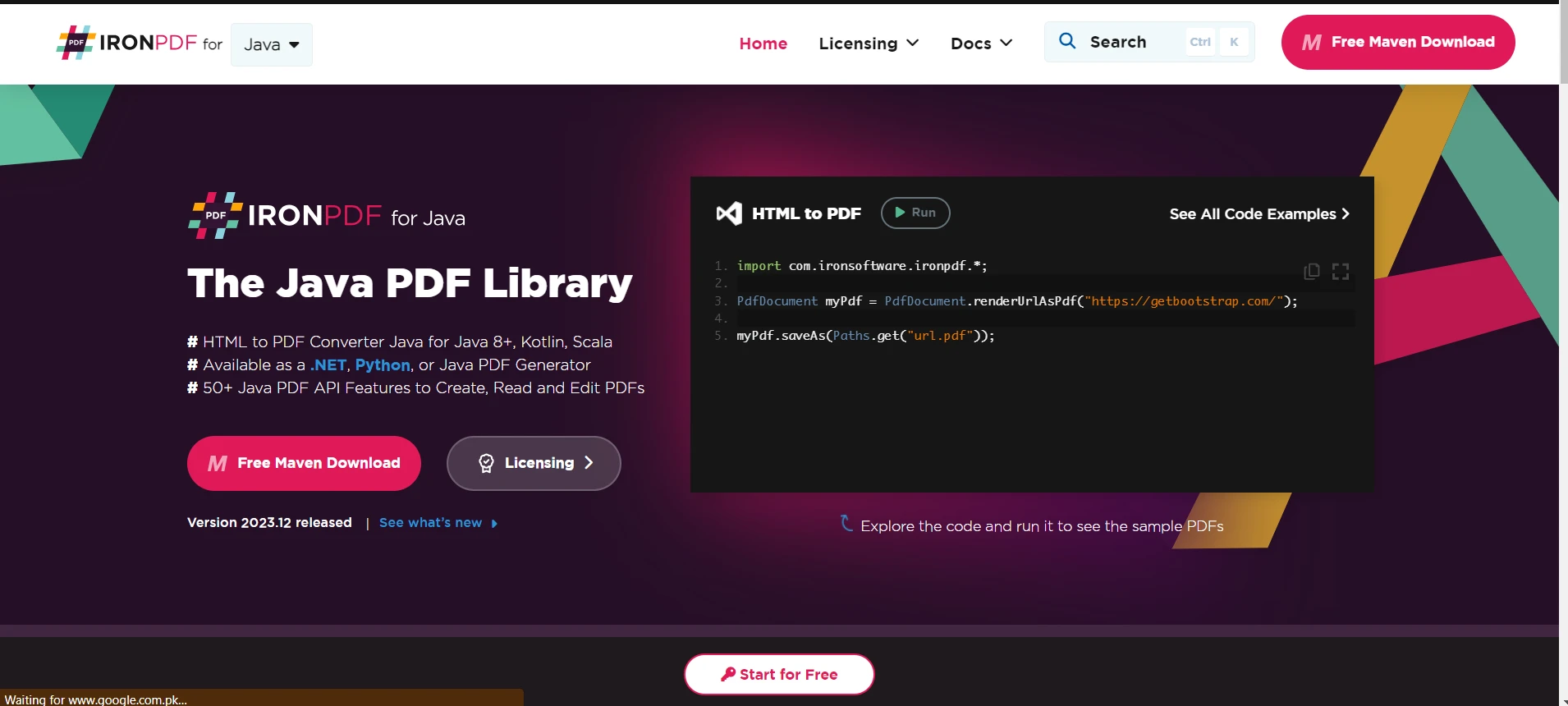
PDPageContentStream z dokumentem i stroną jako danymi wejściowymiPDPageContentStream do skonfigurowania i dodania zawartościsaveBiblioteka IronPDF obsługuje konwersję HTML na PDF dla Java 8+, Kotlin i Scala. Ten kreator zapewnia wsparcie wieloplatformowe, tj. Windows, Linux lub platformy chmurowe. Jest zaprojektowany specjalnie dla Javy, z priorytetem na dokładność, łatwość użycia i szybkość.
IronPDF jest rozwijany, aby pomóc programistom w tworzeniu, edycji i ekstrakcji zawartości z dokumentów PDF. Jest oparty na sukcesie i popularności IronPDF for .NET.
Wyróżniające się funkcje IronPDF obejmują:
Apache PDFBox to otwartoźródłowa biblioteka Javy do pracy z plikami PDF. Pozwala na generowanie, edycję i manipulację istniejącymi dokumentami. Może także ekstrahować zawartość z plików. Biblioteka dostarcza kilka narzędzi używanych do wykonywania różnych operacji na dokumentach.
Oto wyróżniające się funkcje Apache PDFBox.
Dalsza część artykułu wygląda następująco:
Teraz pobierzemy i zainstalujemy biblioteki, aby je porównać i ich potężne funkcje.
Instalacja IronPDF for Java jest prosta. Istnieją różne sposoby, aby to zrobić. Ta sekcja pokaże dwa z najpopularniejszych sposobów.
Aby pobrać plik JAR IronPDF, odwiedź stronę Maven dla IronPDF i pobierz najnowszą wersję IronPDF.
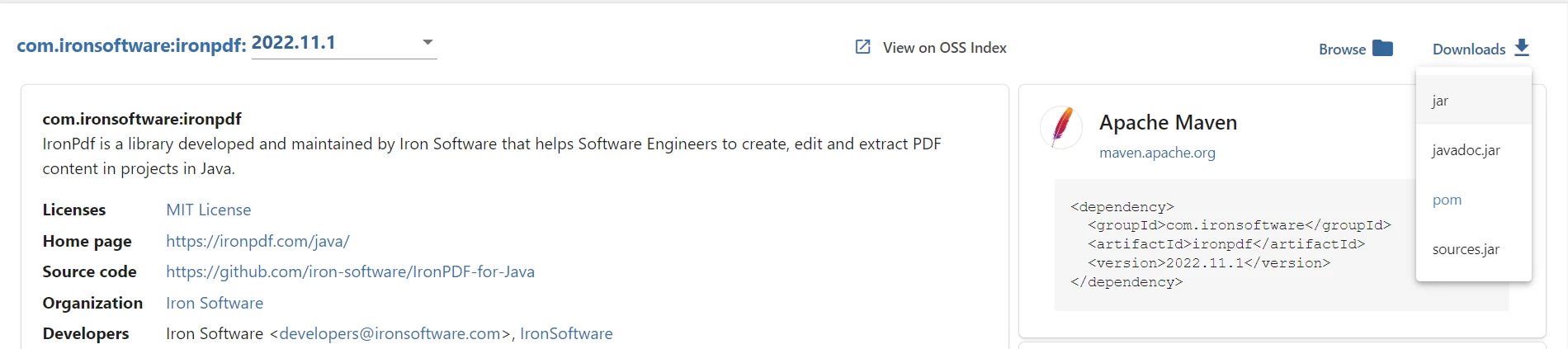
Pobierz plik JAR IronPDF.
Po pobraniu JAR, nadszedł czas, aby zainstalować bibliotekę w naszym projekcie Maven. Możesz użyć dowolnego IDE, ale my używamy NetBeans. W sekcji Projekty:
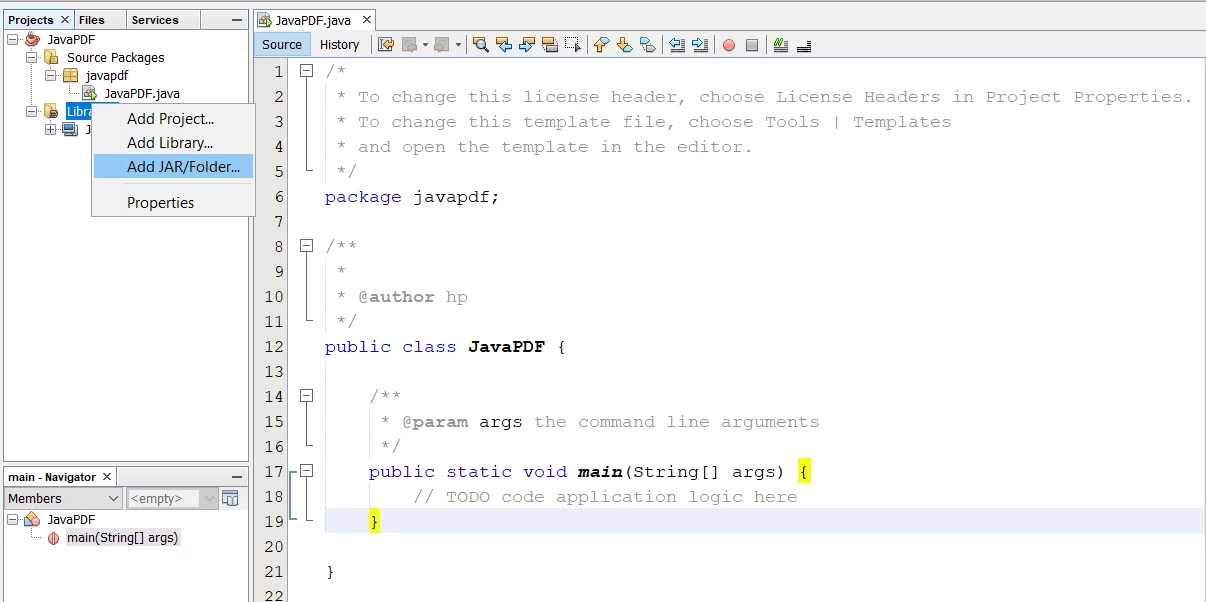
Dodaj bibliotekę IronPDF w Netbeans
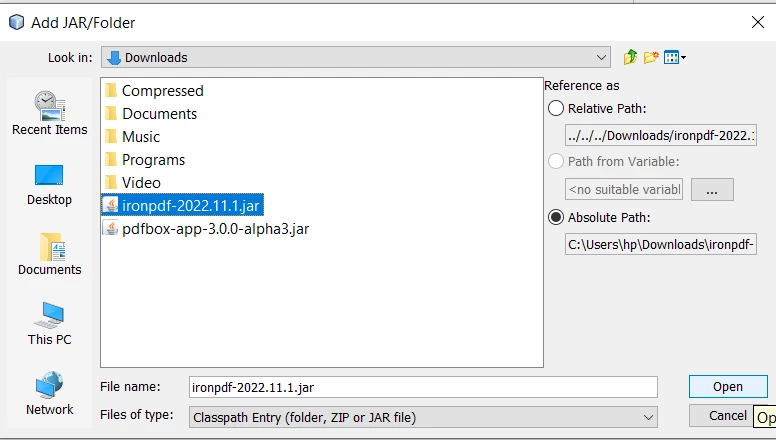
Otwórz plik JAR IronPDF
Innym sposobem pobierania i instalacji IronPDF jest użycie Mavena. Możesz po prostu dodać zależność w pliku pom.xml lub użyć narzędzia Zależności w NetBeans do uwzględnienia jej w swoim projekcie.
Dodaj nastepujaca zaleznosc w swoim pom.xml:
<dependencies>
  <dependency>
    <groupId>com.ironsoftware</groupId>
    <artifactId>ironpdf</artifactId>
    <version>YOUR_VERSION_HERE</version>
  </dependency>
</dependencies>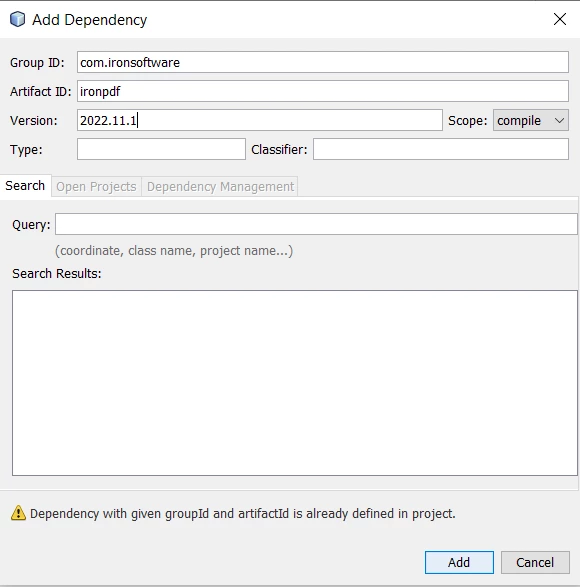
Dodaj zależność IronPDF
Teraz zainstalujemy Apache PDFBox.
Możemy pobrać i zainstalować PDFBox za pomocą tych samych metod co IronPDF.
Aby zainstalować JAR PDFBox, odwiedź oficjalną stronę i pobierz bibliotekę PDFBox najnowszą wersję.
Po utworzeniu projektu w sekcji projektów:
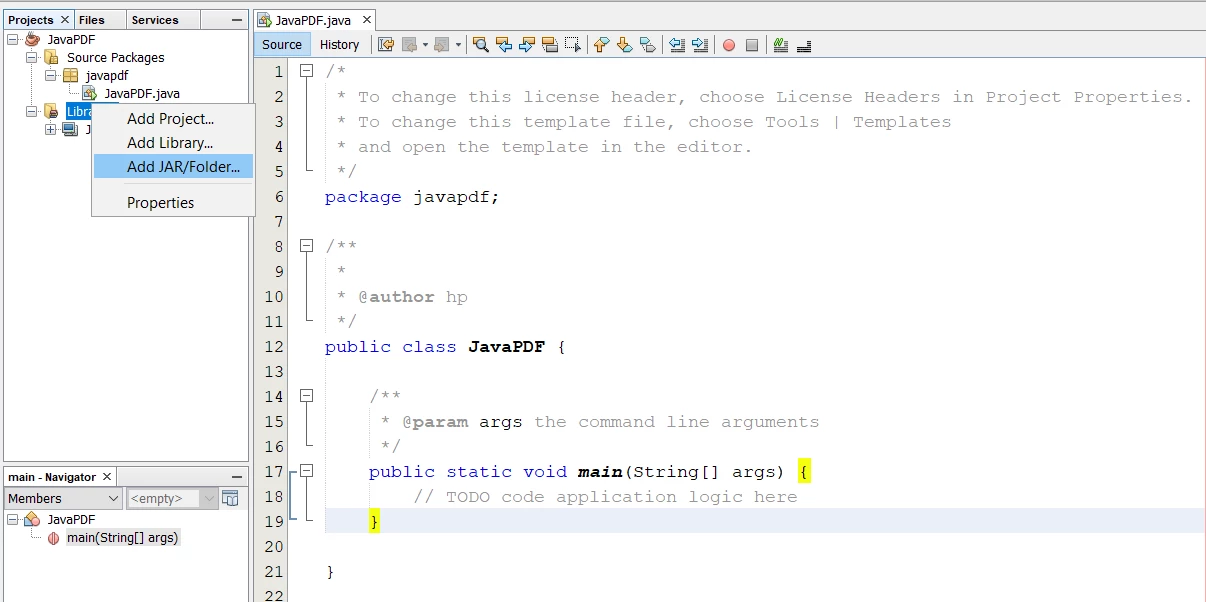
Dodaj bibliotekę
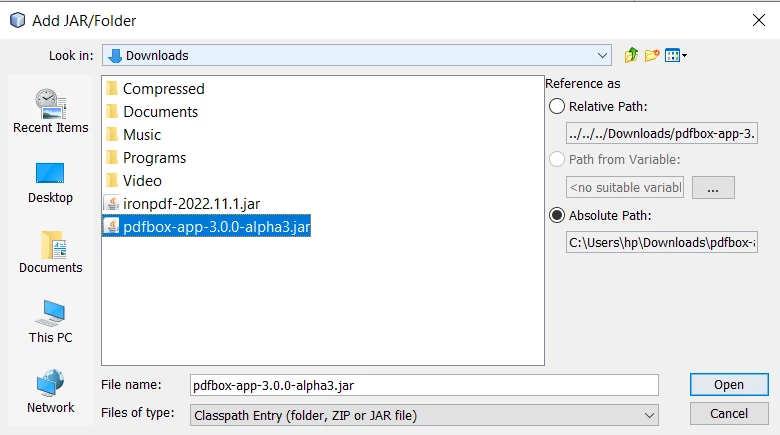
Otwórz plik JAR PDFBox
Skopiuj poniższy kod i wklej go do pliku pom.xml.
<dependencies>
    <dependency>
        <groupId>org.apache.pdfbox</groupId>
        <artifactId>pdfbox-app</artifactId>
        <version>3.0.0-alpha3</version>
    </dependency>
</dependencies>To automatycznie pobierze zależność PDFBox i zainstaluje ją w folderze repozytorium. Będzie teraz gotowa do użycia.
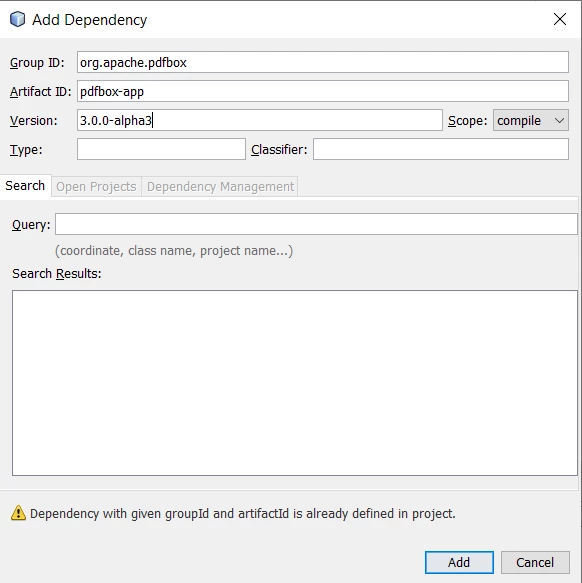
Dodaj zależność PDFBox
IronPDF dostarcza różne metody tworzenia plików. Przyjrzyjmy się dwóm z najważniejszych metod.
IronPDF umożliwia bardzo prosto generowanie dokumentów z HTML. Poniższy przykład kodu konwertuje URL strony internetowej na PDF.
import com.ironsoftware.ironpdf.*;
import java.nio.file.Paths;

// Set the license key and log path
License.setLicenseKey("YOUR-LICENSE-KEY");
Settings.setLogPath(Paths.get("C:/tmp/IronPdfEngine.log"));

// Convert a URL to a PDF
PdfDocument myPdf = PdfDocument.renderUrlAsPdf("https://ironpdf.com");

// Save the PDF document to a file
myPdf.saveAs(Paths.get("url.pdf"));Wynik to poniższy URL, który jest dobrze sformatowany i zapisany w następujący sposób:
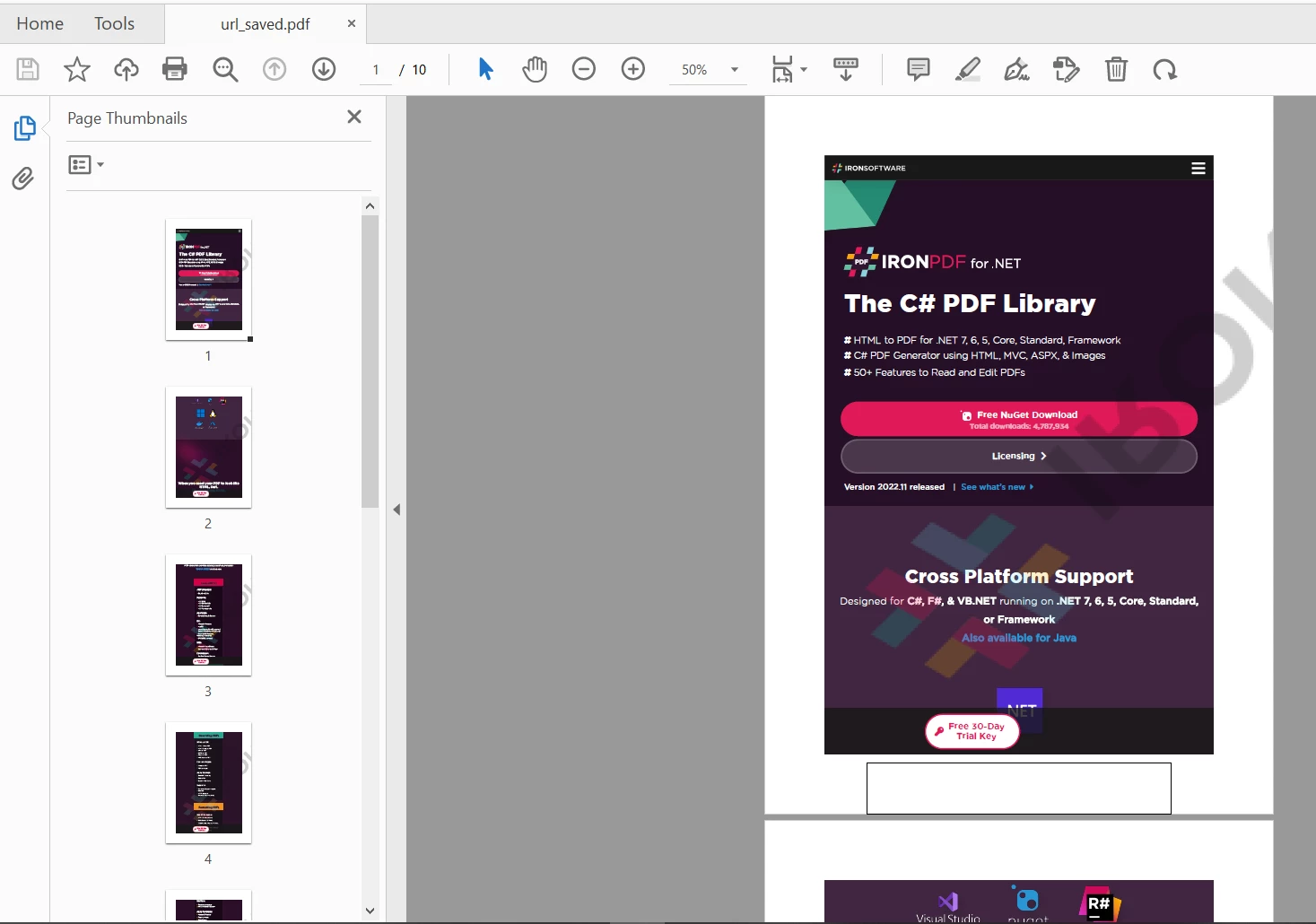
Wynik URL IronPDF
Poniższy przykład kodu pokazuje, jak ciąg HTML może być użyty do renderowania PDF w Javie. Możesz po prostu użyć ciągu HTML lub dokumentu, aby przekonwertować go na nowe dokumenty.
import com.ironsoftware.ironpdf.*;
import java.nio.file.Paths;

// Set the license key and log path
License.setLicenseKey("YOUR-LICENSE-KEY");
Settings.setLogPath(Paths.get("C:/tmp/IronPdfEngine.log"));

// Convert an HTML string to a PDF
PdfDocument myPdf = PdfDocument.renderHtmlAsPdf("<h1> ~Hello World~ </h1> Made with IronPDF!");

// Save the PDF document to a file
myPdf.saveAs(Paths.get("html_saved.pdf"));Oto wynik:

Wynik HTML IronPDF
PDFBox może również generować nowe dokumenty PDF z różnych formatów, ale nie może konwertować bezpośrednio z URL lub ciągu HTML.
Poniższy przykład kodu tworzy dokument zawierający tekst:
import org.apache.pdfbox.pdmodel.*;
import org.apache.pdfbox.pdmodel.common.*;
import org.apache.pdfbox.pdmodel.font.*;
import org.apache.pdfbox.pdmodel.graphics.image.*;
import org.apache.pdfbox.pdmodel.interactive.annotation.*;
import org.apache.pdfbox.pdmodel.interactive.form.*;

import java.io.IOException;

public class PDFBoxExample {

  public static void main(String[] args) throws IOException {

    // Create a document object
    PDDocument document = new PDDocument();

    // Add a blank page to the document
    PDPage blankPage = new PDPage();
    document.addPage(blankPage);

    // Retrieve the page of the document
    PDPage paper = document.getPage(0);
    try (PDPageContentStream contentStream = new PDPageContentStream(document, paper)) {
      // Begin the content stream
      contentStream.beginText();

      // Set the font to the content stream
      contentStream.setFont(PDType1Font.TIMES_ROMAN, 12);

      // Set the position for the line
      contentStream.newLineAtOffset(25, 700);

      String text = "This is the sample document and we are adding content to it.";

      // Add text in the form of a string
      contentStream.showText(text);

      // End the content stream
      contentStream.endText();

      System.out.println("Content added");

      // Save the document
      document.save("C:/PdfBox_Examples/my_doc.pdf");
      System.out.println("PDF created");
    }
    // Closing the document
    document.close();
  }
}
PDFBox Pozycjonowane dane wyjściowe
Jednakze, jesli usuniemy contentStream.newLineAtOffset(25, 700); z powyzszego przykladu kodu i uruchomimy projekt, otrzymamy PDF z wynikiem na dole strony. Dla niektórych programistów może to być dość irytujące, ponieważ muszą dostosowywać tekst za pomocą współrzędnych (x, y). y = 0 oznacza, że tekst pojawi się na dole.
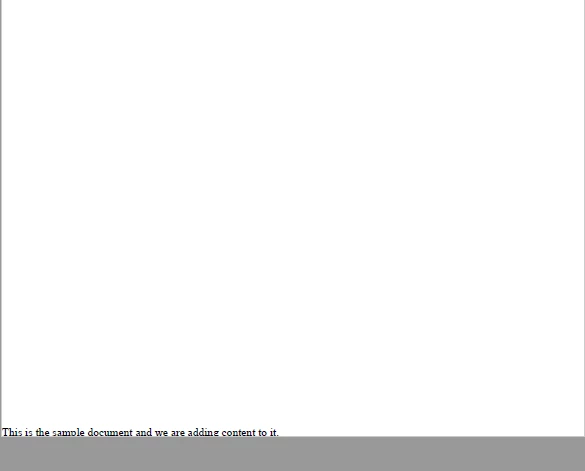
PDFBox bez pozycjonowania wyjścia
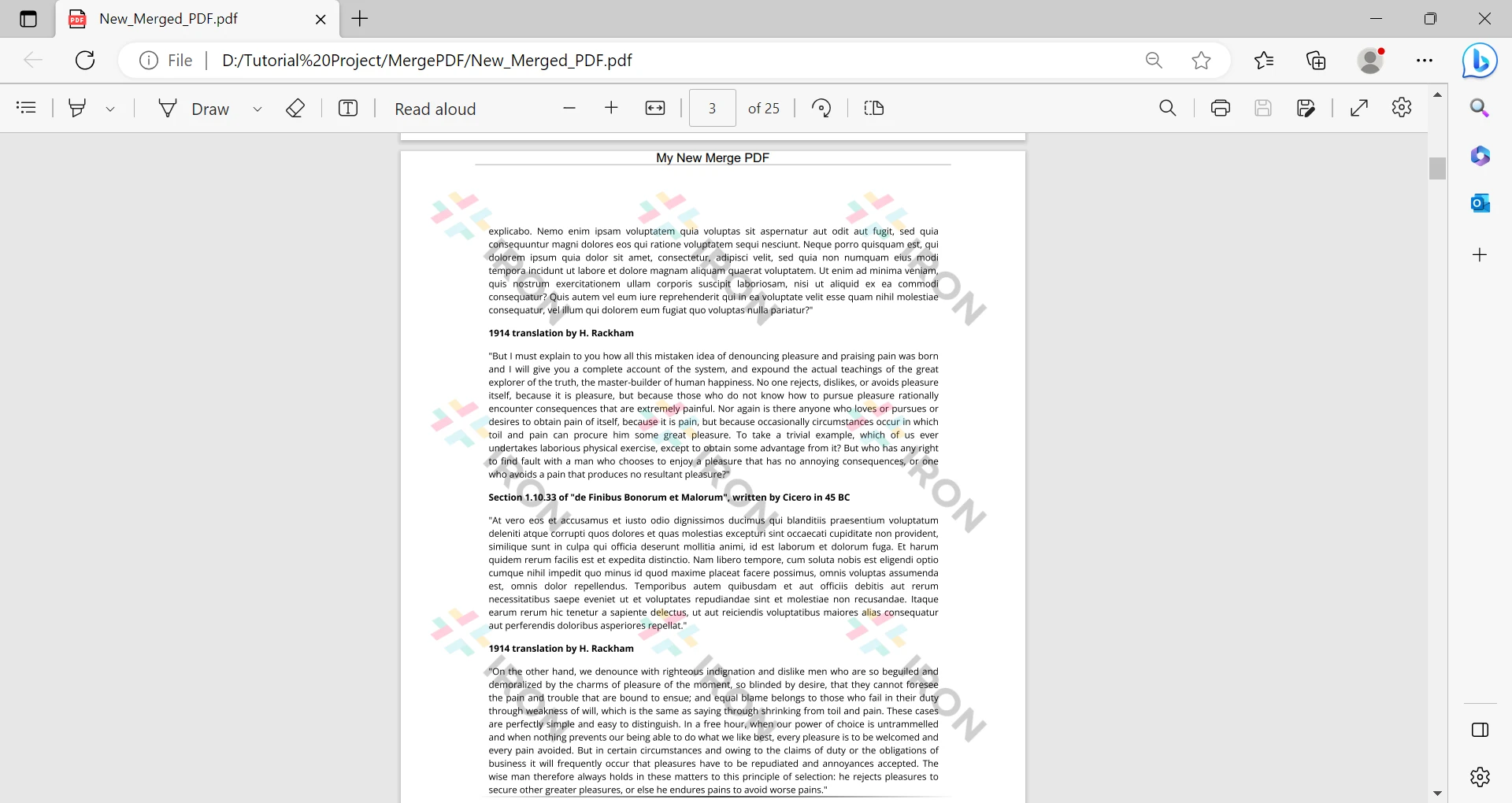
IronPDF może z łatwością konwertować wiele obrazów do jednego pliku PDF. Kod służący do dodawania wielu obrazów do jednego dokumentu wygląda następująco:
import com.ironsoftware.ironpdf.*;
import java.nio.file.*;
import java.util.ArrayList;
import java.util.List;

// Reference to the directory containing the images that we desire to convert
List<Path> images = new ArrayList<>();
images.add(Paths.get("imageA.png"));
images.add(Paths.get("imageB.png"));
images.add(Paths.get("imageC.png"));
images.add(Paths.get("imageD.png"));
images.add(Paths.get("imageE.png"));

// Render all targeted images as PDF content and save them together in one document.
PdfDocument merged = PdfDocument.fromImage(images);
merged.saveAs(Paths.get("output.pdf"));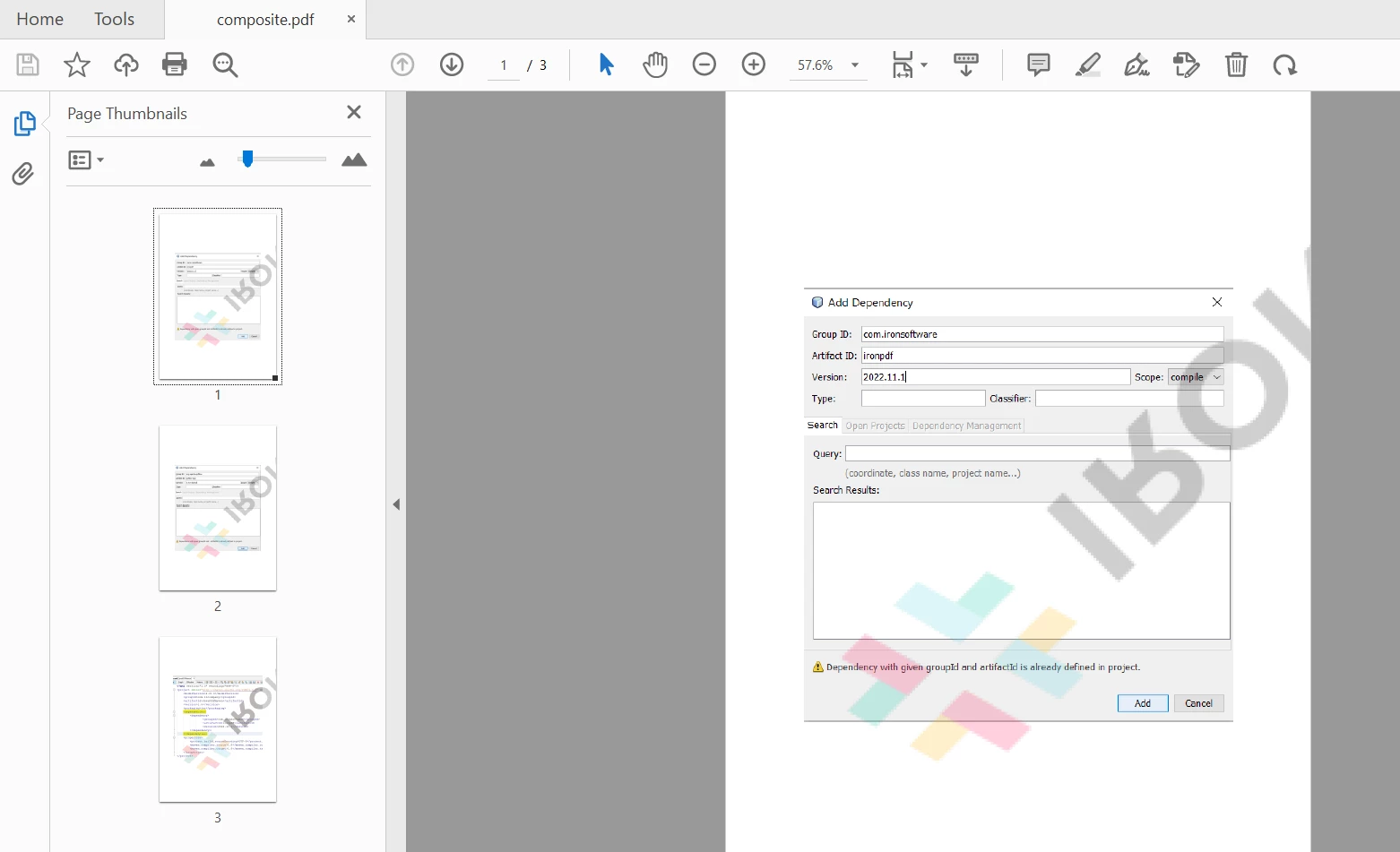
Obrazy IronPDF do wygenerowania
import org.apache.pdfbox.pdmodel.*;
import org.apache.pdfbox.pdmodel.graphics.image.*;
import java.io.IOException;
import java.nio.file.*;
import java.util.ArrayList;
import java.util.List;

public class ImageToPdf {

  public static void main(String[] args) {

    // Reference to the directory containing the images that we desire to convert
    Path imageDirectory = Paths.get("assets/images");

    // Create an empty list to contain Paths to images from the directory.
    List<Path> imageFiles = new ArrayList<>();

    PDDocument doc = new PDDocument();

    // Use a DirectoryStream to populate the list with paths for each image in the directory that we want to convert
    try (DirectoryStream<Path> stream = Files.newDirectoryStream(imageDirectory, "*.{png,jpg}")) {

      for (Path entry : stream) {
        imageFiles.add(entry);
      }

      for (int i = 0; i < imageFiles.size(); i++) {
        // Add a Page
        PDPage blankPage = new PDPage();
        doc.addPage(blankPage);
        PDPage page = doc.getPage(i);

        // Create PDImageXObject object
        PDImageXObject pdImage = PDImageXObject.createFromFile(imageFiles.get(i).toString(), doc);

        // Create the PDPageContentStream object
        PDPageContentStream contents = new PDPageContentStream(doc, page);

        // Drawing the image in the document
        contents.drawImage(pdImage, 0, 0);

        System.out.println("Image inserted");

        // Closing the PDPageContentStream object
        contents.close();
      }

      // Saving the document
      doc.save("C:/PdfBox_Examples/sample.pdf");

      // Closing the document
      doc.close();

    } catch (IOException exception) {
      throw new RuntimeException(String.format("Error converting images to PDF from directory: %s: %s",
              imageDirectory, exception.getMessage()), exception);
    }
  }
}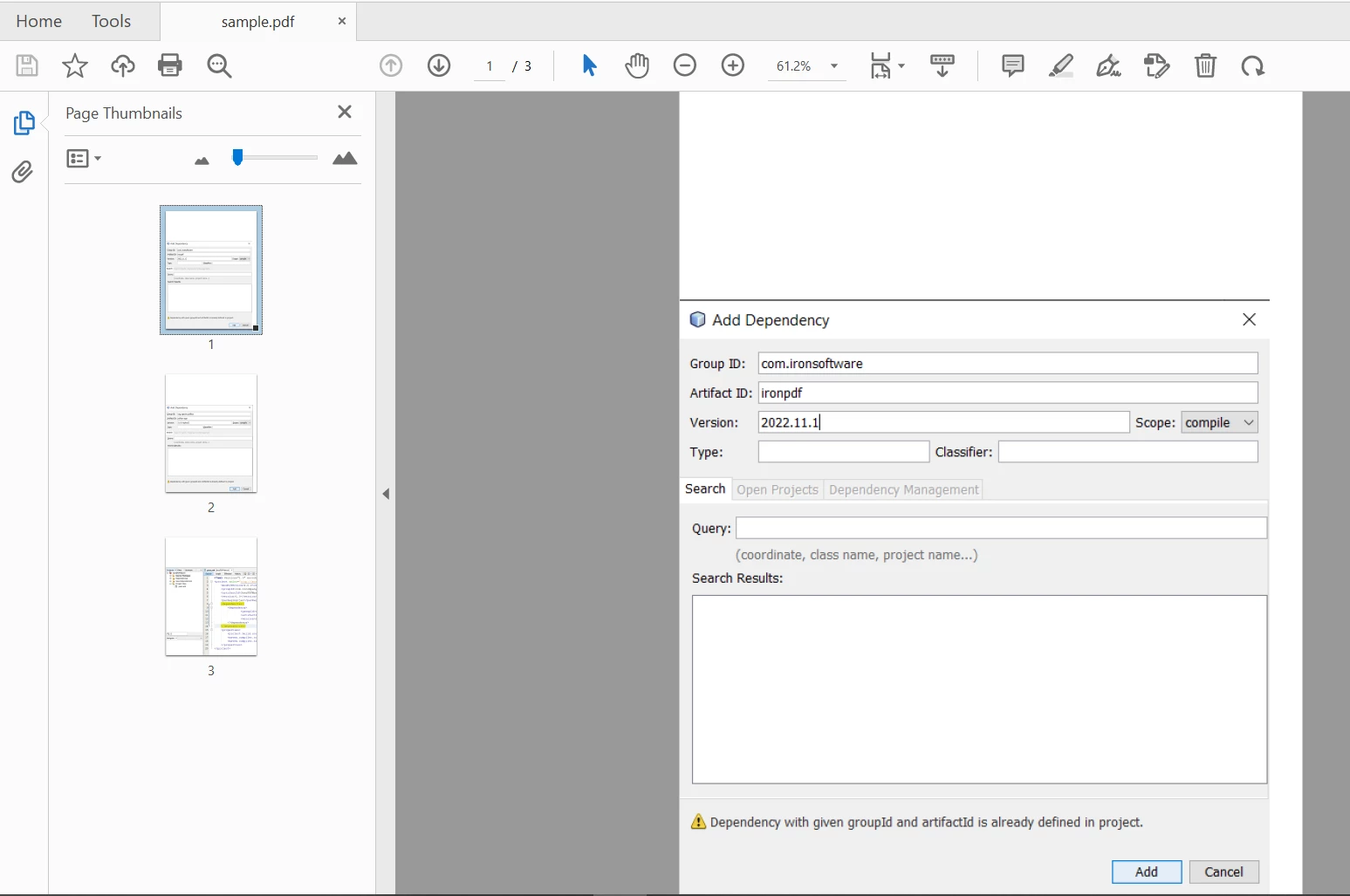
Obrazy PDFBox do wygenerowania
Poniżej znajduje się kod służący do szyfrowania plików PDF hasłem w IronPDF:
import com.ironsoftware.ironpdf.*;
import java.nio.file.Paths;

// Open a document (or create a new one from HTML)
PdfDocument pdf = PdfDocument.fromFile(Paths.get("assets/composite.pdf"));

// Edit security settings
SecurityOptions securityOptions = new SecurityOptions();
securityOptions.setOwnerPassword("top-secret");
securityOptions.setUserPassword("sharable");

// Change or set the document encryption password
SecurityManager securityManager = pdf.getSecurity();
securityManager.setSecurityOptions(securityOptions);
pdf.saveAs(Paths.get("assets/secured.pdf"));Apache PDFBox zapewnia również szyfrowanie dokumentów, aby zwiększyć bezpieczeństwo plików. Można również dodać dodatkowe informacje, takie jak metadane. Kod wygląda następująco:
import org.apache.pdfbox.pdmodel.*;
import org.apache.pdfbox.pdmodel.encryption.*;

import java.io.File;
import java.io.IOException;

public class PDFEncryption {

  public static void main(String[] args) throws IOException {

    // Load an existing document
    File file = new File("C:/PdfBox_Examples/sample.pdf");
    PDDocument document = PDDocument.load(file);

    // Create access permission object
    AccessPermission ap = new AccessPermission();

    // Create StandardProtectionPolicy object
    StandardProtectionPolicy spp = new StandardProtectionPolicy("1234", "1234", ap);

    // Setting the length of the encryption key
    spp.setEncryptionKeyLength(128);

    // Set the access permissions
    spp.setPermissions(ap);

    // Protect the document
    document.protect(spp);

    System.out.println("Document encrypted");

    // Save the document
    document.save("C:/PdfBox_Examples/encrypted.pdf");

    // Close the document
    document.close();
  }
}IronPDF jest bezpłatny do tworzenia prostych aplikacji PDF, a licencję na użycie komercyjne można kupić w dowolnym momencie. IronPDF oferuje licencje na pojedyncze projekty, licencje dla pojedynczych programistów, licencje dla agencji i międzynarodowych organizacji, a także licencje na redystrybucję SaaS i OEM oraz wsparcie techniczne. Wszystkie licencje są dostępne z bezpłatną wersją próbną, 30-dniową gwarancją zwrotu pieniędzy oraz roczną pomocą techniczną i aktualizacjami oprogramowania.
Pakiet Lite jest dostępny dla $999. W przypadku produktów IronPDF nie ma absolutnie żadnych opłat cyklicznych. Bardziej szczegółowe informacje na temat licencjonowania oprogramowania są dostępne na stronie licencyjnej produktu IronPDF.
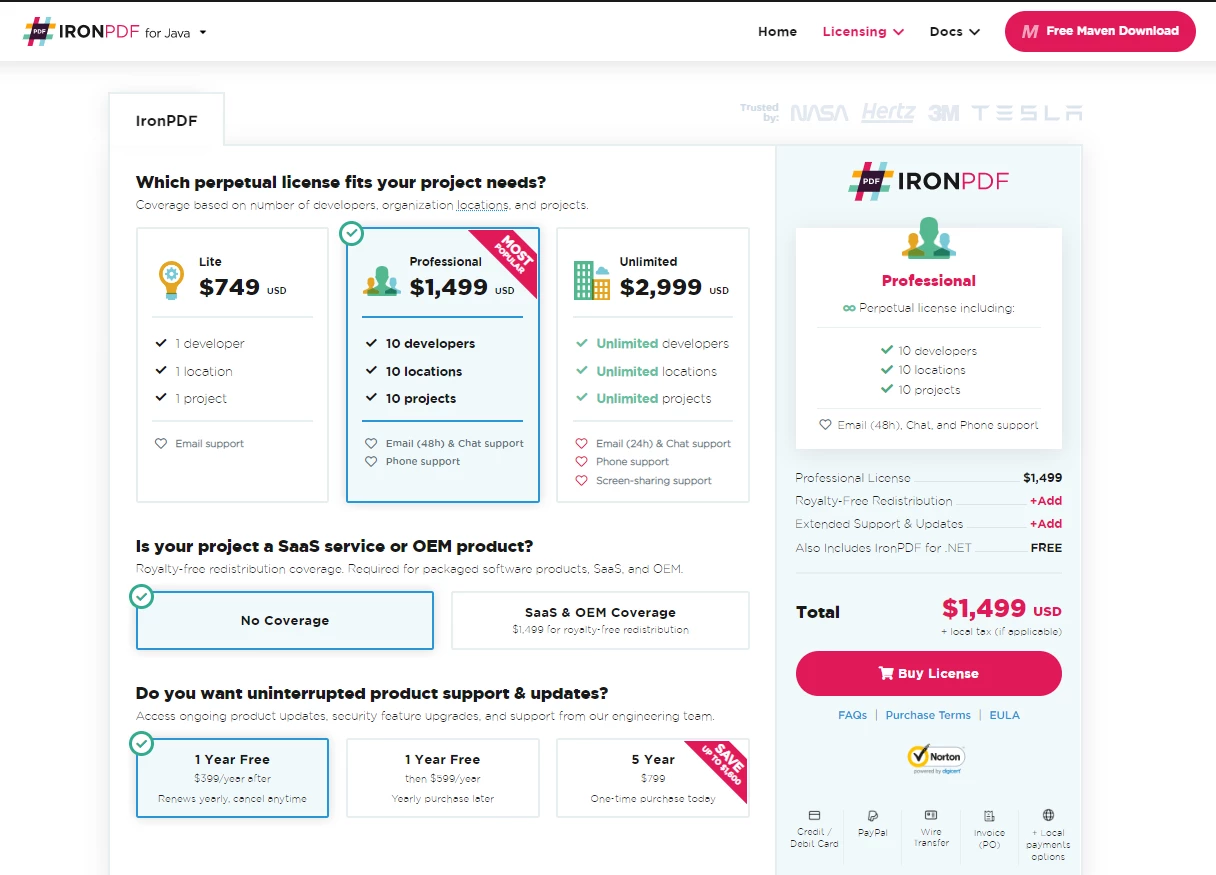
Licencjonowanie IronPDF
Apache PDFBox jest dostępny bezpłatnie. Jest bezpłatny niezależnie od sposobu wykorzystania, czy to do celów osobistych, wewnętrznych, czy komercyjnych.
Można dołączyć licencję Apache 2.0 (aktualna wersja) z tekstu licencji Apache 2.0. Aby dołączyć kopię licencji, wystarczy umieścić ją w swojej pracy. Możesz również dołączyć poniższą informację jako komentarz na początku kodu źródłowego.
Copyright [yyyy] [name of copyright owner]

Licensed under the Apache License, Version 2.0 (the "License");
you may not use this file except in compliance with the License.
You may obtain a copy of the License at

    https://www.apache.org/licenses/LICENSE-2.0

Unless required by applicable law or agreed to in writing, software
distributed under the License is distributed on an "AS IS" BASIS,
WITHOUT WARRANTIES OR CONDITIONS OF ANY KIND, either express or implied.
See the License for the specific language governing permissions and
limitations under the License.W porównaniu z Apache PDFBox, IronPDF ma przewagę zarówno pod względem funkcjonalności, jak i wsparcia technicznego. Zapewnia również obsługę SaaS i OEM, co jest wymagane we współczesnym tworzeniu oprogramowania. Biblioteka ta nie jest jednak darmowa do użytku komercyjnego, tak jak Apache PDFBox.
Firmy posiadające duże aplikacje mogą wymagać ciągłego usuwania błędów i wsparcia ze strony zewnętrznych dostawców w celu rozwiązywania problemów pojawiających się podczas tworzenia oprogramowania. Jest to coś, czego brakuje w wielu rozwiązaniach open source, takich jak Apache PDFBox, które polegają na dobrowolnym wsparciu ze strony społeczności programistów w celu utrzymania ich w dobrym stanie. Krótko mówiąc, IronPDF najlepiej sprawdza się w zastosowaniach biznesowych i rynkowych, podczas gdy Apache PDFBox jest bardziej odpowiedni do zastosowań osobistych i niekomercyjnych.
Dostępna jest również bezpłatna wersja próbna, umożliwiająca przetestowanie funkcjonalności IronPDF. Wypróbuj lub kup IronPDF.
Teraz możesz kupić wszystkie produkty Iron Software w pakiecie Iron Suite w znacznie obniżonej cenie. Odwiedź tę stronę internetową Iron Suite, aby uzyskać więcej informacji na temat tej niesamowitej oferty.

Curtis Chau posiada tytuł licencjata z informatyki (Uniwersytet Carleton) i specjalizuje się w front-endowym rozwoju, z ekspertką w Node.js, TypeScript, JavaScript i React. Pasjonuje się tworzeniem intuicyjnych i estetycznie przyjemnych interfejsów użytkownika, Curtis cieszy się pracą z nowoczesnymi frameworkami i tworzeniem dobrze zorganizowanych, atrakcyjnych wizualnie podręczników.

IronPDF jest częścią IRONSUITE
10 produktów API .NET dla twoich dokumentów biurowych

Kiedy potrzebujesz, aby twój PDF wyglądał jak HTML, szybko.

