




Güncellendi 21 Nisan 2026
TIFF'i Java'da PDF'ye Dönüştürme Yöntemi
Bu kapsamlı kılavuz, IronPDF kullanarak Java'da TIFF görüntüsünü PDF'ye sorunsuz bir şekilde dönüştürme adımlarını size gösterecek.
Daha Fazla Oku

Bu makale, programlama yoluyla PDF belgeleri oluşturmak için IronPDF'i inceleyecek.
IronPDF tarafından Java PDF Kütüphanesi, geliştiricilere Java uygulamalarında PDF belgeleri oluşturma, düzenleme ve manipülasyon yapma olanağı tanır. Java uygulamalarındaki veriyle PDF dosyaları oluşturması gereken geliştiriciler için bu kütüphane, çeşitli işlevsellikler sunduğu için mükemmel bir seçimdir.
IronPDF, HTML başlıklarını ve altbilgilerini gömme, belgeleri damgalama ve filigranlama, şifre korumalı PDF dosyaları oluşturma,PDF dosyalarına dijital imzalar uygulama, belgeleri arka planlar ve ön planlarla zenginleştirme, XML belgelerinden tam bir PDF dosyası oluşturma, notlar ekleme ve düzenleme ve daha iyi gezinme için ana hatlar ve yer imi kullanma gibi özelliklerle birlikte gelir. Yakından bir göz atalım.
IronPDF ile geliştiriciler, PDF belgelerine kolayca yeni HTML içeriği ekleyebilirler. Bu, PDF form belgelerini zengin HTML içeriğiyle dinamik olarak oluşturmak isteyen geliştiriciler için harika bir özelliktir. Kütüphane, resimler, bağlantılar ve tablolar dahil olmak üzere birçok HTML öğesini destekler. HTML içeriği ayrıca CSS kullanılarak stillendirilebilir, bu da profesyonel görünümlü PDF'ler oluşturmayı kolaylaştırır.
import com.ironsoftware.ironpdf.*;
import java.io.IOException;
import java.nio.file.Paths;

// Apply your license key
License.setLicenseKey("YOUR-LICENSE-KEY");

// Set a log path
Settings.setLogPath(Paths.get("C:/tmp/IronPdfEngine.log"));

// Render the HTML as a PDF. Stored in myPdf as type PdfDocument.
PdfDocument myPdf = PdfDocument.renderHtmlAsPdf("<h1>Hello World</h1> Made with IronPDF!");

// Save the PdfDocument to a file
myPdf.saveAs(Paths.get("html_saved.pdf"));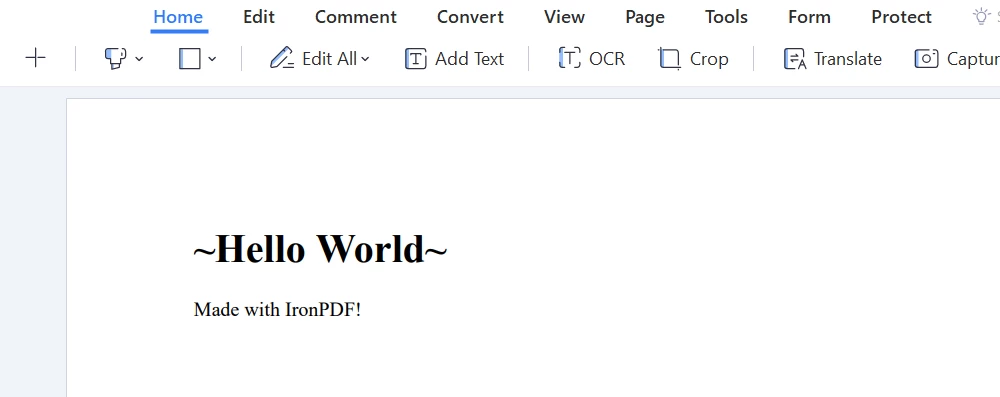 Çıkış PDF
Başlıklar ve altbilgiler birçok PDF belgesinin önemli bileşenleridir ve IronPDF, belgelerinize HTML başlıkları ve altbilgilerini entegre etmeyi kolaylaştırır. IronPDF ile geliştiriciler, PDF belgelerine metin, resimler ve sayfa numaraları da dahil olmak üzere özel başlıklar ve altbilgiler ekleyebilirler. Bu özellik, belgelerine marka veya telif hakkı bilgisi eklemesi gereken işletmeler için özellikle kullanışlıdır.
import com.ironsoftware.ironpdf.PdfDocument;
import com.ironsoftware.ironpdf.headerfooter.HtmlHeaderFooter;
import java.io.IOException;
import java.nio.file.Paths;
import java.util.List;
import java.util.ArrayList;

// Render a PDF from a URL
PdfDocument pdf = PdfDocument.renderUrlAsPdf("https://ironpdf.com");

// Build a footer using HTML
HtmlHeaderFooter footer = new HtmlHeaderFooter();
footer.setMaxHeight(15); // millimeters
footer.setHtmlFragment("<center><i>{page} of {total-pages}</i></center>");
footer.setDrawDividerLine(true);
pdf.addHtmlFooter(footer);
List<PdfDocument> pdfs = new ArrayList<>();

// Build a header using an image asset
HtmlHeaderFooter header = new HtmlHeaderFooter();
header.setMaxHeight(20); // millimeters
header.setHtmlFragment("<img src=\"logo.png\" />");
header.setBaseUrl("./assets/");
pdf.addHtmlHeader(header);

try {
    pdf.saveAs(Paths.get("assets/html_headers_footers.pdf"));
} catch (IOException e) {
    throw new RuntimeException(e);
}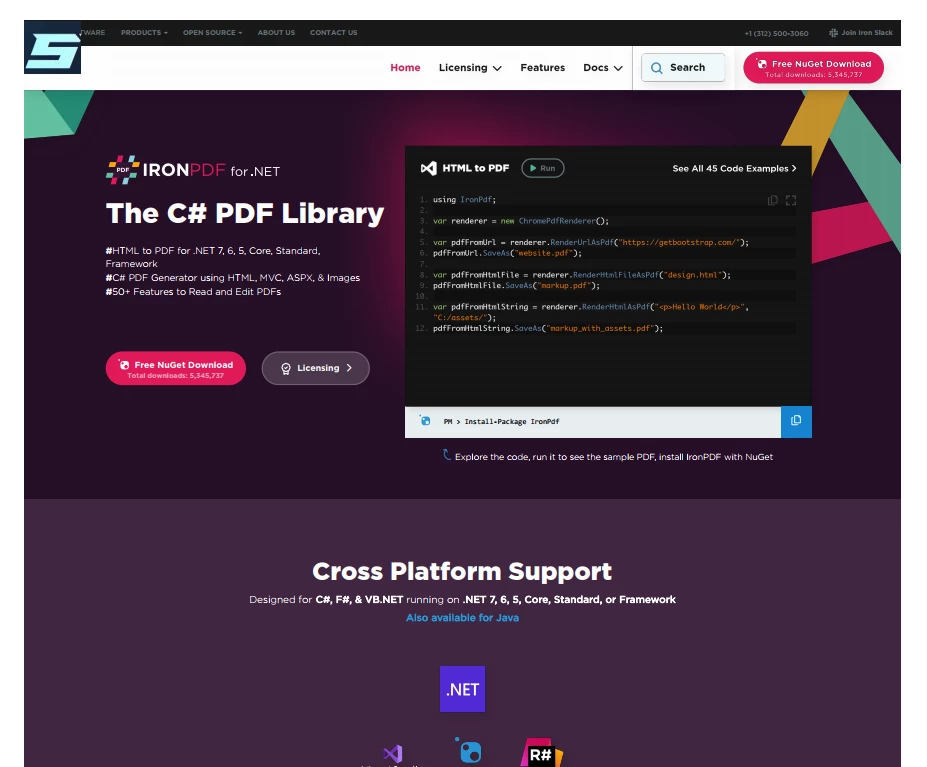 Çıkış PDF
IronPDF kullanarak geliştiriciler, PDF belgelerine damgalar ve filigranlar ekleyebilir. Filigranlar, belgenin arka planında görünen şeffaf resimler veya metinlerdir ve damgalar, yeni bir belgeye özel bir mesaj veya resim ekler.
Bu özellikler, belgelerini yetkisiz kullanımdan koruması veya belgelerine özel bir mesaj eklemesi gereken işletmeler için harikadır.
package IronPDF.ironpdf_java;

import java.io.IOException;
import java.nio.file.Paths;
import com.ironsoftware.ironpdf.*;
import com.ironsoftware.ironpdf.stamp.HorizontalAlignment;
import com.ironsoftware.ironpdf.stamp.VerticalAlignment;

public class Test {
    public static void main(String[] args) throws IOException {
        License.setLicenseKey("Your-License");

        // Load an existing PDF from the filesystem
        PdfDocument pdf = PdfDocument.fromFile(Paths.get("C:\\byteToPdf.pdf"));

        // Apply a watermark to the PDF
        pdf.applyWatermark("<h2 style='color:red'>SAMPLE</h2>", 30, VerticalAlignment.TOP, HorizontalAlignment.CENTER);

        // Save the watermarked PDF
        pdf.saveAs(Paths.get("assets/watermark.pdf"));
    }
} Çıkış PDF
IronPDF, geliştiricilerin PDF belgelerinde özel arka planlar ve ön planlar uygulamalarına olanak tanır. Ön planlar, bir belgenin üzerinde özel metin veya resimler eklemek için kullanılırken, arka planlar arka planda özel bir resim veya renk eklemektedir. Belge veya PDF formlarının özel marka veya grafiklere sahip olmasını isteyen işletme sahipleri bu özelliği özellikle faydalı bulacaktır.
import com.ironsoftware.ironpdf.*;
import java.io.IOException;
import java.nio.file.Paths;

public class BackgroundForegroundExample {

    public static void main(String[] args) throws IOException {
        // Load background and foreground PDFs from the filesystem
        PdfDocument backgroundPdf = PdfDocument.fromFile(Paths.get("assets/MyBackground.pdf"));
        PdfDocument foregroundPdf = PdfDocument.fromFile(Paths.get("assets/MyForeground.pdf"));

        // Render content (HTML, URL, etc) as a PDF Document
        PdfDocument pdf = PdfDocument.renderUrlAsPdf("https://www.nuget.org/packages/IronPdf");

        // Add the background and foreground PDFs to the newly-rendered document.
        pdf.addBackgroundPdf(backgroundPdf);
        pdf.addForegroundPdf(foregroundPdf);

        // Save the document with background and foreground
        pdf.saveAs(Paths.get("assets/BackgroundForegroundPdf.pdf"));
    }
}Notlar, PDF belgelerine ilave bilgi, yorum veya vurgular eklemek için harika bir yoldur. IronPDF ile geliştiriciler, PDF belgelerinde notları etkili bir şekilde yönetebilir ve ekleyip düzenleyebilir.
import com.ironsoftware.ironpdf.PdfDocument;
import com.ironsoftware.ironpdf.annotation.AnnotationIcon;
import com.ironsoftware.ironpdf.annotation.AnnotationManager;
import com.ironsoftware.ironpdf.annotation.AnnotationOptions;
import java.io.IOException;
import java.nio.file.Paths;

public class AnnotationExample {

    public static void main(String[] args) throws IOException {
        // Load an existing PDF from the file system
        PdfDocument pdf = PdfDocument.fromFile(Paths.get("assets/example.pdf"));

        // Create an annotation to be placed at a specific location on a page.
        AnnotationOptions annotation = new AnnotationOptions(
            "This is a major title", // Title of the annotation
            "This is the long 'sticky note' comment content...", // Content of the annotation
            150, // x-axis coordinate location
            250  // y-axis coordinate location
        );
        annotation.setIcon(AnnotationIcon.HELP);
        annotation.setOpacity(0.9);
        annotation.setPrintable(false);
        annotation.setHidden(false);
        annotation.setOpen(true);
        annotation.setReadonly(true);
        annotation.setRotateable(true);

        // Add the annotation to a specific page of the PDF
        AnnotationManager annotationManager = pdf.getAnnotation();
        annotationManager.addTextAnnotation(annotation, 0); // Add to the first page

        // Save the PDF with the modifications
        pdf.saveAs(Paths.get("assets/annotated.pdf"));
    }
}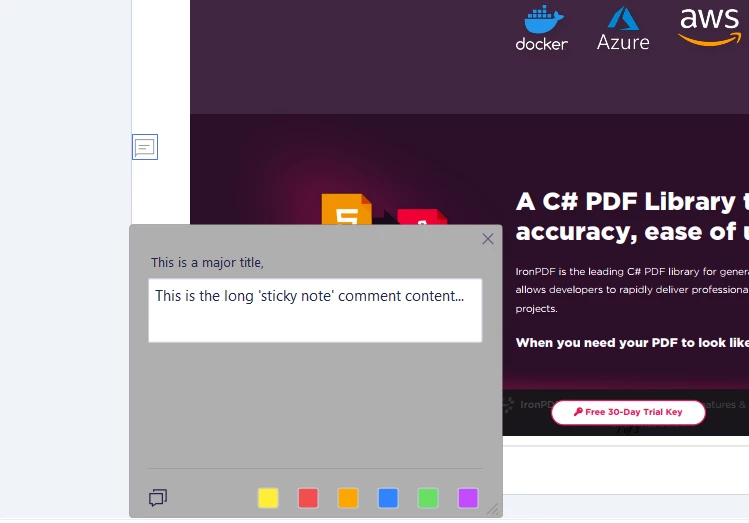 Çıktı Dosyası
Geliştiriciler, IronPDF ile yer imleri kullanarak PDF belgelerini zenginleştirebilir. Bir ana hat, belgenin içeriğinin üst düzey bir özetini sunarken, yer imleri belirli bölümlere hızlı erişim sağlar. Büyük veya karmaşık belgeler için, bu özellik kullanıcıların istedikleri bölümlere hızla erişmelerine olanak tanır.
import com.ironsoftware.ironpdf.PdfDocument;
import com.ironsoftware.ironpdf.bookmark.Bookmark;
import com.ironsoftware.ironpdf.bookmark.BookmarkManager;
import java.io.IOException;
import java.nio.file.Paths;
import java.util.List;

public class BookmarkExample {

    public static void main(String[] args) throws IOException {
        // Load an existing PDF from the file system
        PdfDocument pdf = PdfDocument.fromFile(Paths.get("assets/book.pdf"));

        // Add top-level bookmarks to pages of the PDF using their page indices
        BookmarkManager bookmarks = pdf.getBookmark();
        bookmarks.addBookMarkAtEnd("Author's Note", 2);
        bookmarks.addBookMarkAtEnd("Table of Contents", 3);
        bookmarks.addBookMarkAtEnd("Summary", 10);
        bookmarks.addBookMarkAtEnd("References", 12);

        List<Bookmark> bookmarkList = bookmarks.getBookmarks();
        Bookmark bookmark = bookmarkList.get(2);

        // Add a child bookmark
        bookmark.addChildBookmark("Conclusion", 11);

        // Save the PDF to the filesystem
        pdf.saveAs(Paths.get("assets/bookmarked.pdf"));
    }
}Bu makale, PDF belgelerine not ekleme, yer imleri ekleme, HTML içeriği, arka plan ve ön plan renkleri, başlıklar ve altbilgiler ekleme gibi IronPDF'in çeşitli özelliklerini keşfetmektedir. Makale, bu özelliklerin IronPDF kullanarak nasıl uygulanacağına dair adım adım talimatlar sağlıyor, bu da geliştiricilerin belirli ihtiyaçlarına uygun profesyonel görünümlü PDF belgeleri oluşturmalarını kolaylaştırıyor.
İster web uygulaması ister masaüstü uygulaması oluşturuyor olun, IronPDF size PDF belgelerini oluşturma sürecini hızlandırmada yardımcı olabilir, bu da hem zaman kazandırırken hem de belgelerinizin harika görünmesini sağlar.
IronPDF lisans bilgisi $999 ile başlar. IronPDF ayrıca geliştiricilerin kütüphaneyi test edip satın alma kararlarını vermeden önce kapasitesini değerlendirmelerini sağlayan ücretsiz bir deneme sürümü sunar. Deneme süresi boyunca kullanıcılar, destek ve güncellemeler de dahil olmak üzere kütüphanenin tüm özelliklerine erişebilirler. Deneme süresi sona erdikten sonra, kullanıcılar kütüphaneyi kullanmaya devam etmek için bir lisans satın almayı seçebilir. IronPDF için fiyatlandırma, kütüphaneyi kullanan geliştirici sayısına ve lisans türüne bağlı olarak değişir.
Curtis Chau, Bilgisayar Bilimleri alanında Lisans Derecesine (Carleton Üniversitesi) sahip ve Node.js, TypeScript, JavaScript ve React konularında uzmanlaşmış ön uç geliştirmeyle ilgileniyor. Sezgisel ve estetik açıdan hoş kullanıcı arayüzleri oluşturma tutkunu, Curtis modern çerçevelerle çalışmayı ve iyi yapılandırılmış, görsel olarak çekici kılavuzlar oluşturmayı seviyor.



IronPDF, IRONSUITE'in bir parçasıdır
Ofis belgeleriniz için 10 .NET API ürünü

PDF'nizin HTML gibi görünmesine ihtiyaç duyduğunuzda, hızlı.

