In C# ist die GroupBy-Methode ein leistungsstarkes Werkzeug, das Elemente aus einer Datenquelle basierend auf einem bestimmten Schlüssel in Gruppen organisiert. Diese Methode ist Teil von LINQ (Language Integrated Query) und kann verwendet werden, um Elemente nach einem einzelnen oder mehreren Eigenschaften zu gruppieren, was sie zu einem unschätzbaren Werkzeug für Datenanalyse und -manipulation macht. Die GroupBy-Methode vereinfacht komplexe Datenoperationen und ermöglicht eine effiziente Datenorganisation und -abfrage basierend auf spezifischen Kriterien. Wir werden GroupBy und die IronPDF-Bibliothek in diesem Blog diskutieren.
Grundlagen von GroupBy
Der Kern der GroupBy-Methode liegt in ihrer Fähigkeit, Elemente einer gegebenen Sammlung gemäß einem bestimmten Schlüssel in Gruppen zu kategorisieren. Diese Schlüsselfunktion bestimmt, wie Elemente gruppiert werden. Zum Beispiel können Sie eine Liste von Schülern nach ihrem Alterswert gruppieren und so Gruppen von Schülern mit demselben Alter erstellen. Jede Gruppe wird durch einen Schlüsselwert und eine Sammlung von Elementen, die diesen Schlüssel teilen, repräsentiert. Die Schlüsselfunktion kann jedes Objekt sein, wie ein String, eine Zahl oder sogar ein anonymes Objekt, was Flexibilität bei der Gruppierung von Daten bietet.
Verwendung von GroupBy mit Methodensyntax
In C# gibt es zwei Möglichkeiten, die GroupBy-Methode anzuwenden: Methodensyntax und Abfragesyntax. Die Methodensyntax verwendet Lambda-Ausdrücke, um den Gruppierungsschlüssel zu definieren, und ist ein direkter Ansatz zur Anwendung der GroupBy-Operation.
Betrachten Sie das folgende Beispiel, das die Methodensyntax verwendet, um eine Liste von Schülern nach ihrem Alter zu gruppieren:
using System;
using System.Collections.Generic;
using System.Linq;

public class Student
{
    public string Name { get; set; }
    public int Age { get; set; }
}

public class Program
{
    public static void Main()
    {
        List<Student> studentList = new List<Student>
        {
            new Student { Name = "Alice", Age = 20 },
            new Student { Name = "Bob", Age = 20 },
            new Student { Name = "Charlie", Age = 21 }
        };

        // Group students by their age using GroupBy
        var groupedResult = studentList.GroupBy(student => student.Age);

        foreach (var group in groupedResult)
        {
            Console.WriteLine($"Age Group: {group.Key}");

            foreach (var student in group)
            {
                Console.WriteLine($"Student Name: {student.Name}");
            }
        }
    }
}
using System;
using System.Collections.Generic;
using System.Linq;

public class Student
{
    public string Name { get; set; }
    public int Age { get; set; }
}

public class Program
{
    public static void Main()
    {
        List<Student> studentList = new List<Student>
        {
            new Student { Name = "Alice", Age = 20 },
            new Student { Name = "Bob", Age = 20 },
            new Student { Name = "Charlie", Age = 21 }
        };

        // Group students by their age using GroupBy
        var groupedResult = studentList.GroupBy(student => student.Age);

        foreach (var group in groupedResult)
        {
            Console.WriteLine($"Age Group: {group.Key}");

            foreach (var student in group)
            {
                Console.WriteLine($"Student Name: {student.Name}");
            }
        }
    }
}
Imports System
Imports System.Collections.Generic
Imports System.Linq
Public Class Student
Public Property Name As String
Public Property Age As Integer
End Class
Public Class Program
Public Shared Sub Main()
Dim studentList As New List(Of Student) From {
New Student With {.Name = "Alice", .Age = 20},
New Student With {.Name = "Bob", .Age = 20},
New Student With {.Name = "Charlie", .Age = 21}
}
' Group students by their age using GroupBy
Dim groupedResult = studentList.GroupBy(Function(student) student.Age)
For Each group In groupedResult
Console.WriteLine($"Age Group: {group.Key}")
For Each student In group
Console.WriteLine($"Student Name: {student.Name}")
Next
Next
End Sub
End Class
Imports System
Imports System.Collections.Generic
Imports System.Linq

Public Class Student
    Public Property Name As String
    Public Property Age As Integer
End Class

Public Class Program
    Public Shared Sub Main()
        Dim studentList As New List(Of Student) From {
            New Student With {.Name = "Alice", .Age = 20},
            New Student With {.Name = "Bob", .Age = 20},
            New Student With {.Name = "Charlie", .Age = 21}
        }

        ' Group students by their age using GroupBy
        Dim groupedResult = studentList.GroupBy(Function(student) student.Age)

        For Each group In groupedResult
            Console.WriteLine($"Age Group: {group.Key}")

            For Each student In group
                Console.WriteLine($"Student Name: {student.Name}")
            Next
        Next
    End Sub
End Class
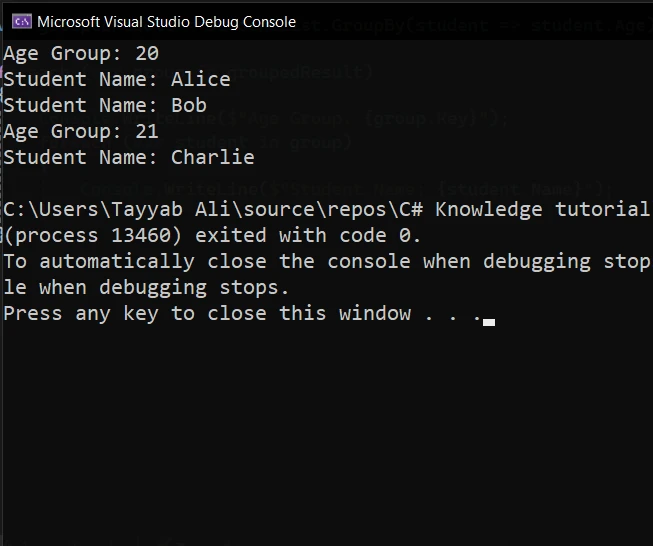
Die LINQ GroupBy-Methode verwendet einen Lambda-Ausdruck, um Schüler nach ihrem Alterswert zu gruppieren. group.Key repräsentiert die Altersgruppe und die innere foreach-Schleife iteriert über jeden Schüler innerhalb einer Gruppe und druckt deren Namen.
Nutzung von GroupBy mit Abfragesyntax
Die Abfragesyntax bietet eine ausdrucksstärkere Möglichkeit zur Durchführung von Gruppierungsoperationen und ähnelt SQL-ähnlichen Abfragen. Es ist besonders nützlich bei der Verarbeitung komplexer Daten und multiplen Gruppierungskriterien. Hier ist, wie Sie ähnliche Funktionen wie im vorherigen Beispiel mit Abfragesyntax erreichen können:
using System;
using System.Collections.Generic;
using System.Linq;

public static class Program
{
    public static void Main()
    {
        List<Student> studentList = new List<Student>
        {
            new Student { Name = "Alice", Age = 20 },
            new Student { Name = "Bob", Age = 20 },
            new Student { Name = "Charlie", Age = 21 }
        };

        // Group students by their age using query syntax
        var groupedResult = from student in studentList
                            group student by student.Age into ageGroup
                            select new { Age = ageGroup.Key, Students = ageGroup };

        foreach (var group in groupedResult)
        {
            Console.WriteLine($"Age Group: {group.Age}");

            foreach (var student in group.Students)
            {
                Console.WriteLine($"Student Name: {student.Name}");
            }
        }
    }
}
using System;
using System.Collections.Generic;
using System.Linq;

public static class Program
{
    public static void Main()
    {
        List<Student> studentList = new List<Student>
        {
            new Student { Name = "Alice", Age = 20 },
            new Student { Name = "Bob", Age = 20 },
            new Student { Name = "Charlie", Age = 21 }
        };

        // Group students by their age using query syntax
        var groupedResult = from student in studentList
                            group student by student.Age into ageGroup
                            select new { Age = ageGroup.Key, Students = ageGroup };

        foreach (var group in groupedResult)
        {
            Console.WriteLine($"Age Group: {group.Age}");

            foreach (var student in group.Students)
            {
                Console.WriteLine($"Student Name: {student.Name}");
            }
        }
    }
}
Imports System
Imports System.Collections.Generic
Imports System.Linq
Public Module Program
Public Sub Main()
Dim studentList As New List(Of Student) From {
New Student With {.Name = "Alice", .Age = 20},
New Student With {.Name = "Bob", .Age = 20},
New Student With {.Name = "Charlie", .Age = 21}
}
' Group students by their age using query syntax
Dim groupedResult = From student In studentList
Group student By student.Age Into ageGroup = Group
Select New With {.Age = ageGroup.Key, .Students = ageGroup}
For Each group In groupedResult
Console.WriteLine($"Age Group: {group.Age}")
For Each student In group.Students
Console.WriteLine($"Student Name: {student.Name}")
Next
Next
End Sub
End Module
Public Class Student
Public Property Name As String
Public Property Age As Integer
End Class
Imports System
Imports System.Collections.Generic
Imports System.Linq

Public Module Program
    Public Sub Main()
        Dim studentList As New List(Of Student) From {
            New Student With {.Name = "Alice", .Age = 20},
            New Student With {.Name = "Bob", .Age = 20},
            New Student With {.Name = "Charlie", .Age = 21}
        }

        ' Group students by their age using query syntax
        Dim groupedResult = From student In studentList
                            Group student By student.Age Into ageGroup = Group
                            Select New With {.Age = ageGroup.Key, .Students = ageGroup}

        For Each group In groupedResult
            Console.WriteLine($"Age Group: {group.Age}")

            For Each student In group.Students
                Console.WriteLine($"Student Name: {student.Name}")
            Next
        Next
    End Sub
End Module

Public Class Student
    Public Property Name As String
    Public Property Age As Integer
End Class
In diesem Ausschnitt gruppiert die Abfragesyntax Schüler nach Alter, ähnlich der Methodensyntax aber mit einer anderen Syntax, die manche als lesbarer empfinden.
Gruppieren nach mehreren Schlüsseln und Eigenschaften
Eine fortgeschrittenere Verwendung der GroupBy-Methode beinhaltet die Gruppierung von Daten nach mehreren Schlüsseln oder Eigenschaften. Diese Technik erlaubt eine detailliertere Datenanalyse und Kategorisierung basierend auf mehreren Werten. Durch die Verwendung von anonymen Objekten oder Tupeln können Sie Elemente basierend auf einer Kombination von Eigenschaften gruppieren und erhalten damit eine reichhaltigere Datenstruktur für Ihre Anwendungen.
Beispiel: Gruppierung von Schülern nach Name und Alter
Betrachten Sie ein Szenario, in dem Sie Schüler nicht nur nach ihrem Alterswert, sondern auch nach ihrem Namen gruppieren müssen, um Schüler mit den gleichen Namen und Alterswerten in einer Liste zu identifizieren. Dies kann erreicht werden, indem nach einem anonymen Typ gruppiert wird, der sowohl Namen als auch Alter enthält.
using System;
using System.Collections.Generic;
using System.Linq;

public static class Program
{
    public static void Main()
    {
        List<Student> studentList = new List<Student>
        {
            new Student { Name = "Alice", Age = 20 },
            new Student { Name = "Alice", Age = 21 },
            new Student { Name = "Bob", Age = 20 },
            new Student { Name = "Charlie", Age = 21 }
        };

        // Group students by both Name and Age using an anonymous type as the key
        var groupedResult = studentList.GroupBy(student => new { student.Name, student.Age });

        foreach (var group in groupedResult)
        {
            Console.WriteLine($"Group Key: Name = {group.Key.Name}, Age = {group.Key.Age}");

            foreach (var student in group)
            {
                Console.WriteLine($"Student Name: {student.Name}, Age: {student.Age}");
            }
        }
    }
}
using System;
using System.Collections.Generic;
using System.Linq;

public static class Program
{
    public static void Main()
    {
        List<Student> studentList = new List<Student>
        {
            new Student { Name = "Alice", Age = 20 },
            new Student { Name = "Alice", Age = 21 },
            new Student { Name = "Bob", Age = 20 },
            new Student { Name = "Charlie", Age = 21 }
        };

        // Group students by both Name and Age using an anonymous type as the key
        var groupedResult = studentList.GroupBy(student => new { student.Name, student.Age });

        foreach (var group in groupedResult)
        {
            Console.WriteLine($"Group Key: Name = {group.Key.Name}, Age = {group.Key.Age}");

            foreach (var student in group)
            {
                Console.WriteLine($"Student Name: {student.Name}, Age: {student.Age}");
            }
        }
    }
}
Imports System
Imports System.Collections.Generic
Imports System.Linq
Public Module Program
Public Sub Main()
Dim studentList As New List(Of Student) From {
New Student With {.Name = "Alice", .Age = 20},
New Student With {.Name = "Alice", .Age = 21},
New Student With {.Name = "Bob", .Age = 20},
New Student With {.Name = "Charlie", .Age = 21}
}
' Group students by both Name and Age using an anonymous type as the key
Dim groupedResult = studentList.GroupBy(Function(student) New With {Key student.Name, Key student.Age})
For Each group In groupedResult
Console.WriteLine($"Group Key: Name = {group.Key.Name}, Age = {group.Key.Age}")
For Each student In group
Console.WriteLine($"Student Name: {student.Name}, Age: {student.Age}")
Next
Next
End Sub
End Module
Imports System
Imports System.Collections.Generic
Imports System.Linq

Public Module Program
    Public Sub Main()
        Dim studentList As New List(Of Student) From {
            New Student With {.Name = "Alice", .Age = 20},
            New Student With {.Name = "Alice", .Age = 21},
            New Student With {.Name = "Bob", .Age = 20},
            New Student With {.Name = "Charlie", .Age = 21}
        }

        ' Group students by both Name and Age using an anonymous type as the key
        Dim groupedResult = studentList.GroupBy(Function(student) New With {Key student.Name, Key student.Age})

        For Each group In groupedResult
            Console.WriteLine($"Group Key: Name = {group.Key.Name}, Age = {group.Key.Age}")

            For Each student In group
                Console.WriteLine($"Student Name: {student.Name}, Age: {student.Age}")
            Next
        Next
    End Sub
End Module
In diesem Beispiel werden Schüler nach Namen und Alter unter Verwendung eines anonymen Typs als Schlüssel gruppiert. Das ergibt Gruppen, bei denen jede einzigartige Kombination aus Name und Alter als separate Gruppe dargestellt wird, was die Flexibilität von GroupBy für komplexe Gruppierungsszenarien zeigt.
Erweiterte GroupBy-Verwendung
GroupBy wird umso leistungsfähiger, wenn Sie nach mehreren Schlüsselwerten gruppieren oder zusätzliche Operationen auf den gruppierten Daten durchführen möchten, wie zum Beispiel Zählen, Filtern oder Sortieren. Sie können dies erreichen, indem Sie GroupBy mit anderen LINQ-Methoden kombinieren oder anonyme Typen verwenden, um nach mehreren Eigenschaften zu gruppieren.
Aufgeschobene Ausführung in GroupBy
Es ist wichtig zu beachten, dass GroupBy verzögerte Ausführung nutzt, indem es Elemente gruppiert, wenn sie nach einem gegebenen Schlüssel durchlaufen werden. Das bedeutet, dass die Gruppierungsoperation nicht sofort ausgeführt wird, wenn die GroupBy-Methode aufgerufen wird. Stattdessen wird die Ausführung verzögert, bis über die gruppierten Daten iteriert wird, wie etwa in einer foreach-Schleife. Dieses Verhalten ist effizient, da es weitere Abfrageoptimierungen und -änderungen ermöglicht, bevor die Daten endgültig verarbeitet werden.
Einführung von IronPDF in C#-Projekte
IronPDF ist eine umfassende Bibliothek für C#, die Entwicklern ermöglicht, PDF-Dokumente in .NET-Anwendungen zu erstellen, zu manipulieren und zu konvertieren. Dieses leistungsstarke Werkzeug bietet eine breite Palette von Funktionen, von der Erstellung von PDFs aus HTML bis hin zur Bearbeitung vorhandener PDF-Dateien und vieles mehr. IronPDF vereinfacht die Integration von PDF-Fähigkeiten in Ihre Anwendungen und macht es zu einem wertvollen Asset für jedes Projekt, das PDF-Manipulation erfordert.
Die Hauptfunktion von IronPDF ist seine HTML zu PDF-Konvertierung, die sicherstellt, dass Layouts und Stile beibehalten werden. Es erzeugt PDFs aus Webinhalten und ist daher ideal für Berichte, Rechnungen und Dokumentationen geeignet. HTML-Dateien, URLs und HTML-Strings können nahtlos in PDFs umgewandelt werden.
using IronPdf;

class Program
{
    static void Main(string[] args)
    {
        var renderer = new ChromePdfRenderer();

        // Convert HTML String to PDF
        var htmlContent = "<h1>Hello, IronPDF!</h1><p>This is a PDF from an HTML string.</p>";
        var pdfFromHtmlString = renderer.RenderHtmlAsPdf(htmlContent);
        pdfFromHtmlString.SaveAs("HTMLStringToPDF.pdf");

        // Convert HTML File to PDF
        var htmlFilePath = "path_to_your_html_file.html"; // Specify the path to your HTML file
        var pdfFromHtmlFile = renderer.RenderHtmlFileAsPdf(htmlFilePath);
        pdfFromHtmlFile.SaveAs("HTMLFileToPDF.pdf");

        // Convert URL to PDF
        var url = "http://ironpdf.com"; // Specify the URL
        var pdfFromUrl = renderer.RenderUrlAsPdf(url);
        pdfFromUrl.SaveAs("URLToPDF.pdf");
    }
}
using IronPdf;

class Program
{
    static void Main(string[] args)
    {
        var renderer = new ChromePdfRenderer();

        // Convert HTML String to PDF
        var htmlContent = "<h1>Hello, IronPDF!</h1><p>This is a PDF from an HTML string.</p>";
        var pdfFromHtmlString = renderer.RenderHtmlAsPdf(htmlContent);
        pdfFromHtmlString.SaveAs("HTMLStringToPDF.pdf");

        // Convert HTML File to PDF
        var htmlFilePath = "path_to_your_html_file.html"; // Specify the path to your HTML file
        var pdfFromHtmlFile = renderer.RenderHtmlFileAsPdf(htmlFilePath);
        pdfFromHtmlFile.SaveAs("HTMLFileToPDF.pdf");

        // Convert URL to PDF
        var url = "http://ironpdf.com"; // Specify the URL
        var pdfFromUrl = renderer.RenderUrlAsPdf(url);
        pdfFromUrl.SaveAs("URLToPDF.pdf");
    }
}
Imports IronPdf
Friend Class Program
Shared Sub Main(ByVal args() As String)
Dim renderer = New ChromePdfRenderer()
' Convert HTML String to PDF
Dim htmlContent = "<h1>Hello, IronPDF!</h1><p>This is a PDF from an HTML string.</p>"
Dim pdfFromHtmlString = renderer.RenderHtmlAsPdf(htmlContent)
pdfFromHtmlString.SaveAs("HTMLStringToPDF.pdf")
' Convert HTML File to PDF
Dim htmlFilePath = "path_to_your_html_file.html" ' Specify the path to your HTML file
Dim pdfFromHtmlFile = renderer.RenderHtmlFileAsPdf(htmlFilePath)
pdfFromHtmlFile.SaveAs("HTMLFileToPDF.pdf")
' Convert URL to PDF
Dim url = "http://ironpdf.com" ' Specify the URL
Dim pdfFromUrl = renderer.RenderUrlAsPdf(url)
pdfFromUrl.SaveAs("URLToPDF.pdf")
End Sub
End Class
Imports IronPdf

Friend Class Program
	Shared Sub Main(ByVal args() As String)
		Dim renderer = New ChromePdfRenderer()

		' Convert HTML String to PDF
		Dim htmlContent = "<h1>Hello, IronPDF!</h1><p>This is a PDF from an HTML string.</p>"
		Dim pdfFromHtmlString = renderer.RenderHtmlAsPdf(htmlContent)
		pdfFromHtmlString.SaveAs("HTMLStringToPDF.pdf")

		' Convert HTML File to PDF
		Dim htmlFilePath = "path_to_your_html_file.html" ' Specify the path to your HTML file
		Dim pdfFromHtmlFile = renderer.RenderHtmlFileAsPdf(htmlFilePath)
		pdfFromHtmlFile.SaveAs("HTMLFileToPDF.pdf")

		' Convert URL to PDF
		Dim url = "http://ironpdf.com" ' Specify the URL
		Dim pdfFromUrl = renderer.RenderUrlAsPdf(url)
		pdfFromUrl.SaveAs("URLToPDF.pdf")
	End Sub
End Class
Erstellung von PDF-Berichten aus gruppierten Daten
Lassen Sie uns unsere vorherigen Beispiele der Gruppierung von Schülern nach Alterswert erweitern. Nach der Gruppierung der Schüler verwenden wir IronPDF, um einen PDF-Bericht zu erstellen, der diese Gruppen zusammen mit den Namen der Schüler in jeder Gruppe auflistet.
using IronPdf;
using System;
using System.Collections.Generic;
using System.Linq;

public class Student
{
    public string Name { get; set; }
    public int Age { get; set; }
}

public class Program
{
    public static void Main()
    {
        // Initialize IronPDF license if applicable
        IronPdf.License.LicenseKey = "License";

        List<Student> studentList = new List<Student>
        {
            new Student { Name = "Alice", Age = 20 },
            new Student { Name = "Bob", Age = 20 },
            new Student { Name = "Charlie", Age = 21 },
            new Student { Name = "David", Age = 21 }
        };

        // Group students by their age
        var groupedResult = studentList.GroupBy(student => student.Age);

        // Create HTML content for the PDF report
        var htmlContent = "<h1>Student Report</h1>";

        foreach (var group in groupedResult)
        {
            htmlContent += $"<h2>Age Group: {group.Key}</h2><ul>";

            foreach (var student in group)
            {
                htmlContent += $"<li>{student.Name}</li>";
            }

            htmlContent += "</ul>";
        }

        // Initialize IronPDF renderer and generate PDF
        var renderer = new ChromePdfRenderer();
        var pdf = renderer.RenderHtmlAsPdf(htmlContent);

        // Specify path to save the PDF file
        var outputPath = "StudentReport.pdf";
        pdf.SaveAs(outputPath);

        Console.WriteLine($"PDF report generated at {outputPath}");
    }
}
using IronPdf;
using System;
using System.Collections.Generic;
using System.Linq;

public class Student
{
    public string Name { get; set; }
    public int Age { get; set; }
}

public class Program
{
    public static void Main()
    {
        // Initialize IronPDF license if applicable
        IronPdf.License.LicenseKey = "License";

        List<Student> studentList = new List<Student>
        {
            new Student { Name = "Alice", Age = 20 },
            new Student { Name = "Bob", Age = 20 },
            new Student { Name = "Charlie", Age = 21 },
            new Student { Name = "David", Age = 21 }
        };

        // Group students by their age
        var groupedResult = studentList.GroupBy(student => student.Age);

        // Create HTML content for the PDF report
        var htmlContent = "<h1>Student Report</h1>";

        foreach (var group in groupedResult)
        {
            htmlContent += $"<h2>Age Group: {group.Key}</h2><ul>";

            foreach (var student in group)
            {
                htmlContent += $"<li>{student.Name}</li>";
            }

            htmlContent += "</ul>";
        }

        // Initialize IronPDF renderer and generate PDF
        var renderer = new ChromePdfRenderer();
        var pdf = renderer.RenderHtmlAsPdf(htmlContent);

        // Specify path to save the PDF file
        var outputPath = "StudentReport.pdf";
        pdf.SaveAs(outputPath);

        Console.WriteLine($"PDF report generated at {outputPath}");
    }
}
Imports IronPdf
Imports System
Imports System.Collections.Generic
Imports System.Linq
Public Class Student
Public Property Name As String
Public Property Age As Integer
End Class
Public Class Program
Public Shared Sub Main()
' Initialize IronPDF license if applicable
IronPdf.License.LicenseKey = "License"
Dim studentList As New List(Of Student) From {
New Student With {.Name = "Alice", .Age = 20},
New Student With {.Name = "Bob", .Age = 20},
New Student With {.Name = "Charlie", .Age = 21},
New Student With {.Name = "David", .Age = 21}
}
' Group students by their age
Dim groupedResult = studentList.GroupBy(Function(student) student.Age)
' Create HTML content for the PDF report
Dim htmlContent As String = "<h1>Student Report</h1>"
For Each group In groupedResult
htmlContent += $"<h2>Age Group: {group.Key}</h2><ul>"
For Each student In group
htmlContent += $"<li>{student.Name}</li>"
Next
htmlContent += "</ul>"
Next
' Initialize IronPDF renderer and generate PDF
Dim renderer = New ChromePdfRenderer()
Dim pdf = renderer.RenderHtmlAsPdf(htmlContent)
' Specify path to save the PDF file
Dim outputPath As String = "StudentReport.pdf"
pdf.SaveAs(outputPath)
Console.WriteLine($"PDF report generated at {outputPath}")
End Sub
End Class
Imports IronPdf
Imports System
Imports System.Collections.Generic
Imports System.Linq

Public Class Student
    Public Property Name As String
    Public Property Age As Integer
End Class

Public Class Program
    Public Shared Sub Main()
        ' Initialize IronPDF license if applicable
        IronPdf.License.LicenseKey = "License"

        Dim studentList As New List(Of Student) From {
            New Student With {.Name = "Alice", .Age = 20},
            New Student With {.Name = "Bob", .Age = 20},
            New Student With {.Name = "Charlie", .Age = 21},
            New Student With {.Name = "David", .Age = 21}
        }

        ' Group students by their age
        Dim groupedResult = studentList.GroupBy(Function(student) student.Age)

        ' Create HTML content for the PDF report
        Dim htmlContent As String = "<h1>Student Report</h1>"

        For Each group In groupedResult
            htmlContent += $"<h2>Age Group: {group.Key}</h2><ul>"

            For Each student In group
                htmlContent += $"<li>{student.Name}</li>"
            Next

            htmlContent += "</ul>"
        Next

        ' Initialize IronPDF renderer and generate PDF
        Dim renderer = New ChromePdfRenderer()
        Dim pdf = renderer.RenderHtmlAsPdf(htmlContent)

        ' Specify path to save the PDF file
        Dim outputPath As String = "StudentReport.pdf"
        pdf.SaveAs(outputPath)

        Console.WriteLine($"PDF report generated at {outputPath}")
    End Sub
End Class
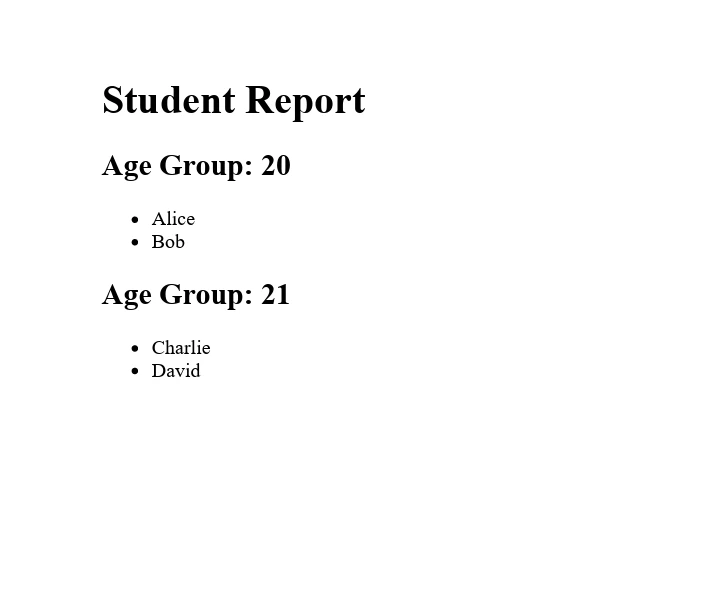
In diesem Beispiel gruppieren wir zuerst die Schüler nach Alter unter Verwendung der GroupBy-Methode. Dann konstruieren wir einen HTML-String, der von der Methode zurückgegeben wird und diese gruppierten Daten in einen Bericht formatiert, mit Überschriften für jede Altersgruppe und Listen von Schülernamen unter jeder Gruppe. Die ChromePdfRenderer-Klasse von IronPDF wird dann verwendet, um diesen HTML-String in ein PDF-Dokument zu konvertieren. Das resultierende PDF wird in einer Datei gespeichert und bietet einen sauber formatierten Bericht über nach Alter gruppierte Schüler.
Ausgabe
Hier ist das von IronPDF generierte Ausgabepdf:
Abschluss
Die GroupBy-Methode in C# ist ein vielseitiges und leistungsstarkes Werkzeug zur Gruppierung von Daten nach bestimmten Schlüsseln. Egal, ob Sie Methodensyntax mit Lambda-Ausdrücken oder die deklarativere Abfragesyntax bevorzugen, GroupBy ermöglicht es Ihnen, komplexe Datenstrukturen auf eine verwaltbare und lesbare Weise zu organisieren. Durch das Beherrschen von GroupBy und anderen LINQ-Methoden können Sie Ihre Fähigkeiten zur Datenmanipulation und -analyse in C#-Anwendungen erheblich verbessern.
IronPDF bietet eine kostenlose Testversion für diejenigen, die seine Funktionen erkunden möchten, bevor sie sich zu einem Kauf entschließen. Für diejenigen, die bereit sind, es in ihre Projekte zu integrieren, beginnt die Lizenzierung bei $999 und macht es zu einer lohnenswerten Investition für professionelle PDF-Manipulation und -Erstellung in C#-Anwendungen.























