using IronPdf;

// Disable local disk access or cross-origin requests
Installation.EnableWebSecurity = true;

// Instantiate Renderer
var renderer = new ChromePdfRenderer();

// Create a PDF from a HTML string using C#
var pdf = renderer.RenderHtmlAsPdf("<h1>Hello World</h1>");

// Export to a file or Stream
pdf.SaveAs("output.pdf");

// Advanced Example with HTML Assets
// Load external html assets: Images, CSS and JavaScript.
// An optional BasePath 'C:\site\assets\' is set as the file location to load assets from
var myAdvancedPdf = renderer.RenderHtmlAsPdf("<img src='icons/iron.png'>", @"C:\site\assets\");
myAdvancedPdf.SaveAs("html-with-assets.pdf");
using IronPdf;// Disable local disk access or cross-origin requestsInstallation.EnableWebSecurity = true;// Instantiate Renderervar renderer = new ChromePdfRenderer();// Create a PDF from a HTML string using C#var pdf = renderer.RenderHtmlAsPdf("<h1>Hello World</h1>");// Export to a file or Streampdf.SaveAs("output.pdf");// Advanced Example with HTML Assets// Load external html assets: Images, CSS and JavaScript.// An optional BasePath 'C:\site\assets\' is set as the file location to load assets fromvar myAdvancedPdf = renderer.RenderHtmlAsPdf("<img src='icons/iron.png'>", @"C:\site\assets\");myAdvancedPdf.SaveAs("html-with-assets.pdf");
## 1.0 Was ist ChatGPT?
ChatGPT ist ein von OpenAI entwickelter Chatbot für künstliche Intelligenz (KI). Der Begriff "ChatGPT" kombiniert die Wörter "Chat", das auf die Chatbot-Funktion des Systems hinweist, und "GPT", das für Generative Pre-trained Transformer steht und eine Art von großem Sprachmodell (LLM) ist. Die grundlegenden GPT-Modelle von OpenAI, nämlich GPT-3.5 und GPT-4, dienen als Grundlage für ChatGPT, das für konversationelle Anwendungen verfeinert wurde (eine Methode des Transferlernens) durch die Nutzung einer Kombination aus überwachten und verstärkendem Lernen, das maschinelles Lernen, natürliche Sprachverarbeitung und künstliche Intelligenz umfasst. ChatGPT kann menschenähnlichen Text verstehen und generieren.
Dieser Artikel zeigt, wie man eine MAUI-Anwendung entwickelt, die die OpenAI ChatGPT-API nutzt, um Nachrichten entgegenzunehmen, Ergebnisse basierend auf Benutzeranfragen anzubieten und diese Ergebnisse dann als PDF-Datei für die spätere Verwendung mithilfe von IronPDF zu exportieren.
## 1.1 OpenAI-Konto einrichten
Um sich für ein OpenAI-Konto zu registrieren, gehen Sie wie folgt vor:
* Besuchen Sie die offizielle Webseite von OpenAI.
* Suchen Sie auf der Startseite der Website die Schaltfläche 'Registrieren' und klicken Sie darauf. Dies führt Sie zum Formular zur Kontoerstellung.
* Füllen Sie die erforderlichen Felder des Anmeldeformulars aus.
* Klicken Sie auf den Bestätigungslink, der an Ihr registriertes E-Mail-Konto gesendet wurde, um Ihre E-Mail-Adresse zu bestätigen.
* Wenn Ihre Registrierung erfolgreich war, sollten Sie in der Lage sein, auf Ihr OpenAI-Konto zuzugreifen, indem Sie die Anmeldeinformationen eingeben, die Sie bei der Registrierung angegeben haben.
## 1.2 Einen OpenAI-API-Schlüssel erhalten
* Gehen Sie zum Zugriff auf OpenAI auf die Website und melden Sie sich mit Ihren Kontoinformationen an.
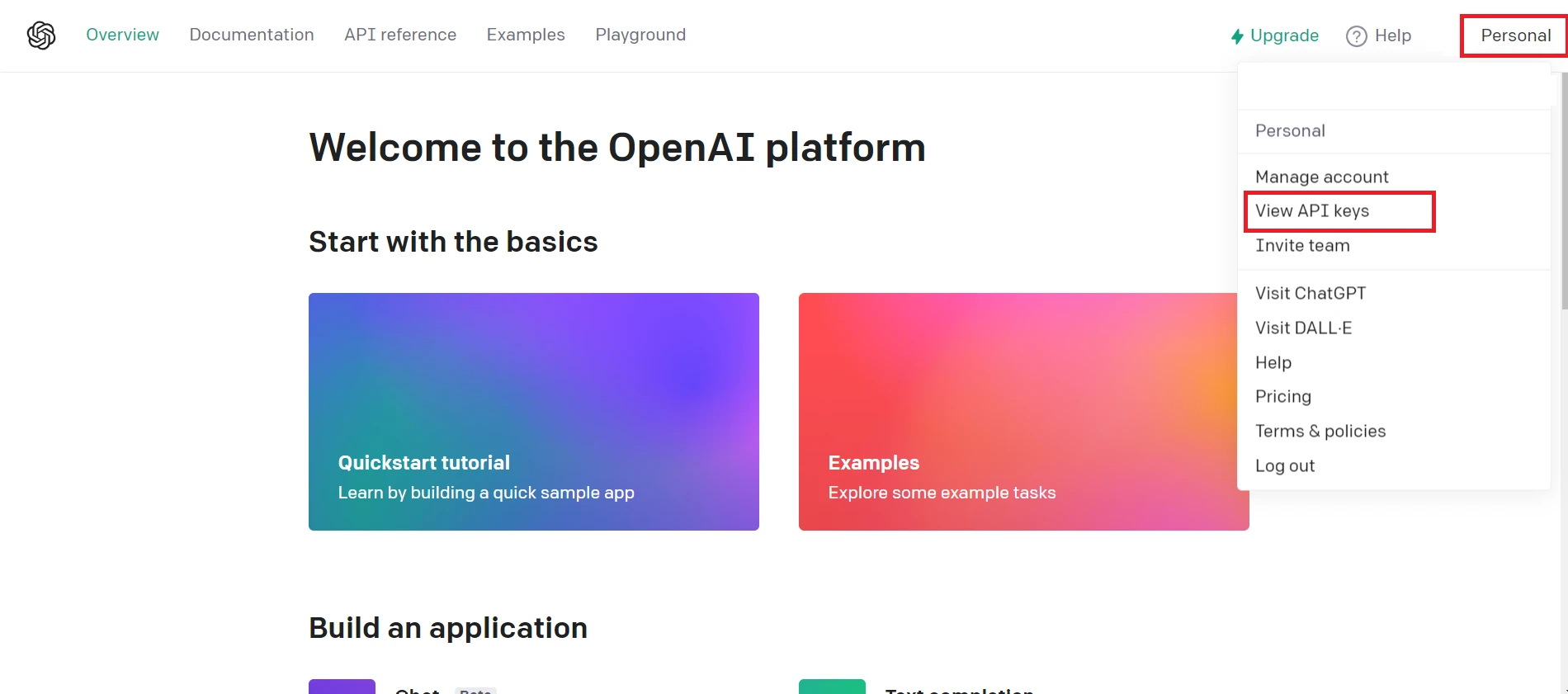
**Zugriff auf die OpenAI-Website**
* Navigieren Sie zum API-Bereich der OpenAI-Plattform. Dann Konto-Einstellungen > API-Schlüssel anzeigen, wo Sie dies finden können.
* Erstellen Sie einen neuen geheimen API-Schlüssel.
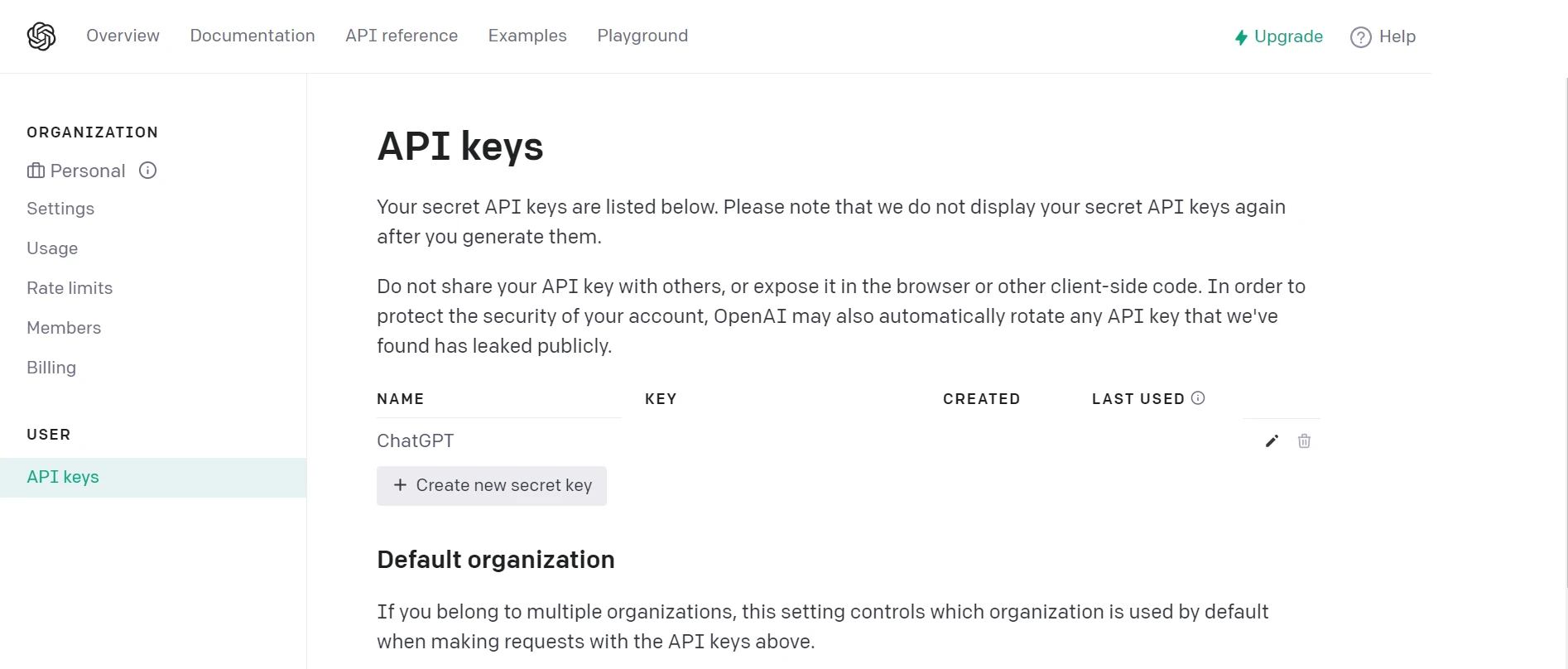
**API-Schlüssel erstellen**
## 2.0 Erste Schritte mit der .NET MAUI-Anwendung
Sie benötigen Visual Studio 2022 und das .NET 7 Framework, um die in C# geschriebene .NET MAUI-Anwendung zu erstellen. Befolgen Sie dann die folgenden Schritte, um eine .NET MAUI-App zu erstellen und zu schreiben.
### 2.1 Visual Studio öffnen
Öffnen Sie Visual Studio, wählen Sie dann im Menü "Neues Projekt erstellen" und geben Sie ".NET MAUI" in das Suchfeld ein.
### 2.2 Wählen Sie die .NET MAUI App
Wählen Sie in Visual Studio aus der Liste der Suchergebnisse das .NET MAUI-App-Template aus. Wählen Sie es aus, benennen Sie es und wählen Sie den Speicherort. Klicken Sie auf "Weiter", nachdem die Konfiguration abgeschlossen ist.
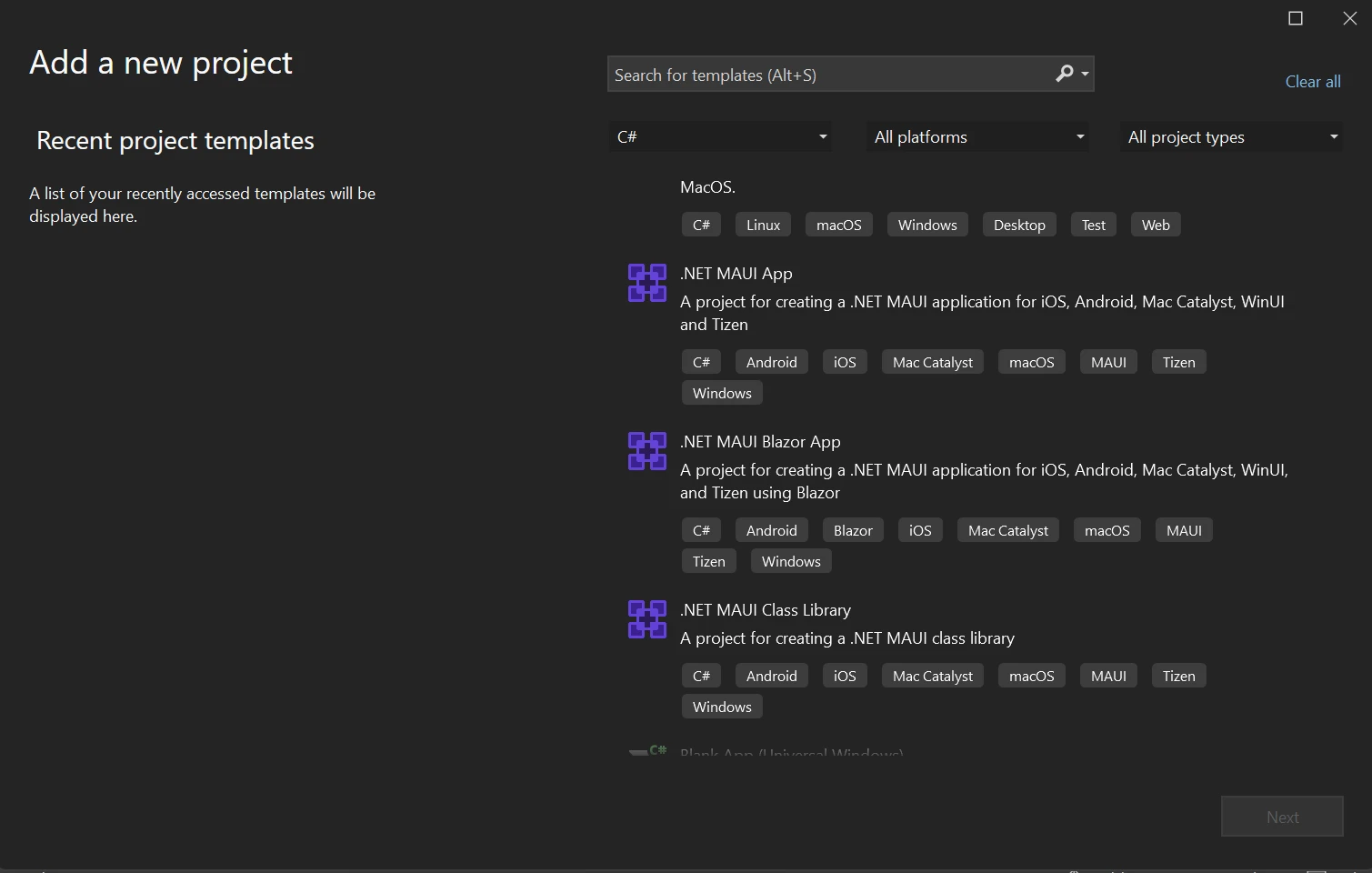
**Erstellen einer neuen .NET MAUI-App in Visual Studio**
### 2.3 Framework auswählen
Wählen Sie das benötigte Framework aus; dennoch wird empfohlen, zum Beispiel das neueste .NET Framework auszuwählen. Drücken Sie die **Create**-Taste in Visual Studio, nachdem Sie die Framework-Version ausgewählt haben.
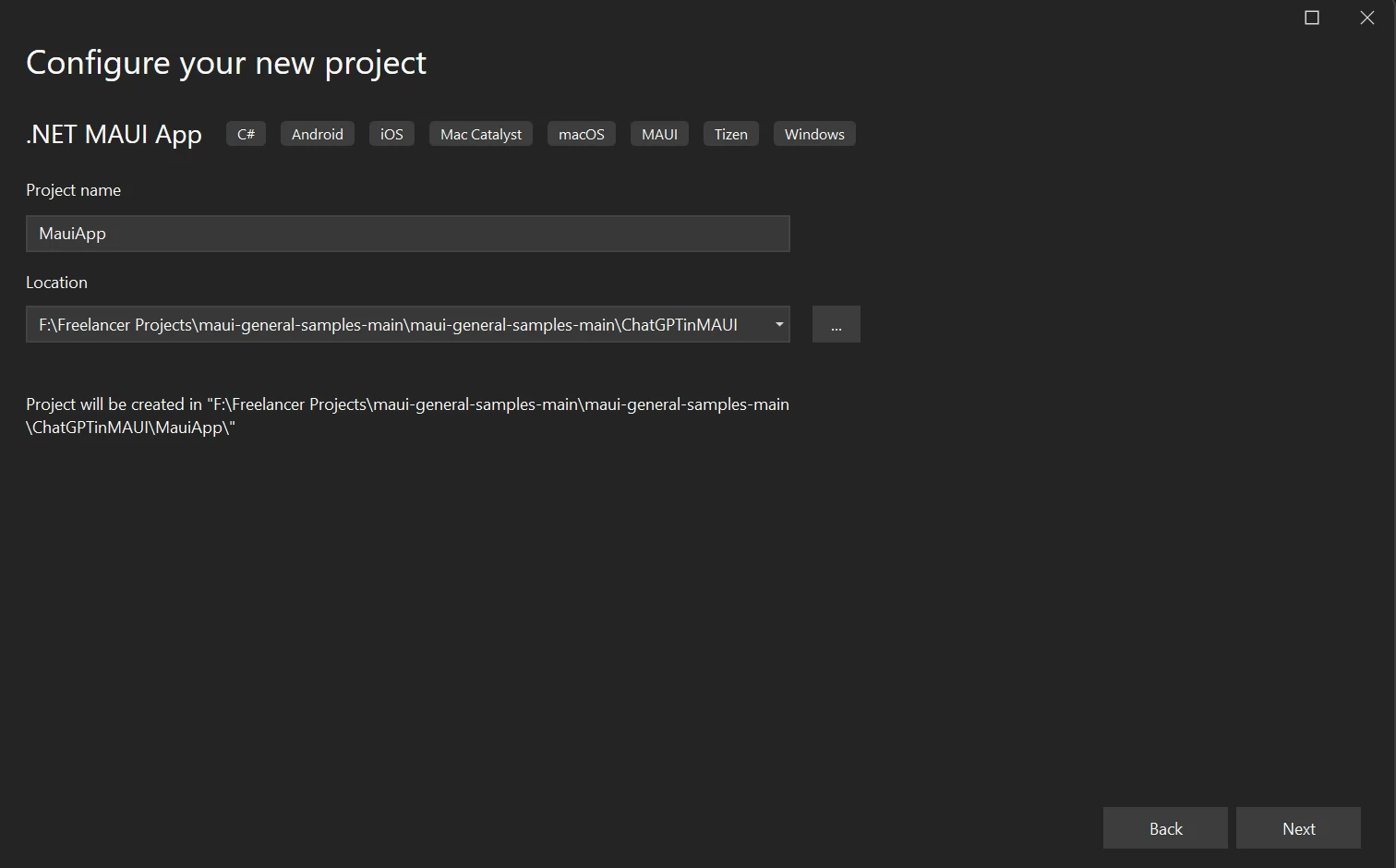
**Das neue Projekt konfigurieren**
In Visual Studio 2022 wird ein neues .NET MAUI-Projekt erstellt. .NET MAUI entwickelt standardmäßig eine einfache Zähleranwendung.
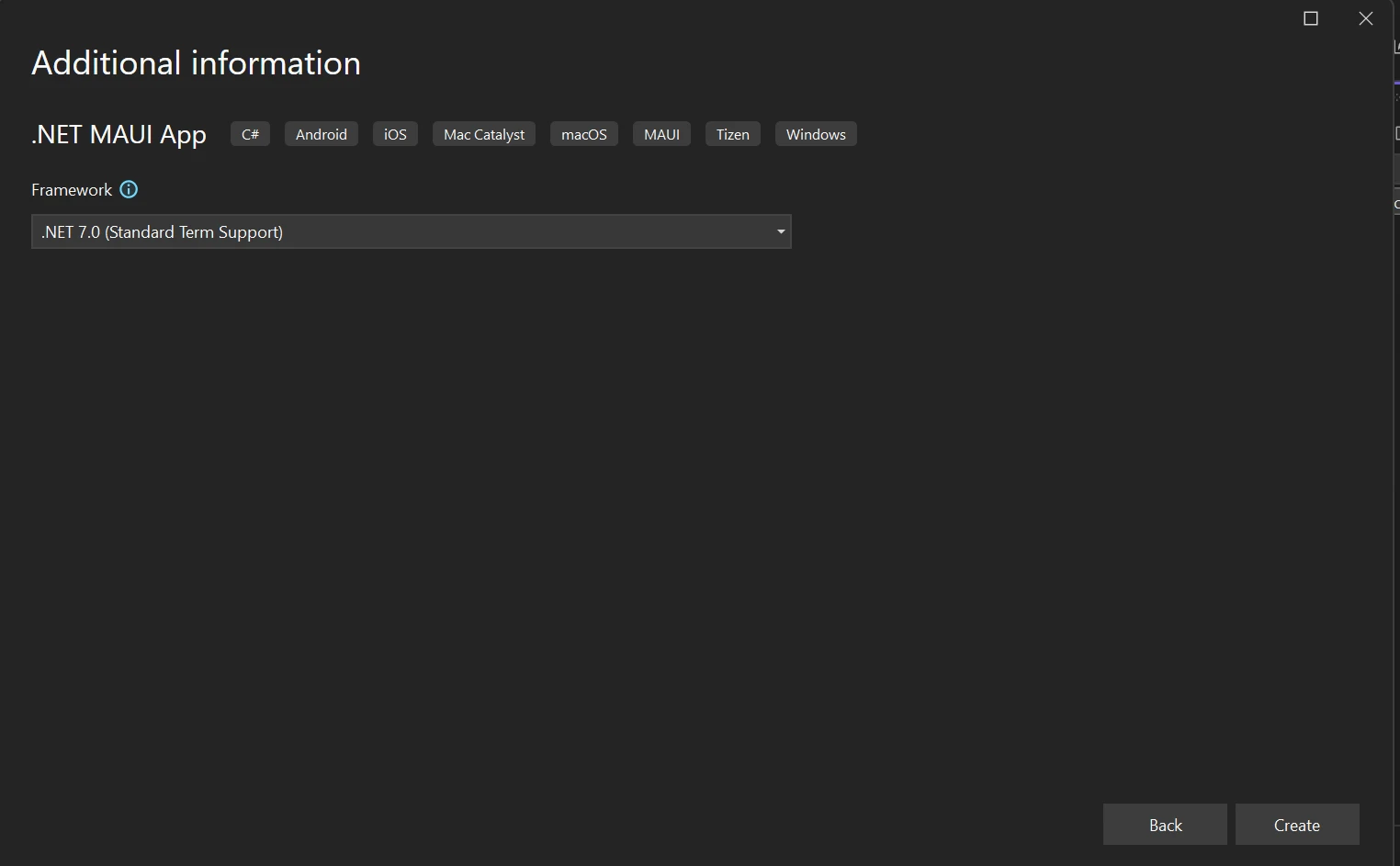
**.NET Framework-Auswahl**
Indem die .NET MAUI-Anwendung modifiziert wird, kann ChatGPT OpenAI integriert und das Ergebnis in PDF-Dateien exportiert werden, indem die IronPDF C#-PDF-Bibliothek auf dieser Plattformvariante verwendet wird.
### 2.4 Installieren Sie das OpenAI-Paket
Geben Sie den nächsten Befehl in die NuGet-Paketmanager-Konsole ein.
```shell
:InstallCmd Install-Package OpenAI
```
Dieser Befehl installiert das OpenAI-Paket, das den Zugriff auf die API bereitstellt, die für die Interaktion mit ChatGPT mit C# benötigt wird.
### 2.5 IronPDF installieren
Geben Sie den folgenden Befehl ein, um das IronPDF-Paket zu installieren:
```shell
:ProductInstall
```
Der obige Befehl installiert IronPDF in das MAUI-Projekt. IronPDF wird verwendet, um HTML-Inhalte in PDF-Dateien zu rendern, und ist ein entscheidender Bestandteil für den Datenexport von der App in ein PDF-Dokument.
## 3.0 Was ist IronPDF?
Entwickler können dank IronPDF, einer robusten PDF SDK- Grundlage für die PDF-Verarbeitung, schnell PDF-Dokumente erstellen, lesen und bearbeiten. Die Chrome-Engine wird von der IronPDF-Bibliothek verwendet, um HTML in PDF zu konvertieren. Unter den verschiedenen von der Bibliothek unterstützten Webkomponenten sind MAUI, Xamarin, Blazor, Unity, HoloLens-Apps, Windows Forms, HTML, ASPX, Razor HTML, .NET Core, ASP.NET und WPF. Microsoft.NET und .NET Core-Programmierung können sowohl in traditionellen Windows-Anwendungen als auch in ASP.NET-Webanwendungen verwendet werden.
Unter Verwendung von HTML5, JavaScript, CSS und Bildern ermöglicht Ihnen IronPDF, ansprechende PDFs mit Über- und Fußzeilen zu erstellen. Die API-Bibliothek enthält einen robusten HTML-zu-PDF-Konverter, der mit PDFs umgehen kann, sowie ein eigenständiges PDF-Konvertierungstool und eine Engine, die unabhängig von externen Quellen ist.
* Nutzer können [PDFs mit IronPDF](/tutorials/html-to-pdf/) von verschiedenen Quellen erstellen, einschließlich Bilddateien, HTML, HTML5, ASPX und Razor/MVC View.
* Die Bibliothek bietet Programme zum Textsuchen, [Extrahieren von Text und Bildern aus PDF-Seiten](/blog/pdf-tools/how-to-extract-text-from-pdf-tutorial/), und zum Konvertieren von [PDF-Seiten in Bilder](/how-to/rasterize-pdf-to-images/). Es bietet auch ein Programm zur interaktiven Formularausfüllung und Übermittlung.
* Die Bibliothek bietet auch Links als Grundlage für PDF-Veröffentlichungen, zusammen mit der Verwendung von Benutzeragenten, Proxies, Cookies, HTTP-Headern und Formvariablen für [die Authentifizierung hinter HTML-Anmeldeformularen](/how-to/logins/).
* IronPDF akzeptiert Benutzernamen und Passwörter im Austausch für den Zugriff auf [passwortgeschützte PDF-Dateien](/examples/security-and-metadata/).
Um mehr über IronPDF zu erfahren, beziehen Sie sich auf die [HTML-zu-PDF-Konvertierungstutorials](/tutorials/html-to-pdf/).
## 4.0 Exportieren von ChatGPT API-Ergebnissen mit IronPDF
Fügen Sie den unten stehenden Code in die Datei 'MauiProgram.cs' ein:
```csharp
builder.Services.AddChatGpt(options =>
{
    options.UseOpenAI("API key here"); // Replace with your actual OpenAI API key
    options.DefaultModel = OpenAIChatGptModels.Gpt35Turbo; // Set the default model
    options.MessageLimit = 10; // Limit number of messages per session
    options.MessageExpiration = TimeSpan.FromMinutes(5); // Set message expiration time
});
```
Dieses Code-Snippet registriert einen Dienst für die ChatGPT-API, der dann von anderen Klassen oder Seiten in Ihrer Anwendung verwendet werden kann.
Fügen Sie den folgenden Code auf der Hauptseite der Anwendung in die Seitenlade-Methode ein. Dies hilft dabei, die ChatGPT-Dienstinstanz abzurufen und in einem lokalen Objekt zu speichern.
```csharp
_chatGptClient = Handler.MauiContext.Services.GetService<IChatGptClient>();
```
Dieser Code ruft die ChatGPT-Clientinstanz vom Dienstanbieter ab und ermöglicht der Hauptseite die Interaktion mit der ChatGPT-API.
Erstellen Sie als nächstes eine Benutzeroberfläche wie im folgenden XAML-Code dargestellt:
```xml
<?xml version="1.0" encoding="utf-8" ?>
<ContentPage xmlns="http://schemas.microsoft.com/dotnet/2021/maui"
xmlns:x="http://schemas.microsoft.com/winfx/2009/xaml"
x:Class="ChatGPT_MauiApp.MainPage"
BackgroundColor="black">
<StackLayout>
<StackLayout Orientation="Horizontal" Spacing="25" Padding="30,0">
<ScrollView WidthRequest="700" HeightRequest="200" x:Name="scrollView">
<TableView Intent="Data" WidthRequest="700" x:Name="Table_View" BackgroundColor="DarkSlateGrey">
<TableRoot>
<!-- TableSection can be populated with dynamic data -->
</TableRoot>
</TableView>
</ScrollView>
</StackLayout>
<StackLayout Padding="30,0">
<Editor
x:Name="Userquest"
Text=""
HorizontalOptions="Start"
FontSize="12"
Placeholder=" Enter your Queries"
HeightRequest="25" WidthRequest="700" />
</StackLayout>
<StackLayout Padding="30,10,10,0">
<FlexLayout>
<Button
x:Name="Sendquery"
Text="Send Query"
SemanticProperties.Hint="Click to send query to BOT"
Clicked="SendqueryClicked"
HorizontalOptions="Center"
BackgroundColor="Green"
TextColor="WhiteSmoke" />
<Button
x:Name="Export"
Text="Export"
SemanticProperties.Hint="Click to export data"
Clicked="OnExportClicked"
HorizontalOptions="Center"
BackgroundColor="DodgerBlue"
TextColor="WhiteSmoke" />
</FlexLayout>
</StackLayout>
</StackLayout>
</ContentPage>
```
Der `ContentPage` oben definiert das UI-Layout der Anwendung. Benutzer können Anfragen eingeben, über die Schaltfläche "Anfrage senden" mit der ChatGPT-API interagieren und die Ergebnisse mittels der Schaltfläche "Exportieren" als PDF exportieren. Die Ergebnisse werden in `TableView` angezeigt.
Als nächstes folgt die Code-Behind-Logik für die Behandlung von Schaltflächenklicks und den Datenexport:
```csharp
private void OnExportClicked(object sender, EventArgs e)
{
StringBuilder db = new();
foreach (var tableSection in Table_View.Root.ToList())
{
foreach (var cell in tableSection)
{
if (cell is TextCell textCell)
{
db.Append("<p style='color:red;text-align:left;'>" + textCell.Text + "</p>");
db.Append("<p style='color:black;text-align:justify;'>" + textCell.Detail + "</p>");
}
}
}
// Create and save the PDF
var renderer = new IronPdf.ChromePdfRenderer();
var pdf = renderer.RenderHtmlAsPdf(db.ToString());
pdf.SaveAs("F:\\Download\\Demo.pdf");
}
private async void SendqueryClicked(object sender, EventArgs e)
{
if (!string.IsNullOrEmpty(Userquest.Text))
{
var query = Userquest.Text;
Userquest.Text = "";
var tableSection = AddQueryToTable(query);
ChatGptResponse response = await _chatGptClient.AskAsync(_sessionGuid, query);
var resp = response.GetMessage();
AddResponseToTable(tableSection, resp);
}
}
private TableSection AddQueryToTable(string query)
{
var textCell = new TextCell
{
Text = query,
TextColor = Colors.Red,
DetailColor = Colors.WhiteSmoke,
Detail = ""
};
var tableSection = new TableSection { textCell };
Table_View.Root.Add(tableSection);
return tableSection;
}
private void AddResponseToTable(TableSection section, string response)
{
if (section.FirstOrDefault() is TextCell textCell)
{
textCell.Detail = response;
}
}
```
**Erläuterung:**
- Die `OnExportClicked` Methode erstellt ein PDF aus HTML-Inhalten, die über die Benutzeroberfläche mit IronPDF gesammelt wurden. Das generierte PDF wird an einem angegebenen Speicherort gespeichert.
- Die `SendqueryClicked` Methode nimmt die Benutzeranfrage, sendet sie über die OpenAI API mit dem `_chatGptClient` und zeigt die Antwort an. Es fügt auch die Anfrage und Antwort zu `TableView` hinzu.
- Helfermethoden `AddQueryToTable` und `AddResponseToTable` unterstützen bei der Aktualisierung der UI-Komponenten mit Benutzeranfragen und Chatbot-Antworten.
Führen Sie Ihre Lösung aus nach Hinzufügen des Codes. Geben Sie eine Anfrage ein und klicken Sie auf "Anfrage senden", um das Ergebnis abzurufen. Es sendet die Benutzeranfrage an die ChatGPT-API, ruft das Ergebnis ab und zeigt die Nachricht auf dem Bildschirm an.
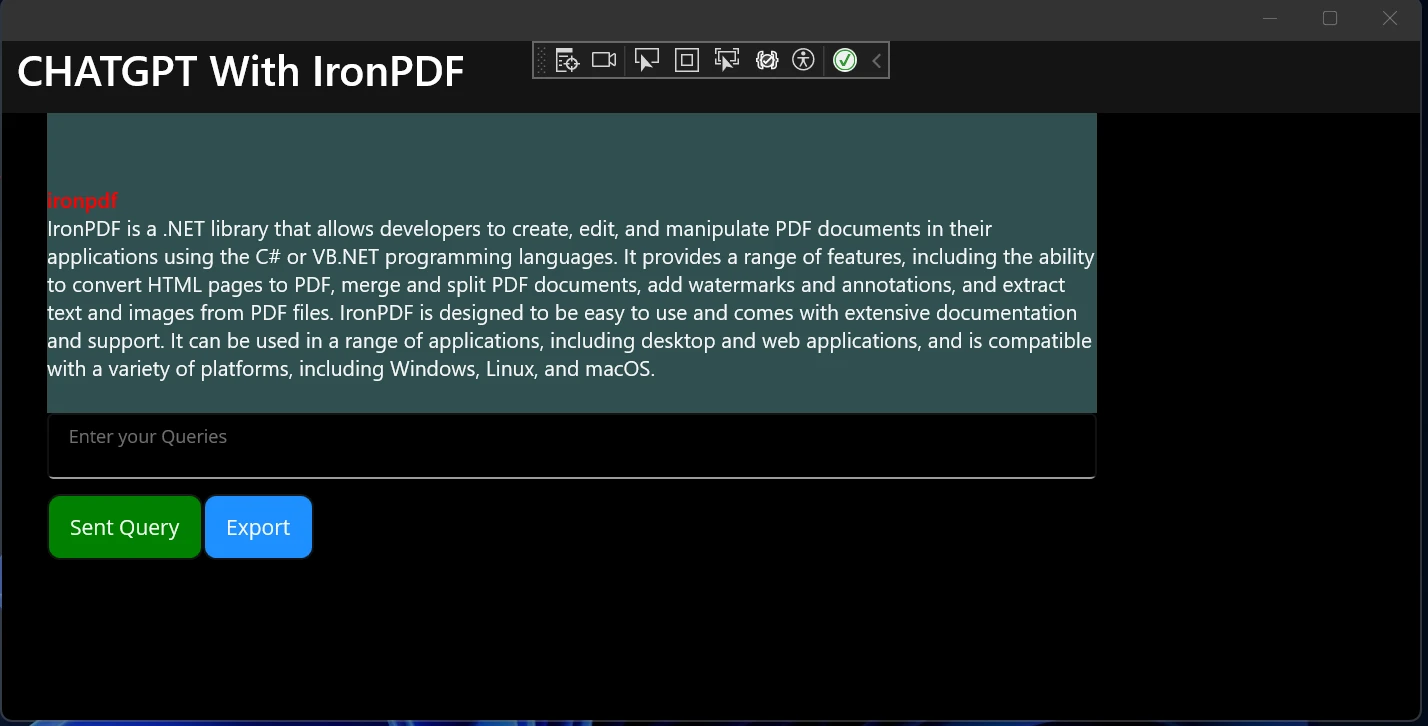
**Textanfrage in die Anwendung eingeben**
Klicken Sie auf "Exportieren", um Ergebnisse in ein PDF zu exportieren.
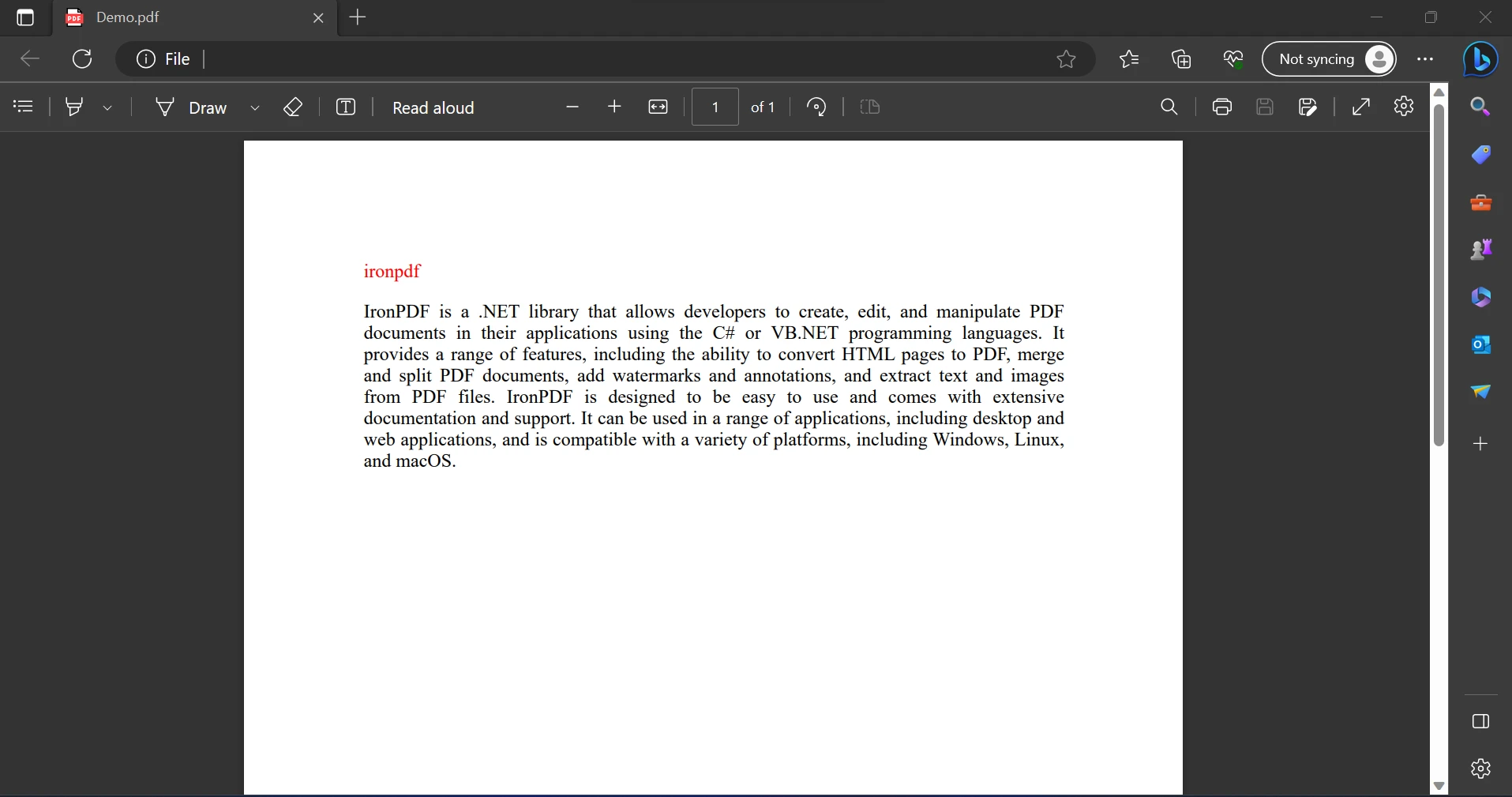
**Die exportierte PDF-Datei**
Jetzt konnten wir einen Chatbot mit ChatGPT erstellen und diesen Chat mit IronPDF in einer MAUI-App exportieren. Mit dem obigen Konzept ist es möglich, Bilder, Audio und Video aus der ChatGPT-API für genauere Ergebnisse einzubeziehen.
## 5.0 Fazit
Das Ziel dieses Artikels ist es, eine MAUI-Anwendung zu entwickeln, die die OpenAI ChatGPT-API nutzt, um Nachrichten entgegenzunehmen, Ergebnisse basierend auf Benutzeranfragen anzubieten und diese Ergebnisse als PDF-Datei zu exportieren. Um die Qualität der Vorschläge zu verbessern, können Sie gerne experimentieren, indem Sie die Fragen abändern. Um zu überprüfen, ob verschiedene Modelle bessere Ergebnisse liefern, können Sie auch experimentieren, indem Sie den `ChatGptModels` Enum-Wert innerhalb der `AddChatGpt` Methode in "MauiProgram.cs" ändern.
Die ChatGPT-API ist ein leistungsstarkes KI-Programm, das es uns ermöglicht, Ergebnisse basierend auf der Benutzeranfrage bereitzustellen. Die Kosten für die ChatGPT-API werden basierend auf der Anzahl der gesendeten Anfragen berechnet. IronPDF wird verwendet, um API-Anfragen zu stellen und das Ergebnis in eine PDF zu exportieren, um dieselbe API-Anfrage wiederholt zu vermeiden.
Mit IronPDF können wir PDFs mit nur wenigen Zeilen Code erstellen. Diese Anwendung ist auch für Anfänger geeignet und erfordert nur grundlegende Kenntnisse zur Nutzung. Kein anderes Paket ist in irgendeiner Weise von IronPDF abhängig. Zum Beispiel ist es eine Bibliothek, die in einem einzigen Paket geliefert wird. IronPDF-Entwickler können aus einer Vielzahl von Lizenzen wählen, die ihren Anforderungen entsprechen. Es ist auch eine kostenlose Testversion verfügbar. Detaillierte Preisinformationen und Lizenzierungsdetails zu IronPDF finden Sie auf der [IronPDF-Lizenzseite](/licensing/).
ChatGPT ist ein von OpenAI entwickelter Chatbot für künstliche Intelligenz (KI). Der Begriff "ChatGPT" kombiniert die Wörter "Chat", das auf die Chatbot-Funktion des Systems hinweist, und "GPT", das für Generative Pre-trained Transformer steht und eine Art von großem Sprachmodell (LLM) ist. Die grundlegenden GPT-Modelle von OpenAI, nämlich GPT-3.5 und GPT-4, dienen als Grundlage für ChatGPT, das für konversationelle Anwendungen verfeinert wurde (eine Methode des Transferlernens) durch die Nutzung einer Kombination aus überwachten und verstärkendem Lernen, das maschinelles Lernen, natürliche Sprachverarbeitung und künstliche Intelligenz umfasst. ChatGPT kann menschenähnlichen Text verstehen und generieren.
Dieser Artikel zeigt, wie man eine MAUI-Anwendung entwickelt, die die OpenAI ChatGPT-API nutzt, um Nachrichten entgegenzunehmen, Ergebnisse basierend auf Benutzeranfragen anzubieten und diese Ergebnisse dann als PDF-Datei für die spätere Verwendung mithilfe von IronPDF zu exportieren.
1.1 OpenAI-Konto einrichten
Um sich für ein OpenAI-Konto zu registrieren, gehen Sie wie folgt vor:
Besuchen Sie die offizielle Webseite von OpenAI.
Suchen Sie auf der Startseite der Website die Schaltfläche 'Registrieren' und klicken Sie darauf. Dies führt Sie zum Formular zur Kontoerstellung.
Füllen Sie die erforderlichen Felder des Anmeldeformulars aus.
Klicken Sie auf den Bestätigungslink, der an Ihr registriertes E-Mail-Konto gesendet wurde, um Ihre E-Mail-Adresse zu bestätigen.
Wenn Ihre Registrierung erfolgreich war, sollten Sie in der Lage sein, auf Ihr OpenAI-Konto zuzugreifen, indem Sie die Anmeldeinformationen eingeben, die Sie bei der Registrierung angegeben haben.
1.2 Einen OpenAI-API-Schlüssel erhalten
Gehen Sie zum Zugriff auf OpenAI auf die Website und melden Sie sich mit Ihren Kontoinformationen an.
Zugriff auf die OpenAI-Website
Navigieren Sie zum API-Bereich der OpenAI-Plattform. Dann Konto-Einstellungen > API-Schlüssel anzeigen, wo Sie dies finden können.
Erstellen Sie einen neuen geheimen API-Schlüssel.
API-Schlüssel erstellen
2.0 Erste Schritte mit der .NET MAUI-Anwendung
Sie benötigen Visual Studio 2022 und das .NET 7 Framework, um die in C# geschriebene .NET MAUI-Anwendung zu erstellen. Befolgen Sie dann die folgenden Schritte, um eine .NET MAUI-App zu erstellen und zu schreiben.
2.1 Visual Studio öffnen
Öffnen Sie Visual Studio, wählen Sie dann im Menü "Neues Projekt erstellen" und geben Sie ".NET MAUI" in das Suchfeld ein.
2.2 Wählen Sie die .NET MAUI App
Wählen Sie in Visual Studio aus der Liste der Suchergebnisse das .NET MAUI-App-Template aus. Wählen Sie es aus, benennen Sie es und wählen Sie den Speicherort. Klicken Sie auf "Weiter", nachdem die Konfiguration abgeschlossen ist.
Erstellen einer neuen .NET MAUI-App in Visual Studio
2.3 Framework auswählen
Wählen Sie das benötigte Framework aus; dennoch wird empfohlen, zum Beispiel das neueste .NET Framework auszuwählen. Drücken Sie die Create-Taste in Visual Studio, nachdem Sie die Framework-Version ausgewählt haben.
Das neue Projekt konfigurieren
In Visual Studio 2022 wird ein neues .NET MAUI-Projekt erstellt. .NET MAUI entwickelt standardmäßig eine einfache Zähleranwendung.
.NET Framework-Auswahl
Indem die .NET MAUI-Anwendung modifiziert wird, kann ChatGPT OpenAI integriert und das Ergebnis in PDF-Dateien exportiert werden, indem die IronPDF C#-PDF-Bibliothek auf dieser Plattformvariante verwendet wird.
2.4 Installieren Sie das OpenAI-Paket
Geben Sie den nächsten Befehl in die NuGet-Paketmanager-Konsole ein.
PM > Install-Package OpenAI
Install-Package OpenAI
Dieser Befehl installiert das OpenAI-Paket, das den Zugriff auf die API bereitstellt, die für die Interaktion mit ChatGPT mit C# benötigt wird.
2.5 IronPDF installieren
Geben Sie den folgenden Befehl ein, um das IronPDF-Paket zu installieren:
PM > Install-Package IronPdf
Install-Package IronPdf
Der obige Befehl installiert IronPDF in das MAUI-Projekt. IronPDF wird verwendet, um HTML-Inhalte in PDF-Dateien zu rendern, und ist ein entscheidender Bestandteil für den Datenexport von der App in ein PDF-Dokument.
3.0 Was ist IronPDF?
Entwickler können dank IronPDF, einer robusten PDF SDK- Grundlage für die PDF-Verarbeitung, schnell PDF-Dokumente erstellen, lesen und bearbeiten. Die Chrome-Engine wird von der IronPDF-Bibliothek verwendet, um HTML in PDF zu konvertieren. Unter den verschiedenen von der Bibliothek unterstützten Webkomponenten sind MAUI, Xamarin, Blazor, Unity, HoloLens-Apps, Windows Forms, HTML, ASPX, Razor HTML, .NET Core, ASP.NET und WPF. Microsoft.NET und .NET Core-Programmierung können sowohl in traditionellen Windows-Anwendungen als auch in ASP.NET-Webanwendungen verwendet werden.
Unter Verwendung von HTML5, JavaScript, CSS und Bildern ermöglicht Ihnen IronPDF, ansprechende PDFs mit Über- und Fußzeilen zu erstellen. Die API-Bibliothek enthält einen robusten HTML-zu-PDF-Konverter, der mit PDFs umgehen kann, sowie ein eigenständiges PDF-Konvertierungstool und eine Engine, die unabhängig von externen Quellen ist.
Nutzer können PDFs mit IronPDF von verschiedenen Quellen erstellen, einschließlich Bilddateien, HTML, HTML5, ASPX und Razor/MVC View.
Die Bibliothek bietet auch Links als Grundlage für PDF-Veröffentlichungen, zusammen mit der Verwendung von Benutzeragenten, Proxies, Cookies, HTTP-Headern und Formvariablen für die Authentifizierung hinter HTML-Anmeldeformularen.
4.0 Exportieren von ChatGPT API-Ergebnissen mit IronPDF
Fügen Sie den unten stehenden Code in die Datei 'MauiProgram.cs' ein:
builder.Services.AddChatGpt(options =>{ options.UseOpenAI("API key here"); // Replace with your actual OpenAI API key options.DefaultModel = OpenAIChatGptModels.Gpt35Turbo; // Set the default model options.MessageLimit = 10; // Limit number of messages per session options.MessageExpiration = TimeSpan.FromMinutes(5); // Set message expiration time});
builder.Services.AddChatGpt(options =>
{
    options.UseOpenAI("API key here"); // Replace with your actual OpenAI API key
    options.DefaultModel = OpenAIChatGptModels.Gpt35Turbo; // Set the default model
    options.MessageLimit = 10; // Limit number of messages per session
    options.MessageExpiration = TimeSpan.FromMinutes(5); // Set message expiration time
});
builder.Services.AddChatGpt(Sub(options) options.UseOpenAI("API key here") ' Replace with your actual OpenAI API key options.DefaultModel = OpenAIChatGptModels.Gpt35Turbo' Set the default model options.MessageLimit = 10 ' Limit number of messages per session options.MessageExpiration = TimeSpan.FromMinutes(5) ' Set message expiration timeEnd Sub)
builder.Services.AddChatGpt(Sub(options)
	options.UseOpenAI("API key here") ' Replace with your actual OpenAI API key
	options.DefaultModel = OpenAIChatGptModels.Gpt35Turbo ' Set the default model
	options.MessageLimit = 10 ' Limit number of messages per session
	options.MessageExpiration = TimeSpan.FromMinutes(5) ' Set message expiration time
End Sub)
Dieses Code-Snippet registriert einen Dienst für die ChatGPT-API, der dann von anderen Klassen oder Seiten in Ihrer Anwendung verwendet werden kann.
Fügen Sie den folgenden Code auf der Hauptseite der Anwendung in die Seitenlade-Methode ein. Dies hilft dabei, die ChatGPT-Dienstinstanz abzurufen und in einem lokalen Objekt zu speichern.
Dieser Code ruft die ChatGPT-Clientinstanz vom Dienstanbieter ab und ermöglicht der Hauptseite die Interaktion mit der ChatGPT-API.
Erstellen Sie als nächstes eine Benutzeroberfläche wie im folgenden XAML-Code dargestellt:
<?xml version="1.0" encoding="utf-8" ?><ContentPage xmlns="http://schemas.microsoft.com/dotnet/2021/maui" xmlns:x="http://schemas.microsoft.com/winfx/2009/xaml" x:Class="ChatGPT_MauiApp.MainPage" BackgroundColor="black"> <StackLayout> <StackLayout Orientation="Horizontal" Spacing="25" Padding="30,0"> <ScrollView WidthRequest="700" HeightRequest="200" x:Name="scrollView"> <TableView Intent="Data" WidthRequest="700" x:Name="Table_View" BackgroundColor="DarkSlateGrey"> <TableRoot> <!-- TableSection can be populated with dynamic data --> </TableRoot> </TableView> </ScrollView> </StackLayout> <StackLayout Padding="30,0"> <Editor x:Name="Userquest" Text="" HorizontalOptions="Start" FontSize="12" Placeholder=" Enter your Queries" HeightRequest="25" WidthRequest="700" /> </StackLayout> <StackLayout Padding="30,10,10,0"> <FlexLayout> <Button x:Name="Sendquery" Text="Send Query" SemanticProperties.Hint="Click to send query to BOT" Clicked="SendqueryClicked" HorizontalOptions="Center" BackgroundColor="Green" TextColor="WhiteSmoke" /> <Button x:Name="Export" Text="Export" SemanticProperties.Hint="Click to export data" Clicked="OnExportClicked" HorizontalOptions="Center" BackgroundColor="DodgerBlue" TextColor="WhiteSmoke" /> </FlexLayout> </StackLayout> </StackLayout></ContentPage>
<?xml version="1.0" encoding="utf-8" ?>
<ContentPage xmlns="http://schemas.microsoft.com/dotnet/2021/maui"
             xmlns:x="http://schemas.microsoft.com/winfx/2009/xaml"
             x:Class="ChatGPT_MauiApp.MainPage"
             BackgroundColor="black">
    <StackLayout>
        <StackLayout Orientation="Horizontal" Spacing="25" Padding="30,0">
            <ScrollView WidthRequest="700" HeightRequest="200" x:Name="scrollView">
                <TableView Intent="Data" WidthRequest="700" x:Name="Table_View" BackgroundColor="DarkSlateGrey">
                    <TableRoot>
                        <!-- TableSection can be populated with dynamic data -->
                    </TableRoot>
                </TableView>
            </ScrollView>
        </StackLayout>
        <StackLayout Padding="30,0">
            <Editor
                x:Name="Userquest"
                Text=""
                HorizontalOptions="Start"
                FontSize="12"
                Placeholder=" Enter your Queries"
                HeightRequest="25" WidthRequest="700" />
        </StackLayout>
        <StackLayout Padding="30,10,10,0">
            <FlexLayout>
                <Button
                    x:Name="Sendquery"
                    Text="Send Query"
                    SemanticProperties.Hint="Click to send query to BOT"
                    Clicked="SendqueryClicked"
                    HorizontalOptions="Center"
                    BackgroundColor="Green"
                    TextColor="WhiteSmoke" />
                <Button
                    x:Name="Export"
                    Text="Export"
                    SemanticProperties.Hint="Click to export data"
                    Clicked="OnExportClicked"
                    HorizontalOptions="Center"
                    BackgroundColor="DodgerBlue"
                    TextColor="WhiteSmoke" />
            </FlexLayout>
        </StackLayout>
    </StackLayout>
</ContentPage>
XML
Der ContentPage oben definiert das UI-Layout der Anwendung. Benutzer können Anfragen eingeben, über die Schaltfläche "Anfrage senden" mit der ChatGPT-API interagieren und die Ergebnisse mittels der Schaltfläche "Exportieren" als PDF exportieren. Die Ergebnisse werden in TableView angezeigt.
Als nächstes folgt die Code-Behind-Logik für die Behandlung von Schaltflächenklicks und den Datenexport:
private voidOnExportClicked(object sender, EventArgs e){ StringBuilder db = new(); foreach (var tableSection inTable_View.Root.ToList()) { foreach (var cell in tableSection) { if (cell is TextCell textCell) { db.Append("<p style='color:red;text-align:left;'>" + textCell.Text + "</p>"); db.Append("<p style='color:black;text-align:justify;'>" + textCell.Detail + "</p>"); } } } // Create and save the PDF var renderer = new IronPdf.ChromePdfRenderer(); var pdf = renderer.RenderHtmlAsPdf(db.ToString()); pdf.SaveAs("F:\\Download\\Demo.pdf");}private async voidSendqueryClicked(object sender, EventArgs e){ if (!string.IsNullOrEmpty(Userquest.Text)) { var query = Userquest.Text;Userquest.Text = ""; var tableSection = AddQueryToTable(query); ChatGptResponse response = await _chatGptClient.AskAsync(_sessionGuid, query); var resp = response.GetMessage();AddResponseToTable(tableSection, resp); }}private TableSectionAddQueryToTable(string query){ var textCell = new TextCell {Text = query,TextColor = Colors.Red,DetailColor = Colors.WhiteSmoke,Detail = "" }; var tableSection = new TableSection { textCell };Table_View.Root.Add(tableSection); return tableSection;}private voidAddResponseToTable(TableSection section, string response){ if (section.FirstOrDefault() is TextCell textCell) { textCell.Detail = response; }}
private void OnExportClicked(object sender, EventArgs e)
{
    StringBuilder db = new();

    foreach (var tableSection in Table_View.Root.ToList())
    {
        foreach (var cell in tableSection)
        {
            if (cell is TextCell textCell)
            {
                db.Append("<p style='color:red;text-align:left;'>" + textCell.Text + "</p>");
                db.Append("<p style='color:black;text-align:justify;'>" + textCell.Detail + "</p>");
            }
        }
    }

    // Create and save the PDF
    var renderer = new IronPdf.ChromePdfRenderer();
    var pdf = renderer.RenderHtmlAsPdf(db.ToString());
    pdf.SaveAs("F:\\Download\\Demo.pdf");
}

private async void SendqueryClicked(object sender, EventArgs e)
{
    if (!string.IsNullOrEmpty(Userquest.Text))
    {
        var query = Userquest.Text;
        Userquest.Text = "";
        var tableSection = AddQueryToTable(query);
        ChatGptResponse response = await _chatGptClient.AskAsync(_sessionGuid, query);
        var resp = response.GetMessage();
        AddResponseToTable(tableSection, resp);
    }
}

private TableSection AddQueryToTable(string query)
{
    var textCell = new TextCell
    {
        Text = query,
        TextColor = Colors.Red,
        DetailColor = Colors.WhiteSmoke,
        Detail = ""
    };

    var tableSection = new TableSection { textCell };
    Table_View.Root.Add(tableSection);
    return tableSection;
}

private void AddResponseToTable(TableSection section, string response)
{
    if (section.FirstOrDefault() is TextCell textCell)
    {
        textCell.Detail = response;
    }
}
Private Sub OnExportClicked(ByVal sender AsObject, ByVal e AsEventArgs) Dim db As New StringBuilder() For Each tableSection InTable_View.Root.ToList() For Each cell In tableSection Dim tempVar AsBoolean = TypeOf cell IsTextCell Dim textCell AsTextCell = If(tempVar, CType(cell, TextCell), Nothing) If tempVar Then db.Append("<p style='color:red;text-align:left;'>" & textCell.Text & "</p>") db.Append("<p style='color:black;text-align:justify;'>" & textCell.Detail & "</p>") End If Next cell Next tableSection ' Create and save the PDF Dim renderer = New IronPdf.ChromePdfRenderer() Dim pdf = renderer.RenderHtmlAsPdf(db.ToString()) pdf.SaveAs("F:\Download\Demo.pdf")End SubPrivateAsync Sub SendqueryClicked(ByVal sender AsObject, ByVal e AsEventArgs) IfNotString.IsNullOrEmpty(Userquest.Text) Then Dim query = Userquest.TextUserquest.Text = "" Dim tableSection = AddQueryToTable(query) Dim response AsChatGptResponse = Await _chatGptClient.AskAsync(_sessionGuid, query) Dim resp = response.GetMessage()AddResponseToTable(tableSection, resp) End IfEnd SubPrivate Function AddQueryToTable(ByVal query AsString) AsTableSection Dim textCell As New TextCellWith { .Text = query, .TextColor = Colors.Red, .DetailColor = Colors.WhiteSmoke, .Detail = "" } Dim tableSection As New TableSectionFrom {textCell}Table_View.Root.Add(tableSection) Return tableSectionEnd FunctionPrivate Sub AddResponseToTable(ByVal section AsTableSection, ByValresponseAsString) Dim tempVar AsBoolean = TypeOf section.FirstOrDefault() IsTextCell Dim textCell AsTextCell = If(tempVar, CType(section.FirstOrDefault(), TextCell), Nothing) If tempVar Then textCell.Detail = response End IfEnd Sub
Private Sub OnExportClicked(ByVal sender As Object, ByVal e As EventArgs)
	Dim db As New StringBuilder()

	For Each tableSection In Table_View.Root.ToList()
		For Each cell In tableSection
			Dim tempVar As Boolean = TypeOf cell Is TextCell
			Dim textCell As TextCell = If(tempVar, CType(cell, TextCell), Nothing)
			If tempVar Then
				db.Append("<p style='color:red;text-align:left;'>" & textCell.Text & "</p>")
				db.Append("<p style='color:black;text-align:justify;'>" & textCell.Detail & "</p>")
			End If
		Next cell
	Next tableSection

	' Create and save the PDF
	Dim renderer = New IronPdf.ChromePdfRenderer()
	Dim pdf = renderer.RenderHtmlAsPdf(db.ToString())
	pdf.SaveAs("F:\Download\Demo.pdf")
End Sub

Private Async Sub SendqueryClicked(ByVal sender As Object, ByVal e As EventArgs)
	If Not String.IsNullOrEmpty(Userquest.Text) Then
		Dim query = Userquest.Text
		Userquest.Text = ""
		Dim tableSection = AddQueryToTable(query)
		Dim response As ChatGptResponse = Await _chatGptClient.AskAsync(_sessionGuid, query)
		Dim resp = response.GetMessage()
		AddResponseToTable(tableSection, resp)
	End If
End Sub

Private Function AddQueryToTable(ByVal query As String) As TableSection
	Dim textCell As New TextCell With {
		.Text = query,
		.TextColor = Colors.Red,
		.DetailColor = Colors.WhiteSmoke,
		.Detail = ""
	}

	Dim tableSection As New TableSection From {textCell}
	Table_View.Root.Add(tableSection)
	Return tableSection
End Function

Private Sub AddResponseToTable(ByVal section As TableSection, ByVal response As String)
	Dim tempVar As Boolean = TypeOf section.FirstOrDefault() Is TextCell
	Dim textCell As TextCell = If(tempVar, CType(section.FirstOrDefault(), TextCell), Nothing)
	If tempVar Then
		textCell.Detail = response
	End If
End Sub
Erläuterung:
Die OnExportClicked Methode erstellt ein PDF aus HTML-Inhalten, die über die Benutzeroberfläche mit IronPDF gesammelt wurden. Das generierte PDF wird an einem angegebenen Speicherort gespeichert.
Die SendqueryClicked Methode nimmt die Benutzeranfrage, sendet sie über die OpenAI API mit dem _chatGptClient und zeigt die Antwort an. Es fügt auch die Anfrage und Antwort zu TableView hinzu.
Helfermethoden AddQueryToTable und AddResponseToTable unterstützen bei der Aktualisierung der UI-Komponenten mit Benutzeranfragen und Chatbot-Antworten.
Führen Sie Ihre Lösung aus nach Hinzufügen des Codes. Geben Sie eine Anfrage ein und klicken Sie auf "Anfrage senden", um das Ergebnis abzurufen. Es sendet die Benutzeranfrage an die ChatGPT-API, ruft das Ergebnis ab und zeigt die Nachricht auf dem Bildschirm an.
Textanfrage in die Anwendung eingeben
Klicken Sie auf "Exportieren", um Ergebnisse in ein PDF zu exportieren.
Die exportierte PDF-Datei
Jetzt konnten wir einen Chatbot mit ChatGPT erstellen und diesen Chat mit IronPDF in einer MAUI-App exportieren. Mit dem obigen Konzept ist es möglich, Bilder, Audio und Video aus der ChatGPT-API für genauere Ergebnisse einzubeziehen.
5.0 Fazit
Das Ziel dieses Artikels ist es, eine MAUI-Anwendung zu entwickeln, die die OpenAI ChatGPT-API nutzt, um Nachrichten entgegenzunehmen, Ergebnisse basierend auf Benutzeranfragen anzubieten und diese Ergebnisse als PDF-Datei zu exportieren. Um die Qualität der Vorschläge zu verbessern, können Sie gerne experimentieren, indem Sie die Fragen abändern. Um zu überprüfen, ob verschiedene Modelle bessere Ergebnisse liefern, können Sie auch experimentieren, indem Sie den ChatGptModels Enum-Wert innerhalb der AddChatGpt Methode in "MauiProgram.cs" ändern.
Die ChatGPT-API ist ein leistungsstarkes KI-Programm, das es uns ermöglicht, Ergebnisse basierend auf der Benutzeranfrage bereitzustellen. Die Kosten für die ChatGPT-API werden basierend auf der Anzahl der gesendeten Anfragen berechnet. IronPDF wird verwendet, um API-Anfragen zu stellen und das Ergebnis in eine PDF zu exportieren, um dieselbe API-Anfrage wiederholt zu vermeiden.
Mit IronPDF können wir PDFs mit nur wenigen Zeilen Code erstellen. Diese Anwendung ist auch für Anfänger geeignet und erfordert nur grundlegende Kenntnisse zur Nutzung. Kein anderes Paket ist in irgendeiner Weise von IronPDF abhängig. Zum Beispiel ist es eine Bibliothek, die in einem einzigen Paket geliefert wird. IronPDF-Entwickler können aus einer Vielzahl von Lizenzen wählen, die ihren Anforderungen entsprechen. Es ist auch eine kostenlose Testversion verfügbar. Detaillierte Preisinformationen und Lizenzierungsdetails zu IronPDF finden Sie auf der IronPDF-Lizenzseite.
Curtis Chau hat einen Bachelor-Abschluss in Informatik von der Carleton University und ist spezialisiert auf Frontend-Entwicklung mit Expertise in Node.js, TypeScript, JavaScript und React. Leidenschaftlich widmet er sich der Erstellung intuitiver und ästhetisch ansprechender Benutzerschnittstellen und arbeitet gerne mit modernen Frameworks sowie der Erstellung gut strukturierter, optisch ansprechender Handbücher.





 Zugriff auf die OpenAI-Website
 API-Schlüssel erstellen
 Erstellen einer neuen .NET MAUI-App in Visual Studio
 Das neue Projekt konfigurieren
 .NET Framework-Auswahl
 Textanfrage in die Anwendung eingeben
 Die exportierte PDF-Datei

















