using IronPdf;

// Disable local disk access or cross-origin requests
Installation.EnableWebSecurity = true;

// Instantiate Renderer
var renderer = new ChromePdfRenderer();

// Create a PDF from a HTML string using C#
var pdf = renderer.RenderHtmlAsPdf("<h1>Hello World</h1>");

// Export to a file or Stream
pdf.SaveAs("output.pdf");

// Advanced Example with HTML Assets
// Load external html assets: Images, CSS and JavaScript.
// An optional BasePath 'C:\site\assets\' is set as the file location to load assets from
var myAdvancedPdf = renderer.RenderHtmlAsPdf("<img src='icons/iron.png'>", @"C:\site\assets\");
myAdvancedPdf.SaveAs("html-with-assets.pdf");
using IronPdf;// Disable local disk access or cross-origin requestsInstallation.EnableWebSecurity = true;// Instantiate Renderervar renderer = new ChromePdfRenderer();// Create a PDF from a HTML string using C#var pdf = renderer.RenderHtmlAsPdf("<h1>Hello World</h1>");// Export to a file or Streampdf.SaveAs("output.pdf");// Advanced Example with HTML Assets// Load external html assets: Images, CSS and JavaScript.// An optional BasePath 'C:\site\assets\' is set as the file location to load assets fromvar myAdvancedPdf = renderer.RenderHtmlAsPdf("<img src='icons/iron.png'>", @"C:\site\assets\");myAdvancedPdf.SaveAs("html-with-assets.pdf");
PM >Install-Package IronPdf
Install-Package IronPdf
HERRAMIENTAS PDF
Cómo Anotar un Archivo PDF (Tutorial para Principiantes)
El **Formato de Documento Portátil (PDF)** es un formato de archivo utilizado universalmente que asegura la consistencia en la presentación de documentos en todas las plataformas y dispositivos. Su diseño fijo lo convierte en el formato preferido para compartir documentos, contratos, facturas, y más. Los archivos PDF son indispensables en el mundo corporativo para la documentación formal. Con la creciente necesidad de generación y manipulación de PDF, varias bibliotecas han surgido, simplificando el proceso para los desarrolladores.
En este artículo, exploraremos cómo añadir números de página a un PDF usando [**QuestPDF**](https://www.questpdf.com) en C#, mientras también comparamos QuestPDF con [**IronPDF**](https://ironpdf.com) para ayudarte a decidir qué biblioteca se adapta mejor a las necesidades de tu proyecto.
## ¿Qué es IronPDF?
**IronPDF** es una biblioteca rica en funciones construida para el ecosistema .NET, diseñada para manejar tareas de creación, manipulación y renderización de PDF de manera eficiente. Aprovecha un [motor basado en Chromium](/how-to/ironpdf-2021-chrome-rendering-engine-eap/) para proporcionar una conversión precisa de HTML, CSS y JavaScript en documentos PDF. Esto lo convierte en una excelente opción para desarrolladores web que necesitan [convertir contenido HTML](/how-to/html-string-to-pdf/) directamente en un formato PDF mientras mantienen el diseño y estilo originales.
Con IronPDF, puedes integrar fácilmente funcionalidades de PDF en tus aplicaciones .NET, incluyendo la creación de encabezados y pies de página personalizados, la adición de nuevas páginas a tus PDFs, la inserción de imágenes y tablas, y realizar manipulaciones avanzadas de PDF como unir o dividir documentos. La biblioteca soporta varios formatos y ofrece una amplia gama de opciones de personalización, lo que la hace ideal para generar PDFs de calidad profesional a partir de contenido web dinámico.
**Características Clave de IronPDF:**
* Te permite [generar PDFs directamente desde el código C#](/examples/create-blank-page/).
* Convierte páginas web, [HTML](/how-to/html-string-to-pdf/) y JavaScript en PDFs de alta calidad.
* Proporciona opciones para añadir elementos personalizados como [encabezados, pies de página](/examples/html-headers-and-footers/) y [marcas de agua](/examples/pdf-watermarking/).
* Facilita la unión, división y edición de PDFs existentes.
* Funciona perfectamente con aplicaciones .NET, incluyendo los marcos ASP.NET y MVC.
Para profundizar en las capacidades de IronPDF y ejemplos más avanzados, consulta la documentación oficial [aquí](/docs/).
### Instalación de IronPDF
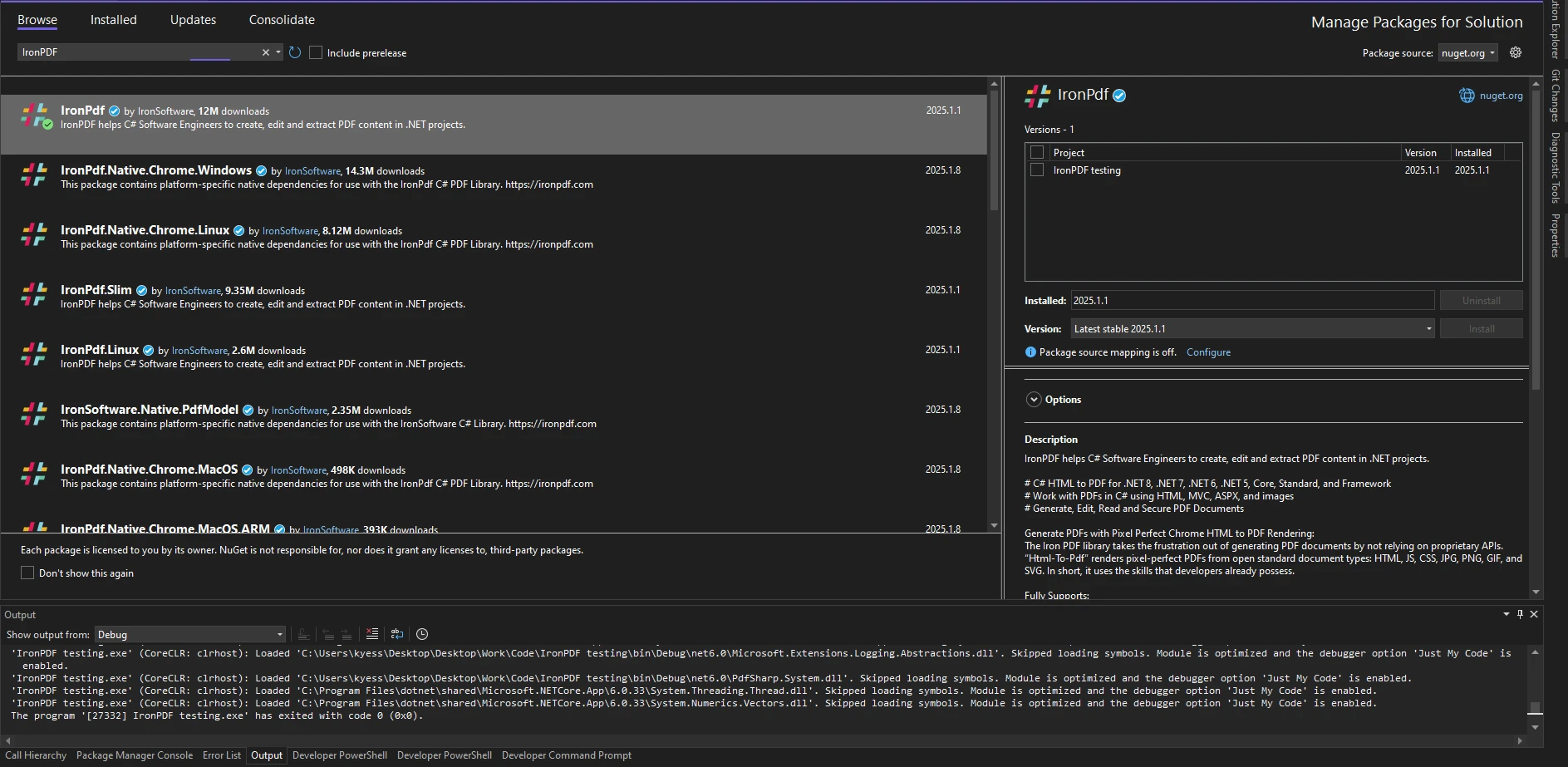
Para agregar IronPDF a tu proyecto, utiliza el administrador de paquetes NuGet en Visual Studio. Puedes utilizar la interfaz de línea de comandos visual o buscar directamente en el Administrador de Paquetes NuGet.
**Instalación por línea de comandos:**
```shell
:ProductInstall
```
Alternativamente, puedes buscar "IronPDF" en el gestor de paquetes NuGet e instalarlo.
## ¿Qué es QuestPDF?
QuestPDF es una biblioteca moderna de .NET diseñada para la generación de documentos PDF. Se enfoca en proporcionar a los desarrolladores una herramienta flexible y eficiente para crear PDFs desde C#. QuestPDF permite un enfoque intuitivo y fluido para diseñar documentos utilizando un estilo declarativo.
QuestPDF enfatiza la simplicidad, la velocidad y el rendimiento, lo cual lo hace una excelente opción para generar reportes y documentos dinámicos. La biblioteca también soporta características avanzadas de diseño, estilos personalizados y plantillas fáciles de usar.
**Características de QuestPDF**
* API fácil de usar para construir documentos PDF complejos.
* Soporta diseño flexible y estructuración de documentos, configurando páginas por defecto, elementos en columnas, etc.
* Permite un fácil estilo de elementos utilizando propiedades similares a CSS.
* Proporciona soporte para imágenes, configuraciones de estilo de texto por defecto, tablas, códigos de barras, gráficos, columnas, filas, múltiples tipos de página y más.
* Ideal para crear informes, facturas y documentos orientados a datos.
Para más detalles, consulta la [documentación de QuestPDF](https://www.questpdf.com/quick-start.html).
### Instalación de QuestPDF
Para empezar con QuestPDF, instálalo a través de la línea de comandos de NuGet:
```shell
:InstallCmd Install-Package QuestPDF
```
O alternativamente, a través del gestor de paquetes NuGet:
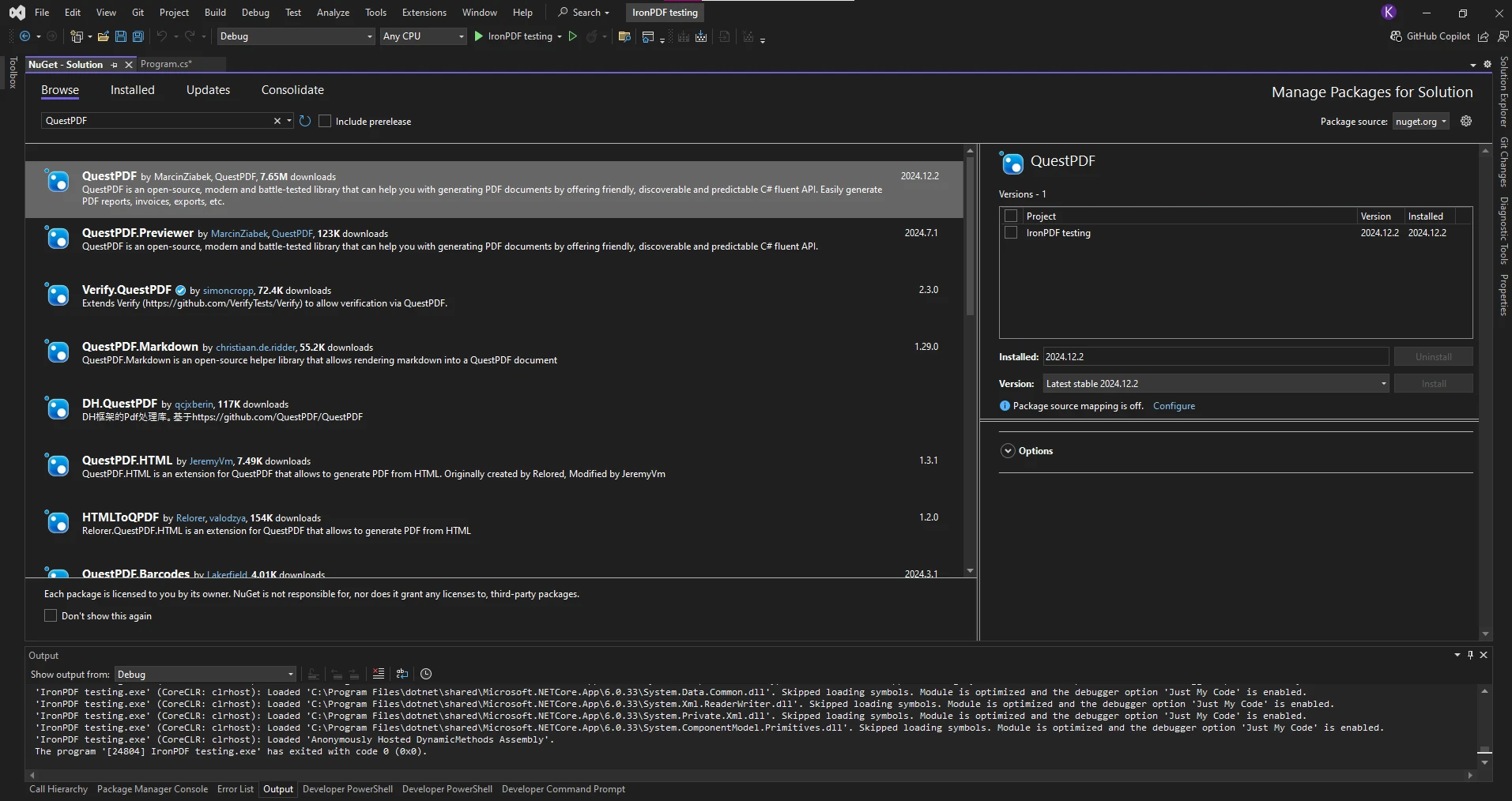
Esto añadirá las bibliotecas requeridas a tu proyecto para generar PDFs con QuestPDF.
## Añadir números de página con IronPDF
IronPDF ofrece una manera fácil de añadir [números de página](/examples/page-numbers-and-page-breaks/) a PDFs. El siguiente código muestra cómo hacerlo:
```csharp
using IronPdf;

class Program
{
    static void Main(string[] args)
    {
        // HTML content for the PDF
        var html = "<h1>Hello World!</h1><p>This document was generated using IronPDF</p>";

        // Set up the IronPDF renderer with header for page numbers
        ChromePdfRenderer renderer = new ChromePdfRenderer
        {
            RenderingOptions =
            {
                HtmlHeader = new HtmlHeaderFooter
                {
                    HtmlFragment = "<center><i>{page} of {total-pages}</i></center>"
                }
            }
        };

        // Render the HTML as a PDF
        PdfDocument pdf = renderer.RenderHtmlAsPdf(html);

        // Save the PDF to a file
        pdf.SaveAs("pageNumbers.pdf");
    }
}
```
#### Resultado
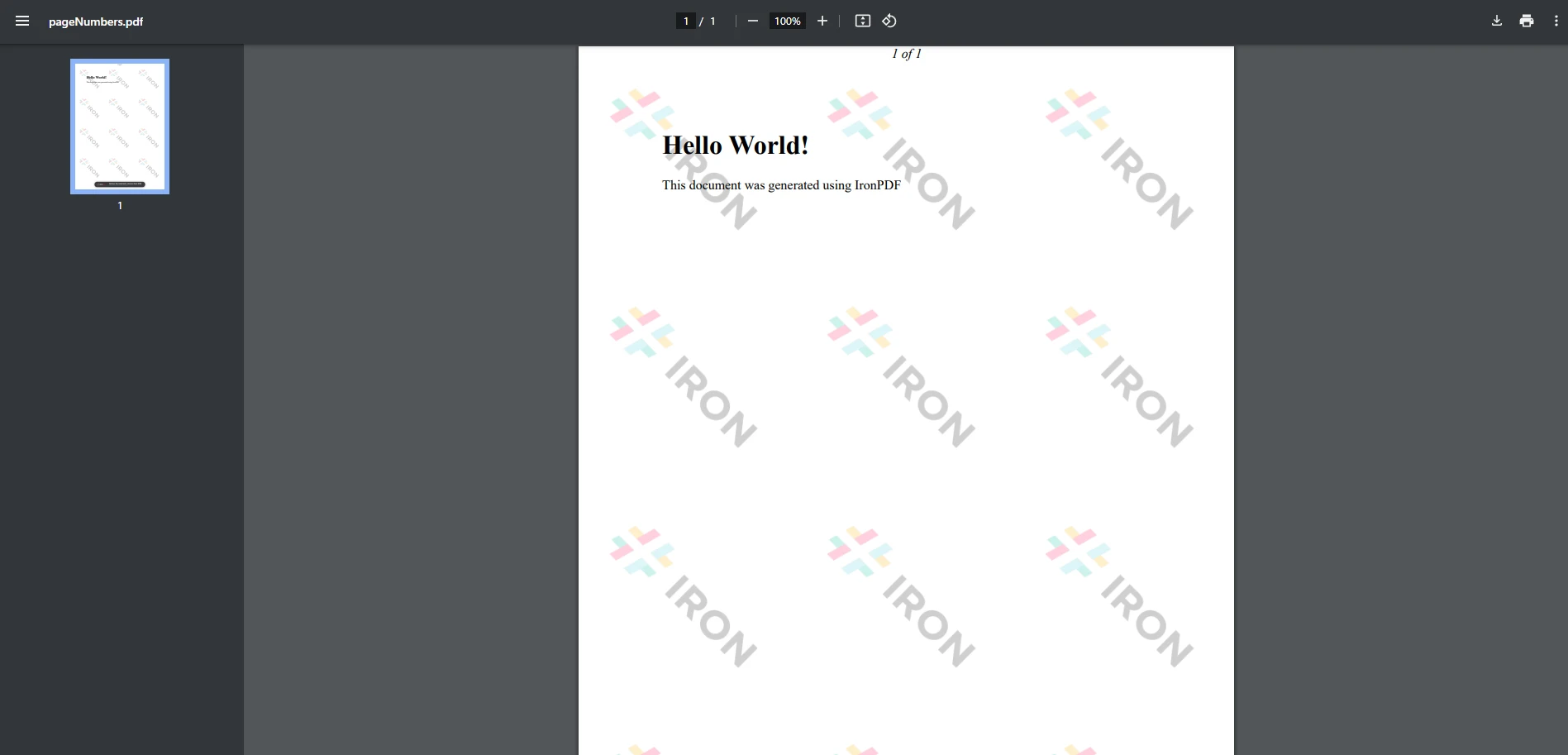
En este código, creamos un encabezado HTML para el documento PDF, donde `{page}` y `{total-pages}` representan marcadores de posición dinámicos para el número de página actual y el total de páginas. El método `RenderHtmlAsPdf` convierte el HTML en un PDF. Esta funcionalidad permite ajustar las páginas dinámicamente según la longitud del documento.
## Cómo añadir números de página con QuestPDF
En QuestPDF, añadir números de página se puede hacer de manera similar. Código para añadir números de página con QuestPDF:
```csharp
using QuestPDF.Fluent;
using QuestPDF.Infrastructure;
class Program
{
static void Main(string[] args)
{
// Set the license type for QuestPDF
QuestPDF.Settings.License = LicenseType.Community;
// Create a PDF document using the QuestPDF fluent API
var document = Document.Create(container =>
{
// Define a page with content and a header with page numbers
container.Page(page =>
{
page.Content().Text("Hello, QuestPDF!");
// Add a centered header with page number and total pages
page.Header().AlignCenter().Text(text =>
{
text.Span("Page ");
text.CurrentPageNumber();
text.Span(" of ");
text.TotalPages();
});
});
});
// Generate and save the PDF document
document.GeneratePdf("QuestPdfOutput.pdf");
}
}
```
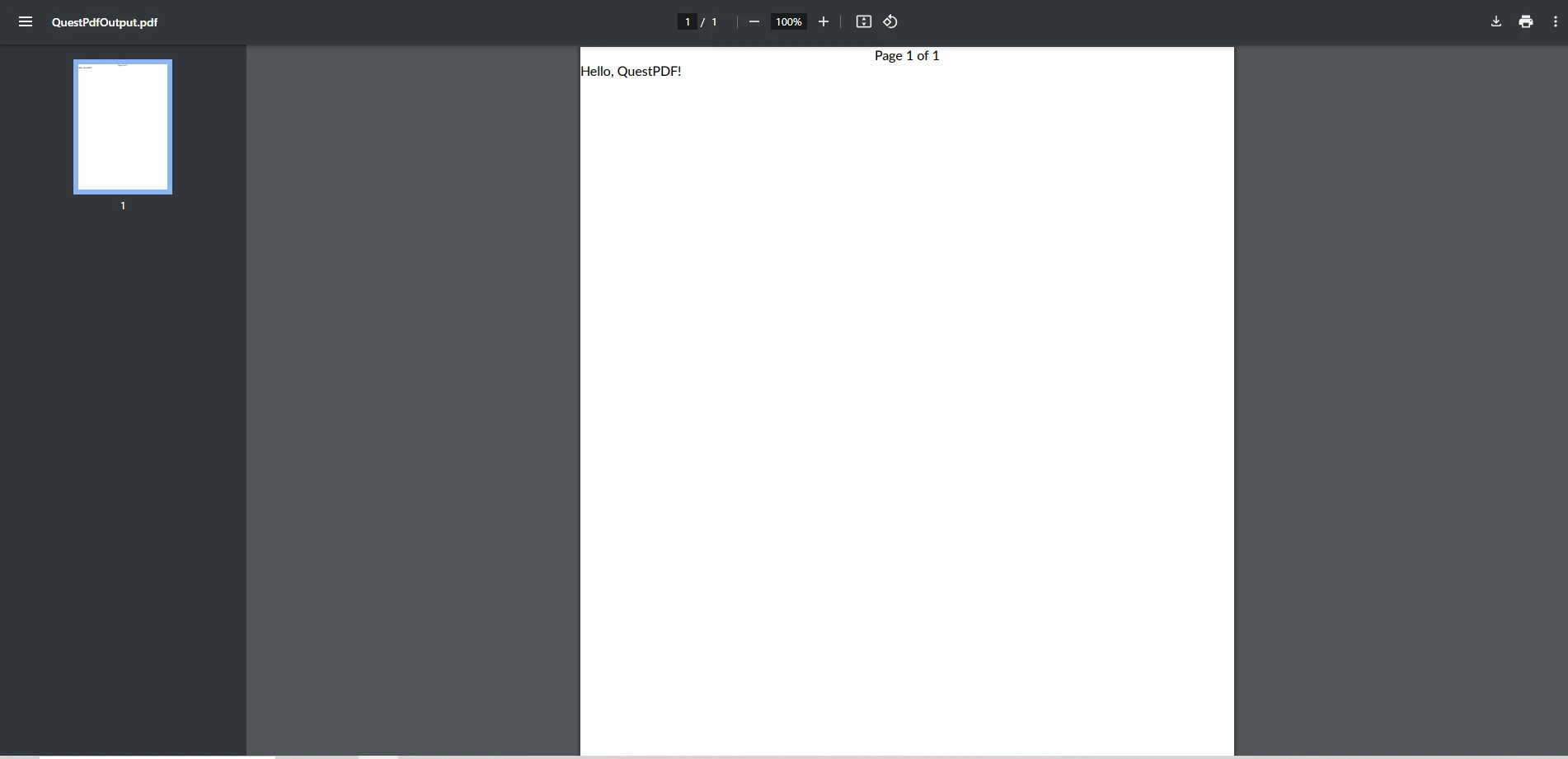
Este código de QuestPDF define un documento sencillo con un número de página en el encabezado. Los métodos `CurrentPageNumber()` y `TotalPages()` se utilizan para generar dinámicamente el número de página relativo a cada página.
## Conclusión
En conclusión, tanto IronPDF como QuestPDF ofrecen soluciones efectivas para añadir [números de página a PDFs](/examples/page-numbers-and-page-breaks/) en C#. Sin embargo, IronPDF proporciona un enfoque más simplificado y amigable para el usuario. Su flexibilidad y facilidad de uso lo hacen una opción ideal para desarrolladores que necesitan añadir números de página o manipular PDFs existentes con un esfuerzo mínimo.
IronPDF está disponible para uso de desarrollo gratuito, permitiendo a los desarrolladores experimentar e integrarlo en proyectos sin costo alguno durante la fase de desarrollo. Una vez que estés listo para producción, la [licencia comercial](trial-license) está disponible para estas opciones de licencia.
Al elegir IronPDF, los desarrolladores obtienen acceso a una herramienta confiable y rica en funciones que simplifica la creación y edición de PDF, incluyendo la inserción de números de página, con el beneficio adicional de mantenimiento y actualizaciones continuas.
Para más información sobre la versión gratuita y licencia comercial de IronPDF, visita el [sitio web oficial de IronPDF](https://www.ironpdf.com).
[[i:(QuestPDF es una marca registrada de su respectivo dueño. Este sitio no está afiliado, respaldado o patrocinado por QuestPDF. Todos los nombres de producto, logotipos y marcas son propiedad de sus respectivos dueños. Las comparaciones son solo para fines informativos y reflejan información públicamente disponible en el momento de la redacción.)]]
El Formato de Documento Portátil (PDF) es un formato de archivo utilizado universalmente que asegura la consistencia en la presentación de documentos en todas las plataformas y dispositivos. Su diseño fijo lo convierte en el formato preferido para compartir documentos, contratos, facturas, y más. Los archivos PDF son indispensables en el mundo corporativo para la documentación formal. Con la creciente necesidad de generación y manipulación de PDF, varias bibliotecas han surgido, simplificando el proceso para los desarrolladores.
En este artículo, exploraremos cómo añadir números de página a un PDF usando QuestPDF en C#, mientras también comparamos QuestPDF con IronPDF para ayudarte a decidir qué biblioteca se adapta mejor a las necesidades de tu proyecto.
¿Qué es IronPDF?
IronPDF es una biblioteca rica en funciones construida para el ecosistema .NET, diseñada para manejar tareas de creación, manipulación y renderización de PDF de manera eficiente. Aprovecha un motor basado en Chromium para proporcionar una conversión precisa de HTML, CSS y JavaScript en documentos PDF. Esto lo convierte en una excelente opción para desarrolladores web que necesitan convertir contenido HTML directamente en un formato PDF mientras mantienen el diseño y estilo originales.
Con IronPDF, puedes integrar fácilmente funcionalidades de PDF en tus aplicaciones .NET, incluyendo la creación de encabezados y pies de página personalizados, la adición de nuevas páginas a tus PDFs, la inserción de imágenes y tablas, y realizar manipulaciones avanzadas de PDF como unir o dividir documentos. La biblioteca soporta varios formatos y ofrece una amplia gama de opciones de personalización, lo que la hace ideal para generar PDFs de calidad profesional a partir de contenido web dinámico.
Facilita la unión, división y edición de PDFs existentes.
Funciona perfectamente con aplicaciones .NET, incluyendo los marcos ASP.NET y MVC.
Para profundizar en las capacidades de IronPDF y ejemplos más avanzados, consulta la documentación oficial aquí.
Instalación de IronPDF
Para agregar IronPDF a tu proyecto, utiliza el administrador de paquetes NuGet en Visual Studio. Puedes utilizar la interfaz de línea de comandos visual o buscar directamente en el Administrador de Paquetes NuGet.
Instalación por línea de comandos:
PM > Install-Package IronPdf
Install-Package IronPdf
Alternativamente, puedes buscar "IronPDF" en el gestor de paquetes NuGet e instalarlo.
¿Qué es QuestPDF?
QuestPDF es una biblioteca moderna de .NET diseñada para la generación de documentos PDF. Se enfoca en proporcionar a los desarrolladores una herramienta flexible y eficiente para crear PDFs desde C#. QuestPDF permite un enfoque intuitivo y fluido para diseñar documentos utilizando un estilo declarativo.
QuestPDF enfatiza la simplicidad, la velocidad y el rendimiento, lo cual lo hace una excelente opción para generar reportes y documentos dinámicos. La biblioteca también soporta características avanzadas de diseño, estilos personalizados y plantillas fáciles de usar.
Características de QuestPDF
API fácil de usar para construir documentos PDF complejos.
Soporta diseño flexible y estructuración de documentos, configurando páginas por defecto, elementos en columnas, etc.
Permite un fácil estilo de elementos utilizando propiedades similares a CSS.
Proporciona soporte para imágenes, configuraciones de estilo de texto por defecto, tablas, códigos de barras, gráficos, columnas, filas, múltiples tipos de página y más.
Ideal para crear informes, facturas y documentos orientados a datos.
Para empezar con QuestPDF, instálalo a través de la línea de comandos de NuGet:
PM > Install-Package QuestPDF
Install-Package QuestPDF
O alternativamente, a través del gestor de paquetes NuGet:
Esto añadirá las bibliotecas requeridas a tu proyecto para generar PDFs con QuestPDF.
Añadir números de página con IronPDF
IronPDF ofrece una manera fácil de añadir números de página a PDFs. El siguiente código muestra cómo hacerlo:
using IronPdf;class Program{ static voidMain(string[] args) { // HTML content for the PDF var html = "<h1>Hello World!</h1><p>This document was generated using IronPDF</p>"; // Set up the IronPDF renderer with header for page numbers ChromePdfRenderer renderer = new ChromePdfRenderer {RenderingOptions = {HtmlHeader = new HtmlHeaderFooter {HtmlFragment = "<center><i>{page} of {total-pages}</i></center>" } } }; // Render the HTML as a PDF PdfDocument pdf = renderer.RenderHtmlAsPdf(html); // Save the PDF to a file pdf.SaveAs("pageNumbers.pdf"); }}
using IronPdf;

class Program
{
    static void Main(string[] args)
    {
        // HTML content for the PDF
        var html = "<h1>Hello World!</h1><p>This document was generated using IronPDF</p>";

        // Set up the IronPDF renderer with header for page numbers
        ChromePdfRenderer renderer = new ChromePdfRenderer
        {
            RenderingOptions =
            {
                HtmlHeader = new HtmlHeaderFooter
                {
                    HtmlFragment = "<center><i>{page} of {total-pages}</i></center>"
                }
            }
        };

        // Render the HTML as a PDF
        PdfDocument pdf = renderer.RenderHtmlAsPdf(html);

        // Save the PDF to a file
        pdf.SaveAs("pageNumbers.pdf");
    }
}
ImportsIronPdfModuleProgram Sub Main(args AsString()) ' HTML content for the PDF Dim html = "<h1>Hello World!</h1><p>This document was generated using IronPDF</p>" ' Set up the IronPDF renderer with header for page numbers Dim renderer As New ChromePdfRendererWith { .RenderingOptions = New RenderingOptionsWith { .HtmlHeader = New HtmlHeaderFooterWith { .HtmlFragment = "<center><i>{page} of {total-pages}</i></center>" } } } ' Render the HTML as a PDF Dim pdf AsPdfDocument = renderer.RenderHtmlAsPdf(html) ' Save the PDF to a file pdf.SaveAs("pageNumbers.pdf") End SubEndModule
Imports IronPdf

Module Program
    Sub Main(args As String())
        ' HTML content for the PDF
        Dim html = "<h1>Hello World!</h1><p>This document was generated using IronPDF</p>"

        ' Set up the IronPDF renderer with header for page numbers
        Dim renderer As New ChromePdfRenderer With {
            .RenderingOptions = New RenderingOptions With {
                .HtmlHeader = New HtmlHeaderFooter With {
                    .HtmlFragment = "<center><i>{page} of {total-pages}</i></center>"
                }
            }
        }

        ' Render the HTML as a PDF
        Dim pdf As PdfDocument = renderer.RenderHtmlAsPdf(html)

        ' Save the PDF to a file
        pdf.SaveAs("pageNumbers.pdf")
    End Sub
End Module
Resultado
En este código, creamos un encabezado HTML para el documento PDF, donde {page} y {total-pages} representan marcadores de posición dinámicos para el número de página actual y el total de páginas. El método RenderHtmlAsPdf convierte el HTML en un PDF. Esta funcionalidad permite ajustar las páginas dinámicamente según la longitud del documento.
Cómo añadir números de página con QuestPDF
En QuestPDF, añadir números de página se puede hacer de manera similar. Código para añadir números de página con QuestPDF:
using QuestPDF.Fluent;using QuestPDF.Infrastructure;class Program{ static voidMain(string[] args) { // Set the license type for QuestPDFQuestPDF.Settings.License = LicenseType.Community; // Create a PDF document using the QuestPDF fluent API var document = Document.Create(container => { // Define a page with content and a header with page numbers container.Page(page => { page.Content().Text("Hello, QuestPDF!"); // Add a centered header with page number and total pages page.Header().AlignCenter().Text(text => { text.Span("Page "); text.CurrentPageNumber(); text.Span(" of "); text.TotalPages(); }); }); }); // Generate and save the PDF document document.GeneratePdf("QuestPdfOutput.pdf"); }}
using QuestPDF.Fluent;
using QuestPDF.Infrastructure;

class Program
{
    static void Main(string[] args)
    {
        // Set the license type for QuestPDF
        QuestPDF.Settings.License = LicenseType.Community;

        // Create a PDF document using the QuestPDF fluent API
        var document = Document.Create(container =>
        {
            // Define a page with content and a header with page numbers
            container.Page(page =>
            {
                page.Content().Text("Hello, QuestPDF!");

                // Add a centered header with page number and total pages
                page.Header().AlignCenter().Text(text =>
                {
                    text.Span("Page ");
                    text.CurrentPageNumber();
                    text.Span(" of ");
                    text.TotalPages();
                });
            });
        });

        // Generate and save the PDF document
        document.GeneratePdf("QuestPdfOutput.pdf");
    }
}
ImportsQuestPDF.FluentImportsQuestPDF.InfrastructureFriend Class ProgramShared Sub Main(ByVal args() AsString) ' Set the license type for QuestPDFQuestPDF.Settings.License = LicenseType.Community ' Create a PDF document using the QuestPDF fluent API Dim document = Document.Create(Sub(container) ' Define a page with content and a header with page numbers container.Page(Sub(page) page.Content().Text("Hello, QuestPDF!") ' Add a centered header with page number and total pages page.Header().AlignCenter().Text(Sub(text) text.Span("Page ") text.CurrentPageNumber() text.Span(" of ") text.TotalPages() End Sub) End Sub) End Sub) ' Generate and save the PDF document document.GeneratePdf("QuestPdfOutput.pdf") End SubEnd Class
Imports QuestPDF.Fluent
Imports QuestPDF.Infrastructure

Friend Class Program
	Shared Sub Main(ByVal args() As String)
		' Set the license type for QuestPDF
		QuestPDF.Settings.License = LicenseType.Community

		' Create a PDF document using the QuestPDF fluent API
		Dim document = Document.Create(Sub(container)
			' Define a page with content and a header with page numbers
			container.Page(Sub(page)
				page.Content().Text("Hello, QuestPDF!")

				' Add a centered header with page number and total pages
				page.Header().AlignCenter().Text(Sub(text)
					text.Span("Page ")
					text.CurrentPageNumber()
					text.Span(" of ")
					text.TotalPages()
				End Sub)
			End Sub)
		End Sub)

		' Generate and save the PDF document
		document.GeneratePdf("QuestPdfOutput.pdf")
	End Sub
End Class
Este código de QuestPDF define un documento sencillo con un número de página en el encabezado. Los métodos CurrentPageNumber() y TotalPages() se utilizan para generar dinámicamente el número de página relativo a cada página.
Conclusión
En conclusión, tanto IronPDF como QuestPDF ofrecen soluciones efectivas para añadir números de página a PDFs en C#. Sin embargo, IronPDF proporciona un enfoque más simplificado y amigable para el usuario. Su flexibilidad y facilidad de uso lo hacen una opción ideal para desarrolladores que necesitan añadir números de página o manipular PDFs existentes con un esfuerzo mínimo.
IronPDF está disponible para uso de desarrollo gratuito, permitiendo a los desarrolladores experimentar e integrarlo en proyectos sin costo alguno durante la fase de desarrollo. Una vez que estés listo para producción, la licencia comercial está disponible para estas opciones de licencia.
Al elegir IronPDF, los desarrolladores obtienen acceso a una herramienta confiable y rica en funciones que simplifica la creación y edición de PDF, incluyendo la inserción de números de página, con el beneficio adicional de mantenimiento y actualizaciones continuas.
Para más información sobre la versión gratuita y licencia comercial de IronPDF, visita el sitio web oficial de IronPDF.
Por favor nota: QuestPDF es una marca registrada de su respectivo dueño. Este sitio no está afiliado, respaldado o patrocinado por QuestPDF. Todos los nombres de producto, logotipos y marcas son propiedad de sus respectivos dueños. Las comparaciones son solo para fines informativos y reflejan información públicamente disponible en el momento de la redacción.
Curtis Chau tiene una licenciatura en Ciencias de la Computación (Carleton University) y se especializa en el desarrollo front-end con experiencia en Node.js, TypeScript, JavaScript y React. Apasionado por crear interfaces de usuario intuitivas y estéticamente agradables, disfruta trabajando con frameworks modernos y creando manuales bien estructurados y visualmente atractivos.



























