오늘날 더욱 디지털화된 세계에서는 휴대용 문서 형식(PDF)이 디지털 문서를 공유하고 보존하는 데 널리 사용되는 파일 형식이 되었습니다. 그러나 사용자의 다양한 가능성을 열기 위해 PDF를 이미지로 변환해야 하는 경우가 있습니다. PDF를 이미지 형식으로 변환하면 프레젠테이션, 웹 페이지 또는 소셜 미디어 플랫폼에 문서를 원활하게 통합할 수 있는 유연한 솔루션을 제공합니다. 비주얼 커뮤니케이션의 시대에 PDF를 이미지로 변환하는 기능은 접근성을 강화하고 창의성과 편의성을 위한 새로운 통로를 열어줍니다. 이 글에서는 Java를 사용하여 PDF를 이미지로 변환하는 것의 중요성과 이 작업을 효율적으로 수행할 수 있는 도구를 소개합니다.
이를 위해 다음과 같이 명명된 두 가지 Java PDF 라이브러리를 사용하여 비교할 것입니다:
- iText (iText)
- IronPDF
iText를 사용하여 PDF 파일을 이미지로 변환하는 방법
- iText (iText)를 사용하여 PDF 파일을 이미지로 변환하려면 먼저 환경을 설정합니다.
renderPdf 객체를 사용하여 기존 PDF 파일을 로드합니다.- PDF 파일에
PdfRenderImageType 메소드를 사용하여 렌더링 속성을 설정합니다.
PdfToImageRenderer을 사용하여 PDF 문서의 변환을 인스턴스화합니다.OUTPUT_DIRECTORY을 사용하여 이미지를 지정된 경로에 저장합니다.
1. Java용 IronPDF
IronPDF for Java는 Java 프로그래밍 생태계 내에서 강력한 PDF 조작 및 생성 기능을 제공합니다. 비즈니스와 개발자가 PDF 관련 작업을 프로그램matically로 처리하기 위한 효율적인 솔루션을 모색함에 따라 IronPDF는 신뢰할 수 있고 기능이 풍부한 라이브러리로 부상하고 있습니다. HTML 콘텐츠를 PDF로 변환하거나, 기존 PDF 문서를 병합, 분할, 편집하는 경우에도 IronPDF는 Java 개발자에게 워크플로를 간소화할 수 있는 강력한 도구 세트를 제공합니다. 손쉬운 통합과 방대한 문서화를 통해 이 라이브러리는 Java 애플리케이션이 PDF와 원활하게 상호작용할 수 있도록 하여 PDF 관련 요구 사항에 대한 포괄적인 솔루션을 제공합니다. 이 기사에서는 IronPDF for Java의 주요 기능과 이점에 대해 탐구하고, Java 애플리케이션에서 PDF 처리 프로세스를 어떻게 간소화할 수 있는지 설명합니다.
2. Java용 iText (iText)
Java용 iText (iText)는 개발자가 프로그래밍 방식으로 PDF 문서를 생성, 수정 및 조작할 수 있도록 하는 강력하고 다재다능한 PDF 라이브러리입니다. 원래 .NET을 위해 개발된 iText (iText)는 Java에 맞게 적응되었으며, Java 생태계 내에서 모든 PDF 관련 작업에 원활하고 효율적인 솔루션을 제공합니다. 광범위한 기능과 사용하기 쉬운 API로 iText는 Java 개발자가 동적 PDF를 생성하고, 콘텐츠를 추가하고, 이미지를 삽입하고, 기존 PDF에서 데이터를 쉽게 추출할 수 있도록 합니다. 청구서를 생성하든, 보고서를 작성하든, 기업 애플리케이션에 PDF 처리를 통합하든, iText는 개발자가 PDF 처리 요구 사항을 완전히 제어할 수 있도록 돕는 귀중한 도구입니다. 이 기사에서는 Java용 iText (iText)의 필수 기능과 이점에 대해 알아보고 실제 예를 통해 그 기능을 입증할 것입니다.
3. IronPDF Java Library 설치
IronPDF와 필수 로거 종속성인 SLF4J를 Maven 프로젝트에 통합하려면 다음 단계를 따르십시오:
-
프로젝트의 pom.xml 파일을 엽니다.
-
종속성을 지정하는 섹션으로 이동합니다. 이미 없는 경우 생성합니다.
-
IronPDF와 SLF4J의 다음 종속성 항목을 포함하십시오:
<dependency>
    <groupId>com.ironsoftware</groupId>
    <artifactId>com.ironsoftware</artifactId>
    <version>2023.7.2</version>
</dependency>
<dependency>
    <groupId>org.slf4j</groupId>
    <artifactId>slf4j-simple</artifactId>
    <version>2.0.3</version>
</dependency>
<dependency>
    <groupId>com.ironsoftware</groupId>
    <artifactId>com.ironsoftware</artifactId>
    <version>2023.7.2</version>
</dependency>
<dependency>
    <groupId>org.slf4j</groupId>
    <artifactId>slf4j-simple</artifactId>
    <version>2.0.3</version>
</dependency>
XML
-
pom.xml 파일을 저장합니다.
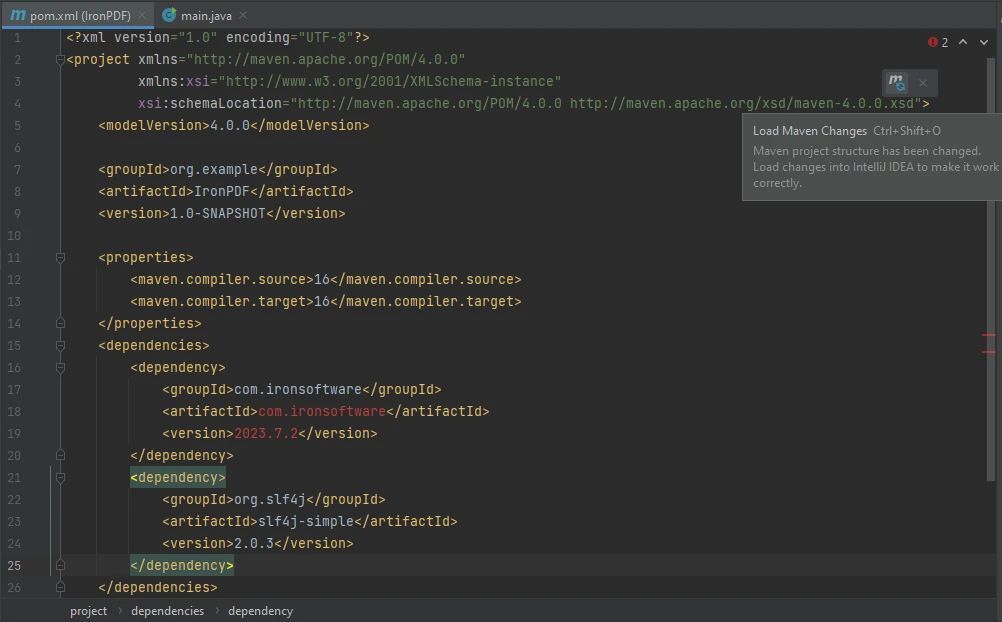
그게 다예요! 위에 보이는 버튼을 눌러 이 종속성을 프로젝트에 포함시키세요.
4. iText Java 라이브러리 설치
iText를 설치하려면 다음 단계를 따라 의존성을 추가하세요:
-
pom.xml 파일을 엽니다.
-
종속성 태그를 찾습니다. 존재하지 않으면 생성하고 이 태그들 사이에 다음 코드를 삽입합니다:
<!-- https://mvnrepository.com/artifact/com.itextpdf/itext7-core -->
<dependency>
    <groupId>com.itextpdf</groupId>
    <artifactId>itext7-core</artifactId>
    <version>8.0.0</version>
    <type>pom</type>
</dependency>
<!-- https://mvnrepository.com/artifact/com.itextpdf/itext7-core -->
<dependency>
    <groupId>com.itextpdf</groupId>
    <artifactId>itext7-core</artifactId>
    <version>8.0.0</version>
    <type>pom</type>
</dependency>
XML
-
화면 오른쪽 상단에 나타나는 작은 버튼을 클릭합니다.
이렇게 하면 종속성이 설치됩니다.
5. IronPDF를 사용하여 PDF 문서를 이미지로 변환
IronPDF를 사용하여 PDF 페이지에서 이미지를 추출하는 것은 몇 줄의 코드로 생각보다 더 쉽습니다. IronPDF는 JPEG 및 PNG와 같은 여러 이미지 파일 형식과 호환성을 제공합니다.
이 섹션에서는 IronPDF for Java를 사용하여 PDF 파일을 이미지로 변환하는 샘플 코드를 살펴보겠습니다.
import com.ironsoftware.ironpdf.PdfDocument;
import javax.imageio.ImageIO;
import java.awt.image.BufferedImage;
import java.nio.file.Paths;
import java.util.List;
import java.io.File;

public class Main {
    public static void main(String[] args) throws Exception {
        // Load the PDF document
        PdfDocument pdf = PdfDocument.fromFile(Paths.get("composite.pdf"));

        // Extract all images from the PDF document into a list
        List<BufferedImage> images = pdf.extractAllImages();

        int i = 1; // Image counter
        // Traverse the extracted images list and save each image
        for (BufferedImage extractedImage : images) {
            String fileName = "assets/extracted_" + i++ + ".png";
            ImageIO.write(extractedImage, "PNG", new File(fileName)); // Save image as PNG
        }
    }
}
import com.ironsoftware.ironpdf.PdfDocument;
import javax.imageio.ImageIO;
import java.awt.image.BufferedImage;
import java.nio.file.Paths;
import java.util.List;
import java.io.File;

public class Main {
    public static void main(String[] args) throws Exception {
        // Load the PDF document
        PdfDocument pdf = PdfDocument.fromFile(Paths.get("composite.pdf"));

        // Extract all images from the PDF document into a list
        List<BufferedImage> images = pdf.extractAllImages();

        int i = 1; // Image counter
        // Traverse the extracted images list and save each image
        for (BufferedImage extractedImage : images) {
            String fileName = "assets/extracted_" + i++ + ".png";
            ImageIO.write(extractedImage, "PNG", new File(fileName)); // Save image as PNG
        }
    }
}
Java
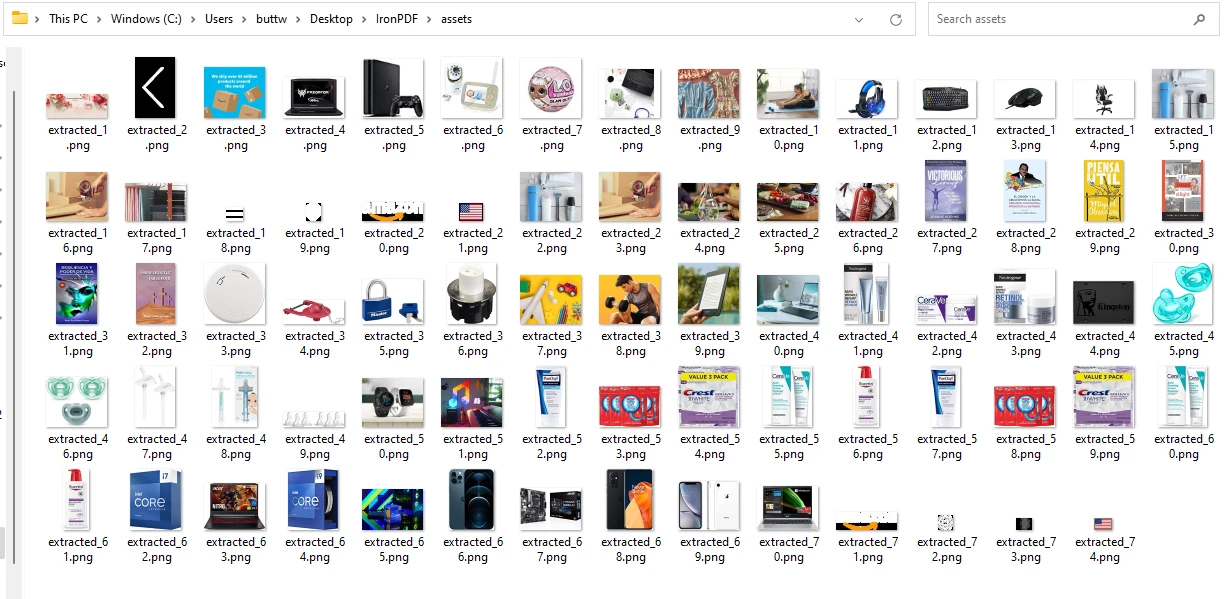
위의 코드는 파일 경로를 매개변수로 받아 PdfDocument.fromFile() 메소드를 사용하여 PDF 파일을 엽니다. 그 다음, extractAllImages() 메소드를 사용하여 PDF 문서에서 모든 이미지를 추출하여 images라는 목록에 저장합니다. 그 다음, 이미지를 반복하여 매개변수로 이미지, 파일 유형 ("PNG"), 경로 + 이름을 받아 ImageIO.write() 메소드를 사용하여 각 이미지를 저장합니다.
출력 디렉터리 스크린샷
6. iText를 사용하여 PDF 파일을 이미지로 변환
이 섹션에서는 iText Java PDF 라이브러리를 사용하여 PDF에서 이미지를 추출하는 방법을 알아봅니다. 다음은 iText PDF를 이미지로 추출하는 예제 코드입니다.
import com.itextpdf.pdfrender.PdfRenderImageType;
import com.itextpdf.pdfrender.PdfToImageRenderer;
import com.itextpdf.pdfrender.RenderingProperties;

import java.io.File;
import java.io.IOException;

public class PdfRender_Demo {

    private static final String ORIG = "/uploads/input.pdf";
    private static final String OUTPUT_DIRECTORY = "/myfiles/";

    public static void main(String[] args) throws IOException {
        // Set rendering properties for the PDF to image conversion
        final RenderingProperties properties = new RenderingProperties();
        properties.setImageType(PdfRenderImageType.JPEG); // Set image type to JPEG
        properties.setScaling(1.0f); // Maintain original size

        // Perform rendering from PDF to Image format
        PdfToImageRenderer.renderPdf(
            new File(ORIG),
            new File(OUTPUT_DIRECTORY),
            "/customfilename-%d",
            properties
        );
    }
}
import com.itextpdf.pdfrender.PdfRenderImageType;
import com.itextpdf.pdfrender.PdfToImageRenderer;
import com.itextpdf.pdfrender.RenderingProperties;

import java.io.File;
import java.io.IOException;

public class PdfRender_Demo {

    private static final String ORIG = "/uploads/input.pdf";
    private static final String OUTPUT_DIRECTORY = "/myfiles/";

    public static void main(String[] args) throws IOException {
        // Set rendering properties for the PDF to image conversion
        final RenderingProperties properties = new RenderingProperties();
        properties.setImageType(PdfRenderImageType.JPEG); // Set image type to JPEG
        properties.setScaling(1.0f); // Maintain original size

        // Perform rendering from PDF to Image format
        PdfToImageRenderer.renderPdf(
            new File(ORIG),
            new File(OUTPUT_DIRECTORY),
            "/customfilename-%d",
            properties
        );
    }
}
Java
iText를 사용하여 작업할 때, iText가 속도가 느리고 대용량 파일을 쉽게 처리할 수 없다는 점이 관찰되었습니다.
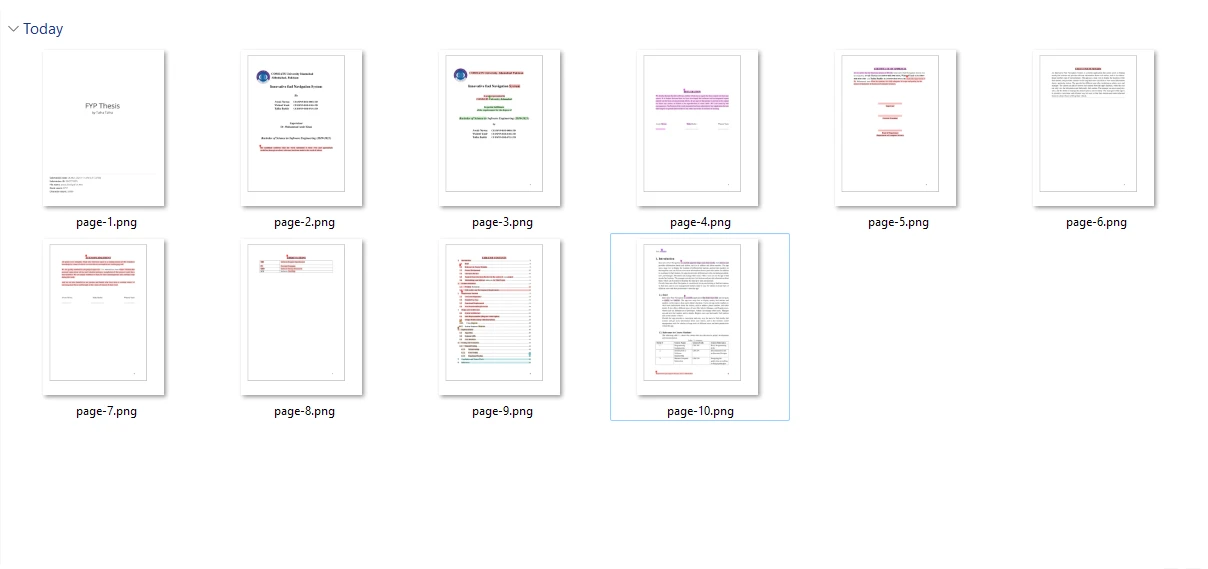
산출
7. 결론
오늘날의 디지털화된 세계에서 PDF를 이미지로 변환하는 기능은 프레젠테이션, 웹 페이지 또는 소셜 미디어 플랫폼에 문서를 매끄럽게 통합할 수 있는 다양한 가능성을 제공하여 접근성과 창의성을 높입니다. Java 용 iText (iText)와 IronPDF for Java는 이 작업에 가치 있는 솔루션을 제공합니다.
iText는 개발자에게 강력하고 다재다능한 PDF 라이브러리를 제공하여 프로그래밍 방식으로 PDF 문서를 생성, 수정 및 조작할 수 있도록 합니다. 그러나 대형 파일과 느린 처리 속도에서 문제를 겪을 수 있습니다.
IronPDF Java용 페이지는 기능이 풍부하고 효율적인 라이브러리를 제공하여 개발자가 이미지 추출, 병합, 분할 및 PDF 문서 편집 등 프로그램적으로 PDF 관련 작업을 처리할 수 있는 도구를 제공합니다. IronPDF for PDF to Image Conversion는 이 비교에서 명백히 승리합니다.
Java를 사용하여 PDF에서 이미지를 추출하는 전체 튜토리얼은 다음의 IronPDF for Java를 사용한 이미지 추출에 대한 포괄적인 가이드를 방문하십시오. 전체 비교는 다음 PDF를 이미지로 변환하는 라이브러리의 전체 비교에서 확인할 수 있습니다.
iText 가격 정보는 PDF 당 $0.15부터 시작합니다. IronPDF의 경우, 한 번의 구매로 $999부터 시작하는 평생 라이선스를 제공하며 IronPDF의 무료 체험 라이선스도 제공합니다. 자세한 정보는 IronPDF 라이선싱 정보를 참조하십시오.
iText (iText)은 그 소유자의 등록 상표입니다. 이 사이트는 iText (iText)와 관련이 없으며, 승인을 받거나 지원을 받지 않습니다. 모든 제품명, 로고 및 브랜드는 해당 소유자의 자산입니다. 비교는 정보 제공 목적으로만 사용되며, 작성 시점에 공개적으로 이용 가능한 정보를 반영합니다.













