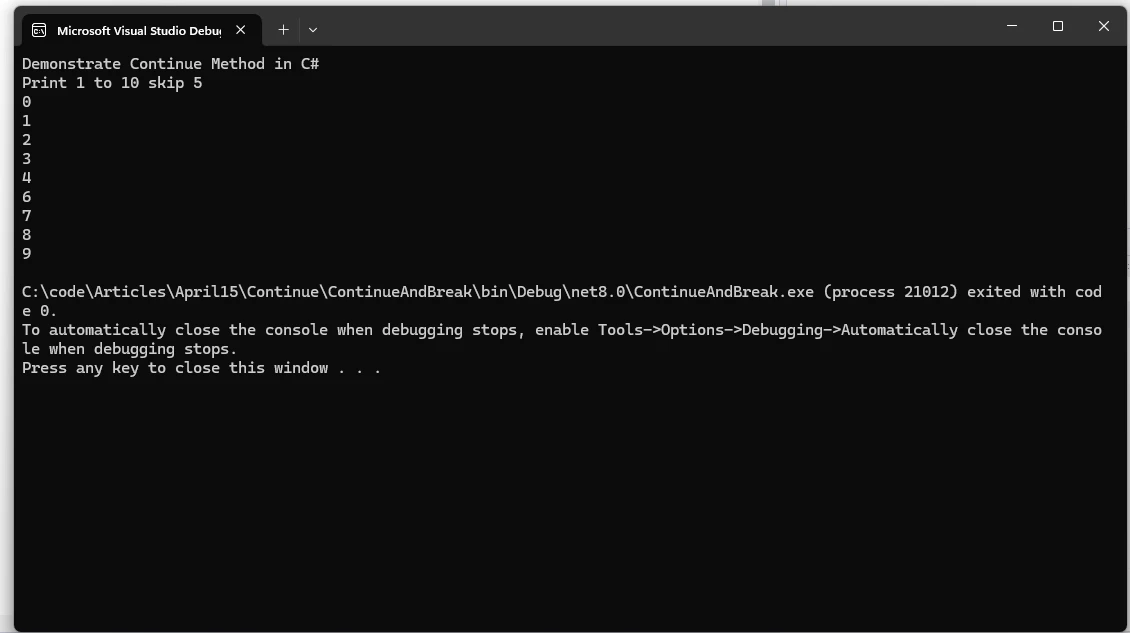
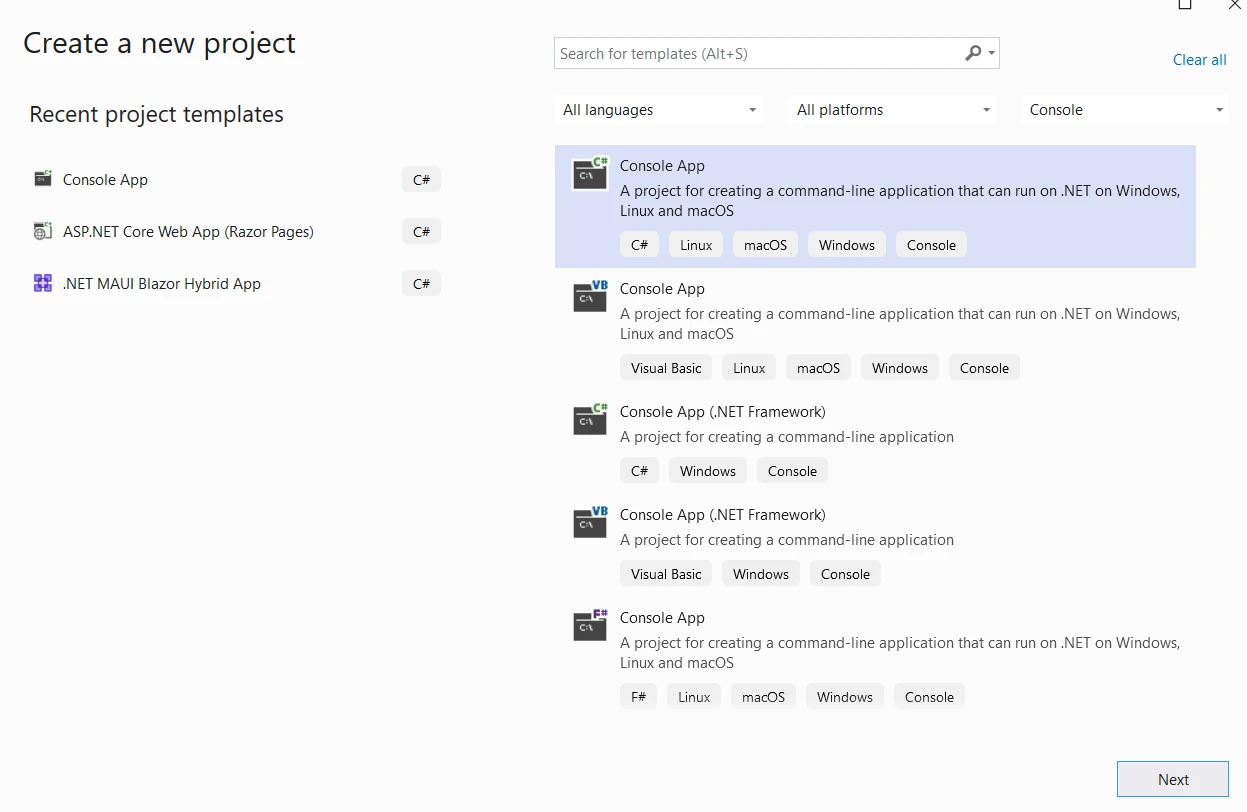
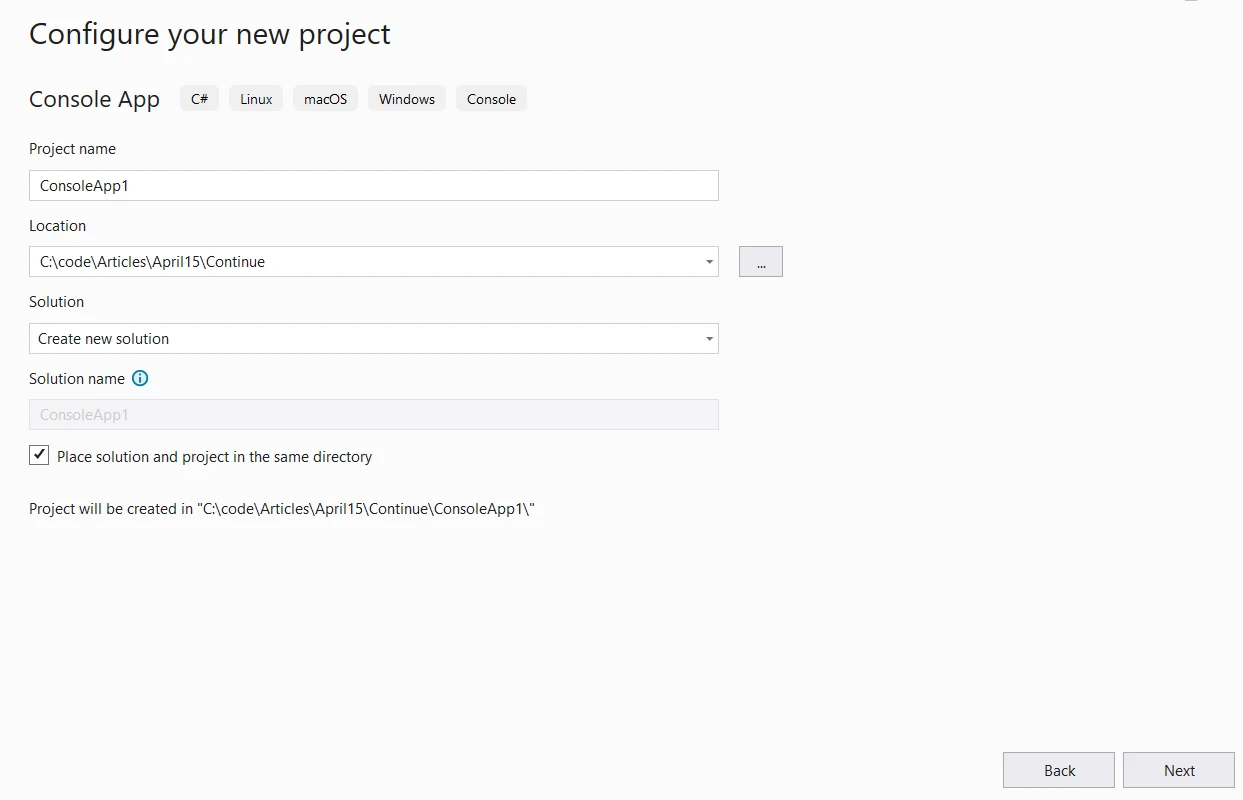
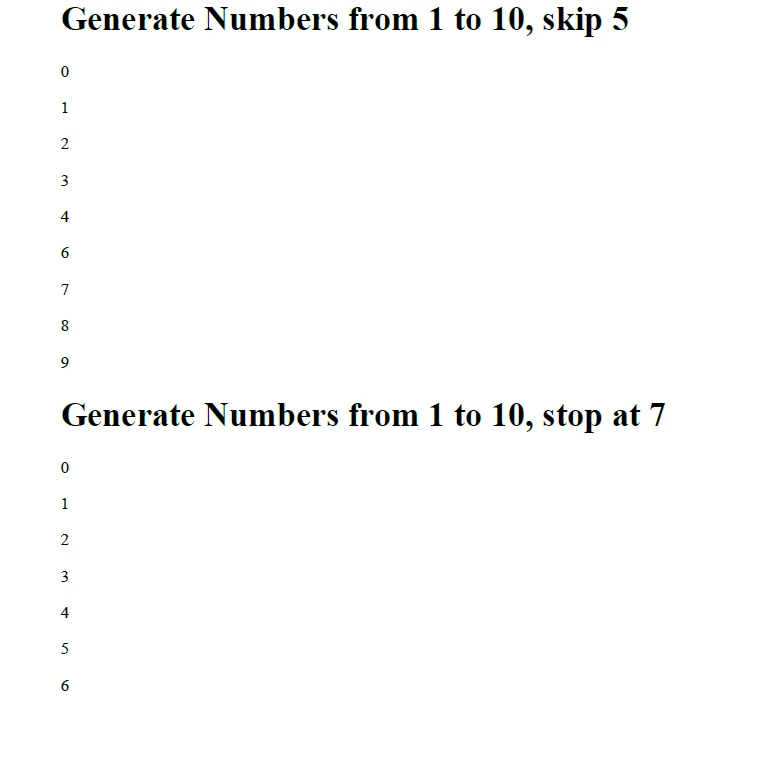
.NET 도움말 C# Continue (How It Works For Developers) 커티스 차우 업데이트됨:6월 20, 2025 다운로드 IronPDF NuGet 다운로드 DLL 다운로드 윈도우 설치 프로그램 무료 체험 시작하기 LLM용 사본 LLM용 사본 LLM용 마크다운 형식으로 페이지를 복사하세요 ChatGPT에서 열기 ChatGPT에 이 페이지에 대해 문의하세요 제미니에서 열기 제미니에게 이 페이지에 대해 문의하세요 Grok에서 열기 Grok에게 이 페이지에 대해 문의하세요 혼란 속에서 열기 Perplexity에게 이 페이지에 대해 문의하세요 공유하다 페이스북에 공유하기 트위터에 공유하기 LinkedIn에 공유하기 URL 복사 이메일로 기사 보내기 Control flow statements are crucial in programming, as they dictate the execution sequence of instructions within a program. In C#, three fundamental statements for controlling loops are 'continue', 'break', and 'goto'. These statements provide programmers with the ability to alter the flow of execution within loops, enhancing code efficiency and readability. In this article, we delve into the intricacies of continue and break methods in C#, exploring their syntax, applications, and best practices. Later in the article, we will also learn about IronPDF - a robust C# PDF library from Iron Software to read and write PDF documents. Understanding the 'continue;' Statement The continue statement is used within loop structures to skip the remaining code block and proceed to the next iteration of the loop. It essentially tells the program control to skip the current iteration's remaining code and move on to the next iteration. Syntax continue; continue; $vbLabelText $csharpLabel Example public class Program { public static void Main() { Console.WriteLine("Demonstrate Continue Method in C#"); Console.WriteLine("Print 1 to 10 skipping 5"); for (int i = 0; i < 10; i++) { if (i == 5) { continue; // Skips iteration when i equals 5 } Console.WriteLine(i); } } } public class Program { public static void Main() { Console.WriteLine("Demonstrate Continue Method in C#"); Console.WriteLine("Print 1 to 10 skipping 5"); for (int i = 0; i < 10; i++) { if (i == 5) { continue; // Skips iteration when i equals 5 } Console.WriteLine(i); } } } $vbLabelText $csharpLabel In this example, when i equals 5, the continue statement is executed, skipping the remaining code within the loop for that iteration. As a result, the number 5 will not be printed, and the loop proceeds to the next iteration. Output Exploring the 'break;' Method Contrary to continue, the break statement is used to exit a loop prematurely. When encountered, it terminates the loop's execution, regardless of the loop's condition. It's commonly used to exit a loop such as a while loop, early if a certain condition is met. Example int[] numbers = { 1, 2, 3, 4, 5, 6, 7, 8, 9, 10 }; foreach (int number in numbers) { if (number == 6) { break; // Exits loop when number equals 6 } Console.WriteLine(number); } int[] numbers = { 1, 2, 3, 4, 5, 6, 7, 8, 9, 10 }; foreach (int number in numbers) { if (number == 6) { break; // Exits loop when number equals 6 } Console.WriteLine(number); } $vbLabelText $csharpLabel In this example, the loop iterates through the numbers array. When it encounters the number 6, the break statement is executed, causing the loop to terminate prematurely. As a result, only numbers 1 through 5 will be printed. Exploring 'goto;' statement The goto statement in C# provides a way to transfer control to a specified label within the same method, within the same switch statement, or within the same loop. While goto can be a powerful tool for altering the flow of execution to jump statements, it is often discouraged in modern programming practices due to its potential to make code less readable and maintainable. However, there are situations where goto can be used effectively and safely. Syntax The syntax of the goto statement in C# is straightforward: goto label; goto label; $vbLabelText $csharpLabel Where the label is an identifier followed by a colon (:), indicating the target location in the code. Example Consider a scenario where you want to exit a nested loop prematurely when a specific condition is met. You can achieve this using a goto statement: for (int i = 0; i < 5; i++) { for (int j = 0; j < 5; j++) { if (i * j > 10) { goto exitLoop; } Console.WriteLine($"i: {i}, j: {j}"); } } exitLoop: Console.WriteLine("Exited the nested loop prematurely."); for (int i = 0; i < 5; i++) { for (int j = 0; j < 5; j++) { if (i * j > 10) { goto exitLoop; } Console.WriteLine($"i: {i}, j: {j}"); } } exitLoop: Console.WriteLine("Exited the nested loop prematurely."); $vbLabelText $csharpLabel In this example, the goto statement transfers control to the exitLoop label when the condition i * j > 10 is met, effectively breaking out of the nested loop. Introducing IronPDF - Comprehensive PDF Library from Iron Software. IronPDF, developed by Iron Software, is a powerful C# PDF library that provides an all-in-one solution for working with PDFs in .NET projects. Whether you need to create, edit, export, secure, load, or manipulate PDF documents, IronPDF has got you covered. Here are some key features and use cases: HTML to PDF Conversion: Convert HTML content to PDF format seamlessly. You can generate PDFs from HTML, MVC, ASPX, and even images. Sign, Edit, and Read PDFs: With over 50 features, IronPDF enables you to sign, edit, and extract content from PDF files. Whether you’re adding digital signatures or modifying existing PDFs, IronPDF makes it straightforward. Cross-Platform Support: IronPDF is designed for C#, F#, and VB.NET, and it runs on various .NET versions, including .NET Core, .NET Standard, and .NET Framework. It’s also available for Java, Node.js, and Python. Compatibility and Environments: .NET Versions: Supports C#, VB.NET, and F#. Project Types: Works with web (Blazor & WebForms), desktop (WPF & MAUI), and console applications. App Environments: Compatible with Windows, Linux, Mac, Docker, Azure, AWS, and more. IDEs: Integrates seamlessly with Microsoft Visual Studio and JetBrains Rider. OS & Processors: Runs on Windows, Mac, and Linux (x64, x86, ARM). PDF Standards and Editing: Supports various PDF versions (1.2 - 1.7), PDF/UA, and PDF/A. Set properties, security, and compression for PDF files. Edit metadata, revision history, and document structure. Apply page templates, headers, footers, and page settings. Performance Optimization: Full multithreading and async support for efficient PDF generation. Prioritizes accuracy, ease of use, and speed. Now that we are aware of the IronPDF library, let us write an application to use IronPDF and continue statement, break statement, and goto Statement. Generate PDF Document Using Continue Statement First, let's create a Visual Studio console application. Provide the project name and location. Next Step, select the required .NET version and click Create. Now install IronPDF using the command below. dotnet add package IronPdf --version 2024.4.2 Now let us generate a PDF document using the control statements. using System; using System.Threading.Tasks; using IronPdf; class Program { public static async Task Main() { Console.WriteLine("Generate PDF document Using IronPDF"); // Initialize a ChromePdfRenderer to render HTML content to PDF var htmlToPdf = new ChromePdfRenderer(); var content = "<h1>Generate Numbers from 1 to 10, skip 5</h1>"; // Use continue statement to build HTML content for (int i = 0; i < 10; i++) { if (i == 5) { continue; // Skip appending number 5 to the content } content += $"<p>{i}</p>"; } content += "<h1>Generate Numbers from 1 to 10, stop at 7</h1>"; // Use break statement to terminate loop at 7 for (int i = 0; i < 10; i++) { if (i == 7) { break; // Stop appending numbers after 6 } content += $"<p>{i}</p>"; } // Render the HTML content as a PDF document var pdf = await htmlToPdf.RenderHtmlAsPdfAsync(content); pdf.SaveAs("AwesomeIronPDF.pdf"); Console.WriteLine("PDF generated successfully."); } } using System; using System.Threading.Tasks; using IronPdf; class Program { public static async Task Main() { Console.WriteLine("Generate PDF document Using IronPDF"); // Initialize a ChromePdfRenderer to render HTML content to PDF var htmlToPdf = new ChromePdfRenderer(); var content = "<h1>Generate Numbers from 1 to 10, skip 5</h1>"; // Use continue statement to build HTML content for (int i = 0; i < 10; i++) { if (i == 5) { continue; // Skip appending number 5 to the content } content += $"<p>{i}</p>"; } content += "<h1>Generate Numbers from 1 to 10, stop at 7</h1>"; // Use break statement to terminate loop at 7 for (int i = 0; i < 10; i++) { if (i == 7) { break; // Stop appending numbers after 6 } content += $"<p>{i}</p>"; } // Render the HTML content as a PDF document var pdf = await htmlToPdf.RenderHtmlAsPdfAsync(content); pdf.SaveAs("AwesomeIronPDF.pdf"); Console.WriteLine("PDF generated successfully."); } } $vbLabelText $csharpLabel Code Explanation Initialize and Define Content: We start by defining HTML content to be included in the PDF. Use of continue: In the first loop, we use the continue statement to skip number 5 when generating numbers from 1 to 10. Use of break: In the second loop, we use the break statement to stop the loop once the number 7 is reached. Rendering PDF: We use a ChromePdfRenderer object to convert the HTML content to a PDF file and save it. Output Best Practices and Considerations Clarity and Readability: In most cases, using structured control flow statements like break, continue, or nested loops can make your code more readable and understandable. The goto statements can make code harder to follow, especially for larger codebases or when used excessively. Avoiding Unintended Consequences: Misusing goto can lead to spaghetti code and make it difficult to reason about program behavior. It's essential to use goto judiciously and ensure that its usage is clear and well-documented. Error Handling: One common use case for goto is in error-handling scenarios, where it can be used to jump to a cleanup or error-handling routine. However, modern C# codebases often use structured exception handling (try-catch-finally) for error handling, which provides a more structured and readable approach. Performance Considerations: In terms of performance, goto generally has minimal impact. However, the primary concern with goto is maintainability and readability rather than performance. License (Trial Available) Explore IronPDF Licensing Details. A Trial Developer trial license is available Get a Trial License. Please replace the Key in the appSettings.json file shown below. { "IronPdf.License.LicenseKey": "The Key Here" } Conclusion In conclusion, the continue and break methods are indispensable tools for controlling loop execution in C#. By strategically incorporating these statements into your code, you can enhance its efficiency, readability, and maintainability. While the goto statement in C# provides a mechanism for altering the flow of execution, its usage should be approached with caution. In most cases, structured control flow statements like break, continue, or nested loops offer clearer and more maintainable solutions. However, there are niche scenarios where goto can be used effectively and safely, such as in certain error-handling situations. As with any programming construct, it's crucial to weigh the trade-offs and consider the readability and maintainability of the code when deciding whether to use goto. Together with IronPDF - Comprehensive PDF Solutions library from Iron Software, developers can gain advanced skills to develop modern applications. 자주 묻는 질문 C#에서 '계속' 문은 어떻게 작동하나요? C#의 '계속' 문은 루프 내에서 현재 반복의 나머지 코드를 건너뛰고 다음 반복으로 바로 진행하기 위해 사용됩니다. 이는 루프에서 숫자 5를 건너뛰는 것과 같이 특정 조건이나 값을 건너뛰는 데 유용합니다. 루프에서 'break' 문의 역할은 무엇인가요? 'break' 문은 특정 조건이 충족될 때 루프를 조기에 종료하는 데 사용됩니다. 이는 숫자 6에 도달한 후 반복을 중단하는 등 특정 지점에서 루프를 중지하는 데 유용합니다. C#에서 'goto' 문은 언제 사용해야 하나요? '바로가기' 문을 사용하면 레이블이 지정된 코드 섹션으로 이동할 수 있지만 가독성 문제가 발생할 수 있으므로 일반적으로 권장하지 않습니다. 다른 제어 구조가 덜 효율적이거나 명확하지 않은 특정 시나리오에서 사용하는 것이 가장 좋습니다. IronPDF를 C# 프로젝트에 어떻게 통합할 수 있나요? IronPDF는 닷넷 추가 패키지 IronPdf --버전 [버전_번호] 명령을 사용하여 C# 프로젝트에 통합할 수 있으므로 다양한 .NET 환경에서 PDF를 생성, 편집 및 변환할 수 있습니다. C#에서 포괄적인 PDF 라이브러리를 사용하면 어떤 이점이 있나요? IronPDF와 같은 포괄적인 PDF 라이브러리는 PDF 생성, 편집 및 변환을 위한 강력한 기능을 제공하여 C# 애플리케이션을 향상시킵니다. HTML에서 PDF로의 변환을 지원하고 크로스 플랫폼을 지원하므로 개발자를 위한 다목적 툴입니다. 제어 흐름 문은 C#에서 PDF 생성을 어떻게 개선할 수 있나요? '계속' 및 '중단'과 같은 제어 흐름 문을 사용하여 PDF 생성 중 루프 실행을 관리할 수 있으므로 개발자는 IronPDF를 사용할 때 특정 조건에 따라 콘텐츠를 선택적으로 추가하거나 콘텐츠 생성을 중지할 수 있습니다. IronPDF의 호환성 기능은 무엇인가요? IronPDF는 .NET Core, .NET Standard, .NET Framework를 포함한 다양한 .NET 버전과 호환됩니다. C#, VB.NET, F#과 같은 여러 언어를 지원하며 Microsoft Visual Studio 및 JetBrains Rider와 같은 IDE와 통합됩니다. 커티스 차우 지금 바로 엔지니어링 팀과 채팅하세요 기술 문서 작성자 커티스 차우는 칼턴 대학교에서 컴퓨터 과학 학사 학위를 취득했으며, Node.js, TypeScript, JavaScript, React를 전문으로 하는 프론트엔드 개발자입니다. 직관적이고 미적으로 뛰어난 사용자 인터페이스를 만드는 데 열정을 가진 그는 최신 프레임워크를 활용하고, 잘 구성되고 시각적으로 매력적인 매뉴얼을 제작하는 것을 즐깁니다. 커티스는 개발 분야 외에도 사물 인터넷(IoT)에 깊은 관심을 가지고 있으며, 하드웨어와 소프트웨어를 통합하는 혁신적인 방법을 연구합니다. 여가 시간에는 게임을 즐기거나 디스코드 봇을 만들면서 기술에 대한 애정과 창의성을 결합합니다. 관련 기사 업데이트됨 12월 11, 2025 Bridging CLI Simplicity & .NET : Using Curl DotNet with IronPDF Jacob Mellor has bridged this gap with CurlDotNet, a library created to bring the familiarity of cURL to the .NET ecosystem. 더 읽어보기 업데이트됨 12월 20, 2025 RandomNumberGenerator C# Using the RandomNumberGenerator C# class can help take your PDF generation and editing projects to the next level 더 읽어보기 업데이트됨 12월 20, 2025 C# String Equals (How it Works for Developers) When combined with a powerful PDF library like IronPDF, switch pattern matching allows you to build smarter, cleaner logic for document processing 더 읽어보기 Html Agility Pack C# (How It Works For Developers)Bugsnag C# (How It Works For Developers)
업데이트됨 12월 11, 2025 Bridging CLI Simplicity & .NET : Using Curl DotNet with IronPDF Jacob Mellor has bridged this gap with CurlDotNet, a library created to bring the familiarity of cURL to the .NET ecosystem. 더 읽어보기
업데이트됨 12월 20, 2025 RandomNumberGenerator C# Using the RandomNumberGenerator C# class can help take your PDF generation and editing projects to the next level 더 읽어보기
업데이트됨 12월 20, 2025 C# String Equals (How it Works for Developers) When combined with a powerful PDF library like IronPDF, switch pattern matching allows you to build smarter, cleaner logic for document processing 더 읽어보기