


C# 타임스팬 형식 (개발자를 위한 작동 원리)

최근의 빠른 개발 환경에서, 프로젝트 관리 시스템에서 시간 추적 도구에 이르기까지 많은 애플리케이션에 대해 시간 간격을 처리하는 것이 중요합니다. C#에서의 TimeSpan 구조는 시간 간격을 나타내는 튼튼한 방법을 제공하여 개발자가 효율적으로 시간 데이터를 계산 및 형식화할 수 있게 합니다. 이를 IronPDF, .NET용 강력한 PDF 생성 라이브러리와 결합하면 시간 데이터를 기반으로 동적이고 시각적으로 매력적인 보고서를 생성할 수 있습니다.
이 글에서는 C#에서 TimeSpan을 형식화하는 복잡한 부분에 대해 조사하고, 이를 IronPDF와 원활하게 통합하여 통찰력 있는 보고서를 생성하는 방법을 설명합니다. 직원 근무 시간을 추적하거나 프로젝트 기간을 측정하든, 이 가이드는 보고 기능을 향상시키기 위한 실질적인 예제를 제공합니다.
Understanding TimeSpan in C
C#에서 TimeSpan이란 무엇인가요?
C#에서 TimeSpan 구조체는 시간 간격을 나타내며, 기간 또는 두 날짜 및 시간 값 사이의 차이를 측정하는 데 사용할 수 있습니다. 이것은 다양한 시간 관련 계산을 수행할 수 있도록 개발자에게 도움이 되는 다목적 구조체입니다. 예를 들면:
- 작업의 기간 계산.
- 이벤트 간의 시간 차이 측정.
- 성능 측정용 타이머 만들기.
TimeSpan의 중요성은 다양한 시간 관련 작업을 보다 쉽게 처리할 수 있도록 애플리케이션 전반에서 시간 간격 관리를 간소화하고 표준화하는 데 있습니다.
TimeSpan의 생성 및 사용을 위한 기본 메서드
TimeSpan 객체를 생성하는 것은 간단하며, 여러 가지 방법이 가능합니다. 예를 들면:
- TimeSpan.FromHours(double hours): 지정된 시간 수를 나타내는 TimeSpan을 생성합니다.
- TimeSpan.FromMinutes(double minutes): 지정된 분 수를 나타내는 TimeSpan을 생성합니다.
- TimeSpan.FromSeconds(double seconds): 지정된 초 수를 나타내는 TimeSpan을 생성합니다.
다음은 TimeSpan 인스턴스를 생성하고 계산에 사용하는 방법을 설명하는 예입니다:
// Creating TimeSpan instances
TimeSpan taskDuration = TimeSpan.FromHours(2.5); // 2 hours and 30 minutes
TimeSpan breakDuration = TimeSpan.FromMinutes(15); // 15 minutes
// Calculating total time spent
TimeSpan totalTime = taskDuration + breakDuration;
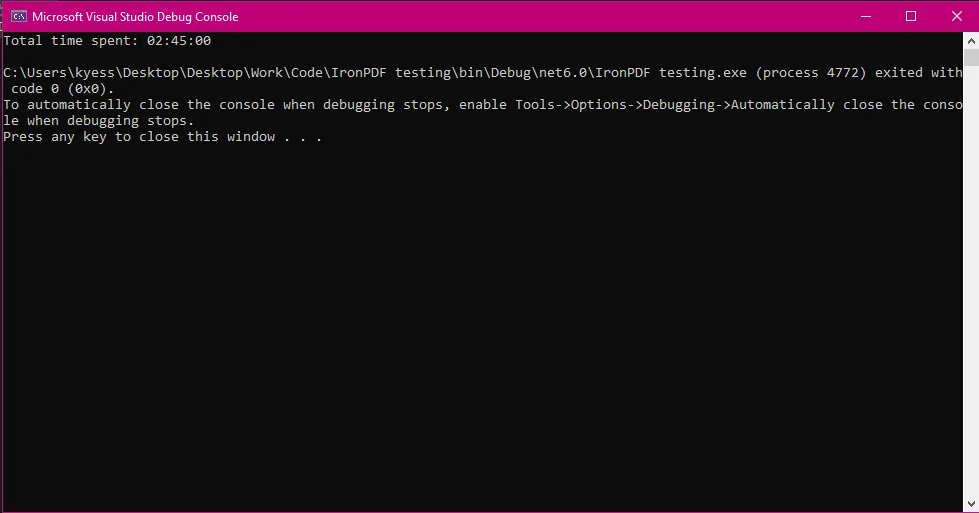
Console.WriteLine($"Total time spent: {totalTime}"); // Outputs: 02:45:00
// Creating TimeSpan instances
TimeSpan taskDuration = TimeSpan.FromHours(2.5); // 2 hours and 30 minutes
TimeSpan breakDuration = TimeSpan.FromMinutes(15); // 15 minutes
// Calculating total time spent
TimeSpan totalTime = taskDuration + breakDuration;
Console.WriteLine($"Total time spent: {totalTime}"); // Outputs: 02:45:00' Creating TimeSpan instances
Dim taskDuration As TimeSpan = TimeSpan.FromHours(2.5) ' 2 hours and 30 minutes
Dim breakDuration As TimeSpan = TimeSpan.FromMinutes(15) ' 15 minutes
' Calculating total time spent
Dim totalTime As TimeSpan = taskDuration.Add(breakDuration)
Console.WriteLine($"Total time spent: {totalTime}") ' Outputs: 02:45:00다음과 같은 출력을 표시합니다:
TimeSpan의 출력 형식 지정
TimeSpan 값을 표시할 때, C#은 여러 가지 형식 지정 옵션을 제공합니다. 서식 지정자는 TimeSpan 값을 문자열로 변환할 때 출력을 제어하는 데 사용됩니다. 이러한 서식 지정자는 TimeSpan 객체의 출력 형식을 정의하여 최종 PDF 보고서에서 표현을 사용자 지정할 수 있도록 도와줍니다. 가장 일반적으로 사용되는 서식 지정자는 다음과 같습니다:
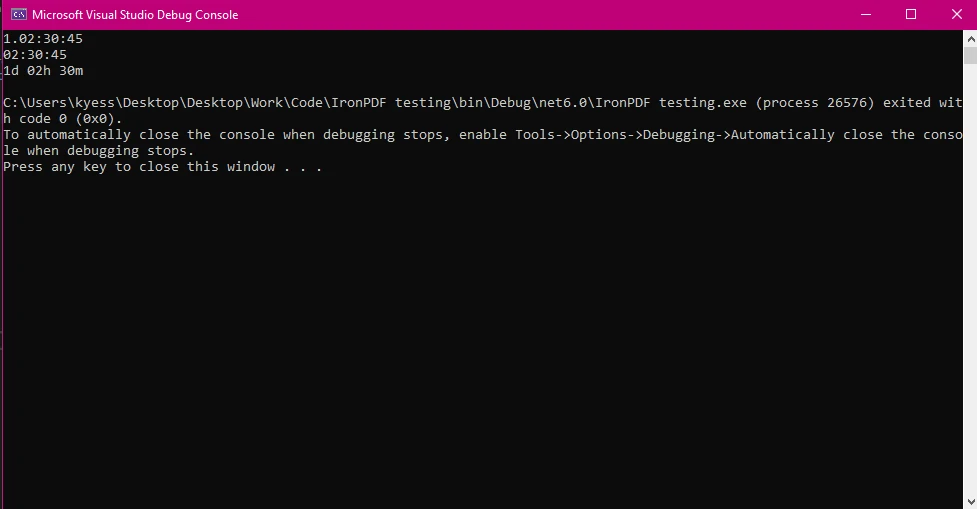
- "c": 불변 형식 (예: 1.02:30:45는 1일, 2시간, 30분, 45초를 나타냄).
- "g": 표준 서식 지정자로, 0일 경우 일 부분을 생략합니다 (예: 02:30:45).
- 사용자 정의 형식: 필요에 따라 시간과 분 또는 일과 시간을 표시할 수 있도록 사용자 정의 형식을 정의할 수 있습니다.
다음은 보고서나 로그에서 TimeSpan 출력을 형식화하는 예입니다:
TimeSpan duration = new TimeSpan(1, 2, 30, 45); // 1 day, 2 hours, 30 minutes, 45 seconds
// Default "c" format string produces the output: 1.02:30:45
Console.WriteLine(duration.ToString("c"));
// Custom format "hh:mm:ss" outputs: 26:30:45
Console.WriteLine(duration.ToString(@"hh\:mm\:ss"));
// Custom format with days, outputs: 1d 02h 30m
Console.WriteLine(duration.ToString(@"d'd 'hh'h 'mm'm '"));
TimeSpan duration = new TimeSpan(1, 2, 30, 45); // 1 day, 2 hours, 30 minutes, 45 seconds
// Default "c" format string produces the output: 1.02:30:45
Console.WriteLine(duration.ToString("c"));
// Custom format "hh:mm:ss" outputs: 26:30:45
Console.WriteLine(duration.ToString(@"hh\:mm\:ss"));
// Custom format with days, outputs: 1d 02h 30m
Console.WriteLine(duration.ToString(@"d'd 'hh'h 'mm'm '"));Dim duration As New TimeSpan(1, 2, 30, 45) ' 1 day, 2 hours, 30 minutes, 45 seconds
' Default "c" format string produces the output: 1.02:30:45
Console.WriteLine(duration.ToString("c"))
' Custom format "hh:mm:ss" outputs: 26:30:45
Console.WriteLine(duration.ToString("hh\:mm\:ss"))
' Custom format with days, outputs: 1d 02h 30m
Console.WriteLine(duration.ToString("d'd 'hh'h 'mm'm '"))이 예제는 다음과 같은 출력을 표시합니다:
IronPDF와 TimeSpan을 사용하여 PDF 생성하기
IronPDF를 .NET 프로젝트에 설정하기
IronPDF를 사용하기 시작하려면 먼저 설치해야 합니다. 이미 설치되어 있다면 다음 섹션으로 건너뛸 수 있습니다. 그렇지 않은 경우, 다음 단계는 IronPDF 라이브러리를 설치하는 방법을 다룹니다.
NuGet 패키지 관리자 콘솔을 통해
NuGet 패키지 관리자 콘솔을 사용하여 IronPDF를 설치하려면, Visual Studio를 열고 패키지 관리자 콘솔로 이동합니다. 그런 다음 다음 명령을 실행합니다:
Install-Package IronPdf
솔루션용 NuGet 패키지 관리자를 통해
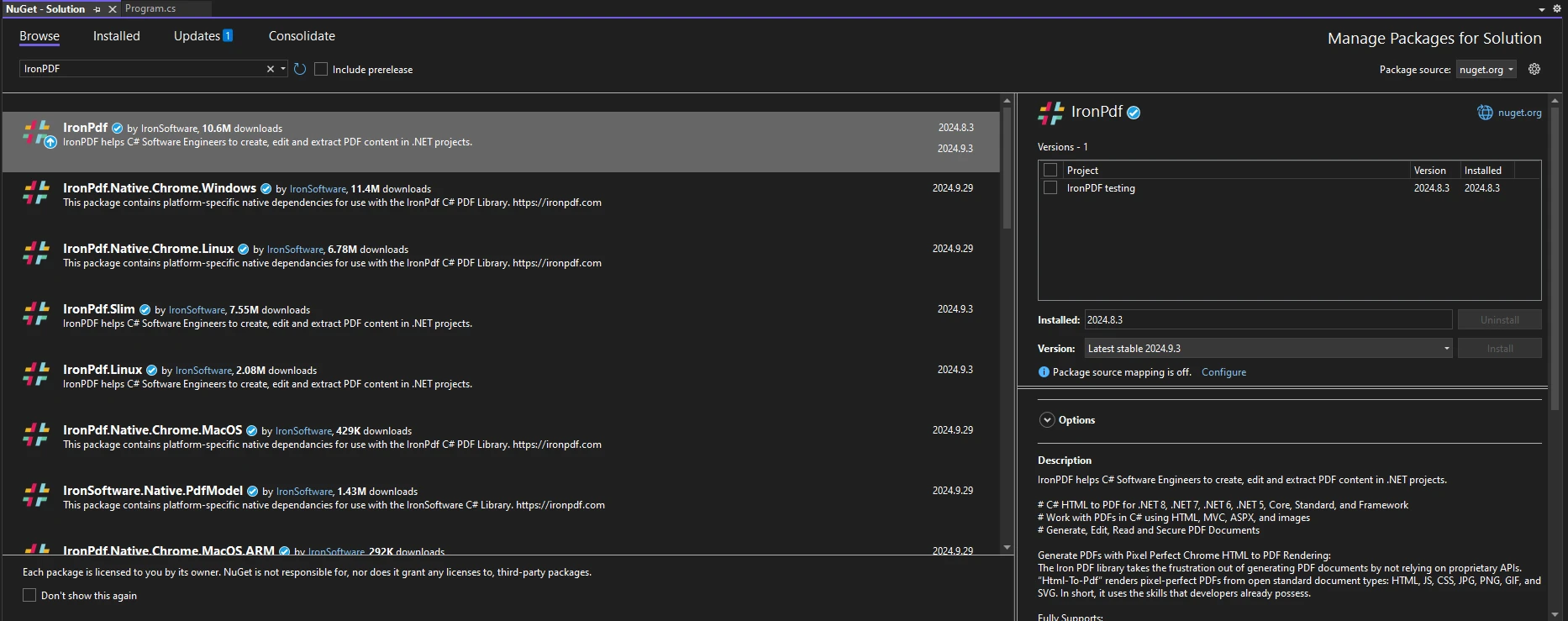
Visual Studio를 열고 "도구 -> NuGet 패키지 관리자 -> 솔루션용 NuGet 패키지 관리"로 이동하여 IronPDF를 검색합니다. 여기에서 프로젝트를 선택하고 '설치'를 클릭하기만 하면 IronPDF가 프로젝트에 추가됩니다.
IronPDF를 설치한 후, 코드 상단에 올바른 using 문만 추가하면 IronPDF를 사용할 수 있습니다:
using IronPdf;using IronPdf;Imports IronPdf이제 PDF 생성 작업을 위해 IronPDF와 TimeSpan을 사용하는 준비가 되었습니다.
IronPDF를 사용한 시간 기반 보고서 생성
IronPDF가 설정되면 TimeSpan 데이터를 사용하여 정보성 PDF 보고서를 생성할 수 있습니다. 예를 들어, 직원의 작업 기록을 생성해야 하는 시나리오를 고려해 보십시오. TimeSpan 값을 사용하여 작업 기간과 휴식 시간을 효과적으로 표시할 수 있습니다.
예제 시나리오: PDF 보고서에서 TimeSpan 값 형식화
다음은 간단한 작업 로그를 생성하는 등의 예로 PDF 보고서에서 TimeSpan 데이터를 사용하는 방법입니다:
using IronPdf;
public static void Main(string[] args)
{
    TimeSpan duration = new TimeSpan(9, 30, 25);
    var employees = new List<(string name, TimeSpan timeSpan)> {
    ("Jane Doe",  duration),
    ("John Doe", duration)
    };
    GenerateWorkLogReport(employees);
}
public static void GenerateWorkLogReport(List<(string Employee, TimeSpan Duration)> workLogs)
{
    ChromePdfRenderer renderer = new ChromePdfRenderer();
    var htmlContent = "<h1>Work Log Report</h1><table border='1'><tr><th>Employee</th><th>Duration</th></tr>";
    foreach (var log in workLogs)
    {
        htmlContent += $"<tr><td>{log.Employee}</td><td>{log.Duration.ToString(@"hh\:mm\:ss")}</td></tr>";
    }
    htmlContent += "</table>";
    var pdf = renderer.RenderHtmlAsPdf(htmlContent);
    pdf.SaveAs("WorkLogReport.pdf");
}
using IronPdf;
public static void Main(string[] args)
{
TimeSpan duration = new TimeSpan(9, 30, 25);
var employees = new List<(string name, TimeSpan timeSpan)> {
("Jane Doe", duration),
("John Doe", duration)
};
GenerateWorkLogReport(employees);
}
public static void GenerateWorkLogReport(List<(string Employee, TimeSpan Duration)> workLogs)
{
ChromePdfRenderer renderer = new ChromePdfRenderer();
var htmlContent = "<h1>Work Log Report</h1><table border='1'><tr><th>Employee</th><th>Duration</th></tr>";
foreach (var log in workLogs)
{
htmlContent += $"<tr><td>{log.Employee}</td><td>{log.Duration.ToString(@"hh\:mm\:ss")}</td></tr>";
}
htmlContent += "</table>";
var pdf = renderer.RenderHtmlAsPdf(htmlContent);
pdf.SaveAs("WorkLogReport.pdf");
}Imports IronPdf
Public Shared Sub Main(ByVal args() As String)
Dim duration As New TimeSpan(9, 30, 25)
Dim employees = New List(Of (name As String, timeSpan As TimeSpan)) From {("Jane Doe", duration), ("John Doe", duration)}
GenerateWorkLogReport(employees)
End Sub
Public Shared Sub GenerateWorkLogReport(ByVal workLogs As List(Of (Employee As String, Duration As TimeSpan)))
Dim renderer As New ChromePdfRenderer()
Dim htmlContent = "<h1>Work Log Report</h1><table border='1'><tr><th>Employee</th><th>Duration</th></tr>"
For Each log In workLogs
htmlContent &= $"<tr><td>{log.Employee}</td><td>{log.Duration.ToString("hh\:mm\:ss")}</td></tr>"
Next log
htmlContent &= "</table>"
Dim pdf = renderer.RenderHtmlAsPdf(htmlContent)
pdf.SaveAs("WorkLogReport.pdf")
End Sub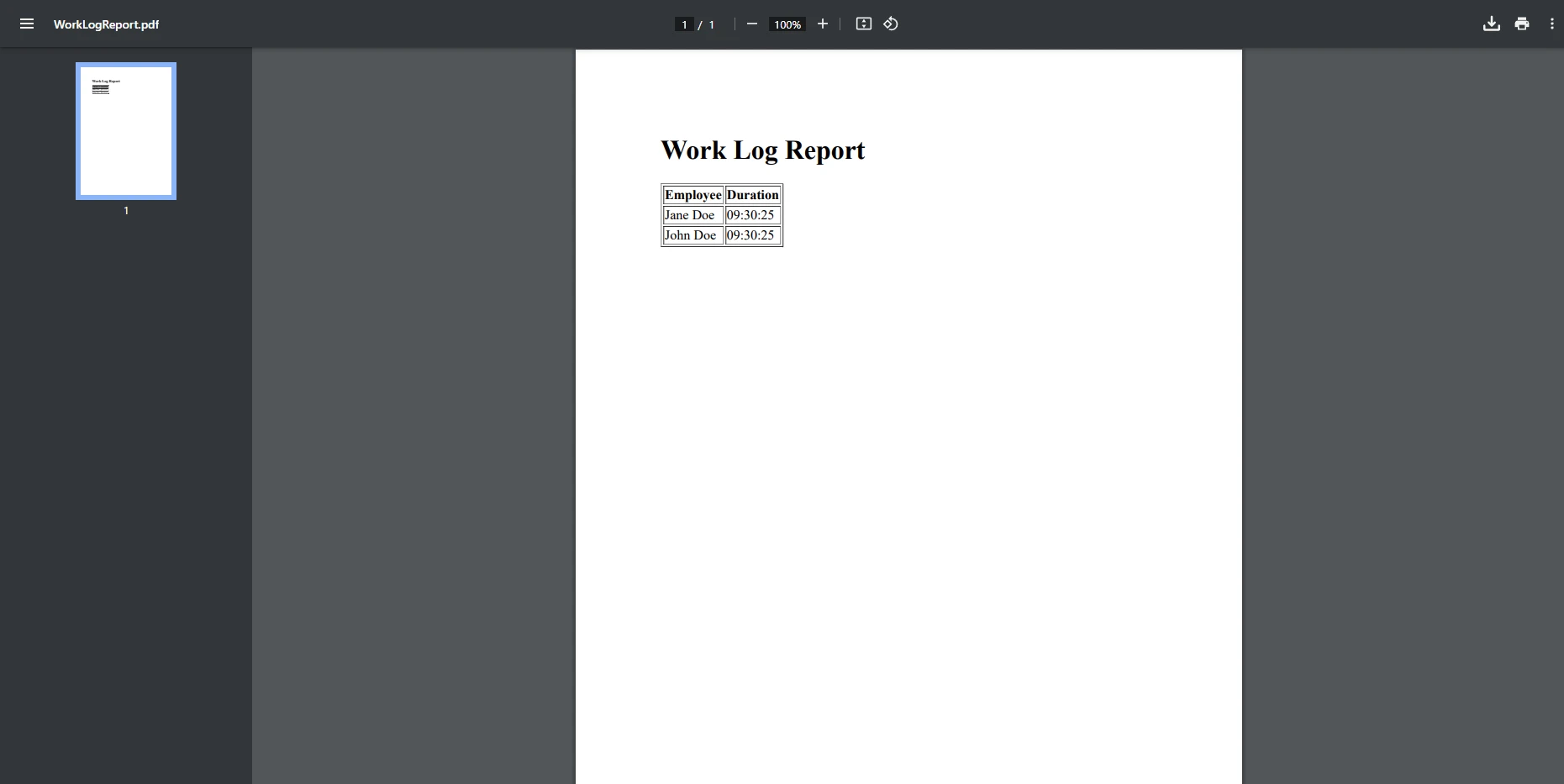
이 예제에서 우리는 직원 작업 로그를 표시하는 간단한 표를 만들었습니다. GenerateWorkLogReport 메서드는 형식화된 TimeSpan 값이 포함된 HTML 표를 생성하며, 그 후 PDF 문서로 변환됩니다. IronPDF의 ChromePdfRenderer 클래스를 사용하여 HTML 콘텐츠를 PDF 형식으로 렌더링합니다. PdfDocument는 새로 생성된 PDF를 처리하고 저장하는 데 사용되는 PDF 객체를 생성하는 데 사용됩니다.
보고서에서 TimeSpan을 포맷하고 사용하는 고급 기법
다양한 사용 사례에 맞춘 TimeSpan 출력 사용자 지정
TimeSpan 출력을 사용자 지정하면 보고서의 가독성을 크게 향상시킬 수 있습니다. 예를 들어, 시간과 분만 표시할 필요가 있을 경우 TimeSpan을 적절히 형식화할 수 있습니다. 이 예제에서는 지난 예제에서 만든 동일한 직원 데이터를 가져와서 TimeSpan을 그들이 작업한 시간과 분만 표시하도록 형식화할 것입니다. 이 시나리오에서는 초는 기록에 필요하지 않으며 단순히 불필요한 공간을 차지하므로, 이를 제거하여 형식화할 것입니다:
using IronPdf;
class Program
{
    public static void Main(string[] args)
    {
        TimeSpan duration = new TimeSpan(9, 30, 25);
        var employees = new List<(string name, TimeSpan timeSpan)> {
        ("Jane Doe",  duration),
        ("John Doe", duration)
        };
        GenerateWorkLogReport(employees);
    }
    public static void GenerateWorkLogReport(List<(string Employee, TimeSpan Duration)> workLogs)
    {
        ChromePdfRenderer renderer = new ChromePdfRenderer();
        var htmlContent = "<h1>Work Log Report</h1><table border='1'><tr><th>Employee</th><th>Duration</th></tr>";
        foreach (var log in workLogs)
        {
            // Custom format string to format the TimeSpan value for display
            string formattedDuration = log.Duration.ToString(@"hh\:mm");
            htmlContent += $"<tr><td>{log.Employee}</td><td>{formattedDuration}</td></tr>";
        }
        htmlContent += "</table>";
        var pdf = renderer.RenderHtmlAsPdf(htmlContent);
        pdf.SaveAs("WorkLogReport.pdf");
    }
}
using IronPdf;
class Program
{
public static void Main(string[] args)
{
TimeSpan duration = new TimeSpan(9, 30, 25);
var employees = new List<(string name, TimeSpan timeSpan)> {
("Jane Doe", duration),
("John Doe", duration)
};
GenerateWorkLogReport(employees);
}
public static void GenerateWorkLogReport(List<(string Employee, TimeSpan Duration)> workLogs)
{
ChromePdfRenderer renderer = new ChromePdfRenderer();
var htmlContent = "<h1>Work Log Report</h1><table border='1'><tr><th>Employee</th><th>Duration</th></tr>";
foreach (var log in workLogs)
{
// Custom format string to format the TimeSpan value for display
string formattedDuration = log.Duration.ToString(@"hh\:mm");
htmlContent += $"<tr><td>{log.Employee}</td><td>{formattedDuration}</td></tr>";
}
htmlContent += "</table>";
var pdf = renderer.RenderHtmlAsPdf(htmlContent);
pdf.SaveAs("WorkLogReport.pdf");
}
}Imports IronPdf
Friend Class Program
Public Shared Sub Main(ByVal args() As String)
Dim duration As New TimeSpan(9, 30, 25)
Dim employees = New List(Of (name As String, timeSpan As TimeSpan)) From {("Jane Doe", duration), ("John Doe", duration)}
GenerateWorkLogReport(employees)
End Sub
Public Shared Sub GenerateWorkLogReport(ByVal workLogs As List(Of (Employee As String, Duration As TimeSpan)))
Dim renderer As New ChromePdfRenderer()
Dim htmlContent = "<h1>Work Log Report</h1><table border='1'><tr><th>Employee</th><th>Duration</th></tr>"
For Each log In workLogs
' Custom format string to format the TimeSpan value for display
Dim formattedDuration As String = log.Duration.ToString("hh\:mm")
htmlContent &= $"<tr><td>{log.Employee}</td><td>{formattedDuration}</td></tr>"
Next log
htmlContent &= "</table>"
Dim pdf = renderer.RenderHtmlAsPdf(htmlContent)
pdf.SaveAs("WorkLogReport.pdf")
End Sub
End Class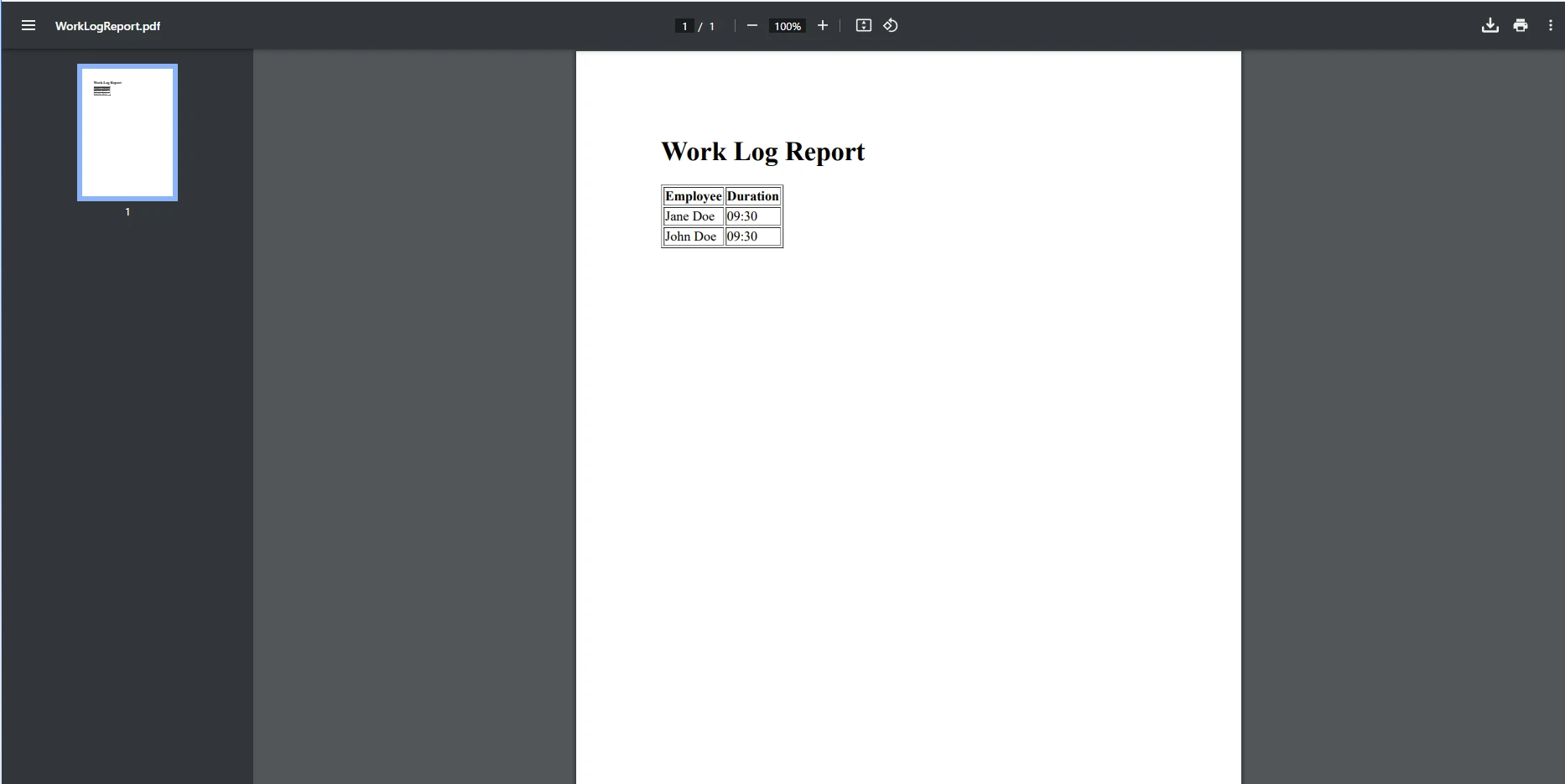
이 예제에서는 ToString(@"hh\:mm")을 사용하여 TimeSpan을 사용자 정의 형식 문자열로 09:30(전체 시간 및 분)으로 형식화합니다. 이렇게 하면 TimeSpan이 문서의 가독성을 유지하기 위해 원하는 방식으로 표시되도록 할 수 있습니다. 이는 또한 문자열을 TimeSpan으로 구문 분석하여 역으로 수행할 수 있습니다. 구문 분석은 특정 형식(예: "hh:mm" 또는 "d.hh:mm")을 따르는 입력 문자열을 C#이 프로그래밍적으로 처리할 수 있는 실제 TimeSpan 객체로 변환합니다.
긴 시간 간격 처리와 읽기 쉽게 포맷하기
큰 TimeSpan 값을 다룰 때는 읽기 쉽게 포맷하는 것이 중요합니다. 예를 들어, 긴 지속 시간을 "3일, 5시간"과 같은 더 이해하기 쉬운 형식으로 변환할 수 있습니다:
class Program
{
    public static void Main(string[] args)
    {
        // Sample data: List of employee names and their work durations (TimeSpan)
        var workLogs = new List<(string Employee, TimeSpan Duration)>
        {
            ("Alice", new TimeSpan(5, 30, 0)), // 5 hours, 30 minutes
            ("Bob", new TimeSpan(3, 15, 0)),   // 3 hours, 15 minutes
            ("Charlie", new TimeSpan(7, 45, 0)) // 7 hours, 45 minutes
        };
        // Create the HTML content for the PDF report
        string htmlContent = @"
            <h1>Work Log Report</h1>
            <table border='1' cellpadding='5' cellspacing='0'>
                <tr>
                    <th>Employee</th>
                    <th>Work Duration (hh:mm)</th>
                </tr>";
        // Loop through the work logs and add rows to the table
        foreach (var log in workLogs)
        {
            string formattedDuration = FormatLargeTimeSpan(log.Duration);  // Custom method to format large TimeSpan values
            htmlContent += $"<tr><td>{log.Employee}</td><td>{formattedDuration}</td></tr>";
        }
        // Close the HTML table
        htmlContent += "</table>";
        // Create a new HtmlToPdf renderer
        ChromePdfRenderer renderer = new ChromePdfRenderer();
        // Render the HTML content as a PDF
        PdfDocument pdf = renderer.RenderHtmlAsPdf(htmlContent);
        // Save the PDF to a file
        pdf.SaveAs("WorkLogReport.pdf");
    }
    // Custom method to handle the formatting operation
    static string FormatLargeTimeSpan(TimeSpan timeSpan)
    {
        // Check if there are days in the TimeSpan and format accordingly
        if (timeSpan.TotalDays >= 1)
        {
            return string.Format("{0} days, {1} hours, {2} minutes",
                (int)timeSpan.TotalDays,
                timeSpan.Hours,
                timeSpan.Minutes);
        }
        else
        {
            // If the duration is less than a day, show only hours and minutes
            return string.Format("{0} hours, {1} minutes", timeSpan.Hours, timeSpan.Minutes);
        }
    }
}
class Program
{
public static void Main(string[] args)
{
// Sample data: List of employee names and their work durations (TimeSpan)
var workLogs = new List<(string Employee, TimeSpan Duration)>
{
("Alice", new TimeSpan(5, 30, 0)), // 5 hours, 30 minutes
("Bob", new TimeSpan(3, 15, 0)), // 3 hours, 15 minutes
("Charlie", new TimeSpan(7, 45, 0)) // 7 hours, 45 minutes
};
// Create the HTML content for the PDF report
string htmlContent = @"
<h1>Work Log Report</h1>
<table border='1' cellpadding='5' cellspacing='0'>
<tr>
<th>Employee</th>
<th>Work Duration (hh:mm)</th>
</tr>";
// Loop through the work logs and add rows to the table
foreach (var log in workLogs)
{
string formattedDuration = FormatLargeTimeSpan(log.Duration); // Custom method to format large TimeSpan values
htmlContent += $"<tr><td>{log.Employee}</td><td>{formattedDuration}</td></tr>";
}
// Close the HTML table
htmlContent += "</table>";
// Create a new HtmlToPdf renderer
ChromePdfRenderer renderer = new ChromePdfRenderer();
// Render the HTML content as a PDF
PdfDocument pdf = renderer.RenderHtmlAsPdf(htmlContent);
// Save the PDF to a file
pdf.SaveAs("WorkLogReport.pdf");
}
// Custom method to handle the formatting operation
static string FormatLargeTimeSpan(TimeSpan timeSpan)
{
// Check if there are days in the TimeSpan and format accordingly
if (timeSpan.TotalDays >= 1)
{
return string.Format("{0} days, {1} hours, {2} minutes",
(int)timeSpan.TotalDays,
timeSpan.Hours,
timeSpan.Minutes);
}
else
{
// If the duration is less than a day, show only hours and minutes
return string.Format("{0} hours, {1} minutes", timeSpan.Hours, timeSpan.Minutes);
}
}
}Imports System
Friend Class Program
Public Shared Sub Main(ByVal args() As String)
' Sample data: List of employee names and their work durations (TimeSpan)
Dim workLogs = New List(Of (Employee As String, Duration As TimeSpan)) From {("Alice", New TimeSpan(5, 30, 0)), ("Bob", New TimeSpan(3, 15, 0)), ("Charlie", New TimeSpan(7, 45, 0))}
' Create the HTML content for the PDF report
Dim htmlContent As String = "
<h1>Work Log Report</h1>
<table border='1' cellpadding='5' cellspacing='0'>
<tr>
<th>Employee</th>
<th>Work Duration (hh:mm)</th>
</tr>"
' Loop through the work logs and add rows to the table
For Each log In workLogs
Dim formattedDuration As String = FormatLargeTimeSpan(log.Duration) ' Custom method to format large TimeSpan values
htmlContent &= $"<tr><td>{log.Employee}</td><td>{formattedDuration}</td></tr>"
Next log
' Close the HTML table
htmlContent &= "</table>"
' Create a new HtmlToPdf renderer
Dim renderer As New ChromePdfRenderer()
' Render the HTML content as a PDF
Dim pdf As PdfDocument = renderer.RenderHtmlAsPdf(htmlContent)
' Save the PDF to a file
pdf.SaveAs("WorkLogReport.pdf")
End Sub
' Custom method to handle the formatting operation
Private Shared Function FormatLargeTimeSpan(ByVal timeSpan As TimeSpan) As String
' Check if there are days in the TimeSpan and format accordingly
If timeSpan.TotalDays >= 1 Then
Return String.Format("{0} days, {1} hours, {2} minutes", CInt(Math.Truncate(timeSpan.TotalDays)), timeSpan.Hours, timeSpan.Minutes)
Else
' If the duration is less than a day, show only hours and minutes
Return String.Format("{0} hours, {1} minutes", timeSpan.Hours, timeSpan.Minutes)
End If
End Function
End Class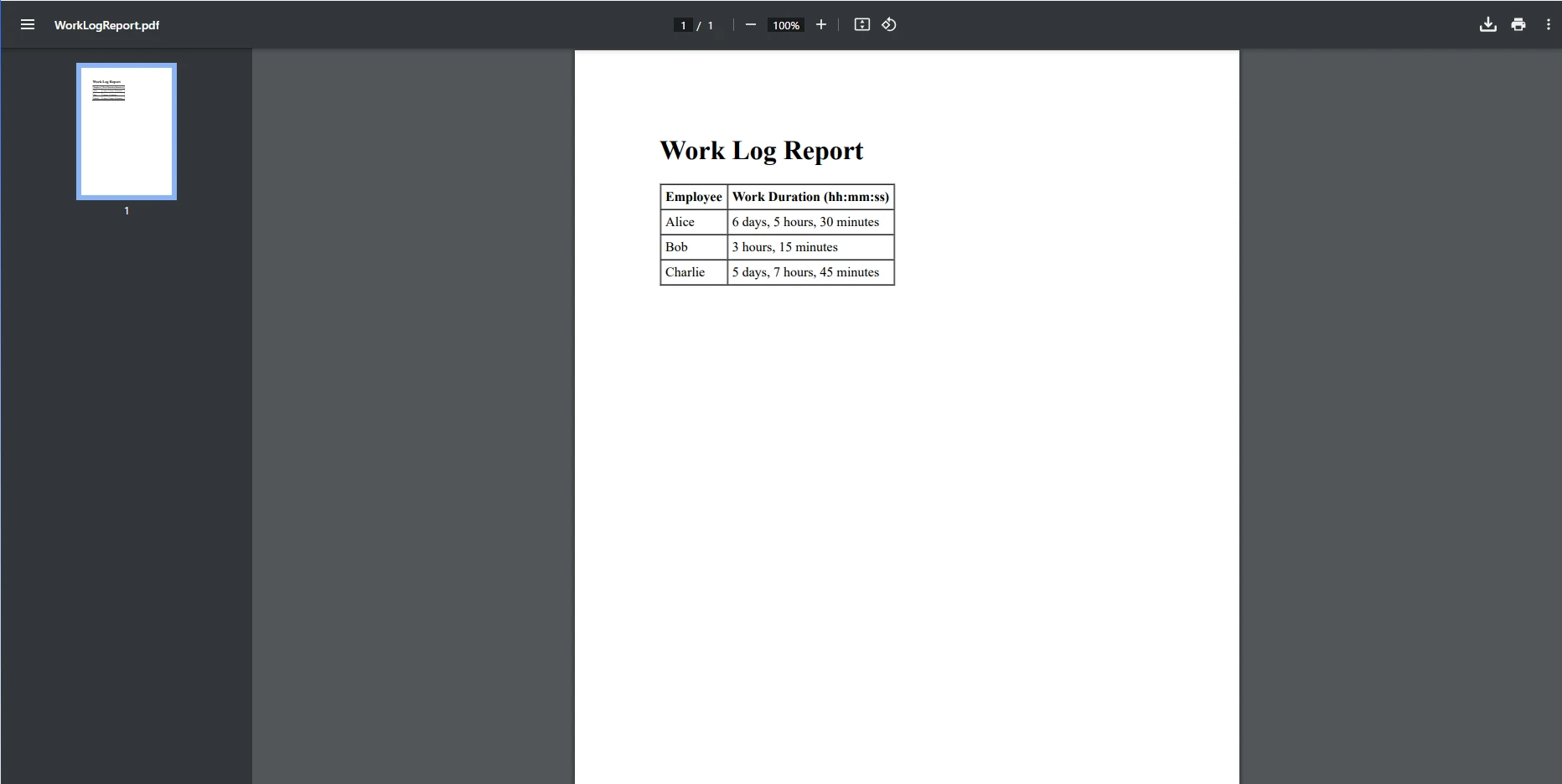
이 예에서는 사용자 정의 메서드 FormatLargeTimeSpan이 큰 TimeSpan 값을 "6일, 5시간, 30분"과 같은 읽기 쉬운 형식으로 변환합니다. 이 메서드는 TimeSpan 값에 날이 포함되는지를 확인하고 복합 형식을 지원하는 메서드를 사용하여 출력 형식을 조정합니다.
- 총 지속 시간이 24시간을 초과하면 날 수가 추출되어 나머지 시간 및 분과 함께 표시됩니다.
- 일보다 짧은 간격의 경우, 시간과 분만 표시됩니다.
TimeSpan 기반 PDF 생성을 위한 IronPDF 선택 이유
보고서 애플리케이션을 위한 IronPDF의 주요 이점
IronPDF는 문자열, 시간, HTML 데이터를 기반으로 동적 PDF를 생성하는 강력한 기능으로 두각을 나타냅니다. IronPDF를 사용하면 PDF 관련 작업을 쉽게 처리할 수 있습니다. 기본 PDF 생성부터 안전한 PDF 암호화까지, IronPDF가 지원합니다. 주요 이점 일부는 다음과 같습니다:
- HTML-TO-PDF 변환: 레이아웃과 디자인을 유지하면서 HTML 콘텐츠를 PDF로 쉽게 변환합니다. IronPDF는 DOCX, 이미지, URL, ASPX를 포함한 여러 다른 파일 형식의 PDF 변환도 처리할 수 있습니다.
- 맞춤화 옵션: 맞춤 템플릿과 형식을 사용하여 특정 비즈니스 요구에 맞게 보고서를 조정하고, PDF 파일에 전문적인 느낌을 주는 헤더 및 푸터, 목차 또는 사용자 지정 백그라운드를 제공합니다.
- 픽셀 완벽한 PDF: IronPDF의 강력한 최신 웹 표준 지원 덕분에 고품질 PDF 문서를 생성하여 웹 콘텐츠에서 생성된 PDF조차도 일관된 픽셀 완벽함을 유지할 수 있습니다.
.NET 및 TimeSpan 포맷과 원활한 통합
IronPDF는 .NET 애플리케이션과 매끄럽게 통합되어 개발자가 TimeSpan 구조를 효과적으로 활용할 수 있습니다. IronPDF를 사용하여 적게는 노력으로 시간이 포맷된 데이터가 포함된 전문 보고서를 생성하여 보고 과정을 효율적이고 간단하게 만듭니다.
결론
이 글에서는 C#에서 TimeSpan 값을 포맷하고 처리하여 IronPDF에 원활하게 통합하여 동적 시간 기반 보고서를 생성하는 방법을 탐구했습니다. C# TimeSpan 포맷 구조는 프로젝트 기간, 작업 로그, 작업 완료 시간 등과 같은 시간 간격을 표현하는 필수 도구입니다. 짧은 시간 구간이든 며칠, 몇 시간, 몇 분에 걸치는 큰 간격이든, C#은 인간이 읽을 수 있는 형식으로 이 데이터를 제공하기 위해 유연한 포맷 옵션을 제공합니다. 문화권에 대한 포맷 규칙을 따르는 것은 물론, 시간 입력을 받고, 문자열을 TimeSpan으로 구문 분석하는 등으로 확장된 예를 진행할 수 있습니다.
IronPDF는 정밀한 HTML에서 PDF로의 변환에 뛰어나, 데이터 기반 애플리케이션에서 보고서를 생성하는 이상적인 도구가 됩니다. C#과의 통합 덕분에 TimeSpan과 같은 복잡한 구조를 고품질 PDF에 쉽게 포함할 수 있습니다.
이제 TimeSpan 값을 포맷하고 IronPDF를 사용하여 PDF 보고서에 통합하는 방법을 이해했으니 다음 단계로 넘어갈 시간입니다. 무료 체험판을 다운로드하여 프로젝트를 위한 동적, 데이터 기반 보고서를 생성할 수 있는 IronPDF의 전체 잠재력을 탐험하십시오. IronPDF를 사용하면 시간 기반 데이터를 매끈하고 전문적인 문서로 변환할 수 있습니다.
자주 묻는 질문
C#에서 HTML을 PDF로 변환하는 방법은 무엇인가요?
IronPDF의 RenderHtmlAsPdf 메서드를 사용하여 HTML 문자열을 PDF로 변환할 수 있습니다. 또한 RenderHtmlFileAsPdf 사용하여 HTML 파일을 PDF로 변환할 수도 있습니다.
C#에서 TimeSpan 구조는 무엇을 위해 사용됩니까?
C#에서 TimeSpan 구조는 시간 간격을 나타내는 데 사용됩니다. 이는 지속 시간 측정, 시간 차이 계산과 같은 작업을 단순화하며, IronPDF와 같은 PDF 생성 라이브러리와 통합되어 시간 기반 보고서를 만들 수 있습니다.
PDF 보고서에 포함하기 위해 TimeSpan 객체를 어떻게 포맷하나요?
PDF 보고서에 TimeSpan 객체를 포함하기 위해 다양한 포맷 문자열(예: 'c', 'g' 또는 사용자 정의 포맷)을 사용할 수 있습니다. 포맷된 시간 데이터는 IronPDF를 사용하여 PDF로 렌더링할 수 있습니다.
PDF 보고서를 생성할 때 TimeSpan의 출력을 사용자 정의할 수 있나요?
예, 포맷 문자열을 사용하여 특정 보고 요구에 맞게 TimeSpan 출력을 사용자 정의할 수 있습니다. 시간과 분만 표시하는 등의 요구에 맞춰 IronPDF는 이러한 사용자 정의 포맷 문자열이 PDF 보고서에 원활하게 통합되도록 합니다.
PDF 생성 라이브러리를 C#에서 TimeSpan과 어떻게 통합하나요?
C#에서 IronPDF 같은 PDF 생성 라이브러리를 TimeSpan과 통합하려면 먼저 필요한 포맷으로 TimeSpan 데이터를 포맷한 다음, 이 데이터 및 다른 콘텐츠와 함께 IronPDF를 사용하여 PDF 문서로 변환해야 합니다.
PDF 생성 라이브러리를 .NET 프로젝트에 설치하는 단계는 무엇인가요?
PDF 생성 라이브러리를 .NET 프로젝트에 설치하려면 Visual Studio의 NuGet 패키지 관리자 콘솔을 사용해 적절한 설치 명령을 실행하거나 솔루션에 NuGet 패키지 관리자를 사용하여 라이브러리를 추가할 수 있습니다.
PDF 보고서에서 큰 TimeSpan 값을 보다 읽기 쉽게 처리하려면 어떻게 해야 하나요?
큰 TimeSpan 값을 보다 읽기 쉽게 하기 위해 '3일, 5시간'과 같은 사람이 읽기 쉬운 문자열로 변환할 수 있습니다. IronPDF는 이러한 형식화된 문자열을 PDF 보고서에 포함시켜 보다 나은 표현을 가능하게 합니다.
보고서를 생성할 때 PDF 생성 라이브러리를 사용하는 장점은 무엇인가요?
IronPDF 같은 PDF 생성 라이브러리는 HTML을 PDF로 변환하고 사용자 정의 템플릿을 적용하며 시각적 일관성을 유지하는 고품질의 전문적인 보고서를 쉽게 생성할 수 있는 등 여러 가지 장점을 제공합니다.










 무료로 시작하세요
 무료로 시작하세요
 무료 라이브 데모 예약하기





 신용카드나 계정 생성은 필요하지 않습니다.










