




업데이트됨 2026년 4월 23일
.NET에서 Microsoft.Extensions.AI로 LLM 통합 간소화
AI는 소프트웨어 개발을 변혁하고 있으나, 대규모 언어 모델(LLM)을 .NET에 통합하는 것은 지금까지 복잡했습니다. 현대에는 OpenAI 기반 PDF 파싱, 데이터 추출 및 콘텐츠 요약을 .NET 애플리케이션에 가져오는 IronPdf.AI로 AI 통합을 더욱 확장하세요.
더 읽어보기

DuckDB.NET은 DuckDB 네이티브 라이브러리를 위한 .NET 바인딩의 오픈 소스 제공자로, C#과 원활하게 통합되도록 설계되었습니다. 이는 ADO.NET 제공자를 제공하여, .NET 애플리케이션 내에서 DuckDB라는 로우 레벨 바인딩 라이브러리를 쉽게 사용할 수 있도록 합니다. 이 패키지는 C# 환경에서 DuckDB의 강력한 분석 기능을 활용하려는 개발자들에게 이상적입니다.
DuckDB.NET의 설치는 간단합니다. 다음과 같이 .NET CLI를 사용하여 프로젝트에 추가할 수 있습니다:
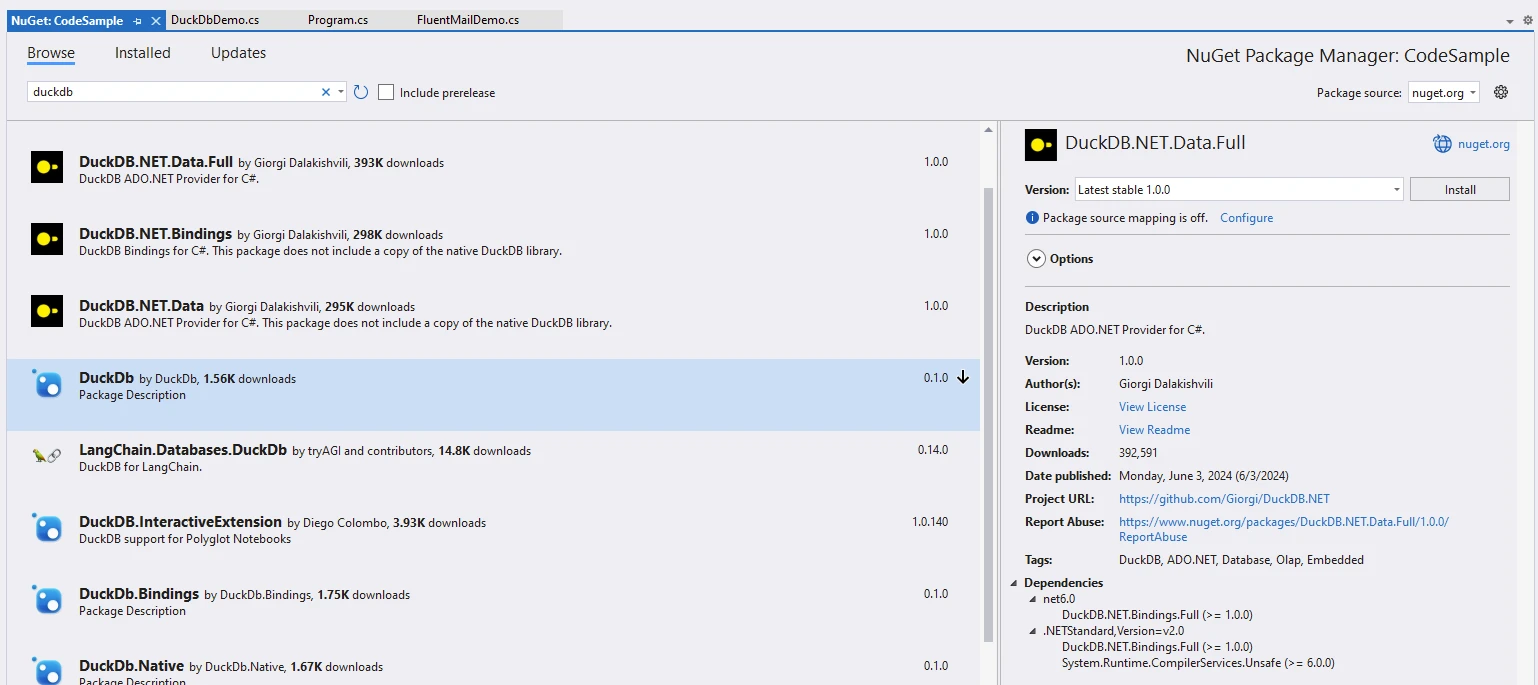
dotnet add package DuckDB.NET.Data.Full다른 방법으로, Visual Studio의 NuGet 패키지 관리자를 통해 설치할 수 있습니다.
설치가 완료되면, C# 애플리케이션 내에서 DuckDB.NET을 사용하여 SQL 쿼리를 실행할 수 있습니다. 다음은 간단한 예입니다.
using System;
using DuckDB.NET.Data;

class Program
{
    static void Main()
    {
        // Create and open a connection to an in-memory DuckDB database
        using var duckdbconnection = new DuckDBConnection("Data Source=:memory:");
        duckdbconnection.Open();

        // Create a command associated with the connection
        using var command = duckdbconnection.CreateCommand();
        // Create a table named 'integers'
        command.CommandText = "CREATE TABLE integers(foo INTEGER, bar INTEGER);";
        command.ExecuteNonQuery();

        // Insert some data into the 'integers' table
        command.CommandText = "INSERT INTO integers VALUES (3, 4), (5, 6), (7, 8);";
        command.ExecuteNonQuery();

        // Retrieve the count of rows in the 'integers' table
        command.CommandText = "SELECT count(*) FROM integers";
        var executeScalar = command.ExecuteScalar();

        // Select all values from the 'integers' table
        command.CommandText = "SELECT foo, bar FROM integers;";

        // Execute the query and process the results
        using var reader = command.ExecuteReader();
        while (reader.Read())
        {
            Console.WriteLine($"{reader.GetInt32(0)}, {reader.GetInt32(1)}");
        }
    }
}Imports System
Imports DuckDB.NET.Data
Module Program
Sub Main()
' Create and open a connection to an in-memory DuckDB database
Using duckdbconnection As New DuckDBConnection("Data Source=:memory:")
duckdbconnection.Open()
' Create a command associated with the connection
Using command = duckdbconnection.CreateCommand()
' Create a table named 'integers'
command.CommandText = "CREATE TABLE integers(foo INTEGER, bar INTEGER);"
command.ExecuteNonQuery()
' Insert some data into the 'integers' table
command.CommandText = "INSERT INTO integers VALUES (3, 4), (5, 6), (7, 8);"
command.ExecuteNonQuery()
' Retrieve the count of rows in the 'integers' table
command.CommandText = "SELECT count(*) FROM integers"
Dim executeScalar = command.ExecuteScalar()
' Select all values from the 'integers' table
command.CommandText = "SELECT foo, bar FROM integers;"
' Execute the query and process the results
Using reader = command.ExecuteReader()
While reader.Read()
Console.WriteLine($"{reader.GetInt32(0)}, {reader.GetInt32(1)}")
End While
End Using
End Using
End Using
End Sub
End Module이 예제는 DuckDB.NET을 사용하여 테이블을 생성하고, 데이터를 삽입하고, 데이터를 쿼리하는 방법을 보여줍니다.
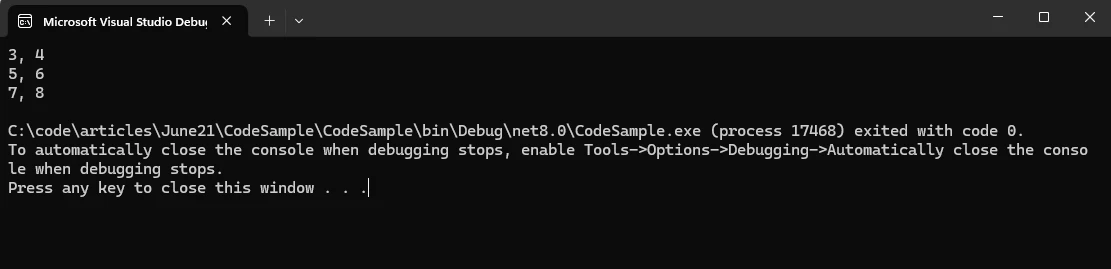
DuckDB.NET은 CSV 및 Parquet 파일을 포함한 다양한 형식의 데이터를 읽는 것을 지원합니다. 여기 CSV 파일에서 데이터를 읽는 방법이 있습니다:
command.CommandText = "COPY integers FROM 'example.csv' (FORMAT CSV);";
command.ExecuteNonQuery();
command.CommandText = "COPY integers FROM 'example.csv' (FORMAT CSV)"
command.ExecuteNonQuery()DuckDB.NET은 데이터 프레임과 통합할 수 있으며, 친숙한 SQL 구문을 사용하여 데이터를 조작할 수 있습니다. 이는 특히 데이터 분석 작업에 유용합니다.
쿼리 결과를 목록이나 사용자 지정 객체와 같은 다양한 형식으로 변환하여, 애플리케이션 내에서 데이터를 쉽게 다룰 수 있게 합니다:
var results = new List<(int foo, int bar)>();

// Read and store results to a List
while (reader.Read())
{
    results.Add((reader.GetInt32(0), reader.GetInt32(1)));
    // You can also use a loop with an index to iterate the results
}Dim results = New List(Of (foo As Integer, bar As Integer))()
' Read and store results to a List
Do While reader.Read()
results.Add((reader.GetInt32(0), reader.GetInt32(1)))
' You can also use a loop with an index to iterate the results
LoopDuckDB.NET은 다양한 형식으로 디스크에 데이터를 쓰는 것을 지원합니다. COPY 문을 사용하여 데이터를 CSV 파일로 내보낼 수 있습니다:
command.CommandText = "COPY integers TO 'output.csv' (FORMAT CSV);";
command.ExecuteNonQuery();
command.CommandText = "COPY integers TO 'output.csv' (FORMAT CSV)"
command.ExecuteNonQuery()
IronPDF는 .NET 프로젝트에서 PDF 문서의 생성, 관리 및 콘텐츠 추출을 허용하는 C# PDF 라이브러리입니다. 다음은 몇 가지 주요 기능입니다:
IronPDF는 웹페이지, URL, HTML을 PDF로 변환할 수 있는 편리한 도구입니다. 가장 좋은 점은? PDF는 원본 웹 페이지와 똑같이 보인다 – 모든 서식과 스타일을 유지합니다. 그래서 온라인에서 보고서나 청구서 같은 것을 PDF로 만들 필요가 있다면, IronPDF가 당신의 선택입니다.
using IronPdf;
class Program
{
static void Main(string[] args)
{
var renderer = new ChromePdfRenderer();
// 1. Convert HTML String to PDF
var htmlContent = "<h1>Hello, IronPDF!</h1><p>This is a PDF from an HTML string.</p>";
var pdfFromHtmlString = renderer.RenderHtmlAsPdf(htmlContent);
pdfFromHtmlString.SaveAs("HTMLStringToPDF.pdf");
// 2. Convert HTML File to PDF
var htmlFilePath = "path_to_your_html_file.html"; // Specify the path to your HTML file
var pdfFromHtmlFile = renderer.RenderHtmlFileAsPdf(htmlFilePath);
pdfFromHtmlFile.SaveAs("HTMLFileToPDF.pdf");
// 3. Convert URL to PDF
var url = "http://ironpdf.com"; // Specify the URL
var pdfFromUrl = renderer.RenderUrlAsPdf(url);
pdfFromUrl.SaveAs("URLToPDF.pdf");
}
}Imports IronPdf
Friend Class Program
Shared Sub Main(ByVal args() As String)
Dim renderer = New ChromePdfRenderer()
' 1. Convert HTML String to PDF
Dim htmlContent = "<h1>Hello, IronPDF!</h1><p>This is a PDF from an HTML string.</p>"
Dim pdfFromHtmlString = renderer.RenderHtmlAsPdf(htmlContent)
pdfFromHtmlString.SaveAs("HTMLStringToPDF.pdf")
' 2. Convert HTML File to PDF
Dim htmlFilePath = "path_to_your_html_file.html" ' Specify the path to your HTML file
Dim pdfFromHtmlFile = renderer.RenderHtmlFileAsPdf(htmlFilePath)
pdfFromHtmlFile.SaveAs("HTMLFileToPDF.pdf")
' 3. Convert URL to PDF
Dim url = "http://ironpdf.com" ' Specify the URL
Dim pdfFromUrl = renderer.RenderUrlAsPdf(url)
pdfFromUrl.SaveAs("URLToPDF.pdf")
End Sub
End ClassHTML을 PDF로 변환:
이미지 및 콘텐츠 변환:
편집 및 조작:
크로스 플랫폼 지원:
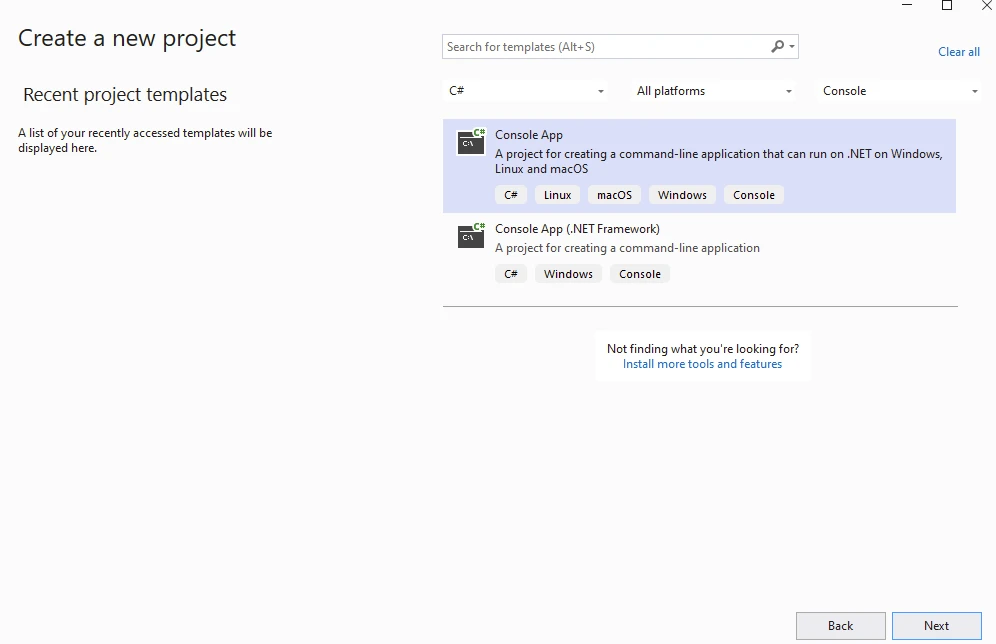
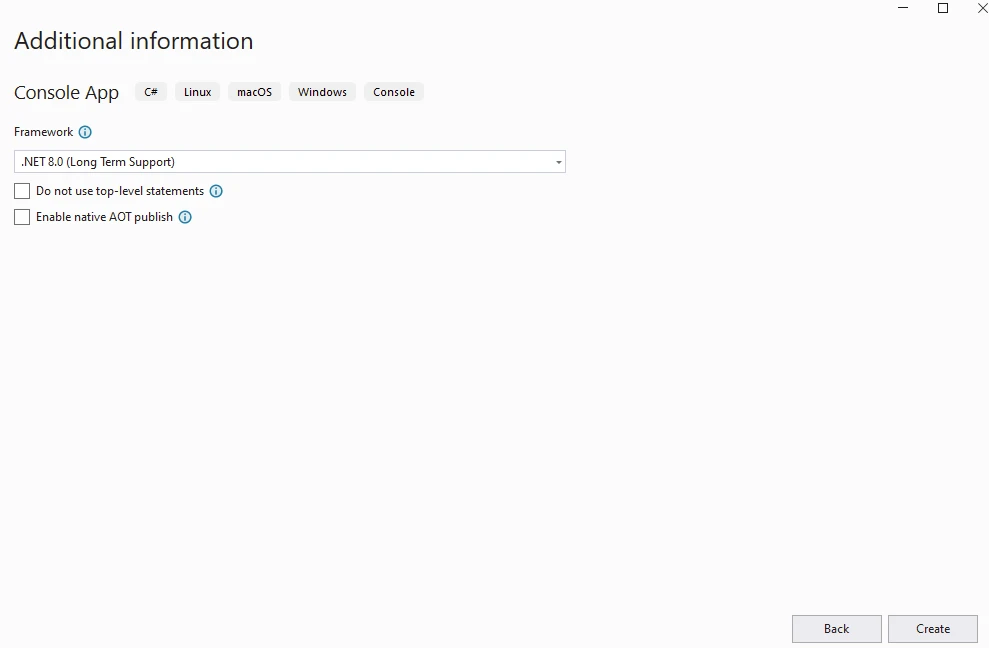
먼저, 아래와 같이 Visual Studio를 사용하여 콘솔 애플리케이션을 만듭니다.
프로젝트 이름을 제공합니다.
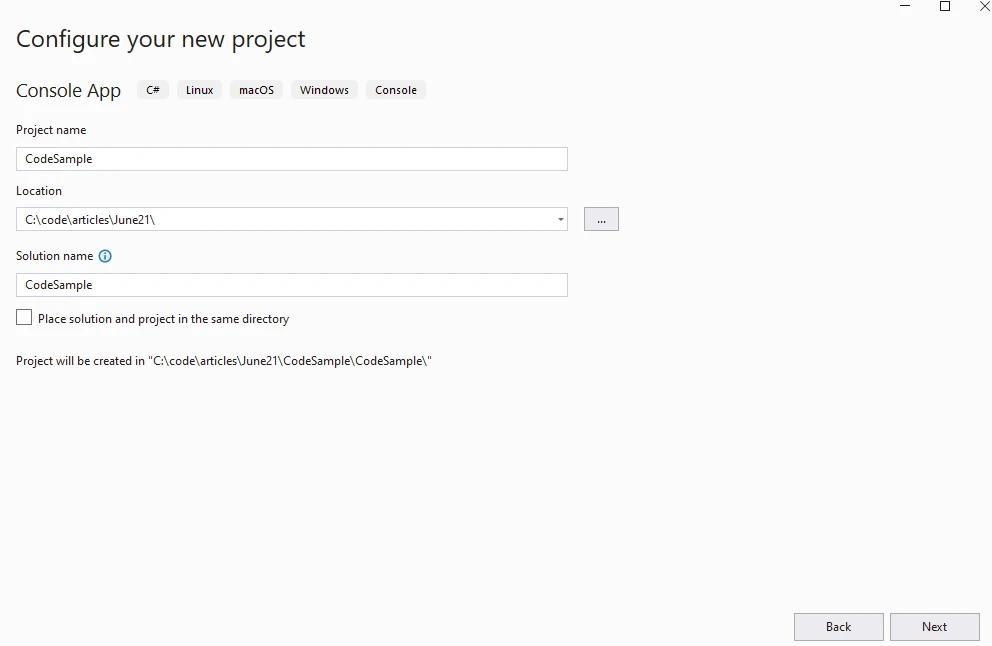
.NET 버전을 제공합니다.
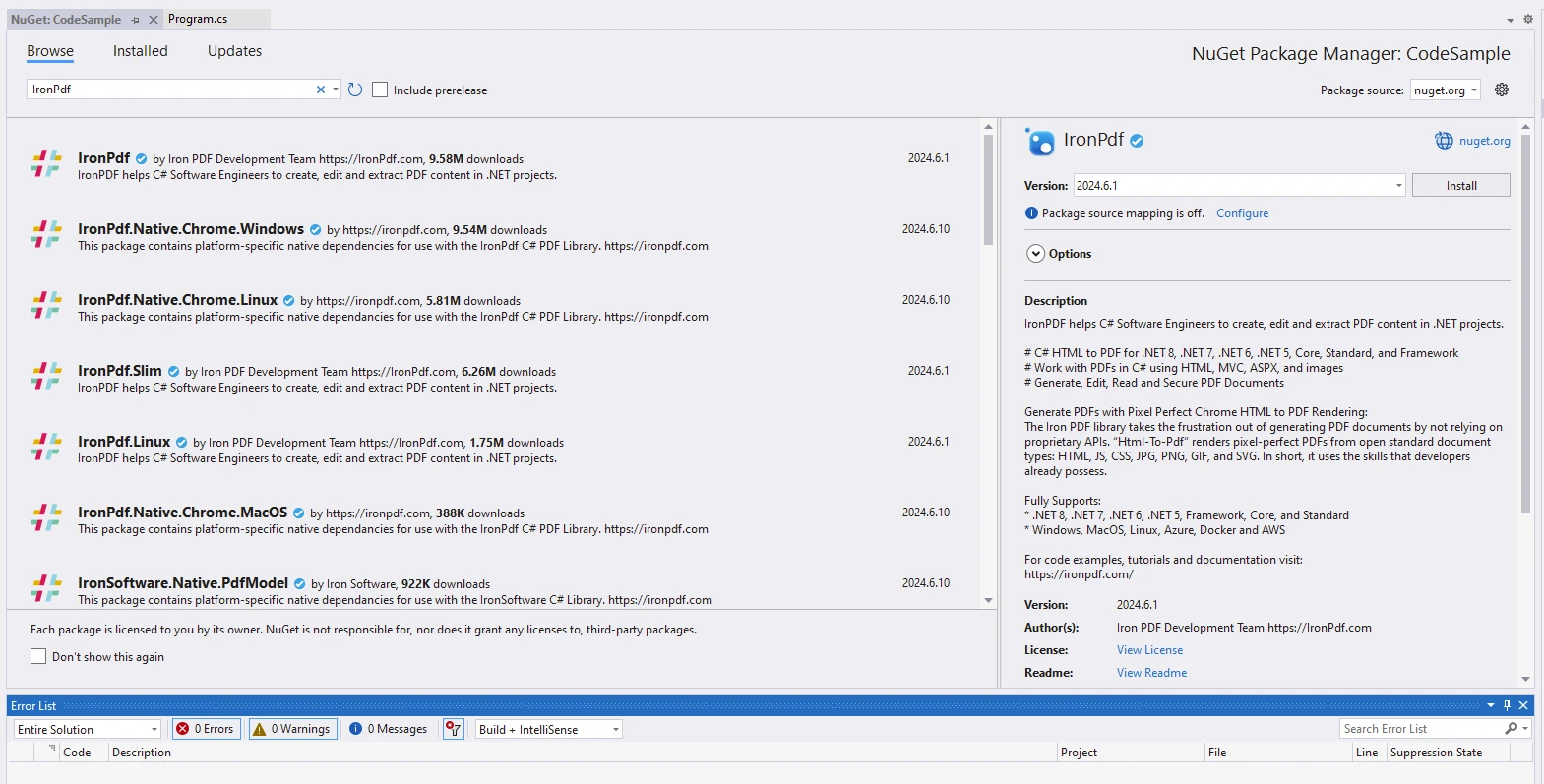
IronPDF 패키지를 설치합니다.
DuckDB.NET 패키지를 설치합니다.
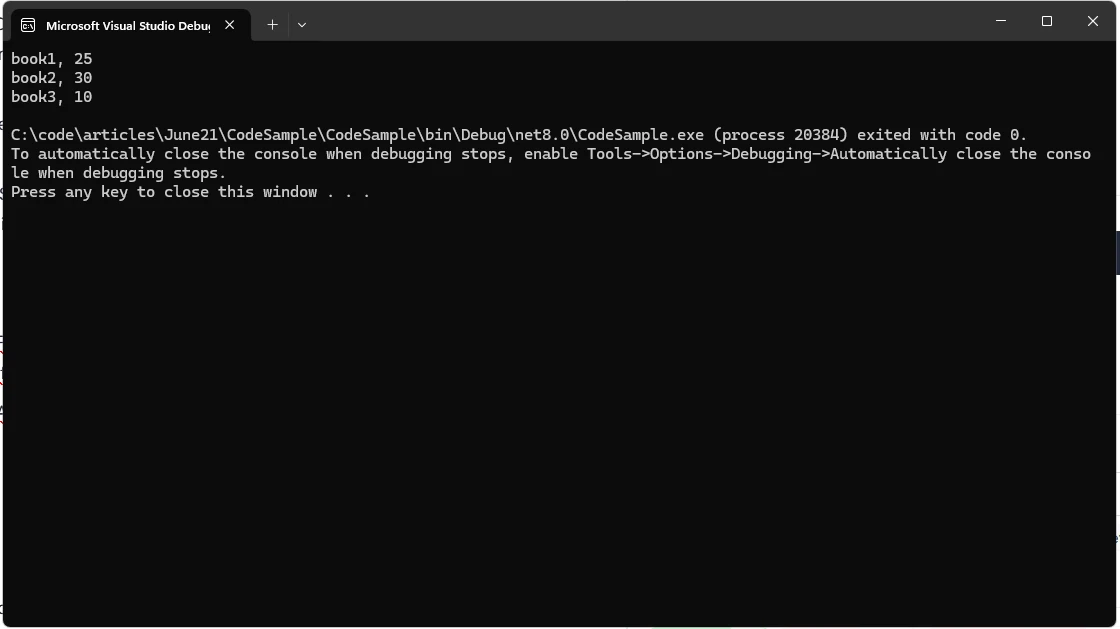
using DuckDB.NET.Data;
using IronPdf;
namespace CodeSample
{
public static class DuckDbDemo
{
public static void Execute()
{
// Instantiate Renderer
var renderer = new ChromePdfRenderer();
var content = "<h1>Demo DuckDb and IronPDF</h1>";
content += "<h2>Create DuckDBConnection</h2>";
content += "<p>new DuckDBConnection(\"Data Source=:memory:\");</p>";
content += "<p></p>";
// Create and open a connection to an in-memory DuckDB database
using var connection = new DuckDBConnection("Data Source=:memory:");
connection.Open();
using var command = connection.CreateCommand();
// Create a table named 'integers'
command.CommandText = "CREATE TABLE integers(book STRING, cost INTEGER);";
command.ExecuteNonQuery();
content += "<p>CREATE TABLE integers(book STRING, cost INTEGER);</p>";
// Insert some data into the 'integers' table
command.CommandText = "INSERT INTO integers VALUES ('book1', 25), ('book2', 30), ('book3', 10);";
command.ExecuteNonQuery();
content += "<p>INSERT INTO integers VALUES ('book1', 25), ('book2', 30), ('book3', 10);</p>";
// Select all values from the 'integers' table
command.CommandText = "SELECT book, cost FROM integers;";
using var reader = command.ExecuteReader();
content += "<p>SELECT book, cost FROM integers;</p>";
// Execute the query and process the results, appending them to the HTML content
while (reader.Read())
{
content += $"<p>{reader.GetString(0)}, {reader.GetInt32(1)}</p>";
Console.WriteLine($"{reader.GetString(0)}, {reader.GetInt32(1)}");
}
// Save data to CSV
content += "<p>Save data to CSV with COPY integers TO 'output.csv' (FORMAT CSV);</p>";
command.CommandText = "COPY integers TO 'output.csv' (FORMAT CSV);";
command.ExecuteNonQuery();
// Generate and save PDF
var pdf = renderer.RenderHtmlAsPdf(content);
pdf.SaveAs("AwesomeDuckDbNet.pdf");
}
}
}Imports DuckDB.NET.Data
Imports IronPdf
Namespace CodeSample
Public Module DuckDbDemo
Public Sub Execute()
' Instantiate Renderer
Dim renderer = New ChromePdfRenderer()
Dim content = "<h1>Demo DuckDb and IronPDF</h1>"
content += "<h2>Create DuckDBConnection</h2>"
content += "<p>new DuckDBConnection(""Data Source=:memory:"");</p>"
content += "<p></p>"
' Create and open a connection to an in-memory DuckDB database
Using connection = New DuckDBConnection("Data Source=:memory:")
connection.Open()
Using command = connection.CreateCommand()
' Create a table named 'integers'
command.CommandText = "CREATE TABLE integers(book STRING, cost INTEGER);"
command.ExecuteNonQuery()
content += "<p>CREATE TABLE integers(book STRING, cost INTEGER);</p>"
' Insert some data into the 'integers' table
command.CommandText = "INSERT INTO integers VALUES ('book1', 25), ('book2', 30), ('book3', 10);"
command.ExecuteNonQuery()
content += "<p>INSERT INTO integers VALUES ('book1', 25), ('book2', 30), ('book3', 10);</p>"
' Select all values from the 'integers' table
command.CommandText = "SELECT book, cost FROM integers;"
Using reader = command.ExecuteReader()
content += "<p>SELECT book, cost FROM integers;</p>"
' Execute the query and process the results, appending them to the HTML content
While reader.Read()
content += $"<p>{reader.GetString(0)}, {reader.GetInt32(1)}</p>"
Console.WriteLine($"{reader.GetString(0)}, {reader.GetInt32(1)}")
End While
End Using
' Save data to CSV
content += "<p>Save data to CSV with COPY integers TO 'output.csv' (FORMAT CSV);</p>"
command.CommandText = "COPY integers TO 'output.csv' (FORMAT CSV);"
command.ExecuteNonQuery()
End Using
End Using
' Generate and save PDF
Dim pdf = renderer.RenderHtmlAsPdf(content)
pdf.SaveAs("AwesomeDuckDbNet.pdf")
End Sub
End Module
End Namespace이 코드는 DuckDB.NET을 데이터베이스 작업에 사용하고 IronPDF를 사용하여 데이터베이스 쿼리 결과가 포함된 PDF 보고서를 생성하는 방법을 보여주려 합니다.
DuckDB.NET:
데이터베이스 작업:
IronPDF를 사용한 PDF 생성:
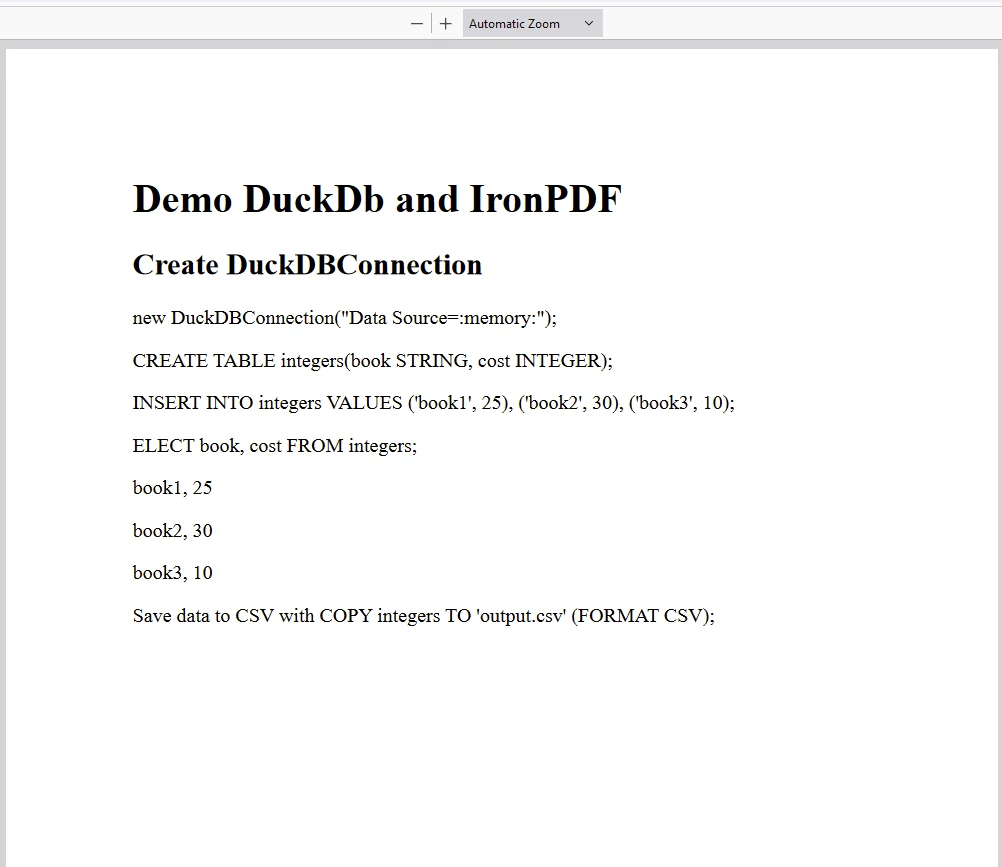
IronPDF 패키지는 실행하기 위해 라이센스가 필요합니다. 패키지에 접근하기 전에 애플리케이션의 시작 부분에 아래 코드를 추가하십시오.
IronPdf.License.LicenseKey = "IRONPDF-KEY";Imports IronPdf
IronPdf.License.LicenseKey = "IRONPDF-KEY"IronPDF의 체험판 라이센스 페이지에서 체험판 라이센스를 사용할 수 있습니다.
DuckDB.NET C# 패키지는 .NET 애플리케이션에 DuckDB의 분석 기능을 통합하기 위한 강력한 도구입니다. 사용의 용이성, 다양한 데이터 형식 지원 및 C#과의 매끄러운 통합은 데이터 중심 애플리케이션에서 작업하는 개발자에게 탁월한 선택입니다. 데이터 분석 도구, ETL 파이프라인 또는 다른 데이터 중심 애플리케이션 구축 여부에 관계없이 DuckDB.NET은 목표를 효율적으로 달성하는 데 도움이 될 수 있습니다.

제이콥 멜러는 Iron Software의 최고 기술 책임자(CTO)이자 C# PDF 기술을 개척한 선구적인 엔지니어입니다. Iron Software의 핵심 코드베이스를 최초로 개발한 그는 창립 초기부터 회사의 제품 아키텍처를 설계해 왔으며, CEO인 캐머런 리밍턴과 함께 회사를 NASA, 테슬라, 그리고 전 세계 정부 기관에 서비스를 제공하는 50명 이상의 직원을 보유한 기업으로 성장시켰습니다.



IronPDF는 IRON SUITE 의 일부입니다.
10개의 .NET API 제품, 당신의 사무 문서를 위해

PDF 파일을 HTML처럼 빠르게 변환해야 할 때.


