



Updated April 23, 2026
Bridging CLI Simplicity & .NET : Using Curl DotNet with IronPDF
Jacob Mellor has bridged this gap with CurlDotNet, a library created to bring the familiarity of cURL to the .NET ecosystem.
Read More

DuckDB.NET is an open-source provider of .NET bindings for the DuckDB native library, designed to integrate seamlessly with C#. It provides an ADO.NET provider, making it easy to use DuckDB, a low-level bindings library, within .NET applications. This package is ideal for developers looking to leverage DuckDB's powerful analytical capabilities in a C# environment.
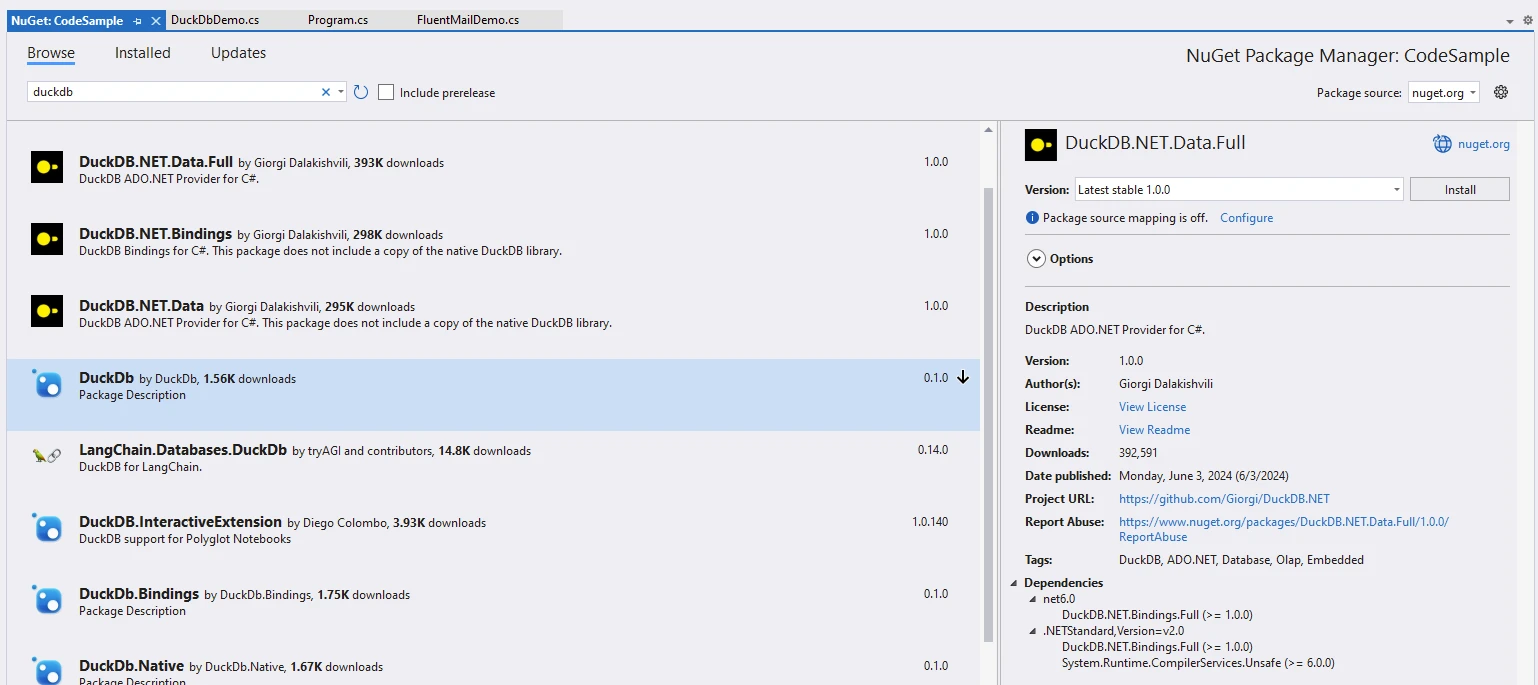
Installing DuckDB.NET is straightforward. You can add it to your project using the .NET CLI:
dotnet add package DuckDB.NET.Data.FullAlternatively, you can install it via the NuGet Package Manager in Visual Studio.
Once installed, you can start using DuckDB.NET to execute SQL queries within your C# application. Here's a simple example:
using System;
using DuckDB.NET.Data;

class Program
{
    static void Main()
    {
        // Create and open a connection to an in-memory DuckDB database
        using var duckdbconnection = new DuckDBConnection("Data Source=:memory:");
        duckdbconnection.Open();

        // Create a command associated with the connection
        using var command = duckdbconnection.CreateCommand();
        // Create a table named 'integers'
        command.CommandText = "CREATE TABLE integers(foo INTEGER, bar INTEGER);";
        command.ExecuteNonQuery();

        // Insert some data into the 'integers' table
        command.CommandText = "INSERT INTO integers VALUES (3, 4), (5, 6), (7, 8);";
        command.ExecuteNonQuery();

        // Retrieve the count of rows in the 'integers' table
        command.CommandText = "SELECT count(*) FROM integers";
        var executeScalar = command.ExecuteScalar();

        // Select all values from the 'integers' table
        command.CommandText = "SELECT foo, bar FROM integers;";

        // Execute the query and process the results
        using var reader = command.ExecuteReader();
        while (reader.Read())
        {
            Console.WriteLine($"{reader.GetInt32(0)}, {reader.GetInt32(1)}");
        }
    }
}Imports System
Imports DuckDB.NET.Data
Module Program
Sub Main()
' Create and open a connection to an in-memory DuckDB database
Using duckdbconnection As New DuckDBConnection("Data Source=:memory:")
duckdbconnection.Open()
' Create a command associated with the connection
Using command = duckdbconnection.CreateCommand()
' Create a table named 'integers'
command.CommandText = "CREATE TABLE integers(foo INTEGER, bar INTEGER);"
command.ExecuteNonQuery()
' Insert some data into the 'integers' table
command.CommandText = "INSERT INTO integers VALUES (3, 4), (5, 6), (7, 8);"
command.ExecuteNonQuery()
' Retrieve the count of rows in the 'integers' table
command.CommandText = "SELECT count(*) FROM integers"
Dim executeScalar = command.ExecuteScalar()
' Select all values from the 'integers' table
command.CommandText = "SELECT foo, bar FROM integers;"
' Execute the query and process the results
Using reader = command.ExecuteReader()
While reader.Read()
Console.WriteLine($"{reader.GetInt32(0)}, {reader.GetInt32(1)}")
End While
End Using
End Using
End Using
End Sub
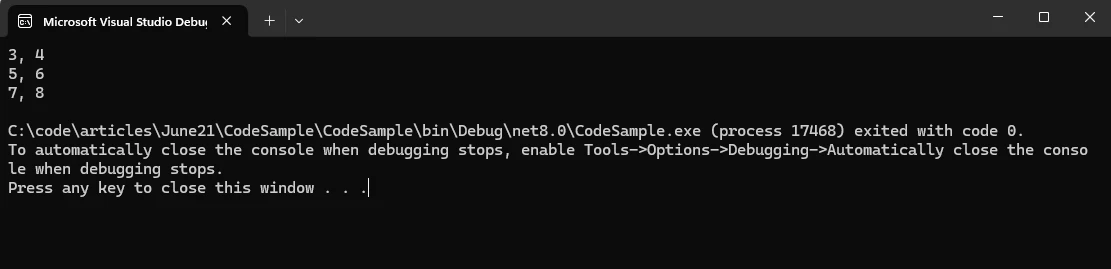
End ModuleThis example demonstrates how to create a table, insert data, and query the data using DuckDB.NET.
DuckDB.NET supports reading data from various formats, including CSV and Parquet files. Here's how you can read data from a CSV file:
command.CommandText = "COPY integers FROM 'example.csv' (FORMAT CSV);";
command.ExecuteNonQuery();
command.CommandText = "COPY integers FROM 'example.csv' (FORMAT CSV)"
command.ExecuteNonQuery()DuckDB.NET can also integrate with data frames, allowing you to manipulate data using familiar SQL syntax. This is particularly useful for data analysis tasks.
You can convert query results to various formats, such as lists or custom objects, making it easy to work with the data in your application:
var results = new List<(int foo, int bar)>();

// Read and store results to a List
while (reader.Read())
{
    results.Add((reader.GetInt32(0), reader.GetInt32(1)));
    // You can also use a loop with an index to iterate the results
}Dim results = New List(Of (foo As Integer, bar As Integer))()
' Read and store results to a List
Do While reader.Read()
results.Add((reader.GetInt32(0), reader.GetInt32(1)))
' You can also use a loop with an index to iterate the results
LoopDuckDB.NET supports writing data to disk in various formats. You can use the COPY statement to export data to a CSV file:
command.CommandText = "COPY integers TO 'output.csv' (FORMAT CSV);";
command.ExecuteNonQuery();
command.CommandText = "COPY integers TO 'output.csv' (FORMAT CSV)"
command.ExecuteNonQuery()
IronPDF is a C# PDF library that allows the generation, management, and extraction of content from PDF documents in .NET projects. Here are some key features:
IronPDF is a handy tool that lets you turn webpages, URLs, and HTML to PDF. The best part? The PDFs look exactly like the original web pages - keeping all the formatting and style. So, if you need to make a PDF from something online, like a report or an invoice, IronPDF is your go-to.
using IronPdf;
class Program
{
static void Main(string[] args)
{
var renderer = new ChromePdfRenderer();
// 1. Convert HTML String to PDF
var htmlContent = "<h1>Hello, IronPDF!</h1><p>This is a PDF from an HTML string.</p>";
var pdfFromHtmlString = renderer.RenderHtmlAsPdf(htmlContent);
pdfFromHtmlString.SaveAs("HTMLStringToPDF.pdf");
// 2. Convert HTML File to PDF
var htmlFilePath = "path_to_your_html_file.html"; // Specify the path to your HTML file
var pdfFromHtmlFile = renderer.RenderHtmlFileAsPdf(htmlFilePath);
pdfFromHtmlFile.SaveAs("HTMLFileToPDF.pdf");
// 3. Convert URL to PDF
var url = "http://ironpdf.com"; // Specify the URL
var pdfFromUrl = renderer.RenderUrlAsPdf(url);
pdfFromUrl.SaveAs("URLToPDF.pdf");
}
}Imports IronPdf
Friend Class Program
Shared Sub Main(ByVal args() As String)
Dim renderer = New ChromePdfRenderer()
' 1. Convert HTML String to PDF
Dim htmlContent = "<h1>Hello, IronPDF!</h1><p>This is a PDF from an HTML string.</p>"
Dim pdfFromHtmlString = renderer.RenderHtmlAsPdf(htmlContent)
pdfFromHtmlString.SaveAs("HTMLStringToPDF.pdf")
' 2. Convert HTML File to PDF
Dim htmlFilePath = "path_to_your_html_file.html" ' Specify the path to your HTML file
Dim pdfFromHtmlFile = renderer.RenderHtmlFileAsPdf(htmlFilePath)
pdfFromHtmlFile.SaveAs("HTMLFileToPDF.pdf")
' 3. Convert URL to PDF
Dim url = "http://ironpdf.com" ' Specify the URL
Dim pdfFromUrl = renderer.RenderUrlAsPdf(url)
pdfFromUrl.SaveAs("URLToPDF.pdf")
End Sub
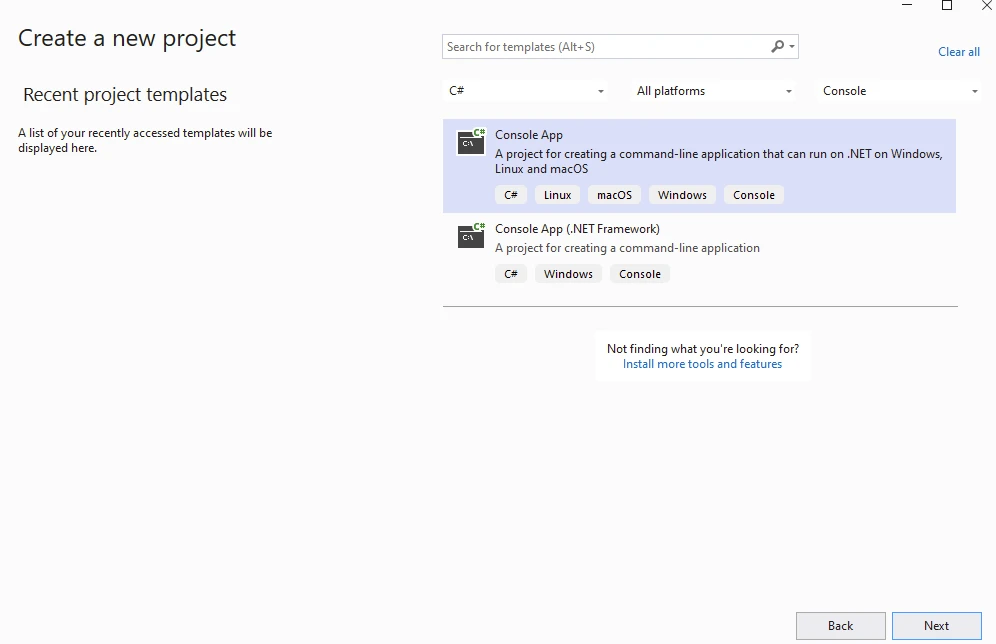
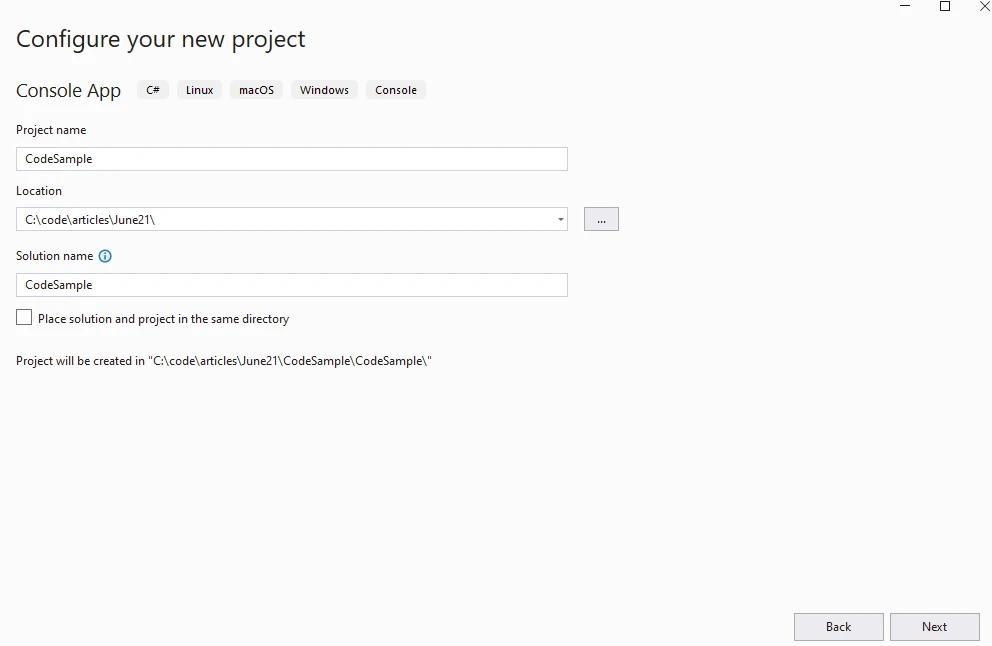
End ClassTo start with, create a Console application using Visual Studio as below.
Provide the Project name.
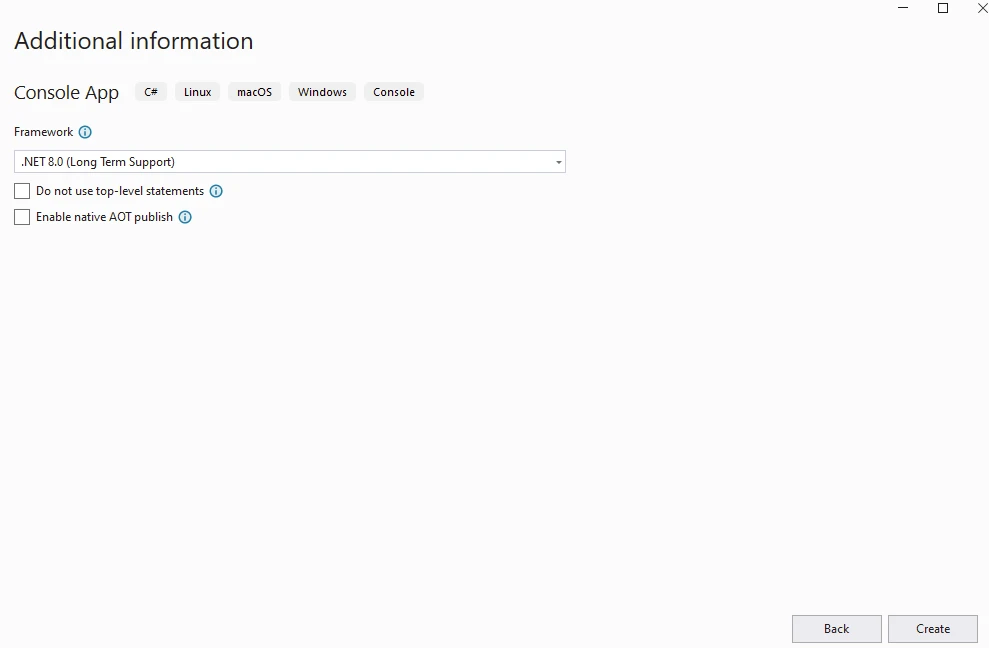
Provide .NET Version.
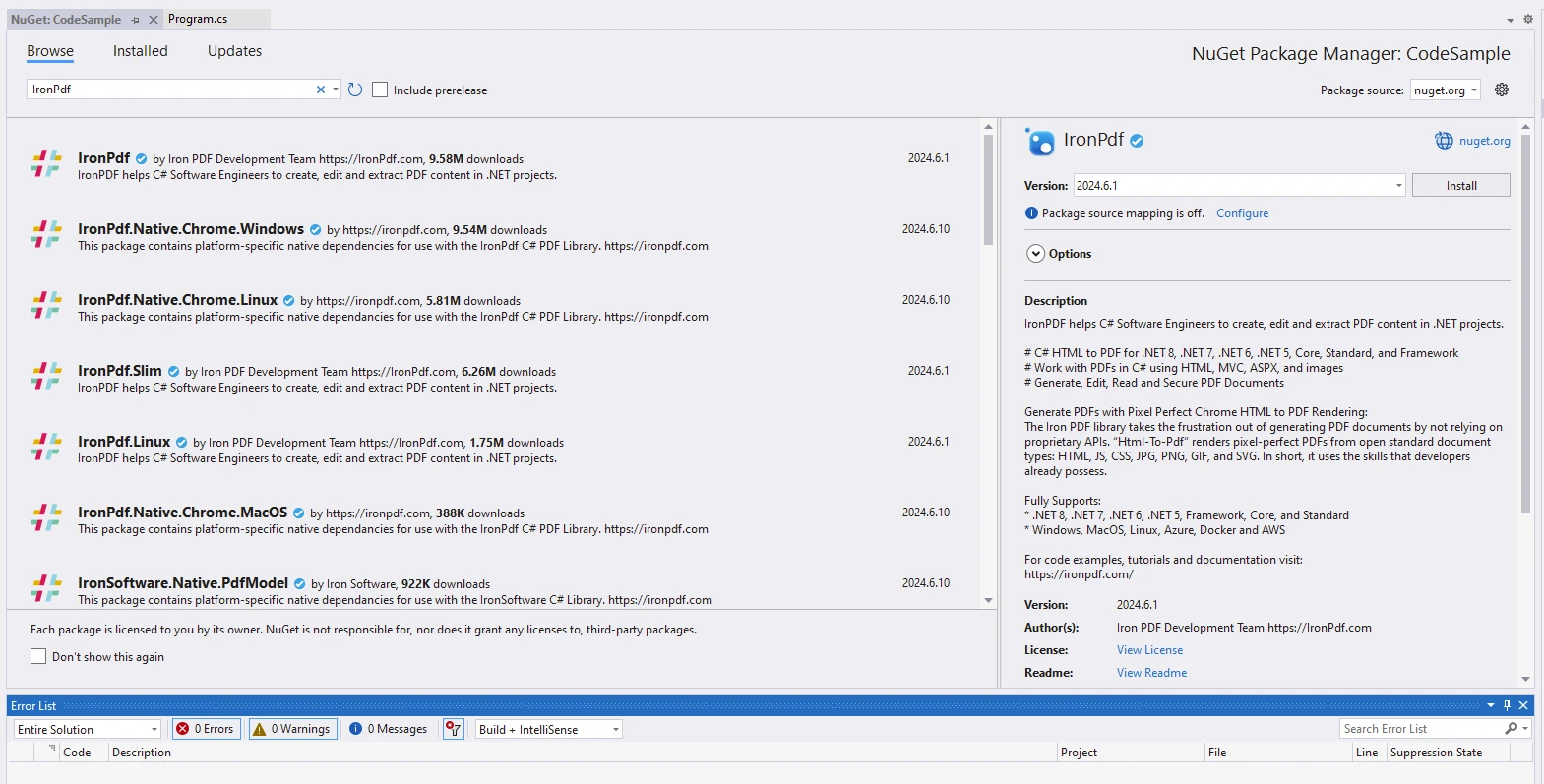
Install the IronPDF package.
Install the DuckDB.NET package.
using DuckDB.NET.Data;
using IronPdf;
namespace CodeSample
{
public static class DuckDbDemo
{
public static void Execute()
{
// Instantiate Renderer
var renderer = new ChromePdfRenderer();
var content = "<h1>Demo DuckDb and IronPDF</h1>";
content += "<h2>Create DuckDBConnection</h2>";
content += "<p>new DuckDBConnection(\"Data Source=:memory:\");</p>";
content += "<p></p>";
// Create and open a connection to an in-memory DuckDB database
using var connection = new DuckDBConnection("Data Source=:memory:");
connection.Open();
using var command = connection.CreateCommand();
// Create a table named 'integers'
command.CommandText = "CREATE TABLE integers(book STRING, cost INTEGER);";
command.ExecuteNonQuery();
content += "<p>CREATE TABLE integers(book STRING, cost INTEGER);</p>";
// Insert some data into the 'integers' table
command.CommandText = "INSERT INTO integers VALUES ('book1', 25), ('book2', 30), ('book3', 10);";
command.ExecuteNonQuery();
content += "<p>INSERT INTO integers VALUES ('book1', 25), ('book2', 30), ('book3', 10);</p>";
// Select all values from the 'integers' table
command.CommandText = "SELECT book, cost FROM integers;";
using var reader = command.ExecuteReader();
content += "<p>SELECT book, cost FROM integers;</p>";
// Execute the query and process the results, appending them to the HTML content
while (reader.Read())
{
content += $"<p>{reader.GetString(0)}, {reader.GetInt32(1)}</p>";
Console.WriteLine($"{reader.GetString(0)}, {reader.GetInt32(1)}");
}
// Save data to CSV
content += "<p>Save data to CSV with COPY integers TO 'output.csv' (FORMAT CSV);</p>";
command.CommandText = "COPY integers TO 'output.csv' (FORMAT CSV);";
command.ExecuteNonQuery();
// Generate and save PDF
var pdf = renderer.RenderHtmlAsPdf(content);
pdf.SaveAs("AwesomeDuckDbNet.pdf");
}
}
}Imports DuckDB.NET.Data
Imports IronPdf
Namespace CodeSample
Public Module DuckDbDemo
Public Sub Execute()
' Instantiate Renderer
Dim renderer = New ChromePdfRenderer()
Dim content = "<h1>Demo DuckDb and IronPDF</h1>"
content += "<h2>Create DuckDBConnection</h2>"
content += "<p>new DuckDBConnection(""Data Source=:memory:"");</p>"
content += "<p></p>"
' Create and open a connection to an in-memory DuckDB database
Using connection = New DuckDBConnection("Data Source=:memory:")
connection.Open()
Using command = connection.CreateCommand()
' Create a table named 'integers'
command.CommandText = "CREATE TABLE integers(book STRING, cost INTEGER);"
command.ExecuteNonQuery()
content += "<p>CREATE TABLE integers(book STRING, cost INTEGER);</p>"
' Insert some data into the 'integers' table
command.CommandText = "INSERT INTO integers VALUES ('book1', 25), ('book2', 30), ('book3', 10);"
command.ExecuteNonQuery()
content += "<p>INSERT INTO integers VALUES ('book1', 25), ('book2', 30), ('book3', 10);</p>"
' Select all values from the 'integers' table
command.CommandText = "SELECT book, cost FROM integers;"
Using reader = command.ExecuteReader()
content += "<p>SELECT book, cost FROM integers;</p>"
' Execute the query and process the results, appending them to the HTML content
While reader.Read()
content += $"<p>{reader.GetString(0)}, {reader.GetInt32(1)}</p>"
Console.WriteLine($"{reader.GetString(0)}, {reader.GetInt32(1)}")
End While
End Using
' Save data to CSV
content += "<p>Save data to CSV with COPY integers TO 'output.csv' (FORMAT CSV);</p>"
command.CommandText = "COPY integers TO 'output.csv' (FORMAT CSV);"
command.ExecuteNonQuery()
End Using
End Using
' Generate and save PDF
Dim pdf = renderer.RenderHtmlAsPdf(content)
pdf.SaveAs("AwesomeDuckDbNet.pdf")
End Sub
End Module
End NamespaceThe code aims to showcase how to use DuckDB.NET for database operations and IronPDF for generating a PDF report containing the database query results.
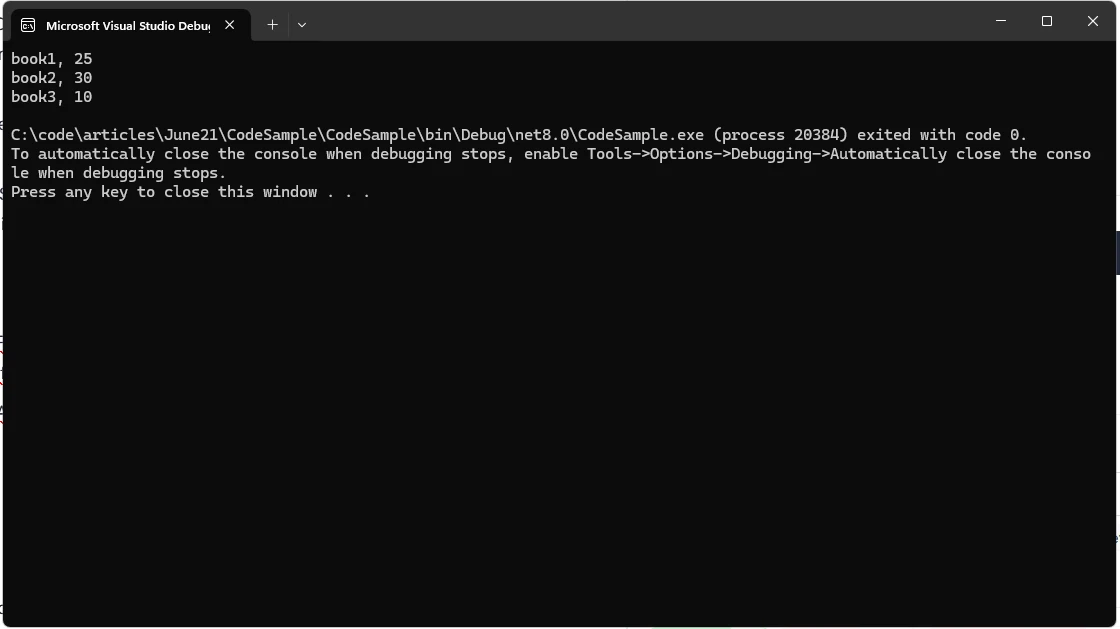
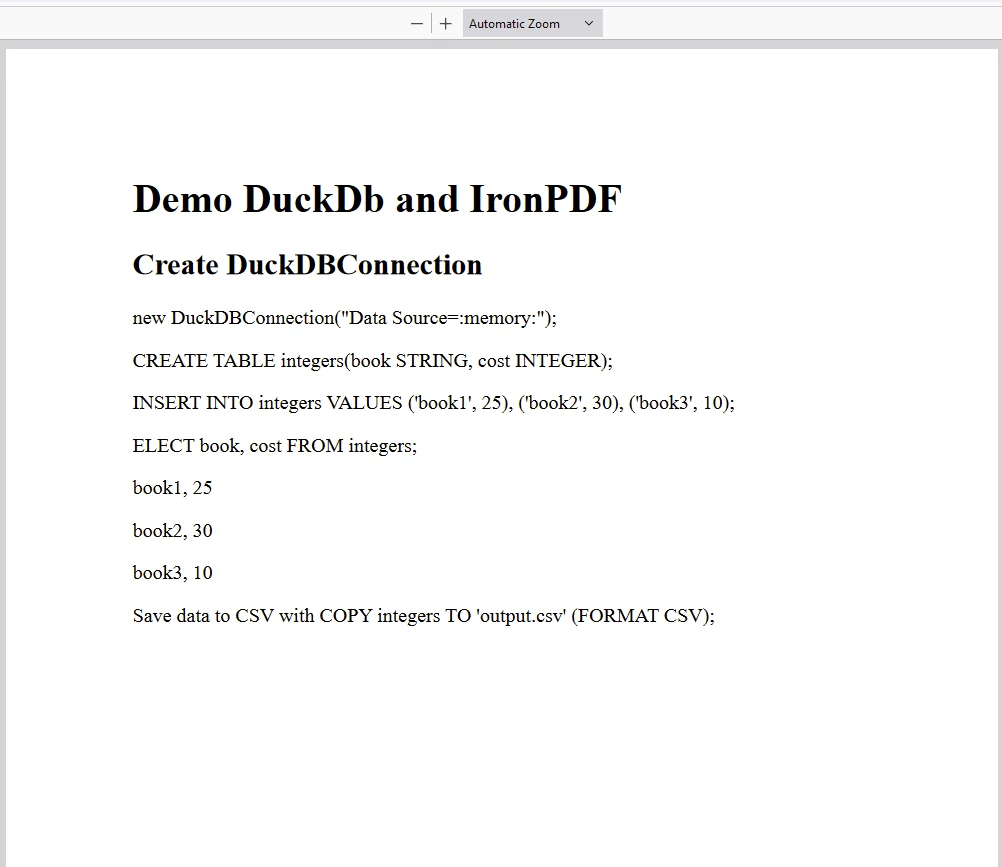
The IronPDF package requires a license to run. Add the below code at the start of the application before the package is accessed.
IronPdf.License.LicenseKey = "IRONPDF-KEY";Imports IronPdf
IronPdf.License.LicenseKey = "IRONPDF-KEY"A trial license is available on IronPDF's trial license page.
The DuckDB.NET C# package is a powerful tool for integrating DuckDB's analytical capabilities into .NET applications. Its ease of use, support for various data formats, and seamless integration with C# make it an excellent choice for developers working on data-intensive applications. Whether you are building data analysis tools, ETL pipelines, or other data-driven applications, DuckDB.NET can help you achieve your goals efficiently.

Jacob Mellor is Chief Technology Officer at Iron Software and a visionary engineer pioneering C# PDF technology. As the original developer behind Iron Software's core codebase, he has shaped the company's product architecture since its inception, transforming it alongside CEO Cameron Rimington into a 50+ person company serving NASA, Tesla, and global government agencies.

IronPDF is a part of IRONSUITE
10 .NET API products for your office documents











When you need your PDF to look like HTML, fast.


