




업데이트됨 2026년 4월 23일
.NET에서 Microsoft.Extensions.AI로 LLM 통합 간소화
AI는 소프트웨어 개발을 변혁하고 있으나, 대규모 언어 모델(LLM)을 .NET에 통합하는 것은 지금까지 복잡했습니다. 현대에는 OpenAI 기반 PDF 파싱, 데이터 추출 및 콘텐츠 요약을 .NET 애플리케이션에 가져오는 IronPdf.AI로 AI 통합을 더욱 확장하세요.
더 읽어보기

현대 앱 개발은 종종 대량의 작업을 처리하기 위해 백그라운드 작업을 처리해야 합니다. 이러한 시나리오에서는 여러 작업을 실행할 수 있는 백그라운드 작업 핸들러가 필요합니다. C# .NET Core 애플리케이션 용으로 Hangfire는 그러한 백그라운드 작업 핸들러 중 하나입니다. 이 블로그에서는 Hangfire 백그라운드 작업 관리 및 IronPDF for PDF Generation와 같은 다른 패키지를 사용하여 백그라운드에서 PDF 문서를 생성하는 방법을 배울 것입니다.
Hangfire는 ASP.NET Core 또는 .NET Core 6 Web API 애플리케이션에서 안전하고 유연한 백그라운드 작업 구현을 제공하여 백그라운드 작업을 관리하고 실행하는 데 도움이 됩니다. Hangfire는 NuGet 패키지로 제공되며 아래와 같이 .NET CLI를 사용하여 설치할 수 있습니다:
Hangfire에 대해 배우려면, 간단한 .NET Core API 애플리케이션을 만들고 CLI를 사용하여 Hangfire를 설치해 봅시다.
dotnet new webapi -n HangfireDemo
cd HangfireDemo
dotnet build
dotnet add package Hangfire --version 1.8.6
dotnet build여기서 우리는 .NET CLI를 사용하여 간단한 날씨 REST API를 만들고 있습니다. .NET Core 웹 API 프로젝트 이름을 HangfireDemo으로 생성하여 API 엔드포인트를 실행합니다. 두 번째 줄은 새로 생성된 "HangfireDemo" 폴더로 이동한 후 프로젝트를 빌드합니다. 다음으로, 프로젝트에 Hangfire의 NuGet 패키지를 추가하고 다시 빌드합니다. 이 후, Visual Studio 2022나 JetBrains Rider와 같은 원하는 편집기에서 프로젝트를 열 수 있습니다. 이제 프로젝트를 실행하면 다음과 같이 Swagger를 볼 수 있습니다:
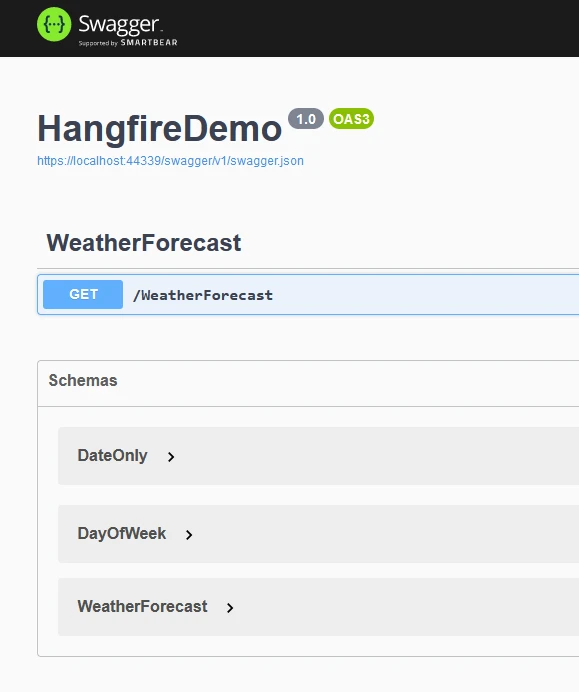
여기서 날짜, 요약, 온도를 반환하는 날씨 GET API를 볼 수 있습니다.
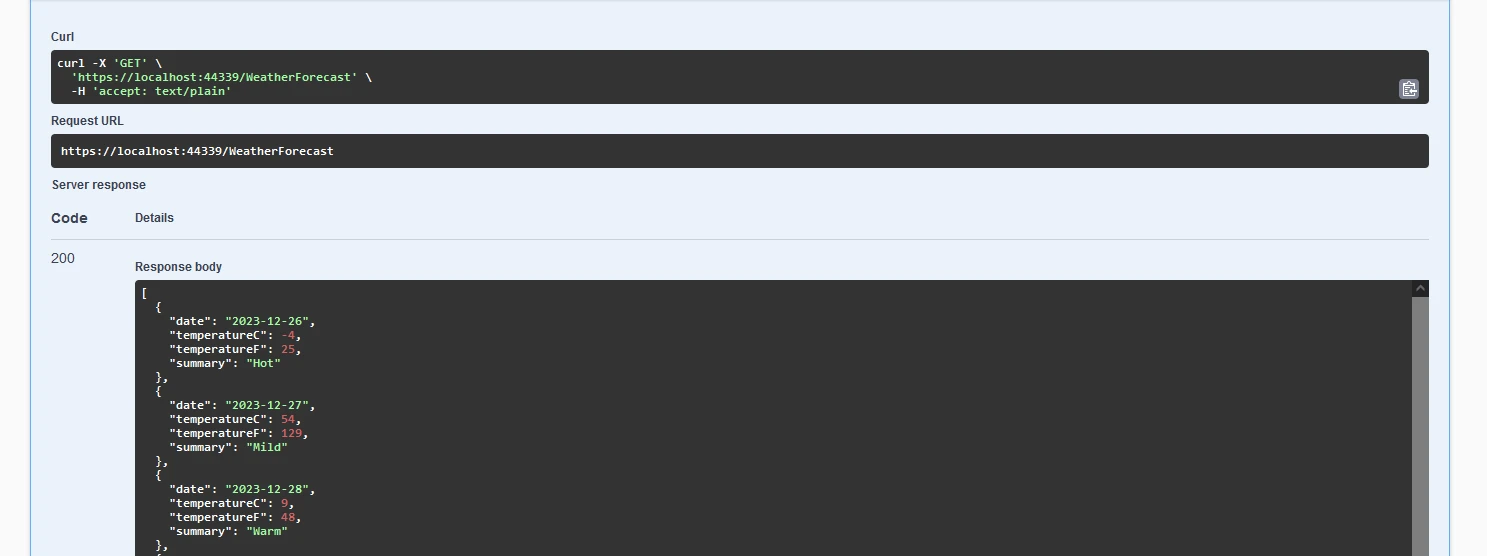
이제 Hangfire 백그라운드 작업 프로세서를 추가합시다. 프로젝트를 Visual Studio에서 엽니다.
애플리케이션에서 Hangfire를 구성하는데, 일반적으로 Startup.cs 파일에서 수행합니다. 여기에는 작업 저장소를 설정하고 Hangfire 서버를 초기화하는 작업이 포함됩니다.
// Startup.cs
using Hangfire;

public class Startup
{
    public void ConfigureServices(IServiceCollection services)
    {
        // Add Hangfire services and use SQL Server as storage option
        services.AddHangfire(config => config.UseSqlServerStorage("your_connection_string"));
        services.AddHangfireServer();
    }

    public void Configure(IApplicationBuilder app, IHostingEnvironment env)
    {
        // Use Hangfire Server and Dashboard for monitoring and managing jobs
        app.UseHangfireServer();
        app.UseHangfireDashboard();
        // Your other configuration settings
    }
}' Startup.vb
Imports Hangfire
Public Class Startup
Public Sub ConfigureServices(services As IServiceCollection)
' Add Hangfire services and use SQL Server as storage option
services.AddHangfire(Sub(config) config.UseSqlServerStorage("your_connection_string"))
services.AddHangfireServer()
End Sub
Public Sub Configure(app As IApplicationBuilder, env As IHostingEnvironment)
' Use Hangfire Server and Dashboard for monitoring and managing jobs
app.UseHangfireServer()
app.UseHangfireDashboard()
' Your other configuration settings
End Sub
End ClassConfigureServices 메서드는 Hangfire의 새로 생성된 작업을 저장할 저장소를 추가하는 데 사용됩니다. 여기서는 SQL Server 데이터베이스를 사용합니다. SQL Server 연결 문자열은 "your_connection_string"으로 대체해야 합니다.
Hangfire.InMemory를 사용하여 인메모리 저장소도 사용할 수 있습니다.
services.AddHangfire(configuration => { configuration.UseInMemoryStorage(); });services.AddHangfire(Sub(configuration)
configuration.UseInMemoryStorage()
End Sub)그리고 다음과 같이 대체합니다:
백그라운드 작업으로 실행할 메소드를 정의합니다. 이 메소드들은 매개변수가 없는 생성자를 가진 클래스의 정적 메소드나 인스턴스 메소드여야 합니다. 작업은 반복 작업으로 실행되거나 여러 작업을 동시에 실행할 수 있습니다.
public class MyBackgroundJob
{
    public void ProcessJob()
    {
        // Background job logic, can be a recurring job or multiple jobs
        Console.WriteLine("Background job is running...");
    }
}Public Class MyBackgroundJob
Public Sub ProcessJob()
' Background job logic, can be a recurring job or multiple jobs
Console.WriteLine("Background job is running...")
End Sub
End ClassHangfire API를 사용하여 백그라운드 작업을 큐에 추가합니다. 백그라운드 작업을 특정 시간에, 지연 후에, 또는 정기적으로 실행할 수 있도록 예약할 수 있습니다.
// Enqueue a job to run immediately
BackgroundJob.Enqueue<MyBackgroundJob>(x => x.ProcessJob());

// Schedule a job to run after a 5-minute delay
BackgroundJob.Schedule<MyBackgroundJob>(x => x.ProcessJob(), TimeSpan.FromMinutes(5));

// Schedule a recurring job using a job ID
RecurringJob.AddOrUpdate<MyBackgroundJob>("jobId", x => x.ProcessJob(), Cron.Daily);' Enqueue a job to run immediately
BackgroundJob.Enqueue(Of MyBackgroundJob)(Function(x) x.ProcessJob())
' Schedule a job to run after a 5-minute delay
BackgroundJob.Schedule(Of MyBackgroundJob)(Function(x) x.ProcessJob(), TimeSpan.FromMinutes(5))
' Schedule a recurring job using a job ID
RecurringJob.AddOrUpdate(Of MyBackgroundJob)("jobId", Function(x) x.ProcessJob(), Cron.Daily)Hangfire 대시보드와 서버는 실시간 작업 모니터링을 위해 Configure 메서드에 추가할 수 있습니다.
// Run Hangfire server and dashboard
app.UseHangfireServer();
app.UseHangfireDashboard();' Run Hangfire server and dashboard
app.UseHangfireServer()
app.UseHangfireDashboard()서버는 ConfigureServices에서도 추가할 수 있습니다.
services.AddHangfireServer();services.AddHangfireServer()// Fire and forget jobs are executed only once and almost immediately after creation.
var jobId = BackgroundJob.Enqueue(() => Console.WriteLine("Fire-and-forget!")); // Job ID for fire and forget job' Fire and forget jobs are executed only once and almost immediately after creation.
Dim jobId = BackgroundJob.Enqueue(Sub() Console.WriteLine("Fire-and-forget!")) ' Job ID for fire and forget job// Recurring jobs fire many times based on a specified CRON schedule.
RecurringJob.AddOrUpdate("myrecurringjob", () => Console.WriteLine("Recurring!"), Cron.Daily);' Recurring jobs fire many times based on a specified CRON schedule.
RecurringJob.AddOrUpdate("myrecurringjob", Sub() Console.WriteLine("Recurring!"), Cron.Daily)// Delayed jobs are executed only once but after a specified interval.
var jobId = BackgroundJob.Schedule(() => Console.WriteLine("Delayed!"), TimeSpan.FromDays(7));' Delayed jobs are executed only once but after a specified interval.
Dim jobId = BackgroundJob.Schedule(Sub() Console.WriteLine("Delayed!"), TimeSpan.FromDays(7))// Continuation jobs are executed once their parent jobs have completed.
BackgroundJob.ContinueJobWith(jobId, () => Console.WriteLine("Continuation!"));' Continuation jobs are executed once their parent jobs have completed.
BackgroundJob.ContinueJobWith(jobId, Sub() Console.WriteLine("Continuation!"))// Batch is a group of background jobs created atomically and considered as a single entity.
var batchId = BatchJob.StartNew(x =>
{
x.Enqueue(() => Console.WriteLine("Job 1"));
x.Enqueue(() => Console.WriteLine("Job 2"));
});' Batch is a group of background jobs created atomically and considered as a single entity.
Dim batchId = BatchJob.StartNew(Sub(x)
x.Enqueue(Sub() Console.WriteLine("Job 1"))
x.Enqueue(Sub() Console.WriteLine("Job 2"))
End Sub)// Batch continuation is fired when all background jobs in a parent batch are finished.
BatchJob.ContinueBatchWith(batchId, x =>
{
x.Enqueue(() => Console.WriteLine("Last Job"));
});' Batch continuation is fired when all background jobs in a parent batch are finished.
BatchJob.ContinueBatchWith(batchId, Sub(x)
x.Enqueue(Sub() Console.WriteLine("Last Job"))
End Sub)Hangfire 대시보드는 백그라운드 작업에 대한 모든 정보를 찾을 수 있는 곳입니다. OWIN 미들웨어로 작성되었기 때문에(OWIN에 익숙하지 않다면 걱정하지 마세요), ASP.NET, ASP.NET MVC, Nancy, ServiceStack 애플리케이션에 플러그인 할 수 있으며, OWIN 셀프 호스트 기능을 사용하여 콘솔 애플리케이션이나 Windows 서비스 내에서 대시보드를 호스팅할 수 있습니다.
대시보드를 활성화하면 /hangfire/ 확장에서 이용할 수 있습니다. 이 대시보드에서 백그라운드 실행 작업을 관리하고, 백그라운드 작업을 예약하며, 즉시 실행 작업과 반복 작업을 볼 수 있습니다. 작업은 작업 ID를 사용하여 식별할 수 있습니다.
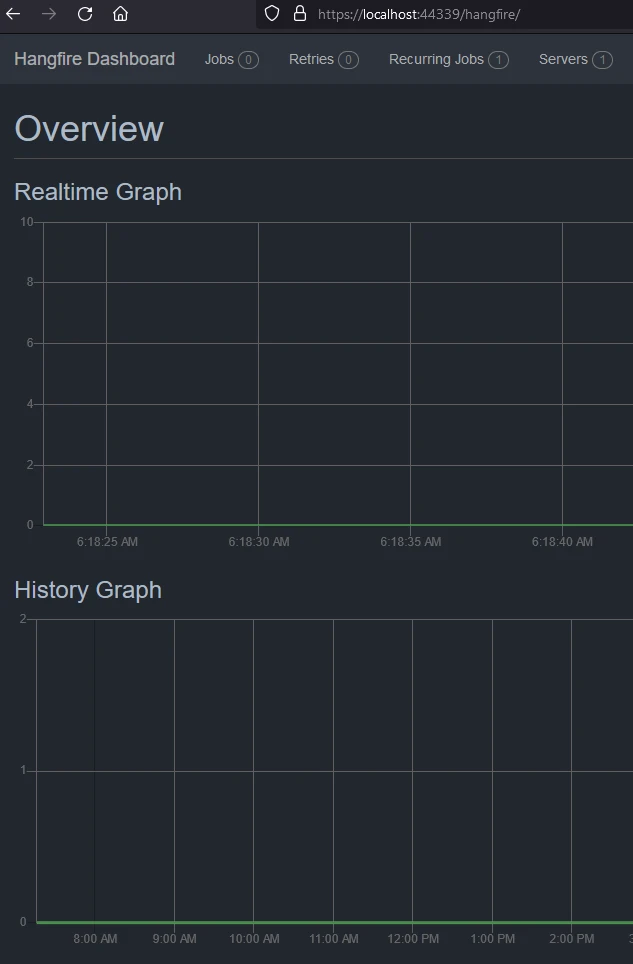
아래에서 성공한 작업을 확인하세요.
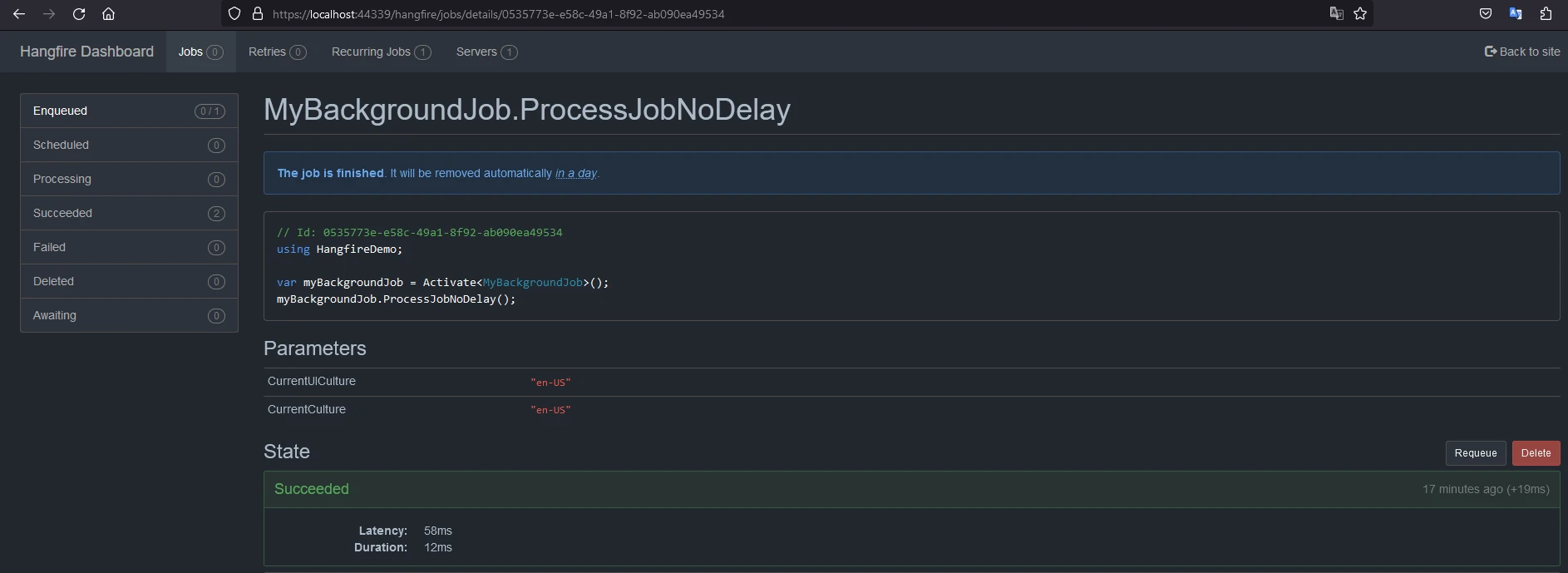
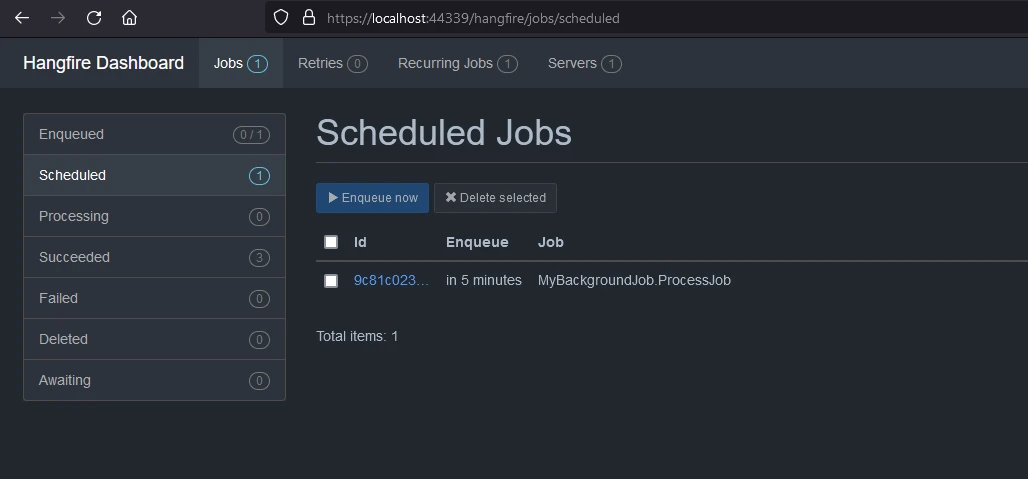
애플리케이션이 실행되면 Hangfire가 구성된 설정에 따라 백그라운드 작업 처리를 관리합니다.
더 고급 구성 옵션과 기능에 대한 자세한 내용은 Hangfire 문서를 확인하세요: Hangfire 문서 및 전체 코드는 GitHub Hangfire Demo에서 확인할 수 있습니다.
IronPDF .NET용 PDF Generation은 PDF 문서를 읽고 생성하는 데 도움이 되는 NuGet 패키지로 Iron Software의 PDF 라이브러리에서 제공됩니다. 스타일 정보를 포함한 형식이 갖춘 문서를 쉽게 PDF로 변환할 수 있습니다. IronPDF는 HTML 콘텐츠에서 손쉽게 PDF를 생성할 수 있습니다. URL에서 HTML을 다운로드한 후 PDF를 생성할 수 있습니다.
IronPDF의 주요 매력은 레이아웃과 스타일을 보존하는 HTML을 PDF로 변환하는 기능입니다. 웹 콘텐츠에서 PDF를 생성할 수 있으며, 보고서, 인보이스 및 문서에 이상적입니다. 이 기능은 HTML 파일, URL, HTML 문자열을 PDF로 변환하는 것을 지원합니다.
using IronPdf;

class Program
{
    static void Main(string[] args)
    {
        var renderer = new ChromePdfRenderer();

        // Convert HTML String to PDF
        var htmlContent = "<h1>Hello, IronPDF!</h1><p>This is a PDF from an HTML string.</p>";
        var pdfFromHtmlString = renderer.RenderHtmlAsPdf(htmlContent);
        pdfFromHtmlString.SaveAs("HTMLStringToPDF.pdf");

        // Convert HTML File to PDF
        var htmlFilePath = "path_to_your_html_file.html"; // Specify the path to your HTML file
        var pdfFromHtmlFile = renderer.RenderHtmlFileAsPdf(htmlFilePath);
        pdfFromHtmlFile.SaveAs("HTMLFileToPDF.pdf");

        // Convert URL to PDF
        var url = "http://ironpdf.com"; // Specify the URL
        var pdfFromUrl = renderer.RenderUrlAsPdf(url);
        pdfFromUrl.SaveAs("URLToPDF.pdf");
    }
}Imports IronPdf
Friend Class Program
Shared Sub Main(ByVal args() As String)
Dim renderer = New ChromePdfRenderer()
' Convert HTML String to PDF
Dim htmlContent = "<h1>Hello, IronPDF!</h1><p>This is a PDF from an HTML string.</p>"
Dim pdfFromHtmlString = renderer.RenderHtmlAsPdf(htmlContent)
pdfFromHtmlString.SaveAs("HTMLStringToPDF.pdf")
' Convert HTML File to PDF
Dim htmlFilePath = "path_to_your_html_file.html" ' Specify the path to your HTML file
Dim pdfFromHtmlFile = renderer.RenderHtmlFileAsPdf(htmlFilePath)
pdfFromHtmlFile.SaveAs("HTMLFileToPDF.pdf")
' Convert URL to PDF
Dim url = "http://ironpdf.com" ' Specify the URL
Dim pdfFromUrl = renderer.RenderUrlAsPdf(url)
pdfFromUrl.SaveAs("URLToPDF.pdf")
End Sub
End ClassNuGet 패키지 관리자를 사용하여 Hangfire .NET 프로젝트에 IronPDF를 통합하려면 다음 단계를 따르세요:
패키지 관리 콘솔을 사용하는 것을 선호하는 경우 다음 명령을 실행하세요:
이 명령은 IronPDF를 프로젝트에 가져와 설치합니다.
기능, 호환성 및 추가 다운로드 옵션을 포함한 IronPDF에 대한 자세한 개요는 NuGet 웹사이트의 IronPDF 페이지 https://www.nuget.org/packages/IronPdf를 방문하세요.
대안으로, IronPDF를 DLL 파일을 사용하여 프로젝트에 직접 통합할 수 있습니다. 이 IronPDF 직접 다운로드에서 DLL을 포함한 ZIP 파일을 다운로드하세요. 압축을 풀고, DLL을 프로젝트에 포함하세요.
이제 응용 프로그램을 수정하여 웹사이트를 PDF 파일로 다운로드하는 백그라운드 처리 작업을 추가해 봅시다.
namespace HangfireDemo.Core;

public class PdfGenerationJob
{
    public void Start(string website)
    {
        // Create a PDF from any existing web page
        ChromePdfRenderer renderer = new ChromePdfRenderer();
        PdfDocument pdf = renderer.RenderUrlAsPdf(website);
        var filePath = AppContext.BaseDirectory + "result.pdf";
        pdf.SaveAs(filePath);
    }
}Namespace HangfireDemo.Core
Public Class PdfGenerationJob
Public Sub Start(ByVal website As String)
' Create a PDF from any existing web page
Dim renderer As New ChromePdfRenderer()
Dim pdf As PdfDocument = renderer.RenderUrlAsPdf(website)
Dim filePath = AppContext.BaseDirectory & "result.pdf"
pdf.SaveAs(filePath)
End Sub
End Class
End NamespaceIronPDF는 URL에서 웹사이트를 다운로드하여 PDF 문서로 저장하는 내장 메서드가 있습니다. 이 메서드를 사용하여 작업에 다운로드하고 지정된 위치에 저장할 것입니다. 이 백그라운드 작업은 여러 웹사이트 URL을 받아 PDF로 저장하도록 수정할 수 있습니다.
이제 PDF 생성 및 다운로드 API를 노출할 컨트롤러를 추가해 봅시다.
using Hangfire;
using HangfireDemo.Core;
using Microsoft.AspNetCore.Mvc;

namespace HangfireDemo.Controllers;

[ApiController]
[Route("[controller]")]
public class PdfGeneratorController : ControllerBase
{
    [HttpGet("request", Name = "Start PDF Generation")]
    public void Start([FromQuery] string websiteUrl)
    {
        BackgroundJob.Enqueue<PdfGenerationJob>(x => x.Start(websiteUrl));
    }

    [HttpGet("result", Name = "Download PDF Generation")]
    public IActionResult WebResult()
    {
        var filePath = AppContext.BaseDirectory + "result.pdf";
        var stream = new FileStream(filePath, FileMode.Open);
        return new FileStreamResult(stream, "application/octet-stream") { FileDownloadName = "website.pdf" };
    }
}Imports Hangfire
Imports HangfireDemo.Core
Imports Microsoft.AspNetCore.Mvc
Namespace HangfireDemo.Controllers
<ApiController>
<Route("[controller]")>
Public Class PdfGeneratorController
Inherits ControllerBase
<HttpGet("request", Name := "Start PDF Generation")>
Public Sub Start(<FromQuery> ByVal websiteUrl As String)
BackgroundJob.Enqueue(Of PdfGenerationJob)(Function(x) x.Start(websiteUrl))
End Sub
<HttpGet("result", Name := "Download PDF Generation")>
Public Function WebResult() As IActionResult
Dim filePath = AppContext.BaseDirectory & "result.pdf"
Dim stream = New FileStream(filePath, FileMode.Open)
Return New FileStreamResult(stream, "application/octet-stream") With {.FileDownloadName = "website.pdf"}
End Function
End Class
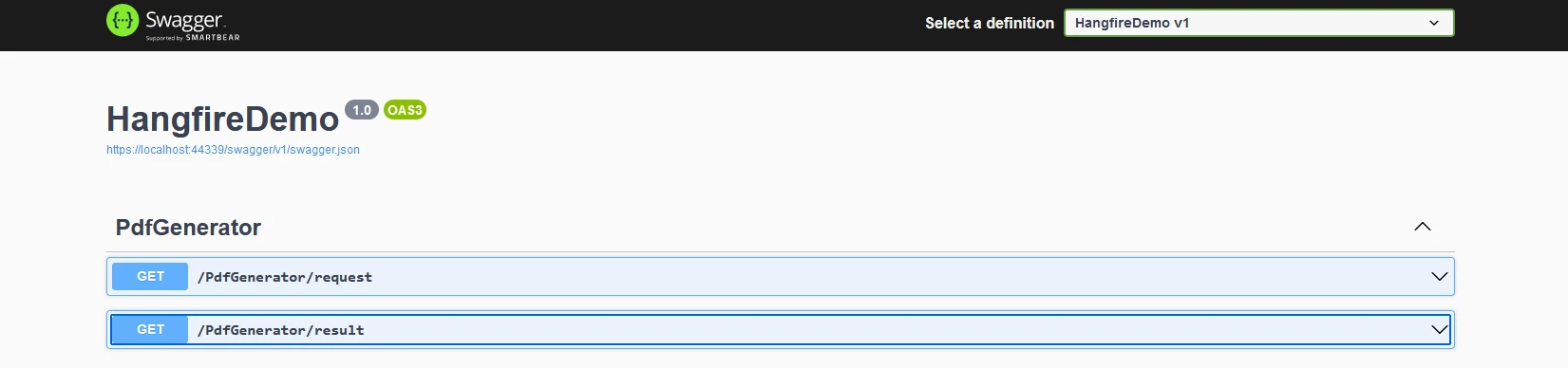
End Namespace여기에는 백그라운드 작업을 시작하고 다운로드를 시작할 웹사이트 URL을 받는 API와, 결과 PDF를 다운로드하는 또 다른 API가 만들어졌습니다. API는 아래와 같이 표시됩니다.
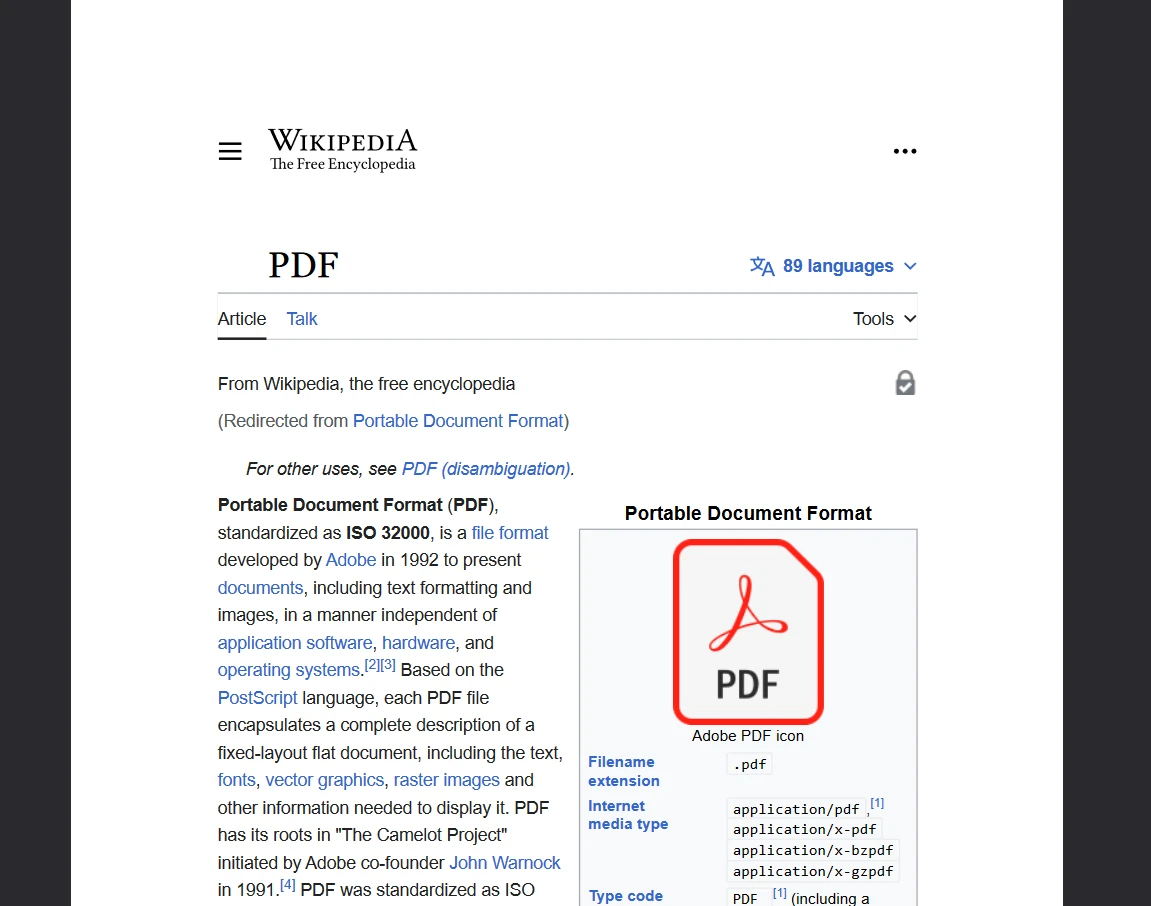
결과는 다음과 같습니다:
위 코드가 워터마크 없이 작동하려면 라이선스 키가 필요합니다. 개발자는 IronPDF 무료 체험판에 등록하여 체험 라이선스를 받을 수 있습니다. 체험 라이선스를 위해 신용카드는 필요하지 않습니다. 귀하의 이메일 ID를 제공하고 무료 체험을 등록할 수 있습니다.
Hangfire와 IronPDF는 함께 백그라운드에서 PDF를 생성 및 다운로드하는 데 훌륭한 조합입니다. Hangfire는 장기 실행 작업의 효율적인 처리를 가능하게 하며, IronPDF는 PDF 생성에 유연하고 사용하기 쉬운 솔루션을 제공합니다. IronPDF에 대해 더 알고 싶으시면 IronPDF 문서를 방문하세요.
또한 현대적인 응용 프로그램 요구 사항을 충족하고 코딩 기술을 향상시킬 수 있는 Iron Software Product Suite의 다른 도구도 탐색해 보십시오.

제이콥 멜러는 Iron Software의 최고 기술 책임자(CTO)이자 C# PDF 기술을 개척한 선구적인 엔지니어입니다. Iron Software의 핵심 코드베이스를 최초로 개발한 그는 창립 초기부터 회사의 제품 아키텍처를 설계해 왔으며, CEO인 캐머런 리밍턴과 함께 회사를 NASA, 테슬라, 그리고 전 세계 정부 기관에 서비스를 제공하는 50명 이상의 직원을 보유한 기업으로 성장시켰습니다.



IronPDF는 IRON SUITE 의 일부입니다.
10개의 .NET API 제품, 당신의 사무 문서를 위해











PDF 파일을 HTML처럼 빠르게 변환해야 할 때.


