




업데이트됨 2026년 4월 23일
.NET에서 Microsoft.Extensions.AI로 LLM 통합 간소화
AI는 소프트웨어 개발을 변혁하고 있으나, 대규모 언어 모델(LLM)을 .NET에 통합하는 것은 지금까지 복잡했습니다. 현대에는 OpenAI 기반 PDF 파싱, 데이터 추출 및 콘텐츠 요약을 .NET 애플리케이션에 가져오는 IronPdf.AI로 AI 통합을 더욱 확장하세요.
더 읽어보기

웹 개발은 수년에 걸쳐 먼 길을 걸어왔으며, 현대적인 프레임워크와 라이브러리의 출현과 함께 개발자는 역동적이고 상호작용적인 웹 페이지를 구축하기 위한 강력한 도구에 대한 접근권을 얻게 되었습니다. 최근 몇 년 동안 상당한 인기를 끈 기술 중 하나는 ASP.NET Core의 Blazor 프레임워크의 일부인 Razor 컴포넌트입니다. Razor 컴포넌트를 사용하면 JavaScript를 작성할 필요 없이 C#과 HTML을 사용하여 풍부한 클라이언트 사이드 웹 애플리케이션을 구축할 수 있습니다. 이 기사에서는 Razor 컴포넌트를 살펴보고 이를 어떻게 모듈화되고 재사용 가능하며 동적인 웹 페이지를 만드는 데 사용할 수 있는지 살펴보겠습니다.
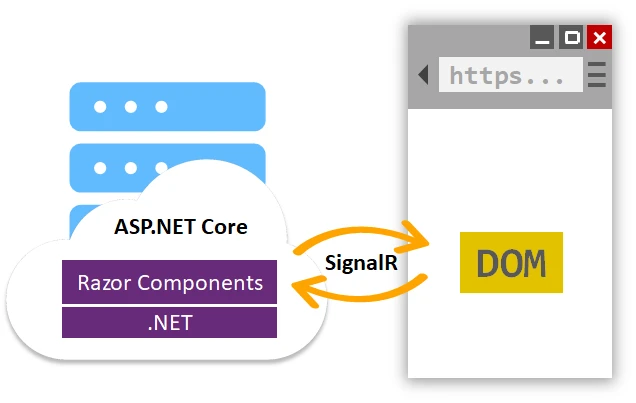
Razor 컴포넌트는 ASP.NET Core의 UI 프레임워크로, 개발자가 C#과 HTML을 결합하여 웹 페이지를 구축할 수 있게 해주며, 클라이언트 사이드에서 실행될 수 있는 서버 사이드 로직을 작성할 수 있습니다. Razor 컴포넌트는 Blazor 프레임워크의 일부로, C# 코드를 WebAssembly(Wasm) 또는 SignalR을 사용하여 브라우저에서 실행시키는 클라이언트 사이드 웹 UI 프레임워크입니다. Razor 컴포넌트는 현대 웹 애플리케이션을 구축하기 위한 컴포넌트 기반 아키텍처를 제공하며, UI는 작은, 독립된 컴포넌트로 분리되어 전체 웹 페이지를 구성할 수 있습니다.
Razor 컴포넌트는 Razor 구문이라고 불리는 마크업 언어를 사용하며, 이는 C#과 HTML의 조합으로 서버 측과 클라이언트 측 코드를 통합할 수 있게 합니다. Razor 컴포넌트는 React, Angular, Vue와 같은 다른 컴포넌트 기반 UI 프레임워크와 비슷하지만, C#으로 작성되어 호스팅 모델에 따라 서버 또는 클라이언트 측에서 실행된다는 점에서 차이가 있습니다(WebAssembly 또는 SignalR).
Razor 컴포넌트는 웹 개발자에게 여러 가지 이점을 제공합니다:
Razor 컴포넌트는 웹 애플리케이션 내 여러 위치나 다른 프로젝트에서 쉽게 재사용할 수 있는 독립적인 요소입니다. 이는 코드 재사용성을 촉진하고 코드 중복을 줄이며, 더 유지 보수성이 높고 확장 가능한 웹 애플리케이션을 제공합니다.
Razor 컴포넌트는 컴포넌트 기반 아키텍처를 따르며, UI가 더 작은 컴포넌트로 분리되어 복합적인 웹 페이지를 구성할 수 있습니다. 이는 모듈화를 촉진하여 개발자가 개별 컴포넌트 내의 UI와 논리를 캡슐화할 수 있게 하여 코드베이스를 더 쉽게 관리하고 유지 보수할 수 있습니다.
Razor 컴포넌트는 C#으로 작성되었기 때문에, 개발자는 기존의 C# 기술과 지식을 활용하여 웹 애플리케이션을 구축할 수 있습니다. 이는 JavaScript를 배우고 작성할 필요가 없어지기 때문에, 이미 C#에 익숙한 개발자에게 큰 장점이 될 수 있습니다.
Razor 컴포넌트는 호스팅 모델에 따라 서버 측 또는 클라이언트 측에서 실행될 수 있습니다. 이는 개발자가 성능, 보안, 사용자 경험과 같은 요인에 따라 애플리케이션에 가장 적합한 실행 모델을 선택할 수 있는 유연성을 제공합니다.
Razor 컴포넌트는 SignalR이라는 실시간 커뮤니케이션 라이브러리를 사용하여 클라이언트와 서버 간 양방향 통신을 설정할 수 있습니다. 이를 통해 웹 애플리케이션에서 실시간 업데이트와 알림을 제공하며, 반응적이고 인터랙티브한 사용자 경험을 제공합니다.
Razor 컴포넌트는 높은 확장성을 가지며, 개발자가 사용자 정의 컴포넌트, 라이브러리 및 템플릿을 만들 수 있게 합니다. 이는 개발자가 웹 애플리케이션의 특정 요구 사항을 충족하는 맞춤형 솔루션을 구축할 수 있게 합니다.
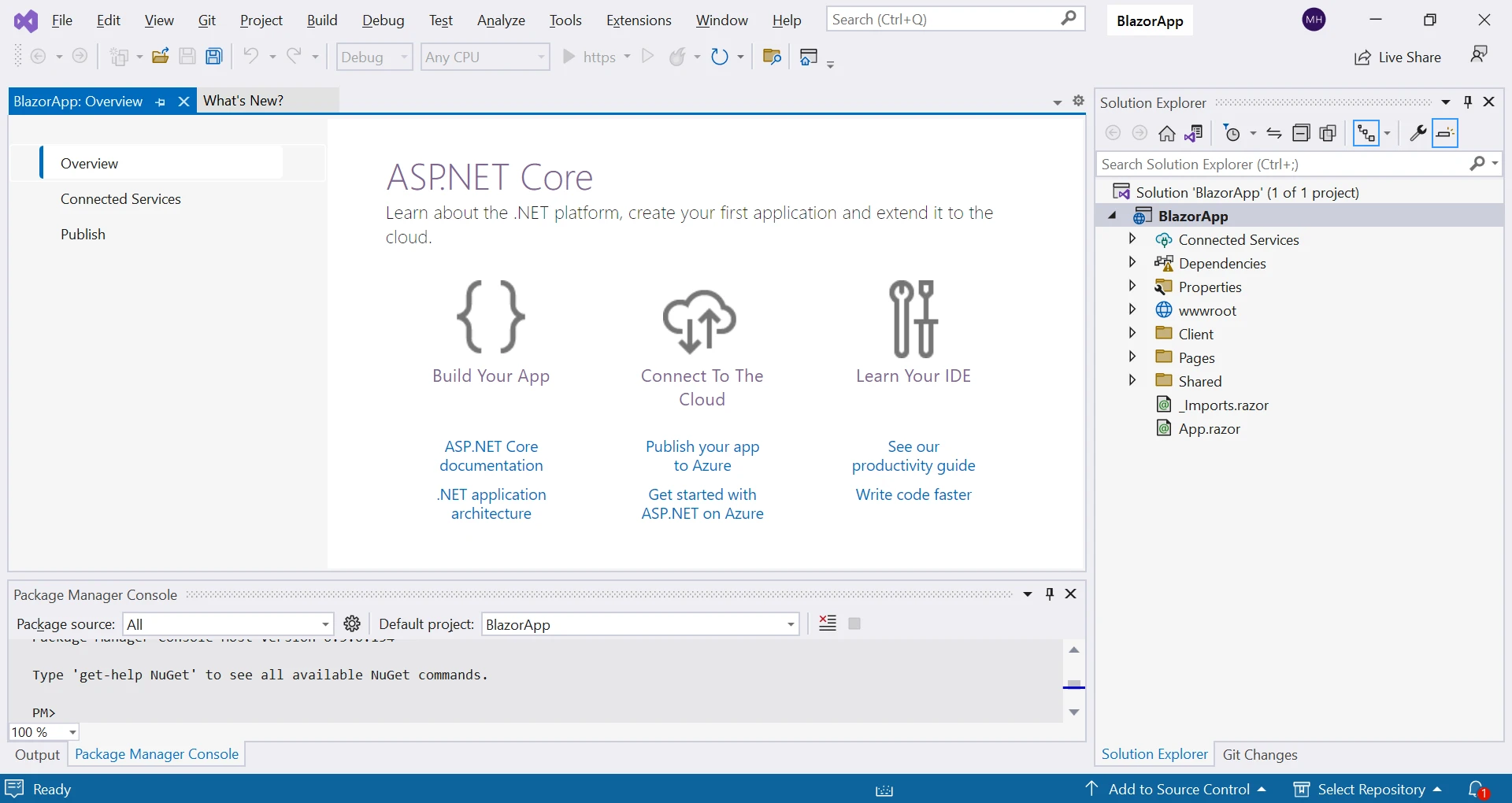
Razor 컴포넌트를 시작하려면 시스템에 .NET Core 3.0 이상이 설치되어 있어야 합니다. Visual Studio 또는 .NET Core CLI의 Blazor 템플릿을 사용하여 새로운 ASP.NET Core 프로젝트를 생성하십시오.
@page "/counter"

<h1>Counter</h1>

<p role="status">Current count: @currentCount</p>
<button @onclick="IncrementCount">Click me</button>

@code {
    private int currentCount = 0;

    private void IncrementCount()
    {
        currentCount++;
    }
}이 예제에서는 "Counter"라는 Razor 컴포넌트를 사용하며, 버튼을 클릭하면 currentCount 변수가 증가합니다. @code 블록은 컴포넌트의 C# 코드를 정의하는 데 사용됩니다.
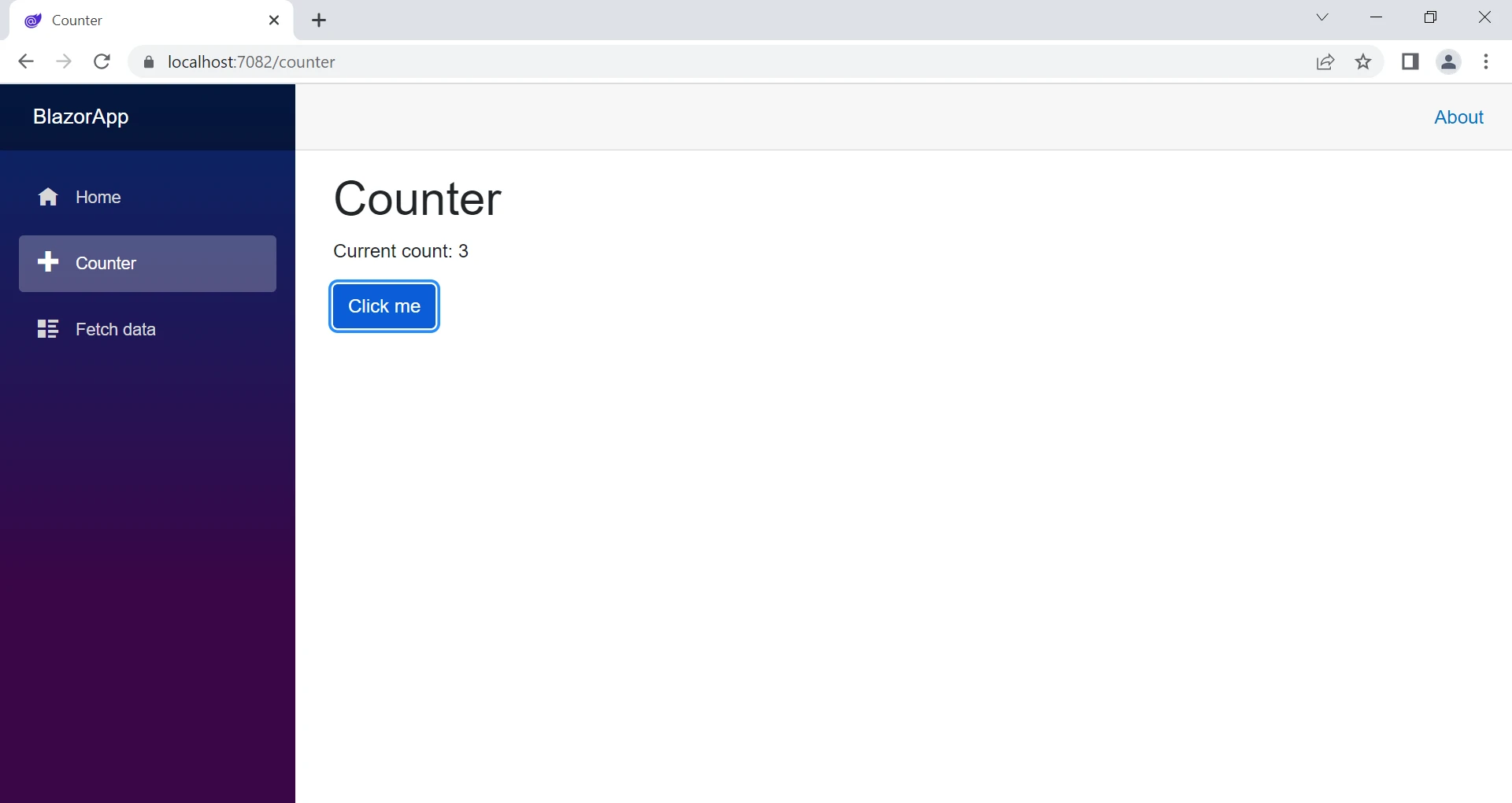
프로젝트에서 Razor Components를 저장할 'Components'라는 새 폴더를 만드세요.
'Components' 폴더 안에 '.razor' 확장자를 가진 새로운 Razor Component 파일을 추가하세요. 이 파일은 컴포넌트를 위한 C# 및 HTML 코드를 포함할 것입니다.
Razor Component 파일을 열고 Razor 문법을 사용하여 컴포넌트를 정의하세요. Razor 문법을 통해 C#과 HTML 코드를 단일 파일에서 결합할 수 있어 동적 웹 페이지를 쉽게 만들 수 있습니다. 예를 들어, 다음과 같이 간단한 Razor Component를 정의할 수 있습니다:
<h1>Hello, World!</h1>
<p>This is a Razor Component.</p>

@code {
    // C# code for the component can be added here
}이제 HTML 마크업에서 컴포넌트의 태그 이름을 사용하여 웹 애플리케이션의 다른 부분에서 Razor Component를 사용할 수 있습니다. 예를 들어, 메인 Razor 페이지에서 컴포넌트를 다음과 같이 사용할 수 있습니다:
<MyComponent />컴포넌트 매개변수를 사용하여 Razor Component에 데이터를 전달할 수도 있습니다. 컴포넌트 매개변수를 통해 부모 컴포넌트에서 자식 컴포넌트로 데이터를 전달할 수 있어 컴포넌트 간의 소통이 가능합니다. 예를 들어, 컴포넌트에서 매개변수를 다음과 같이 정의할 수 있습니다:
@code {
    [Parameter]
    public string Message { get; set; }
}그리고 다음과 같이 Razor Component 클래스에서 컴포넌트 매개변수를 사용할 수 있습니다:
<p>@Message</p>그리고 다음과 같이 부모 컴포넌트에서 컴포넌트로 데이터를 전달할 수 있습니다:
<MyComponent Message="Hello from parent component!" />Razor Components는 서버-사이드 로직을 포함할 수 있어 클라이언트 측에서 실행할 수 있습니다. 예를 들어, 처리 로직을 작성하거나, HTTP 요청을 하거나, 사용자 이벤트를 처리하고, C# 코드를 사용하여 직접 서버-사이드 작업을 수행할 수 있습니다. 이를 통해 JavaScript 코드를 작성하지 않고 동적이고 상호작용적인 웹 페이지를 만들 수 있습니다.
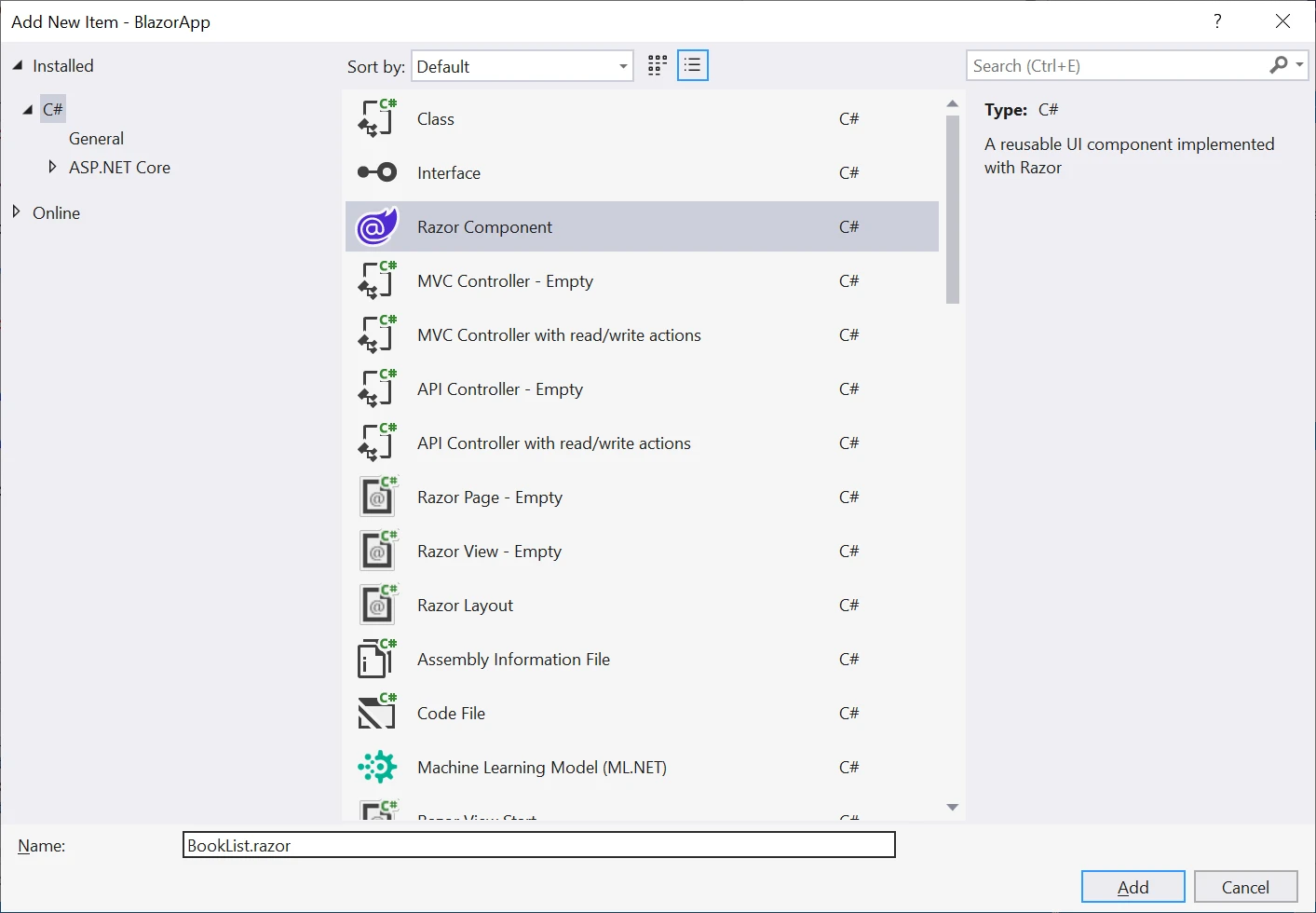
Razor Components의 이점 중 하나는 여러 페이지나 애플리케이션에서 사용할 수 있는 재사용 가능한 UI 컴포넌트를 만들 수 있다는 것입니다. 재사용 가능한 컴포넌트를 만들기 위해 프로젝트의 'Shared' 폴더에 새로운 '.razor' 파일을 만들 수 있습니다.
예를 들어, 책 목록을 표시하는 컴포넌트를 만들고 싶다고 가정해봅시다. "Shared" 폴더에 새로운 BookList.razor 파일을 생성할 수 있습니다. 예를 들어:
다음과 같이 Razor Component를 정의할 수 있습니다:
@typeparam TItem

@foreach (var book in Books)
{
    <p>@book.Title by @book.Author</p>
}

@code {
    [Parameter]
    public List<TItem> Books { get; set; }
}이 예제에서는 "Book" 객체의 목록을 Razor 매개변수로 취하는 BookList라는 컴포넌트를 사용합니다. @foreach 루프는 목록을 반복하며 각 책의 제목과 저자를 표시하는 데 사용됩니다.
다음 섹션에서는 IronPDF를 사용하여 Razor Components와 함께 웹 애플리케이션에서 PDF 파일을 생성하는 방법을 탐구할 것입니다.
IronPDF는 개발자가 HTML, CSS, JavaScript에서 PDF 파일을 만들 수 있게 해주는 C# 라이브러리입니다. Google Chrome에 동력을 제공하는 오픈 소스 브라우저 Chromium을 기반으로 구축되었습니다. IronPDF를 사용하면 개발자가 쉽게 Razor Components를 HTML로 변환하여 PDF 파일을 생성할 수 있습니다.
IronPDF는 HTML을 PDF로 변환하는 데 뛰어나며 레이아웃과 스타일을 유지합니다. 보고서, 청구서 및 문서화와 같은 웹 기반 콘텐츠에서 PDF를 생성할 때 특히 유용합니다. HTML 파일, URL 및 HTML 문자열은 쉽게 PDF 파일로 변환될 수 있습니다.
using IronPdf;

class Program
{
    static void Main(string[] args)
    {
        var renderer = new ChromePdfRenderer();

        // 1. Convert HTML String to PDF
        var htmlContent = "<h1>Hello, IronPDF!</h1><p>This is a PDF from an HTML string.</p>";
        var pdfFromHtmlString = renderer.RenderHtmlAsPdf(htmlContent);
        pdfFromHtmlString.SaveAs("HTMLStringToPDF.pdf");

        // 2. Convert HTML File to PDF
        var htmlFilePath = "path_to_your_html_file.html"; // Specify the path to your HTML file
        var pdfFromHtmlFile = renderer.RenderHtmlFileAsPdf(htmlFilePath);
        pdfFromHtmlFile.SaveAs("HTMLFileToPDF.pdf");

        // 3. Convert URL to PDF
        var url = "http://ironpdf.com"; // Specify the URL
        var pdfFromUrl = renderer.RenderUrlAsPdf(url);
        pdfFromUrl.SaveAs("URLToPDF.pdf");
    }
}Imports IronPdf
Module Program
Sub Main(args As String())
Dim renderer = New ChromePdfRenderer()
' 1. Convert HTML String to PDF
Dim htmlContent = "<h1>Hello, IronPDF!</h1><p>This is a PDF from an HTML string.</p>"
Dim pdfFromHtmlString = renderer.RenderHtmlAsPdf(htmlContent)
pdfFromHtmlString.SaveAs("HTMLStringToPDF.pdf")
' 2. Convert HTML File to PDF
Dim htmlFilePath = "path_to_your_html_file.html" ' Specify the path to your HTML file
Dim pdfFromHtmlFile = renderer.RenderHtmlFileAsPdf(htmlFilePath)
pdfFromHtmlFile.SaveAs("HTMLFileToPDF.pdf")
' 3. Convert URL to PDF
Dim url = "http://ironpdf.com" ' Specify the URL
Dim pdfFromUrl = renderer.RenderUrlAsPdf(url)
pdfFromUrl.SaveAs("URLToPDF.pdf")
End Sub
End ModuleRazor Components에서 IronPDF를 사용하려면 먼저 IronPDF NuGet 패키지를 설치해야 합니다. 이를 수행하려면 다음 단계를 따르세요:
IronPDF NuGet 패키지를 설치한 후, Razor Components 애플리케이션에서 사용할 수 있습니다.
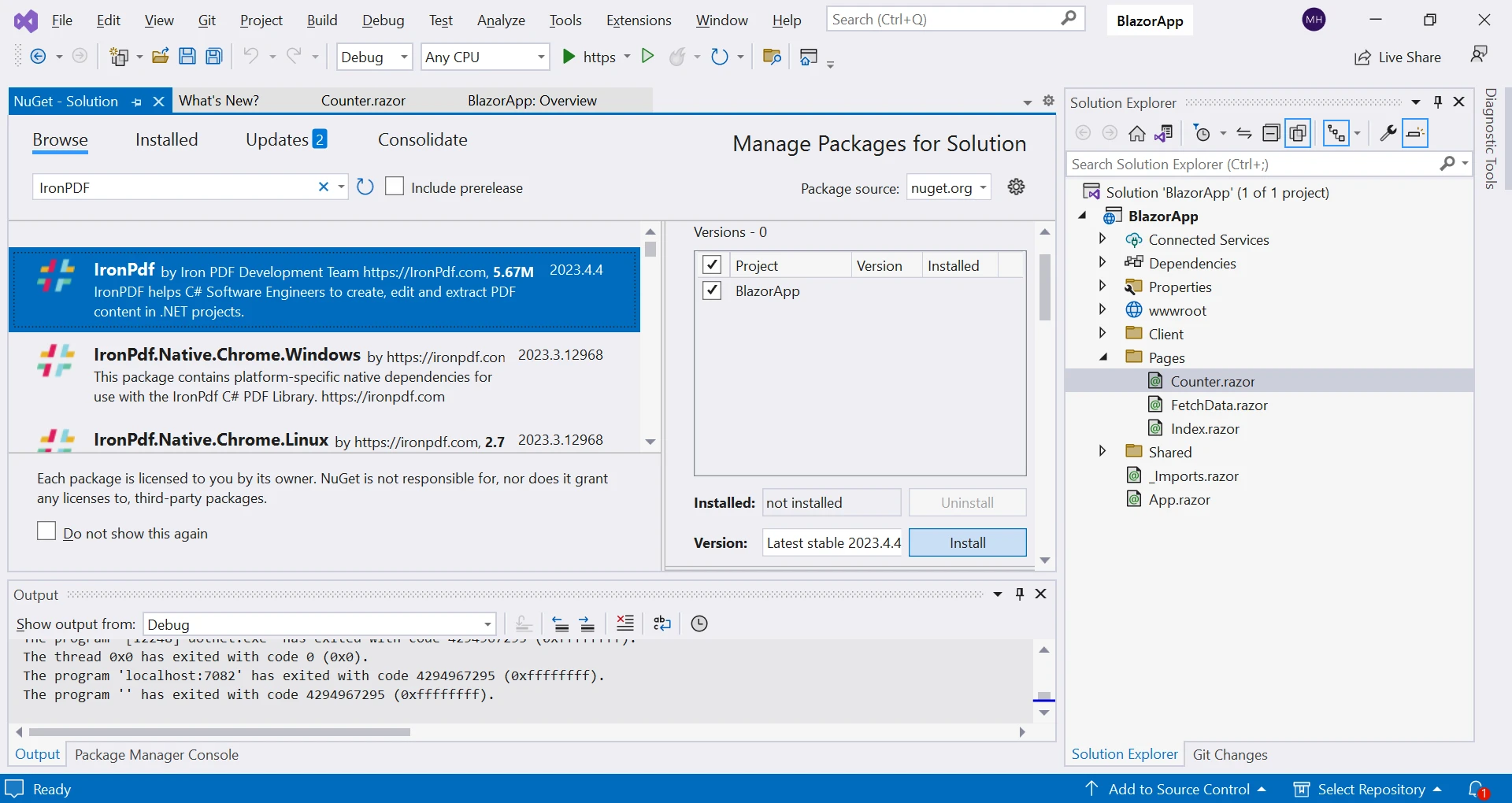
패키지가 설치되면 IronPdf.ChromePdfRenderer 클래스를 사용하여 Razor 컴포넌트에서 새로운 PDF 파일을 생성할 수 있습니다.
ASP.NET Core Razor 컴포넌트에서 PDF 파일을 생성하려면 HTML 구문 문자열, HTML 파일 또는 URL을 IronPdf.ChromePdfRenderer 메서드에 전달할 수 있습니다. 예를 들어, 카운터 증가와 함께 PDF 파일을 생성하고 싶다고 가정해봅시다.
var renderer = new IronPdf.ChromePdfRenderer();
var pdf = renderer.RenderHtmlAsPdf("<h1>My PDF #" + currentCount + "</h1>");
pdf.SaveAs("myPdf" + currentCount + ".pdf");Dim renderer = New IronPdf.ChromePdfRenderer()
Dim pdf = renderer.RenderHtmlAsPdf("<h1>My PDF #" & currentCount & "</h1>")
pdf.SaveAs("myPdf" & currentCount & ".pdf")이 예제에서는 ChromePdfRenderer의 새 인스턴스를 생성합니다. 그런 다음 PdfDocument 클래스의 새 인스턴스를 생성하고 문자열을 RenderHtmlAsPdf 메서드에 전달합니다. 마지막으로 결과 PDF 파일을 PdfDocument.SaveAs 메서드를 사용하여 디스크에 저장합니다.
이 예제에서는 카운터 컴포넌트를 수정했습니다. 우리는 클릭 시 카운터의 수를 포함하는 PDF를 생성할 onClick 함수가 수정된 카운터 버튼을 가지고 있습니다.
이 기사에서는 IronPDF와 함께 Razor Components를 사용하여 웹 애플리케이션에서 PDF 파일을 생성하는 방법을 탐구했습니다. Razor Components의 기본 사항, IronPDF 설치 및 사용 방법을 다루었으며 시작하는 데 도움이 되는 코드 예제를 제공하였습니다.
Razor Components와 IronPDF는 강력한 도구로서 강력하고 기능이 풍부한 웹 애플리케이션을 만들 수 있습니다. 이 기술들을 결합하면 개발자는 기능적이면서도 시각적으로 매력적인 웹 애플리케이션을 만들 수 있습니다.
IronPDF는 또한 razor 페이지와 URL을 PDF로 변환하거나 PDF 문서를 읽고 생성 및 조작하는 데 사용할 수 있습니다. IronPDF는 심지어 기존 또는 새로 생성된 PDF 문서에 헤더, 푸터, 페이지 번호, 디지털 서명, 비밀번호 및 고급 PDF 조작 기능을 추가하는 등의 더 세밀한 PDF 제어를 허용합니다. 개발에서는 무료로 사용 가능하나, 프로덕션에서는 무료 체험판 라이센스나 상업용 라이센스가 필요합니다.

제이콥 멜러는 Iron Software의 최고 기술 책임자(CTO)이자 C# PDF 기술을 개척한 선구적인 엔지니어입니다. Iron Software의 핵심 코드베이스를 최초로 개발한 그는 창립 초기부터 회사의 제품 아키텍처를 설계해 왔으며, CEO인 캐머런 리밍턴과 함께 회사를 NASA, 테슬라, 그리고 전 세계 정부 기관에 서비스를 제공하는 50명 이상의 직원을 보유한 기업으로 성장시켰습니다.



IronPDF는 IRON SUITE 의 일부입니다.
10개의 .NET API 제품, 당신의 사무 문서를 위해

PDF 파일을 HTML처럼 빠르게 변환해야 할 때.


