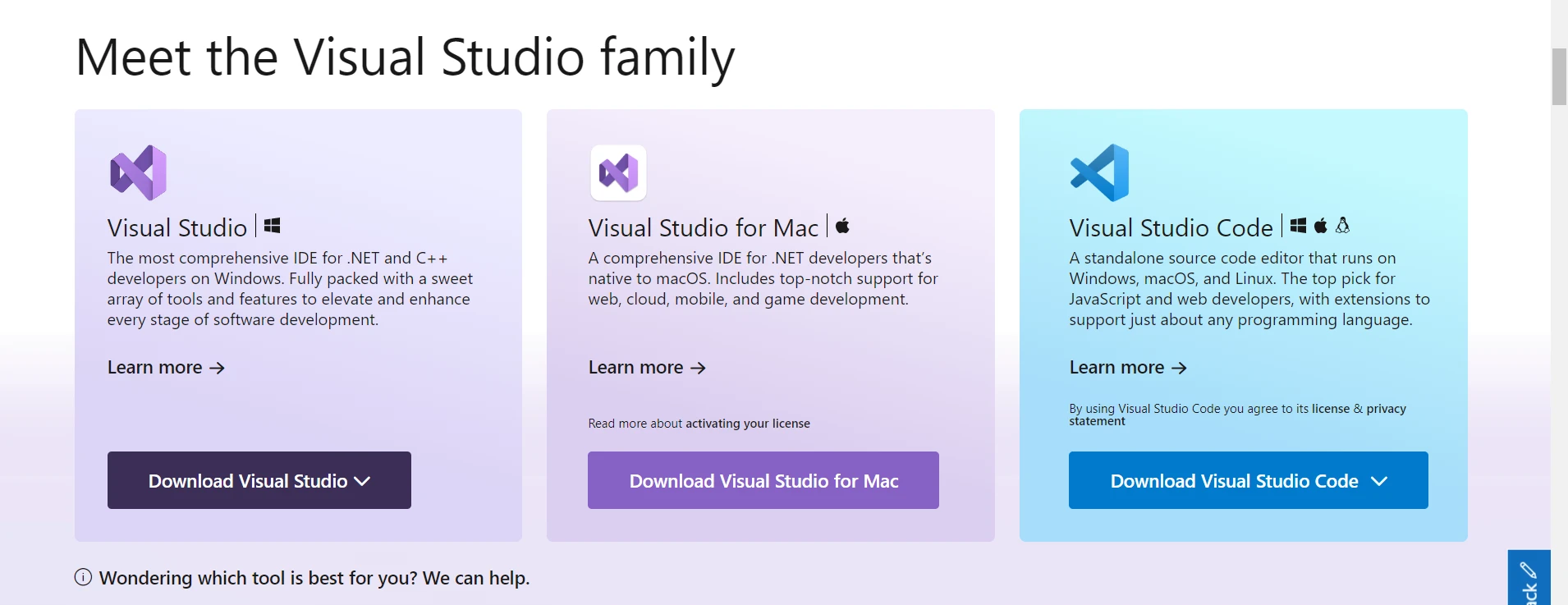
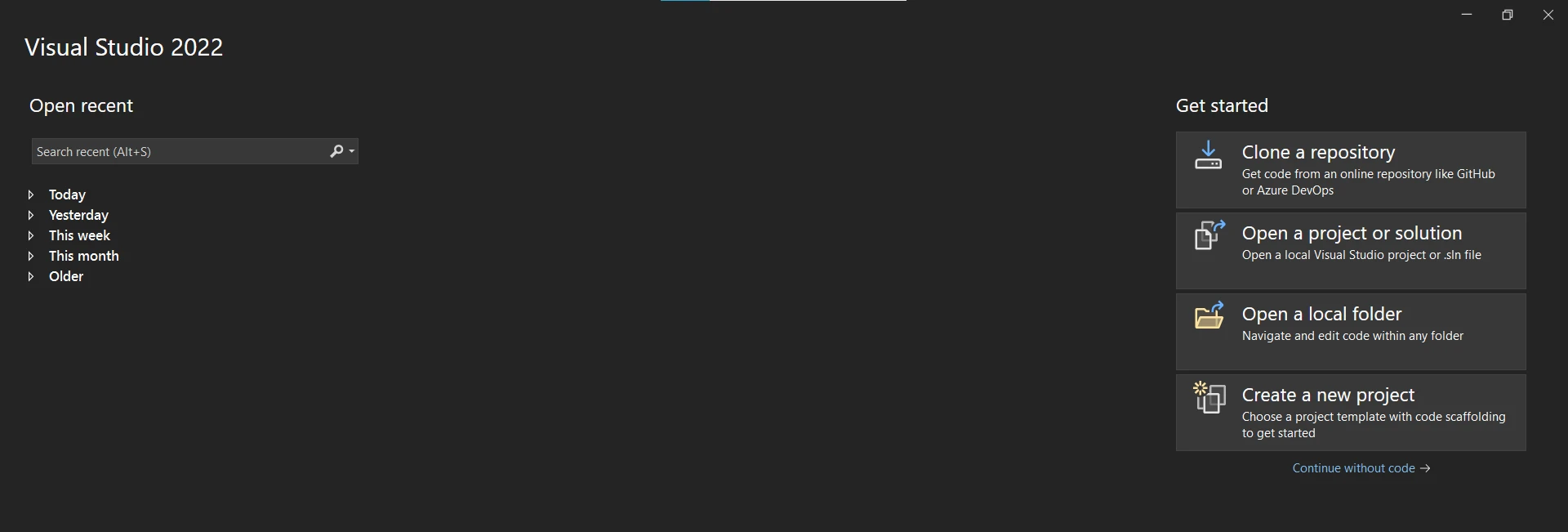
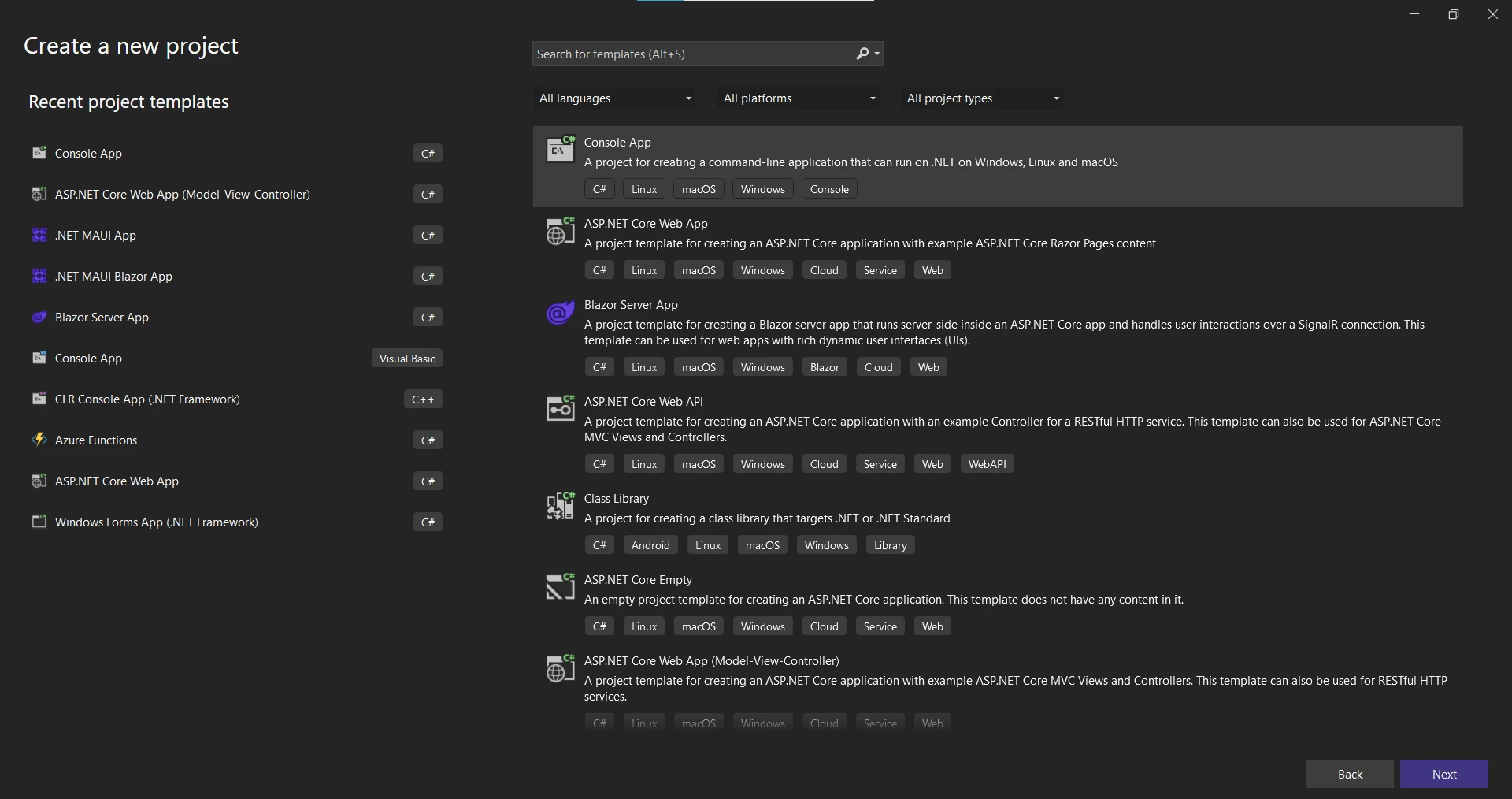
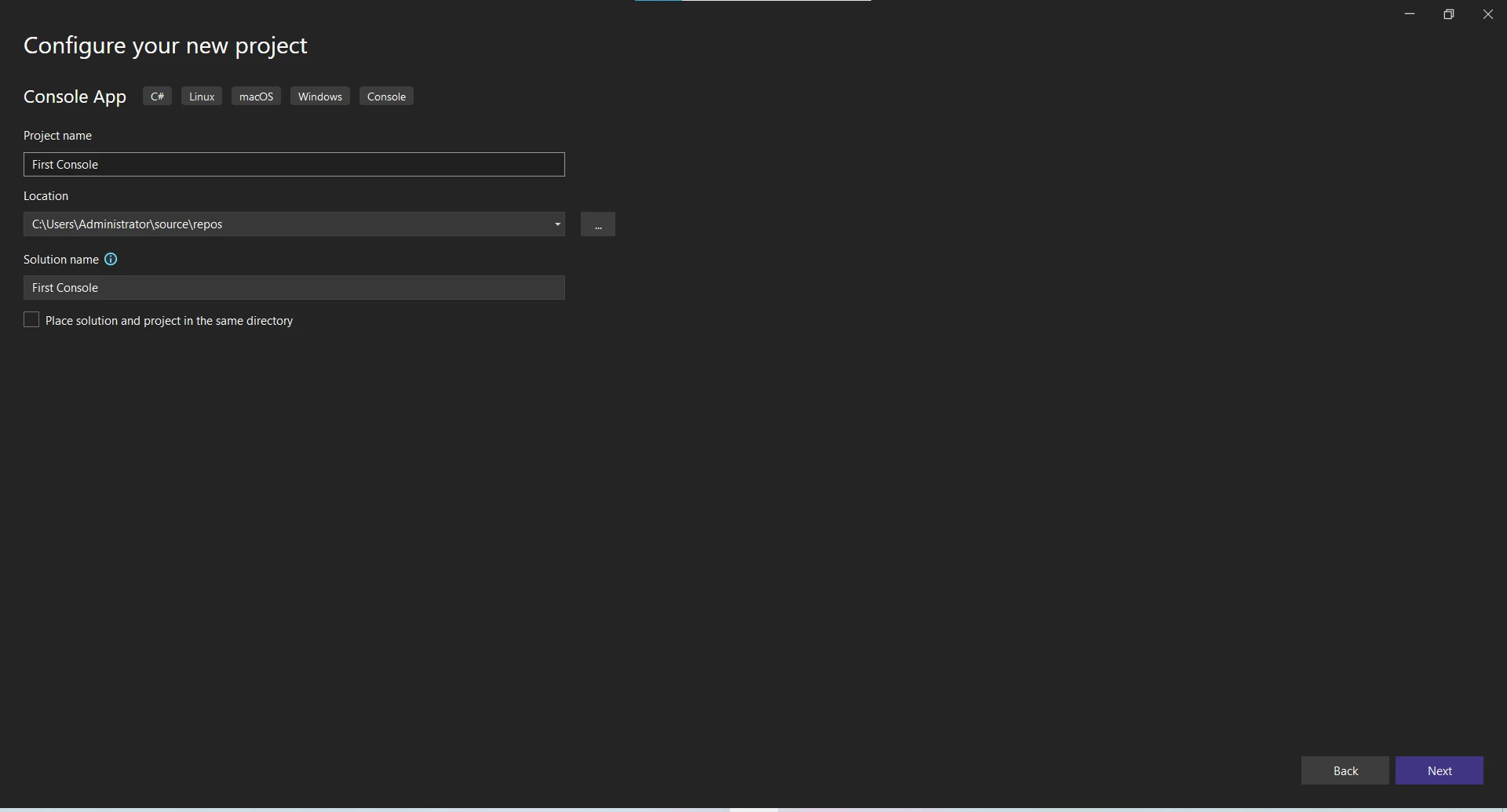
.NET 도움말 What is Visual Studio (How it Works for Developers) 커티스 차우 업데이트됨:6월 22, 2025 다운로드 IronPDF NuGet 다운로드 DLL 다운로드 윈도우 설치 프로그램 무료 체험 시작하기 LLM용 사본 LLM용 사본 LLM용 마크다운 형식으로 페이지를 복사하세요 ChatGPT에서 열기 ChatGPT에 이 페이지에 대해 문의하세요 제미니에서 열기 제미니에게 이 페이지에 대해 문의하세요 Grok에서 열기 Grok에게 이 페이지에 대해 문의하세요 혼란 속에서 열기 Perplexity에게 이 페이지에 대해 문의하세요 공유하다 페이스북에 공유하기 트위터에 공유하기 LinkedIn에 공유하기 URL 복사 이메일로 기사 보내기 Visual Studio is a product of Microsoft, often referred to as Microsoft Visual Studio. It is an Integrated Development Environment (IDE) where you can write code, debug, and test. This development environment supports multiple programming languages, enabling you to create web applications, web services, and other types of software development. Downloading Visual Studio To download Visual Studio, head over to the official Microsoft Visual Studio website. A free version known as the Community edition is available. It comes with several different tools to assist you in the software development process. Exploring the Visual Studio IDE The Visual Studio IDE is the central hub where all your coding happens. Here's a brief overview of some of the elements you will find: Code Editor: This is the space where you write your code. The code editor comes equipped with syntax highlighting, code completion, and a variety of other built-in tools designed to facilitate your coding process. Tool Windows: These include, but aren't limited to, the Server Explorer and Solution Explorer, which help you manage your projects, databases, servers, and other essential resources. Integrated Debugger: This is an indispensable part of the Visual Studio toolbox. The integrated debugger allows you to debug code, from high-level managed code all the way down to machine-level native code. Designers: These are specialized tools for specific tasks. For example, the Forms Designer helps in creating user interfaces, and the Web Designer aids in building visually appealing websites. Version Control Integration: Visual Studio seamlessly integrates with popular version control systems like Git and Team Foundation Version Control (TFVC). This enables efficient collaboration among team members, providing features such as code branching, merging, history tracking, and conflict resolution. In addition to its core features, Visual Studio provides various extensions and add-ons that enhance its functionality and cater to specific development needs. A wide range of extensions are available through the Visual Studio Marketplace and can be easily installed and integrated into your IDE, allowing you to customize your development environment according to your preferences. Creating a New Project in Visual Studio To create a new project, follow these steps: Launch Visual Studio. Click on 'Create a new project.' Select the type of project you want to create, e.g., a console application. Enter a name for your project and specify the location where you want your project to be stored. Writing Code in Visual Studio Visual Studio supports multiple languages including C#, Visual Basic, C++, JavaScript, Python, and many more. To write code in Visual Studio, you open up a code file in the code editor and start typing. The Visual Studio IDE helps with code snippets, code completion, and syntax highlighting as you type. Debugging in Visual Studio Visual Studio comes equipped with an integrated debugger that can handle both managed and native code. With this tool, you can set breakpoints in your code and run your program to test it. When your program hits a breakpoint, you have the flexibility to inspect variables, step through the code, and more. Building and Running a Project Once you've written and debugged your code, the next step is to build it. Building the project converts your source code into a runnable program. After building, you can run your project right inside Visual Studio. Using Visual Studio Tools Visual Studio comes packed with tools that can aid in every step of the software development process. Some of these tools include a forms designer for designing user interfaces, a web designer for developing web applications, and a Server Explorer for managing your cloud services. Visual Studio vs Visual Studio Code It's important to distinguish between Visual Studio and Visual Studio Code. While both are creations of Microsoft, they serve different functions and are designed to meet different development needs. Visual Studio Code is a lean code editor that is perfect for less complex tasks, scripting, and basic programming. It offers features like syntax highlighting, code snippets, and code completion. When compared to the full-fledged Visual Studio, it lacks the array of features and tools that make Visual Studio an advanced IDE. For more comprehensive coding projects, especially in a professional or enterprise context, Visual Studio is often the preferred choice. What Makes Visual Studio Different from Other IDEs? Visual Studio sets itself apart from other IDEs with its wide-ranging features and extensive language support. It's more than just a text editor; it's a complete development environment, integrating a powerful debugger, testing tools, version control, and more. Additionally, Visual Studio's extensibility, through its vast array of extensions, allows developers to tailor the IDE to their specific needs. Incorporating IronPDF into Visual Studio Another strength of Visual Studio is its compatibility with various libraries, enhancing its functionality. A prime example of such a library is IronPDF, a Powerful .NET PDF Library. So, you may wonder, "How does IronPDF fit into this Visual Studio discussion?" IronPDF is a powerful PDF library for .NET that allows developers to create, edit, and extract PDF content within .NET applications. If you're using Visual Studio for a project and you need to work with PDFs, IronPDF is an invaluable tool. How to Utilize IronPDF in Visual Studio The process of adding IronPDF to your Visual Studio project is relatively straightforward. First, you need to download the IronPDF .NET library. You can download it using the NuGet package manager by the following command: Install-Package IronPdf With IronPDF installed, you can generate PDF reports from HTML, images, or even existing web pages in your .NET applications. IronPDF also supports HTML-to-PDF Rendering, which means you can take any HTML content, even from a live webpage, and turn it into a PDF document. This capability can be particularly handy for creating reports or saving web content for offline use. This ability can be crucial for creating invoices, tickets, or any other types of PDF documents within your applications. Let's look at the code example: using IronPdf; // Import the IronPdf library // Create a PDF renderer var renderer = new ChromePdfRenderer(); // Render a PDF from an existing web page var pdf = renderer.RenderUrlAsPdf("https://en.wikipedia.org/wiki/PDF"); // Save the rendered PDF to a file pdf.SaveAs("wikipedia.pdf"); using IronPdf; // Import the IronPdf library // Create a PDF renderer var renderer = new ChromePdfRenderer(); // Render a PDF from an existing web page var pdf = renderer.RenderUrlAsPdf("https://en.wikipedia.org/wiki/PDF"); // Save the rendered PDF to a file pdf.SaveAs("wikipedia.pdf"); $vbLabelText $csharpLabel Conclusion Visual Studio isn't just a regular tool for writing code. It's super flexible and works well with tons of other tools, software, and coding languages. This makes it an all-in-one hub for all sorts of software creation tasks. When you pair Visual Studio with powerful tools like IronPDF, it gets even better. It can then tackle a bunch of different tasks, from creating complex online services to making PDFs out of thin air. So, the next time someone throws the question at you, "What is Visual Studio?" you'll be ready. Not only will you know the answer, but you'll also be able to tell them how it pairs with different tools to make creating software easier and better. If you are interested in IronPDF, you can try its free trial. You'll have access to all functionalities of the IronPDF. After the trial, if you want to buy the IronPDF, you can go to the IronPDF Licensing Information Page. Licensing starts from $799. 자주 묻는 질문 Visual Studio는 어떤 용도로 사용되나요? Visual Studio는 Microsoft에서 제공하는 통합 개발 환경(IDE)입니다. 다양한 프로그래밍 언어에서 코드를 작성, 디버깅 및 테스트하는 데 사용됩니다. 개발자는 이를 활용하여 웹 애플리케이션, 웹 서비스 및 다양한 소프트웨어 솔루션을 만듭니다. Visual Studio를 사용하여 .NET 애플리케이션에 PDF 기능을 통합하려면 어떻게 해야 하나요? Visual Studio 내에서 IronPDF를 사용하여 .NET 애플리케이션에 PDF 기능을 통합할 수 있습니다. 여기에는 애플리케이션에서 직접 PDF를 생성, 편집 및 렌더링할 수 있는 NuGet 패키지 관리자를 통해 IronPDF 라이브러리를 설치하는 것이 포함됩니다. Visual Studio의 주요 구성 요소는 무엇인가요? Visual Studio의 주요 구성 요소에는 구문 강조 표시 및 코드 완성 기능이 있는 코드 편집기, 서버 탐색기와 같은 도구 창, 통합 디버거, UI 및 웹 개발을 위한 디자이너가 포함됩니다. 또한 Git과 같은 버전 관리 시스템과도 통합됩니다. 개발 프로세스를 개선하기 위해 Visual Studio를 사용자 지정하려면 어떻게 해야 하나요? 시각적 스튜디오는 시각적 스튜디오 마켓플레이스에서 제공되는 다양한 확장 프로그램과 애드온을 통해 사용자 지정할 수 있습니다. 이러한 확장 기능을 통해 개발자는 특정 개발 요구 사항에 맞게 IDE를 조정하고 생산성을 향상시킬 수 있습니다. Visual Studio의 무료 버전이 있나요? 예, 공식 Visual Studio 웹사이트에서 커뮤니티 에디션이라는 무료 버전을 다운로드할 수 있습니다. 이 버전은 개인 개발자 및 소규모 팀에 적합한 다양한 도구를 제공합니다. Visual Studio는 소프트웨어 개발에서 협업을 어떻게 지원하나요? Visual Studio는 Git 및 TFVC와 같은 버전 관리 시스템과의 통합을 통해 협업을 지원합니다. 이러한 통합을 통해 팀원들은 효율적으로 협업하고 코드 버전을 효과적으로 관리할 수 있습니다. Visual Studio 프로젝트 내에서 HTML을 PDF로 변환하려면 어떻게 해야 하나요? IronPDF를 사용하면 HTML 문자열의 경우 RenderHtmlAsPdf 또는 HTML 파일의 경우 RenderHtmlFileAsPdf와 같은 메서드를 활용하여 Visual Studio 프로젝트 내에서 HTML을 PDF로 변환할 수 있습니다. 이렇게 하면 HTML 콘텐츠에서 바로 송장 같은 문서를 만들 수 있습니다. 커티스 차우 지금 바로 엔지니어링 팀과 채팅하세요 기술 문서 작성자 커티스 차우는 칼턴 대학교에서 컴퓨터 과학 학사 학위를 취득했으며, Node.js, TypeScript, JavaScript, React를 전문으로 하는 프론트엔드 개발자입니다. 직관적이고 미적으로 뛰어난 사용자 인터페이스를 만드는 데 열정을 가진 그는 최신 프레임워크를 활용하고, 잘 구성되고 시각적으로 매력적인 매뉴얼을 제작하는 것을 즐깁니다. 커티스는 개발 분야 외에도 사물 인터넷(IoT)에 깊은 관심을 가지고 있으며, 하드웨어와 소프트웨어를 통합하는 혁신적인 방법을 연구합니다. 여가 시간에는 게임을 즐기거나 디스코드 봇을 만들면서 기술에 대한 애정과 창의성을 결합합니다. 관련 기사 업데이트됨 12월 11, 2025 Bridging CLI Simplicity & .NET : Using Curl DotNet with IronPDF Jacob Mellor has bridged this gap with CurlDotNet, a library created to bring the familiarity of cURL to the .NET ecosystem. 더 읽어보기 업데이트됨 12월 20, 2025 RandomNumberGenerator C# Using the RandomNumberGenerator C# class can help take your PDF generation and editing projects to the next level 더 읽어보기 업데이트됨 12월 20, 2025 C# String Equals (How it Works for Developers) When combined with a powerful PDF library like IronPDF, switch pattern matching allows you to build smarter, cleaner logic for document processing 더 읽어보기 C# List (How it Works For Developers)C# Concurrent List (How it Works fo...
업데이트됨 12월 11, 2025 Bridging CLI Simplicity & .NET : Using Curl DotNet with IronPDF Jacob Mellor has bridged this gap with CurlDotNet, a library created to bring the familiarity of cURL to the .NET ecosystem. 더 읽어보기
업데이트됨 12월 20, 2025 RandomNumberGenerator C# Using the RandomNumberGenerator C# class can help take your PDF generation and editing projects to the next level 더 읽어보기
업데이트됨 12월 20, 2025 C# String Equals (How it Works for Developers) When combined with a powerful PDF library like IronPDF, switch pattern matching allows you to build smarter, cleaner logic for document processing 더 읽어보기