오늘날 디지털 시대에는, PDF(Portable Document Format)가 다양한 플랫폼과 기기에서 문서를 공유하고 보존하는 표준이 되었습니다. 학생이든, 전문가든, 전자 문서와 관련된 사람이든 PDF 주석 및 편집 도구를 사용하여 PDF를 주석 처리하는 능력은 중요한 기술입니다. PDF 주석은 중요 포인트를 강조하고, 코멘트 툴바와 텍스트 상자를 사용하여 코멘트를 추가하고, 문서에 직접 메모를 작성하여 협업과 이해를 향상시킵니다. 이 가이드에서는 다양한 PDF 주석 도구와 방법을 사용하여 PDF에 주석을 추가하는 과정을 안내합니다.
내장된 PDF 주석 도구
많은 PDF 뷰어와 편집기에는 내장된 PDF 주석 도구가 있어 PDF에 주석을 추가하는 과정을 상대적으로 간단하게 만듭니다. 다음은 인기 있는 PDF 응용 프로그램을 사용한 단계별 가이드입니다.
Adobe Acrobat Reader를 사용하여 PDF 문서에 주석 추가하기
Adobe Acrobat DC는 가장 널리 사용되는 PDF 뷰어 중 하나로, 강력한 주석 도구 기능을 제공합니다.
PDF 열기
Adobe Acrobat Reader를 사용하여 PDF 문서를 엽니다.
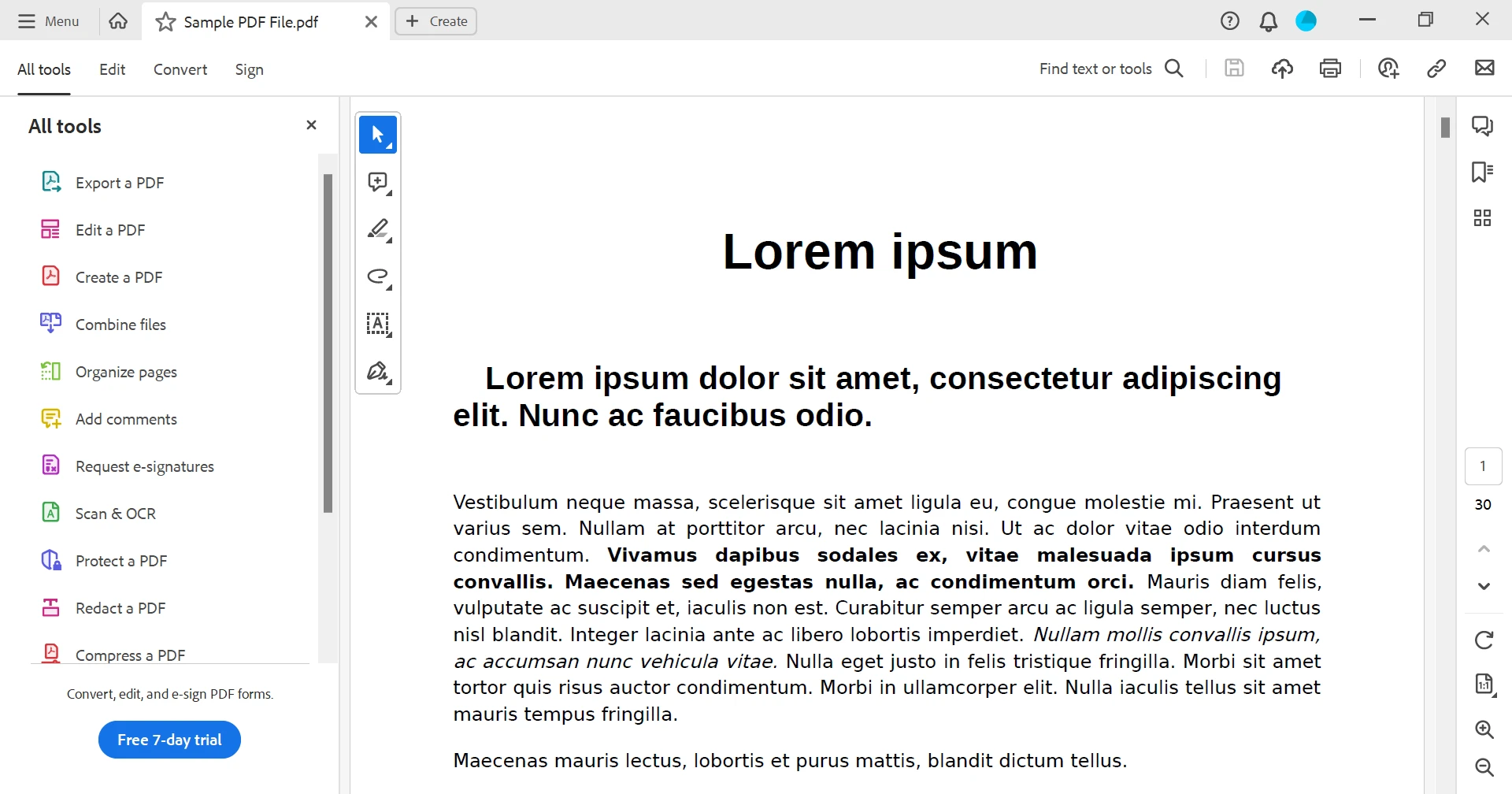
주석 도구에 접근
문서를 열면 주석 도구가 팝업 노트로 표시됩니다. 그러나 '모든 도구' 메뉴의 '댓글 추가' 탭을 클릭하여 열 수도 있습니다.
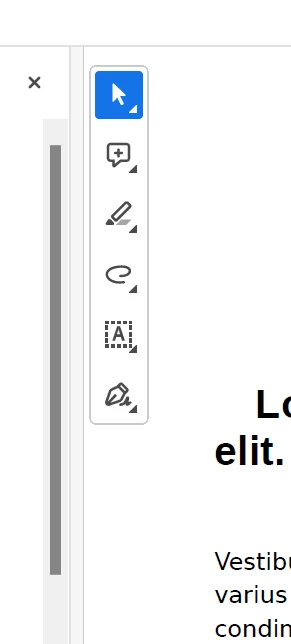
텍스트 강조
형광펜 도구를 클릭하고 원하는 색상을 선택하세요.
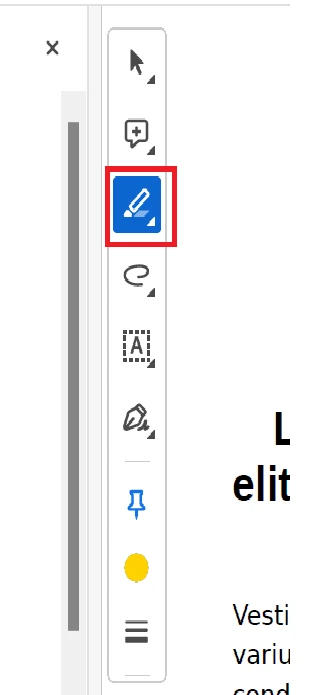
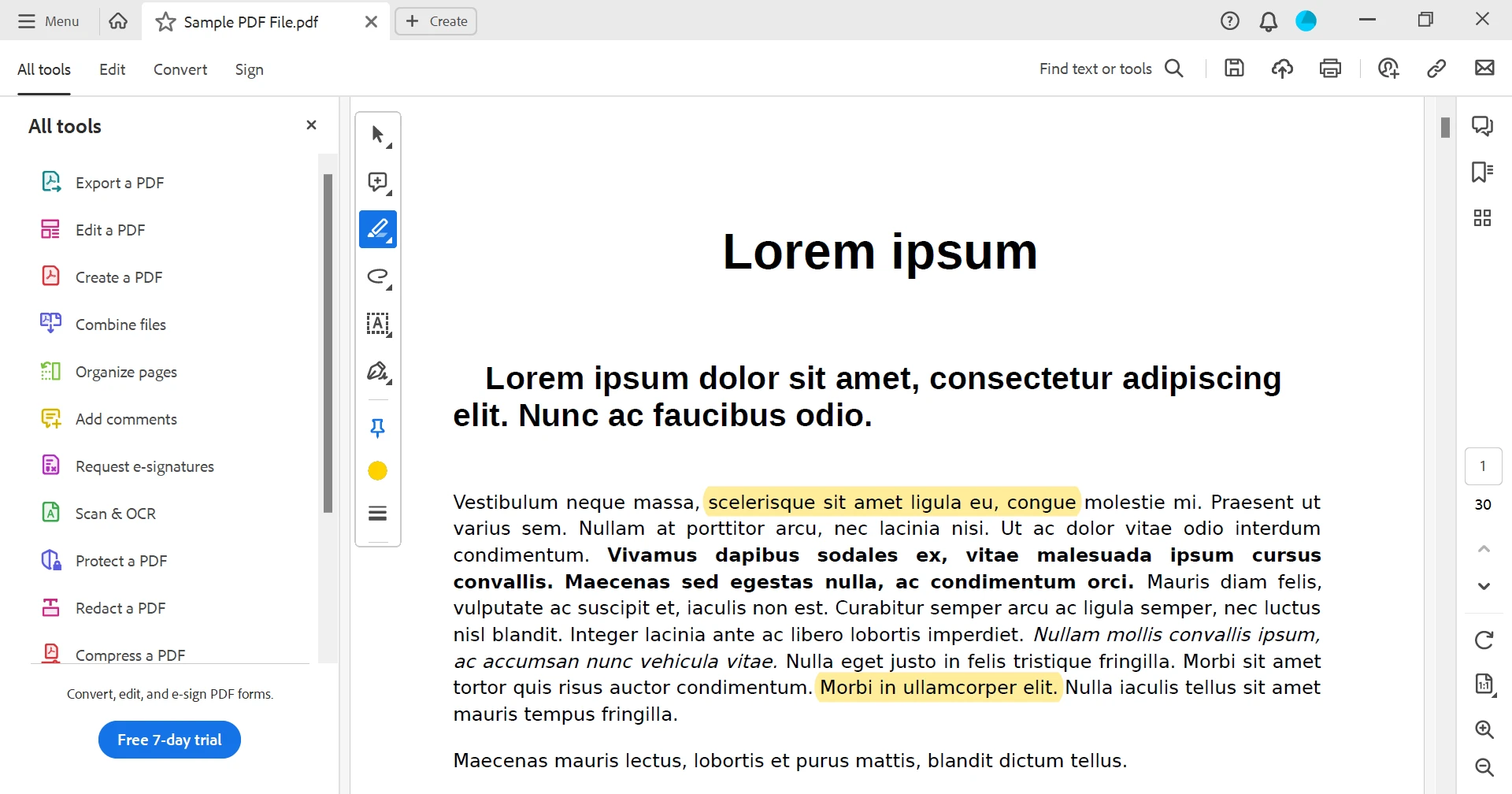
아래에 보여지는 것처럼 강조하고 싶은 텍스트를 선택하세요.
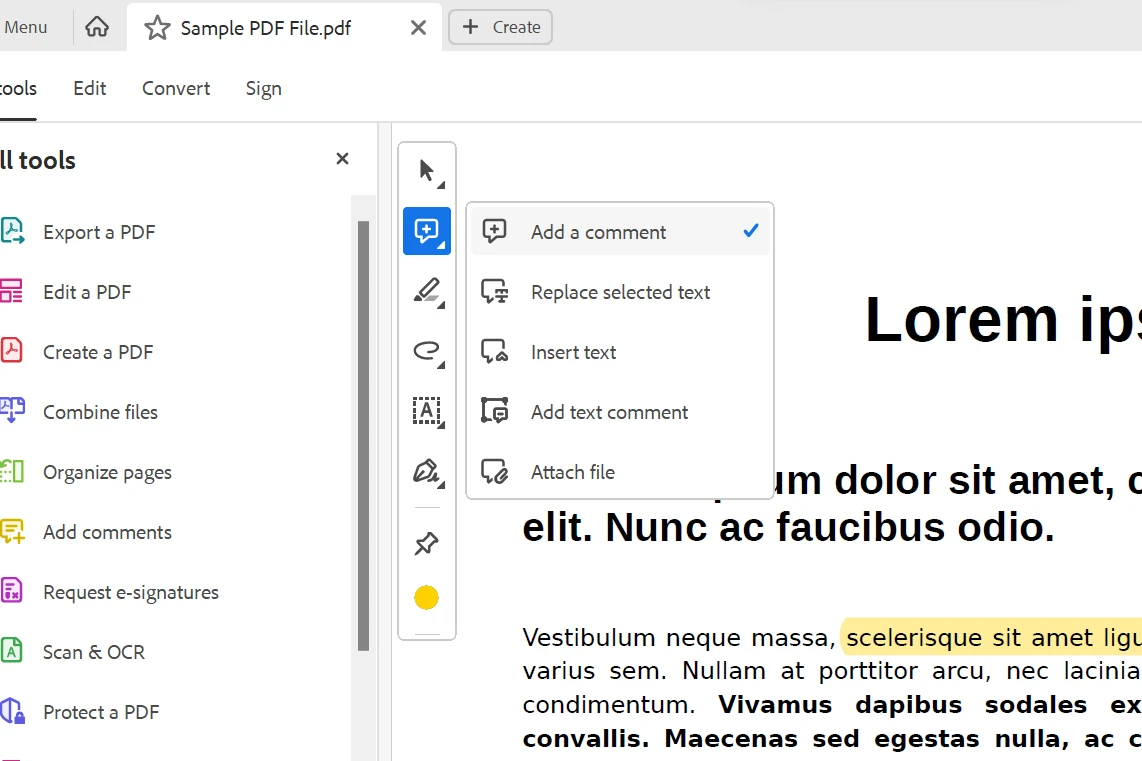
댓글 추가
댓글이나 메모를 추가하려면 도구에서 '댓글 추가' 아이콘을 클릭하세요.
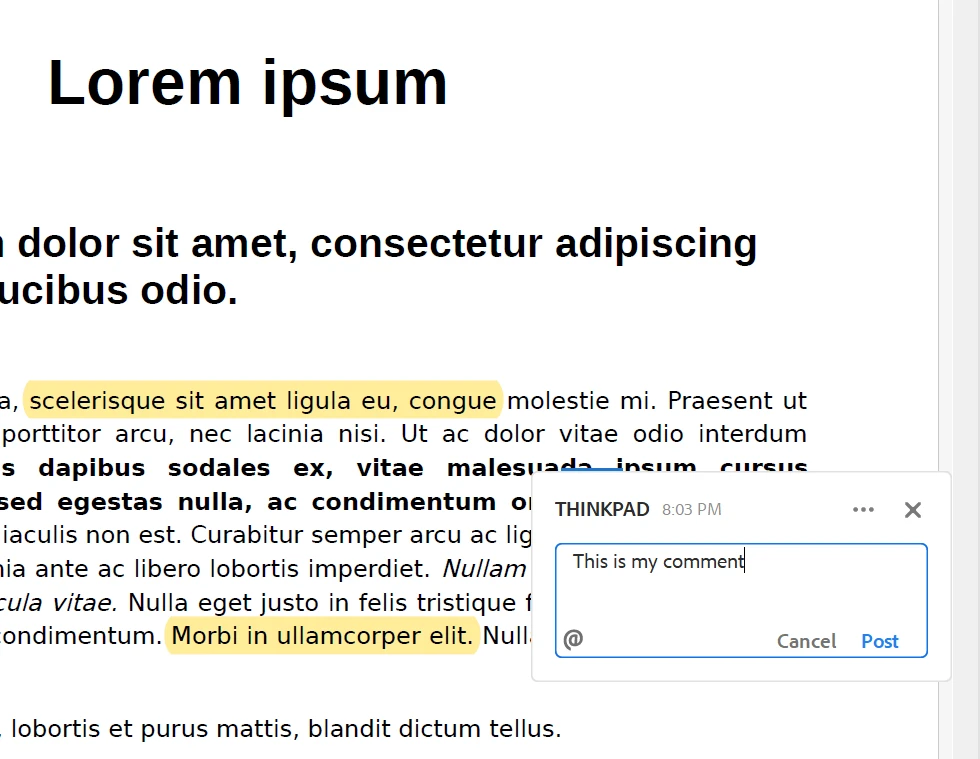
마우스 커서를 적절한 위치로 이동하세요. 아래에 보여지는 것처럼 팝업 상자에 댓글을 입력하세요.
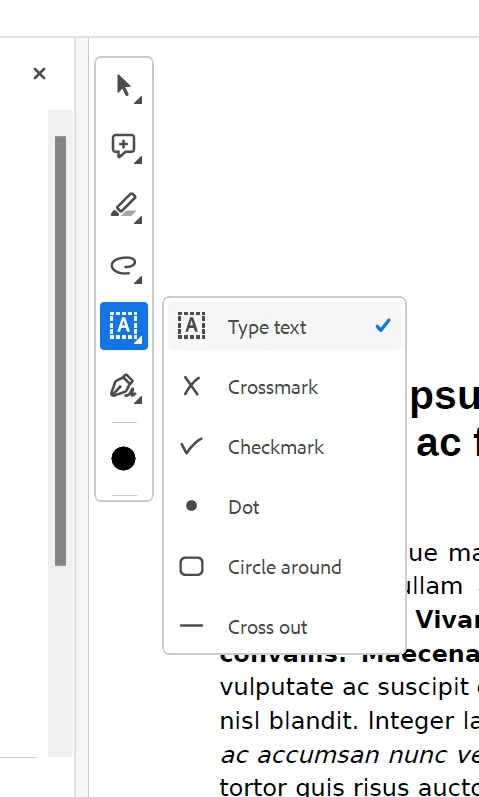
텍스트 상자 추가
아래에 보여지는 것처럼 메뉴에서 텍스트 상자 옵션을 선택하여 텍스트 상자를 추가할 수 있습니다.
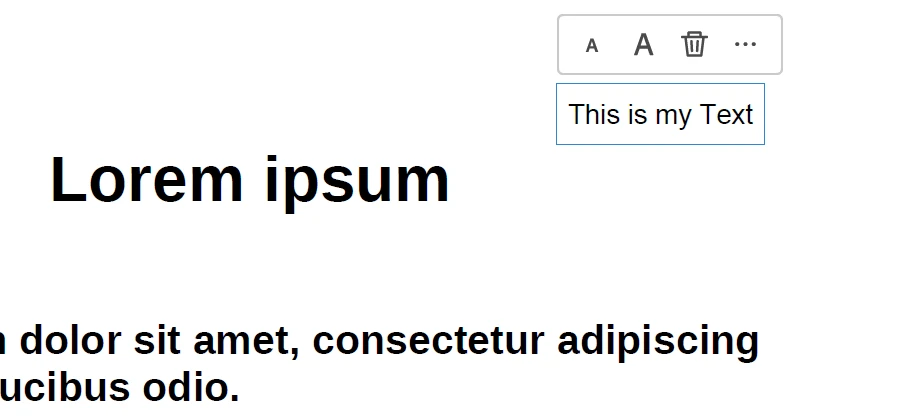
텍스트를 추가할 위치로 커서를 이동하여 텍스트를 입력하고, 아래에 보여지는 것처럼 글꼴 크기와 스타일을 설정하세요.
틱, 서명, 이니셜 추가 및 파일 업로드와 같은 다른 옵션도 제공됩니다. 이러한 방법으로 PDF 파일에 쉽게 주석을 달 수 있습니다.
저장 및 공유
주석을 모두 완료한 후 PDF 파일을 저장하세요. 그런 다음 주석이 달린 문서를 다른 사람과 공유할 수 있습니다.
Microsoft Edge를 사용하여 PDF 파일에 주석 달기
Windows 10 이상을 사용하는 경우, Microsoft Edge에서는 기본적인 PDF 주석 기능을 제공합니다.
PDF 열기
PDF 파일을 마우스 오른쪽 버튼으로 클릭하고 'Open with' > 'Microsoft Edge'를 선택하세요.
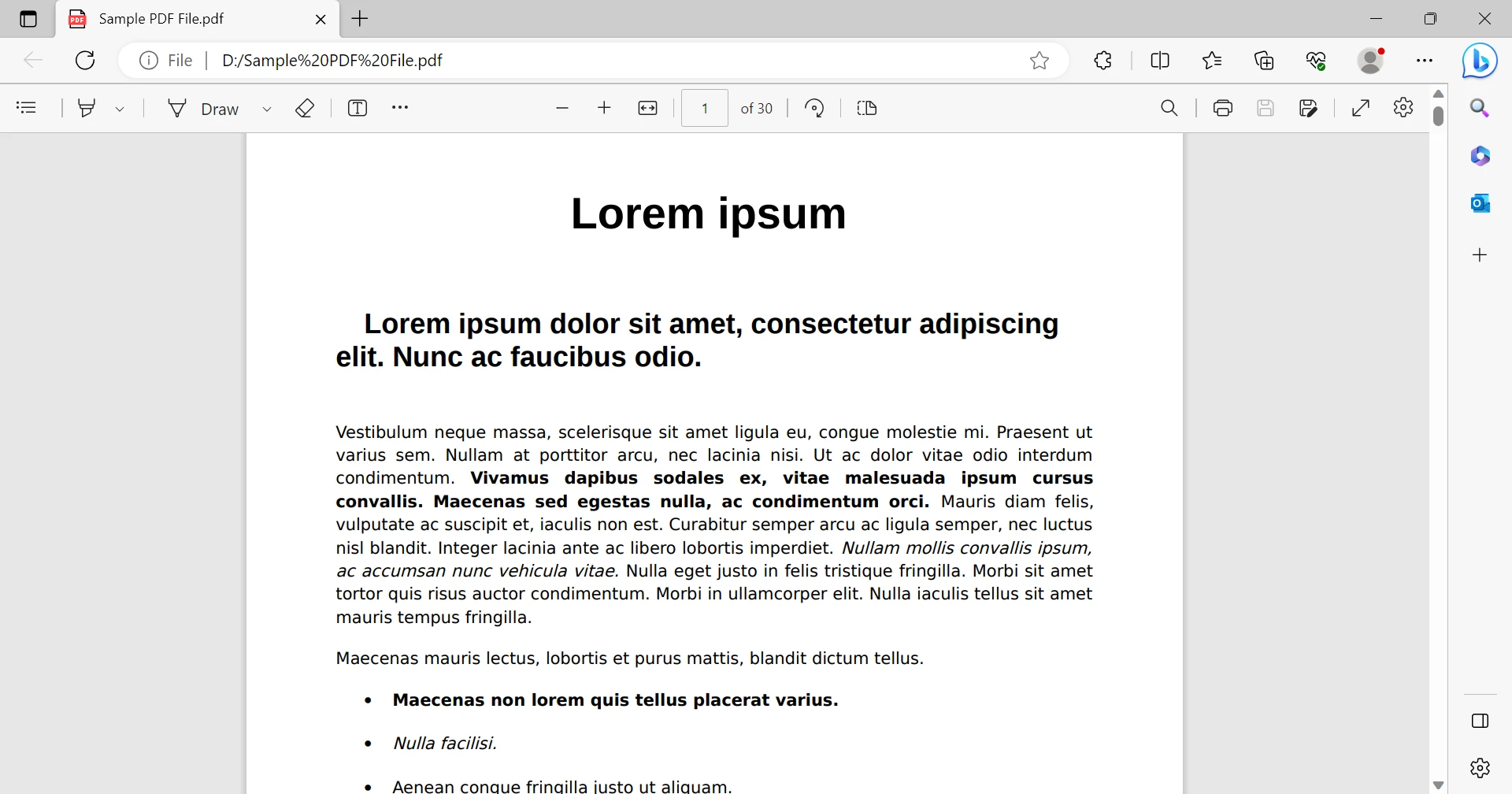
PDF 주석 도구 접근
문서의 오른쪽 상단에 있는 펜 아이콘을 클릭하여 주석 도구에 접근하세요.
텍스트 강조
브러시 아이콘을 클릭하고 강조하고 싶은 텍스트를 선택하세요.
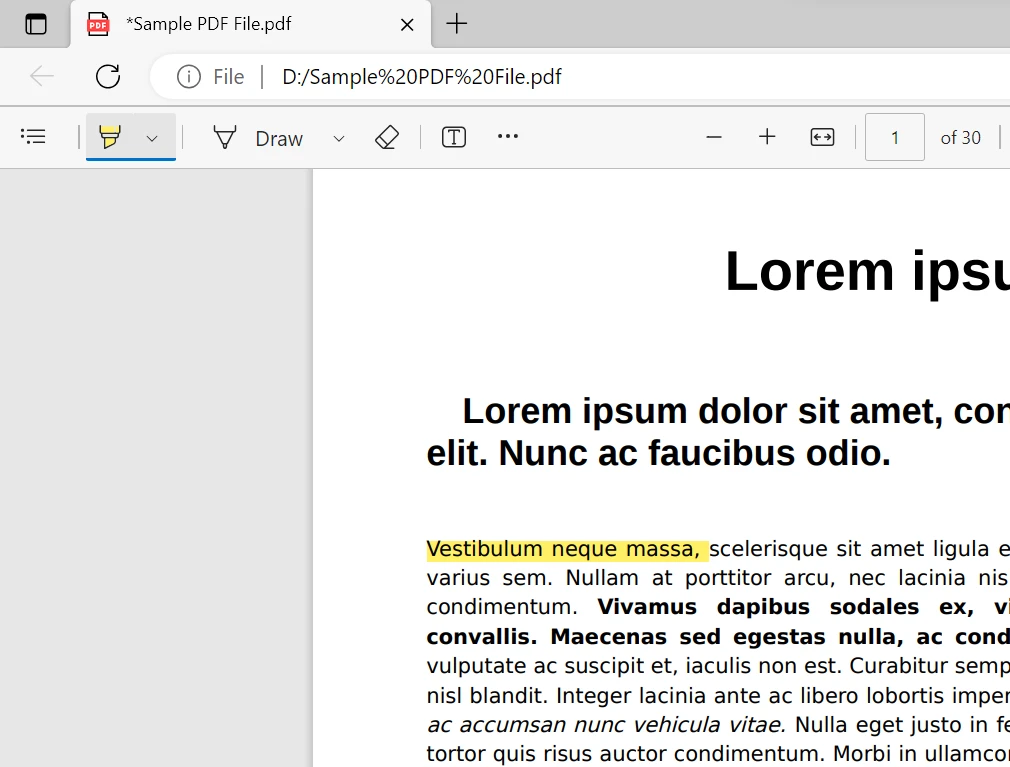
그림 추가
상단 툴바에서 그리기 아이콘을 선택하여 그림을 추가할 수 있습니다. 아래에 보여지는 것처럼 그리기를 돕는 도구입니다.
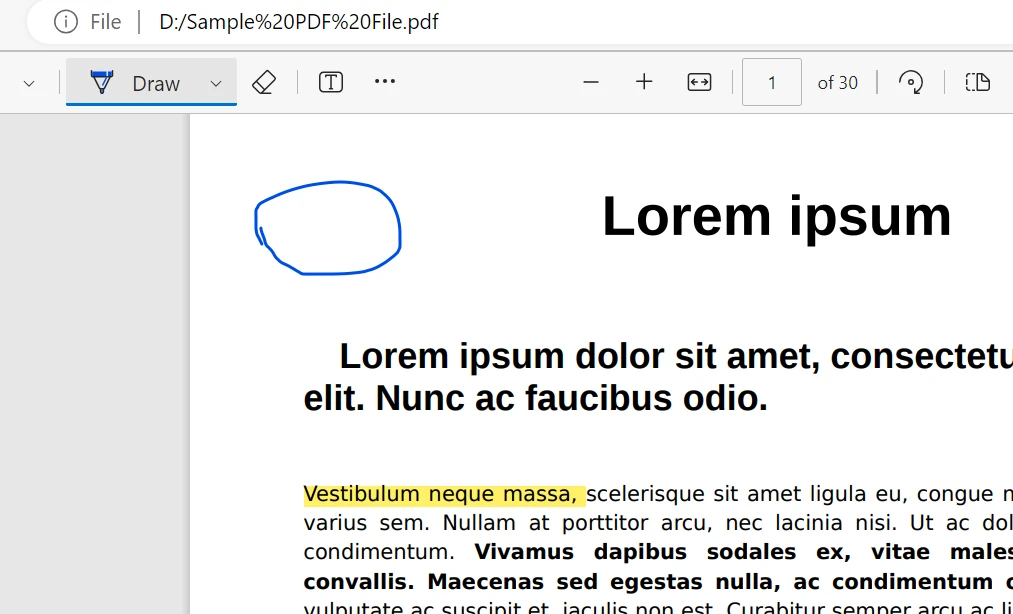
타사 PDF 주석 도구
내장 도구 외에도 PDF에 주석을 달기 위해 특별히 설계된 여러 타사 응용 프로그램과 온라인 플랫폼이 있습니다. Google에서 온라인 PDF 편집기를 검색하여 선호하는 도구를 사용해 PDF 파일을 주석 처리하고 PDF 문서에 주석을 달 수 있습니다.
모바일 앱으로 PDF 주석 달기
모바일 기기에서 PDF에 주석을 달고 싶다면, 비슷한 주석 기능을 제공하는 수많은 앱이 있습니다. Adobe Acrobat Reader, GoodNotes, Notability는 iOS 및 안드로이드 플랫폼에서 인기 있는 선택입니다. 단순히 앱을 다운로드하고, PDF를 열고 제공된 주석 도구를 사용하여 문서를 마크업하세요.
프로그래밍적 방법으로 PDF 파일에 주석 달기
개발자에게는 프로그래밍적으로 PDF에 주석을 달면 자동화와 맞춤화 가능성을 제공합니다. IronPDF는 개발자가 프로그래밍적으로 PDF 문서를 작업 할 수 있도록 하는 강력한 .NET 라이브러리로, 주석을 달고 변형할 수 있습니다. 더 진행하기 전에, IronPDF에 대해 간단히 소개합니다.
IronPDF
IronPDF 기능 탐색은 개발자에게 응용 프로그램 내에서 PDF 문서를 원활하게 조작, 생성, 관리할 수 있는 기능을 제공하도록 설계된 강력한 .NET 라이브러리입니다. 포괄적인 도구 Suite를 제공하며, IronPDF는 PDF 파일의 동적 생성, 기존 파일 수정, 심지어 주석을 프로그래밍적으로 추가할 수 있는 능력을 지원합니다. 이 라이브러리는 문서 관련 작업 흐름을 간소화하는 데 중요한 역할을 하며 개발자가 C# 환경에서 자동화 및 맞춤화를 활용할 수 있도록 하여 다양한 응용 프로그램 요구 사항을 충족하도록 PDF를 효율적으로 생성, 편집 및 향상할 수 있게 합니다. 여기에서 IronPDF를 사용하여 C#에서 PDF 파일을 어떻게 주석을 달 수 있는지 알아보세요.
// C# code for annotating a PDF file using IronPDF.

// Import IronPDF library
using IronPdf;

// Example method to demonstrate PDF annotation
public static void AnnotatePdf(string inputFilePath, string outputFilePath)
{
    // Create a new instance of the IronPdfRenderer
    var pdfRenderer = new IronPdf.PdfDocument();

    // Load an existing PDF document
    var pdfDocument = PdfDocument.FromFile(inputFilePath);

    // Access a specific page in the PDF
    var pdfPage = pdfDocument.Pages[0];

    // Add a simple text annotation on the top-right corner of the page
    pdfPage.Annotations.AddTextAnnotation("Sample Annotation", new PdfPoint(500, 750));

    // Highlight text at specified positions (e.g., positions can be obtained from coordinate mapping or OCR)
    pdfPage.Annotations.HighlightText(PdfMarker.CreateRectangle(100, 500, 200, 50), System.Drawing.Color.Yellow);

    // Save the annotated PDF to a new file
    pdfDocument.SaveAs(outputFilePath);
}
// C# code for annotating a PDF file using IronPDF.

// Import IronPDF library
using IronPdf;

// Example method to demonstrate PDF annotation
public static void AnnotatePdf(string inputFilePath, string outputFilePath)
{
    // Create a new instance of the IronPdfRenderer
    var pdfRenderer = new IronPdf.PdfDocument();

    // Load an existing PDF document
    var pdfDocument = PdfDocument.FromFile(inputFilePath);

    // Access a specific page in the PDF
    var pdfPage = pdfDocument.Pages[0];

    // Add a simple text annotation on the top-right corner of the page
    pdfPage.Annotations.AddTextAnnotation("Sample Annotation", new PdfPoint(500, 750));

    // Highlight text at specified positions (e.g., positions can be obtained from coordinate mapping or OCR)
    pdfPage.Annotations.HighlightText(PdfMarker.CreateRectangle(100, 500, 200, 50), System.Drawing.Color.Yellow);

    // Save the annotated PDF to a new file
    pdfDocument.SaveAs(outputFilePath);
}
' VB.NET code for annotating a PDF file using IronPDF.
' Import IronPDF library
Imports IronPdf
' Example method to demonstrate PDF annotation
Public Shared Sub AnnotatePdf(inputFilePath As String, outputFilePath As String)
' Create a new instance of the IronPdfRenderer
Dim pdfRenderer As New IronPdf.PdfDocument()
' Load an existing PDF document
Dim pdfDocument As PdfDocument = PdfDocument.FromFile(inputFilePath)
' Access a specific page in the PDF
Dim pdfPage As PdfPage = pdfDocument.Pages(0)
' Add a simple text annotation on the top-right corner of the page
pdfPage.Annotations.AddTextAnnotation("Sample Annotation", New PdfPoint(500, 750))
' Highlight text at specified positions (e.g., positions can be obtained from coordinate mapping or OCR)
pdfPage.Annotations.HighlightText(PdfMarker.CreateRectangle(100, 500, 200, 50), System.Drawing.Color.Yellow)
' Save the annotated PDF to a new file
pdfDocument.SaveAs(outputFilePath)
End Sub
' VB.NET code for annotating a PDF file using IronPDF.

' Import IronPDF library
Imports IronPdf

' Example method to demonstrate PDF annotation
Public Shared Sub AnnotatePdf(inputFilePath As String, outputFilePath As String)
    ' Create a new instance of the IronPdfRenderer
    Dim pdfRenderer As New IronPdf.PdfDocument()

    ' Load an existing PDF document
    Dim pdfDocument As PdfDocument = PdfDocument.FromFile(inputFilePath)

    ' Access a specific page in the PDF
    Dim pdfPage As PdfPage = pdfDocument.Pages(0)

    ' Add a simple text annotation on the top-right corner of the page
    pdfPage.Annotations.AddTextAnnotation("Sample Annotation", New PdfPoint(500, 750))

    ' Highlight text at specified positions (e.g., positions can be obtained from coordinate mapping or OCR)
    pdfPage.Annotations.HighlightText(PdfMarker.CreateRectangle(100, 500, 200, 50), System.Drawing.Color.Yellow)

    ' Save the annotated PDF to a new file
    pdfDocument.SaveAs(outputFilePath)
End Sub
결론
PDF에 주석을 다는 것은 협업을 향상시키고, 정보 유지력을 높이며, 문서 검토 과정을 간소화하는 중요한 기술입니다. 내장 도구를 사용하든 타사 애플리케이션을 사용하든, PDF를 강조 표시하고, 댓글을 달고, 스티커 노트를 추가하고, 표시하는 능력은 전자 문서와 상호 작용할 수 있는 다재다능하고 효율적인 방법을 제공합니다. 게다가 개발자를 위해 IronPDF는 PDF 파일에 프로그램적으로 주석을 달 수 있는 강력한 솔루션을 제공하여 주석 프로세스의 자동화와 맞춤화를 가능하게 합니다. 이 지침서에 나와 있는 단계를 따르면 스티커 노트와 같은 주석 기능을 애플리케이션에 통합할 수 있으며, 사용자가 마크업 도구를 사용하고 필요에 따라 PDF 문서를 향상시킬 수 있는 능력을 제공합니다. IronPDF의 기능은 문서 검토부터 공동 편집, 자유 손 그림 도구에 이르기까지 다양한 사용 사례를 충족하는 다재다능하고 상호작용적인 PDF 문서를 만들 수 있게 합니다. IronPDF는 매우 저렴한 비용으로 무료 체험판 옵션을 제공합니다.













