



已更新 2026年8月16日
How to Sign a PDF on iPhone: Every Method Explained (2026)
Need to add your signature to a PDF from your iPhone? Learn every method, from the built-in Markup tool in Files to dedicated e-signature apps, no download required.
閱讀更多

在今日的數位時代,PDF(可攜帶文件格式)已成為跨各種平台和裝置分享和保存文件的標準。 無論您是學生、專業人士,或者只是處理電子文件,使用PDF註解器和編輯工具註解PDF的能力是一項重要的技能。 PDF註解允許您突出重要點,使用註解工具欄和文字框新增評論,並直接在文件上做筆記,以增強協作和理解。 在本指南中,我們將引導您如何使用不同的PDF註解工具和方法來註解PDF。
許多PDF檢視器和編輯器都配備了內建的PDF註解工具,使註解PDF的過程相對簡單。 這是使用流行PDF應用程式的逐步指南。
Adobe Acrobat DC是最廣泛使用的PDF檢視器之一,提供強大的註解工具功能。
使用Adobe Acrobat Reader開啟您的PDF文件。
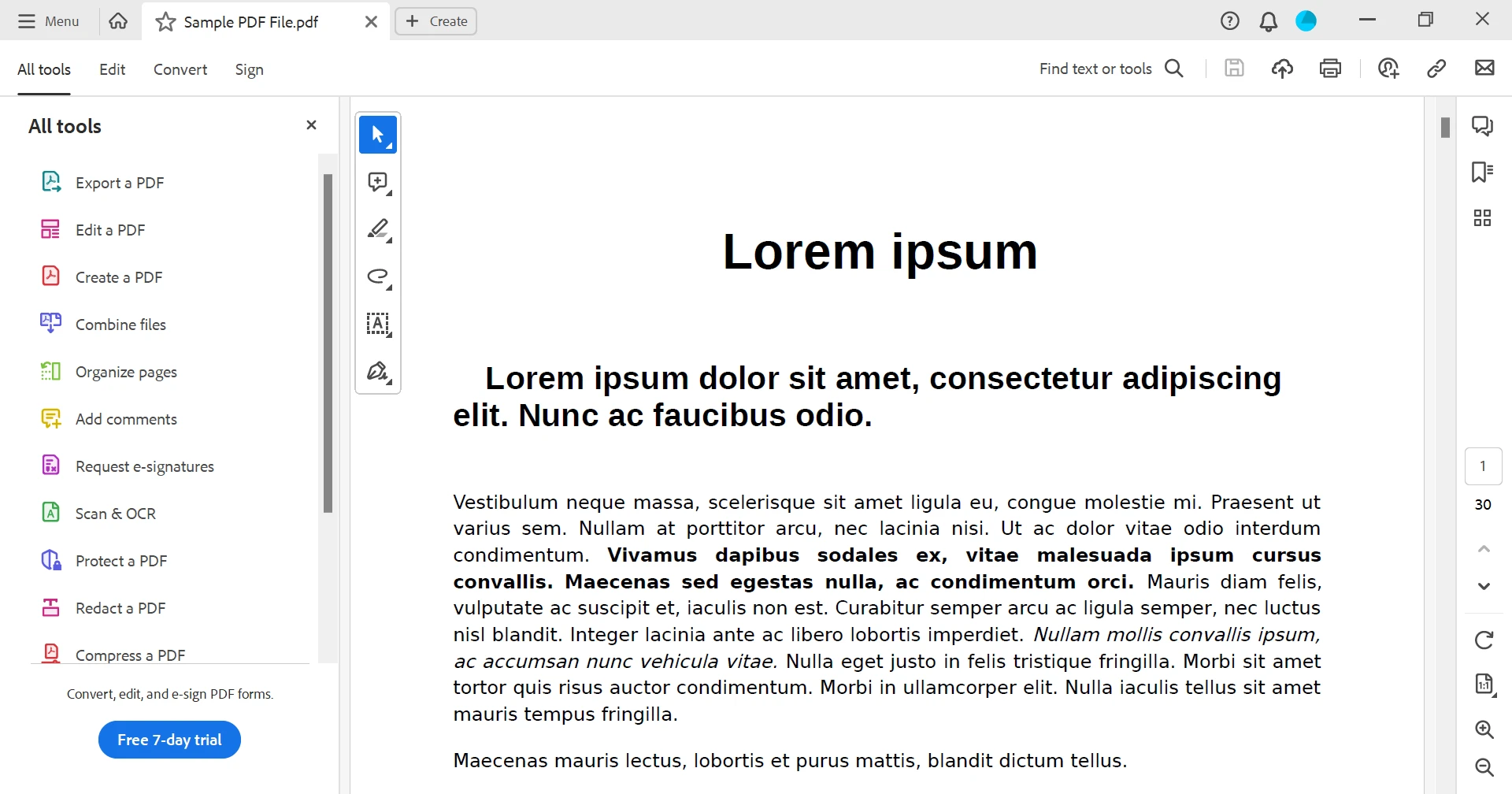
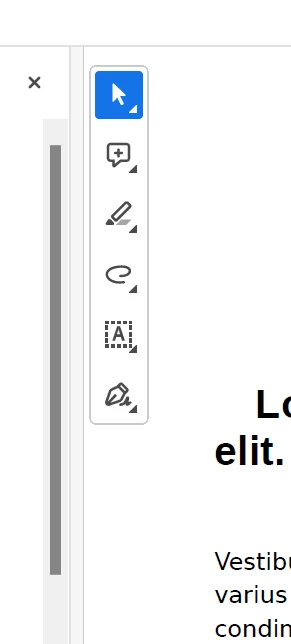
一旦打開文件,註解工具將顯示為彈出便箋。 然而,您也可以透過點擊"所有工具"選單下的"新增評論"選項卡來開啟它。
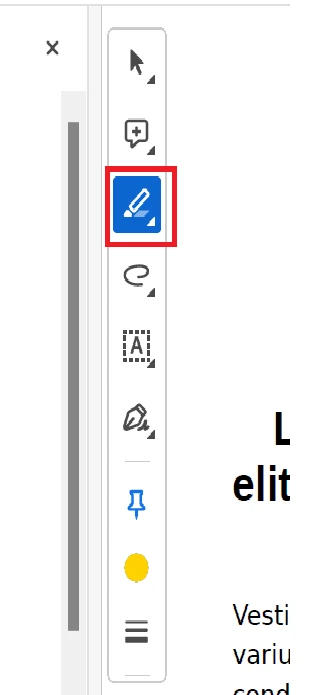
點擊高亮工具並選擇您喜歡的顏色。
選擇您想要突出顯示的文字,如下所示。
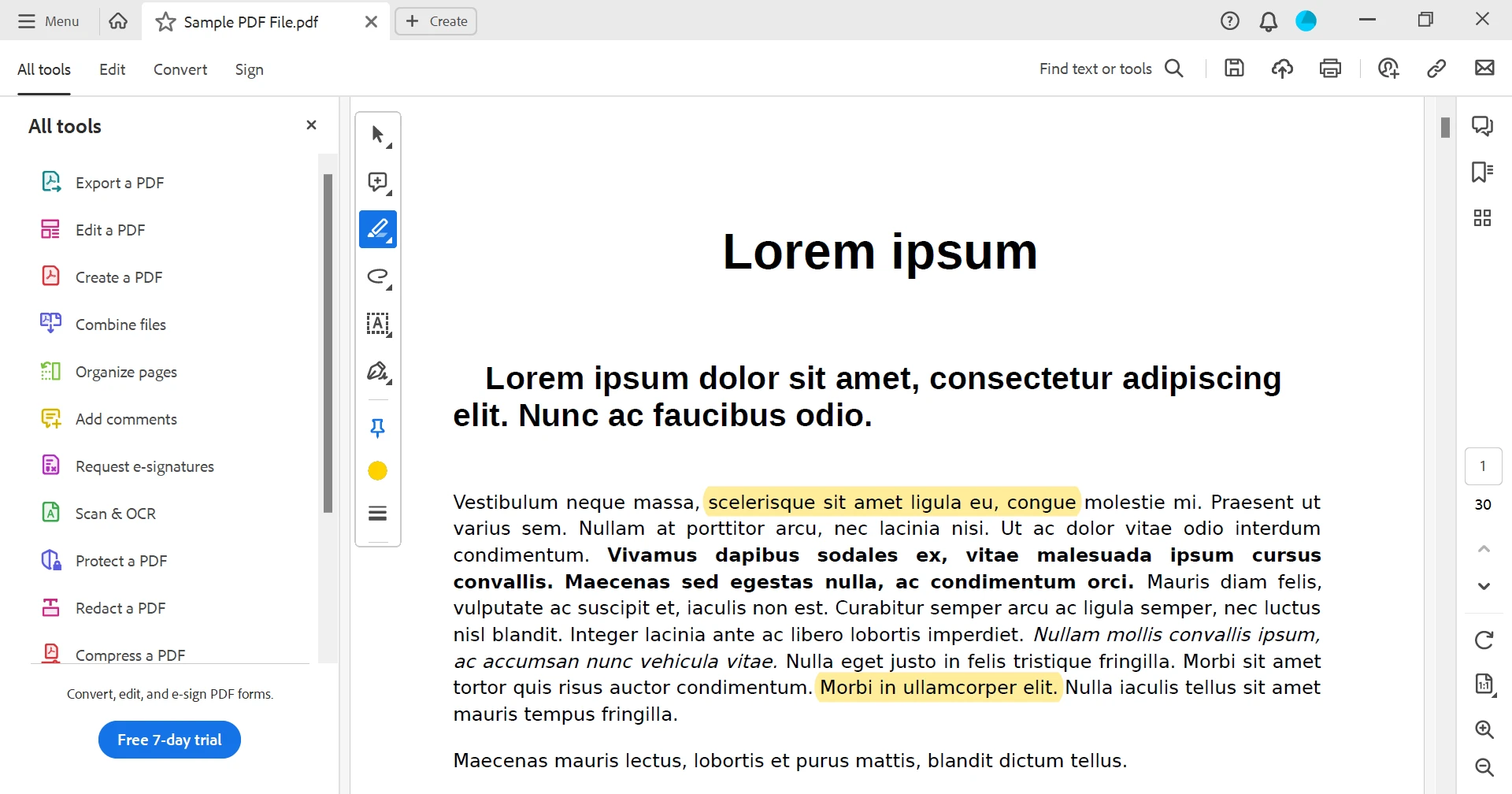
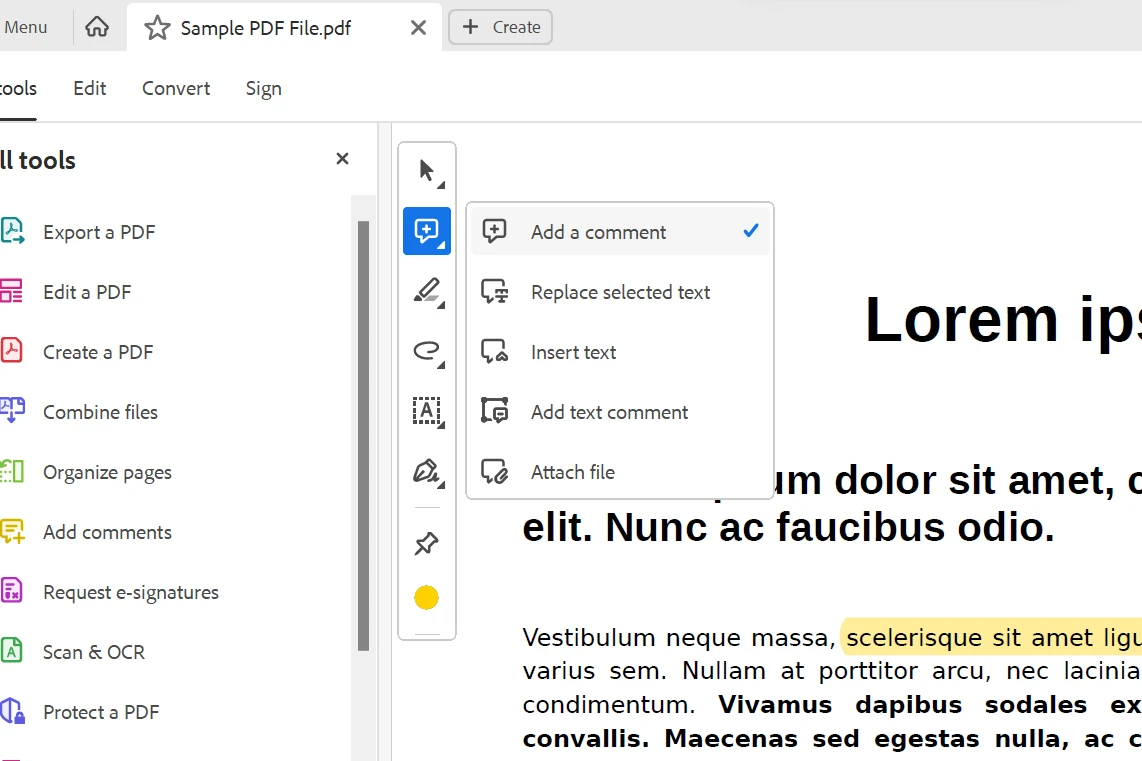
若要新增評論或便箋,請從工具中點擊"新增評論"圖標。
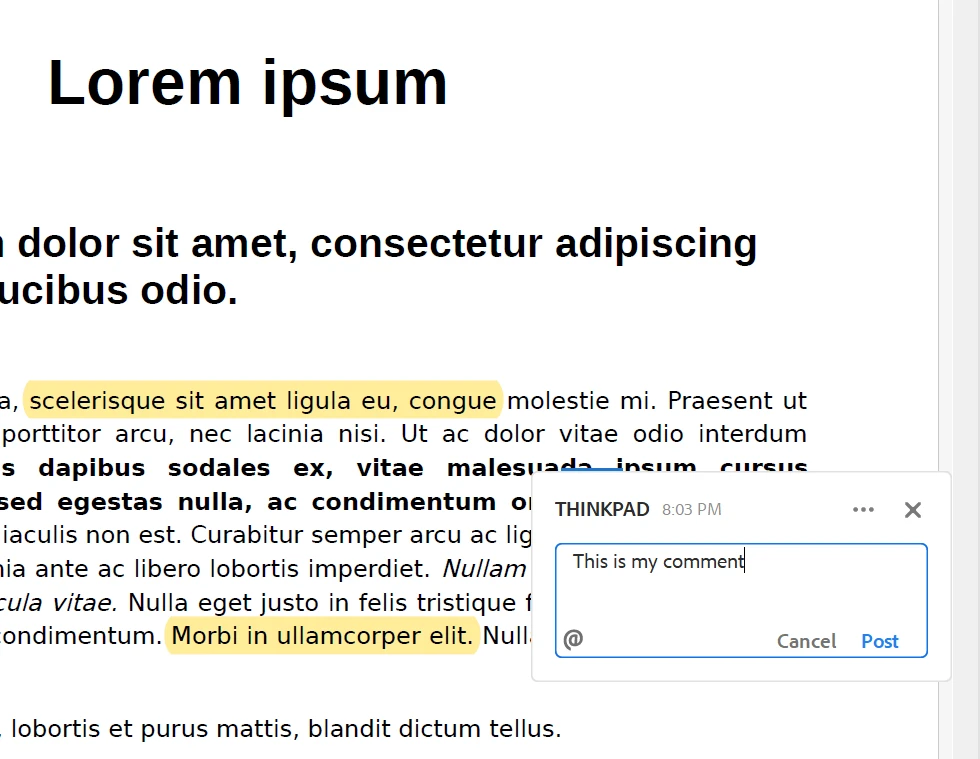
將滑鼠游標移動到相關部分附近。 在如下所示的彈出框中鍵入您的評論。
您可以透過從選單中選擇文字框選項來新增文字框,如下所示。
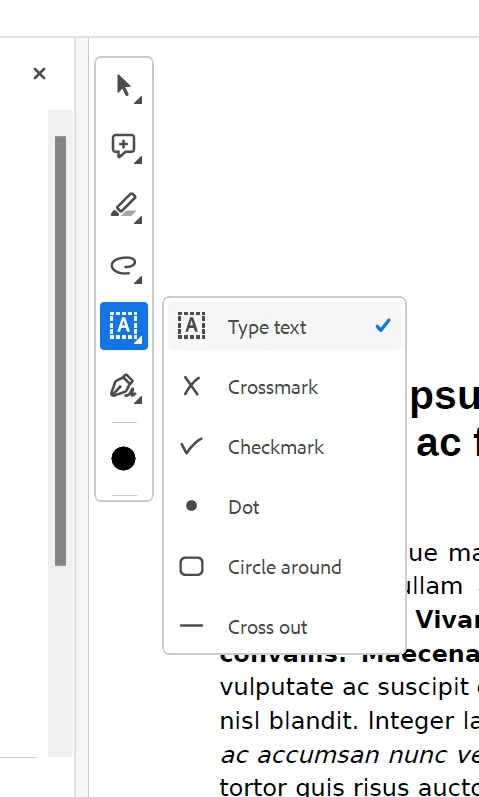
將游標移動到要新增文字的位置,鍵入文字,並設置字體大小和樣式,如下所示。
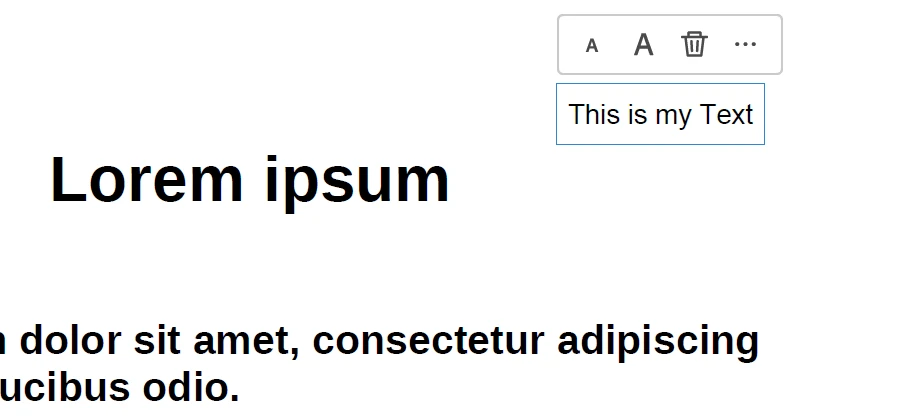
還有其他可用的選項,例如新增勾號、簽名、縮寫和上傳文件。 這樣,我們可以輕鬆註解PDF檔案。
完成註解後,保存PDF檔案。然後您可以將帶註解的文件分享給其他人。
如果您使用的是Windows 10或更高版本,Microsoft Edge提供基本的PDF註解功能。
右鍵單擊PDF文件並選擇"打開方式" > "Microsoft Edge"。
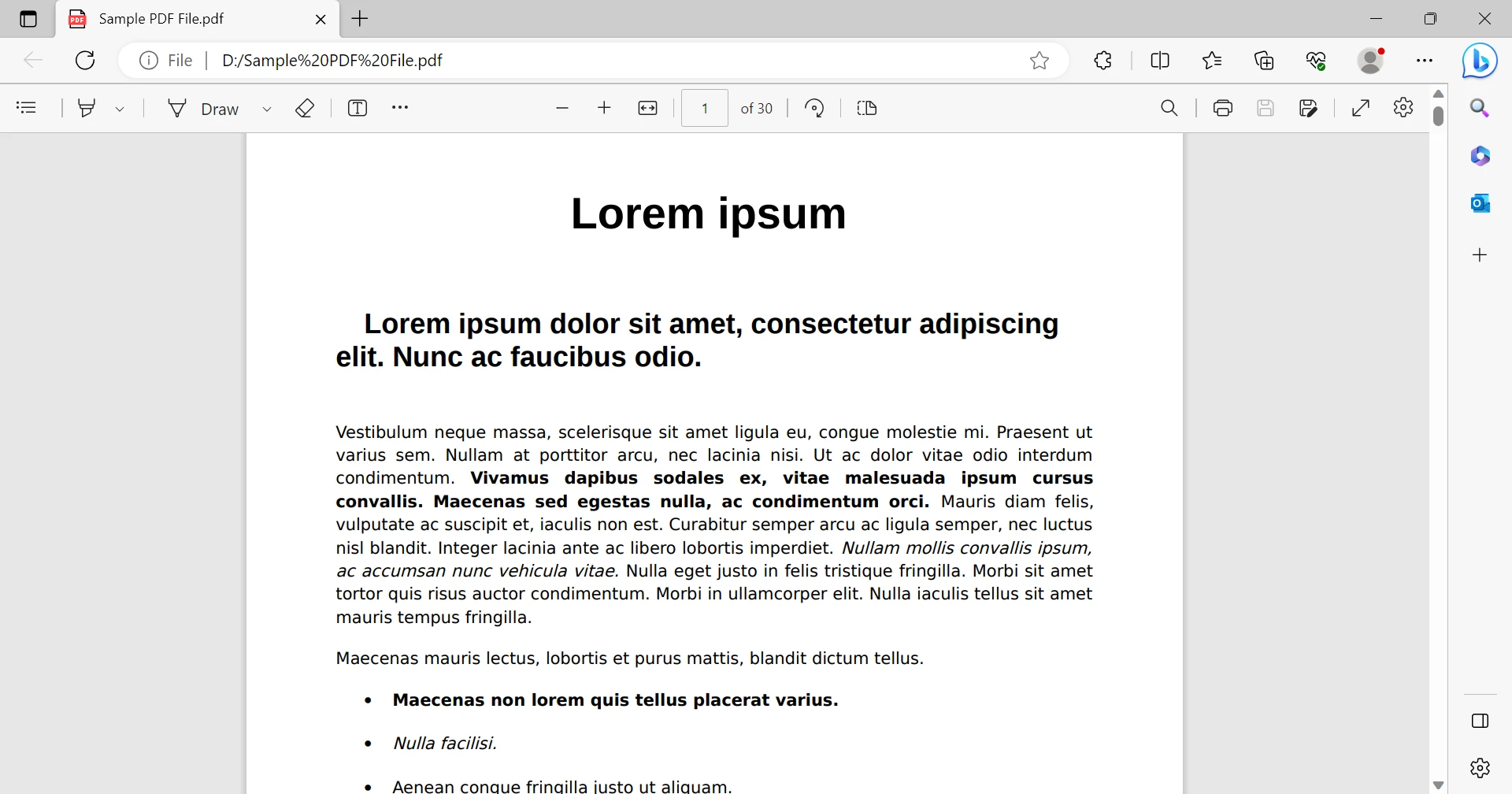
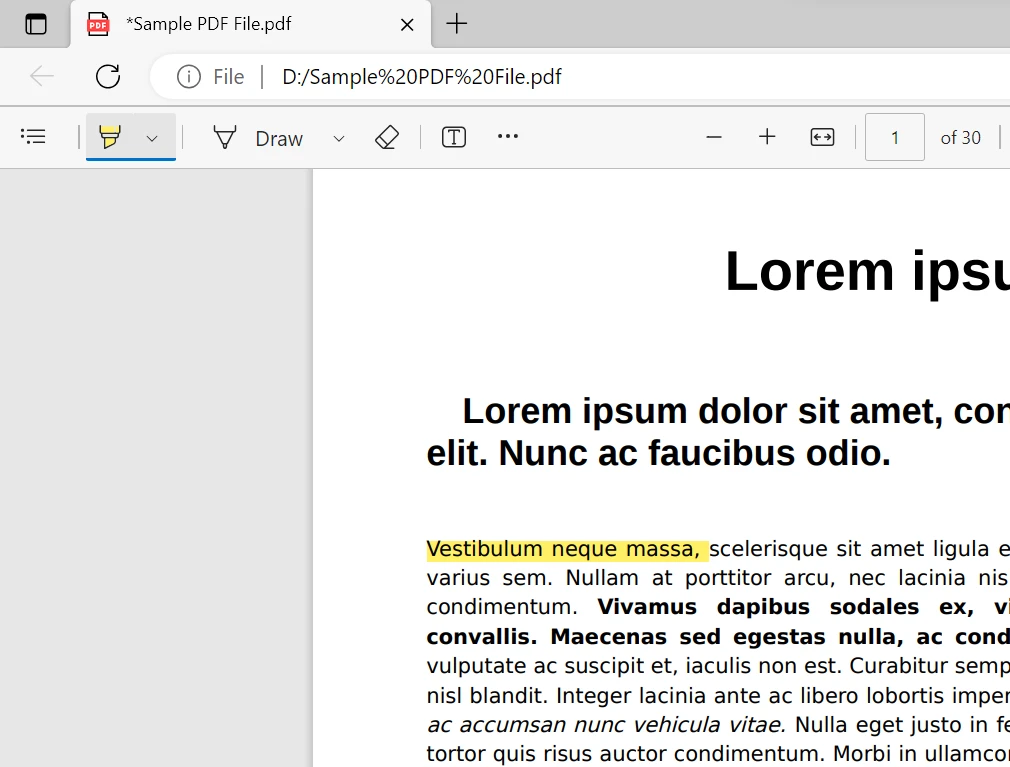
點擊文件右上角的鋼筆圖標以存取註解工具。
點擊畫筆圖標並選擇您想突出顯示的文字。
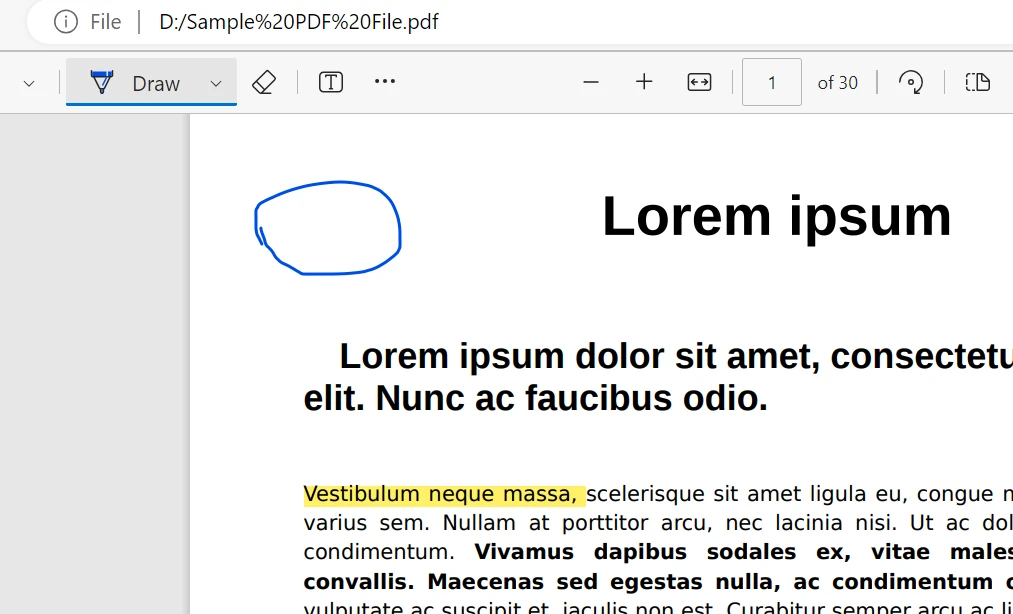
您也可以通過從頂部工具欄選擇繪圖圖標來新增繪圖。 這是幫助您繪圖的工具如下所示。
除了內建工具外,還有一些專門設計用於PDF註解的第三方應用程式和線上平台。 您可以在Google搜尋線上PDF編輯器來註解PDF文件,並使用您喜愛的工具註解PDF文件。
如果您喜歡在行動裝置上註解PDF,有許多應用程式提供類似的註解功能。 Adobe Acrobat Reader、GoodNotes和Notability是iOS和Android平台上的熱門選擇。 只需下載應用程式,開啟PDF,並使用提供的註解工具標記文件。
對於開發者來說,程式化地註解PDF提供了自動化和自訂的可能性。 IronPDF是一個強大的.NET程式庫,使開發者能夠程式化地處理PDF文件,包括註解和修改它們。 在進一步進行之前,讓我們來簡單介紹一下IronPDF。
探索IronPDF功能是一個強大的.NET程式庫,設計用於賦予開發者在他們的應用程式中無縫操控、生成和管理PDF文件的功能。 IronPDF提供了全方位的工具,能夠動態建立PDF文件、修改現有文件,甚至能夠程式化地新增註解。 這個程式庫在簡化文件相關的工作流程中扮演關鍵角色,使開發者能夠在C#環境中利用自動化和自訂功能,有效地生成、編輯和增強PDF,以滿足各種應用要求。 這是如何使用IronPDF在C#中註解PDF文件的方法。
// C# code for annotating a PDF file using IronPDF.

// Import IronPDF library
using IronPdf;

// Example method to demonstrate PDF annotation
public static void AnnotatePdf(string inputFilePath, string outputFilePath)
{
    // Create a new instance of the IronPdfRenderer
    var pdfRenderer = new IronPdf.PdfDocument();

    // Load an existing PDF document
    var pdfDocument = PdfDocument.FromFile(inputFilePath);

    // Access a specific page in the PDF
    var pdfPage = pdfDocument.Pages[0];

    // Add a simple text annotation on the top-right corner of the page
    pdfPage.Annotations.AddTextAnnotation("Sample Annotation", new PdfPoint(500, 750));

    // Highlight text at specified positions (e.g., positions can be obtained from coordinate mapping or OCR)
    pdfPage.Annotations.HighlightText(PdfMarker.CreateRectangle(100, 500, 200, 50), System.Drawing.Color.Yellow);

    // Save the annotated PDF to a new file
    pdfDocument.SaveAs(outputFilePath);
}' VB.NET code for annotating a PDF file using IronPDF.
' Import IronPDF library
Imports IronPdf
' Example method to demonstrate PDF annotation
Public Shared Sub AnnotatePdf(inputFilePath As String, outputFilePath As String)
' Create a new instance of the IronPdfRenderer
Dim pdfRenderer As New IronPdf.PdfDocument()
' Load an existing PDF document
Dim pdfDocument As PdfDocument = PdfDocument.FromFile(inputFilePath)
' Access a specific page in the PDF
Dim pdfPage As PdfPage = pdfDocument.Pages(0)
' Add a simple text annotation on the top-right corner of the page
pdfPage.Annotations.AddTextAnnotation("Sample Annotation", New PdfPoint(500, 750))
' Highlight text at specified positions (e.g., positions can be obtained from coordinate mapping or OCR)
pdfPage.Annotations.HighlightText(PdfMarker.CreateRectangle(100, 500, 200, 50), System.Drawing.Color.Yellow)
' Save the annotated PDF to a new file
pdfDocument.SaveAs(outputFilePath)
End Sub註解PDF是一項重要的技能,它增強了協作,提高了資訊保留,並簡化了文件審核流程。 無論您使用內建工具還是第三方應用程式,突出顯示、評論、新增便箋和標記PDF的能力提供了一種多功能且高效的方式來與電子文件互動。 此外,對於開發者而言,IronPDF提供了一個強大的解決方案,可以使用繪圖工具程式化地註解PDF文件,使註解過程自動化和自訂化。 通過遵循本指南中概述的步驟,您可以將註解功能(如便箋)整合到您的應用程式中,提供使用者使用標記工具的能力,並根據需要增強PDF文件。 IronPDF的功能讓您能夠建立滿足各種使用情境需求的多功能且互動的PDF文件,從文件審核到協作編輯,再到自由繪圖工具。 IronPDF以非常低的成本提供並配有免費試用選項。

Curtis Chau擁有Carleton大學的電腦科學學士學位,專精於前端開發,擁有Node.js、TypeScript、JavaScript和React的專業知識。Curtis熱衷於建立直觀且美觀的使用者介面,喜愛使用現代框架並建立結構良好、視覺吸引力的手冊。

IronPDF 是 IRONSUITE 的一部分
10 款適用於辦公室文件的 .NET API 產品

當您需要您的PDF看起來像HTML一樣快速。












