




업데이트됨 2026년 9월 4일
월별 계정 명세서를 PDF 문서로 생성하기
개발자는 IronPDF C# PDF 라이브러리를 사용하여 외부 서비스에 의존하지 않고도 .NET 프로젝트 내에서 HTML을 신뢰할 수 있는 PDF 파일로 변환할 수 있습니다.
더 읽어보기

Blazor PDF 뷰어는 PDF 문서를 base64 데이터 URI로 변환한 후, 결과를 <iframe> 요소에 로드하여 인라인으로 렌더링합니다. IronPDF의 ChromePdfRenderer는 HTML 문자열, 실시간 URL 또는 동적 콘텐츠를 단일 비동기 호출로 PDF 바이트로 변환하여 Blazor Server 및 Blazor WebAssembly 응용 프로그램에 외부 뷰어 플러그인 없이도 전체 PDF 생성 및 표시 기능을 제공합니다.
비즈니스 애플리케이션은 사용자를 별도의 탭으로 리디렉션하거나 기기에 따라 다르게 제공되는 브라우저의 PDF 지원에 의존하지 않고 송장, 계약서 및 보고서를 자주 표시할 필요가 있습니다. Blazor의 컴포넌트 모델은 라이브러리에서 변환을 안정적으로 처리하는 경우 서버에서 PDF를 생성하고, 이를 인코딩하여 모든 페이지 컴포넌트로 스트리밍하는 것을 간단하게 만듭니다.
이 가이드는 설치, URL 및 HTML 기반 렌더링, 헤더 및 푸터로 사용자 정의, JavaScript 상호 운용을 통한 브라우저 다운로드, Blazor Server와 Blazor WebAssembly 접근 방식의 비교, 네 가지 확장된 작업: 병합, 주석, 암호 보호 및 사용자 업로드 파일 표시를 다룹니다. 각 기술에 대한 Razor 구성 요소 및 해당 최상위 C# 예제가 제공됩니다.
무료 IronPDF 체험판을 시작하여 이 가이드의 예제를 따라가십시오.
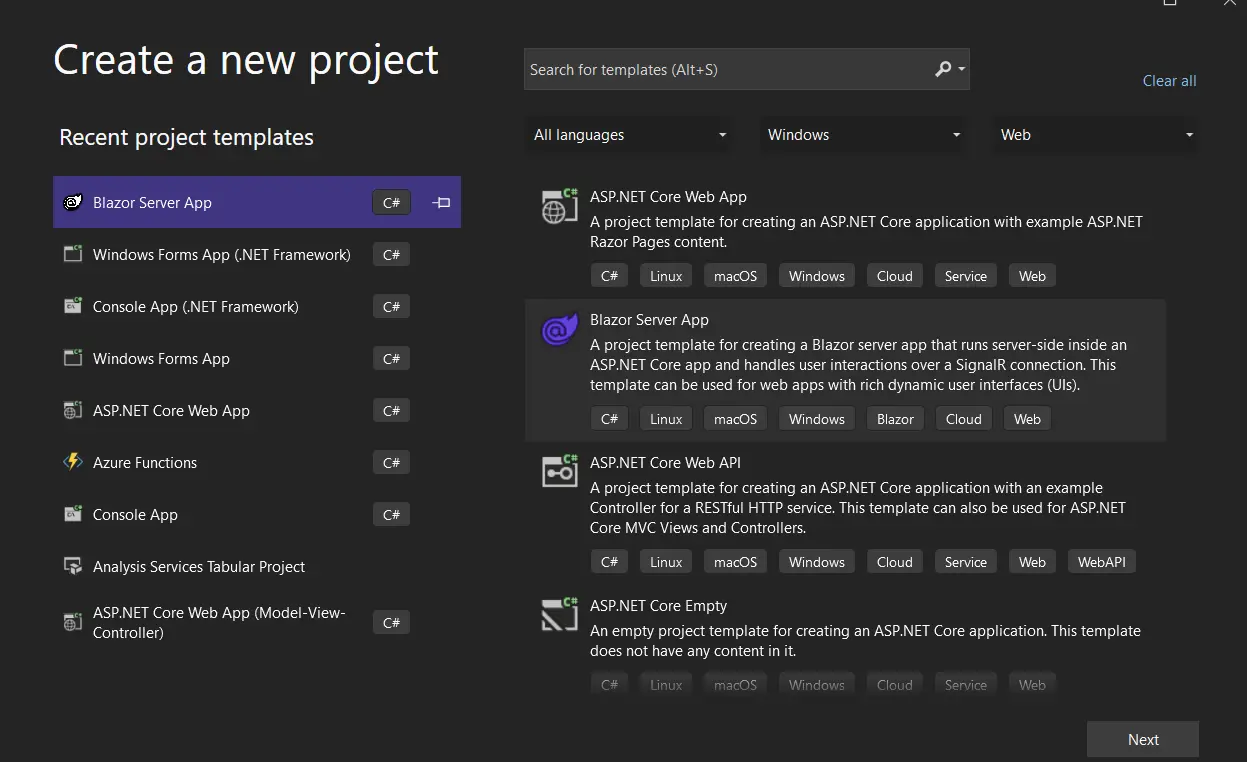
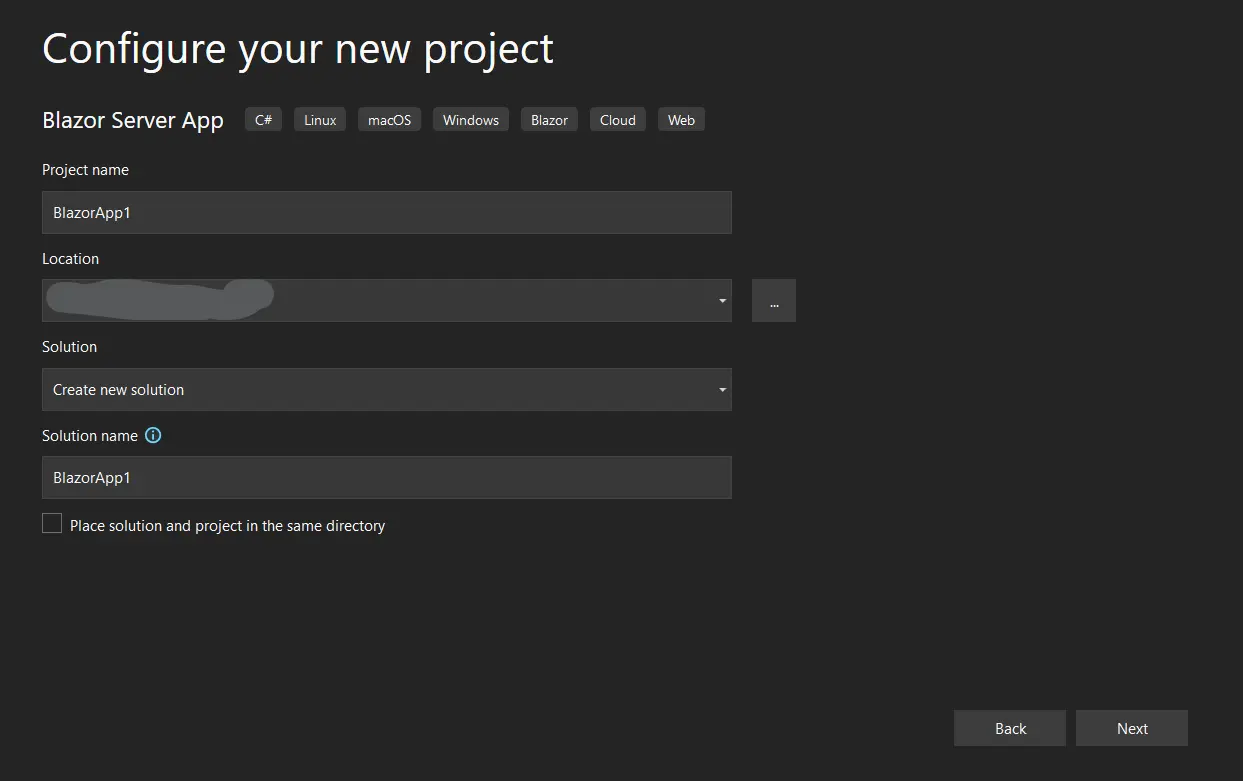
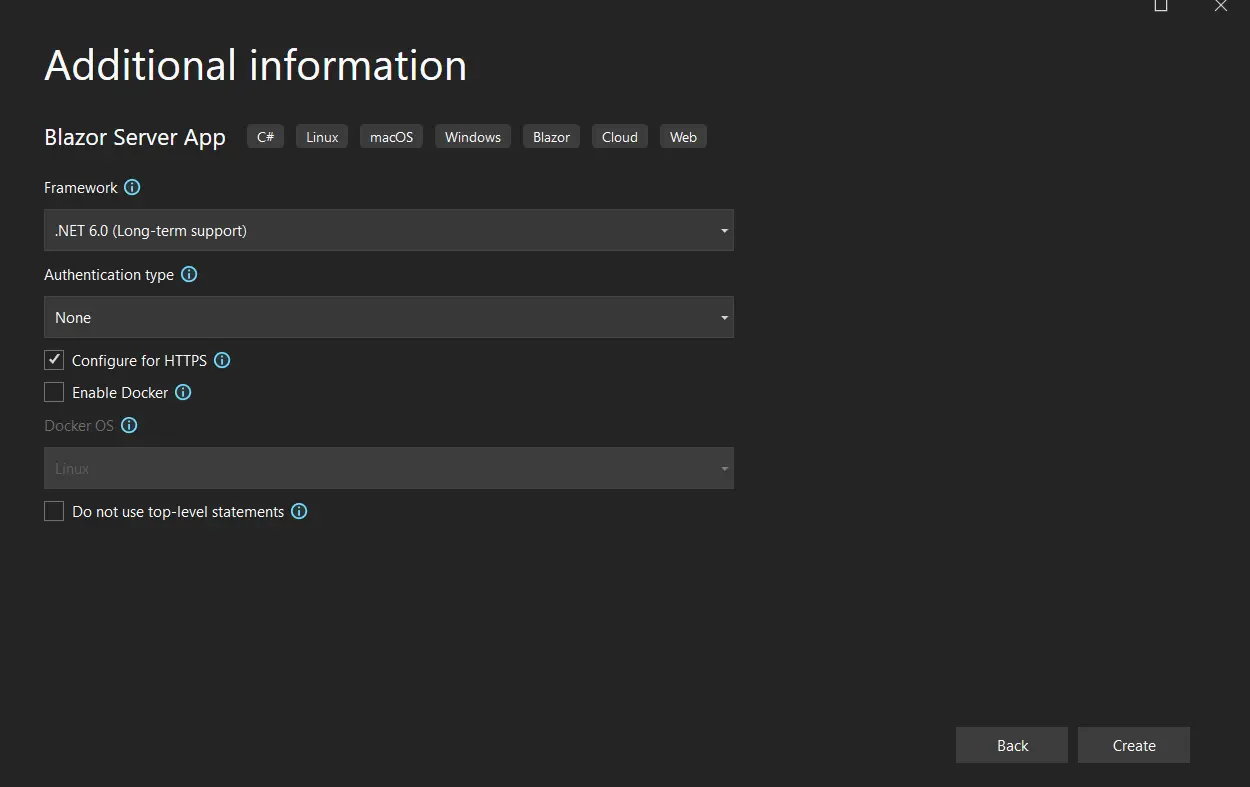
시작하려면 NuGet 패키지를 설치하고 라이선스 키를 Program.cs에 추가해야 합니다. 패키지 관리자 콘솔에서 IronPDF를 설치하십시오.
대안으로, NuGet 패키지 관리자 UI에서 "IronPDF"를 검색하고 최신 버전을 선택하십시오.
 NuGet을 사용하여 설치하세요
설치 후, PDF 작업 전 Program.cs에 라이선스 키를 추가하세요:
IronPdf.License.LicenseKey = "YOUR-LICENSE-KEY-HERE";IronPdf.License.LicenseKey = "YOUR-LICENSE-KEY-HERE"IronPDF는 .NET 10, .NET 9, .NET 8, .NET 6, .NET Framework 4.6.2 및 이후 버전과 호환됩니다. 개발 및 테스트를 위해 라이브러리는 라이선스 키 없이 작동하지만 생성된 PDF에 워터마크를 남깁니다. 무료 체험판 라이선스는 평가 도중 워터마크를 제거합니다.
IronPDF는 Blazor Server 및 Blazor WebAssembly 프로젝트를 모두 지원합니다. Blazor Server에서는 렌더링 엔진이 서버에서 직접 실행됩니다. Blazor WebAssembly에서는 PDF 생성을 위해 서버 측 API 엔드포인트가 필요합니다; 이 가이드의 후반부에서 아키텍처 섹션은 두 가지 접근 방식을 설명합니다.
가장 직접적인 방법으로 Blazor PDF 뷰어를 생성하려면 URL을 PDF로 변환하고 이를 <iframe>에 표시하는 것입니다. IronPDF의 ChromePdfRenderer는 웹페이지를 가져와 Google Chrome의 구동 엔진 역할을 하는 동일한 Chrome 렌더링 엔진을 사용하여 PDF 형식으로 변환하며, CSS, JavaScript 출력 및 레이아웃을 충실히 보존합니다.
다음 Razor 구성 요소는 URL을 PDF로 변환하여 인라인으로 표시합니다. GeneratePdf 메서드는 Blazor Server 앱에서 서버에서 실행되므로 전체 Chrome 렌더링 엔진을 사용할 수 있습니다:
@page "/pdfviewer"
@using IronPdf

<h3>PDF Viewer</h3>
<button @onclick="GeneratePdf" class="btn btn-primary">Load PDF</button>
@if (!string.IsNullOrEmpty(pdfDataUri))
{
    <iframe src="@pdfDataUri" style="width:100%; height:600px; border:1px solid #ccc; margin-top:20px;"></iframe>
}

@code {
    private string pdfDataUri = string.Empty;

    private async Task GeneratePdf()
    {
        var renderer = new ChromePdfRenderer();
        // Convert the URL to PDF using the Chrome rendering engine
        var pdf = await renderer.RenderUrlAsPdfAsync("https://ironpdf.com");
        // Encode the PDF bytes as a base64 data URI for iframe display
        var base64 = Convert.ToBase64String(pdf.BinaryData);
        pdfDataUri = $"data:application/pdf;base64,{base64}";
    }
}백그라운드 서비스, 콘솔 앱 또는 서버 측 API 엔드포인트에 대해 동일한 변환은 어떤 컴포넌트 컨텍스트 외부에서도 동일한 API 호출을 사용합니다:
using IronPdf;

var renderer = new ChromePdfRenderer();
// Fetch and convert the target URL to a PDF document
var pdf = await renderer.RenderUrlAsPdfAsync("https://ironpdf.com");

// Save to disk or use BinaryData for in-memory operations
pdf.SaveAs("output.pdf");
byte[] pdfBytes = pdf.BinaryData;Imports IronPdf
Dim renderer As New ChromePdfRenderer()
' Fetch and convert the target URL to a PDF document
Dim pdf = Await renderer.RenderUrlAsPdfAsync("https://ironpdf.com")
' Save to disk or use BinaryData for in-memory operations
pdf.SaveAs("output.pdf")
Dim pdfBytes As Byte() = pdf.BinaryDataRenderUrlAsPdfAsync는 페이지를 가져오고, 모든 JavaScript를 실행하며, CSS를 적용하고, 렌더링된 출력을 포함하는 PdfDocument 객체를 반환합니다. BinaryData 속성은 저장, 스트리밍 또는 표시를 위한 원시 PDF 바이트를 노출합니다. <iframe>는 확대/축소, 탐색 및 인쇄를 위한 내장 브라우저 도구 모음과 함께 출력을 표시합니다.
IronPDF는 ChromePdfRenderOptions 클래스를 통해 출력 제어를 제공합니다. 용지 크기를 설정하거나 여백을 조정하고 각 페이지에 텍스트 또는 HTML 머리글 및 바닥글을 추가할 수 있습니다. 렌더링 옵션 가이드에는 사용 가능한 속성의 전체 목록이 포함되어 있습니다.
다음 컴포넌트는 여백이 있는 A4 용지를 구성하고 각 페이지에 머리글과 바닥글 텍스트를 추가합니다. 렌더 메서드를 호출하기 전에 RenderingOptions를 할당하여 렌더러 인스턴스에 전반적으로 적용하도록 설정하세요:
@page "/pdfcustom"
@using IronPdf

<h3>Customized PDF Viewer</h3>
<button @onclick="GenerateCustomizedPdf" class="btn btn-primary">Generate Customized PDF</button>
@if (!string.IsNullOrEmpty(pdfDataUri))
{
    <iframe src="@pdfDataUri" style="width:100%; height:600px; border:1px solid #ccc; margin-top:20px;"></iframe>
}

@code {
    private string pdfDataUri = string.Empty;

    private async Task GenerateCustomizedPdf()
    {
        var renderer = new ChromePdfRenderer
        {
            RenderingOptions = new ChromePdfRenderOptions
            {
                PaperSize = IronPdf.Rendering.PdfPaperSize.A4,
                MarginTop = 25,
                MarginBottom = 25,
                MarginLeft = 20,
                MarginRight = 20,
                // Header with dynamic date replacement
                TextHeader = new TextHeaderFooter
                {
                    CenterText = "Monthly Report - {date}",
                    FontSize = 12
                },
                // Footer with page numbering
                TextFooter = new TextHeaderFooter
                {
                    LeftText = "Confidential",
                    RightText = "Page {page} of {total-pages}",
                    FontSize = 10
                }
            }
        };

        var pdf = await renderer.RenderUrlAsPdfAsync("https://example.com/report");
        pdfDataUri = $"data:application/pdf;base64,{Convert.ToBase64String(pdf.BinaryData)}";
    }
}동일한 옵션이 모든 .NET 컨텍스트에 적용됩니다. 이 패턴은 ASP.NET Core 최소 API 또는 예약 보고서 생성기 내부에서 잘 작동합니다:
using IronPdf;
using IronPdf.Rendering;

var renderer = new ChromePdfRenderer
{
    RenderingOptions = new ChromePdfRenderOptions
    {
        PaperSize = PdfPaperSize.A4,
        MarginTop = 25,
        MarginBottom = 25,
        TextHeader = new TextHeaderFooter { CenterText = "Report - {date}", FontSize = 12 },
        TextFooter = new TextHeaderFooter { RightText = "Page {page} of {total-pages}", FontSize = 10 }
    }
};

var pdf = await renderer.RenderUrlAsPdfAsync("https://example.com/report");
pdf.SaveAs("customized-report.pdf");Imports IronPdf
Imports IronPdf.Rendering
Dim renderer As New ChromePdfRenderer With {
.RenderingOptions = New ChromePdfRenderOptions With {
.PaperSize = PdfPaperSize.A4,
.MarginTop = 25,
.MarginBottom = 25,
.TextHeader = New TextHeaderFooter With {.CenterText = "Report - {date}", .FontSize = 12},
.TextFooter = New TextHeaderFooter With {.RightText = "Page {page} of {total-pages}", .FontSize = 10}
}
}
Dim pdf = Await renderer.RenderUrlAsPdfAsync("https://example.com/report")
pdf.SaveAs("customized-report.pdf")렌더링 시 {page}, {total-pages} 및 {date}을 포함한 템플릿 변수가 실제 값으로 대체됩니다. 복잡한 브랜드 레이아웃에는 TextHeader 및 TextFooter 대신 HtmlHeader 및 HtmlFooter 속성을 사용하세요. 머리글 및 바닥글 가이드에는 두 가지 접근 방식을 위한 완전한 예가 포함되어 있습니다.
<iframe>에 PDF를 표시하면 보기 기능을 처리하지만 사용자가 파일을 다운로드해야 하는 경우가 많습니다. JavaScript 상호 운영성은 .NET 바이트 스트림에서 브라우저 다운로드를 트리거합니다. 추가 다운로드 및 내보내기 패턴에 대해서는 PDF 내보내기 및 저장 가이드를 참조하세요.
구성 요소에 IJSRuntime를 주입하고 JavaScript 도우미 함수를 호출하여 다운로드를 시작합니다. DotNetStreamReference는 전체 파일을 한 번에 JavaScript 메모리에 로드하지 않고 PDF 바이트를 스트리밍합니다:
@page "/pdfdownload"
@using IronPdf
@inject IJSRuntime JSRuntime

<h3>Download PDF</h3>
<button @onclick="DownloadPdf" class="btn btn-success">Download PDF</button>

@code {
    private async Task DownloadPdf()
    {
        var renderer = new ChromePdfRenderer();
        var pdf = await renderer.RenderHtmlAsPdfAsync("<h1>Invoice</h1><p>Total: $1,299</p>");
        // Stream the PDF bytes to the browser as a downloadable file
        using var streamRef = new DotNetStreamReference(stream: new MemoryStream(pdf.BinaryData));
        await JSRuntime.InvokeVoidAsync("downloadFileFromStream", "invoice.pdf", streamRef);
    }
}Microsoft의 Blazor JavaScript 인터롭 문서에 설명된 대로 이 JavaScript 함수를 _Host.cshtml 또는 App.razor 파일에 추가하세요:
window.downloadFileFromStream = async (fileName, contentStreamReference) => {
    const arrayBuffer = await contentStreamReference.arrayBuffer();
    const blob = new Blob([arrayBuffer]);
    const url = URL.createObjectURL(blob);
    const anchorElement = document.createElement('a');
    anchorElement.href = url;
    anchorElement.download = fileName ?? '';
    anchorElement.click();
    anchorElement.remove();
    URL.revokeObjectURL(url);
};서버 측 API 엔드포인트에서 Results.File를 사용하여 PDF 바이트를 직접 반환합니다. 브라우저는 올바른 Content-Disposition 헤더를 사용하여 파일을 수신하고 다운로드를 자동으로 트리거합니다:
using IronPdf;

// ASP.NET Core minimal API endpoint
app.MapGet("/api/pdf/invoice", async () =>
{
    var renderer = new ChromePdfRenderer();
    var pdf = await renderer.RenderHtmlAsPdfAsync("<h1>Invoice</h1><p>Total: $1,299</p>");
    // Return with file download headers
    return Results.File(pdf.BinaryData, "application/pdf", "invoice.pdf");
});Imports IronPdf
' ASP.NET Core minimal API endpoint
app.MapGet("/api/pdf/invoice", Async Function()
Dim renderer As New ChromePdfRenderer()
Dim pdf = Await renderer.RenderHtmlAsPdfAsync("<h1>Invoice</h1><p>Total: $1,299</p>")
' Return with file download headers
Return Results.File(pdf.BinaryData, "application/pdf", "invoice.pdf")
End Function)HTML에서 PDF를 생성하면 레이아웃, 데이터 바인딩 및 스타일링을 완전히 제어할 수 있습니다. 이 접근 방식은 송장, 보고서 및 실시간 애플리케이션 데이터에서 구축된 모든 문서에 적합합니다. 보다 고급 렌더링 기술에 대해서는 HTML을 PDF로 변환하는 가이드를 참조하세요.
아래 구성 요소는 C# 데이터를 사용하여 송장 HTML 문자열을 생성하고 이를 PDF로 변환합니다. ChromePdfRenderer는 HTML 문자열을 웹페이지와 동일하게 처리하여 모든 CSS를 적용하고 Chrome 엔진으로 렌더링합니다:
@page "/invoicedemo"
@using IronPdf

<h3>Invoice Generator</h3>
<button @onclick="GenerateInvoice" class="btn btn-primary">Generate Invoice PDF</button>
@if (!string.IsNullOrEmpty(pdfDataUri))
{
    <iframe src="@pdfDataUri" style="width:100%; height:600px; border:1px solid #ccc; margin-top:20px;"></iframe>
}

@code {
    private string pdfDataUri = string.Empty;

    private async Task GenerateInvoice()
    {
        var invoiceHtml = $@"
            <html>
            <head>
                <style>
                    body {{font-family: Arial, sans-serif;}}
                    .header {{background-color: #f0f0f0; padding: 20px;}}
                    .invoice-table {{width: 100%; border-collapse: collapse;}}
                    .invoice-table th, .invoice-table td {{border: 1px solid #ddd; padding: 8px;}}
                    .total {{font-weight: bold; font-size: 18px;}}
                </style>
            </head>
            <body>
                <div class='header'>
                    <h1>Invoice #INV-2025-001</h1>
                    <p>Date: {DateTime.Now:MM/dd/yyyy}</p>
                </div>
                <table class='invoice-table'>
                    <thead>
                        <tr>
                            <th>Item</th><th>Quantity</th><th>Price</th><th>Total</th>
                        </tr>
                    </thead>
                    <tbody>
                        <tr>
                            <td>IronPDF License</td><td>1</td><td>$999</td><td>$999</td>
                        </tr>
                        <tr>
                            <td>Priority Support</td><td>1</td><td>$250</td><td>$250</td>
                        </tr>
                    </tbody>
                </table>
                <p class='total'>Total Amount: $999</p>
            </body>
            </html>";

        var renderer = new ChromePdfRenderer();
        var pdf = await renderer.RenderHtmlAsPdfAsync(invoiceHtml);
        pdfDataUri = $"data:application/pdf;base64,{Convert.ToBase64String(pdf.BinaryData)}";
    }
}동일한 HTML 문자열 접근 방식은 콘솔 앱, 백그라운드 서비스 및 API 엔드포인트를 포함한 모든 .NET 컨텍스트에서 작동합니다. C# 문자열 보간 또는 템플릿 라이브러리는 문자열을 렌더러에 전달하기 전에 동적 데이터를 삽입합니다:
using IronPdf;

var html = """
    <html>
    <body>
        <h1>Invoice #INV-2025-001</h1>
        <table>
            <tr><th>Item</th><th>Total</th></tr>
            <tr><td>IronPDF License</td><td>$999</td></tr>
            <tr><td>Priority Support</td><td>$250</td></tr>
        </table>
        <p><strong>Total: $999</strong></p>
    </body>
    </html>
    """;

var renderer = new ChromePdfRenderer();
var pdf = await renderer.RenderHtmlAsPdfAsync(html);
pdf.SaveAs("invoice.pdf");Imports IronPdf
Dim html = "
<html>
<body>
<h1>Invoice #INV-2025-001</h1>
<table>
<tr><th>Item</th><th>Total</th></tr>
<tr><td>IronPDF License</td><td>$999</td></tr>
<tr><td>Priority Support</td><td>$250</td></tr>
</table>
<p><strong>Total: $999</strong></p>
</body>
</html>
"
Dim renderer = New ChromePdfRenderer()
Dim pdf = Await renderer.RenderHtmlAsPdfAsync(html)
pdf.SaveAs("invoice.pdf")RenderHtmlAsPdfAsync는 인라인 CSS 및 내장형 JavaScript를 포함한 유효한 HTML 문자열을 허용합니다. 구현은 자동으로 레이아웃, 글꼴 렌더링 및 페이지 나누기를 처리합니다.
호스팅 모델은 PDF 생성이 실행되는 위치와 바이트가 브라우저에 도달하는 방법을 결정합니다. 이 구별을 이해하면 Blazor PDF 뷰어를 구축할 때 발생할 수 있는 일반적인 아키텍처 실수를 방지할 수 있습니다.
Blazor Server는 서버에서 모든 C# 코드를 실행합니다. ChromePdfRenderer는 서버 측에서 실행되고, 결과 바이트는 기존 SignalR 연결을 통해 브라우저로 푸시됩니다. 이는 추가 API 엔드포인트나 네트워크 호출을 필요로 하지 않는 가장 간단한 통합 경로로, 앞서 설명된 섹션에 표시된 것 외에는 필요하지 않습니다.
Blazor WebAssembly는 브라우저 샌드박스에서 WASM을 사용하여 C#을 실행합니다. IronPDF의 렌더링 엔진은 브라우저 샌드박스 내에서 실행될 수 없는 네이티브 바이너리에 의존하므로 ChromePdfRenderer는 WASM 프로젝트에서 직접 사용할 수 없습니다. 올바른 접근 방식은 PDF 생성을 수행하고 바이트를 응답으로 반환하는 서버 측 API 엔드포인트를 호출하는 것입니다.
서버에서 PDF를 생성하고 반환하는 최소한의 API 엔드포인트를 정의하세요:
// Program.cs (ASP.NET Core host project)
using IronPdf;

IronPdf.License.LicenseKey = "YOUR-LICENSE-KEY-HERE";

app.MapGet("/api/pdf/report", async () =>
{
    var renderer = new ChromePdfRenderer();
    var pdf = await renderer.RenderHtmlAsPdfAsync("<h1>Quarterly Report</h1><p>Generated server-side.</p>");
    // Return PDF bytes with file download headers
    return Results.File(pdf.BinaryData, "application/pdf", "report.pdf");
});Imports IronPdf
IronPdf.License.LicenseKey = "YOUR-LICENSE-KEY-HERE"
app.MapGet("/api/pdf/report", Async Function()
Dim renderer = New ChromePdfRenderer()
Dim pdf = Await renderer.RenderHtmlAsPdfAsync("<h1>Quarterly Report</h1><p>Generated server-side.</p>")
' Return PDF bytes with file download headers
Return Results.File(pdf.BinaryData, "application/pdf", "report.pdf")
End Function)WASM 클라이언트에서 HttpClient을 주입하고 API 엔드포인트를 호출합니다. Blazor WASM 호스팅 프로젝트 템플릿은 서버의 기본 주소를 대상으로 HttpClient를 사전 구성합니다:
@page "/wasm-pdf-viewer"
@inject HttpClient Http

<h3>PDF Viewer</h3>
<button @onclick="LoadPdf" class="btn btn-primary">Load Report</button>
@if (!string.IsNullOrEmpty(pdfDataUri))
{
    <iframe src="@pdfDataUri" style="width:100%; height:600px;"></iframe>
}

@code {
    private string pdfDataUri = string.Empty;

    private async Task LoadPdf()
    {
        // Fetch PDF bytes from the server-side generation endpoint
        var bytes = await Http.GetByteArrayAsync("/api/pdf/report");
        pdfDataUri = $"data:application/pdf;base64,{Convert.ToBase64String(bytes)}";
    }
}이 패턴은 모든 무거운 렌더링 작업을 서버에 유지하고 WASM 클라이언트는 디스플레이만 처리합니다. 제품 사용 시에는 API 엔드포인트에 인증을 추가하고 생성된 PDF 콘텐츠를 인증된 사용자의 데이터로 범위를 지정하십시오.
IronPDF의 API는 기본적인 보기 기능을 훨씬 뛰어넘습니다. 다음 섹션에서는 Blazor 문서 워크플로우에서 일반적으로 필요한 네 가지 작업(여러 문서 병합, 주석 추가, 암호 보호 적용, 사용자 업로드 파일 표시)을 다룹니다.
병합은 여러 PdfDocument 인스턴스를 단일 파일로 결합하여 보고서 섹션을 조립하거나, 부록을 추가하거나, 사용자가 선택한 파일을 연결하는 데 유용합니다. PDF 병합 및 분할 가이드 는 페이지 수준의 삽입 및 분할 작업을 다룹니다.
using IronPdf;

var renderer = new ChromePdfRenderer();

// Generate two separate sections as individual PDF documents
var section1 = await renderer.RenderHtmlAsPdfAsync("<h1>Section 1: Overview</h1>");
var section2 = await renderer.RenderHtmlAsPdfAsync("<h1>Section 2: Details</h1>");

// Merge into a single document preserving all pages
var merged = PdfDocument.Merge(section1, section2);
merged.SaveAs("combined-report.pdf");Imports IronPdf
Dim renderer As New ChromePdfRenderer()
' Generate two separate sections as individual PDF documents
Dim section1 = Await renderer.RenderHtmlAsPdfAsync("<h1>Section 1: Overview</h1>")
Dim section2 = Await renderer.RenderHtmlAsPdfAsync("<h1>Section 2: Details</h1>")
' Merge into a single document preserving all pages
Dim merged = PdfDocument.Merge(section1, section2)
merged.SaveAs("combined-report.pdf")병합된 문서를 Blazor 구성 요소에 표시하려면 앞에서 설명한 base64 데이터 URI 패턴을 merged.BinaryData에 전달하세요. 병합된 PdfDocument 객체는 표시를 위해 인코딩되기 전에 추가 작업(워터마크, 보안 설정 또는 추가 페이지 추가)을 허용합니다.
주석은 검토자 메모와 코멘트를 특정 페이지 위치에 첨부하여 기본 문서 내용을 변경하지 않습니다. IronPDF는 텍스트 주석, 자유 텍스트 상자 및 기타 마크업 유형을 지원합니다. 모든 주석 속성 목록은 주석 가이드를 참조하십시오.
using IronPdf;
using IronPdf.Annotations;

var renderer = new ChromePdfRenderer();
var pdf = await renderer.RenderHtmlAsPdfAsync("<h1>Contract Document</h1><p>Review required on clause 3.</p>");

// Add a text annotation to page 0 at position (50, 650)
var annotation = new TextAnnotation(pageIndex: 0)
{
    Title = "Reviewer Note",
    Contents = "Please confirm clause 3 before signing.",
    X = 50,
    Y = 650,
    Width = 200,
    Height = 50,
    Printable = false,
    OpenByDefault = true
};

pdf.Annotations.Add(annotation);
pdf.SaveAs("annotated-contract.pdf");Imports IronPdf
Imports IronPdf.Annotations
Dim renderer As New ChromePdfRenderer()
Dim pdf = Await renderer.RenderHtmlAsPdfAsync("<h1>Contract Document</h1><p>Review required on clause 3.</p>")
' Add a text annotation to page 0 at position (50, 650)
Dim annotation As New TextAnnotation(pageIndex:=0) With {
.Title = "Reviewer Note",
.Contents = "Please confirm clause 3 before signing.",
.X = 50,
.Y = 650,
.Width = 200,
.Height = 50,
.Printable = False,
.OpenByDefault = True
}
pdf.Annotations.Add(annotation)
pdf.SaveAs("annotated-contract.pdf")PDF는 표준 뷰어, 브라우저 <iframe> 표시를 포함하여 열 때 주석을 보존합니다. Blazor 응용 프로그램의 경우 주석 로직을 서버 측에서 실행하고 pdf.BinaryData을(를) 구성 요소에 반환하여 표시합니다.
암호 보호는 금융 보고서 또는 인사 기록과 같은 민감한 문서에 대한 액세스를 제한합니다. IronPDF는 사용자 암호(문서 열기에 필요)와 소유자 암호(권한 변경에 필요)를 지원합니다. PDF 보안 가이드는 사용 가능한 모든 권한 플래그를 나열합니다.
using IronPdf;

var renderer = new ChromePdfRenderer();
var pdf = await renderer.RenderHtmlAsPdfAsync("<h1>Confidential Report</h1>");

// Set the password required to open the document
pdf.Password = "user-open-password";
// Set the owner password to control editing and printing rights
pdf.SecuritySettings.OwnerPassword = "owner-edit-password";
pdf.SecuritySettings.AllowUserPrinting = IronPdf.Security.PdfPrintSecurity.FullPrintRights;
pdf.SecuritySettings.AllowUserCopyPasteContent = false;

pdf.SaveAs("protected-report.pdf");Imports IronPdf
Dim renderer As New ChromePdfRenderer()
Dim pdf = Await renderer.RenderHtmlAsPdfAsync("<h1>Confidential Report</h1>")
' Set the password required to open the document
pdf.Password = "user-open-password"
' Set the owner password to control editing and printing rights
pdf.SecuritySettings.OwnerPassword = "owner-edit-password"
pdf.SecuritySettings.AllowUserPrinting = IronPdf.Security.PdfPrintSecurity.FullPrintRights
pdf.SecuritySettings.AllowUserCopyPasteContent = False
pdf.SaveAs("protected-report.pdf")암호로 보호된 PDF는 브라우저 <iframe>에서 암호 프롬프트를 표시합니다. 이 방법은 다운로드를 통해 배포된 문서에 작동합니다; 프롬프트 없는 인라인 디스플레이를 위해서는 다운로드 경로를 통해 반환된 문서에만 암호를 적용하십시오.
사용자가 업로드한 PDF를 표시하려면 들어오는 파일 바이트를 읽고 데이터 URI로 인코딩해야 합니다. 아래 업로드 구성 요소는 Blazor의 InputFile 컨트롤을 사용하여 파일을 캡처한 후, 재렌더링 없이 직접 표시합니다:
@page "/upload-viewer"
@using IronPdf

<h3>Upload and View a PDF</h3>
<InputFile OnChange="LoadUploadedPdf" accept=".pdf" />
@if (!string.IsNullOrEmpty(pdfDataUri))
{
    <iframe src="@pdfDataUri" style="width:100%; height:600px; margin-top:20px;"></iframe>
}

@code {
    private string pdfDataUri = string.Empty;

    private async Task LoadUploadedPdf(InputFileChangeEventArgs e)
    {
        using var stream = e.File.OpenReadStream(maxAllowedSize: 10 * 1024 * 1024);
        using var ms = new MemoryStream();
        await stream.CopyToAsync(ms);
        var bytes = ms.ToArray();
        // Encode the uploaded PDF bytes directly for display
        pdfDataUri = $"data:application/pdf;base64,{Convert.ToBase64String(bytes)}";
    }
}표시 전에 서버 측 처리가 필요한 업로드된 PDF(예: 워터마크 추가, 페이지 추출, 또는 암호 재설정)는 PdfDocument에 바이트를 먼저 로드하세요:
var pdf = new PdfDocument(bytes);
// Apply operations, then re-encode
pdfDataUri = $"data:application/pdf;base64,{Convert.ToBase64String(pdf.BinaryData)}";Dim pdf As New PdfDocument(bytes)
' Apply operations, then re-encode
pdfDataUri = $"data:application/pdf;base64,{Convert.ToBase64String(pdf.BinaryData)}"이는 업로드된 파일에 대해 전체 IronPDF API를 사용하면서 동일한 구성 요소 구조를 유지합니다.
이 가이드는 .NET 10에 IronPDF를 설치하고, URL과 HTML 렌더링, 헤더와 푸터로 출력 사용자 정의, 브라우저 다운로드를 위한 JavaScript 상호운용성, Blazor Server와 Blazor WebAssembly의 구조 차이, 네 가지 문서 작업(병합, 주석, 암호 보호, 사용자 업로드)을 포함하여 Blazor PDF 뷰어의 전체 워크플로우를 다루었습니다.
이 기초를 확장하려면 다음 리소스를 탐색하십시오:
무료 체험판 라이센스를 얻어 워터마크를 제거하고 Blazor 응용 프로그램 전체에서 IronPDF를 시험해 보십시오. IronPDF는 .NET 10, ASP.NET Core, Blazor Server 및 호스팅된 Blazor WebAssembly 프로젝트를 추가 설정 없이 지원합니다. 추가 통합 안내는 Microsoft의 공식 Blazor 문서를 참조하십시오.

커티스 차우는 칼턴 대학교에서 컴퓨터 과학 학사 학위를 취득했으며, Node.js, TypeScript, JavaScript, React를 전문으로 하는 프론트엔드 개발자입니다. 직관적이고 미적으로 뛰어난 사용자 인터페이스를 만드는 데 열정을 가진 그는 최신 프레임워크를 활용하고, 잘 구성되고 시각적으로 매력적인 매뉴얼을 제작하는 것을 즐깁니다.



IronPDF는 IRON SUITE 의 일부입니다.
10개의 .NET API 제품, 당신의 사무 문서를 위해

PDF 파일을 HTML처럼 빠르게 변환해야 할 때.


