




已更新 2026年9月4日
產生每月帳戶報表(PDF 文件)
using IronPDF C# PDF 庫,開發人員可以在 .NET 專案中將 HTML 轉換為可靠的 PDF 文件,而無需依賴外部服務。
閱讀更多

Blazor PDF檢視器通過將PDF文件轉換為base64資料URI並在<iframe>元素中載入結果來內嵌呈現PDF文件。 IronPDF的ChromePdfRenderer將HTML字串、實時URL或動態內容轉換為PDF字元流,在一次非同步呼叫中提供Blazor Server和Blazor WebAssembly應用程式完整的PDF生成和顯示功能,無需外部檢視器插件。
商業應用通常需要顯示發票、合同和報告,而不將使用者重定向到其他標籤或依賴於裝置不同的瀏覽器PDF支持。 Blazor的組件模型使得在伺服器上生成PDF、編碼並流式傳輸到任何頁面組件變得十分簡單,只要程式庫可靠地處理轉換。
本指南涵蓋了安裝、基於URL和HTML的呈現、通過JavaScript互操作進行瀏覽器下載、Blazor Server和Blazor WebAssembly方法的比較以及四種擴展操作:合併、註釋、密碼保護和使用者上傳文件的顯示。 對於每種技術均提供Razor組件和等效的頂層C#範例。
開始免費的IronPDF試用,以便與本指南中的範例一起學習。
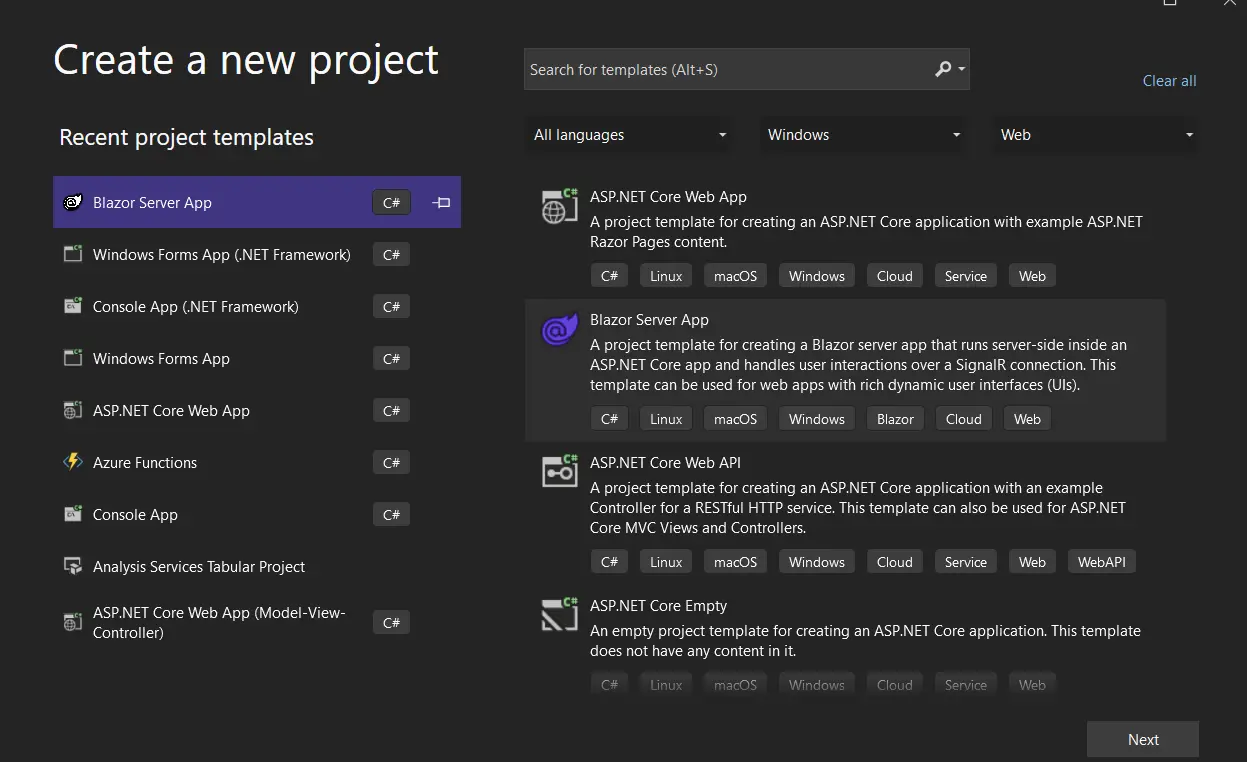
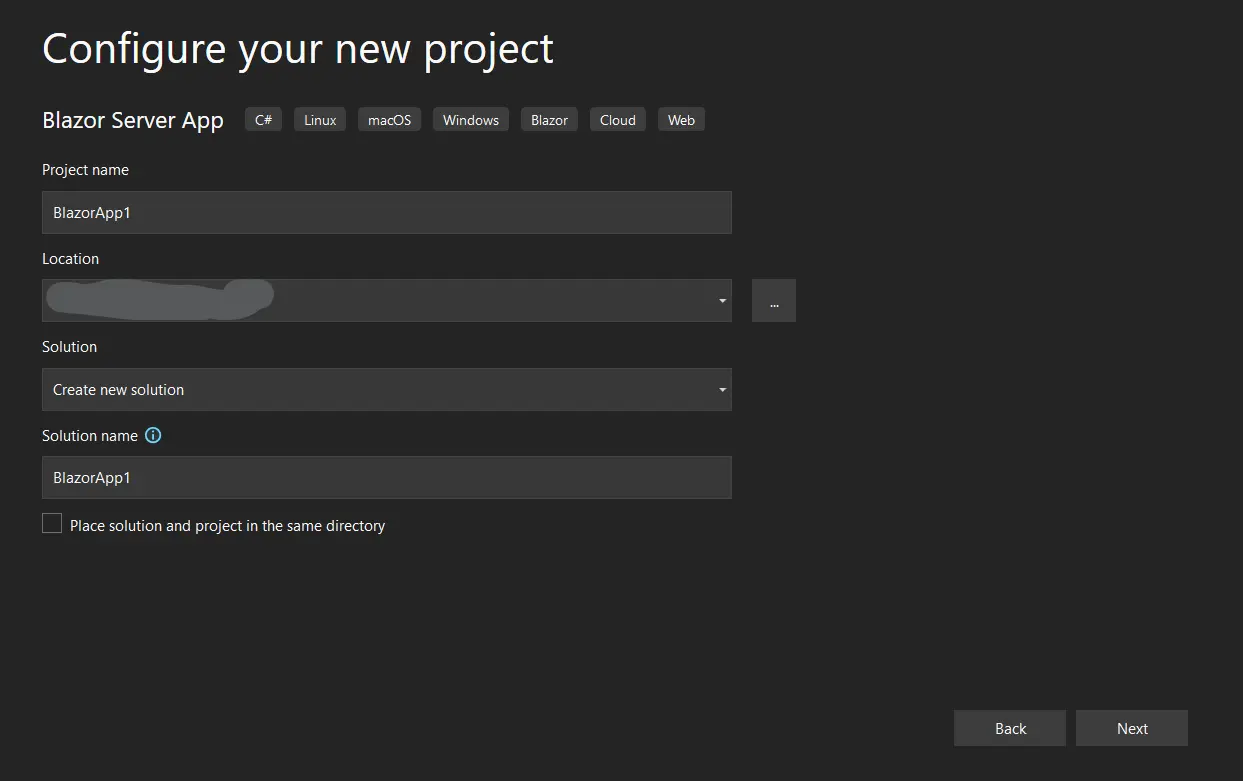
開始前需要在Program.cs中安裝NuGet套件並新增授權金鑰。 從套件管理器控制台安裝IronPDF:
或者,在NuGet包管理器UI中搜索"IronPDF",並選擇最新版本。
 使用NuGet安裝
安裝後,在任何PDF操作之前將授權金鑰新增到Program.cs中:
IronPdf.License.LicenseKey = "YOUR-LICENSE-KEY-HERE";IronPdf.License.LicenseKey = "YOUR-LICENSE-KEY-HERE"IronPDF與.NET 10、.NET 9、.NET 8、.NET 6和.NET Framework 4.6.2及以上版本相容。 對於開發和測試,程式庫在沒有授權金鑰的情況下運行,但會在生成的PDF上印上浮水印。 免費試用授權在評估期間移除浮水印。
IronPDF支持Blazor Server和Blazor WebAssembly專案。 在Blazor Server中,渲染引擎直接在伺服器上運行。 在Blazor WebAssembly中,PDF生成需要伺服器端API端點; 本指南的架構部分稍後將解釋這兩種方法。
建立Blazor PDF檢視器的最直接方法是將URL轉換為PDF,並在<iframe>中顯示。 IronPDF的ChromePdfRenderer抓取網頁,並使用與Google Chrome相同的Chrome渲染引擎將其轉換為PDF格式,準確保留CSS、JavaScript輸出和佈局。
以下Razor組件將URL轉換為PDF並內嵌顯示。GeneratePdf方法在Blazor Server應用中運行在伺服器上,因此可以使用完整的Chrome渲染引擎:
@page "/pdfviewer"
@using IronPdf

<h3>PDF Viewer</h3>
<button @onclick="GeneratePdf" class="btn btn-primary">Load PDF</button>
@if (!string.IsNullOrEmpty(pdfDataUri))
{
    <iframe src="@pdfDataUri" style="width:100%; height:600px; border:1px solid #ccc; margin-top:20px;"></iframe>
}

@code {
    private string pdfDataUri = string.Empty;

    private async Task GeneratePdf()
    {
        var renderer = new ChromePdfRenderer();
        // Convert the URL to PDF using the Chrome rendering engine
        var pdf = await renderer.RenderUrlAsPdfAsync("https://ironpdf.com");
        // Encode the PDF bytes as a base64 data URI for iframe display
        var base64 = Convert.ToBase64String(pdf.BinaryData);
        pdfDataUri = $"data:application/pdf;base64,{base64}";
    }
}對於背景服務、控制台應用或伺服器端API端點,相同的轉換在任何組件上下文之外使用相同的API呼叫:
using IronPdf;

var renderer = new ChromePdfRenderer();
// Fetch and convert the target URL to a PDF document
var pdf = await renderer.RenderUrlAsPdfAsync("https://ironpdf.com");

// Save to disk or use BinaryData for in-memory operations
pdf.SaveAs("output.pdf");
byte[] pdfBytes = pdf.BinaryData;Imports IronPdf
Dim renderer As New ChromePdfRenderer()
' Fetch and convert the target URL to a PDF document
Dim pdf = Await renderer.RenderUrlAsPdfAsync("https://ironpdf.com")
' Save to disk or use BinaryData for in-memory operations
pdf.SaveAs("output.pdf")
Dim pdfBytes As Byte() = pdf.BinaryDataPdfDocument物件。 BinaryData屬性公開未經處理的PDF字元流以便於儲存、流式傳輸或顯示。 <iframe>使用內建的瀏覽器工具欄顯示輸出,以便進行縮放、導航和列印。
IronPDF通過ChromePdfRenderOptions類提供輸出控制。 您可以設置紙張大小、調整邊距,並在每頁新增文字或HTML頁首和頁尾。 渲染選項指南涵蓋了所有可用屬性的完整列表。
以下組件配置帶有邊距的A4紙張,並向每頁新增頁首和頁尾文字。 在調用任何渲染方法之前分配RenderingOptions,以全域應用於渲染器實例:
@page "/pdfcustom"
@using IronPdf

<h3>Customized PDF Viewer</h3>
<button @onclick="GenerateCustomizedPdf" class="btn btn-primary">Generate Customized PDF</button>
@if (!string.IsNullOrEmpty(pdfDataUri))
{
    <iframe src="@pdfDataUri" style="width:100%; height:600px; border:1px solid #ccc; margin-top:20px;"></iframe>
}

@code {
    private string pdfDataUri = string.Empty;

    private async Task GenerateCustomizedPdf()
    {
        var renderer = new ChromePdfRenderer
        {
            RenderingOptions = new ChromePdfRenderOptions
            {
                PaperSize = IronPdf.Rendering.PdfPaperSize.A4,
                MarginTop = 25,
                MarginBottom = 25,
                MarginLeft = 20,
                MarginRight = 20,
                // Header with dynamic date replacement
                TextHeader = new TextHeaderFooter
                {
                    CenterText = "Monthly Report - {date}",
                    FontSize = 12
                },
                // Footer with page numbering
                TextFooter = new TextHeaderFooter
                {
                    LeftText = "Confidential",
                    RightText = "Page {page} of {total-pages}",
                    FontSize = 10
                }
            }
        };

        var pdf = await renderer.RenderUrlAsPdfAsync("https://example.com/report");
        pdfDataUri = $"data:application/pdf;base64,{Convert.ToBase64String(pdf.BinaryData)}";
    }
}相同的選項適用於任何.NET環境。 此模式在ASP.NET Core簡單API或計畫報告生成器內效果良好:
using IronPdf;
using IronPdf.Rendering;

var renderer = new ChromePdfRenderer
{
    RenderingOptions = new ChromePdfRenderOptions
    {
        PaperSize = PdfPaperSize.A4,
        MarginTop = 25,
        MarginBottom = 25,
        TextHeader = new TextHeaderFooter { CenterText = "Report - {date}", FontSize = 12 },
        TextFooter = new TextHeaderFooter { RightText = "Page {page} of {total-pages}", FontSize = 10 }
    }
};

var pdf = await renderer.RenderUrlAsPdfAsync("https://example.com/report");
pdf.SaveAs("customized-report.pdf");Imports IronPdf
Imports IronPdf.Rendering
Dim renderer As New ChromePdfRenderer With {
.RenderingOptions = New ChromePdfRenderOptions With {
.PaperSize = PdfPaperSize.A4,
.MarginTop = 25,
.MarginBottom = 25,
.TextHeader = New TextHeaderFooter With {.CenterText = "Report - {date}", .FontSize = 12},
.TextFooter = New TextHeaderFooter With {.RightText = "Page {page} of {total-pages}", .FontSize = 10}
}
}
Dim pdf = Await renderer.RenderUrlAsPdfAsync("https://example.com/report")
pdf.SaveAs("customized-report.pdf")模板變數,包括TextFooter。 頁首和頁尾指南包含兩種方法的完整範例。
在<iframe>中顯示PDF處理檢視,但使用者經常需要下載文件。JavaScript互操作從.NET字元流觸發瀏覽器下載。 有關其他下載和導出模式,請參閱導出和保存PDF指南。
將IJSRuntime注入組件,並調用JavaScript輔助函式以啟動下載。 DotNetStreamReference在不將整個文件載入到JavaScript記憶體中的情況下流式傳輸PDF字元流:
@page "/pdfdownload"
@using IronPdf
@inject IJSRuntime JSRuntime

<h3>Download PDF</h3>
<button @onclick="DownloadPdf" class="btn btn-success">Download PDF</button>

@code {
    private async Task DownloadPdf()
    {
        var renderer = new ChromePdfRenderer();
        var pdf = await renderer.RenderHtmlAsPdfAsync("<h1>Invoice</h1><p>Total: $1,299</p>");
        // Stream the PDF bytes to the browser as a downloadable file
        using var streamRef = new DotNetStreamReference(stream: new MemoryStream(pdf.BinaryData));
        await JSRuntime.InvokeVoidAsync("downloadFileFromStream", "invoice.pdf", streamRef);
    }
}將此JavaScript函式新增到您的App.razor文件中,如Microsoft的Blazor JavaScript互操作文件所述:
window.downloadFileFromStream = async (fileName, contentStreamReference) => {
    const arrayBuffer = await contentStreamReference.arrayBuffer();
    const blob = new Blob([arrayBuffer]);
    const url = URL.createObjectURL(blob);
    const anchorElement = document.createElement('a');
    anchorElement.href = url;
    anchorElement.download = fileName ?? '';
    anchorElement.click();
    anchorElement.remove();
    URL.revokeObjectURL(url);
};在伺服器端API端點中,使用Results.File直接返回PDF字元流。 瀏覽器接收到文件並帶有正確的Content-Disposition標頭,並自動觸發下載:
using IronPdf;

// ASP.NET Core minimal API endpoint
app.MapGet("/api/pdf/invoice", async () =>
{
    var renderer = new ChromePdfRenderer();
    var pdf = await renderer.RenderHtmlAsPdfAsync("<h1>Invoice</h1><p>Total: $1,299</p>");
    // Return with file download headers
    return Results.File(pdf.BinaryData, "application/pdf", "invoice.pdf");
});Imports IronPdf
' ASP.NET Core minimal API endpoint
app.MapGet("/api/pdf/invoice", Async Function()
Dim renderer As New ChromePdfRenderer()
Dim pdf = Await renderer.RenderHtmlAsPdfAsync("<h1>Invoice</h1><p>Total: $1,299</p>")
' Return with file download headers
Return Results.File(pdf.BinaryData, "application/pdf", "invoice.pdf")
End Function)從HTML生成PDF提供了對佈局、資料綁定和樣式的完全控制。 這種方法適合於發票、報告和任何從實時應用程式資料構建的文件。 有關更高級的渲染技術,請參閱HTML到PDF轉換指南。
下面的組件從C#資料構建一個發票HTML字串,並將其轉換為PDF。 ChromePdfRenderer將HTML字串視為網頁,應用所有CSS並使用Chrome引擎渲染:
@page "/invoicedemo"
@using IronPdf

<h3>Invoice Generator</h3>
<button @onclick="GenerateInvoice" class="btn btn-primary">Generate Invoice PDF</button>
@if (!string.IsNullOrEmpty(pdfDataUri))
{
    <iframe src="@pdfDataUri" style="width:100%; height:600px; border:1px solid #ccc; margin-top:20px;"></iframe>
}

@code {
    private string pdfDataUri = string.Empty;

    private async Task GenerateInvoice()
    {
        var invoiceHtml = $@"
            <html>
            <head>
                <style>
                    body {{font-family: Arial, sans-serif;}}
                    .header {{background-color: #f0f0f0; padding: 20px;}}
                    .invoice-table {{width: 100%; border-collapse: collapse;}}
                    .invoice-table th, .invoice-table td {{border: 1px solid #ddd; padding: 8px;}}
                    .total {{font-weight: bold; font-size: 18px;}}
                </style>
            </head>
            <body>
                <div class='header'>
                    <h1>Invoice #INV-2025-001</h1>
                    <p>Date: {DateTime.Now:MM/dd/yyyy}</p>
                </div>
                <table class='invoice-table'>
                    <thead>
                        <tr>
                            <th>Item</th><th>Quantity</th><th>Price</th><th>Total</th>
                        </tr>
                    </thead>
                    <tbody>
                        <tr>
                            <td>IronPDF License</td><td>1</td><td>$999</td><td>$999</td>
                        </tr>
                        <tr>
                            <td>Priority Support</td><td>1</td><td>$250</td><td>$250</td>
                        </tr>
                    </tbody>
                </table>
                <p class='total'>Total Amount: $999</p>
            </body>
            </html>";

        var renderer = new ChromePdfRenderer();
        var pdf = await renderer.RenderHtmlAsPdfAsync(invoiceHtml);
        pdfDataUri = $"data:application/pdf;base64,{Convert.ToBase64String(pdf.BinaryData)}";
    }
}相同的HTML字串方法適用於任何.NET環境,包括控制台應用、背景服務和API端點。 C#字串插值或模板庫在將字串傳遞給渲染器之前插入動態資料:
using IronPdf;

var html = """
    <html>
    <body>
        <h1>Invoice #INV-2025-001</h1>
        <table>
            <tr><th>Item</th><th>Total</th></tr>
            <tr><td>IronPDF License</td><td>$999</td></tr>
            <tr><td>Priority Support</td><td>$250</td></tr>
        </table>
        <p><strong>Total: $999</strong></p>
    </body>
    </html>
    """;

var renderer = new ChromePdfRenderer();
var pdf = await renderer.RenderHtmlAsPdfAsync(html);
pdf.SaveAs("invoice.pdf");RenderHtmlAsPdfAsync接受任何有效的HTML字串,包括內聯CSS和嵌入式JavaScript。 該實現自動處理佈局、字體渲染和分頁符。
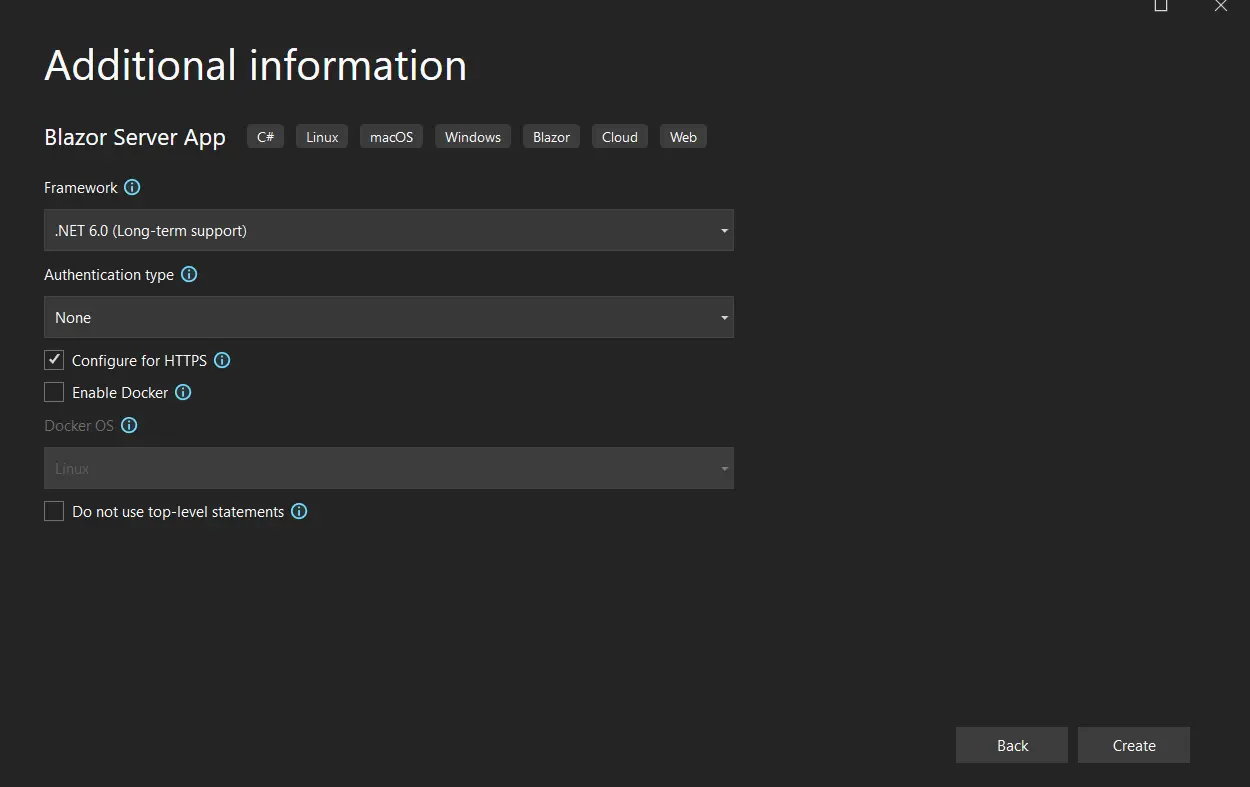
托管模型確定PDF生成在哪裡運行,以及字元流如何進入瀏覽器。 理解這一差別能防止構建Blazor PDF檢視器時常見的架構錯誤。
Blazor Server在伺服器上執行所有C#程式碼。 ChromePdfRenderer在伺服器端運行,並且結果字元流通過現有的SignalR連接推送到瀏覽器。 這是最簡單的整合路徑,除了之前章節所顯示的內容外,無需額外的API端點或網路呼叫。
Blazor WebAssembly使用WASM在瀏覽器的沙盒中運行C#。 IronPDF的渲染引擎依賴於無法在瀏覽器沙盒中運行的原生二進制,因此ChromePdfRenderer在WASM專案中不可用。 正確的方法是調用伺服器端API端點,該端點執行PDF生成並將字元流作為響應返回。
在伺服器上,定義一個最小API端點,用於生成和返回PDF:
// Program.cs (ASP.NET Core host project)
using IronPdf;

IronPdf.License.LicenseKey = "YOUR-LICENSE-KEY-HERE";

app.MapGet("/api/pdf/report", async () =>
{
    var renderer = new ChromePdfRenderer();
    var pdf = await renderer.RenderHtmlAsPdfAsync("<h1>Quarterly Report</h1><p>Generated server-side.</p>");
    // Return PDF bytes with file download headers
    return Results.File(pdf.BinaryData, "application/pdf", "report.pdf");
});Imports IronPdf
IronPdf.License.LicenseKey = "YOUR-LICENSE-KEY-HERE"
app.MapGet("/api/pdf/report", Async Function()
Dim renderer = New ChromePdfRenderer()
Dim pdf = Await renderer.RenderHtmlAsPdfAsync("<h1>Quarterly Report</h1><p>Generated server-side.</p>")
' Return PDF bytes with file download headers
Return Results.File(pdf.BinaryData, "application/pdf", "report.pdf")
End Function)在WASM客戶端上,注入HttpClient並調用API端點。 Blazor WASM託管專案模板預先配置HttpClient以定位伺服器的基址:
@page "/wasm-pdf-viewer"
@inject HttpClient Http

<h3>PDF Viewer</h3>
<button @onclick="LoadPdf" class="btn btn-primary">Load Report</button>
@if (!string.IsNullOrEmpty(pdfDataUri))
{
    <iframe src="@pdfDataUri" style="width:100%; height:600px;"></iframe>
}

@code {
    private string pdfDataUri = string.Empty;

    private async Task LoadPdf()
    {
        // Fetch PDF bytes from the server-side generation endpoint
        var bytes = await Http.GetByteArrayAsync("/api/pdf/report");
        pdfDataUri = $"data:application/pdf;base64,{Convert.ToBase64String(bytes)}";
    }
}此模式使所有繁重的渲染工作保持在伺服器上,而WASM客戶端僅處理顯示。 在生產使用中,新增身份驗證到API端點,並將生成的PDF內容範圍限定為經身份驗證的使用者資料。
IronPDF的API擴展遠不止於基本檢視。 以下部分涵蓋Blazor文件工作流中常需的四個操作:合併多個文件、新增註釋、應用密碼保護和顯示使用者上傳的文件。
合併將多個PdfDocument實例合併為單個文件,這對於組裝報告部分、附加附錄或串聯使用者選擇的文件非常有用。 合併和拆分PDF指南涵蓋頁面級別插入和拆分操作。
using IronPdf;

var renderer = new ChromePdfRenderer();

// Generate two separate sections as individual PDF documents
var section1 = await renderer.RenderHtmlAsPdfAsync("<h1>Section 1: Overview</h1>");
var section2 = await renderer.RenderHtmlAsPdfAsync("<h1>Section 2: Details</h1>");

// Merge into a single document preserving all pages
var merged = PdfDocument.Merge(section1, section2);
merged.SaveAs("combined-report.pdf");Imports IronPdf
Dim renderer As New ChromePdfRenderer()
' Generate two separate sections as individual PDF documents
Dim section1 = Await renderer.RenderHtmlAsPdfAsync("<h1>Section 1: Overview</h1>")
Dim section2 = Await renderer.RenderHtmlAsPdfAsync("<h1>Section 2: Details</h1>")
' Merge into a single document preserving all pages
Dim merged = PdfDocument.Merge(section1, section2)
merged.SaveAs("combined-report.pdf")要在Blazor組件中顯示合併的文件,請將merged.BinaryData傳遞給早期章節中的base64資料URI模式。 合併的PdfDocument物件還接受進一步的操作(浮水印、安全設置或附加頁面附加)以便在顯示之前進行編碼。
註釋將評論者筆記和評論附加到特定頁面位置,而不改變基礎文件內容。 IronPDF支持文字註釋、自由文字框和其他標註型別。完整註釋屬性列表請參閱註釋指南。
using IronPdf;
using IronPdf.Annotations;

var renderer = new ChromePdfRenderer();
var pdf = await renderer.RenderHtmlAsPdfAsync("<h1>Contract Document</h1><p>Review required on clause 3.</p>");

// Add a text annotation to page 0 at position (50, 650)
var annotation = new TextAnnotation(pageIndex: 0)
{
    Title = "Reviewer Note",
    Contents = "Please confirm clause 3 before signing.",
    X = 50,
    Y = 650,
    Width = 200,
    Height = 50,
    Printable = false,
    OpenByDefault = true
};

pdf.Annotations.Add(annotation);
pdf.SaveAs("annotated-contract.pdf");Imports IronPdf
Imports IronPdf.Annotations
Dim renderer As New ChromePdfRenderer()
Dim pdf = Await renderer.RenderHtmlAsPdfAsync("<h1>Contract Document</h1><p>Review required on clause 3.</p>")
' Add a text annotation to page 0 at position (50, 650)
Dim annotation As New TextAnnotation(pageIndex:=0) With {
.Title = "Reviewer Note",
.Contents = "Please confirm clause 3 before signing.",
.X = 50,
.Y = 650,
.Width = 200,
.Height = 50,
.Printable = False,
.OpenByDefault = True
}
pdf.Annotations.Add(annotation)
pdf.SaveAs("annotated-contract.pdf")註釋在任何標準檢視器中打開PDF時都會保留,包括瀏覽器<iframe>顯示。 對於Blazor應用,在伺服器上運行註釋邏輯,並將pdf.BinaryData返回給組件以顯示。
密碼保護限制對於敏感文件(例如財務報告或人力資源記錄)的存取。 IronPDF支持使用者密碼(開啟文件所需)和所有者密碼(更改權限所需)。 PDF安全指南列出了所有可用的權限標誌。
using IronPdf;

var renderer = new ChromePdfRenderer();
var pdf = await renderer.RenderHtmlAsPdfAsync("<h1>Confidential Report</h1>");

// Set the password required to open the document
pdf.Password = "user-open-password";
// Set the owner password to control editing and printing rights
pdf.SecuritySettings.OwnerPassword = "owner-edit-password";
pdf.SecuritySettings.AllowUserPrinting = IronPdf.Security.PdfPrintSecurity.FullPrintRights;
pdf.SecuritySettings.AllowUserCopyPasteContent = false;

pdf.SaveAs("protected-report.pdf");Imports IronPdf
Dim renderer As New ChromePdfRenderer()
Dim pdf = Await renderer.RenderHtmlAsPdfAsync("<h1>Confidential Report</h1>")
' Set the password required to open the document
pdf.Password = "user-open-password"
' Set the owner password to control editing and printing rights
pdf.SecuritySettings.OwnerPassword = "owner-edit-password"
pdf.SecuritySettings.AllowUserPrinting = IronPdf.Security.PdfPrintSecurity.FullPrintRights
pdf.SecuritySettings.AllowUserCopyPasteContent = False
pdf.SaveAs("protected-report.pdf")密碼保護的PDF在瀏覽器<iframe>中顯示密碼提示。 此方法適用於通過下載分發的文件; 如需無提示內嵌顯示,僅對通過下載路線返回的文件應用密碼。
顯示使用者上傳的PDF需要讀取進來的文件字元流並將其編碼為資料URI。 下面的上傳組件使用Blazor的InputFile控制來捕獲文件,然後直接顯示內容而無需重新渲染:
@page "/upload-viewer"
@using IronPdf

<h3>Upload and View a PDF</h3>
<InputFile OnChange="LoadUploadedPdf" accept=".pdf" />
@if (!string.IsNullOrEmpty(pdfDataUri))
{
    <iframe src="@pdfDataUri" style="width:100%; height:600px; margin-top:20px;"></iframe>
}

@code {
    private string pdfDataUri = string.Empty;

    private async Task LoadUploadedPdf(InputFileChangeEventArgs e)
    {
        using var stream = e.File.OpenReadStream(maxAllowedSize: 10 * 1024 * 1024);
        using var ms = new MemoryStream();
        await stream.CopyToAsync(ms);
        var bytes = ms.ToArray();
        // Encode the uploaded PDF bytes directly for display
        pdfDataUri = $"data:application/pdf;base64,{Convert.ToBase64String(bytes)}";
    }
}對於需要在顯示之前進行伺服器端處理(如加水印、頁面提取或重新加密)的上傳PDF,首先將字元流載入到PdfDocument中:
var pdf = new PdfDocument(bytes);
// Apply operations, then re-encode
pdfDataUri = $"data:application/pdf;base64,{Convert.ToBase64String(pdf.BinaryData)}";Dim pdf As New PdfDocument(bytes)
' Apply operations, then re-encode
pdfDataUri = $"data:application/pdf;base64,{Convert.ToBase64String(pdf.BinaryData)}"這保持相同的組件結構,同時在上傳文件上啟用完整的IronPDF API。
本指南涵蓋了使用IronPDF的Blazor PDF檢視器的完整工作流:在.NET 10上安裝、URL和HTML渲染、頁首和頁尾的輸出自定義、JavaScript互操作實現瀏覽器下載、Blazor Server和Blazor WebAssembly之間的架構差異以及四個文件操作:合併、註釋、密碼保護和使用者上傳。
要擴展此基礎,可以瀏覽這些資源:
獲取免費的試用授權以移除水印並在您的Blazor應用程式中測試IronPDF。 IronPDF支持.NET 10、ASP.NET Core、Blazor Server和託管的Blazor WebAssembly專案而無需額外配置。 如需更多整合指導,請參閱Microsoft的官方Blazor文件。

Curtis Chau擁有Carleton大學的電腦科學學士學位,專精於前端開發,擁有Node.js、TypeScript、JavaScript和React的專業知識。Curtis熱衷於建立直觀且美觀的使用者介面,喜愛使用現代框架並建立結構良好、視覺吸引力的手冊。

IronPDF 是 IRONSUITE 的一部分
10 款適用於辦公室文件的 .NET API 產品

當您需要您的PDF看起來像HTML一樣快速。














