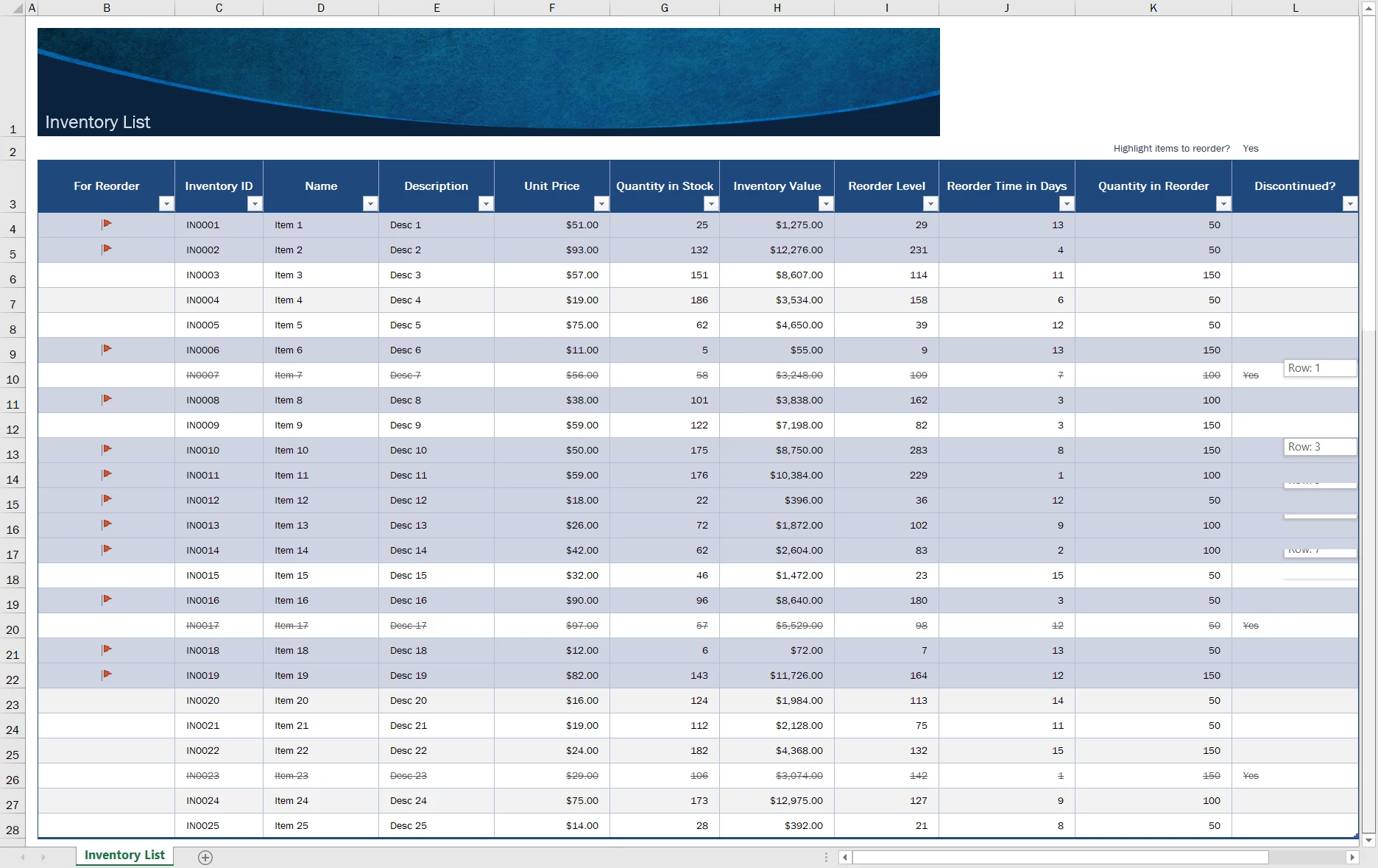
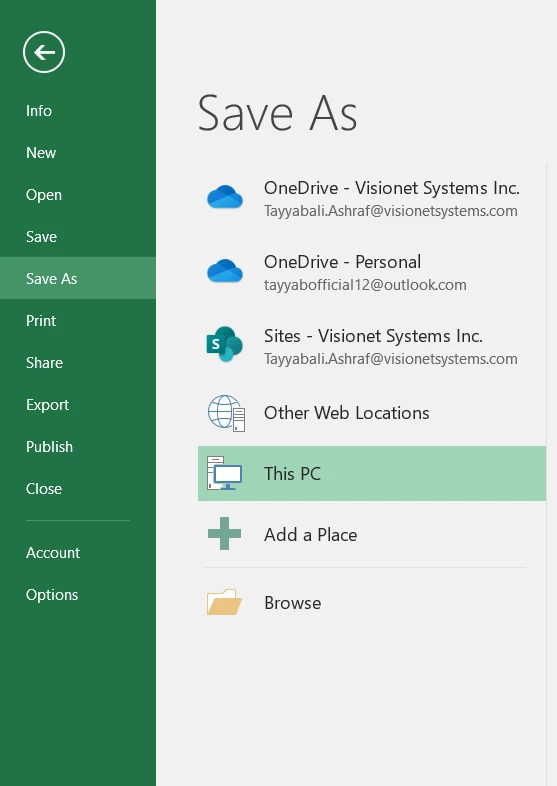
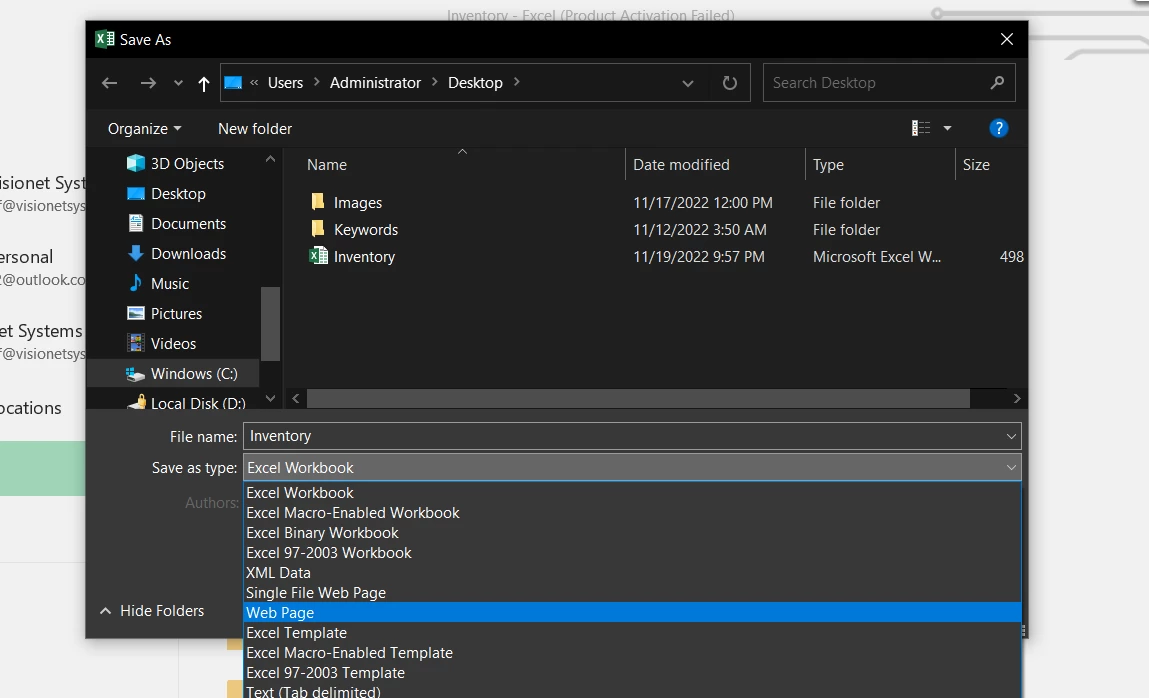
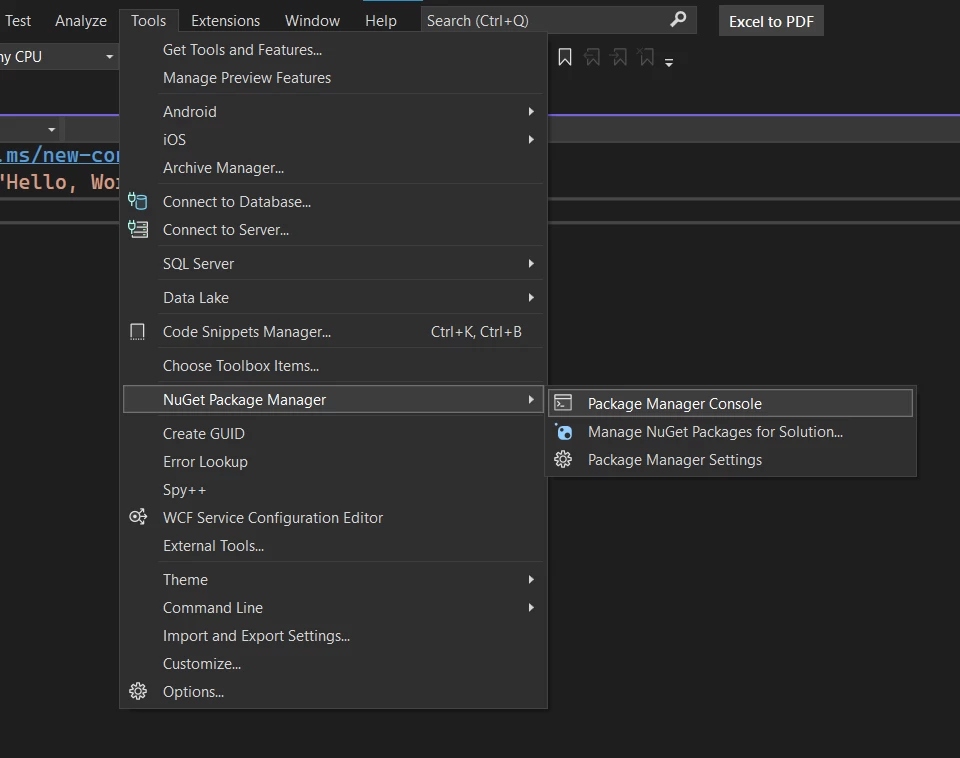
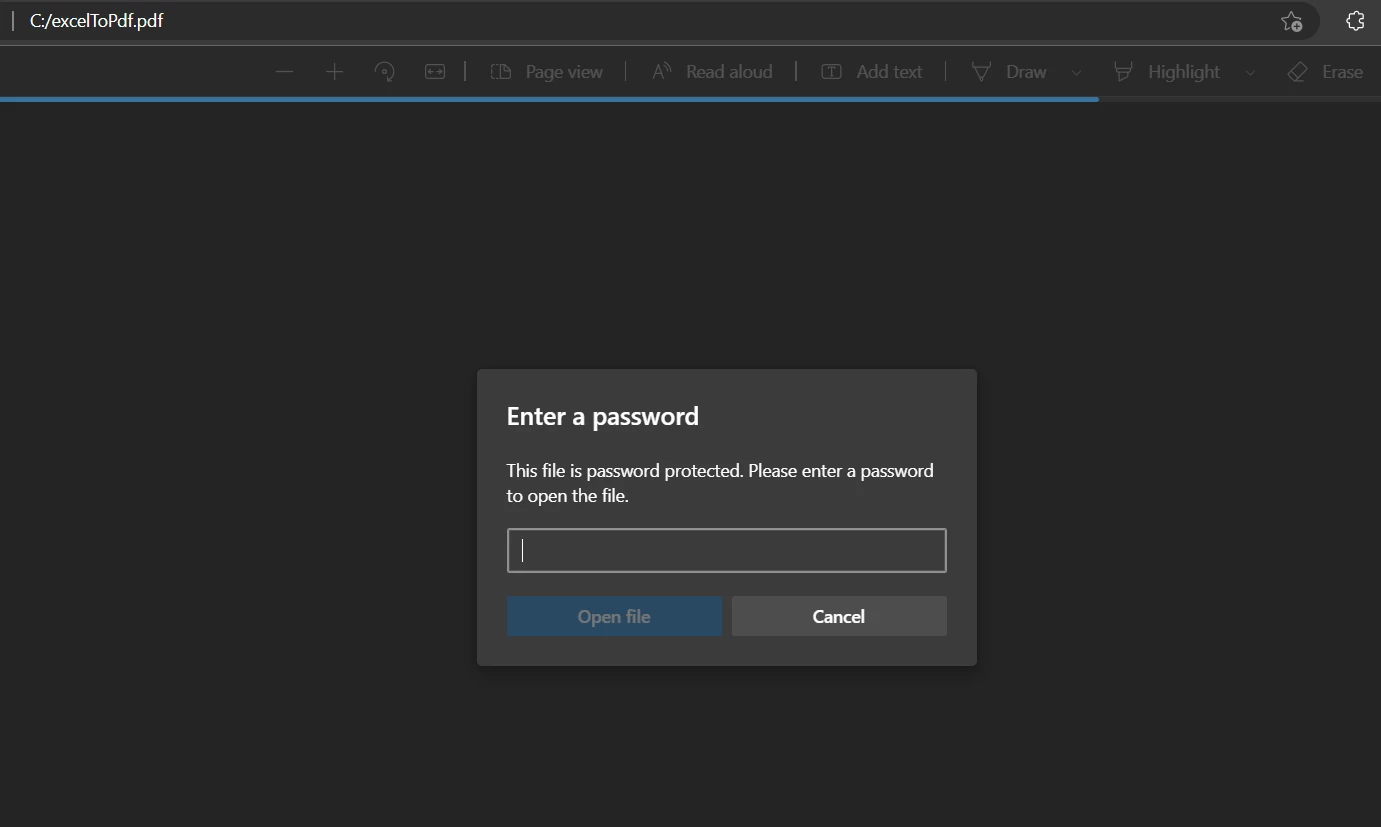
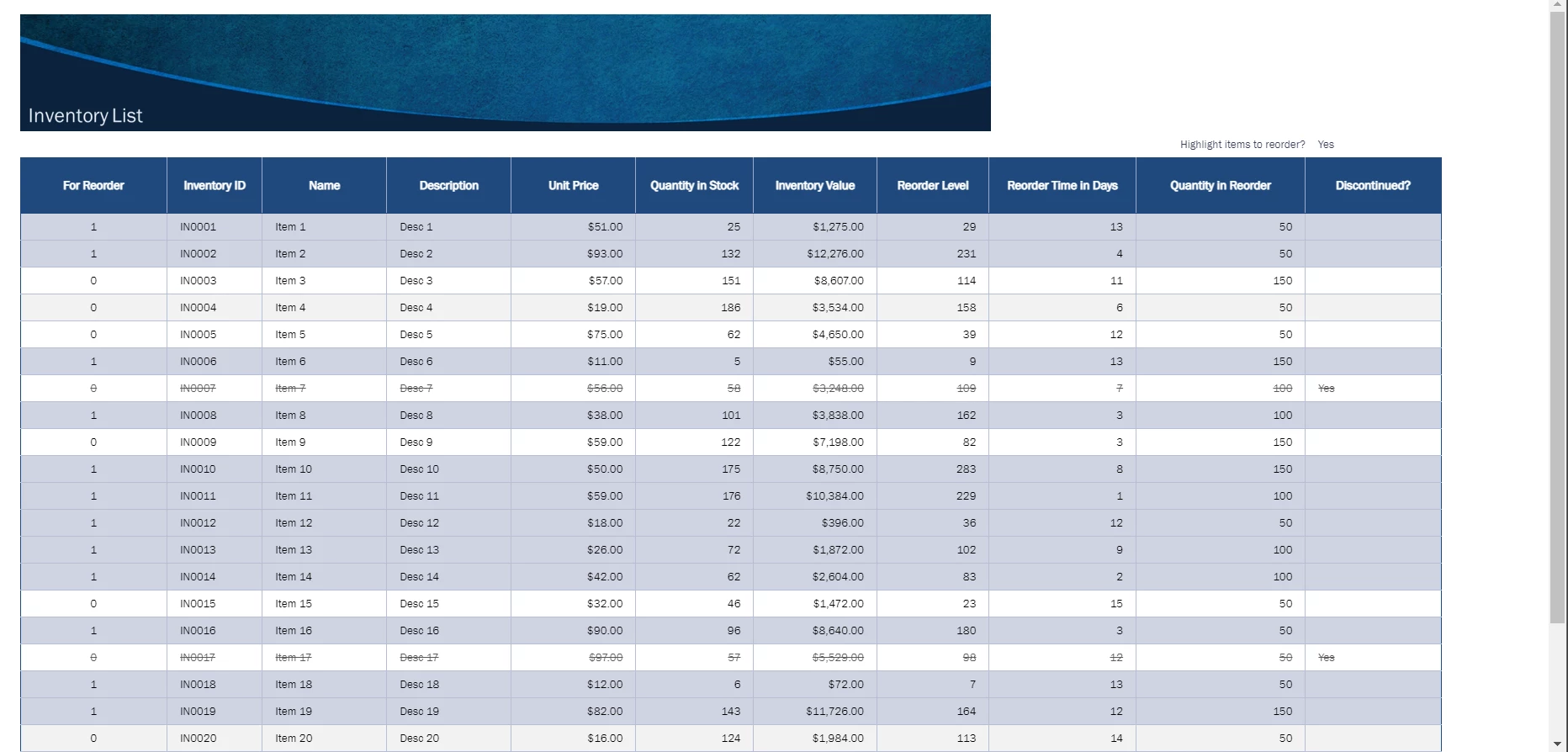
IRONPDF 사용 Convert Excel to PDF in C# (Step-by-Step) Tutorial 커티스 차우 업데이트됨:6월 22, 2025 다운로드 IronPDF NuGet 다운로드 DLL 다운로드 윈도우 설치 프로그램 무료 체험 시작하기 LLM용 사본 LLM용 사본 LLM용 마크다운 형식으로 페이지를 복사하세요 ChatGPT에서 열기 ChatGPT에 이 페이지에 대해 문의하세요 제미니에서 열기 제미니에게 이 페이지에 대해 문의하세요 Grok에서 열기 Grok에게 이 페이지에 대해 문의하세요 혼란 속에서 열기 Perplexity에게 이 페이지에 대해 문의하세요 공유하다 페이스북에 공유하기 트위터에 공유하기 LinkedIn에 공유하기 URL 복사 이메일로 기사 보내기 Excel files can be difficult to share because they can be easily altered and are not compatible with all devices and programs. PDFs (Portable Document Format), on the other hand, are universally compatible and cannot be edited without specialized software. For this reason, many businesses require that developers convert Excel files (.xls, .xlsx) to ISO standardized version PDF format programmatically. There are several reasons why this is important. First, it ensures that the data contained in the Excel workbook cannot be altered. Second, it allows the file to be viewed on any device or program. And finally, it makes it possible to password-protect the file, preventing unauthorized access. Overall, converting Excel files to PDF format is an important way to protect data and ensure its compatibility across all platforms. Converting Excel to PDF document formats can be a simple task if you have the right tools and knowledge. Let's see how to convert using the IronPDF C# library in .NET Core. ## How to Convert Excel to PDF in C# Install C# library to convert Excel files to PDFs Export the Excel files into HTML files Generate PDF from HTML file with RenderHtmlFileAsPdf method Add password optionally to the new PDF Save PDFs that have identical styling of Excel file IronPDF: .NET PDF Library IronPDF is a .NET library that makes it easy to generate, edit, and merge PDF files in C# and VB.NET. With IronPDF, you can create PDF in C# from scratch or convert existing HTML, CSS, and JavaScript files into PDFs. You can also add headers, footers, watermarks, and page numbers to PDF files. If you need to collaborate with others on a project, IronPDF makes it easy to merge multiple PDF files into one. Throughout this article, IronPDF will be used to show how to convert an Excel document into a PDF document using C# and .NET Core. Prerequisites There are some prerequisites to convert an XLSX file to a PDF document. Visual Studio 2022 (Recommended) A running .NET application with the latest .NET Framework (Recommended) Microsoft Office installed A stable internet connection to install the IronPDF library for the Excel to PDF conversion process Let's move to the main steps to convert an Excel file to PDF. Step 1: Export your Excel Workbooks as HTML To export your Excel file to HTML format, do the following steps: Launch Microsoft Excel and load the Excel spreadsheets there. Load Excel Spreadsheets Select "Save As" from the "File" menu. SaveAs Option Click on the 'Browse' button and navigate to your desired location. From the File type dropdown, select the 'HTML Page'. File Type Selection Your Excel file will be converted to an HTML file if you complete the procedures above. The exported HTML file can now be used to convert to PDF. Step 2: Add IronPDF to your solution The next step is to install IronPDF in this project using the NuGet Package Manager Console. Click on the Tools from the top menu and select the NuGet Package Manager followed by "Package Manager Console". NuGet Package Manager In the Console, write the following command to install IronPDF. Install-Package IronPdf This command will install the latest version of IronPDF in the project. Step 3: Code Examples to Convert Excel file to PDF Open the Program.cs file and write the following code fragments to convert the Excel file to PDF using the IronPDF C# library. Step 3.1: Include IronPDF Import the IronPDF in the code file to use it in the program. using IronPdf; using IronPdf; $vbLabelText $csharpLabel The above code enables IronPDF to take part in the code. Step 3.2: Instantiate a ChromePdfRenderer Object Instantiate a ChromePdfRenderer object in the program. It'll enable the use of IronPDF to convert the HTML file to PDF. var renderer = new ChromePdfRenderer(); var renderer = new ChromePdfRenderer(); $vbLabelText $csharpLabel Step 3.3: Convert the HTML (Exported from Excel File) to PDF Use the RenderHtmlFileAsPdf function to convert HTML files to PDFs. In the parameter list, pass the HTML file path. IronPDF will read the contents of the HTML file and convert it into a PDF document. var document = renderer.RenderHtmlFileAsPdf(@"C:\Users\Administrator\Desktop\Inventory.html"); var document = renderer.RenderHtmlFileAsPdf(@"C:\Users\Administrator\Desktop\Inventory.html"); $vbLabelText $csharpLabel IronPDF also supports adding passwords to the PDF file, preventing the PDF file from editing, opening, printing, and other operations. Let's have a look at how to add passwords using IronPDF. Add Password to PDF File Use the SecuritySettings property on the PDF document created in the previous step to set a password. It helps to secure the PDF file from data breaches. document.SecuritySettings.UserPassword = "editable"; document.SecuritySettings.UserPassword = "editable"; $vbLabelText $csharpLabel Step 3.4: Save the PDF File Now, it's time to save the generated PDF file on the local machine by using the following code. document.SaveAs("C:\\excelToPdf.pdf"); document.SaveAs("C:\\excelToPdf.pdf"); $vbLabelText $csharpLabel Output PDF File When you try to open the file, it'll require a password. Enter Password for File After entering the password, you can see the converted PDF file from an Excel file. IronPDF beautifully converts Excel documents to PDFs while retaining the original formatting. Output PDF File You can see all the worksheets there. You can open any worksheet by clicking on any worksheet name. PDF Worksheets Summary IronPDF is an easy-to-use PDF converter that can be used in C# .NET. In this blog post, you were shown how to convert Excel to PDF using IronPDF. If you want to learn more about the capabilities of IronPDF or see some examples of how it can be used, check out some of the other articles on how to create a PDF file from HTML. You can start with a free trial of IronPDF, and then purchase IronPDF for as little as $799. Or, if you need more than one Iron Software product, you can buy the Iron Suite bundle of five software programs for the price of two. IronXL is a C# library specializing in the efficient processing of Microsoft Excel spreadsheets. Use this library to [read Excel files in C#](https://ironsoftware.com/csharp/excel/tutorials/how-to-read-excel-file-csharp/) without using Microsoft Office Interop. 자주 묻는 질문 Excel을 PDF로 변환하는 것이 비즈니스에 유익한 이유는 무엇인가요? PDF는 범용적으로 호환되므로 공유 문서가 의도한 형식을 유지하고 무단 편집으로부터 안전하게 보호되므로 Excel 파일을 PDF로 변환하는 것이 비즈니스에 유리합니다. 서식을 잃지 않고 C#에서 Excel을 PDF로 변환하려면 어떻게 해야 하나요? 서식을 잃지 않고 C#에서 Excel을 PDF로 변환하려면 먼저 Excel 파일을 HTML로 렌더링한 다음 RenderHtmlFileAsPdf 메서드를 사용하여 PDF로 변환할 수 있는 IronPDF 라이브러리를 사용할 수 있습니다. .NET Core에서 IronPDF를 사용하여 Excel을 PDF로 변환하려면 어떤 단계가 필요하나요? 단계에는 Excel 파일을 HTML로 내보내고, NuGet을 통해 IronPDF 라이브러리를 설치하고, ChromePdfRenderer 클래스를 사용하여 원래 형식을 유지하면서 HTML을 PDF로 변환하는 과정이 포함됩니다. C#을 사용하여 비밀번호가 있는 Excel 파일로 만든 PDF를 보호할 수 있나요? 예, IronPDF를 사용하면 무단 액세스를 방지하는 데 도움이 되는 보안설정 속성을 사용하여 사용자 비밀번호를 설정하여 PDF의 보안을 강화할 수 있습니다. 라이브러리 구매를 결정하기 전에 C#에서 PDF 변환을 사용해 볼 수 있는 방법이 있나요? 예, IronPDF는 무료 평가판을 제공하므로 구매하기 전에 C# 프로젝트에서 PDF 변환 및 관리를 위한 기능을 살펴볼 수 있습니다. Excel을 PDF로 변환하기 위해 IronPDF를 설치하기 위한 전제 조건은 무엇인가요? Excel을 PDF로 변환하기 위한 IronPDF를 설치하려면 Visual Studio 2022, 최신 .NET Framework가 포함된 .NET 애플리케이션, Microsoft Office, 그리고 NuGet에서 라이브러리를 다운로드할 수 있는 인터넷 연결이 필요합니다. IronPDF 라이브러리는 여러 PDF 병합을 지원하나요? 예, IronPDF는 Excel을 PDF로 쉽게 변환할 수 있을 뿐만 아니라 여러 PDF 문서를 원활하게 병합하는 기능도 제공합니다. PDF에서 원본 Excel 서식이 유지되도록 하려면 어떻게 해야 하나요? IronPDF는 먼저 Excel을 HTML로 내보낸 다음 HTML을 PDF로 렌더링하여 변환하는 동안 Excel 파일의 원래 형식을 유지하도록 설계되었습니다. HTML 파일을 PDF로 변환하려면 IronPDF에서 어떤 방법을 사용해야 하나요? IronPDF의 RenderHtmlFileAsPdf 메서드는 Excel에서 내보낸 HTML 파일을 문서 서식을 유지하면서 PDF로 변환하는 데 사용됩니다. .NET 10: IronPDF는 호환성 문제 없이 .NET 10 프로젝트 내에서 Excel을 PDF로 변환하는 기능을 지원하나요? 그렇습니다. IronPDF의 문서에 따르면 IronPDF는 .NET 10과 완벽하게 호환되며, .NET 10을 포함한 모든 최신 .NET 버전을 즉시 지원하므로 특별한 해결 방법 없이 Excel에서 PDF로 원활하게 변환할 수 있습니다. 커티스 차우 지금 바로 엔지니어링 팀과 채팅하세요 기술 문서 작성자 커티스 차우는 칼턴 대학교에서 컴퓨터 과학 학사 학위를 취득했으며, Node.js, TypeScript, JavaScript, React를 전문으로 하는 프론트엔드 개발자입니다. 직관적이고 미적으로 뛰어난 사용자 인터페이스를 만드는 데 열정을 가진 그는 최신 프레임워크를 활용하고, 잘 구성되고 시각적으로 매력적인 매뉴얼을 제작하는 것을 즐깁니다. 커티스는 개발 분야 외에도 사물 인터넷(IoT)에 깊은 관심을 가지고 있으며, 하드웨어와 소프트웨어를 통합하는 혁신적인 방법을 연구합니다. 여가 시간에는 게임을 즐기거나 디스코드 봇을 만들면서 기술에 대한 애정과 창의성을 결합합니다. 관련 기사 업데이트됨 1월 22, 2026 How to Create PDF Documents in .NET with IronPDF: Complete Guide Discover effective methods to create PDF files in C# for developers. Enhance your coding skills and streamline your projects. Read the article now! 더 읽어보기 업데이트됨 1월 21, 2026 How to Merge PDF Files in VB.NET: Complete Tutorial Merge PDF VB NET with IronPDF. Learn to combine multiple PDF files into one document using simple VB.NET code. Step-by-step examples included. 더 읽어보기 업데이트됨 1월 21, 2026 C# PDFWriter Tutorial: Create PDF Documents in .NET Learn to create PDFs efficiently using C# PDFWriter with this step-by-step guide for developers. Read the article to enhance your skills today! 더 읽어보기 Should You Buy IronPDF?How to View PDF in .NET MAUI (Step-...

업데이트됨 1월 22, 2026 How to Create PDF Documents in .NET with IronPDF: Complete Guide Discover effective methods to create PDF files in C# for developers. Enhance your coding skills and streamline your projects. Read the article now! 더 읽어보기
업데이트됨 1월 21, 2026 How to Merge PDF Files in VB.NET: Complete Tutorial Merge PDF VB NET with IronPDF. Learn to combine multiple PDF files into one document using simple VB.NET code. Step-by-step examples included. 더 읽어보기
업데이트됨 1월 21, 2026 C# PDFWriter Tutorial: Create PDF Documents in .NET Learn to create PDFs efficiently using C# PDFWriter with this step-by-step guide for developers. Read the article to enhance your skills today! 더 읽어보기