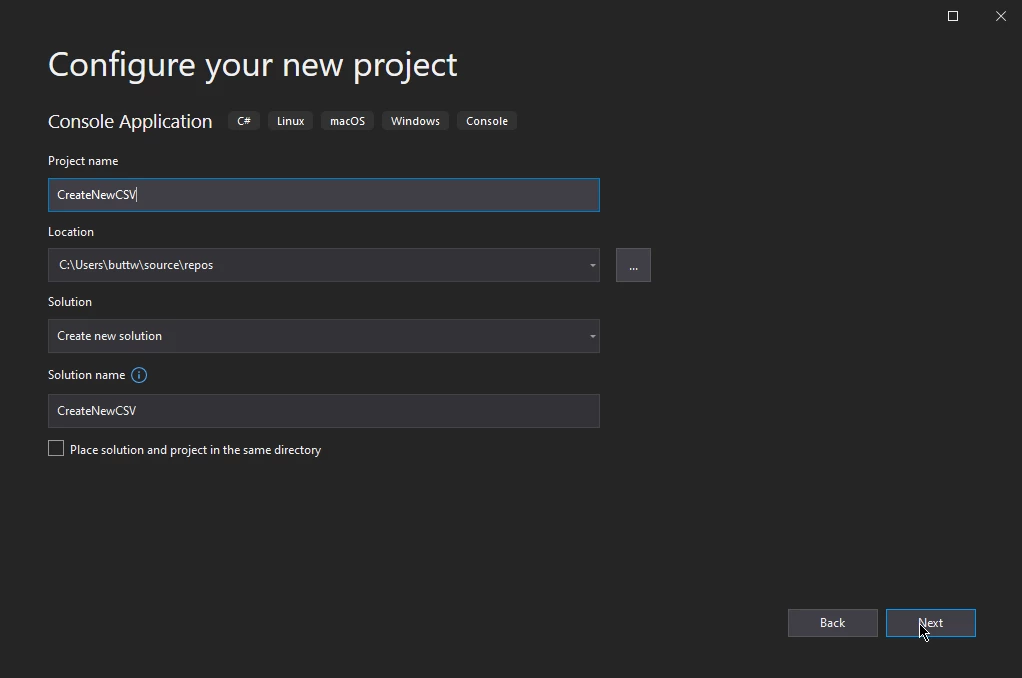
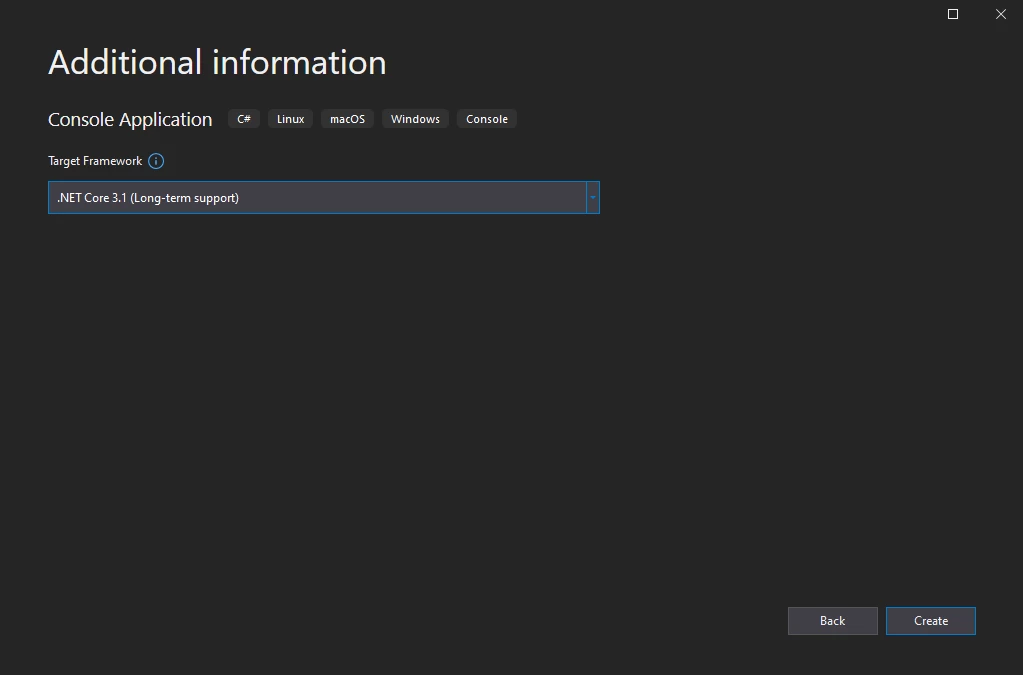
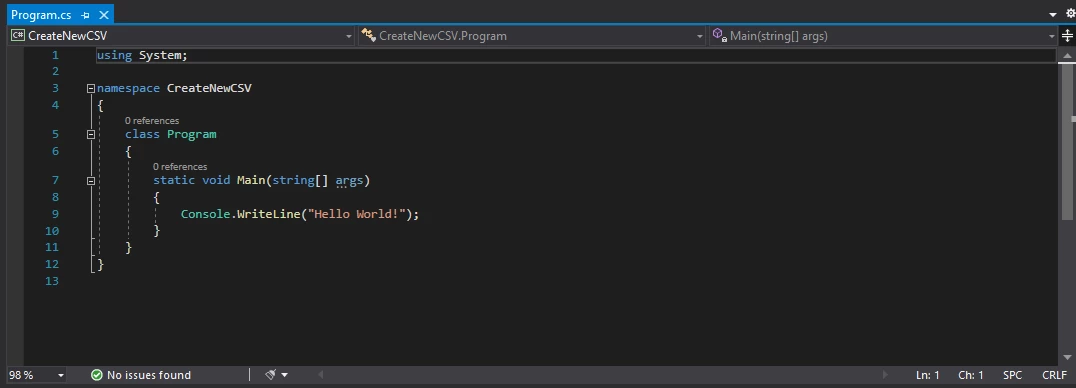
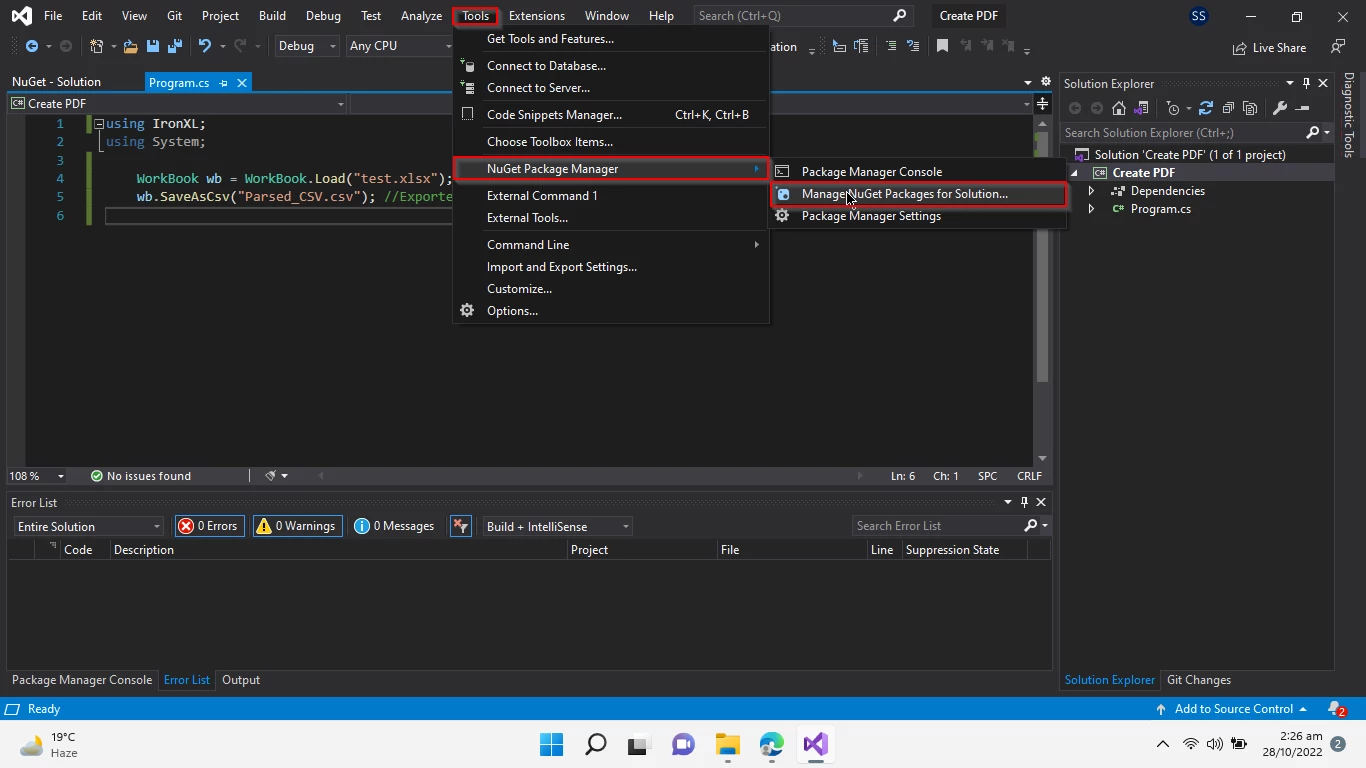
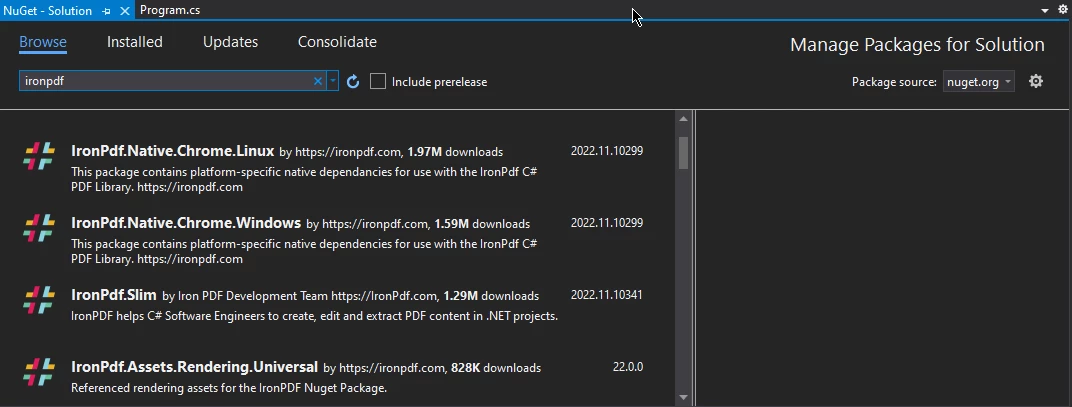
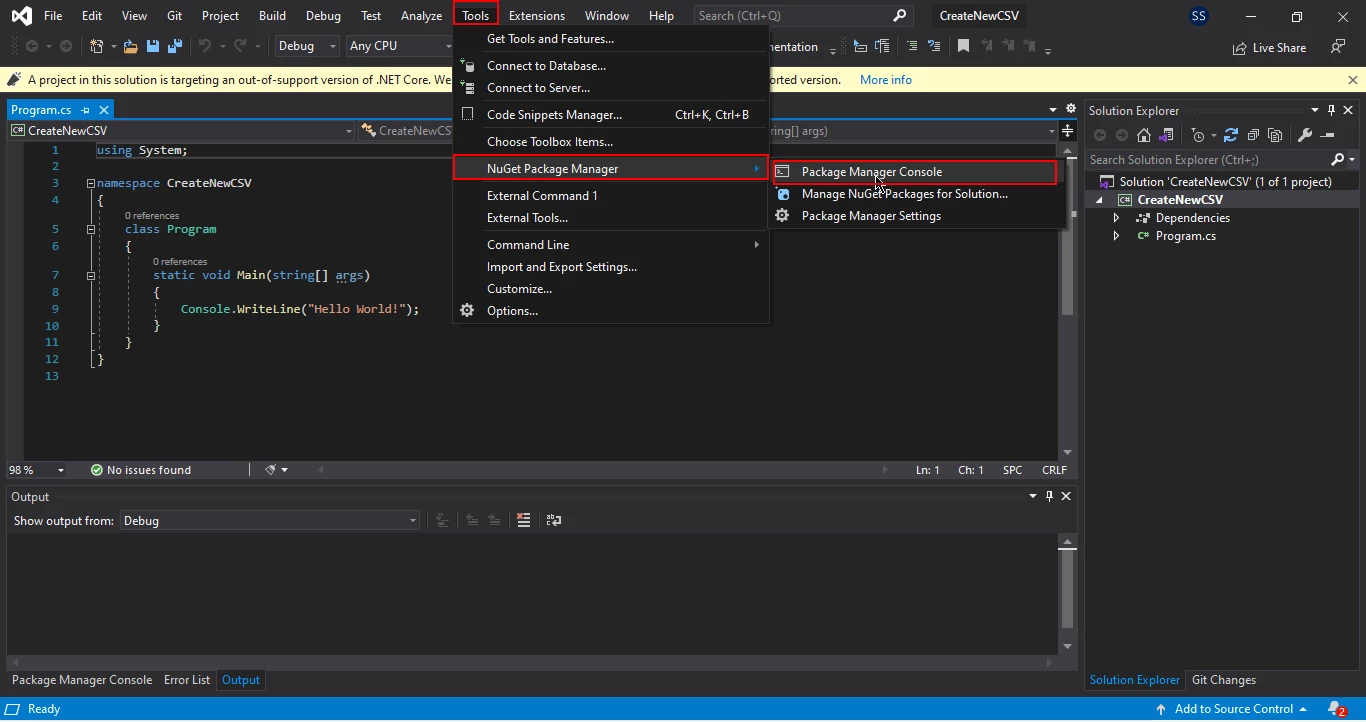
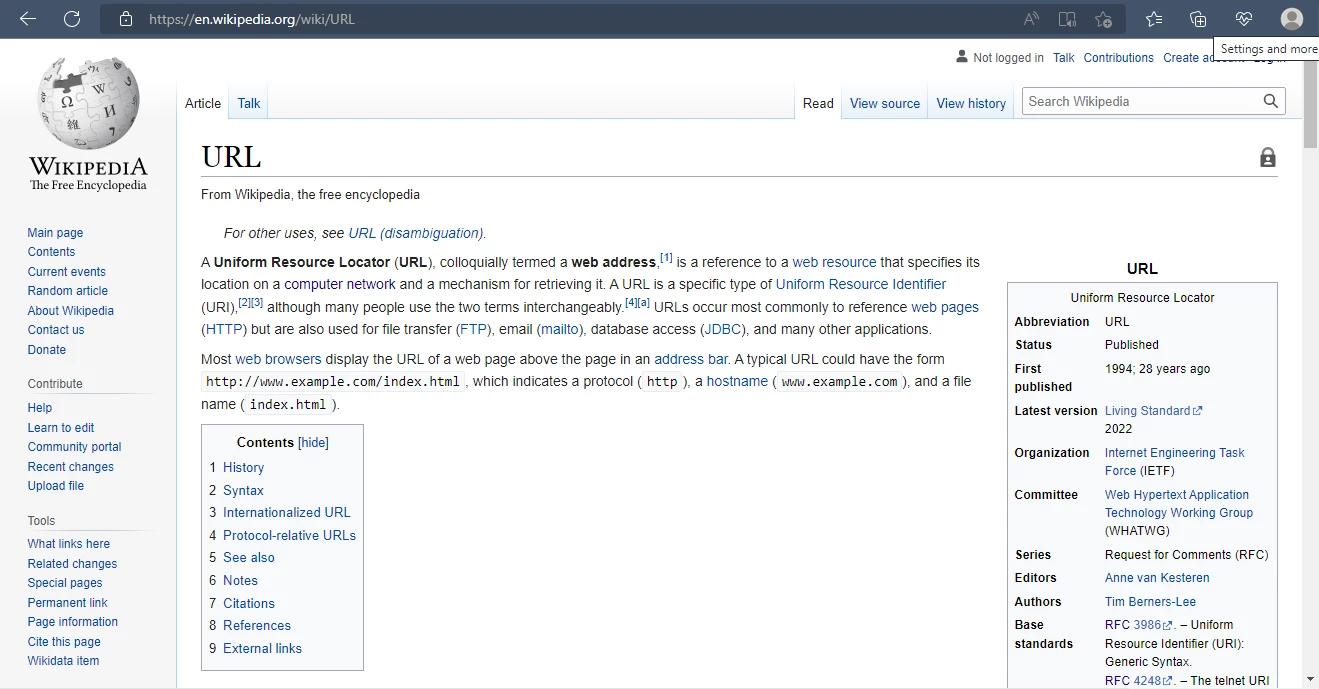
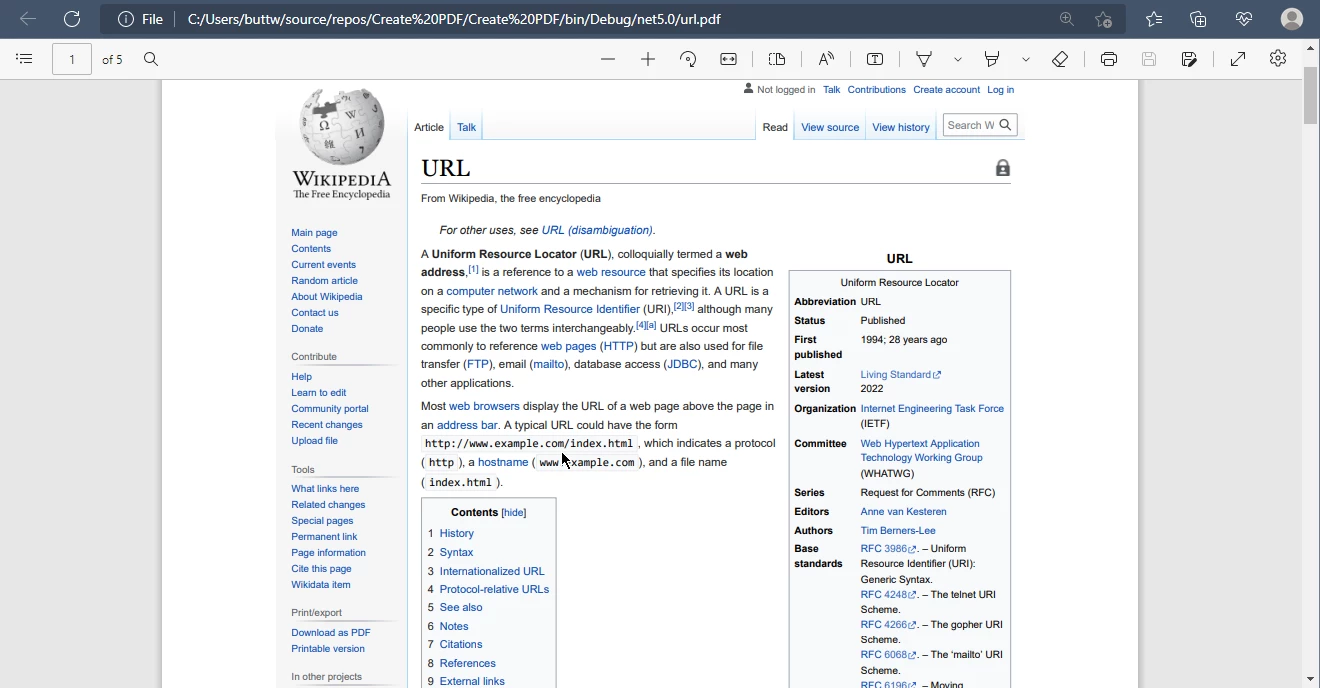
IRONPDF 사용 How to Download PDF From URL in C# (Step-By-Step) Tutorial 커티스 차우 업데이트됨:11월 13, 2025 다운로드 IronPDF NuGet 다운로드 DLL 다운로드 윈도우 설치 프로그램 무료 체험 시작하기 LLM용 사본 LLM용 사본 LLM용 마크다운 형식으로 페이지를 복사하세요 ChatGPT에서 열기 ChatGPT에 이 페이지에 대해 문의하세요 제미니에서 열기 제미니에게 이 페이지에 대해 문의하세요 Grok에서 열기 Grok에게 이 페이지에 대해 문의하세요 혼란 속에서 열기 Perplexity에게 이 페이지에 대해 문의하세요 공유하다 페이스북에 공유하기 트위터에 공유하기 LinkedIn에 공유하기 URL 복사 이메일로 기사 보내기 Are you wondering how to create a PDF file using a URL or download a PDF file using the C# .NET programming language? This article will discuss how you can do just this using a market-leading .NET library called IronPDF - HTML to PDF Library for .NET. IronPDF lets you download PDF files and convert any HTML page to a PDF file. ## How to Download PDF From URL in C# Install C# library to download PDF from URL Instantiate ChromePdfRenderer class to have access to its methods Use RenderUrlAsPdf method in C# to generate PDF from URL Specify file path to SaveAs method to export the PDF Check the generated PDF from URL IronPDF IronPDF is a powerful HTML-to-PDF conversion API. IronPDF offers a comprehensive set of tools for converting HTML sites in the .NET and .NET Core Frameworks. IronPDF allows developers to create, alter, and retrieve PDFs in .NET projects. Using IronPDF, developers can easily produce and manipulate high-fidelity PDFs from HTML pages. Creating PDF files using IronPDF is easy and efficient, thereby reducing the workload on developers. To get started with IronPDF, all you need is Visual Studio and C# installed on your system. Follow the steps in this comprehensive IronPDF installation guide to install IronPDF and get started with working with PDFs. 1. Creating a New Project in Visual Studio Open the Visual Studio IDE. Go to the File menu in Visual Studio after starting it up. Select "New Project" then Console Application. In the relevant text box, type the project name and choose the path. Then, click the Create button. Select the required .NET Framework, as in the screenshot below: Configure the new project When a new window appears, select the target framework and click on Create. Select a .NET Framework The main Program.cs file will now open. A default C# file is created for the new project 2. Install the IronPDF C# Library The IronPDF library can be downloaded and installed in many ways. This tutorial targets three simplest approaches: Using the Visual Studio NuGet Package Manager Using the Visual Studio Command-Line Direct download from the NuGet webpage 2.1. Using the Visual Studio NuGet Package Manager The NuGet Package Manager option is available in Visual Studio to install the package directly into the solution. The below screenshot shows how to open it. Navigate to NuGet Package Manager This opens a search box that displays a list of the package libraries available on NuGet. As shown in the screenshot below, search for the keyword "IronPDF" in the package manager search field. Search for IronPDF in NuGet Package Manager UI Select the IronPDF package (first option as shown above) and click Install to add the package to this solution. Install IronPDF in NuGet Package Manager UI 2.2. Using the Visual Studio Command-Line In the Visual Studio menu, go to Tools, move the cursor to NuGet Package Manager and click on Package Manager Console. Navigate to Package Manager Console Package Manager Console will appear at the bottom of the screen. Just write the following command and press enter, and IronPDF will install. Install-Package IronPdf Install IronPDF in Package Manager Console 2.3 Direct download from the NuGet webpage The third way is to download the NuGet package directly from the website. Navigate to the link https://www.nuget.org/packages/IronPdf/ Select the download package option from the menu on the right-hand side. Double-click the downloaded package; it will be installed automatically. Now reload the solution and begin using it in the project. 3. Download a PDF from a URL using IronPDF You can easily download a PDF document from a URL with just a few lines of code using IronPDF. URL to PDF conversion has a lot of applications, such as saving or sending UI designs and record-keeping to name a few. Using IronPDF's URL to PDF file conversion takes just a few seconds, as it uses the world's number one rendering engine to render HTML. This tutorial will demonstrate IronPDF's precision and efficiency with two different websites that vary in size and complexity. 3.1. Downloading a PDF from the URL of an eCommerce Website IronPDF can render text, images, and descriptions of any eCommerce website from a URL with just a few lines of code. To perform this conversion, copy the URL of your favorite eCommerce website and execute the project with code similar to what's given below. using IronPdf; // Instantiate renderer var renderer = new IronPdf.ChromePdfRenderer(); // Create a PDF from a URL or local file path var pdf = renderer.RenderUrlAsPdf("https://www.daraz.pk/#hp-flash-sale"); // Export to a file or Stream pdf.SaveAs("ecommerce_site.pdf"); using IronPdf; // Instantiate renderer var renderer = new IronPdf.ChromePdfRenderer(); // Create a PDF from a URL or local file path var pdf = renderer.RenderUrlAsPdf("https://www.daraz.pk/#hp-flash-sale"); // Export to a file or Stream pdf.SaveAs("ecommerce_site.pdf"); $vbLabelText $csharpLabel The output for the given sample is below. Compare this image with how it appears in a web browser: The output PDF file from a URL 3.2. Downloading a PDF from the URL of a Blog Website Blog websites have a lot of small details that are important for their UI. Ideally, these details should be preserved when converting blog pages to PDFs. The next example will present the results of converting a Wikipedia article to PDF. A Wikipedia article in the web browser using IronPdf; // Instantiate renderer var renderer = new IronPdf.ChromePdfRenderer(); // Create a PDF from a URL or local file path var pdf = renderer.RenderUrlAsPdf("https://en.wikipedia.org/wiki/URL"); // Export to a file or Stream pdf.SaveAs("wikipedia_article.pdf"); using IronPdf; // Instantiate renderer var renderer = new IronPdf.ChromePdfRenderer(); // Create a PDF from a URL or local file path var pdf = renderer.RenderUrlAsPdf("https://en.wikipedia.org/wiki/URL"); // Export to a file or Stream pdf.SaveAs("wikipedia_article.pdf"); $vbLabelText $csharpLabel The output PDF file from the Wikipedia article When creating the PDF of blog pages, internal links should not be broken. PDFs created using IronPDF maintain all links correctly. 4. Conclusion This tutorial discussed how to create PDFs from URLs using IronPDF. IronPDF makes it very simple to convert HTML from existing URLs to PDF documents. JavaScript, images, forms, and links are all extremely well-supported; the output is almost identical to the original and keeps all formatting and links. For more examples of using IronPDF, please read this IronPDF URL to PDF Code Example. To learn more about the features of IronPDF offers, please visit the IronPDF Features Overview page. Additionally, some notable features that IronPDF offers: Load URLs with custom network login credentials. Encrypting and decrypting PDFs. Merging existing PDF files. Creating and editing PDF forms. More information about IronPDF licensing for Free and Commercial projects is available on the IronPDF Licensing Information page. Purchase Iron Software's entire suite of five libraries for a deeply discounted price: five libraries for the cost of two libraries. 자주 묻는 질문 C#에서 URL을 PDF로 변환하려면 어떻게 해야 하나요? IronPDF의 ChromePdfRenderer 클래스와 그 RenderUrlAsPdf 메서드를 사용하여 URL을 C#에서 PDF로 변환할 수 있습니다. 이렇게 하면 서식과 링크가 유지됩니다. PDF 라이브러리를 .NET 프로젝트에 통합하기 위한 설치 옵션은 무엇인가요? IronPDF는 Visual Studio의 NuGet 패키지 관리자, Visual Studio 명령줄을 통해 또는 NuGet 웹사이트에서 직접 다운로드하여 .NET 프로젝트에 쉽게 설치할 수 있습니다. HTML을 PDF로 변환할 때 IronPDF는 JavaScript를 어떻게 처리하나요? IronPDF는 JavaScript를 지원하므로 PDF 변환에 대화형 요소가 포함되어 원본 HTML 페이지와 유사한 결과물을 만들 수 있습니다. C# 라이브러리를 사용하여 전자 상거래 웹사이트를 PDF로 변환할 수 있나요? 예, IronPDF를 사용하면 웹 페이지 URL을 PDF로 직접 렌더링하여 텍스트, 이미지 및 제품 세부 정보를 보존하면서 전자상거래 웹 페이지를 PDF로 변환할 수 있습니다. IronPDF는 고급 PDF 기능을 지원하나요? IronPDF는 PDF 암호화, 암호 해독, PDF 양식 병합, 분할 및 편집과 같은 고급 기능을 제공하여 PDF 관리를 위한 종합적인 도구입니다. C#에서 PDF 변환을 시작하기 위한 가이드가 있나요? 예, IronPDF 웹사이트는 웹 페이지를 C#에서 PDF로 효과적으로 변환하는 데 도움이 되는 자세한 설치 및 사용 가이드를 제공합니다. IronPDF는 PDF의 내부 링크의 정확성을 어떻게 보장하나요? IronPDF는 변환하는 동안 내부 링크의 무결성을 유지하므로 결과 PDF에서 모든 링크가 올바르게 작동합니다. C#을 사용한 URL을 PDF로 변환하는 예제는 어디에서 찾을 수 있나요? 특정 코드 샘플과 튜토리얼이 포함된 IronPDF 웹 사이트에서 C#에서 URL을 PDF로 변환하는 데 IronPDF를 사용하는 다양한 예제를 찾을 수 있습니다. .NET 10 C# 애플리케이션에서 이 URL-to-PDF 다운로드 방식을 사용할 수 있나요? 물론입니다. IronPDF는 .NET 10을 지원하므로 이 글의 ChromePdfRenderer.RenderUrlAsPdf 예제는 .NET 10 콘솔 앱, 웹 API 및 백그라운드 서비스에서 작동합니다. .NET 10 프로젝트를 생성하고 NuGet에서 IronPdf 패키지를 추가하면 여기에 표시된 것과 동일한 몇 줄의 C#으로 URL에서 PDF를 다운로드하여 저장할 수 있습니다. 이전 버전과 비교하여 .NET 10에서 IronPDF를 실행할 때 고려해야 할 사항이 있나요? .NET 10에서 IronPDF는 콘솔, 웹 API 및 백그라운드 서비스 컨텍스트에서 원활하게 실행되는 .NET Framework 및 .NET/.NET Core API에 대한 지원을 계속합니다. 렌더링 엔진인 ChromePdfRenderer는 튜토리얼(ironpdf.com/blog/using-ironpdf/csharp-download-pdf-from-url-tutorial/)에 설명된 대로 JavaScript 처리, 자산 로딩(CSS, 이미지) 및 링크 보존 등의 기능을 유지하므로 .NET 10과 호환되는 최신 IronPDF NuGet 패키지를 설치해야 합니다. 커티스 차우 지금 바로 엔지니어링 팀과 채팅하세요 기술 문서 작성자 커티스 차우는 칼턴 대학교에서 컴퓨터 과학 학사 학위를 취득했으며, Node.js, TypeScript, JavaScript, React를 전문으로 하는 프론트엔드 개발자입니다. 직관적이고 미적으로 뛰어난 사용자 인터페이스를 만드는 데 열정을 가진 그는 최신 프레임워크를 활용하고, 잘 구성되고 시각적으로 매력적인 매뉴얼을 제작하는 것을 즐깁니다. 커티스는 개발 분야 외에도 사물 인터넷(IoT)에 깊은 관심을 가지고 있으며, 하드웨어와 소프트웨어를 통합하는 혁신적인 방법을 연구합니다. 여가 시간에는 게임을 즐기거나 디스코드 봇을 만들면서 기술에 대한 애정과 창의성을 결합합니다. 관련 기사 업데이트됨 1월 22, 2026 How to Create PDF Documents in .NET with IronPDF: Complete Guide Discover effective methods to create PDF files in C# for developers. Enhance your coding skills and streamline your projects. Read the article now! 더 읽어보기 업데이트됨 1월 21, 2026 How to Merge PDF Files in VB.NET: Complete Tutorial Merge PDF VB NET with IronPDF. Learn to combine multiple PDF files into one document using simple VB.NET code. Step-by-step examples included. 더 읽어보기 업데이트됨 1월 21, 2026 C# PDFWriter Tutorial: Create PDF Documents in .NET Learn to create PDFs efficiently using C# PDFWriter with this step-by-step guide for developers. Read the article to enhance your skills today! 더 읽어보기 How to Generate PDF from Template in C#How to Create PDF Files in .NET Usi...

업데이트됨 1월 22, 2026 How to Create PDF Documents in .NET with IronPDF: Complete Guide Discover effective methods to create PDF files in C# for developers. Enhance your coding skills and streamline your projects. Read the article now! 더 읽어보기
업데이트됨 1월 21, 2026 How to Merge PDF Files in VB.NET: Complete Tutorial Merge PDF VB NET with IronPDF. Learn to combine multiple PDF files into one document using simple VB.NET code. Step-by-step examples included. 더 읽어보기
업데이트됨 1월 21, 2026 C# PDFWriter Tutorial: Create PDF Documents in .NET Learn to create PDFs efficiently using C# PDFWriter with this step-by-step guide for developers. Read the article to enhance your skills today! 더 읽어보기