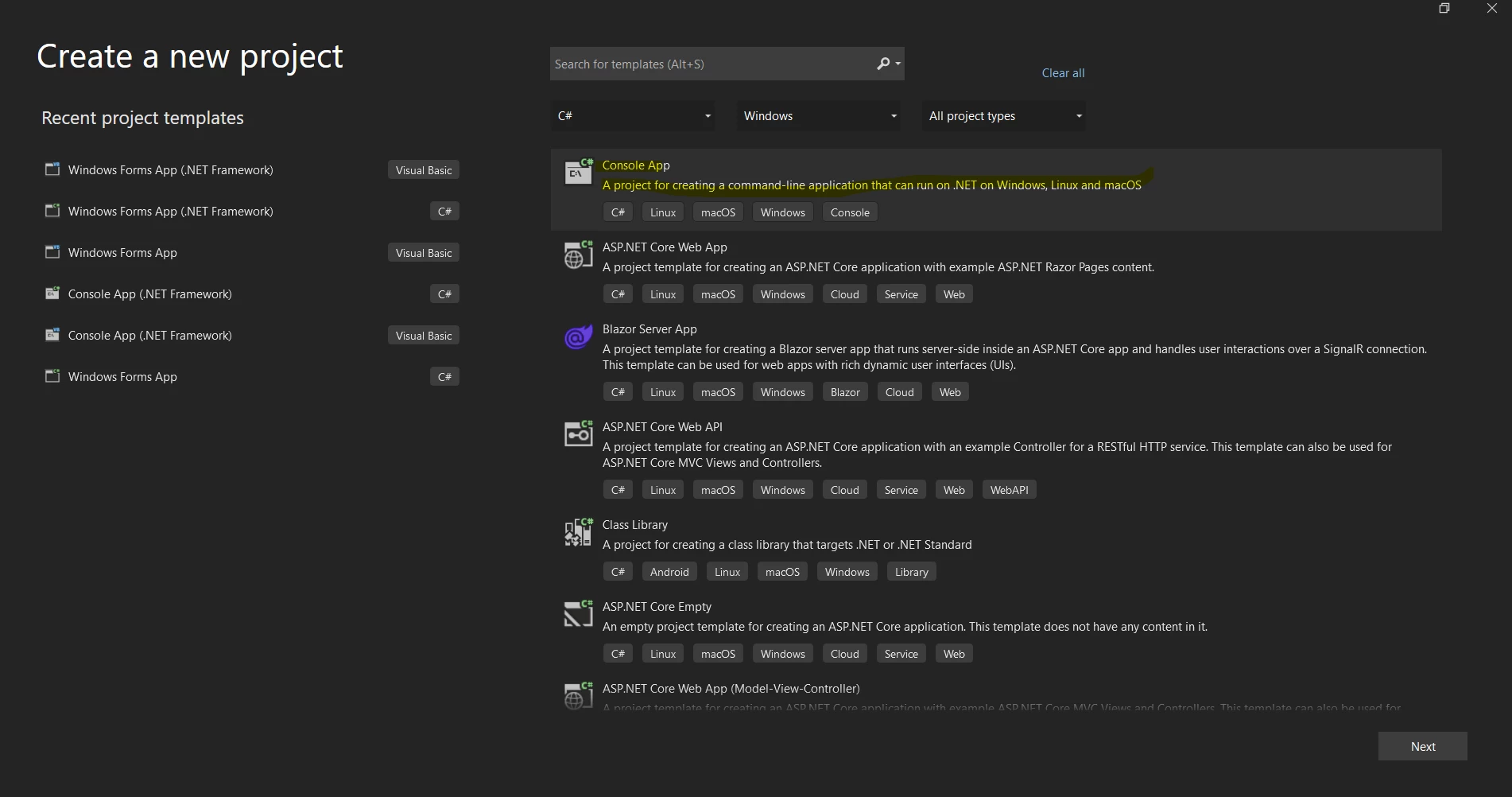
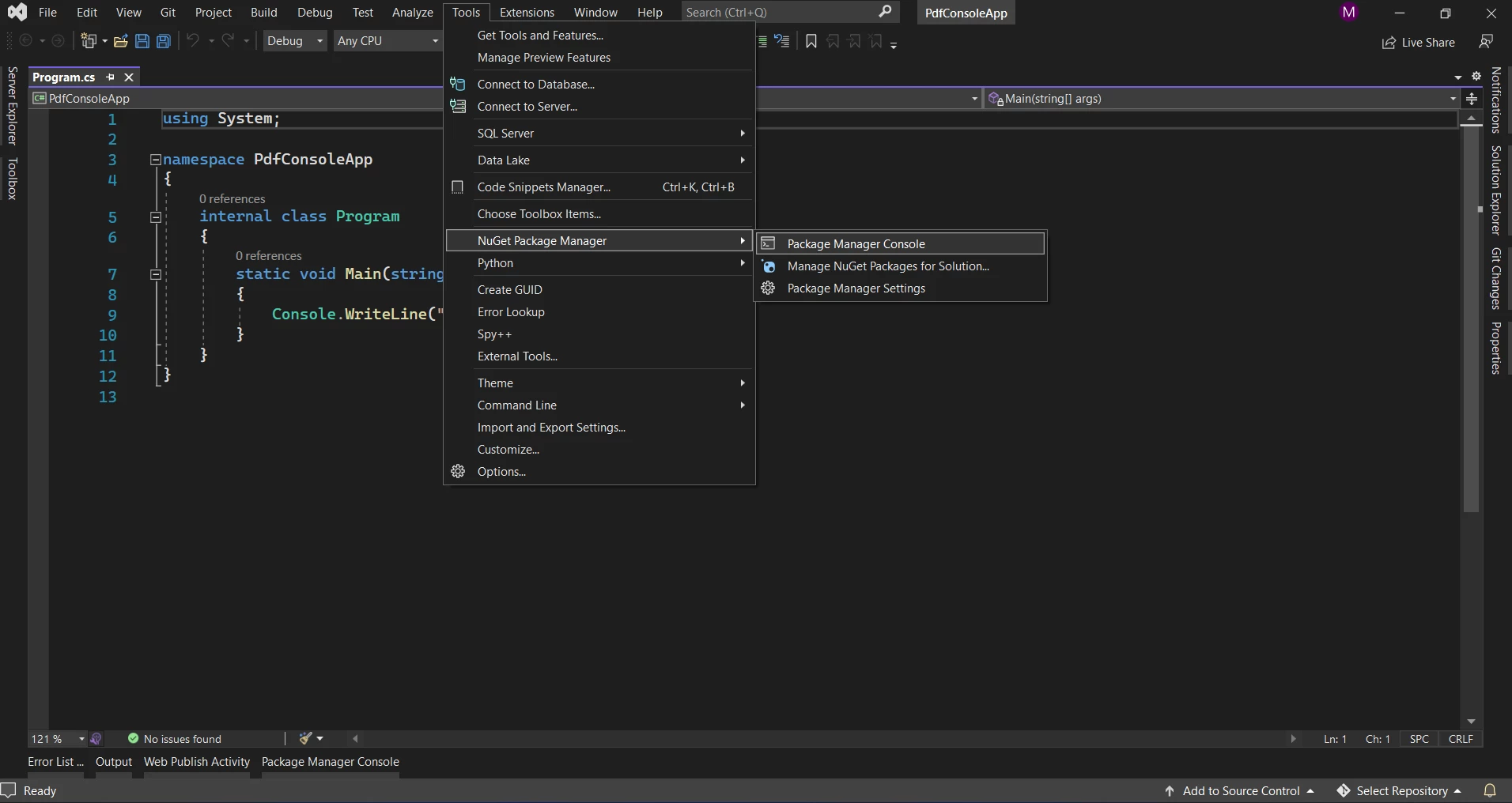
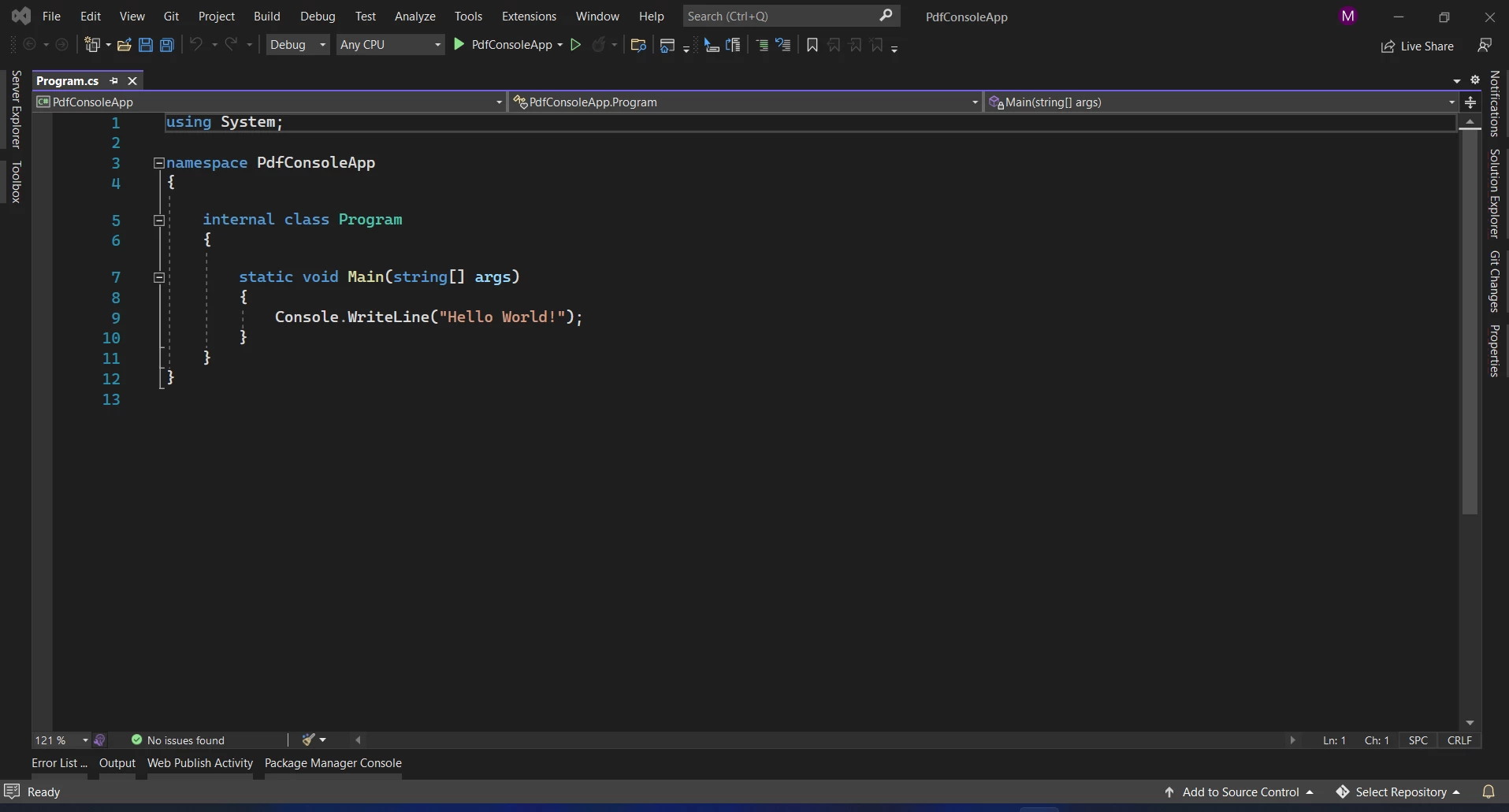
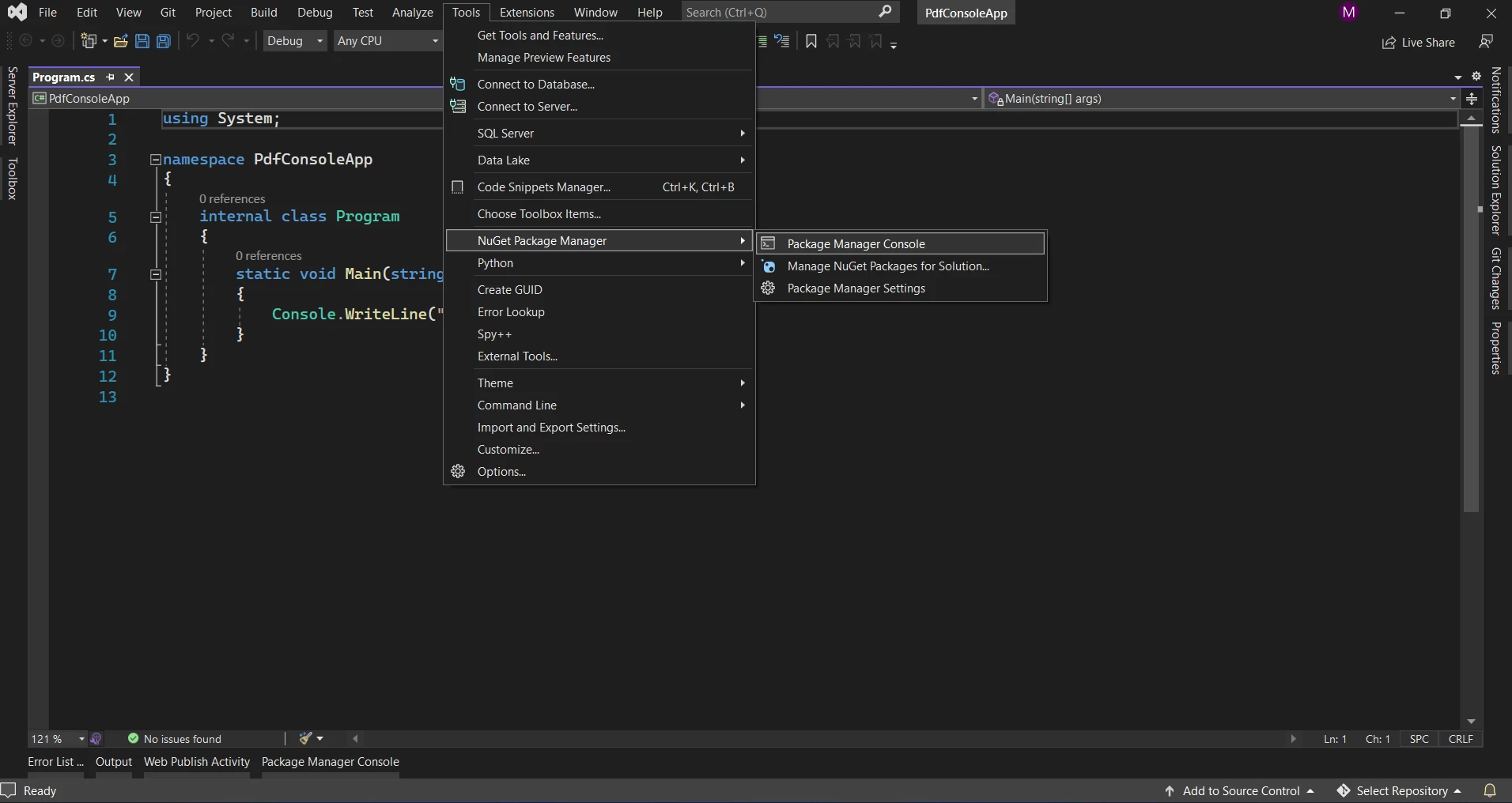
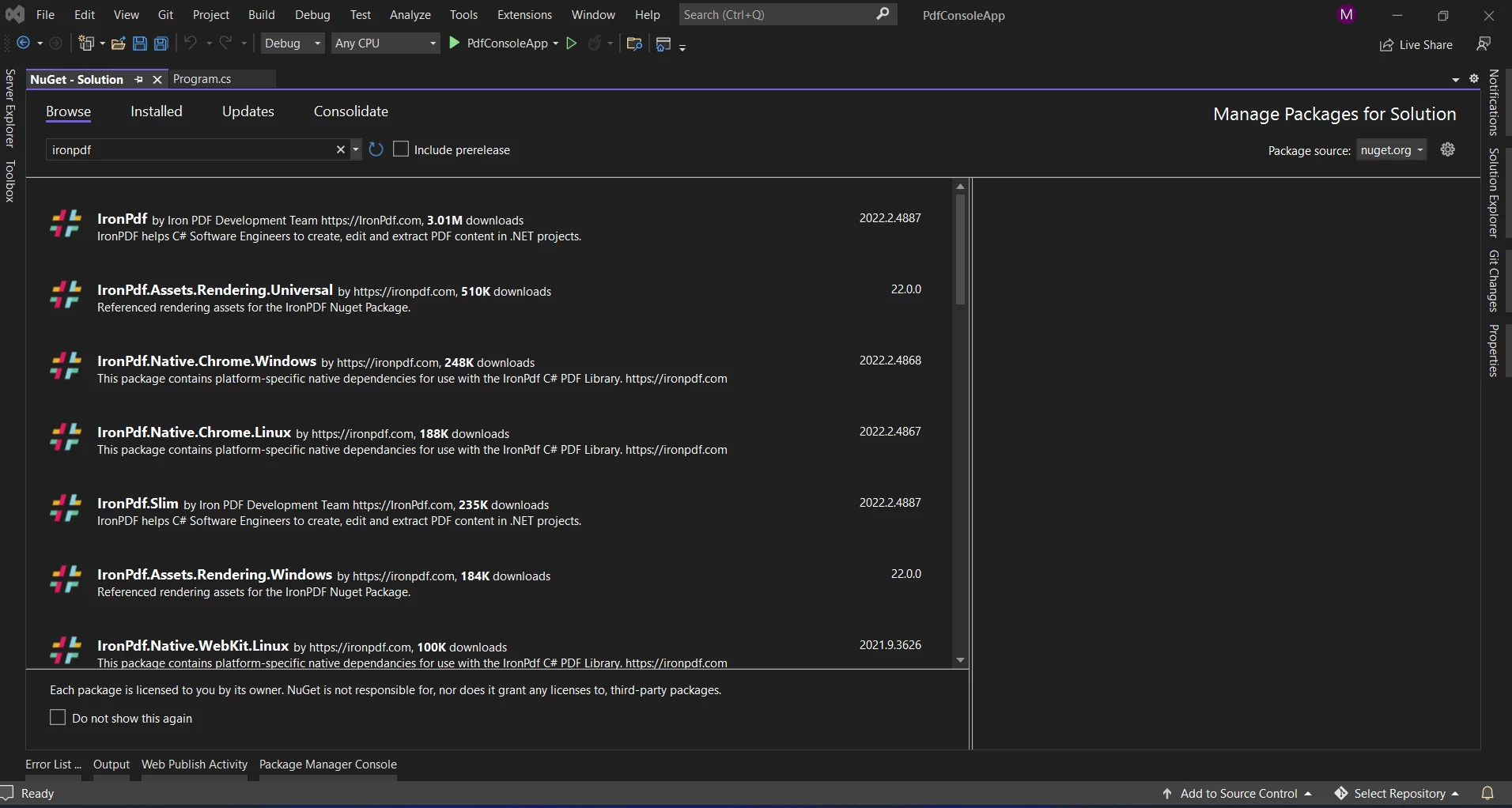
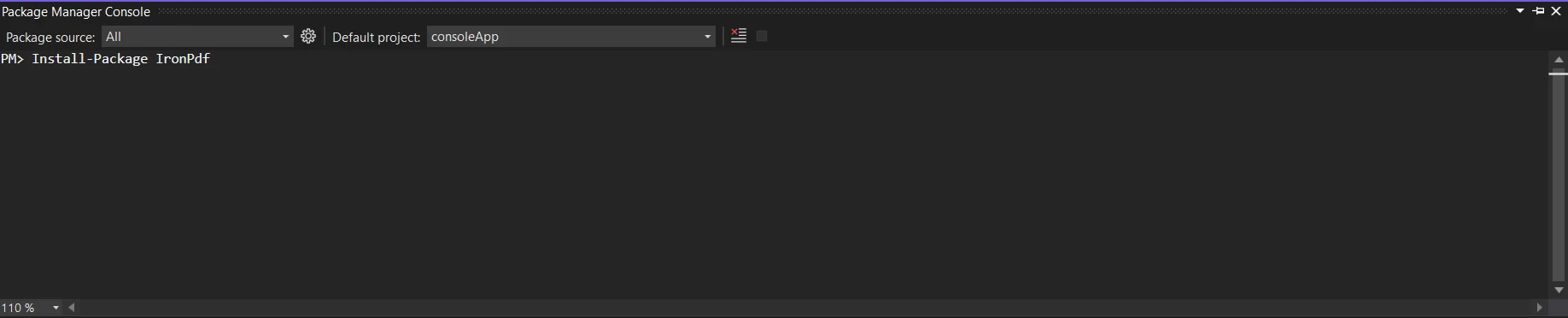
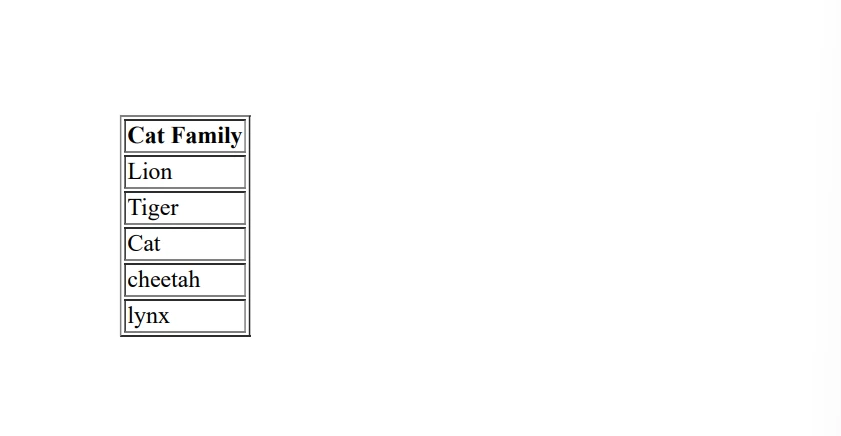
IRONPDF 사용 How to Generate PDF from Template in C# 커티스 차우 업데이트됨:11월 10, 2025 다운로드 IronPDF NuGet 다운로드 DLL 다운로드 윈도우 설치 프로그램 무료 체험 시작하기 LLM용 사본 LLM용 사본 LLM용 마크다운 형식으로 페이지를 복사하세요 ChatGPT에서 열기 ChatGPT에 이 페이지에 대해 문의하세요 제미니에서 열기 제미니에게 이 페이지에 대해 문의하세요 Grok에서 열기 Grok에게 이 페이지에 대해 문의하세요 혼란 속에서 열기 Perplexity에게 이 페이지에 대해 문의하세요 공유하다 페이스북에 공유하기 트위터에 공유하기 LinkedIn에 공유하기 URL 복사 이메일로 기사 보내기 PDF documents are prevalent in today's culture, used by various enterprises for creating invoices and other documents. When selecting a .NET Library for projects, the ease of creating, reading, and writing PDF files should be considered. ## How to Generate PDFs from Template in C# Install C# library to generate PDF from template Construct HTML string with StringBuilder class Populate the HTML template with stored data of Lists Use RenderHtmlAsPdf method to generate PDF from the template Save the generated PDF as a new document IronPDF Features IronPDF is one of the best HTML-to-PDF converters available on the market. IronPDF can handle almost any operation that a browser is capable of handling. It can create PDF files from HTML5, JavaScript, CSS, and images. The .NET PDF library makes it simple to produce/generate PDF files, read existing PDFs, and edit PDF files. Possible modifications include changing font sizes, pagination, text content, etc. Users of IronPDF can create form fields in rendered PDF documents. IronPDF is compatible with all .NET Framework project types, including ASP.NET, Windows Forms, and other traditional Windows Application types. IronPDF is capable of rendering ASPX, Razor, and other MVC view components directly into PDFs. IronPDF's full set of features include: Convert images to PDFs (and PDF pages into images) Merge and split PDFs Complete PDF forms programmatically Extract text and images from PDFs IronPDF can convert picture files as well as HTML files to PDF Create PDFs from web pages, HTML markup, and offline HTML documents Generate PDFs from web pages locked behind HTML login forms. Annotate PDFs. Add headers, footers, text, images, bookmarks, watermarks, and more Creating a New Project in Visual Studio This article will demonstrate IronPDF's document generation abilities with a simple Console Application. Open Visual Studio software and go to the File menu. Select "New project", and then select "Console App". New Project Specify the project name and its location. Click on the Next button and choose a .NET Framework. .NET Framework Selection Finally, click on Create to generate the new Visual Studio project. .NET Program.cs 3. Install the IronPDF Library The IronPDF library can be downloaded and installed in four ways. These four ways are: Use Visual Studio. Use the Visual Studio Command-Line. Download from the NuGet website directly. Download from the IronPDF website directly. 3.1 Using Visual Studio The NuGet Package Manager is available in the Visual Studio software for easy installation of packages from NuGet. The below screenshot shows how to open the NuGet Package Manager GUI. NuGet Package Manager Search for "IronPDF" in the Browse tab of the Package Manager GUI. IronPDF Installation Choose the IronPdf package (first option) and click on the Install button to add it to the Solution. 3.2 Using the Visual Studio Command-Line In Visual Studio, go to Tools > NuGet Package Manager > Package Manager Console Enter the following command in the Package Manager Console tab and press ENTER. Install-Package IronPdf Install IronPDF 3.3 Download from the NuGet Website Directly Navigate to the IronPDF NuGet package page. Click the Download package from the menu on the right-hand side. Double-click the downloaded package from within Windows Explorer to install it in your project automatically. 3.4 Download from the IronPDF Website Directly Download the IronPDF ZIP file directly with the latest version of the IronPDF package. Once downloaded, follow the steps below to add the package to the project. Right-click the project from the Solution Explorer window. Then, select the option Reference and browse the location of the downloaded reference. Next, click OK to add the reference. 4. Create a PDF Document from Template The code example below shows how to create PDF files from the given HTML template with just a few lines of code. using System; using System.Collections.Generic; using System.Text; using IronPdf; class Program { static void Main() { // Create an instance of ChromePdfRenderer var renderer = new IronPdf.ChromePdfRenderer(); // Render the HTML as PDF and save it as Test.pdf renderer.RenderHtmlAsPdf(BuildTemplate()).SaveAs("Test.pdf"); } /// <summary> /// Builds an HTML template string using StringBuilder /// </summary> /// <returns>HTML string representation of a table</returns> static string BuildTemplate() { var builder = new StringBuilder(); builder.Append("<table border='1'>"); builder.Append("<tr>"); builder.Append("<th>"); builder.Append("Cat Family"); builder.Append("</th>"); builder.Append("</tr>"); // Iterate over the data and populate the table rows foreach (var item in GetData()) { builder.Append("<tr>"); builder.Append("<td>"); builder.Append(item.ToString()); builder.Append("</td>"); builder.Append("</tr>"); } builder.Append("</table>"); return builder.ToString(); } /// <summary> /// Provides a list of data representing different members of the cat family /// </summary> /// <returns>List of strings</returns> static List<string> GetData() { List<string> data = new List<string> { "Lion", "Tiger", "Cat", "Cheetah", "Lynx" }; return data; } } using System; using System.Collections.Generic; using System.Text; using IronPdf; class Program { static void Main() { // Create an instance of ChromePdfRenderer var renderer = new IronPdf.ChromePdfRenderer(); // Render the HTML as PDF and save it as Test.pdf renderer.RenderHtmlAsPdf(BuildTemplate()).SaveAs("Test.pdf"); } /// <summary> /// Builds an HTML template string using StringBuilder /// </summary> /// <returns>HTML string representation of a table</returns> static string BuildTemplate() { var builder = new StringBuilder(); builder.Append("<table border='1'>"); builder.Append("<tr>"); builder.Append("<th>"); builder.Append("Cat Family"); builder.Append("</th>"); builder.Append("</tr>"); // Iterate over the data and populate the table rows foreach (var item in GetData()) { builder.Append("<tr>"); builder.Append("<td>"); builder.Append(item.ToString()); builder.Append("</td>"); builder.Append("</tr>"); } builder.Append("</table>"); return builder.ToString(); } /// <summary> /// Provides a list of data representing different members of the cat family /// </summary> /// <returns>List of strings</returns> static List<string> GetData() { List<string> data = new List<string> { "Lion", "Tiger", "Cat", "Cheetah", "Lynx" }; return data; } } $vbLabelText $csharpLabel In the above code: First, we create an instance of the IronPDF ChromePdfRenderer class to access PDF creation features. Next, we call RenderHtmlAsPdf passing the HTML string built by the BuildTemplate method. This method converts the HTML into a PDF. The BuildTemplate method uses a StringBuilder to construct an HTML table populated with data. GetData returns a list of strings representing the 'cat family', which fills the rows of the HTML table. Below is the sample PDF file, generated from the above code with just a few lines using the given template. Generated PDF File Any type of HTML tag can be used to create a template that can help the user generate user forms, receipts, etc., with a sample template but different data. It is possible to use the method RenderUrlAsPdf or RenderHtmlFileAsPdf to generate PDF files from different sources. The former method accepts a URL to a webpage, while the latter accepts a string containing the location of an HTML file on the computer. Read this tutorial for generating PDFs from HTML for more information. Conclusion Use IronPDF in production without a watermark with a free trial key. IronPDF comes with SaaS and OEM Redistribution licensing for an additional cost. To know more, refer to the IronPDF Licensing page. 자주 묻는 질문 C#을 사용하여 HTML 템플릿에서 PDF를 생성하려면 어떻게 해야 하나요? IronPDF를 사용하여 C#의 HTML 템플릿에서 PDF를 생성할 수 있습니다. 먼저 StringBuilder 클래스를 사용하여 데이터 자리 표시자가 있는 HTML 문자열을 만듭니다. 그런 다음 템플릿을 데이터로 채우고 IronPDF의 RenderHtmlAsPdf 메서드를 사용하여 HTML을 PDF 문서로 변환합니다. IronPDF는 HTML을 PDF로 변환하는 데 어떤 방법을 제공하나요? IronPDF는 HTML 문자열을 위한 RenderHtmlAsPdf, 로컬 HTML 파일을 위한 RenderHtmlFileAsPdf, URL별 웹 페이지를 위한 RenderUrlAsPdf 등 다양한 방법으로 HTML을 PDF로 변환할 수 있는 방법을 제공합니다. 이러한 방법을 사용하면 다양한 HTML 소스에서 유연한 PDF를 생성할 수 있습니다. C# 프로젝트에 IronPDF를 설치하려면 어떻게 해야 하나요? C# 프로젝트에 IronPDF를 설치하려면 Visual Studio의 NuGet 패키지 관리자를 사용하면 됩니다. 'IronPDF'를 검색하고 설치를 클릭하거나 패키지 관리자 콘솔에서 Install-Package IronPdf 명령을 사용합니다. IronPDF는 PDF로 변환할 때 복잡한 HTML5와 JavaScript를 처리할 수 있나요? 예, IronPDF는 복잡한 HTML5와 JavaScript를 처리할 수 있으므로 복잡한 웹 페이지를 PDF 문서로 변환할 때 의도한 서식과 기능을 유지할 수 있습니다. C#의 템플릿에서 PDF를 생성하는 일반적인 용도는 무엇인가요? C# 템플릿에서 PDF를 생성하는 일반적인 용도로는 송장, 보고서 및 양식 생성이 있습니다. IronPDF를 사용하면 데이터로 채워진 동적 HTML 템플릿을 전문가 수준의 PDF 문서로 변환하여 이러한 프로세스를 자동화할 수 있습니다. IronPDF는 ASP.NET 및 Windows Forms와 호환되나요? 예, IronPDF는 ASP.NET 및 Windows Forms를 비롯한 다양한 .NET Framework 프로젝트 유형과 호환되므로 다양한 애플리케이션 개발 환경에서 다용도로 사용할 수 있습니다. PDF 생성에 IronPDF를 사용하기 위해 새로운 Visual Studio 프로젝트를 만들려면 어떻게 해야 하나요? IronPDF를 사용하기 위한 새로운 Visual Studio 프로젝트를 만들려면 Visual Studio를 열고 '새 프로젝트'를 선택한 다음 '콘솔 앱'을 선택하고 프로젝트 이름과 위치를 지정한 다음 .NET 프레임워크를 선택한 다음 '만들기'를 클릭합니다. 그런 다음 NuGet을 통해 IronPDF를 설치합니다. IronPDF는 로그인 양식이 있는 보안 웹 페이지에서 PDF를 생성할 수 있나요? 예, IronPDF는 HTML 로그인 양식을 통해 인증이 필요한 웹 페이지에서 PDF를 생성할 수 있으므로 안전하고 보호된 웹 콘텐츠를 효과적으로 처리할 수 있습니다. IronPDF는 .NET 10과 완벽하게 호환되며 지원에는 어떤 것이 포함되나요? 예, IronPDF는 .NET 10과 완벽하게 호환됩니다. 추가 구성 없이 .NET 10 프로젝트에서 바로 작동하며, 최신 배포 대상(Windows, Linux, 컨테이너)을 지원하고, 동일한 API 및 기능 세트를 유지하면서 .NET 10의 새로운 성능 개선 사항을 활용할 수 있습니다. (출처: .NET 10과의 호환성에 대한 IronPDF 문서) 커티스 차우 지금 바로 엔지니어링 팀과 채팅하세요 기술 문서 작성자 커티스 차우는 칼턴 대학교에서 컴퓨터 과학 학사 학위를 취득했으며, Node.js, TypeScript, JavaScript, React를 전문으로 하는 프론트엔드 개발자입니다. 직관적이고 미적으로 뛰어난 사용자 인터페이스를 만드는 데 열정을 가진 그는 최신 프레임워크를 활용하고, 잘 구성되고 시각적으로 매력적인 매뉴얼을 제작하는 것을 즐깁니다. 커티스는 개발 분야 외에도 사물 인터넷(IoT)에 깊은 관심을 가지고 있으며, 하드웨어와 소프트웨어를 통합하는 혁신적인 방법을 연구합니다. 여가 시간에는 게임을 즐기거나 디스코드 봇을 만들면서 기술에 대한 애정과 창의성을 결합합니다. 관련 기사 업데이트됨 1월 22, 2026 How to Create PDF Documents in .NET with IronPDF: Complete Guide Discover effective methods to create PDF files in C# for developers. Enhance your coding skills and streamline your projects. Read the article now! 더 읽어보기 업데이트됨 1월 21, 2026 How to Merge PDF Files in VB.NET: Complete Tutorial Merge PDF VB NET with IronPDF. Learn to combine multiple PDF files into one document using simple VB.NET code. Step-by-step examples included. 더 읽어보기 업데이트됨 1월 21, 2026 C# PDFWriter Tutorial: Create PDF Documents in .NET Learn to create PDFs efficiently using C# PDFWriter with this step-by-step guide for developers. Read the article to enhance your skills today! 더 읽어보기 PDFium in C# Alternatives Using IronPDFHow to Download PDF From URL in C# ...

업데이트됨 1월 22, 2026 How to Create PDF Documents in .NET with IronPDF: Complete Guide Discover effective methods to create PDF files in C# for developers. Enhance your coding skills and streamline your projects. Read the article now! 더 읽어보기
업데이트됨 1월 21, 2026 How to Merge PDF Files in VB.NET: Complete Tutorial Merge PDF VB NET with IronPDF. Learn to combine multiple PDF files into one document using simple VB.NET code. Step-by-step examples included. 더 읽어보기
업데이트됨 1월 21, 2026 C# PDFWriter Tutorial: Create PDF Documents in .NET Learn to create PDFs efficiently using C# PDFWriter with this step-by-step guide for developers. Read the article to enhance your skills today! 더 읽어보기