푸터 콘텐츠로 바로가기
IRONPDF 사용

C# Convert PNG to PDF (Code Example Tutorial)

This article will guide you on how to convert PNG to PDF using the IronPDF image conversion API in C#.

Topics Covered in the Tutorial

In this tutorial, the following topics will be covered:

  1. Introduction to the IronPDF Library
  2. Create a C# Project
  3. Install the IronPDF Library
    • Method 1: NuGet Package Manager Solution
    • Method 2: NuGet Package Manager Console
    • Method 3: Using the DLL file
  4. Add the IronPDF Namespace
  5. Convert JPG Images to PDF Documents
  6. Summary

Requirements when using IronPDF:

  • You should have basic knowledge of C# languages.
  • You should have a basic knowledge of Windows Applications.

1. Introduction to the IronPDF Library

The IronPDF .NET PDF Library solution is a dream for developers, particularly software engineers who use C#. Using this excellent Iron Software tool, you can easily create a core PDF library for .NET. IronPDF will ensure any PDF conversion from different formats is an effortless and time-saving process.

It also enables you to construct a PDF file using HTML5, JavaScript, CSS, and images. You can seamlessly edit, stamp, and add headers and footers to a PDF. Furthermore, it makes it very easy to read PDF text, extract images, or convert images to PDF programmatically.

Some of the important features include:

Here, this tutorial focuses on the conversion of PNG files to PDF documents. IronPDF supports almost every image format for conversion. Supported image formats are JPG, PNG, GIF, TIFF, SVG, and BMP.

2. Create a C# Project

This tutorial will use the latest version of Visual Studio and C# programming language to build the project. As the example code is derived from C# 10.0, you should have some knowledge concerning top-level statements.

Let's begin by creating a C# project.

  • Open Visual Studio.
  • Either create a new C# project or open an existing one.
  • Give a name to the project.
  • Select .NET Core >= 3.1 as 3.1 is supported and works on every device. The latest and most stable version of the .NET Framework is 6.0.

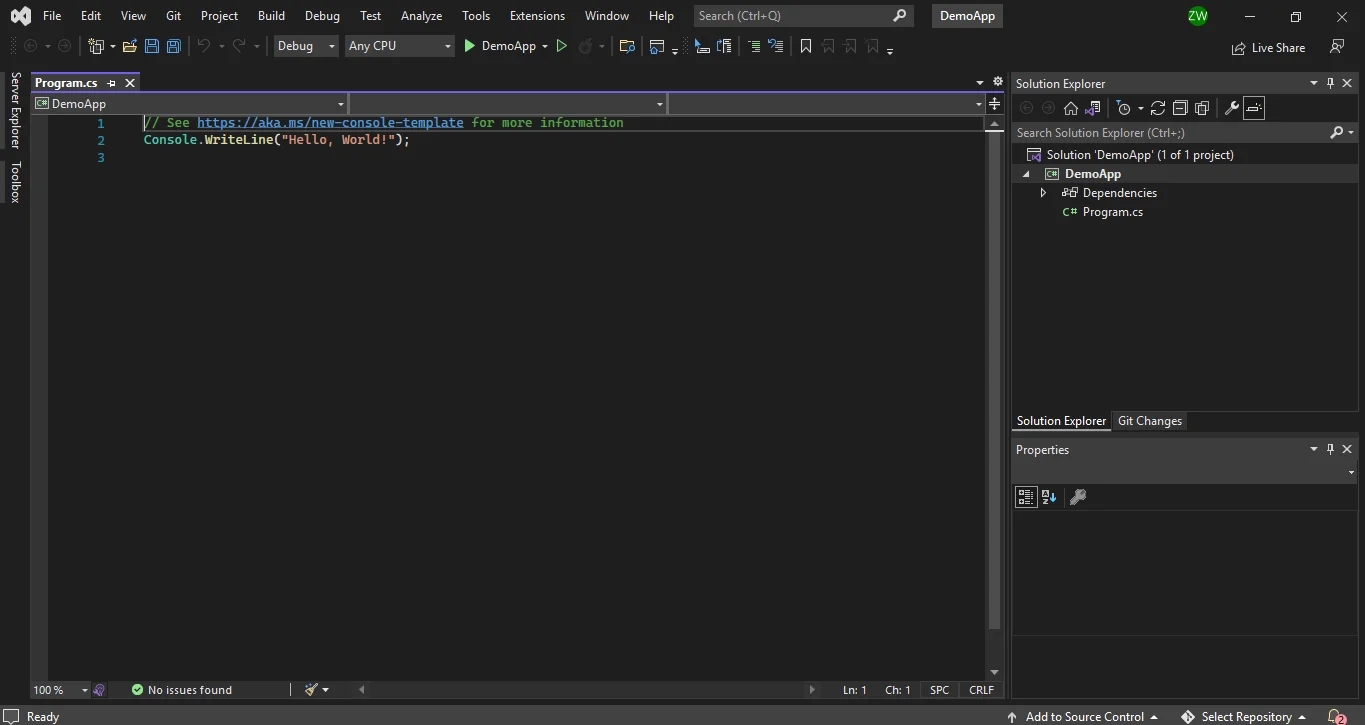
C# Convert PNG to PDF (Code Example Tutorial), Figure 1: Console Program after Creating Project Console program after creating project

3. Install the IronPDF Library

Method 1: NuGet Package Manager Solution

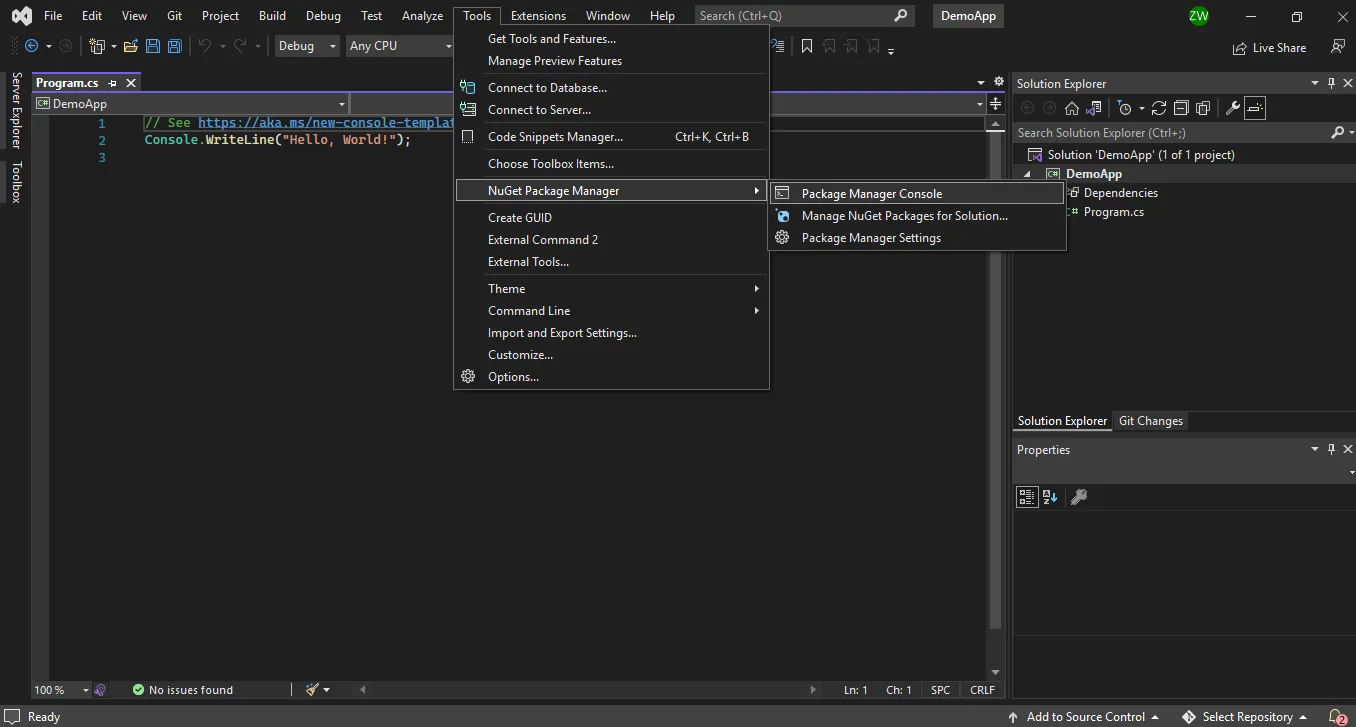
C# Convert PNG to PDF (Code Example Tutorial), Figure 2: Open from Solution Explorer Open from Solution Explorer

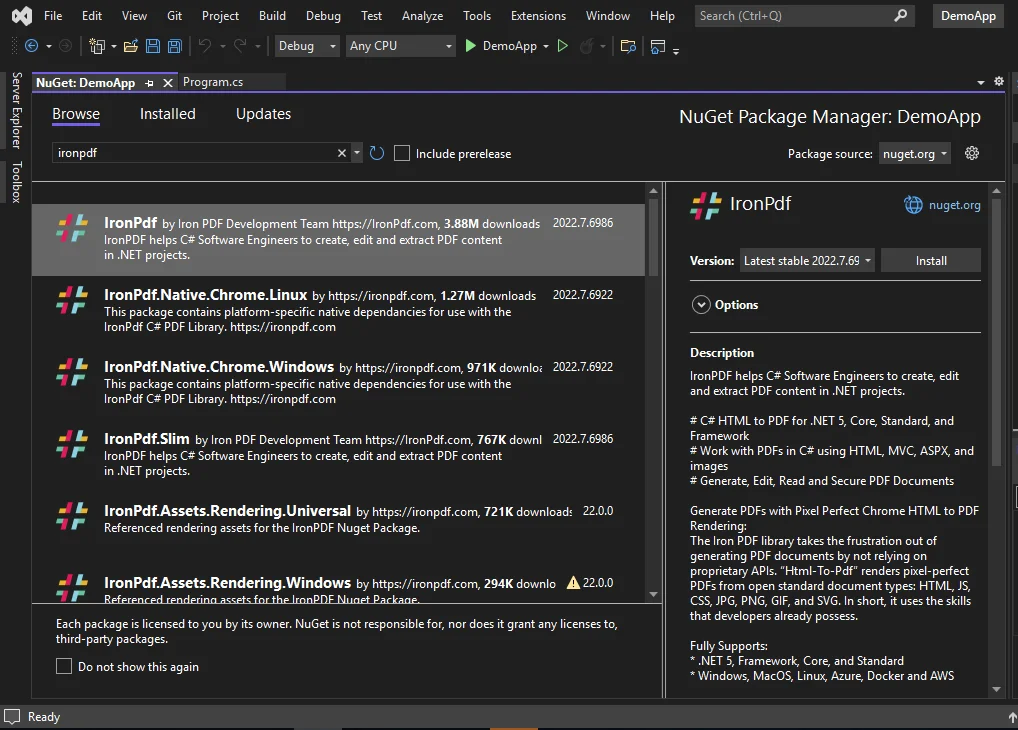
Once the NuGet Package Manager Solution is open, browse for the IronPDF library to convert a PNG image to a PDF file. Then click on install.

C# Convert PNG to PDF (Code Example Tutorial), Figure 3: Browse IronPDF Browse IronPDF

Method 2: NuGet Package Manager Console

Using the NuGet Package Manager Console will allow you to install the library effortlessly. Administrative privilege is not required to install the library. A NuGet command will be used to install the IronPDF library in your project. Just utilize the following command to proceed.

Install-Package IronPdf

Method 3: Using DLL File

You can directly download the IronPDF .DLL file from the website. It can be instantly downloaded from the IronPDF official DLL download link.

To reference the library in your project, follow these directions:

  • Right-click the Solution in the Solution Explorer
  • Select "References"
  • Browse for the IronPDF.dll library
  • Click OK

All done! IronPDF is downloaded, installed, and ready to use to convert PNG to PDF format.

4. Add the IronPDF Namespace

Now add the IronPDF namespace to your program. You have to add a given line of code at the top of the file.

using IronPdf;
using IronPdf;
$vbLabelText   $csharpLabel

This will allow you to access all of the functions provided by IronPDF. This line of code must be added to every file where you wish to use the IronPDF features.

5. Convert PNG to PDF format

Converting PNG files to PDF documents is very easy with IronPDF. Only one line of code can achieve this task using the IronPDF's ImageToPdf method. Inside the directory of the project, place the PNG images to be converted inside a folder named assets. The folder must be placed in the location: bin\Debug\net6.0. Then, using System.IO.Directory, enumerate the assets folder with all the PNG files and pass it to the ImageToPdf method for the conversion operation stream. The following code example helps you convert a PNG image to a PDF document and save a Stream object to the disk.

using IronPdf;
using System;
using System.IO;
using System.Linq;

public class Program
{
    public static void Main()
    {
        Console.WriteLine("C# Convert PNG to PDF using IronPDF");

        // Directory is set to the assets folder. Filters for files ending with '.png' or '.PNG'.
        var images = Directory.EnumerateFiles("assets").Where(f => f.ToLower().EndsWith(".png"));

        // Converts the images to a PDF and saves them.
        if (images.Any())
        {
            ImageToPdfConverter.ImageToPdf(images).SaveAs("composite.pdf");
            Console.WriteLine("PNG successfully converted to PDF");
        }
        else
        {
            Console.WriteLine("No PNG files found.");
        }
    }
}
using IronPdf;
using System;
using System.IO;
using System.Linq;

public class Program
{
    public static void Main()
    {
        Console.WriteLine("C# Convert PNG to PDF using IronPDF");

        // Directory is set to the assets folder. Filters for files ending with '.png' or '.PNG'.
        var images = Directory.EnumerateFiles("assets").Where(f => f.ToLower().EndsWith(".png"));

        // Converts the images to a PDF and saves them.
        if (images.Any())
        {
            ImageToPdfConverter.ImageToPdf(images).SaveAs("composite.pdf");
            Console.WriteLine("PNG successfully converted to PDF");
        }
        else
        {
            Console.WriteLine("No PNG files found.");
        }
    }
}
$vbLabelText   $csharpLabel

In the above code snippet, the asset folder contains only one PNG file. The output file looks like this:

C# Convert PNG to PDF (Code Example Tutorial), Figure 4: Single JPG file to PDF file Single JPG file to PDF file

The same code example can be used to convert multiple PNG images. The output file formats contain three PNG-to-PDF documents.

C# Convert PNG to PDF (Code Example Tutorial), Figure 5: Multiple PNG Images to PDF Document Multiple PNG images to PDF document

6. Summary

This tutorial shows how to convert a PNG image to a PDF document using the IronPDF C# library. The manipulation and configuration of PDF files become remarkably effortless with the IronPDF library function. All that is needed is just a few lines of code to construct a PDF document from PNG files. Whether it's to convert JPG images, PNG images, or numerous other formats, IronPDF is ideal for developers and companies.

Utilize the free version to test it out! Additionally, with a free trial key, you can test the functionality of IronPDF. Furthermore, the current special offer allows you to get five products from IronPDF for the price of just two! Visit this IronPDF licensing information page for more information about licensing.

자주 묻는 질문

C#을 사용하여 PNG 이미지를 PDF로 변환하려면 어떻게 해야 하나요?

IronPDF의 ImageToPdf 메서드를 사용하여 C#에서 PNG 이미지를 PDF로 쉽게 변환할 수 있습니다. 이 메서드를 사용하면 최소한의 코드만으로 단일 이미지 또는 여러 이미지를 하나의 PDF 문서로 변환할 수 있습니다.

C# 프로젝트에서 IronPDF를 설정하는 단계는 무엇인가요?

C# 프로젝트에서 IronPDF를 설정하려면 Visual Studio의 NuGet 패키지 관리자를 통해 설치하거나, NuGet 패키지 관리자 콘솔에서 Install-Package IronPdf 명령을 사용하여 설치하거나, DLL 파일을 다운로드하여 프로젝트 참조에 직접 추가할 수 있습니다.

이 라이브러리를 사용하여 다른 파일 형식을 PDF로 변환할 수 있나요?

예, IronPDF는 HTML, JavaScript, CSS 및 JPG, GIF, TIFF, SVG, BMP와 같은 이미지를 포함한 다양한 파일 형식을 PDF 문서로 변환할 수 있습니다.

C#에서 이미지를 PDF로 변환하려면 어떤 전제 조건이 필요하나요?

이미지를 PDF로 변환하는 데 IronPDF를 효과적으로 활용하려면 C# 프로그래밍에 대한 기본 지식과 Visual Studio 및 .NET 애플리케이션 사용에 익숙해야 합니다.

이미지 변환을 위해 C# 코드에 IronPDF를 포함하려면 어떻게 해야 하나요?

IronPDF에서 제공하는 모든 필수 기능에 액세스하려면 C# 파일 시작 부분에 using IronPdf; 네임스페이스를 포함하세요.

여러 개의 PNG 이미지를 하나의 PDF로 변환할 수 있나요?

예, IronPDF를 사용하면 ImageToPdf 메서드를 사용하여 여러 개의 PNG 이미지를 하나의 PDF 문서로 변환할 수 있습니다.

IronPDF 작업에 권장되는 개발 도구는 무엇인가요?

IronPDF로 작업할 때는 최적의 호환성과 성능을 위해 .NET Core 버전 3.1 이상의 최신 버전의 Visual Studio를 사용하는 것이 좋습니다.

구매하기 전에 IronPDF를 평가할 수 있나요?

예, 무료 버전과 평가판 키를 사용하여 IronPDF를 사용해 볼 수 있으므로 구매 결정을 내리기 전에 기능을 평가할 수 있습니다.

IronPDF를 사용하여 이미지를 PDF로 변환할 때 발생하는 문제를 해결하려면 어떻게 해야 하나요?

프로젝트에 올바른 네임스페이스와 참조를 포함했는지 확인하세요. 코드 구문에 오류가 없는지 확인하고 .NET 프레임워크가 IronPDF와 호환되는지 확인하세요. 추가 지원이 필요한 경우 IronPDF 설명서 또는 커뮤니티 포럼을 참조하세요.

.NET 10 호환성: .NET 10 프로젝트에서 IronPDF를 사용하여 PNG를 PDF로 변환할 수 있나요?

예 - IronPDF는 .NET 10과 완벽하게 호환됩니다. 이 라이브러리는 .NET 10, 9, 8, 7, 6, 5, .NET Core 3.1+, .NET Standard 2.0+, .NET Framework 4.6.2+를 포함한 .NET 버전을 지원하므로 특별한 구성 없이 .NET 10 프로젝트에서 동일한 ImageToPdf 메서드를 사용할 수 있습니다.

커티스 차우
기술 문서 작성자

커티스 차우는 칼턴 대학교에서 컴퓨터 과학 학사 학위를 취득했으며, Node.js, TypeScript, JavaScript, React를 전문으로 하는 프론트엔드 개발자입니다. 직관적이고 미적으로 뛰어난 사용자 인터페이스를 만드는 데 열정을 가진 그는 최신 프레임워크를 활용하고, 잘 구성되고 시각적으로 매력적인 매뉴얼을 제작하는 것을 즐깁니다.


커티스는 개발 분야 외에도 사물 인터넷(IoT)에 깊은 관심을 가지고 있으며, 하드웨어와 소프트웨어를 통합하는 혁신적인 방법을 연구합니다. 여가 시간에는 게임을 즐기거나 디스코드 봇을 만들면서 기술에 대한 애정과 창의성을 결합합니다.