




업데이트됨 2026년 5월 8일
월별 계정 명세서를 PDF 문서로 생성하기
개발자는 IronPDF C# PDF 라이브러리를 사용하여 외부 서비스에 의존하지 않고도 .NET 프로젝트 내에서 HTML을 신뢰할 수 있는 PDF 파일로 변환할 수 있습니다.
더 읽어보기

디지털 문서의 가장 인기 있는 형식 중 하나로서 PDF는 사용자가 송장을 생성하고, 은행 명세서를 인쇄하는 등 다양한 작업을 수행할 수 있게 합니다. PDF는 또한 사용자가 문서에 디지털 서명을 하고, 안전한 인증을 제공할 수 있게 합니다. PDF를 쉽게 생성, 읽기, 편집할 수 있는 IronPDF의 기능을 알아보십시오. 이 기사에서는 IronPDF의 C# 통합을 사용하여 C#에서 PDF 파일을 생성하고 Acrobat Reader/Adobe Reader로 PDF를 읽을 것입니다. 또한 IronPDF를 사용하여 C#에서 PDF 파일을 읽을 것입니다.
IronPdf NuGet 패키지를 설치합니다ChromePdfRenderer에 대한 공용 객체를 선언합니다RenderHtmlAsPdf 함수를 사용합니다System.Diagnostics.Process.Start 사용하기Visual Studio를 열고 "파일 메뉴"로 이동합니다. "새 프로젝트"를 선택한 다음 콘솔 애플리케이션/Windows Forms/WPF 애플리케이션을 선택합니다. IronPDF는 모든 애플리케이션에서 사용할 수 있습니다. Webform, MVC/MVC Core 등의 앱에서도 사용할 수 있습니다.
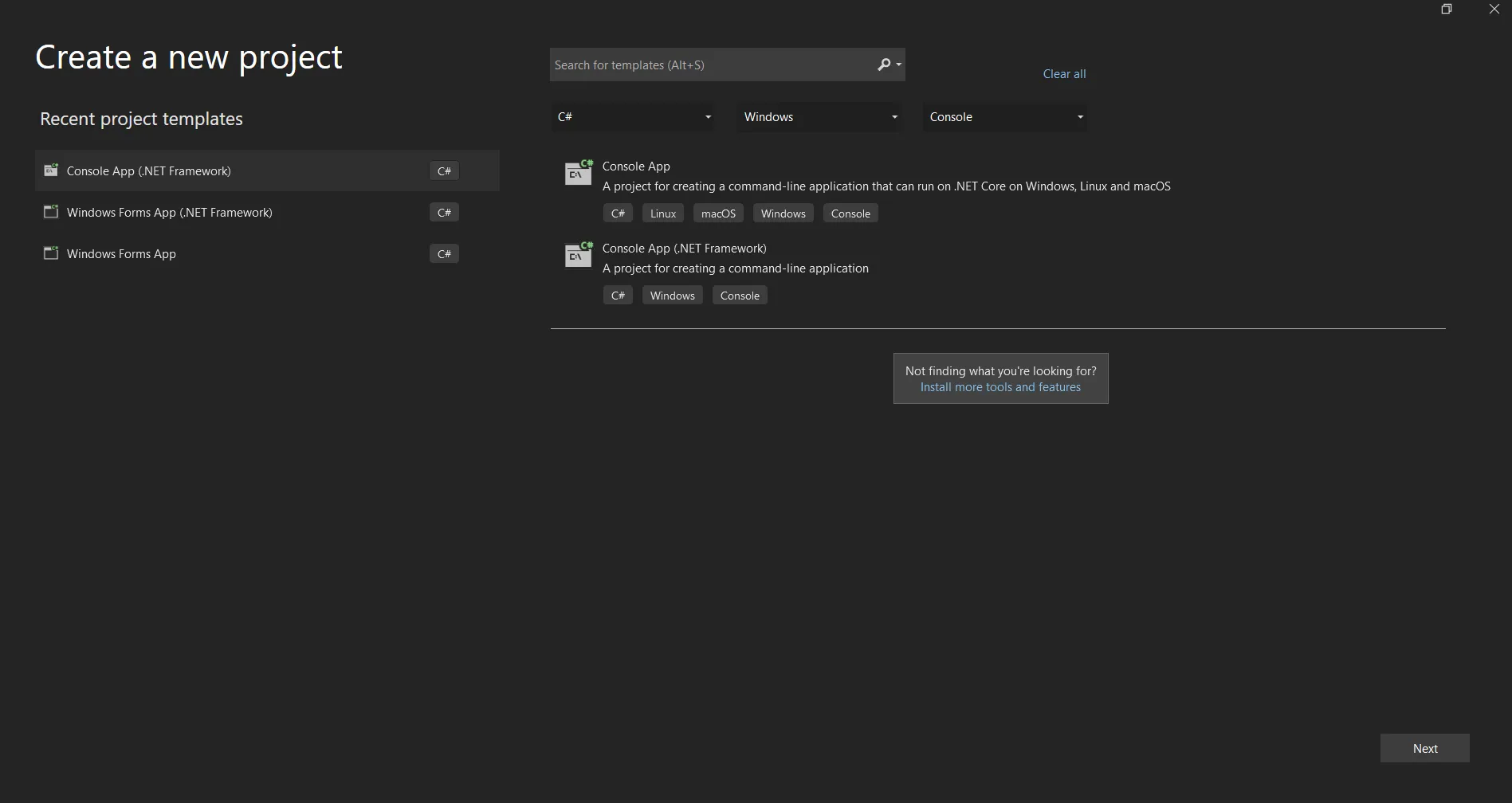 Visual Studio에서 새 프로젝트 생성
프로젝트 이름을 입력하고 적절한 텍스트 상자에서 파일 경로를 선택합니다. "생성" 버튼을 클릭하세요. 다음으로 필요한 .NET Framework를 선택하세요. 이제 프로젝트는 선택한 애플리케이션을 위한 구조를 생성할 것입니다. 콘솔 애플리케이션을 선택하면, Program.cs 파일이 열리고 여기에서 코드를 입력하고 애플리케이션을 빌드/실행할 수 있습니다.
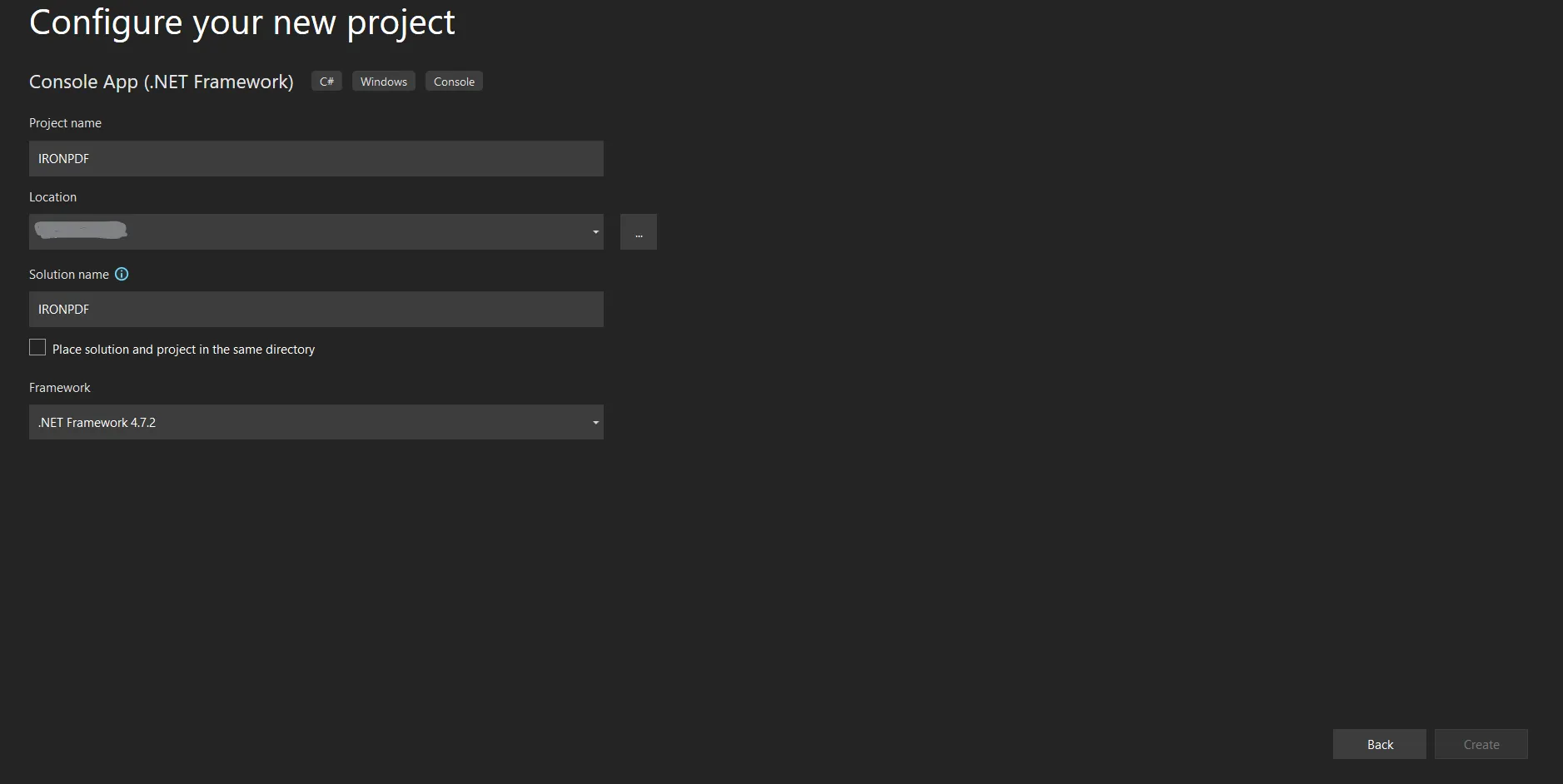 Visual Studio에서 .NET 프로젝트를 구성합니다
다음 단계로 NuGet Install-Package NuGet에서 IronPDF 설치
프로젝트를 좌클릭하면 메뉴가 팝업됩니다. 메뉴에서 NuGet 패키지 관리자를 선택하고 IronPDF를 검색하세요. NuGet 패키지 대화 상자의 첫 번째 결과를 선택하고 설치/다운로드 옵션을 클릭하세요.
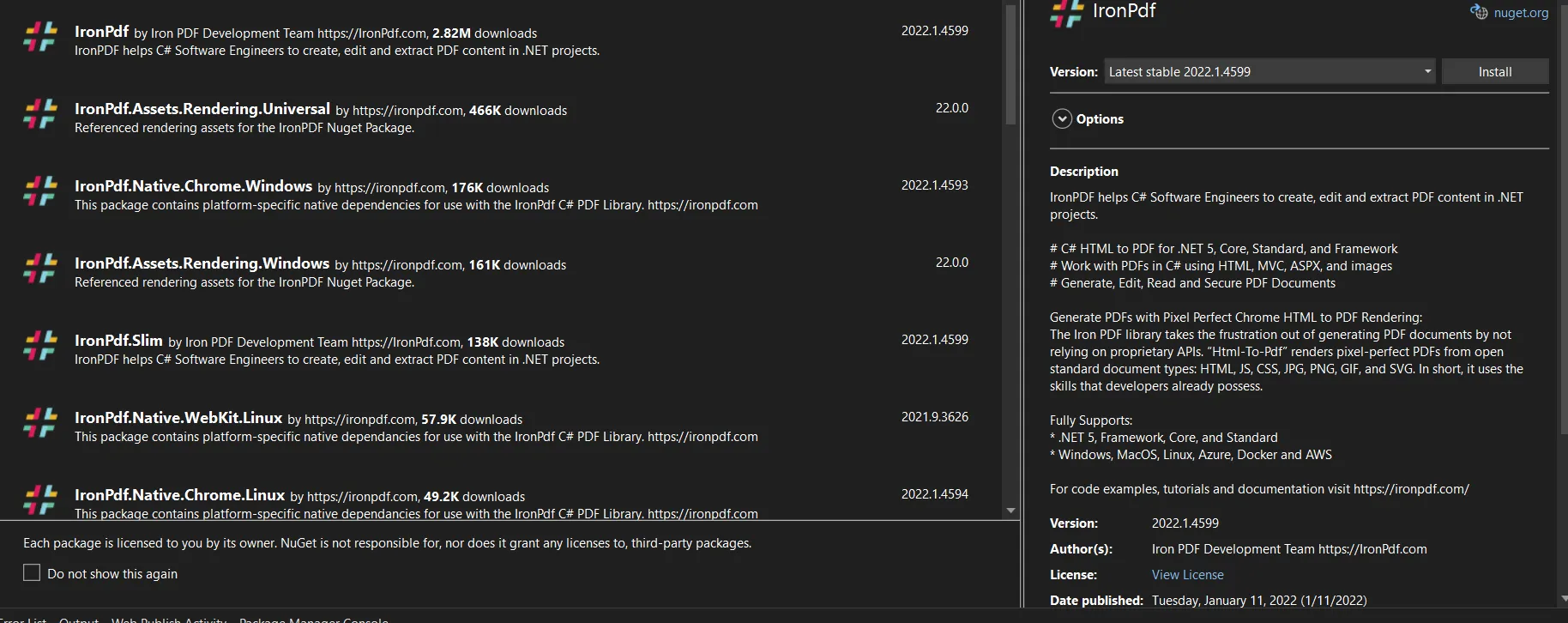 NuGet 패키지 관리자에서 IronPDF Install-Package
대안:
Visual Studio에서 도구 -> NuGet 패키지 관리자 -> 패키지 관리자 콘솔로 이동하세요
패키지 관리자 콘솔 탭에 다음 코드를 입력하세요.
이제 패키지가 현재 프로젝트에 다운로드/설치되고, 코드에서 사용할 준비가 되었습니다.
아래와 같이 코드에 IronPdf 참조를 추가합니다. 이렇게 하면 코드에서 IronPDF의 클래스와 기능을 사용할 수 있게 됩니다.
공통 객체를 선언하여 ChromePdfRenderer from IronPDF는 어떤 웹 페이지나 HTML 스니펫을 IronPDF를 사용하여 PDF로 변환하는 데 도움이 됩니다. 공통 객체를 만들면 같은 클래스의 객체를 더 이상 만들 필요 없이 사용할 수 있어 코드를 여러 번 재사용할 수 있습니다. IronPDF로 PDF 파일을 생성하는 데 사용할 수 있는 여러 함수가 있습니다. 문자열이나 URL을 PDF로 변환하거나 HTML 파일을 사용하여 이를 PDF로 변환한 후 원하는 위치에 저장할 수 있습니다.
ChromePdfRenderer에 대한 객체를 생성하지 않고도 정적 함수를 사용할 수 있습니다. 정적 함수는 다음과 같습니다:
이러한 정적 메소드 중 하나를 사용하여 PDF 파일을 생성할 수 있습니다. 또한 마진, 제목, DPI, 헤더, 푸터, 텍스트 등과 같은 다양한 PDF 문서 옵션을 포함할 수 있으며, ChromePdfRenderOptions를 사용하여 이러한 정적 메소드 중 하나에 매개 변수를 전달할 수 있습니다.
우리는 모든 PDF 문서에 대해 ChromePdfRenderOptions를 공용 또는 개별적으로 선언할 수 있습니다. 매우 간단하고 사용하기 쉽습니다. 비정적 함수 중 하나를 사용하여 PDF 파일을 생성하고 기본 위치에 저장할 것입니다.
위 IronPDF 함수 중 하나를 사용하여 PDF를 생성할 수 있습니다. 함수 이름이 RenderHtmlAsPdf인 경우, 매개 변수로 문자열을 전달한 다음 SaveAs Pdf file option from IronPDF 함수를 사용하여 원하는 파일 경로에 PDF를 저장합니다. SaveAs 함수를 사용하는 동안 파일 이름과 위치를 매개변수로 전달해야 하며, Windows 애플리케이션을 사용하는 경우에는 SaveAs 대화 상자를 사용하여 원하는 위치에 PDF 파일을 저장할 수 있습니다. HTML 문자열의 도움으로 PDF 문서를 포맷할 수 있습니다. PDF에서 HTML을 통해 텍스트 설계를 위한 CSS를 사용할 수 있으며, IronPDF는 HTML 태그 사용에 제한이 없으므로 PDF 문서를 설계하는 데 어떤 HTML 태그도 사용할 수 있습니다.
대량의 HTML 텍스트를 사용할 때, 모든 HTML 텍스트를 텍스트 상자에 추가하기 어려워, 위에서 언급한 RenderHtmlFileAsPdf라는 다른 방법을 사용할 수 있으며, 이는 모든 HTML을 PDF 문서로 변환하는 데 도움을 줍니다. 이 방법으로 대용량 HTML 파일을 추가할 수 있습니다. 또한 외부 HTML 파일에 외부 CSS 파일 및 외부 이미지 등을 포함할 수 있습니다.
IronPDF는 또한 RenderUrlAsPdf 함수를 사용하여 링크에서 데이터를 인쇄하는 데 도움이 됩니다. 이 함수는 링크를 처리하여 PDF를 생성하고 SaveAs 함수를 사용하여 원하는 파일 경로에 PDF 파일을 저장합니다. 이 IronPDF 함수는 사이트에 있는 CSS와 모든 이미지를 포함할 것입니다.
다음 코드는 IronPDF 함수의 예를 보여줍니다.
using IronPdf; // Ensure you add the IronPdf namespace

// Create an instance of the ChromePdfRenderer class
ChromePdfRenderer renderer = new ChromePdfRenderer();

// Render a PDF from a simple HTML string
PdfDocument pdf = renderer.RenderHtmlAsPdf("Hello IronPdf");

// Specify the path where the resulting PDF will be saved
var outputPath = "DemoIronPdf.pdf";

// Save the PDF document to the specified path
pdf.SaveAs(outputPath);

// Open the resulting PDF document using the default associated application
System.Diagnostics.Process.Start(outputPath);Imports IronPdf ' Ensure you add the IronPdf namespace
' Create an instance of the ChromePdfRenderer class
Private renderer As New ChromePdfRenderer()
' Render a PDF from a simple HTML string
Private pdf As PdfDocument = renderer.RenderHtmlAsPdf("Hello IronPdf")
' Specify the path where the resulting PDF will be saved
Private outputPath = "DemoIronPdf.pdf"
' Save the PDF document to the specified path
pdf.SaveAs(outputPath)
' Open the resulting PDF document using the default associated application
System.Diagnostics.Process.Start(outputPath)이 예제는 문자열에서 PDF 파일을 생성하기 위해 IronPDF 함수를 어떻게 사용할 수 있는지를 보여줍니다. 이 코드에서는 ChromePdfRenderer에 대한 인스턴스 객체를 생성하였으며, 인스턴스 객체를 RenderHtmlAsPdf의 도움으로 사용하여 PDF 파일을 생성합니다. 그런 다음 SaveAs IronPDF 함수를 사용하여 지정된 경로에 PDF 파일을 저장할 수 있습니다. 파일 경로를 지정하지 않으면 프로그램의 실행 위치에 저장됩니다.
이 마지막 단계에서는 System.Diagnostics.Process.Start를 사용하여 PDF 파일을 미리 봅니다. 이 함수는 경로에서 PDF 파일을 열기 위해 명령줄 기능을 호출합니다. PDF 리더가 있는 경우 저장된 PDF 파일을 리더에서 엽니다. PDF 리더가 없으면, 대화 상자가 열리며, 해당 대화 상자에서 PDF를 열 프로그램을 선택해야 합니다.
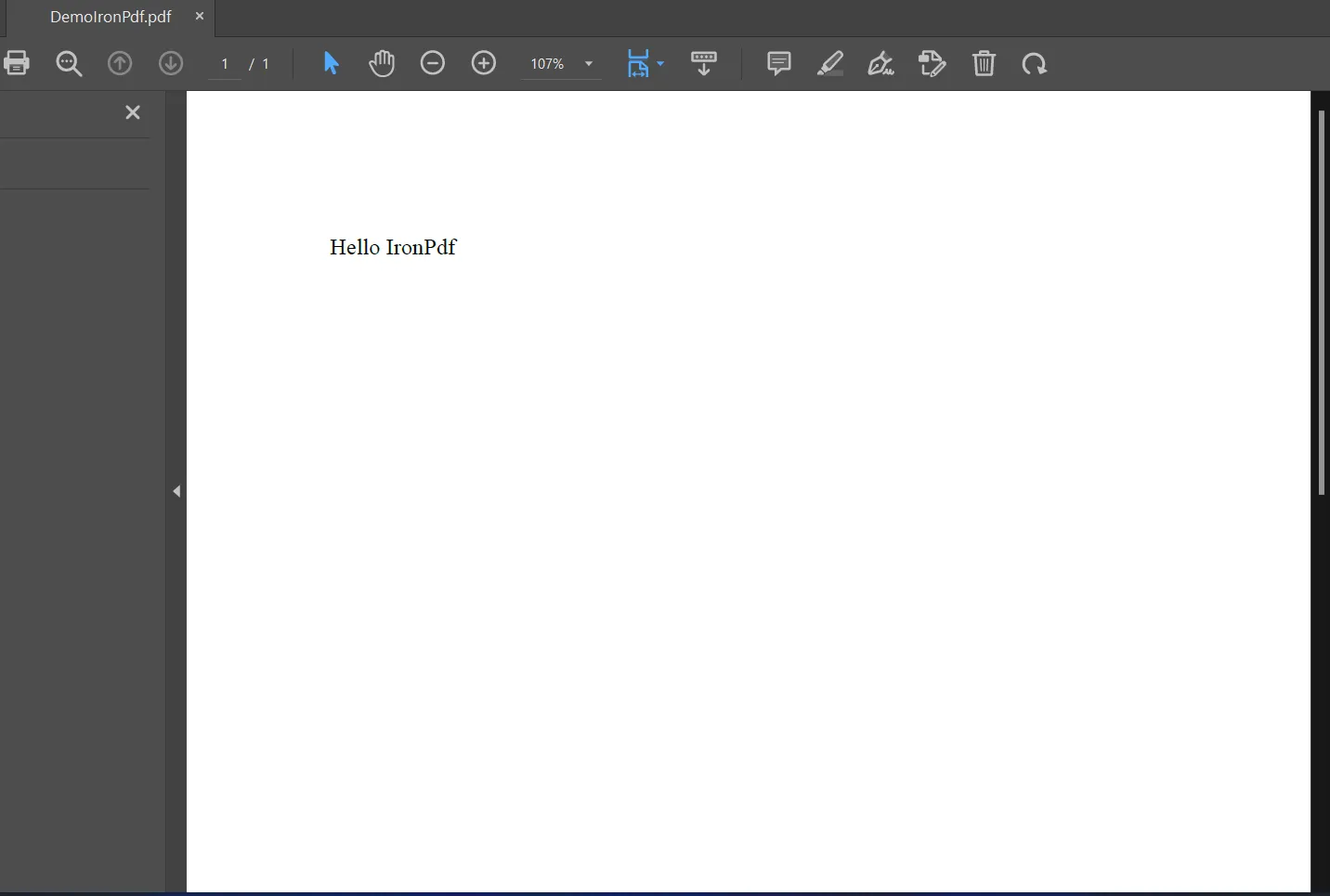 기본 PDF 리더에서 표시된 PDF 파일
IronPDF를 사용하여 PDF 파일을 읽을 수 있으며, 이는 PDF 문서를 한 줄씩 읽습니다. IronPDF를 사용하여 암호로 보호된 PDF 파일도 열 수 있습니다. 다음 코드는 PDF 문서를 읽는 방법을 보여줍니다.
using IronPdf; // Ensure you add the IronPdf namespace

// Open a password-protected PDF
PdfDocument pdf = PdfDocument.FromFile("encrypted.pdf", "password");

// Extract all text from the PDF document
string allText = pdf.ExtractAllText();

// Extract all images from the PDF document
IEnumerable<System.Drawing.Image> allImages = pdf.ExtractAllImages();

// Iterate through each page in the document
for (var index = 0; index < pdf.PageCount; index++)
{
    // Page numbers are typically 1-based, so add 1 to the index
    int pageNumber = index + 1;

    // Extract text from the current page
    string text = pdf.ExtractTextFromPage(index);

    // Extract images from the current page
    IEnumerable<System.Drawing.Image> images = pdf.ExtractImagesFromPage(index);
}Imports IronPdf ' Ensure you add the IronPdf namespace
' Open a password-protected PDF
Private pdf As PdfDocument = PdfDocument.FromFile("encrypted.pdf", "password")
' Extract all text from the PDF document
Private allText As String = pdf.ExtractAllText()
' Extract all images from the PDF document
Private allImages As IEnumerable(Of System.Drawing.Image) = pdf.ExtractAllImages()
' Iterate through each page in the document
For index = 0 To pdf.PageCount - 1
' Page numbers are typically 1-based, so add 1 to the index
Dim pageNumber As Integer = index + 1
' Extract text from the current page
Dim text As String = pdf.ExtractTextFromPage(index)
' Extract images from the current page
Dim images As IEnumerable(Of System.Drawing.Image) = pdf.ExtractImagesFromPage(index)
Next index위의 코드는 IronPDF를 사용하여 PDF 파일을 읽는 방법을 보여줍니다. IronPDF는 먼저 입력된 문자열 파일 이름에서 PDF 문서를 읽고, 사용자가 암호를 포함할 수 있도록 허용합니다. 모든 줄을 읽게 됩니다. 이는 PDF에서 데이터를 추출할 때 매우 유용하며, 수작업의 양을 줄이고 인간의 감독이 필요하지 않기 때문입니다.
PDF 보안 및 암호 처리에 대한 코드 샘플을 확인하세요.
IronPDF는 간단하고 쉬운 단계로 PDF를 생성하는 방법을 제공합니다. IronPDF 라이브러리는 .NET Framework 또는 .NET Core의 최신 버전을 사용하여 Windows Forms, 모바일 앱 및 웹 앱과 같은 여러 환경에서 사용할 수 있습니다. 각 플랫폼에 별도의 라이브러리가 필요하지 않습니다. PDF를 생성하려면 IronPDF만 필요합니다.
IronPDF는 무료 체험 키를 제공하며 현재 Iron Software에서 다섯 가지 제품을 번들 가격 패키지로 구입할 수 있습니다.

커티스 차우는 칼턴 대학교에서 컴퓨터 과학 학사 학위를 취득했으며, Node.js, TypeScript, JavaScript, React를 전문으로 하는 프론트엔드 개발자입니다. 직관적이고 미적으로 뛰어난 사용자 인터페이스를 만드는 데 열정을 가진 그는 최신 프레임워크를 활용하고, 잘 구성되고 시각적으로 매력적인 매뉴얼을 제작하는 것을 즐깁니다.



IronPDF는 IRON SUITE 의 일부입니다.
10개의 .NET API 제품, 당신의 사무 문서를 위해











PDF 파일을 HTML처럼 빠르게 변환해야 할 때.


