
已更新 2026年9月4日
產生每月帳戶報表(PDF 文件)
using IronPDF C# PDF 庫,開發人員可以在 .NET 專案中將 HTML 轉換為可靠的 PDF 文件,而無需依賴外部服務。
閱讀更多

作為數位文件的最受歡迎格式之一,PDF允許使用者生成發票、列印銀行對帳單等等。 PDF也允許使用者進行數位簽名,並提供安全驗證。 了解IronPDF在輕鬆建立、讀取和編輯PDF方面的能力。 在這篇文章中,我們將使用IronPDF的C#整合在C#中生成一個PDF文件,並使用Acrobat Reader/Adobe Reader讀取該PDF。 我們還將在C#中使用IronPDF來讀取該PDF文件。
IronPdf NuGet套件ChromePdfRenderer的公共物件RenderHtmlAsPdf函式System.Diagnostics.Process.Start打開Visual Studio並進入"檔案"選單。選擇"新建專案",然後選擇控制台應用程式/Windows Forms/WPF應用程式。 IronPDF可以用於所有應用程式。 您也可以將其用於Webform、MVC/MVC Core等應用程式。
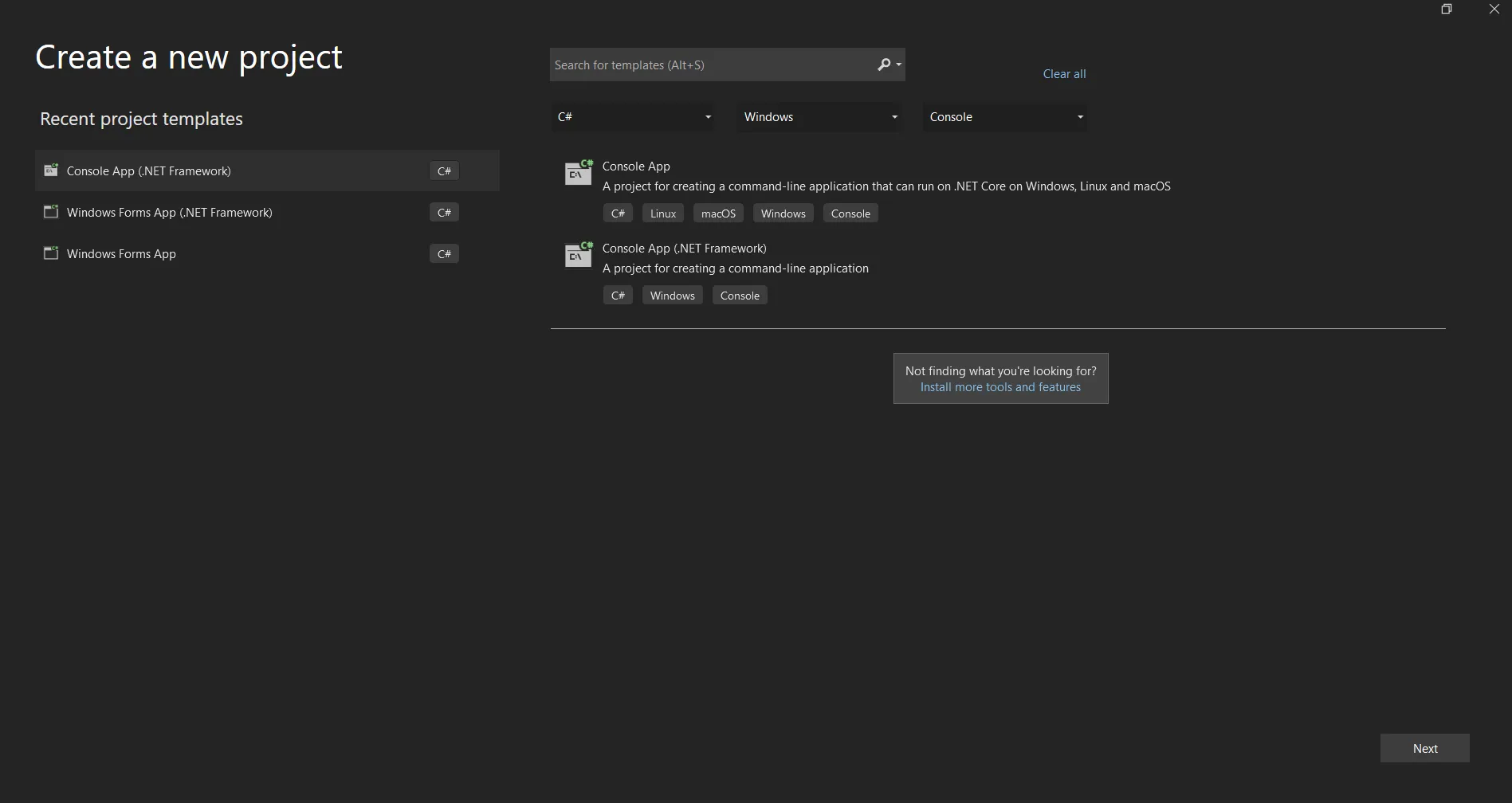 在Visual Studio中建立新專案
在適當的文字框中輸入專案名稱並選擇文件路徑。 然後點選"建立"按鈕。 接下來,選擇所需的.NET Framework。 現在,該專案將為選擇的應用程式生成結構。 如果您選擇了控制台應用程式,它現在將打開Program.cs文件,您可以在其中輸入程式碼並構建/執行應用程式。
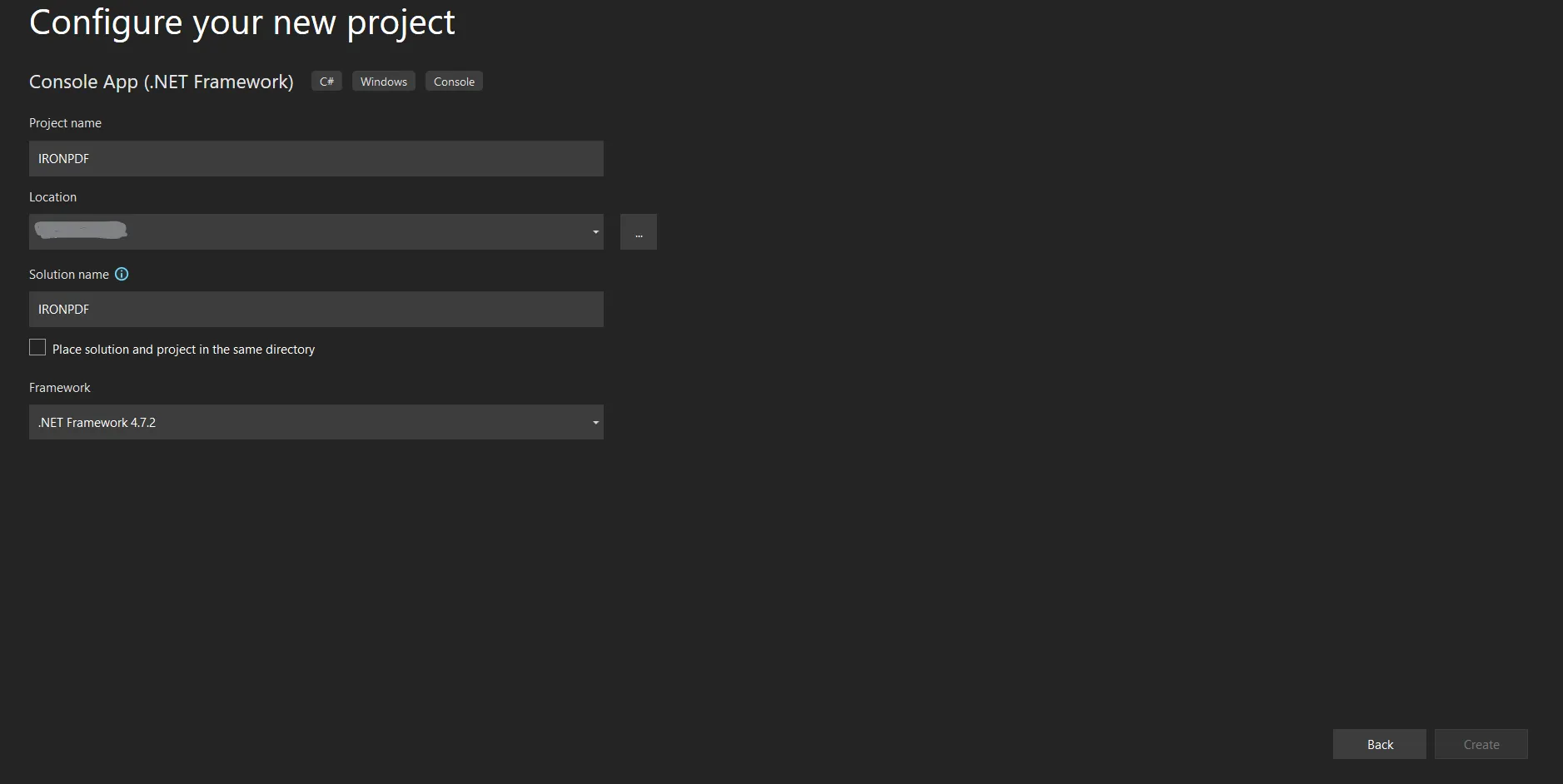 在Visual Studio中配置.NET專案
接下來安裝NuGet套件 從NuGet安裝IronPDF
左鍵點選專案,會彈出一個選單。從選單中選擇NuGet套件管理器並搜尋IronPDF。 在NuGet套件對話框中選擇第一個結果,然後點選安裝/下載選項。
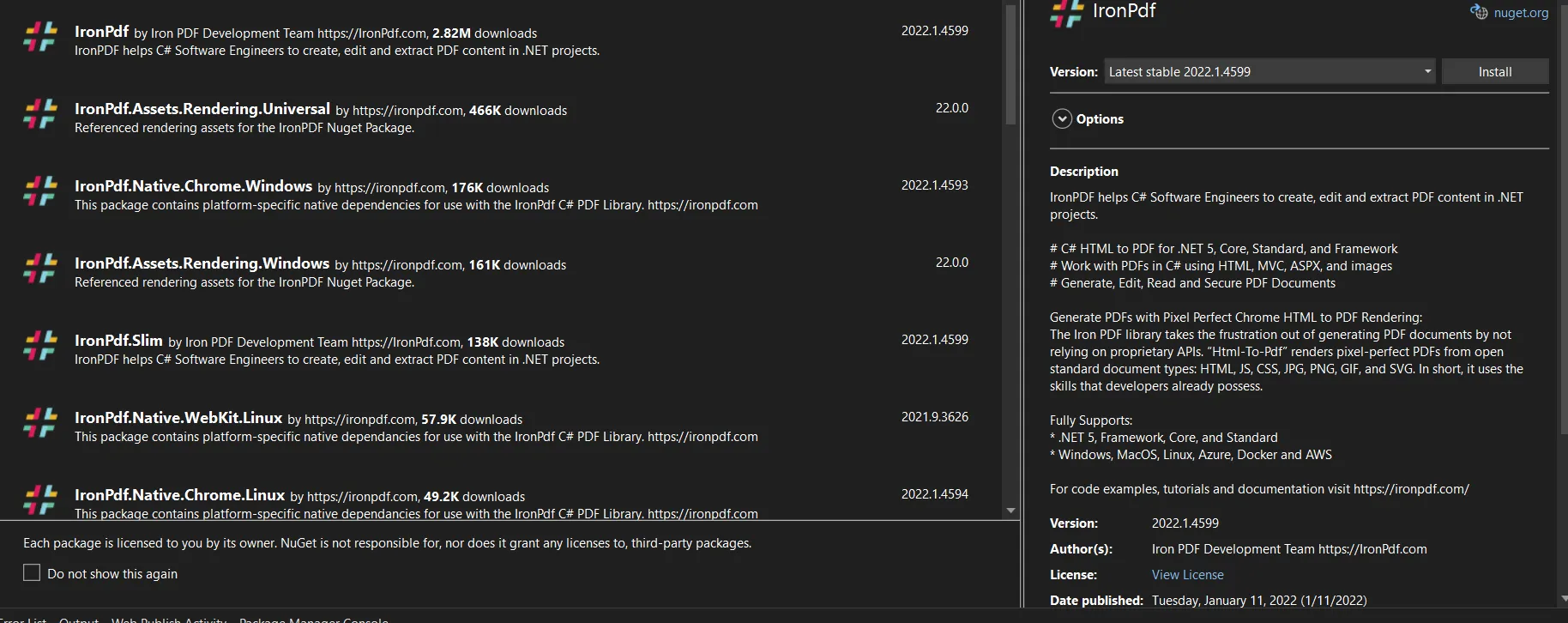 在NuGet套件管理器中安裝IronPDF套件
或者:
在Visual Studio中進入工具 -> NuGet套件管理器 -> 套件管理器控制台
在套件管理器控制台標籤上輸入以下程式碼。
現在,該套件將下載/安裝到當前專案中,可以在程式碼中使用。
按照以下所示將IronPdf的引用新增到程式碼中。 這將允許我們在程式碼中使用來自IronPDF的類別和函式。
宣告ChromePdfRenderer from IronPDF的公共物件將幫助您使用IronPDF將任何網頁或HTML片段轉換為PDF。 透過建立公共物件,我們將能夠重複使用此程式碼,而無需再建立其他相同類別的物件。 可以使用多個功能來使用IronPDF建立PDF文件。 我們可以使用字串、將URL轉換為PDF或HTML文件並將它們轉換為PDF,然後將它們儲存到所需位置。
我們也可以在不建立任何物件的情況下使用靜態函式來處理ChromePdfRenderer。 靜態函式如下所示:
我們可以使用這些靜態方法中的任何一個來生成PDF文件。我們還可以包括設置各種PDF文件選項,例如邊距、標題、DPI、頁首、頁尾、文字等。使用ChromePdfRenderOptions,我們可以向其中任何一個靜態方法傳遞參數。
我們可以將ChromePdfRenderOptions宣告為每個PDF文件的公共或單獨使用。 使用起來非常簡單和容易。 我們將使用任何一個非靜態功能來生成PDF文件並將其儲存到預設位置。
我們可以使用上面任何一個IronPDF功能來建立PDF。 如果您正在使用名為RenderHtmlAsPdf的函式,則可以將任何字串作為參數傳遞,然後使用SaveAs Pdf file option from IronPDF函式將PDF儲存在所需的文件路徑中。 在使用SaveAs函式時,我們需要將文件名和位置作為參數傳遞,或者如果我們在使用Windows應用程式,我們可以使用SaveAs對話框將PDF文件儲存到所需位置。 透過HTML字串的幫助,我們可以格式化PDF文件。 此外,我們可以使用CSS通過HTML設計PDF中的文字,我們可以使用任何HTML標籤來設計PDF文件,IronPDF對使用HTML標籤沒有任何限制。
當我們使用大量HTML文字時,很難將所有HTML文字新增到文字框中,因此我們可以使用我們之前提到的RenderHtmlFileAsPdf方法,其將幫助我們將所有HTML轉換為PDF文件。 透過此方法,我們可以新增大型HTML文件。 此外,我們可以在這些HTML文件中包含外部CSS文件以及外部圖像等。
IronPDF也協助我們通過RenderUrlAsPdf功能從任何連結中列印資料。 該功能處理該連結以生成PDF,並通過SaveAs功能將PDF文件儲存到所需的文件路徑。 此IronPDF功能將包括該網站上的CSS和所有圖像。
以下程式碼顯示了IronPDF功能的範例。
using IronPdf; // Ensure you add the IronPdf namespace

// Create an instance of the ChromePdfRenderer class
ChromePdfRenderer renderer = new ChromePdfRenderer();

// Render a PDF from a simple HTML string
PdfDocument pdf = renderer.RenderHtmlAsPdf("Hello IronPdf");

// Specify the path where the resulting PDF will be saved
var outputPath = "DemoIronPdf.pdf";

// Save the PDF document to the specified path
pdf.SaveAs(outputPath);

// Open the resulting PDF document using the default associated application
System.Diagnostics.Process.Start(outputPath);Imports IronPdf ' Ensure you add the IronPdf namespace
' Create an instance of the ChromePdfRenderer class
Private renderer As New ChromePdfRenderer()
' Render a PDF from a simple HTML string
Private pdf As PdfDocument = renderer.RenderHtmlAsPdf("Hello IronPdf")
' Specify the path where the resulting PDF will be saved
Private outputPath = "DemoIronPdf.pdf"
' Save the PDF document to the specified path
pdf.SaveAs(outputPath)
' Open the resulting PDF document using the default associated application
System.Diagnostics.Process.Start(outputPath)此範例顯示了我們如何使用IronPDF功能從字串生成PDF文件。 在這段程式碼中,我們已為RenderHtmlAsPdf的實例物件來生成PDF文件。然後通過使用SaveAs IronPDF功能,我們可以將PDF文件儲存在指定的路徑上。 如果我們沒有指定文件路徑,它將儲存在程式的執行位置。
在這最後一步中,我們正在使用System.Diagnostics.Process.Start來預覽PDF文件。此功能調用命令行函式以從路徑開啟PDF文件。 如果我們有PDF讀取器,它將在讀取器中開啟已儲存的PDF文件。 如果我們沒有PDF讀取器,將會開啟一個對話框,並從該對話框中,我們需要選擇開啟PDF的程式。
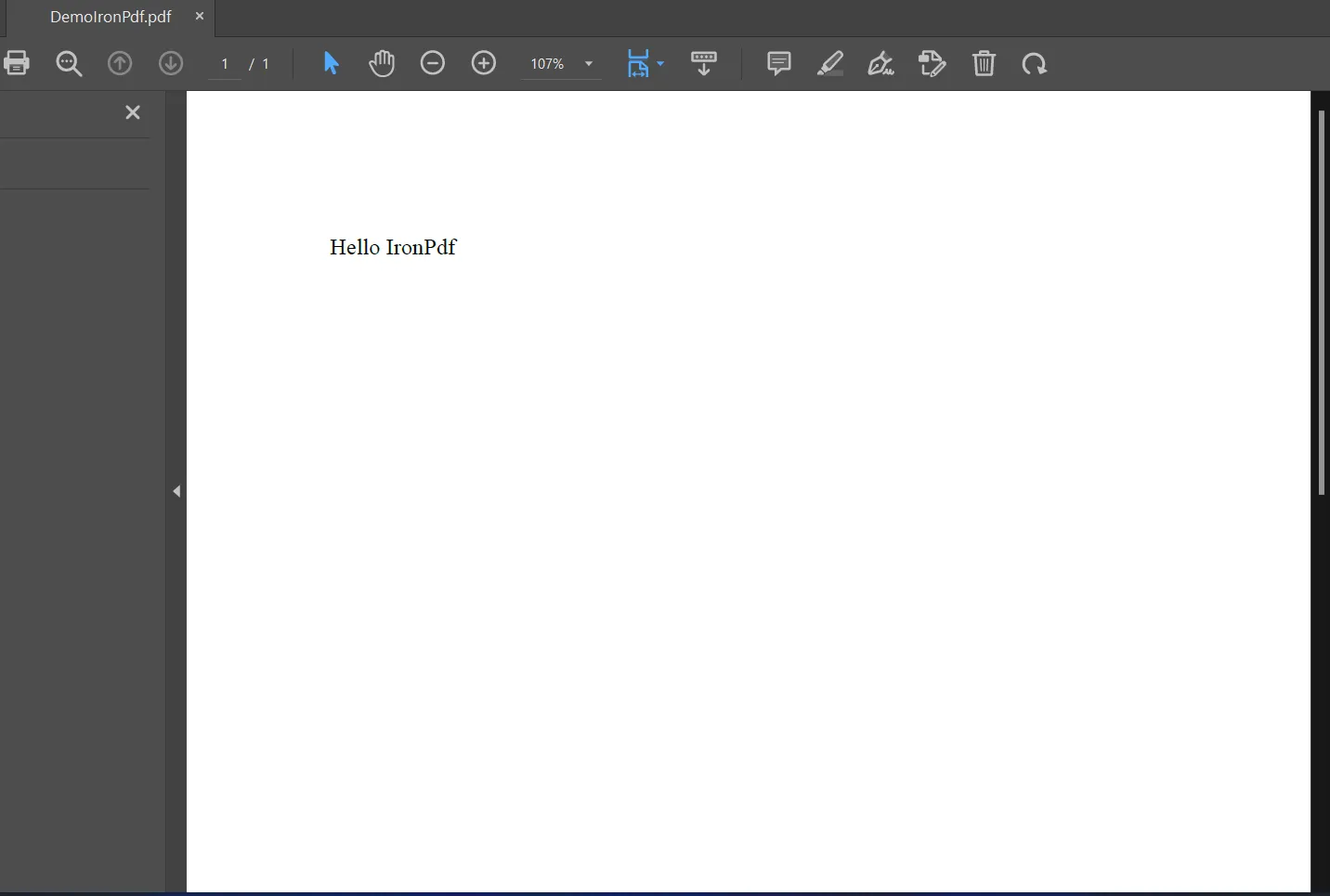 在預設PDF讀取器中顯示PDF文件
我們可以使用IronPDF讀取PDF文件,並會逐行讀取PDF文件。我們甚至可以使用IronPDF開啟密碼限制的PDF文件。 以下程式碼演示了如何讀取PDF文件。
using IronPdf; // Ensure you add the IronPdf namespace

// Open a password-protected PDF
PdfDocument pdf = PdfDocument.FromFile("encrypted.pdf", "password");

// Extract all text from the PDF document
string allText = pdf.ExtractAllText();

// Extract all images from the PDF document
IEnumerable<System.Drawing.Image> allImages = pdf.ExtractAllImages();

// Iterate through each page in the document
for (var index = 0; index < pdf.PageCount; index++)
{
    // Page numbers are typically 1-based, so add 1 to the index
    int pageNumber = index + 1;

    // Extract text from the current page
    string text = pdf.ExtractTextFromPage(index);

    // Extract images from the current page
    IEnumerable<System.Drawing.Image> images = pdf.ExtractImagesFromPage(index);
}Imports IronPdf ' Ensure you add the IronPdf namespace
' Open a password-protected PDF
Private pdf As PdfDocument = PdfDocument.FromFile("encrypted.pdf", "password")
' Extract all text from the PDF document
Private allText As String = pdf.ExtractAllText()
' Extract all images from the PDF document
Private allImages As IEnumerable(Of System.Drawing.Image) = pdf.ExtractAllImages()
' Iterate through each page in the document
For index = 0 To pdf.PageCount - 1
' Page numbers are typically 1-based, so add 1 to the index
Dim pageNumber As Integer = index + 1
' Extract text from the current page
Dim text As String = pdf.ExtractTextFromPage(index)
' Extract images from the current page
Dim images As IEnumerable(Of System.Drawing.Image) = pdf.ExtractImagesFromPage(index)
Next index上面的程式碼顯示了我們如何使用IronPDF讀取PDF文件。 IronPDF首先從輸入的字串文件名中讀取PDF文件,並且它還允許使用者新增密碼(如果有)。 它將讀取所有行。 這對於當我們需要從PDF中獲取資料時非常有用,因為它減少了人工工作,且不需要任何人類監督。
IronPDF提供了一種簡單的方法來建立PDF,且步驟簡單。 IronPDF程式庫可以在許多環境中使用,如Windows Forms、移動應用程式和使用.NET Framework或.NET Core最新版本的Web應用程式中。 我們不需要為每個平台提供單獨的程式庫。 我們只需要IronPDF來生成PDF。
IronPDF提供免費試用金鑰,您目前可以從Iron Software購買五款產品,享有捆綁價格包。
您可以下載C#文件專案來幫助您開始使用IronPDF。

Curtis Chau擁有Carleton大學的電腦科學學士學位,專精於前端開發,擁有Node.js、TypeScript、JavaScript和React的專業知識。Curtis熱衷於建立直觀且美觀的使用者介面,喜愛使用現代框架並建立結構良好、視覺吸引力的手冊。

IronPDF 是 IRONSUITE 的一部分
10 款適用於辦公室文件的 .NET API 產品

當您需要您的PDF看起來像HTML一樣快速。