




업데이트됨 2026년 5월 8일
월별 계정 명세서를 PDF 문서로 생성하기
개발자는 IronPDF C# PDF 라이브러리를 사용하여 외부 서비스에 의존하지 않고도 .NET 프로젝트 내에서 HTML을 신뢰할 수 있는 PDF 파일로 변환할 수 있습니다.
더 읽어보기

현대 웹 애플리케이션에서는 HTML 콘텐츠에서 문서를 생성하는 것이 일반적인 요구 사항입니다. 청구서, 보고서 또는 기타 문서를 생성해야 하는 경우, IronPDF 라이브러리를 사용하여 ASP.NET에서 C#으로 HTML을 PDF로 변환할 수 있습니다.
오늘은 IronPDF를 설정하고 이를 사용하여 HTML 콘텐츠를 PDF 문서로 변환하는 방법을 탐구할 것입니다.
IronPDF는 개발자가 PDF 문서를 읽고 생성하고 조작할 수 있게 해주는 강력한 PDF 라이브러리입니다. 풍부한 기능 세트와 빠르고 간단한 설치 과정을 통해 IronPDF 덕분에 PDF 프로젝트를 빠르게 다음 단계로 이끌 수 있습니다. 직관적인 API는 배우기 쉬워, 동적 PDF 문서 생성, PDF 보안 작업 수행, PDF 주석 추가 등을 웹 애플리케이션에서 직접 수행하려는 경우 이상적인 선택입니다.
시작하기 전에 다음을 확인하세요:
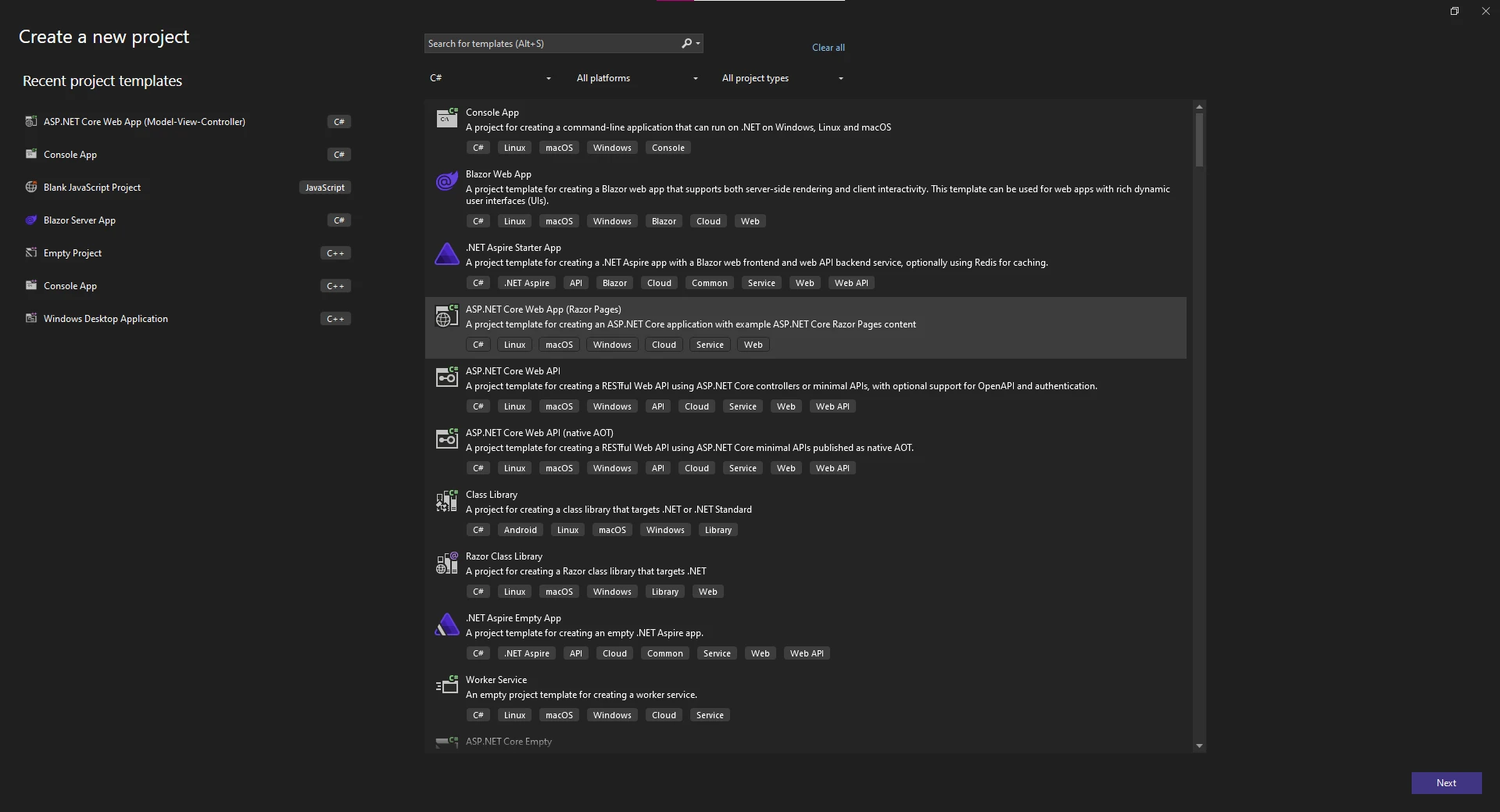
Visual Studio를 실행하고 필요에 가장 적합한 ASP.NET 프로젝트 유형을 선택하십시오. 오늘 예시에서는 ASP.NET Core Web App (모델-뷰-컨트롤러)을 생성할 것입니다.
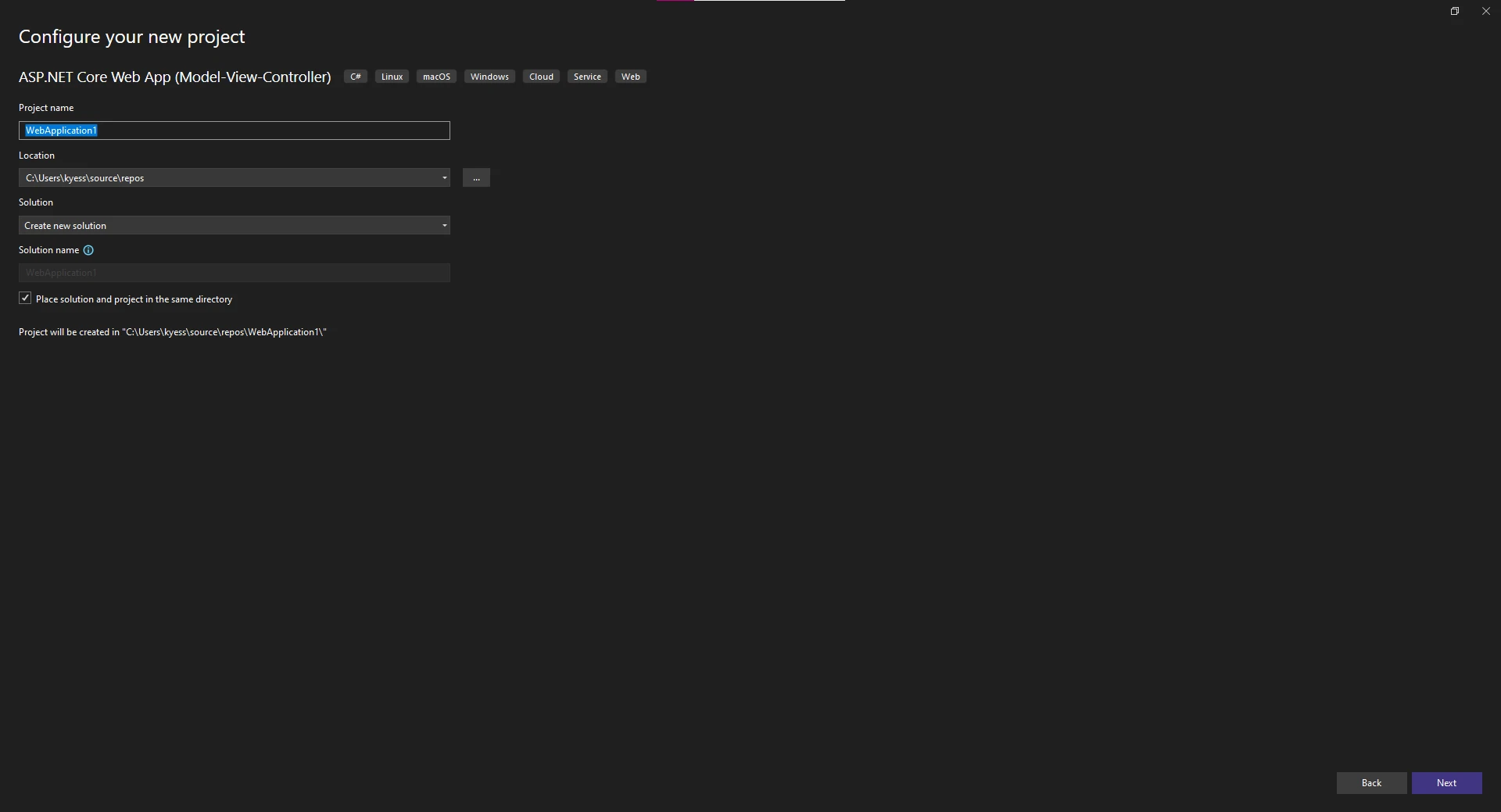
그런 다음, 프로젝트의 이름을 입력하고 프로젝트를 둘 위치를 선택하세요.
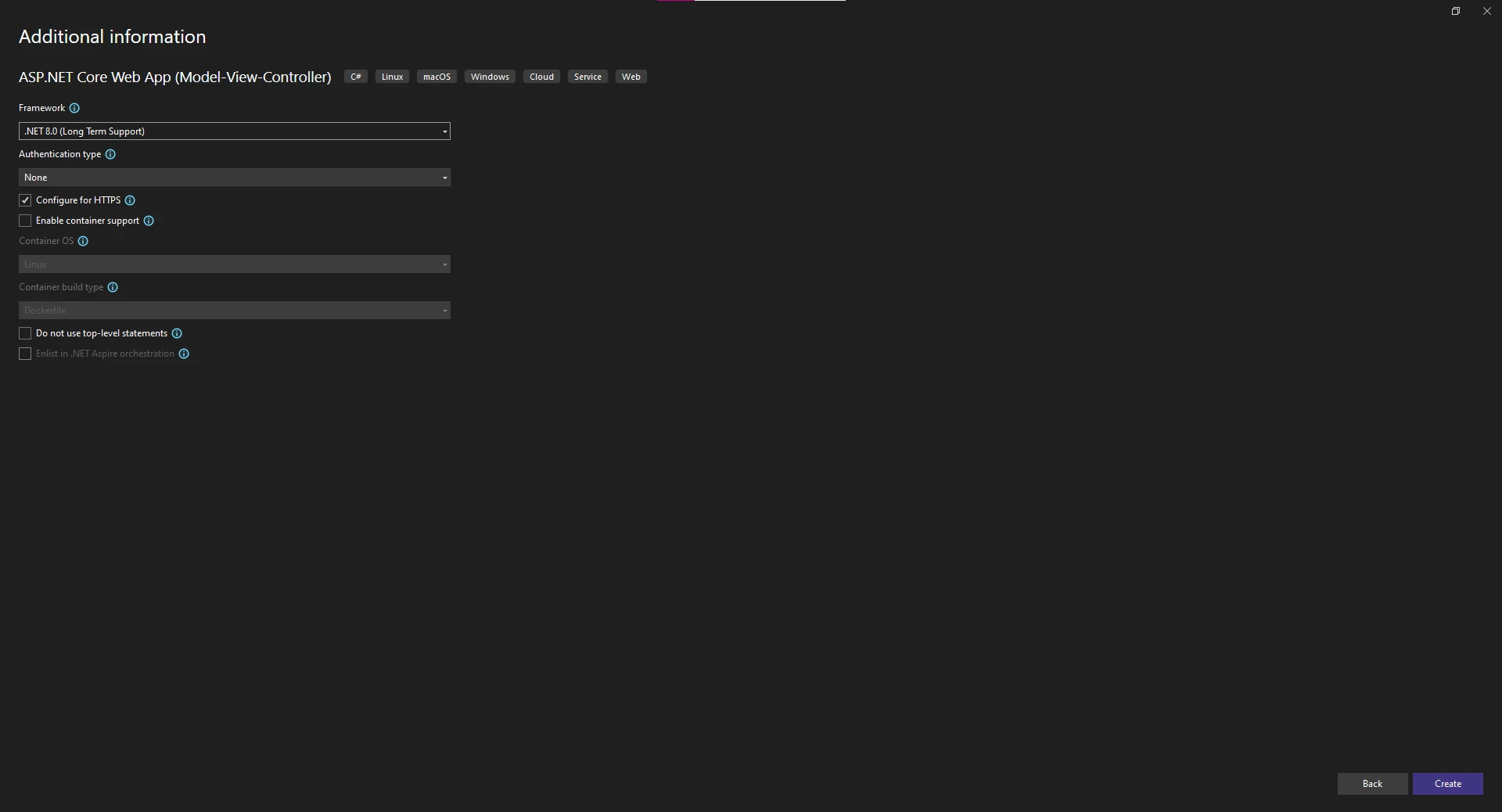
마지막으로, 프로젝트에 사용할 .NET Framework를 선택하고 인증 유형, 컨테이너 지원 및 Docker를 활성화하는 것과 같은 추가 설정을 변경합니다.
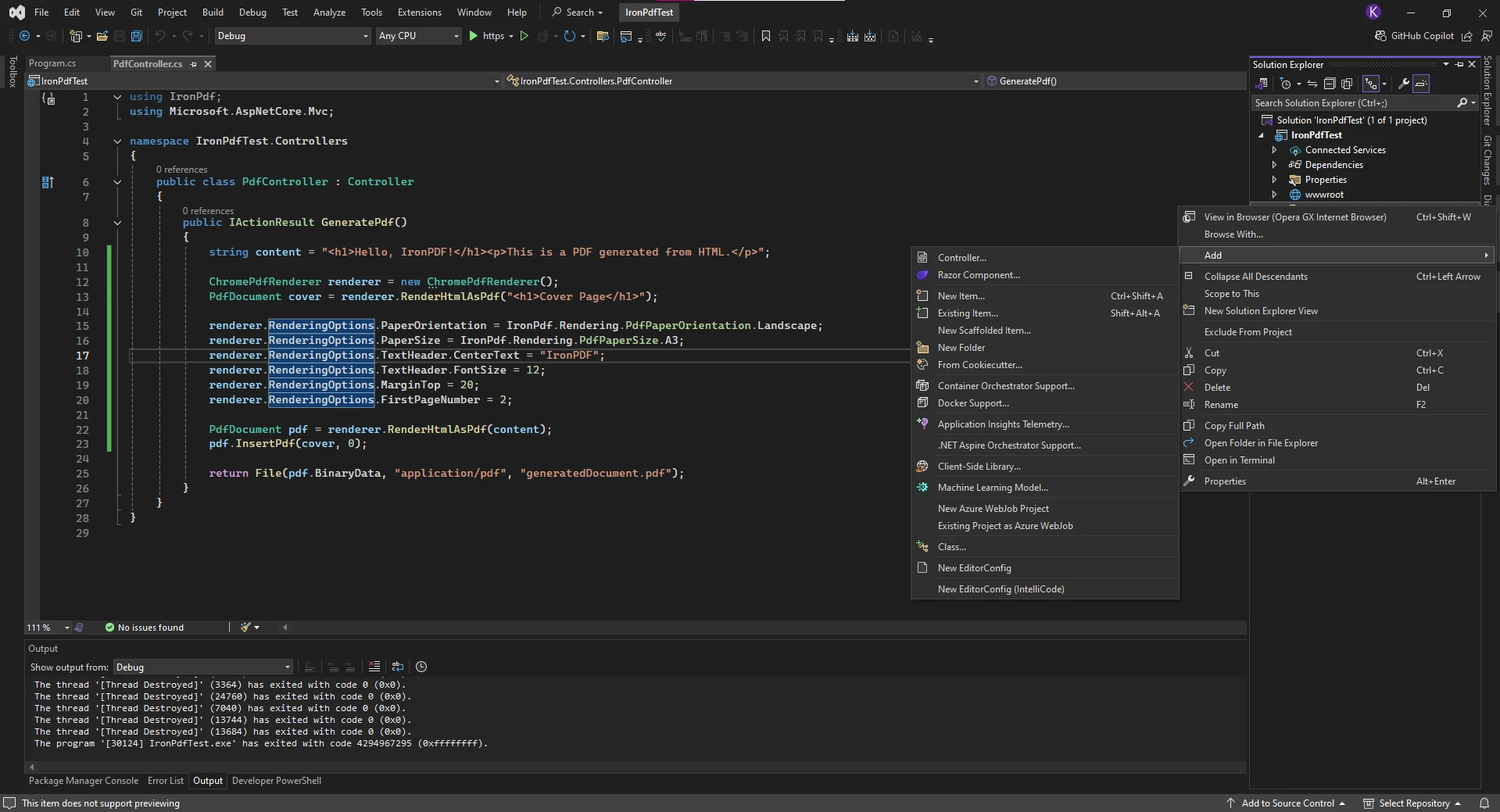
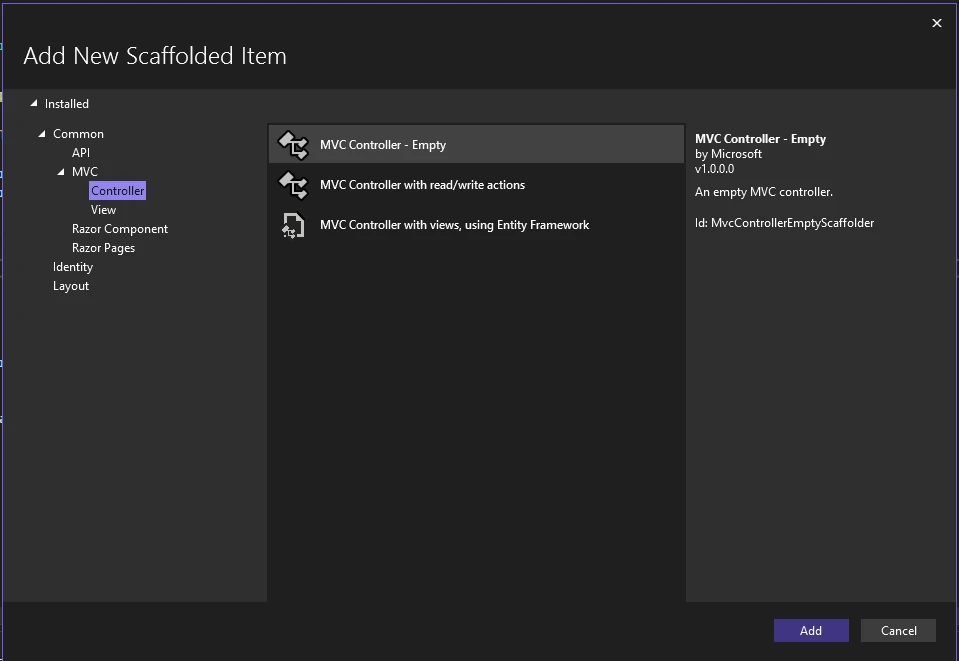
HTML을 PDF로 변환할 코드를 포함할 새로운 컨트롤러를 만들기 위해 솔루션 탐색기의 "Controllers" 폴더를 오른쪽 클릭하고 "Add -> Controller"를 선택합니다.
그러면 어떤 형태의 컨트롤러를 프로젝트에 추가할지 선택할 수 있는 새로운 창이 열립니다. 우리는 빈 MVC 컨트롤러를 선택했습니다.
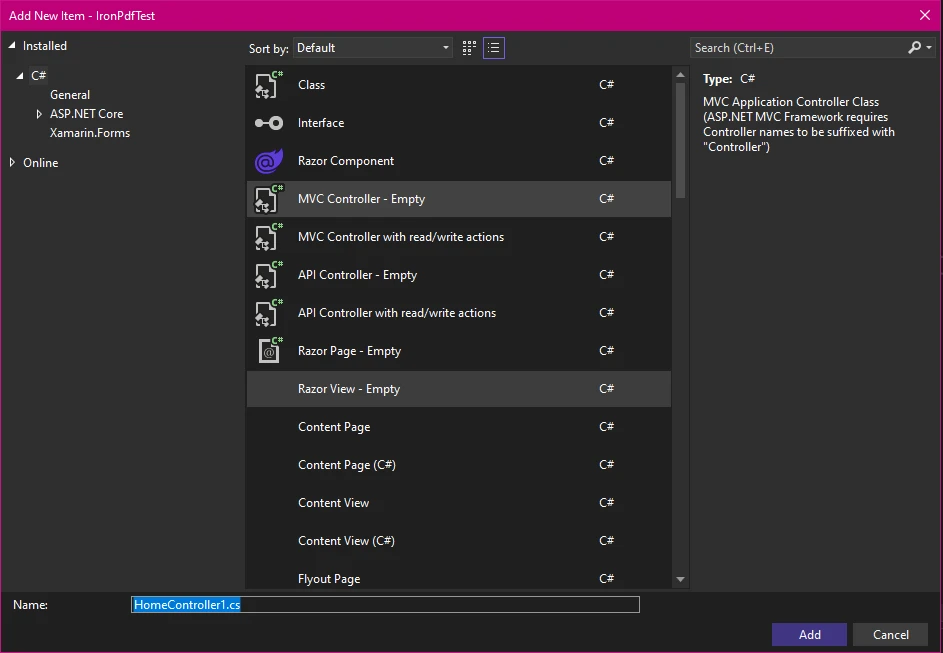
마지막으로, 새로운 컨트롤러에 이름을 주고 "Add"를 클릭하여 프로젝트에 추가합니다.
이제 ASP.NET 프로젝트를 생성했으므로 HTML 파일 콘텐츠를 PDF로 변환하는 코드를 작성할 수 있습니다. 먼저 HTML 문자열을 PDF로 변환하는 간단한 예제를 시작한 후에 HTML 콘텐츠를 커스터마이징하여 변환하는 방법을 살펴보겠습니다.
using IronPdf;
using Microsoft.AspNetCore.Mvc;

namespace IronPdfTest.Controllers
{
    public class PdfController : Controller
    {
        // Action method to generate a PDF from HTML content
        public IActionResult GeneratePdf()
        {
            // String of HTML code to be converted to PDF
            string htmlContent = "<h1>Hello, IronPDF!</h1><p>This is a PDF generated from HTML.</p>";

            // Creating a renderer to convert the HTML string to PDF
            ChromePdfRenderer renderer = new ChromePdfRenderer();

            // Convert HTML string to PDF
            PdfDocument pdf = renderer.RenderHtmlAsPdf(htmlContent);

            // Return the generated PDF file
            return File(pdf.BinaryData, "application/pdf", "generatedDocument.pdf");
        }
    }
}Imports IronPdf
Imports Microsoft.AspNetCore.Mvc
Namespace IronPdfTest.Controllers
Public Class PdfController
Inherits Controller
' Action method to generate a PDF from HTML content
Public Function GeneratePdf() As IActionResult
' String of HTML code to be converted to PDF
Dim htmlContent As String = "<h1>Hello, IronPDF!</h1><p>This is a PDF generated from HTML.</p>"
' Creating a renderer to convert the HTML string to PDF
Dim renderer As New ChromePdfRenderer()
' Convert HTML string to PDF
Dim pdf As PdfDocument = renderer.RenderHtmlAsPdf(htmlContent)
' Return the generated PDF file
Return File(pdf.BinaryData, "application/pdf", "generatedDocument.pdf")
End Function
End Class
End Namespace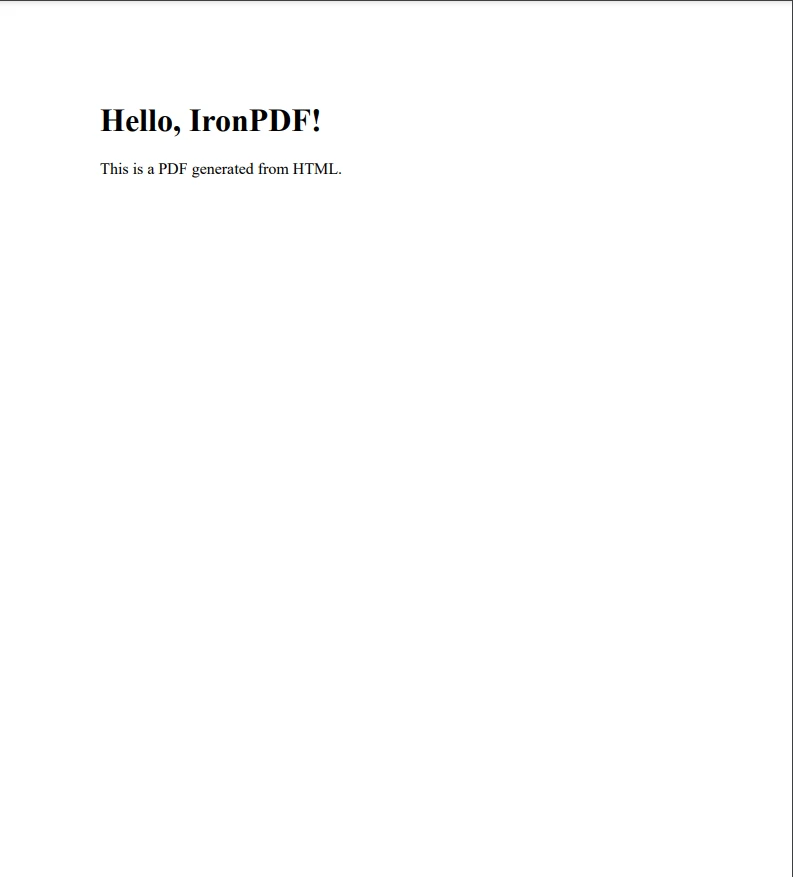
ASP.NET MVC는 사용자 요청을 처리하기 위해 컨트롤러를 사용합니다. 사용자가 특정 URL로 이동할 때, ASP.NET은 해당 경로와 연관된 컨트롤러의 메소드를 호출합니다.
사용자가 GeneratePdf 액션과 연결된 URL을 방문하면, 메소드가 실행됩니다.
IActionResult: 이 타입은 웹 애플리케이션이 사용자에게 되돌려줄 응답을 나타냅니다. 뷰(HTML 페이지)일 수도 있고, 파일 다운로드 일 수도 있습니다. 이 경우에는 PDF 파일입니다.
GeneratePdf() 메소드:
메서드 내부에서 PDF로 변환하고자 하는 HTML을 포함하는 문자열 htmlContent를 정의합니다. 예를 들어, "<h1>Hello, IronPDF!</h1><p>This is a PDF generated from HTML.</p>".
HTML을 PDF로 변환하는 ChromePdfRenderer의 새 인스턴스를 생성합니다.
메서드 RenderHtmlAsPdf()는 HTML 문자열을 받아 PDF 객체를 반환합니다.
ASP.NET MVC 애플리케이션에서 URL을 컨트롤러 메서드(액션)로 매핑하는 루트를 정의합니다. 예를 들어, 브라우저에서 /Pdf/GeneratePdf로 이동하면 ASP.NET은 PdfController를 찾고 그 GeneratePdf 메서드를 호출합니다. 라우팅 설정이 GeneratePdf 액션에 대한 접근을 허용하는지 확인하세요. ASP.NET Core MVC를 사용 중이라면 주로 자동으로 설정됩니다. 웹 API를 사용하는 경우, 루트가 제대로 설정되어 있는지 확인하세요.
기본 사항을 숙지했으니, 이제 출력 PDF에 맞춤형 설정을 적용해 HTML 콘텐츠로부터 PDF 파일을 생성하는 방법을 살펴보겠습니다. IronPDF는 여백, 헤더/푸터, 맞춤형 PDF 크기 등 강력한 PDF 커스터마이제이션 도구를 제공합니다.
using IronPdf;
using Microsoft.AspNetCore.Mvc;

namespace IronPdfTest.Controllers
{
    // Controller for our PDF converter
    public class PdfController : Controller
    {
        // Action method to generate a customized PDF from HTML content
        public IActionResult GeneratePdf()
        {
            // String of HTML code to be converted to PDF
            string htmlContent = "<h1>Hello, IronPDF!</h1><p>This is a PDF generated from HTML.</p>";

            // Creating a renderer to convert the URL to PDF
            ChromePdfRenderer renderer = new ChromePdfRenderer();

            // Creating the cover page
            PdfDocument cover = renderer.RenderHtmlAsPdf("<h1>Cover Page</h1>");

            // Adding custom options for our final PDF
            renderer.RenderingOptions.PaperOrientation = IronPdf.Rendering.PdfPaperOrientation.Landscape;
            renderer.RenderingOptions.PaperSize = IronPdf.Rendering.PdfPaperSize.A3;
            renderer.RenderingOptions.TextHeader.CenterText = "IronPDF";
            renderer.RenderingOptions.TextHeader.FontSize = 12;
            renderer.RenderingOptions.MarginTop = 20;
            renderer.RenderingOptions.FirstPageNumber = 2;

            // Creating our main PDF
            PdfDocument pdf = renderer.RenderHtmlAsPdf(htmlContent);

            // Appending the cover to the main PDF
            pdf.InsertPdf(cover, 0);

            // Return the customized generated PDF file
            return File(pdf.BinaryData, "application/pdf", "generatedDocument.pdf");
        }
    }
}Imports IronPdf
Imports Microsoft.AspNetCore.Mvc
Namespace IronPdfTest.Controllers
' Controller for our PDF converter
Public Class PdfController
Inherits Controller
' Action method to generate a customized PDF from HTML content
Public Function GeneratePdf() As IActionResult
' String of HTML code to be converted to PDF
Dim htmlContent As String = "<h1>Hello, IronPDF!</h1><p>This is a PDF generated from HTML.</p>"
' Creating a renderer to convert the URL to PDF
Dim renderer As New ChromePdfRenderer()
' Creating the cover page
Dim cover As PdfDocument = renderer.RenderHtmlAsPdf("<h1>Cover Page</h1>")
' Adding custom options for our final PDF
renderer.RenderingOptions.PaperOrientation = IronPdf.Rendering.PdfPaperOrientation.Landscape
renderer.RenderingOptions.PaperSize = IronPdf.Rendering.PdfPaperSize.A3
renderer.RenderingOptions.TextHeader.CenterText = "IronPDF"
renderer.RenderingOptions.TextHeader.FontSize = 12
renderer.RenderingOptions.MarginTop = 20
renderer.RenderingOptions.FirstPageNumber = 2
' Creating our main PDF
Dim pdf As PdfDocument = renderer.RenderHtmlAsPdf(htmlContent)
' Appending the cover to the main PDF
pdf.InsertPdf(cover, 0)
' Return the customized generated PDF file
Return File(pdf.BinaryData, "application/pdf", "generatedDocument.pdf")
End Function
End Class
End Namespace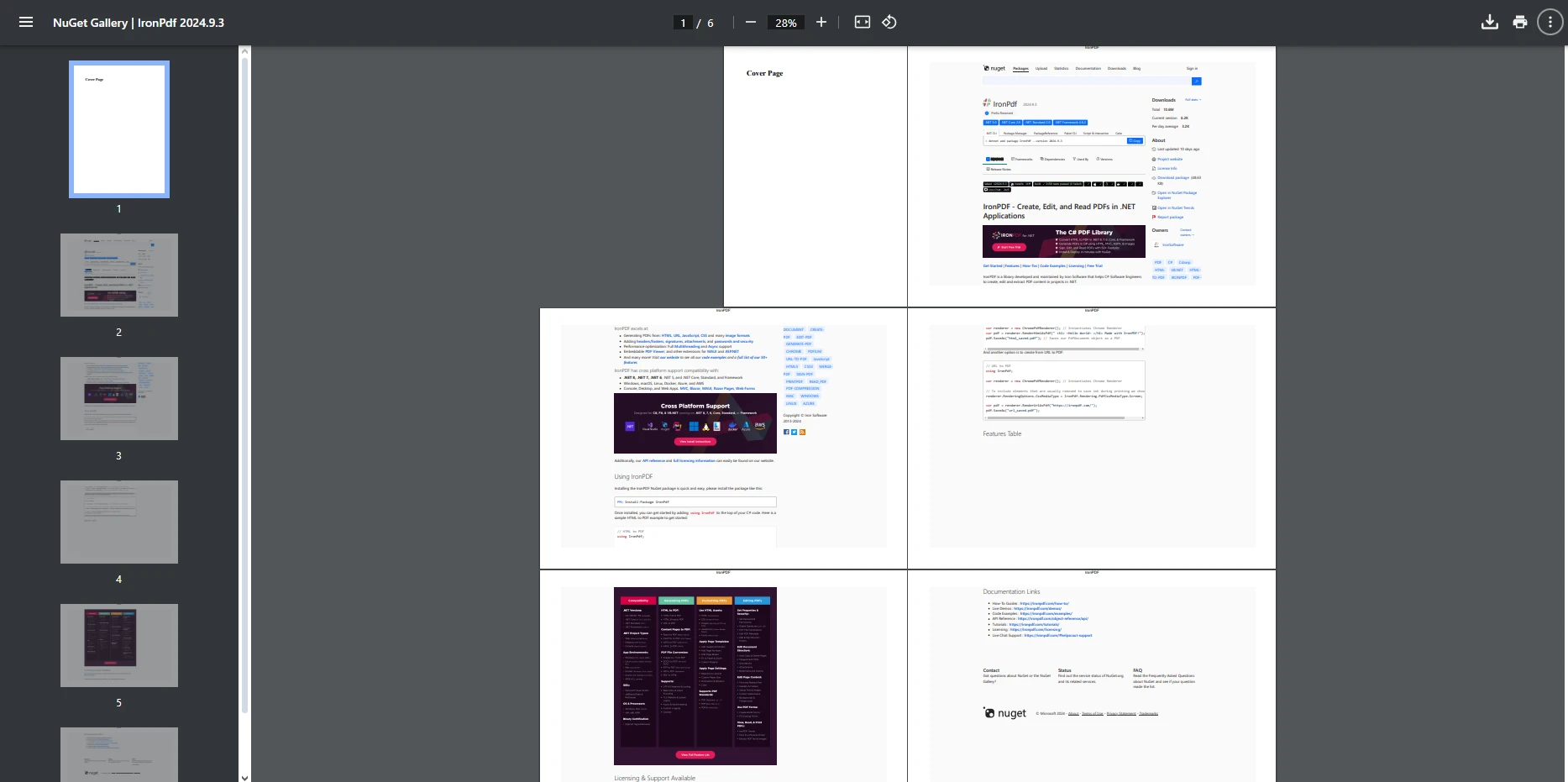
오늘 우리는 HTML에서 PDF로의 변환이 ASP.NET과 함께 어떻게 사용될 수 있는지 자세히 살펴보았고, ASP.NET 프로젝트 내에서 HTML로부터 PDF 파일을 생성하는 과정을 탐색했습니다. 위에 설명된 단계를 따르면, 웹 애플리케이션에 PDF 생성을 쉽게 통합하여 HTML 콘텐츠로부터 고품질, 인쇄 가능한 문서를 생성할 수 있습니다.
IronPDF는 고품질의 PDF 문서를 생성하기 위해 활용할 수 있는 다양한 기능을 자랑합니다. 더욱 고급 기능과 세부적인 커스터마이제이션을 위해 IronPDF 문서를 참조하세요. 빠른 설치로, 프로젝트 내에서 IronPDF를 신속하게 설정할 수 있습니다.

커티스 차우는 칼턴 대학교에서 컴퓨터 과학 학사 학위를 취득했으며, Node.js, TypeScript, JavaScript, React를 전문으로 하는 프론트엔드 개발자입니다. 직관적이고 미적으로 뛰어난 사용자 인터페이스를 만드는 데 열정을 가진 그는 최신 프레임워크를 활용하고, 잘 구성되고 시각적으로 매력적인 매뉴얼을 제작하는 것을 즐깁니다.



IronPDF는 IRON SUITE 의 일부입니다.
10개의 .NET API 제품, 당신의 사무 문서를 위해











PDF 파일을 HTML처럼 빠르게 변환해야 할 때.


