




업데이트됨 2026년 9월 4일
월별 계정 명세서를 PDF 문서로 생성하기
개발자는 IronPDF C# PDF 라이브러리를 사용하여 외부 서비스에 의존하지 않고도 .NET 프로젝트 내에서 HTML을 신뢰할 수 있는 PDF 파일로 변환할 수 있습니다.
더 읽어보기

이 문서에서는 Windows Forms Application이나 어떤 .NET 애플리케이션에서 IronPDF를 사용하여 PDF 파일을 저장하는 방법을 탐색할 것입니다.
IronPDF 라이브러리는 C# 애플리케이션에서 PDF 파일을 생성하고 작업하기 위한 사용하기 쉬운 클래스와 메서드를 제공하는 .NET 라이브러리입니다. 개발자가 몇 줄의 코드만으로 PDF 파일을 생성, 수정, 저장할 수 있으므로 Windows Forms 애플리케이션에 탁월한 선택입니다.
먼저 새 Visual Studio 프로젝트를 만드십시오. 다음은 Visual Studio 2022에서 새로운 C# Windows Forms 애플리케이션을 만드는 단계입니다.
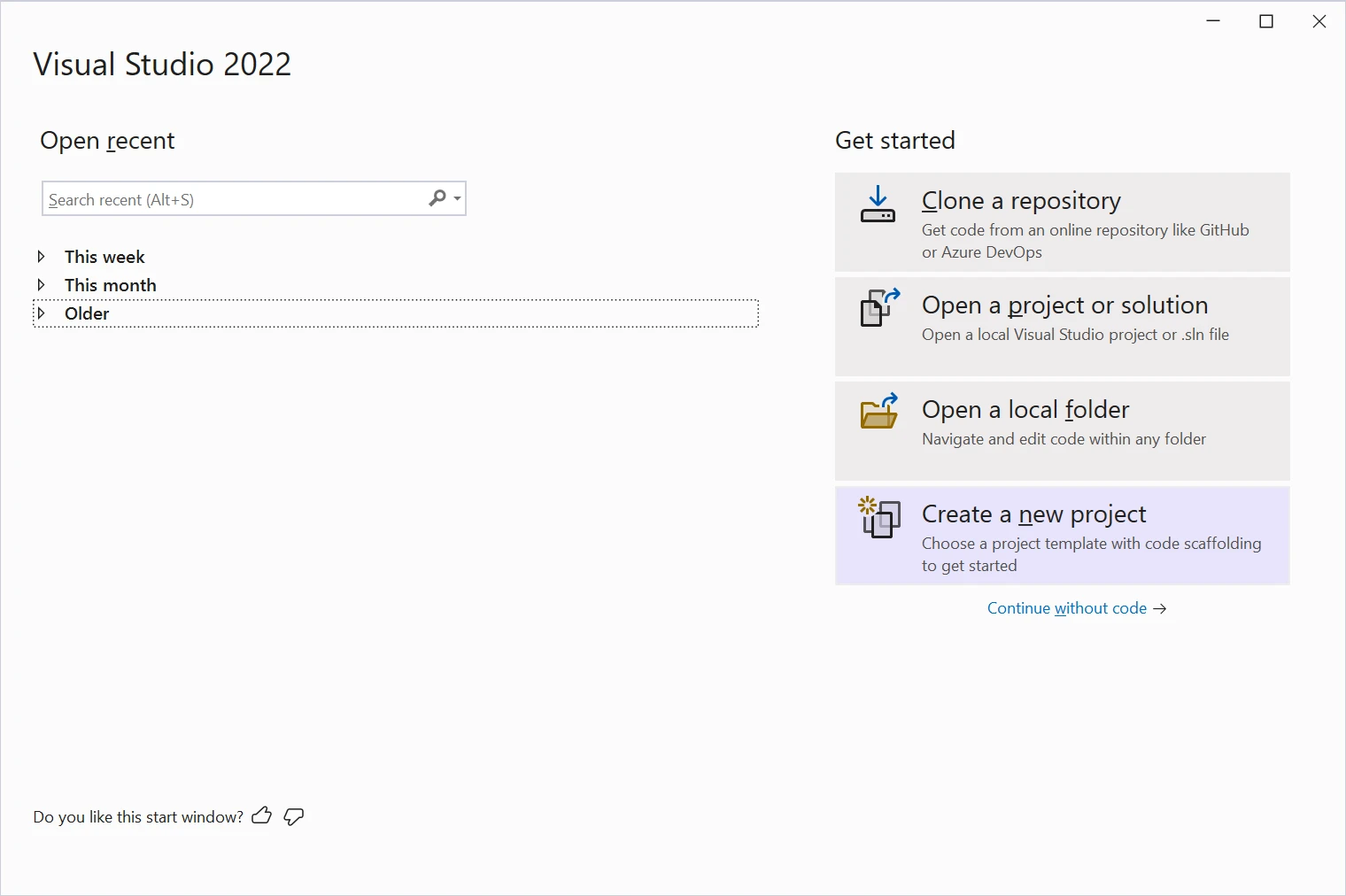 Visual Studio 2022
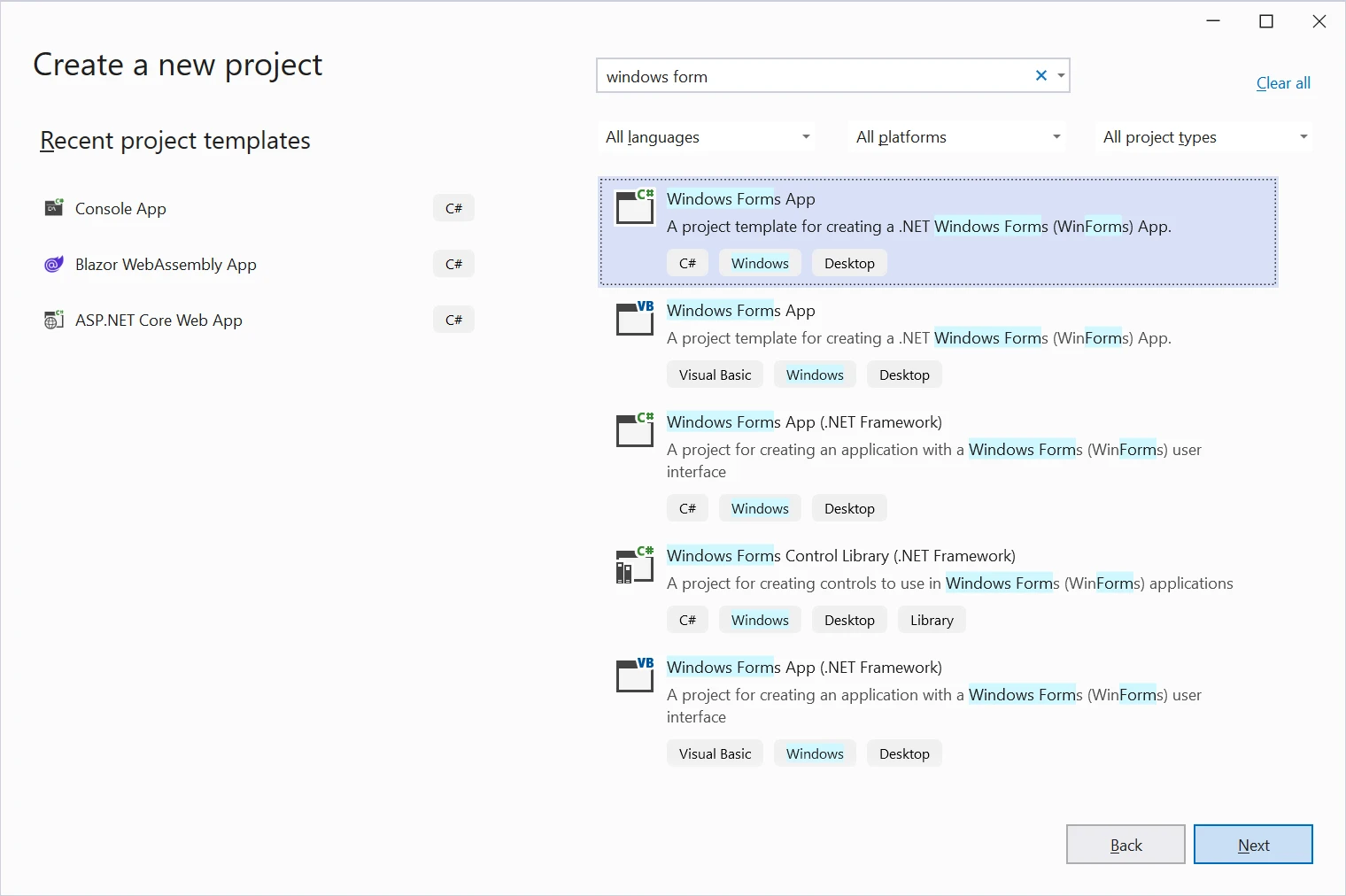 새 폼 앱
새 폼 앱
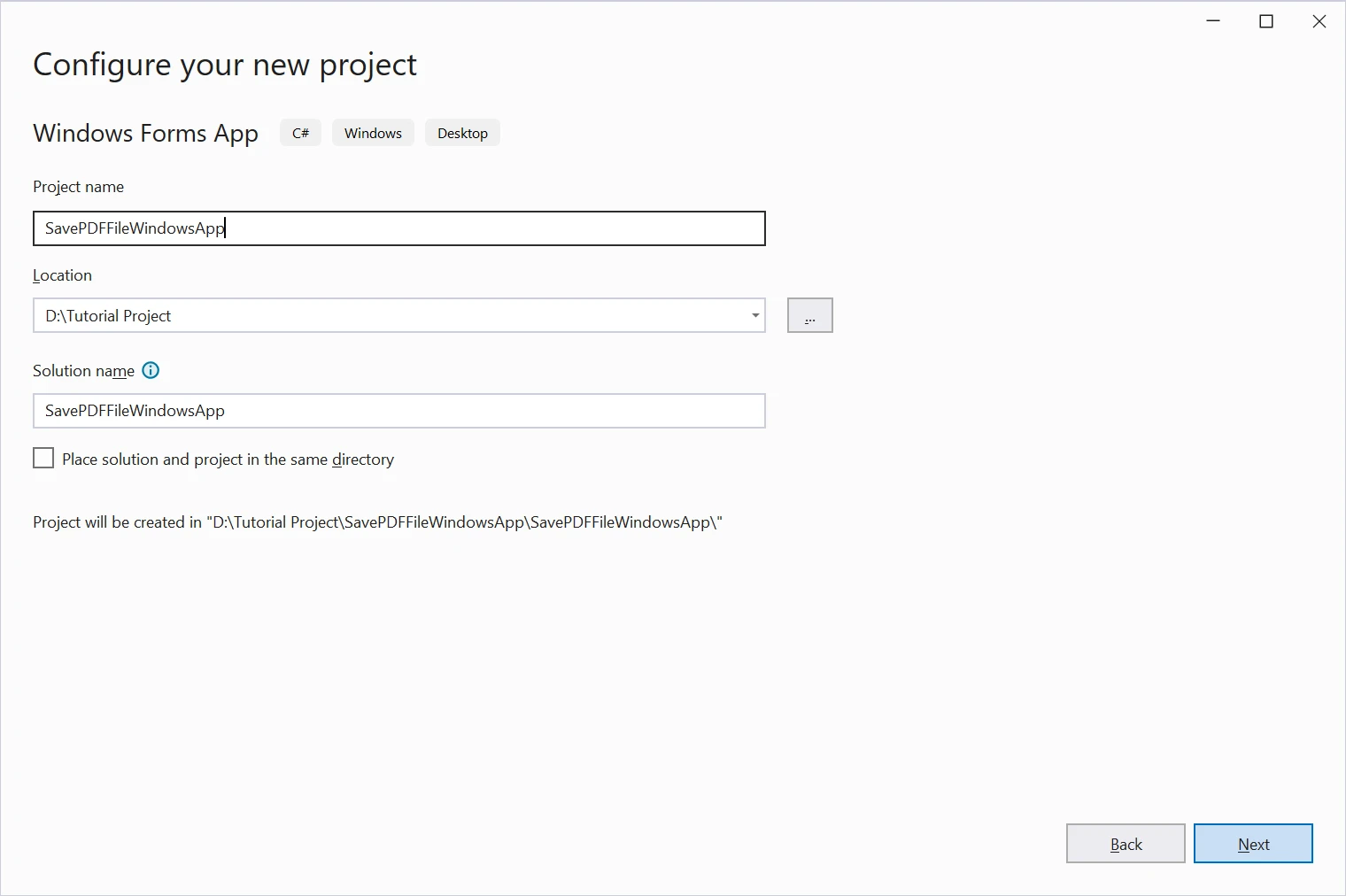 프로젝트 위치
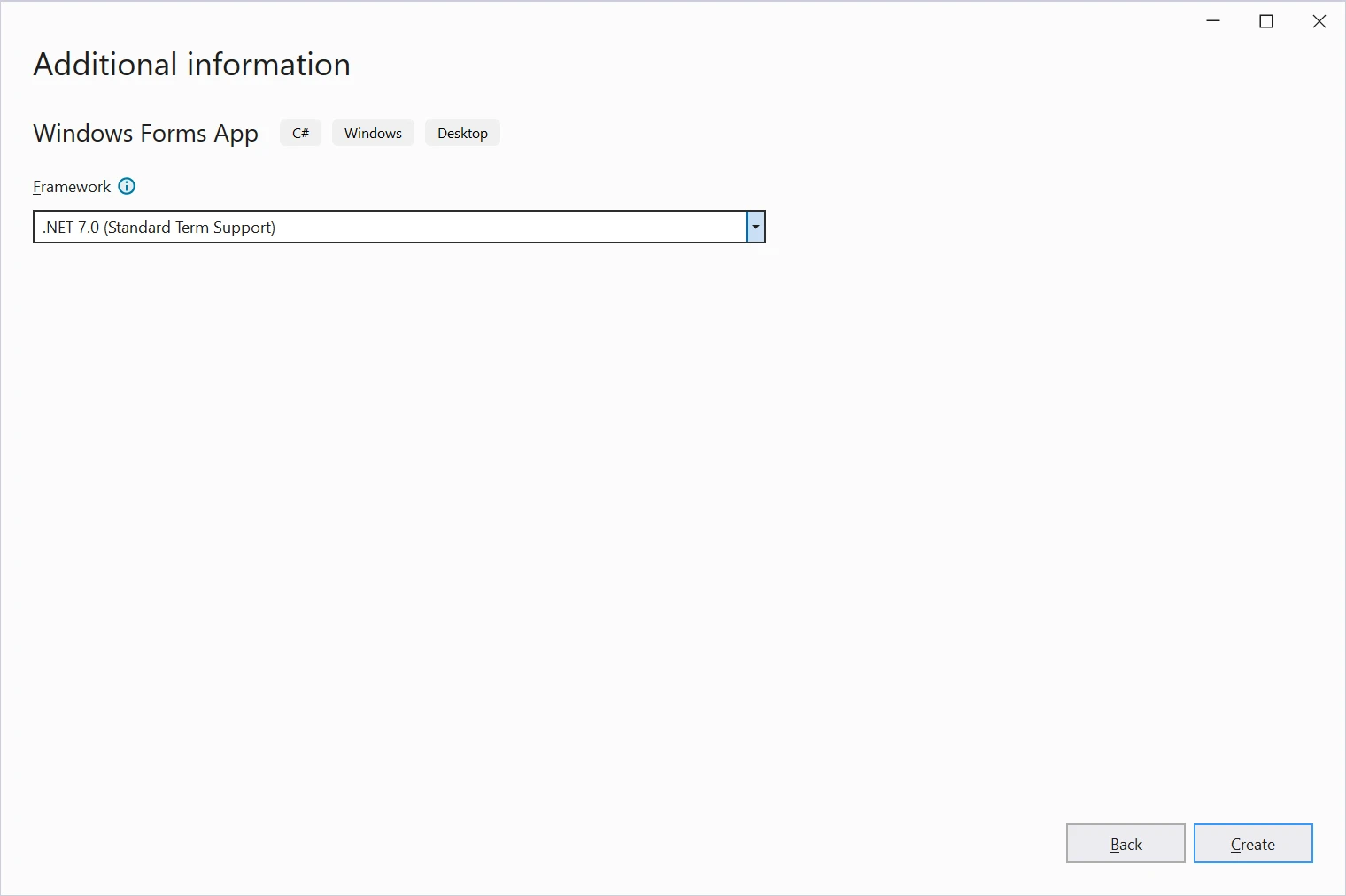 추가 정보
추가 정보
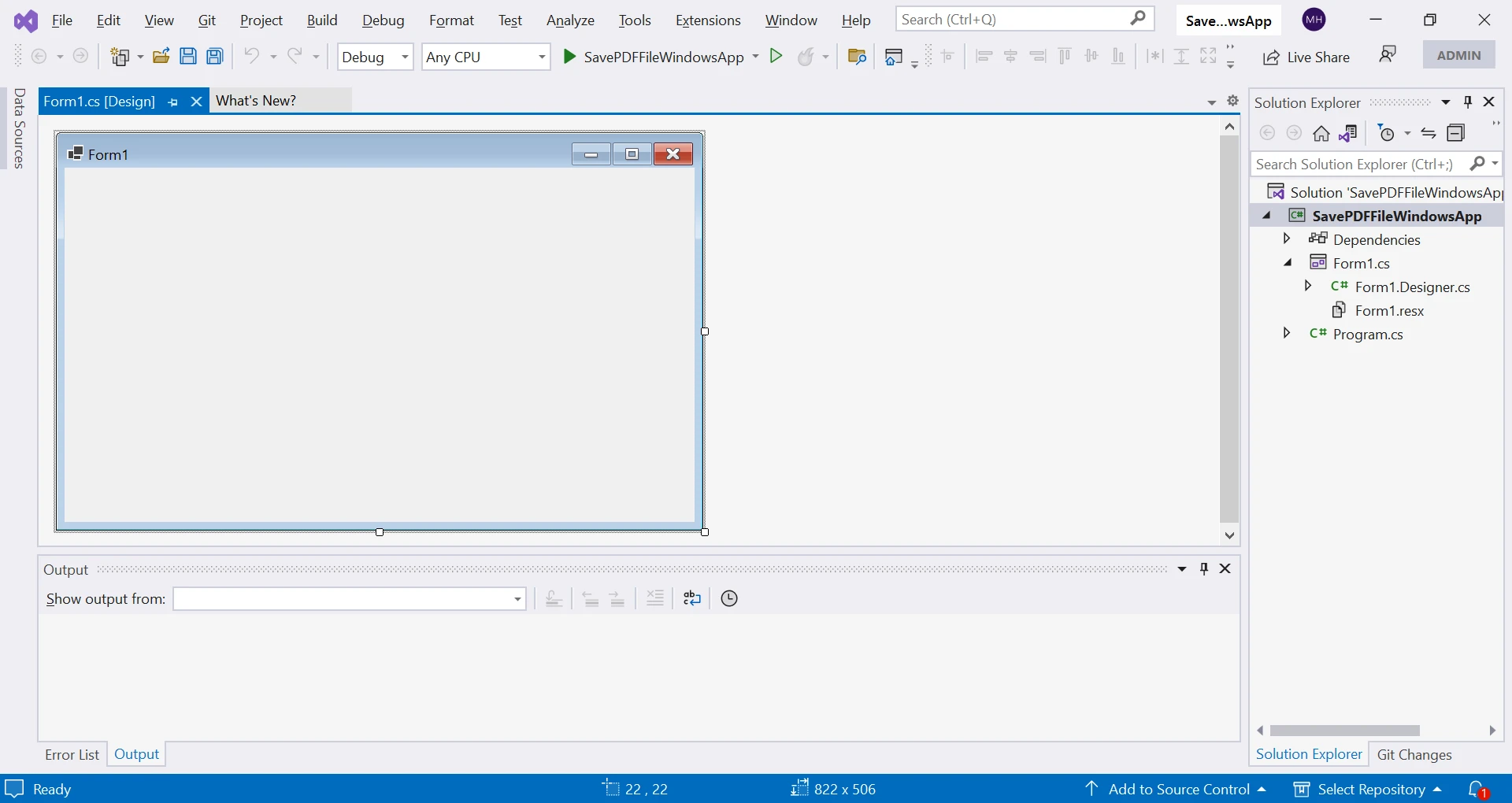 Form1 프로젝트
그게 다예요! 이제 디자이너를 사용하여 Windows Forms Application을 구축하고, PDF 문서 파일을 생성하고 저장하기 위한 컨트롤과 기능을 추가할 것입니다.
사용자의 선호에 따라 폼을 디자인할 수 있습니다. 이 튜토리얼에서는 두 개의 레이블, 하나의 리치 텍스트 박스, 두 개의 버튼을 추가하여 최소한의 디자인을 만들 것입니다.
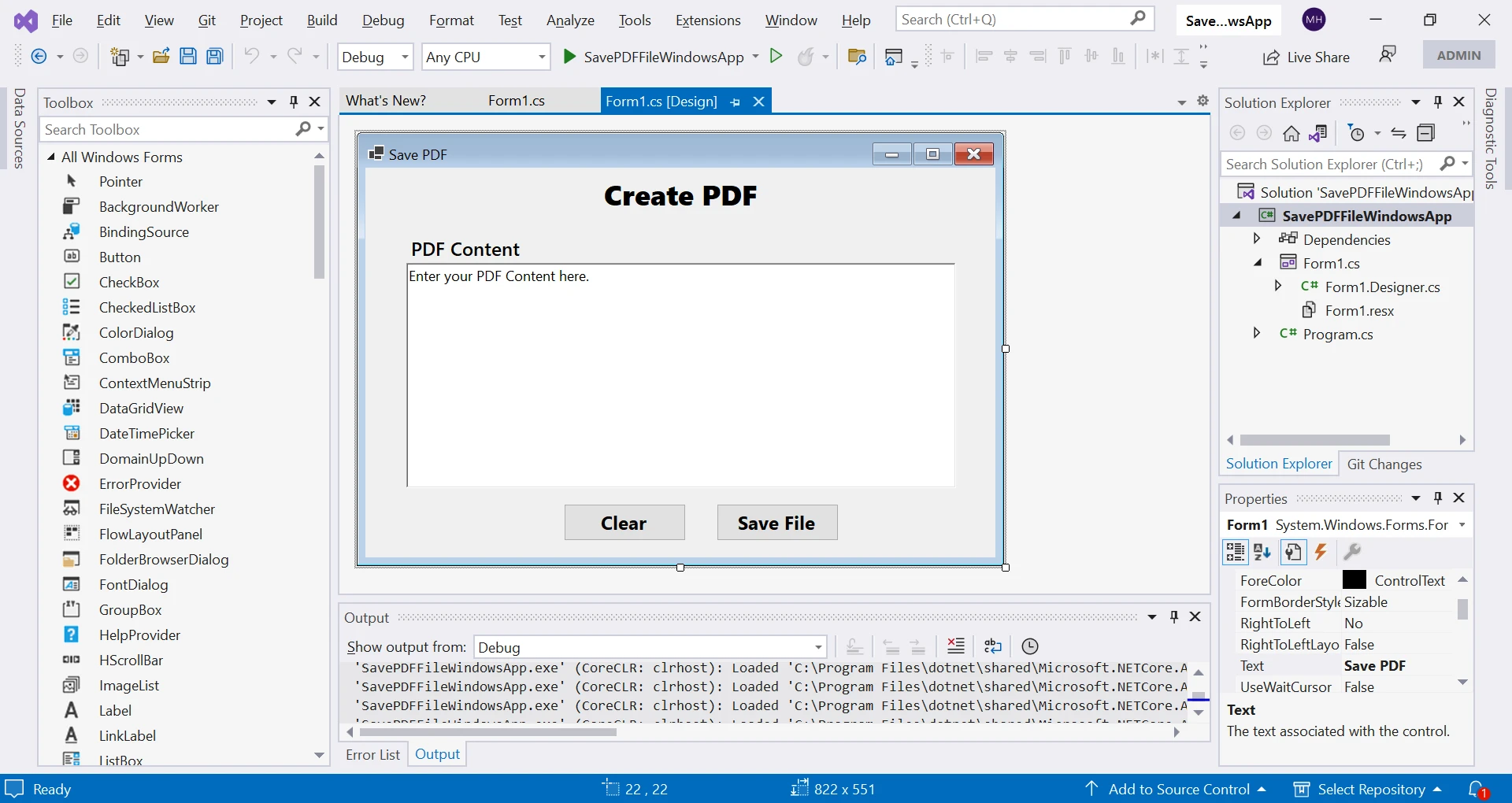 양식에 버튼 추가하기
다음 단계는 이 프로젝트에 IronPDF를 설치하여 강력한 기능을 사용하는 것입니다.
IronPDF는 Visual Studio의 NuGet 패키지 관리자를 사용하여 설치할 수 있습니다. 도구 > NuGet 패키지 관리자 > 패키지 관리자 콘솔로 이동하여 NuGet 패키지 관리자 콘솔을 탐색할 수 있습니다.
다음 명령을 입력하고 Enter 키를 누르세요:
이 명령어는 프로젝트에 IronPDF 패키지를 다운로드하고 설치합니다. 설치가 완료되면 IronPDF를 사용할 수 있습니다.
흐름을 시작하려면 두 가지 메서드를 작성하십시오: Save_Click 및 getFilePath, Form1.cs 클래스 내에 있습니다. 이들 메서드는 텍스트 박스의 내용을 PDF 파일로 저장하기 위해 ChromePdfRenderer Class 라이브러리를 함께 사용합니다. 각 메서드를 검토하여 어떻게 작동하는지 이해해 보겠습니다.
다음 메서드는 버튼 클릭 이벤트의 이벤트 핸들러입니다. 이 메서드의 목적은 텍스트 박스의 내용을 PDF 파일로 저장하는 것입니다.
private void Save_Click(object sender, EventArgs e)
{
    // Get the file path to save the PDF file.
    string filename = getFilePath();

    // If the file path is not empty or null, proceed with saving the PDF file.
    if (!String.IsNullOrEmpty(filename))
    {
        // Create a new instance of the ChromePdfRenderer class.
        var renderer = new ChromePdfRenderer();

        // Render the file contents of the text box as a PDF document using the ChromePdfRenderer.
        var pdfDocument = renderer.RenderHtmlAsPdf(pdfContent.Text);

        // Save the PDF document to the specified file path using the SaveAs method.
        pdfDocument.SaveAs(filename);

        // Show a message box to indicate that the PDF file has been saved successfully.
        MessageBox.Show("PDF has been saved Successfully!");
    }
}Private Sub Save_Click(ByVal sender As Object, ByVal e As EventArgs)
' Get the file path to save the PDF file.
Dim filename As String = getFilePath()
' If the file path is not empty or null, proceed with saving the PDF file.
If Not String.IsNullOrEmpty(filename) Then
' Create a new instance of the ChromePdfRenderer class.
Dim renderer = New ChromePdfRenderer()
' Render the file contents of the text box as a PDF document using the ChromePdfRenderer.
Dim pdfDocument = renderer.RenderHtmlAsPdf(pdfContent.Text)
' Save the PDF document to the specified file path using the SaveAs method.
pdfDocument.SaveAs(filename)
' Show a message box to indicate that the PDF file has been saved successfully.
MessageBox.Show("PDF has been saved Successfully!")
End If
End Sub이 메서드의 단계별 설명은 다음과 같습니다:
getFilePath 메서드를 호출합니다.ChromePdfRenderer 클래스의 새 인스턴스를 생성합니다. 이 라이브러리는 Google Chrome 브라우저 엔진을 사용하여 HTML 콘텐츠를 PDF 문서로 변환할 수 있는 방법을 제공합니다.ChromePdfRenderer 클래스의 RenderHtmlAsPdf Method를 사용하여 텍스트 상자의 HTML 콘텐츠 pdfContent를 PDF 문서로 변환합니다. 이 PDF 문서는 PdfDocument 변수에 할당됩니다.PdfDocument 클래스의 SaveAs Method를 사용하여 저장합니다.이 메서드는 사용자에게 PDF 파일이 저장될 파일 경로를 선택하도록 SaveFileDialog를 표시하는 데 사용됩니다.
public string getFilePath()
{
    // Create a new instance of the SaveFileDialog class.
    SaveFileDialog saveFileDialog1 = new SaveFileDialog();

    // Set the initial directory where the SaveFileDialog will open.
    saveFileDialog1.InitialDirectory = @"D:\";

    // Set the title of the SaveFileDialog.
    saveFileDialog1.Title = "Save the PDF Files";

    // Set the SaveFileDialog to check if the specified path exists.
    saveFileDialog1.CheckPathExists = true;

    // Set the default extension for the file type.
    saveFileDialog1.DefaultExt = ".pdf";

    // Set the filter to display only PDF files or all files.
    saveFileDialog1.Filter = "PDF files (*.pdf)|*.pdf|All files (*.*)|*.*";

    // Set the filter index to display the PDF filter as the default.
    saveFileDialog1.FilterIndex = 2;

    // Set the RestoreDirectory property to true so that the SaveFileDialog
    // restores the current directory before closing.
    saveFileDialog1.RestoreDirectory = true;

    // Show the SaveFileDialog and get the result.
    if (saveFileDialog1.ShowDialog() == DialogResult.OK)
    {
        // If the user clicked the OK button in the SaveFileDialog, return the selected file path.
        return saveFileDialog1.FileName;
    }
    // If the user did not click the OK button, return an empty string.
    return String.Empty;
}Public Function getFilePath() As String
' Create a new instance of the SaveFileDialog class.
Dim saveFileDialog1 As New SaveFileDialog()
' Set the initial directory where the SaveFileDialog will open.
saveFileDialog1.InitialDirectory = "D:\"
' Set the title of the SaveFileDialog.
saveFileDialog1.Title = "Save the PDF Files"
' Set the SaveFileDialog to check if the specified path exists.
saveFileDialog1.CheckPathExists = True
' Set the default extension for the file type.
saveFileDialog1.DefaultExt = ".pdf"
' Set the filter to display only PDF files or all files.
saveFileDialog1.Filter = "PDF files (*.pdf)|*.pdf|All files (*.*)|*.*"
' Set the filter index to display the PDF filter as the default.
saveFileDialog1.FilterIndex = 2
' Set the RestoreDirectory property to true so that the SaveFileDialog
' restores the current directory before closing.
saveFileDialog1.RestoreDirectory = True
' Show the SaveFileDialog and get the result.
If saveFileDialog1.ShowDialog() = DialogResult.OK Then
' If the user clicked the OK button in the SaveFileDialog, return the selected file path.
Return saveFileDialog1.FileName
End If
' If the user did not click the OK button, return an empty string.
Return String.Empty
End Function이 메서드의 단계별 설명은 다음과 같습니다:
SaveFileDialog 클래스의 새 인스턴스를 생성합니다. 이 클래스는 Windows Forms 라이브러리의 일부로, 사용자가 PDF 파일이 저장될 파일 경로를 선택할 수 있는 대화 상자를 제공합니다.SaveFileDialog 객체의 몇 가지 속성을 설정합니다. InitialDirectory 속성은 대화 상자가 처음 열릴 디렉터리를 설정합니다. Title 속성은 대화 상자의 제목을 설정합니다. CheckPathExists 속성은 지정된 경로가 존재하는지 여부를 대화 상자가 확인해야 하는지를 지정합니다. DefaultExt 속성은 파일 유형에 대한 기본 파일 확장명을 설정합니다. Filter 속성은 대화 상자에 표시되는 파일 유형 필터를 설정합니다. FilterIndex 속성은 표시할 기본 필터를 설정합니다. 마지막으로, RestoreDirectory 속성은 대화 상자가 닫히기 전에 현재 디렉터리를 복원해야 하는지를 지정합니다.SaveFileDialog을(를) 보여주며, 이를 위해 ShowDialog 메서드를 호출합니다. 이 메서드는 대화 상자를 표시하고 사용자가 "확인" 버튼 또는 취소 버튼을 클릭했는지를 나타내는 DialogResult 값을 반환합니다.SaveFileDialog의 FileName 속성을 통해 반환합니다.프로젝트를 실행하고 출력을 확인해 봅시다. 프로젝트를 실행하면 다음 양식이 열립니다.
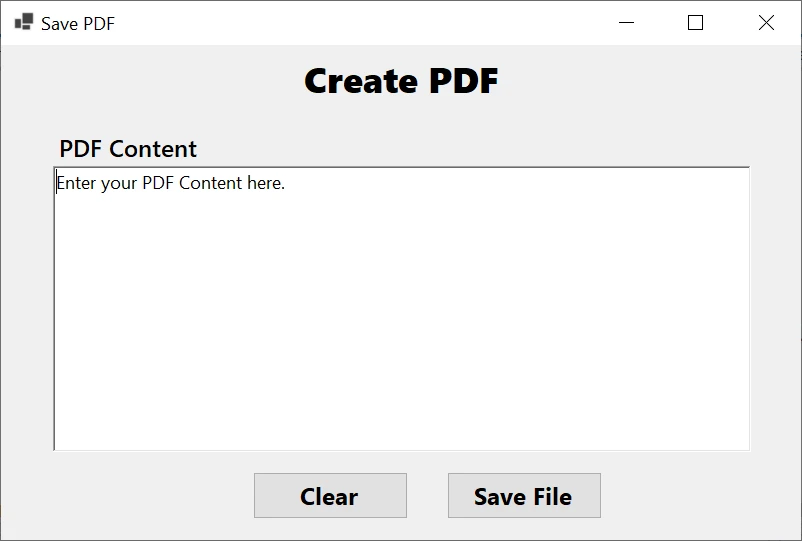 Windows Forms 프로젝트 실행
아래에 표시된 것처럼 PDF 콘텐츠를 입력하고 "저장" 버튼을 클릭하십시오.
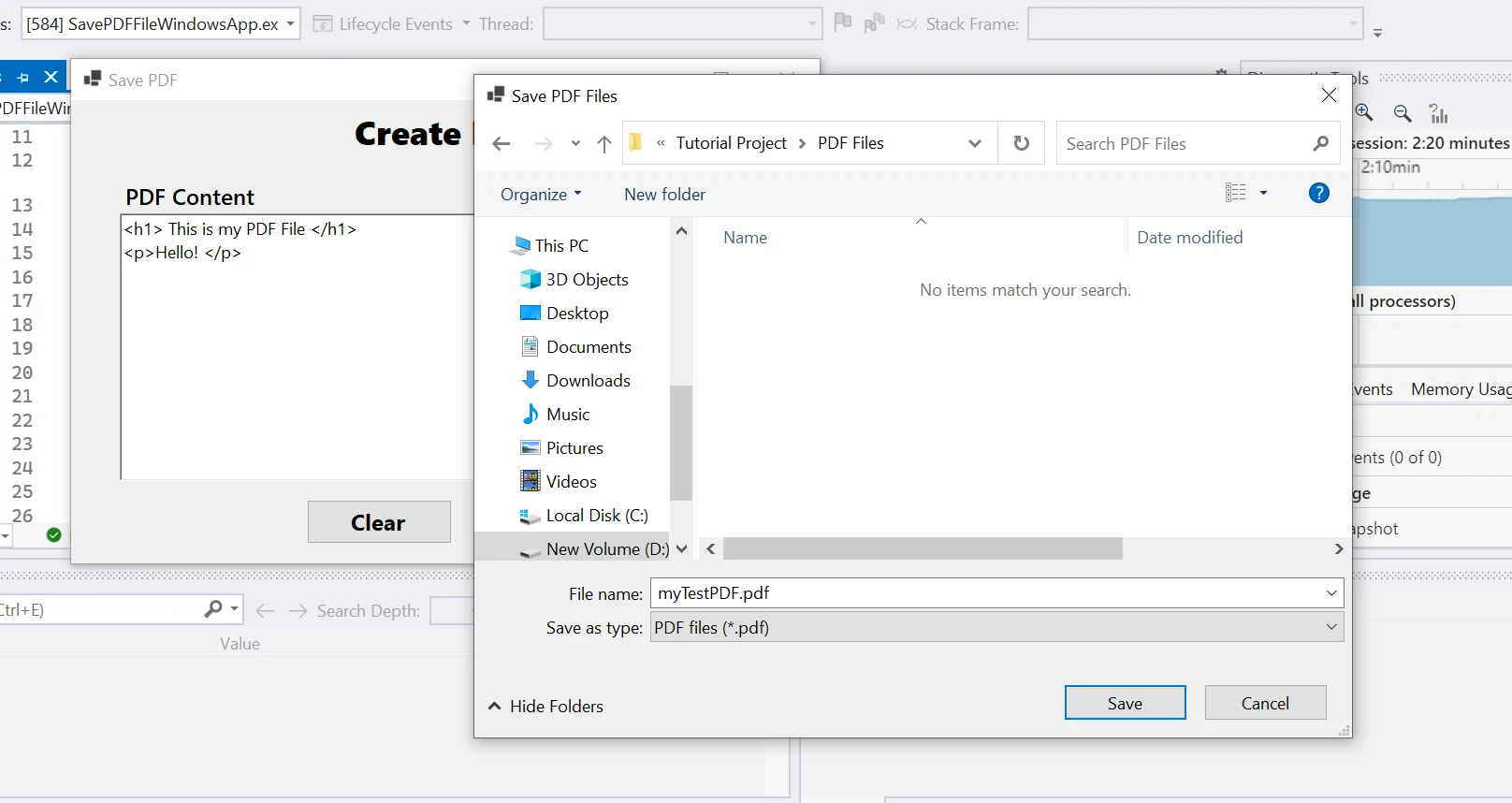 저장 대화 상자
생성된 PDF는 다음과 같습니다.
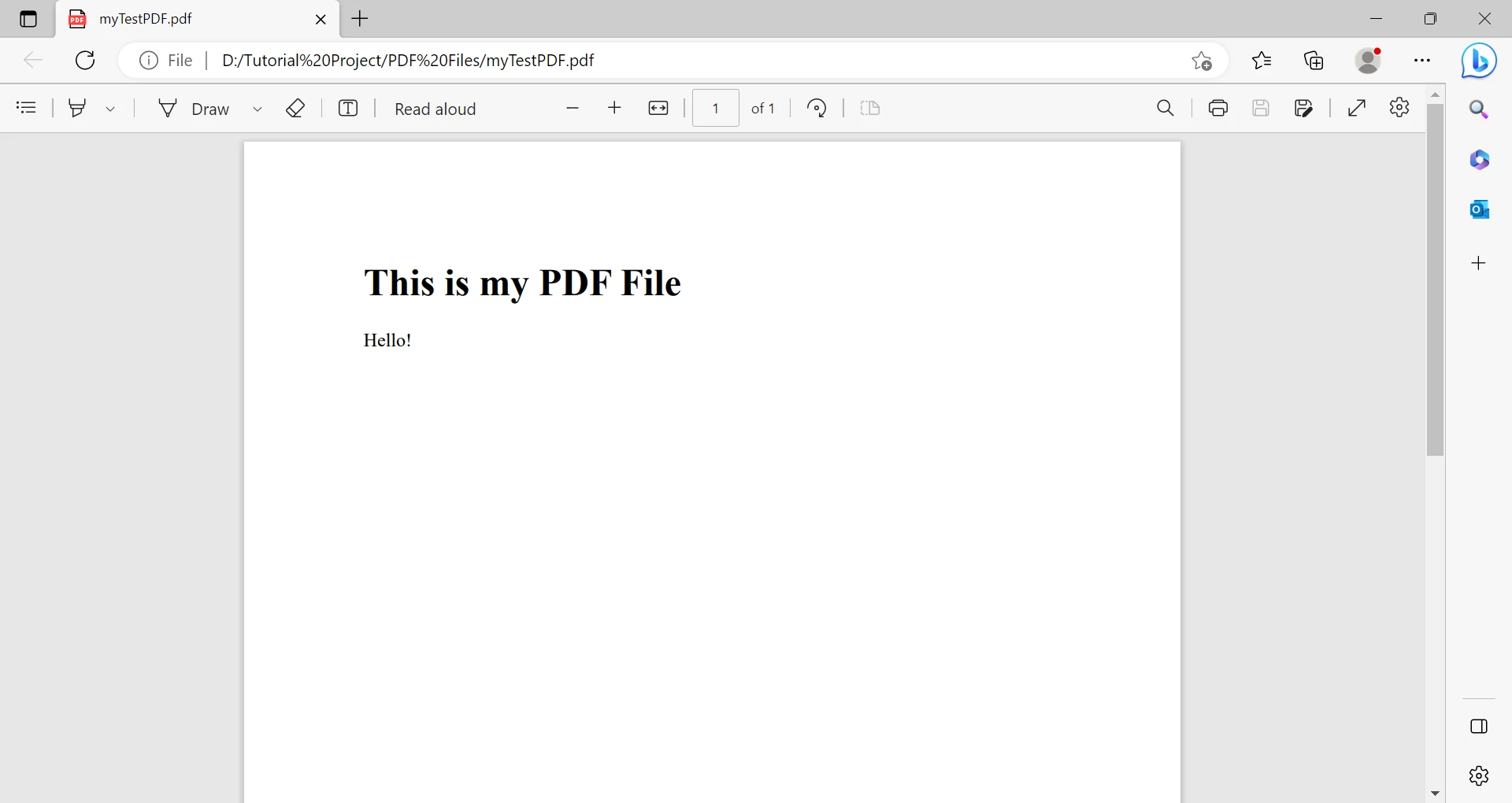 생성된 PDF 파일
IronPDF는 ChromePdfRenderer 클래스와 SaveFileDialog 대화 상자를 사용하여 HTML 콘텐츠를 PDF 문서로 변환하고 사용자 선택 파일 경로에 저장하는 간단한 방법을 제공합니다.
Windows Forms 애플리케이션에서 PDF 파일을 저장하는 것은 일반적인 요구 사항이며, IronPDF는 이 작업을 수행하기 위한 사용하기 쉽고 유연한 방법을 제공합니다. 이 문서에서는 IronPDF를 사용하여 C# Windows Forms 애플리케이션에서 파일을 생성, 콘텐츠 추가 및 저장하는 방법을 보여줍니다. IronPDF를 사용하면 개발자가 코드 몇 줄만으로 애플리케이션에서 고품질의 PDF 파일을 생성할 수 있습니다.
IronPDF는 HTML을 PDF로 변환하는 튜토리얼, PDF 병합 예제 코드, PDF 페이지 분할 가이드, 텍스트 및 이미지 추출 방법 등 다양한 기능을 제공합니다. IronPDF는 개발용으로 무료이며, 상업적 프로젝트에서 사용할 수 있는 상업용 라이선스와 무료 체험판을 제공하여 개발자가 전용 지원 및 업데이트를 받으며 사용할 수 있습니다.
추가적으로, IronPDF는 Iron Suite의 일부로서, .NET 소프트웨어 구성 요소 번들에 라이브러리를 포함하고 있습니다:
Iron Suite 전체를 구매하는 것은 두 가지 가격으로 다섯 가지 제품을 얻을 수 있는 경제적인 솔루션입니다.

커티스 차우는 칼턴 대학교에서 컴퓨터 과학 학사 학위를 취득했으며, Node.js, TypeScript, JavaScript, React를 전문으로 하는 프론트엔드 개발자입니다. 직관적이고 미적으로 뛰어난 사용자 인터페이스를 만드는 데 열정을 가진 그는 최신 프레임워크를 활용하고, 잘 구성되고 시각적으로 매력적인 매뉴얼을 제작하는 것을 즐깁니다.



IronPDF는 IRON SUITE 의 일부입니다.
10개의 .NET API 제품, 당신의 사무 문서를 위해

PDF 파일을 HTML처럼 빠르게 변환해야 할 때.


