




已更新 2026年9月4日
產生每月帳戶報表(PDF 文件)
using IronPDF C# PDF 庫,開發人員可以在 .NET 專案中將 HTML 轉換為可靠的 PDF 文件,而無需依賴外部服務。
閱讀更多

本文將探討如何使用IronPDF從Windows Forms應用程式或任何.NET應用程式保存PDF文件。
IronPDF庫是一個.NET程式庫,提供易於使用的類別和方法,用於在C#應用程式中生成和操作PDF文件。 它允許開發者僅需幾行程式碼即可建立、修改和保存PDF文件,使其成為Windows Forms應用程式的理想選擇。
首先,建立一個新的Visual Studio專案。 以下是在Visual Studio 2022中建立一個新的C# Windows Forms應用程式的步驟。
如下圖所示,打開Visual Studio 2022。
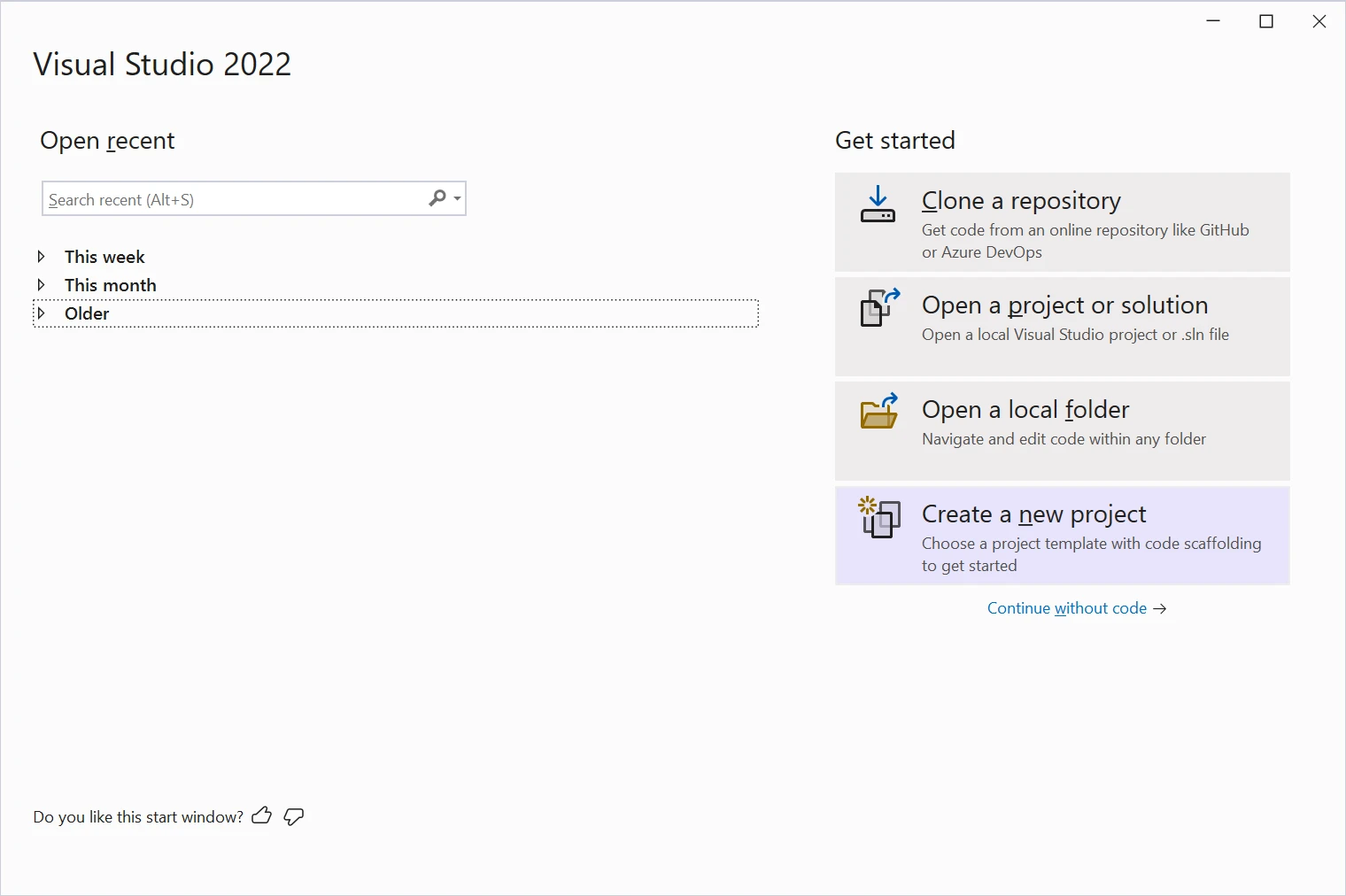 Visual Studio 2022
在啟動頁面上點擊"建立新專案",或轉到"檔案">"新建">"專案"。
在"建立新專案"對話框中,選擇"Windows Forms App"或"Windows Forms App (.NET Framework)",如下圖所示。
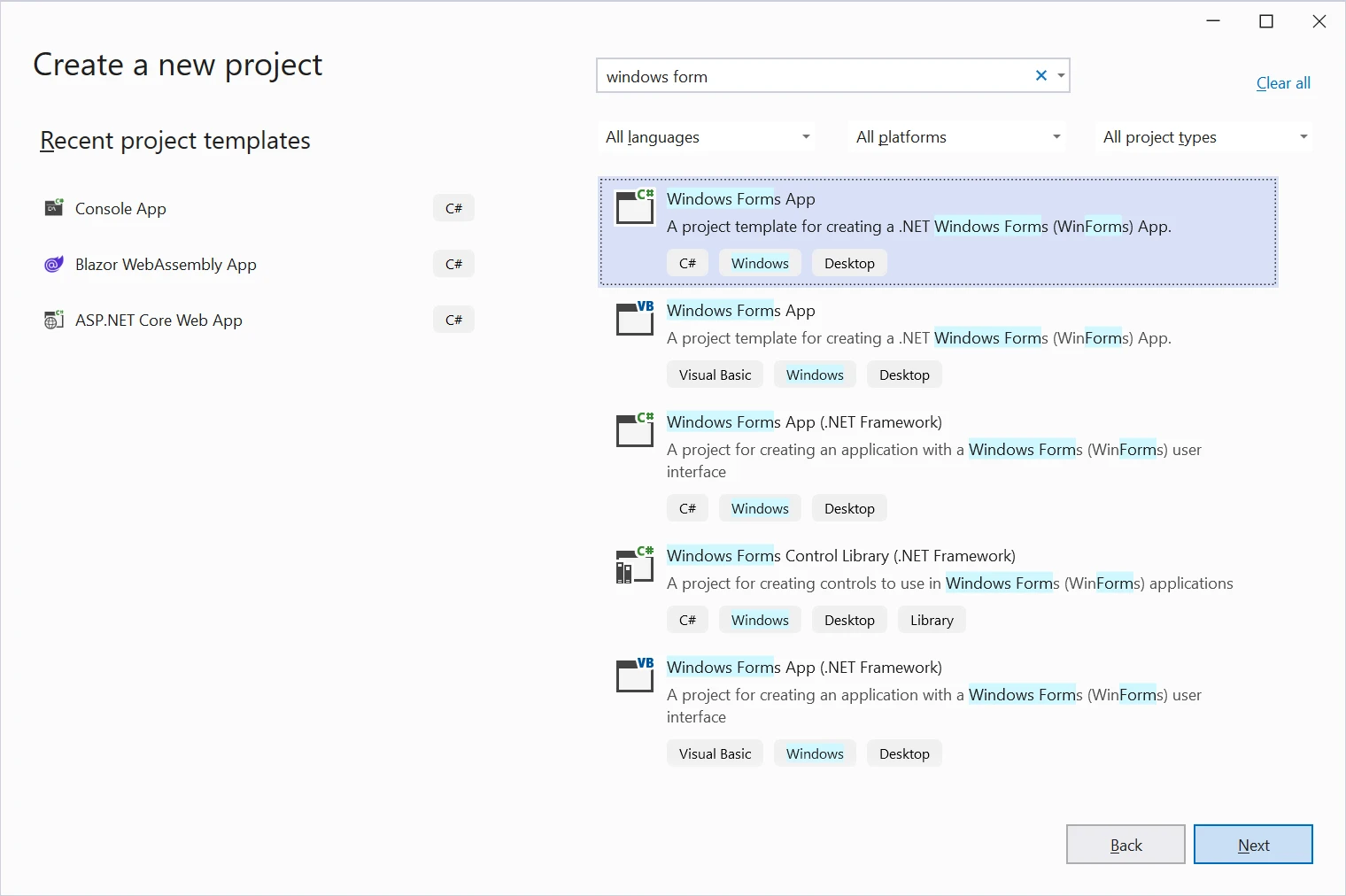 New Forms App
為您的專案輸入一個名稱並選擇保存位置。
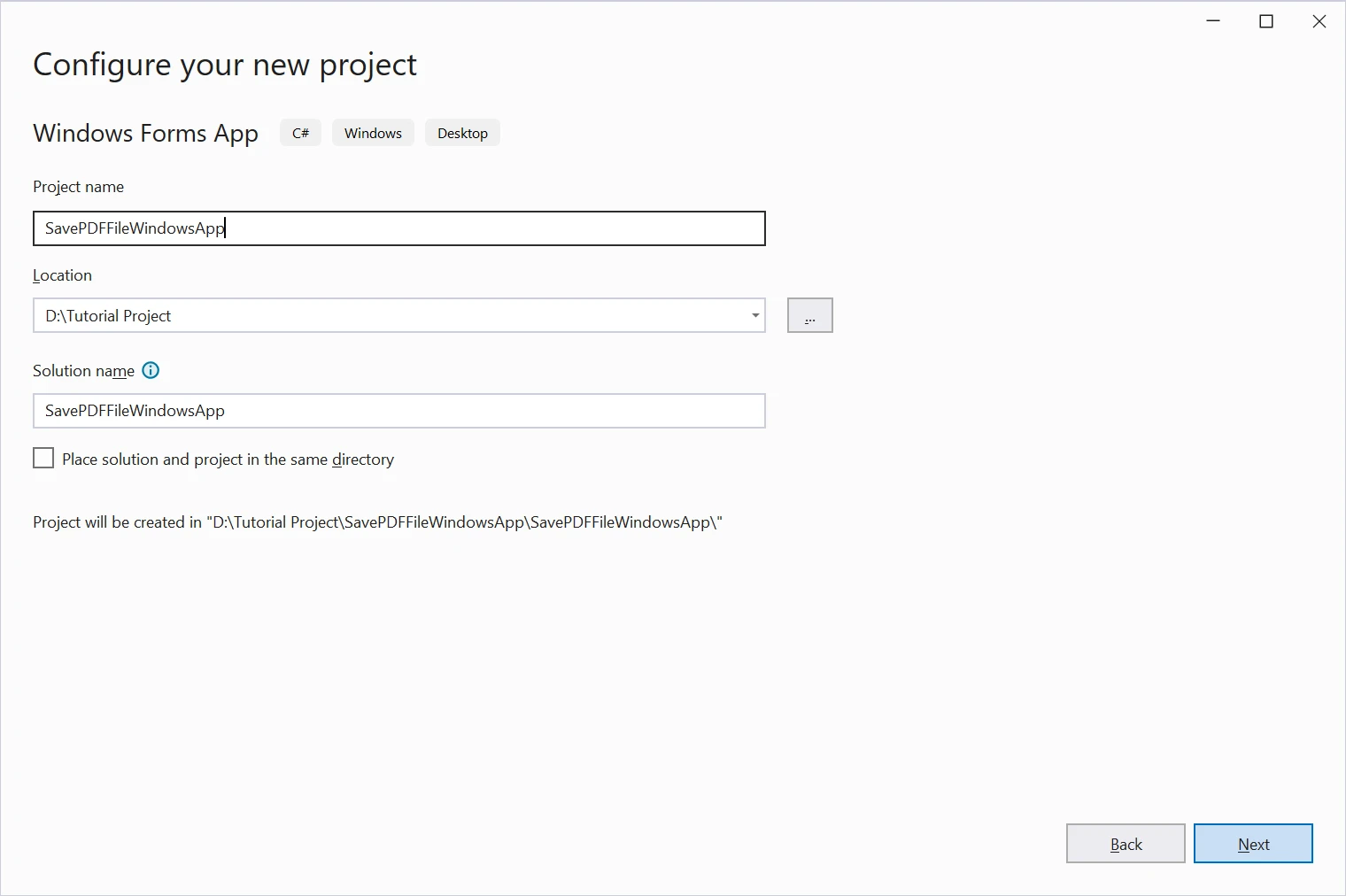 專案位置
專案位置
選擇.NET Framework。 從下拉選單中選擇.NET 7.0。
點擊建立按鈕。
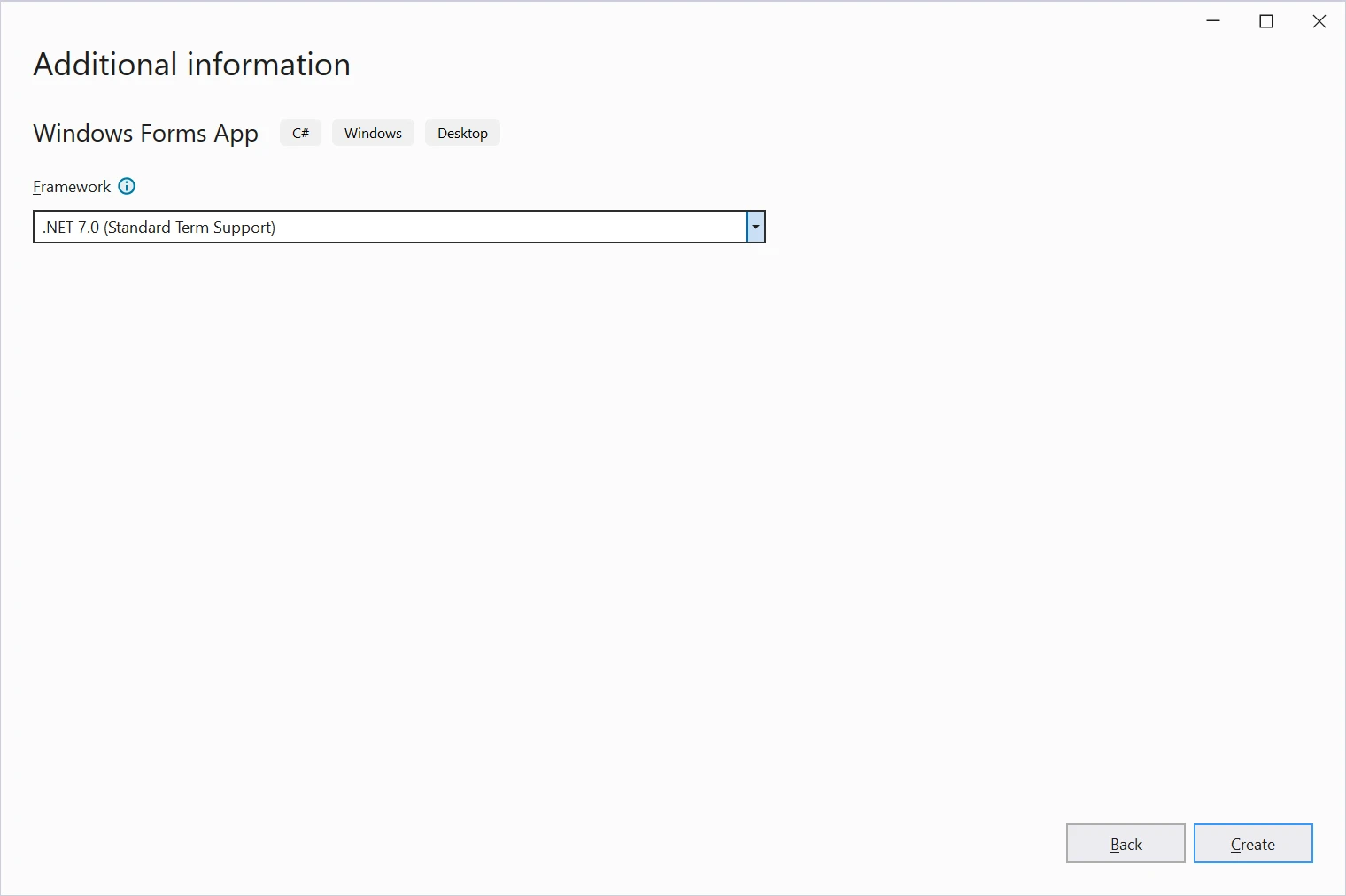 附加資訊
附加資訊
Visual Studio將為您建立一個新的C# Windows Forms應用程式專案,專案中將新增一個預設表單名為"Form1",如下圖所示。
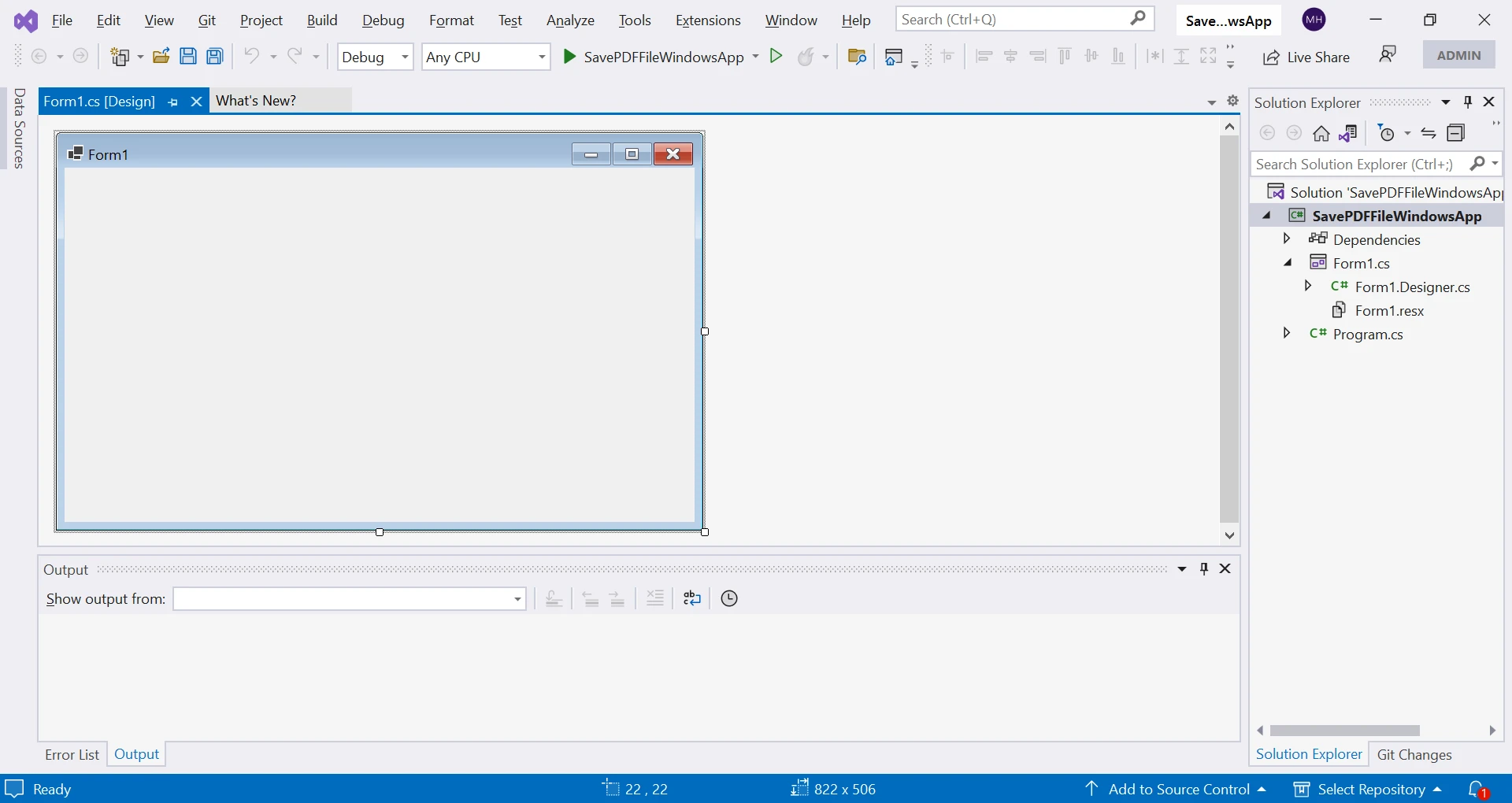 Form1專案
完成了! 現在,我們將使用設計器開始構建Windows Forms應用程式,新增控件和功能以建立和保存PDF文件。
您可以按自己的喜好設計表單。 本教程將通過新增兩個標籤、一個豐富文字框和兩個按鈕來設計簡約風格。
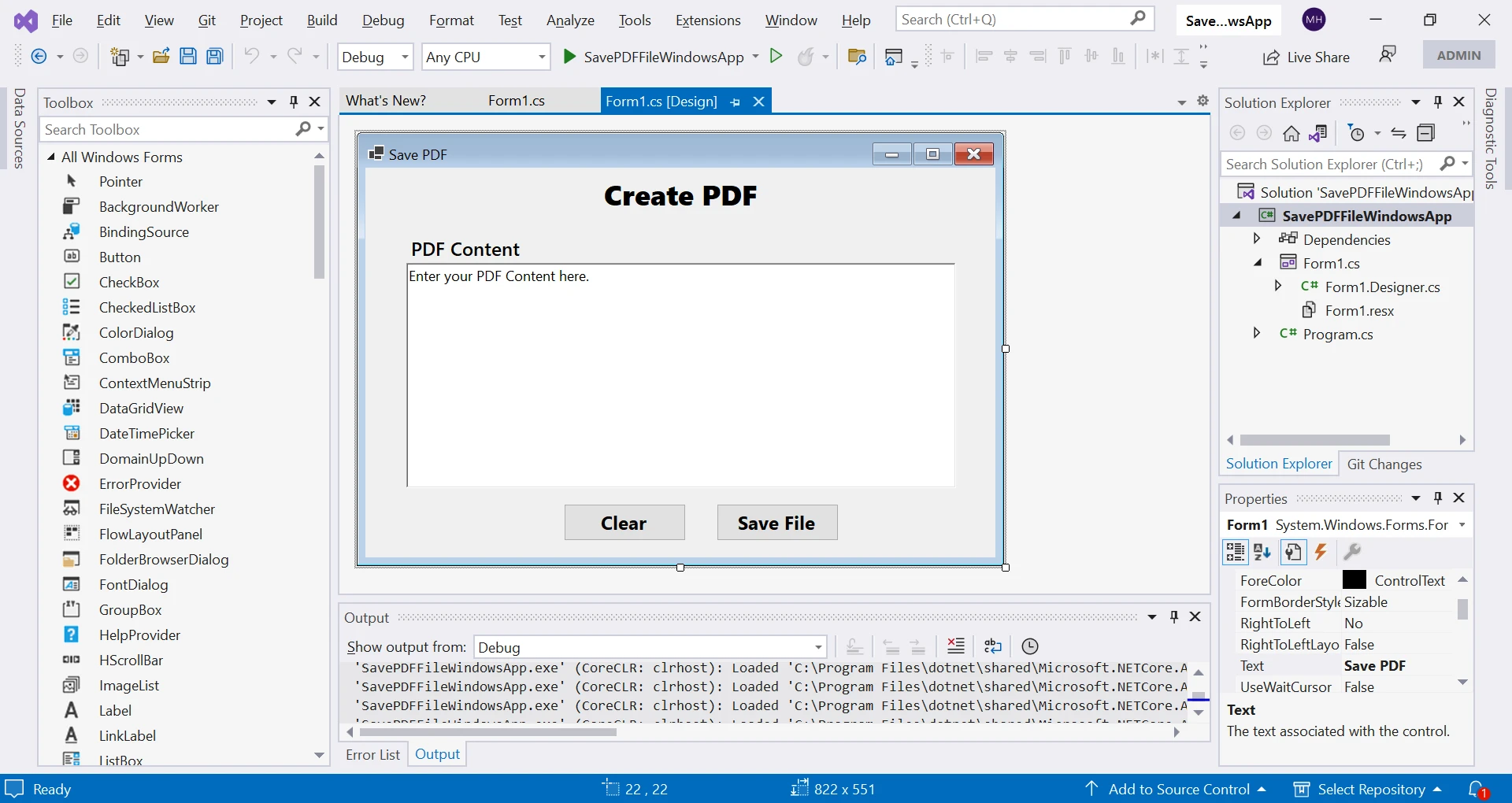 向表單新增按鈕
下一步是在此專案中安裝IronPDF以使用其豐富的功能。
可以使用Visual Studio中的NuGet套件管理器安裝IronPDF。 您可以導航到NuGet套件管理器控制台,通過工具 > NuGet套件管理器 > 套件管理器控制台。
輸入以下命令並按下Enter鍵:
此命令將在您的專案中下載並安裝IronPDF套件。 安裝完成後,我們可以開始使用IronPDF。
首先,編寫兩個方法:Form1.cs類中。 這些方法一起使用,將文字框的內容保存為PDF文件,使用ChromePdfRenderer Class程式庫。 我們來逐一了解每個方法是如何工作的。
以下方法是一個按鈕點擊事件的事件處理程式。 此方法的目的是將文字框的內容保存為PDF文件。
private void Save_Click(object sender, EventArgs e)
{
    // Get the file path to save the PDF file.
    string filename = getFilePath();

    // If the file path is not empty or null, proceed with saving the PDF file.
    if (!String.IsNullOrEmpty(filename))
    {
        // Create a new instance of the ChromePdfRenderer class.
        var renderer = new ChromePdfRenderer();

        // Render the file contents of the text box as a PDF document using the ChromePdfRenderer.
        var pdfDocument = renderer.RenderHtmlAsPdf(pdfContent.Text);

        // Save the PDF document to the specified file path using the SaveAs method.
        pdfDocument.SaveAs(filename);

        // Show a message box to indicate that the PDF file has been saved successfully.
        MessageBox.Show("PDF has been saved Successfully!");
    }
}Private Sub Save_Click(ByVal sender As Object, ByVal e As EventArgs)
' Get the file path to save the PDF file.
Dim filename As String = getFilePath()
' If the file path is not empty or null, proceed with saving the PDF file.
If Not String.IsNullOrEmpty(filename) Then
' Create a new instance of the ChromePdfRenderer class.
Dim renderer = New ChromePdfRenderer()
' Render the file contents of the text box as a PDF document using the ChromePdfRenderer.
Dim pdfDocument = renderer.RenderHtmlAsPdf(pdfContent.Text)
' Save the PDF document to the specified file path using the SaveAs method.
pdfDocument.SaveAs(filename)
' Show a message box to indicate that the PDF file has been saved successfully.
MessageBox.Show("PDF has been saved Successfully!")
End If
End Sub以下是此方法的逐步拆解:
getFilePath方法以獲取保存PDF文件的檔案路徑。ChromePdfRenderer類的一個新實例。 這是一個程式庫,提供了一種使用Google Chrome引擎將HTML內容轉換為PDF文件的方法。ChromePdfRenderer類的RenderHtmlAsPdf方法將文字框pdfContent的HTML內容轉換為PDF文件。 此PDF文件被分配給PdfDocument變數。PdfDocument類的SaveAs方法將PDF文件保存到指定的檔案路徑。此方法用於顯示一個SaveFileDialog給使用者選擇保存PDF文件的位置。
public string getFilePath()
{
    // Create a new instance of the SaveFileDialog class.
    SaveFileDialog saveFileDialog1 = new SaveFileDialog();

    // Set the initial directory where the SaveFileDialog will open.
    saveFileDialog1.InitialDirectory = @"D:\";

    // Set the title of the SaveFileDialog.
    saveFileDialog1.Title = "Save the PDF Files";

    // Set the SaveFileDialog to check if the specified path exists.
    saveFileDialog1.CheckPathExists = true;

    // Set the default extension for the file type.
    saveFileDialog1.DefaultExt = ".pdf";

    // Set the filter to display only PDF files or all files.
    saveFileDialog1.Filter = "PDF files (*.pdf)|*.pdf|All files (*.*)|*.*";

    // Set the filter index to display the PDF filter as the default.
    saveFileDialog1.FilterIndex = 2;

    // Set the RestoreDirectory property to true so that the SaveFileDialog
    // restores the current directory before closing.
    saveFileDialog1.RestoreDirectory = true;

    // Show the SaveFileDialog and get the result.
    if (saveFileDialog1.ShowDialog() == DialogResult.OK)
    {
        // If the user clicked the OK button in the SaveFileDialog, return the selected file path.
        return saveFileDialog1.FileName;
    }
    // If the user did not click the OK button, return an empty string.
    return String.Empty;
}Public Function getFilePath() As String
' Create a new instance of the SaveFileDialog class.
Dim saveFileDialog1 As New SaveFileDialog()
' Set the initial directory where the SaveFileDialog will open.
saveFileDialog1.InitialDirectory = "D:\"
' Set the title of the SaveFileDialog.
saveFileDialog1.Title = "Save the PDF Files"
' Set the SaveFileDialog to check if the specified path exists.
saveFileDialog1.CheckPathExists = True
' Set the default extension for the file type.
saveFileDialog1.DefaultExt = ".pdf"
' Set the filter to display only PDF files or all files.
saveFileDialog1.Filter = "PDF files (*.pdf)|*.pdf|All files (*.*)|*.*"
' Set the filter index to display the PDF filter as the default.
saveFileDialog1.FilterIndex = 2
' Set the RestoreDirectory property to true so that the SaveFileDialog
' restores the current directory before closing.
saveFileDialog1.RestoreDirectory = True
' Show the SaveFileDialog and get the result.
If saveFileDialog1.ShowDialog() = DialogResult.OK Then
' If the user clicked the OK button in the SaveFileDialog, return the selected file path.
Return saveFileDialog1.FileName
End If
' If the user did not click the OK button, return an empty string.
Return String.Empty
End Function以下是此方法的逐步拆解:
SaveFileDialog類的一個新實例。 此類是Windows Forms程式庫的一部分,提供了一個對話框,允許使用者選擇保存PDF文件的位置。SaveFileDialog物件的若干屬性以自定義其行為。 InitialDirectory屬性設置對話框最初打開的目錄。 Title屬性設置對話框的標題。 CheckPathExists屬性指定對話框是否應檢查指定路徑是否存在。 DefaultExt屬性設置檔案型別的預設檔案擴展名。 Filter屬性設置在對話框中顯示的檔案型別過濾器。 FilterIndex屬性設置要顯示的預設過濾器。 最後,RestoreDirectory屬性指定對話框關閉前是否應恢復當前目錄。SaveFileDialog。 此方法顯示對話框並返回一個DialogResult值,指示使用者是否點擊了"確定"按鈕或取消按鈕。SaveFileDialog。我們來運行專案看看輸出。 運行專案,將打開如下表單。
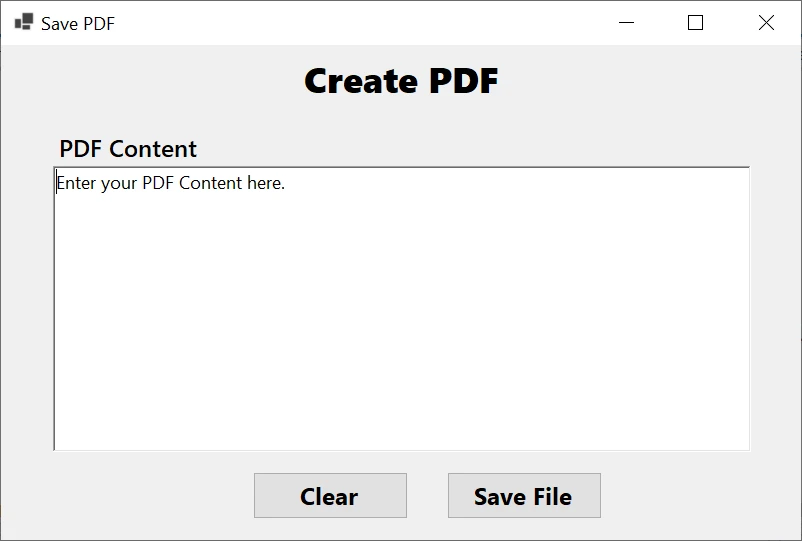 運行Windows Forms專案
輸入您的PDF內容並按如下圖的"保存"按鈕。
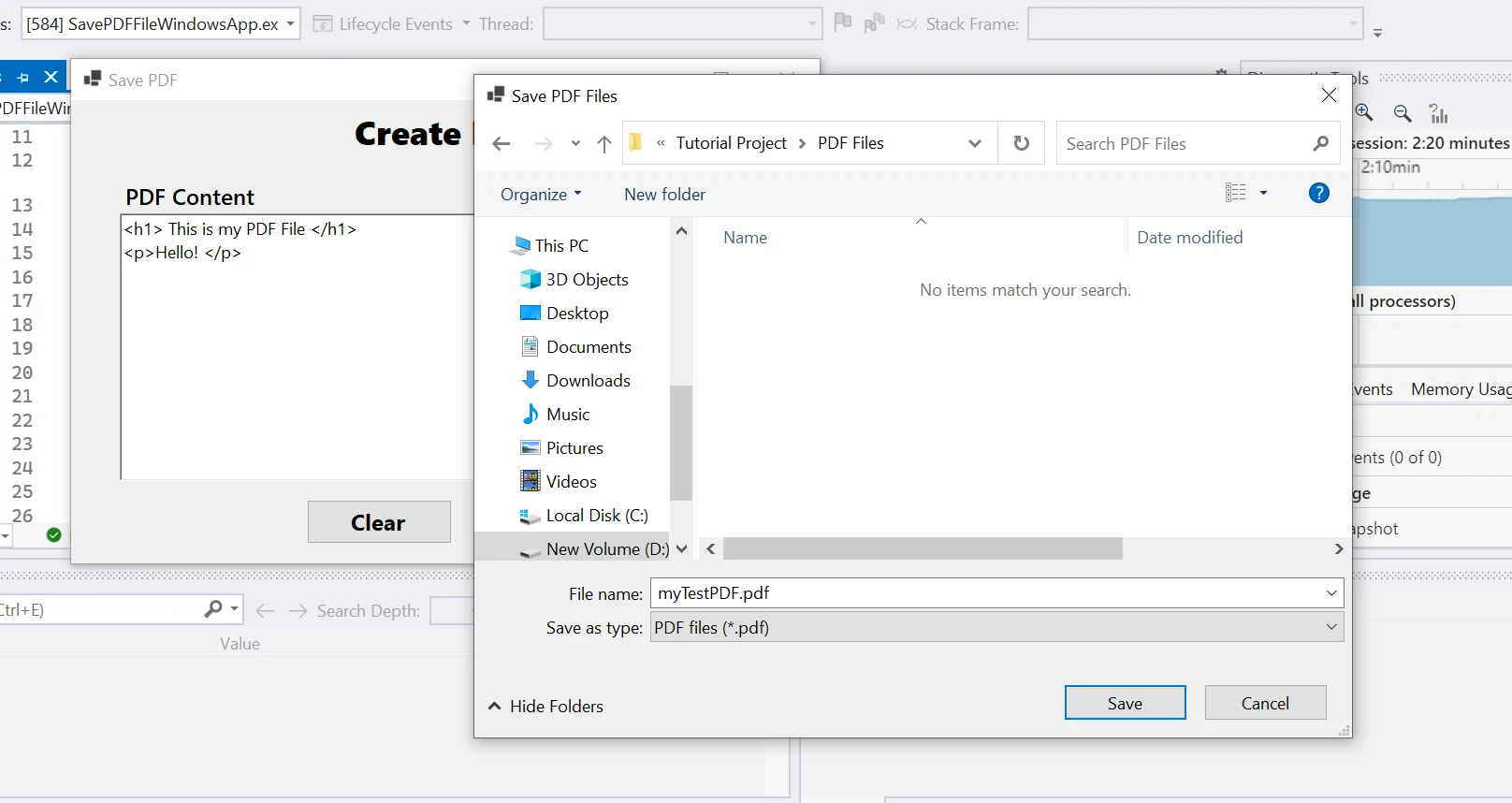 保存對話框
保存對話框
以下是建立的PDF文件。
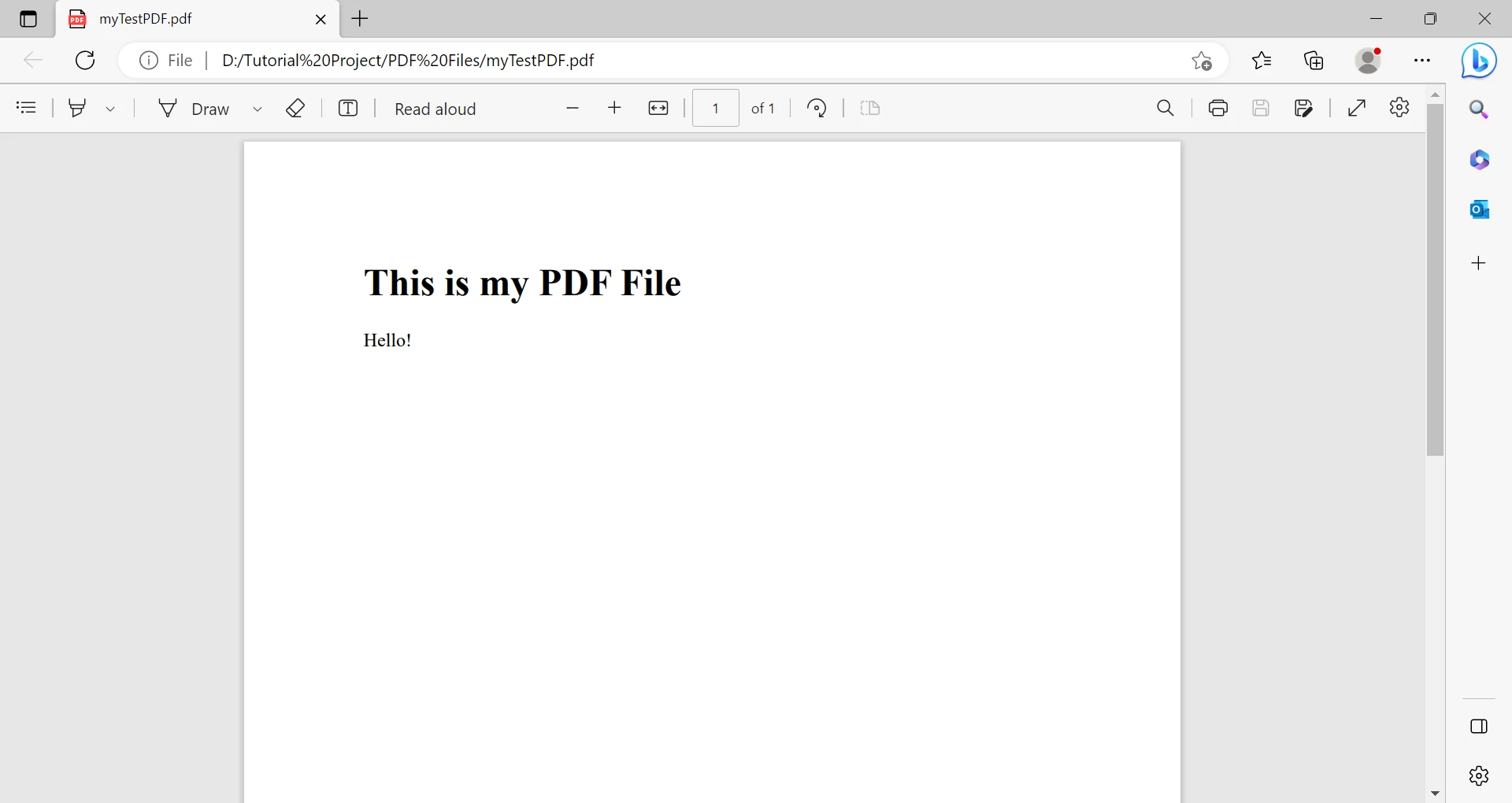 建立的PDF文件
IronPDF提供了一種簡單的方法,將HTML內容轉換為PDF文件,並使用SaveFileDialog對話框保存到使用者選擇的檔案路徑。
從Windows Forms應用程式保存PDF文件是一個常見需求,IronPDF提供了一種易於使用且靈活的方法來完成這項任務。 本文演示了如何在C# Windows Forms應用程式中使用IronPDF來建立、新增內容和保存文件。 借助IronPDF,開發者可以只需幾行程式碼就能在其應用程式中生成高品質的PDF文件。
IronPDF提供了一系列功能,如HTML到PDF轉換教程、PDF合併範例程式碼、拆分PDF頁面指南和提取文字和圖像使用指南等。 IronPDF免費供開發使用,並提供商業授權和免費試用,允許開發者在商業專案中使用,並包括專供支援和更新。
此外,IronPDF是Iron Suite的一部分,這是一個包含以下程式庫的.NET軟體組件包:
購買完整的Iron Suite是一個經濟實惠的解決方案,因為您可以以兩個產品的價格獲得所有五個產品。

Curtis Chau擁有Carleton大學的電腦科學學士學位,專精於前端開發,擁有Node.js、TypeScript、JavaScript和React的專業知識。Curtis熱衷於建立直觀且美觀的使用者介面,喜愛使用現代框架並建立結構良好、視覺吸引力的手冊。

IronPDF 是 IRONSUITE 的一部分
10 款適用於辦公室文件的 .NET API 產品

當您需要您的PDF看起來像HTML一樣快速。














