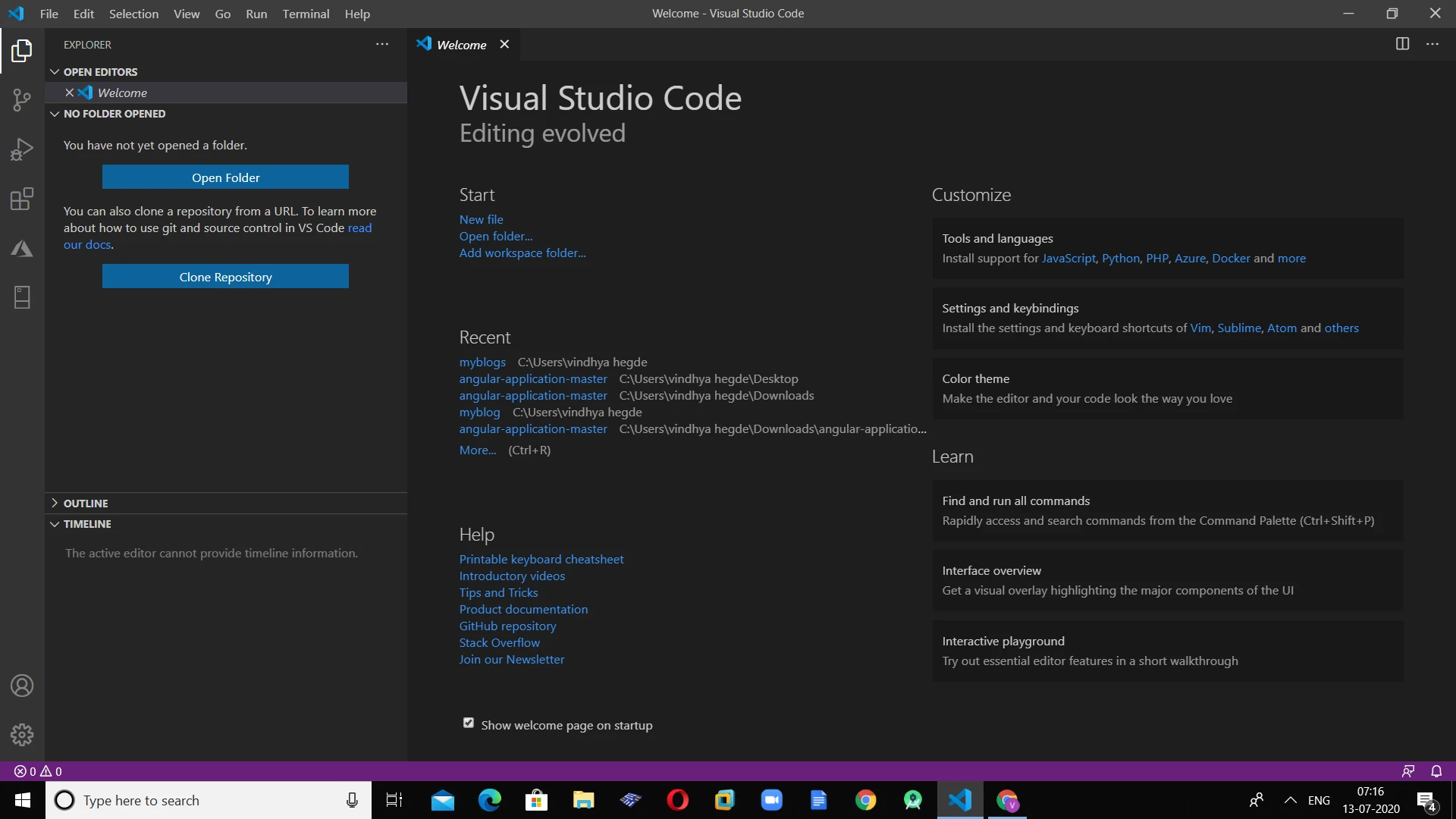
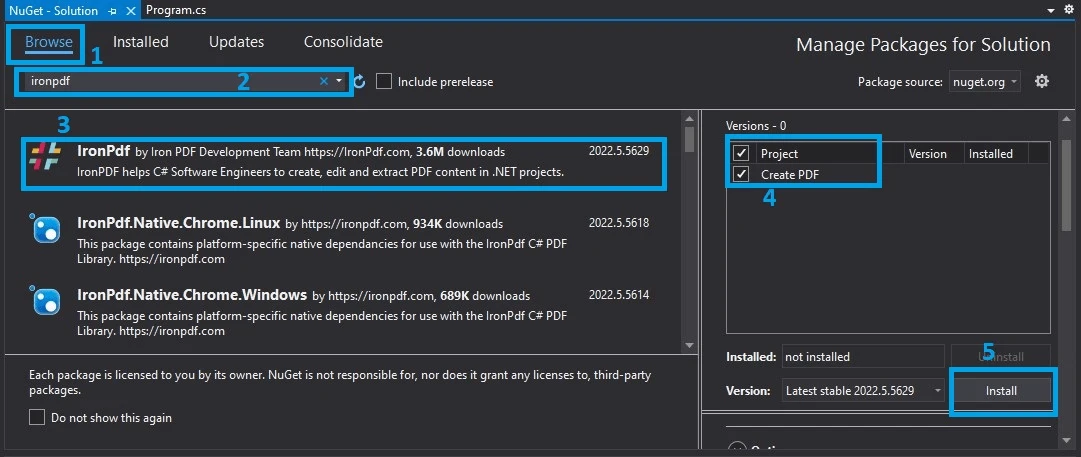
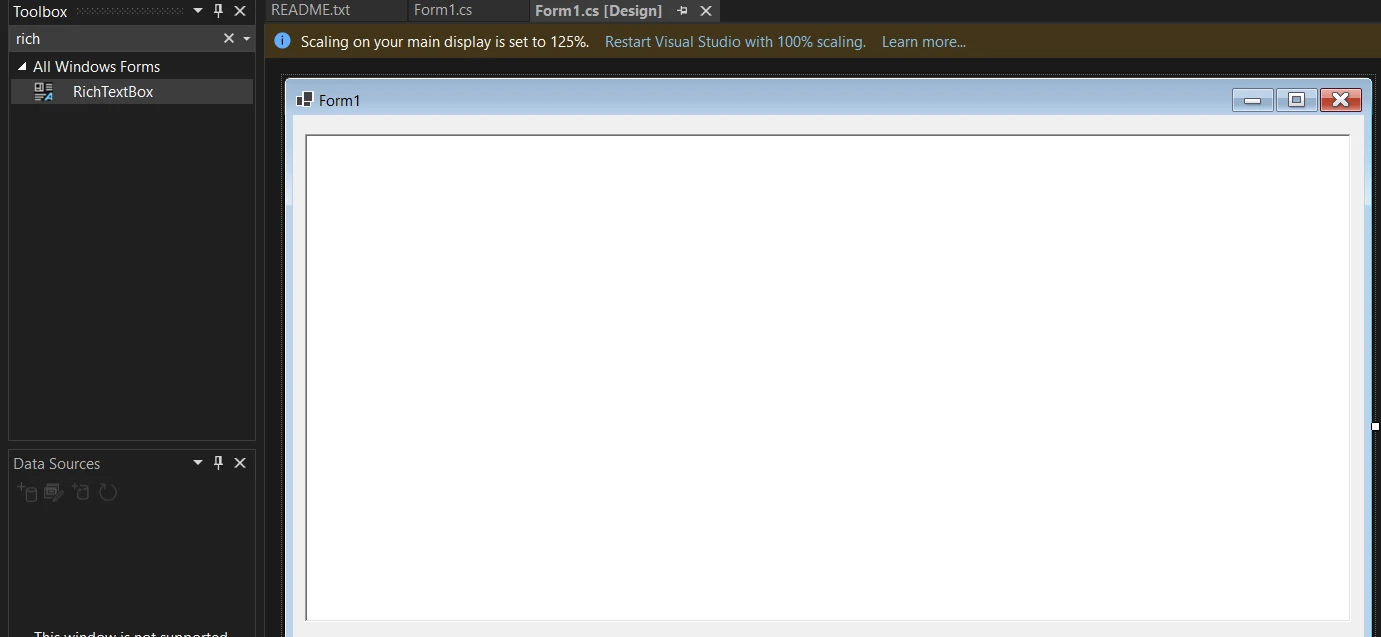
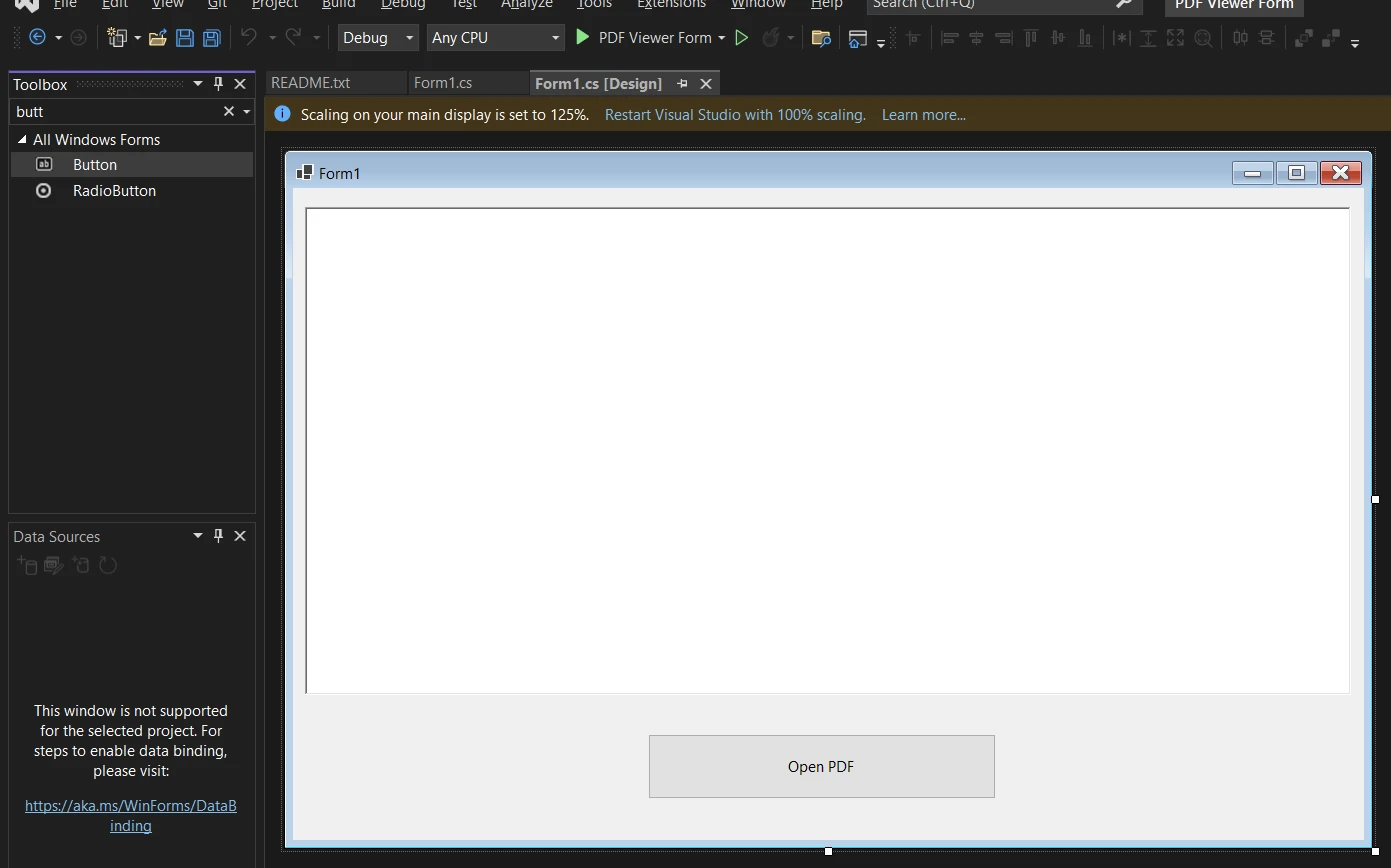
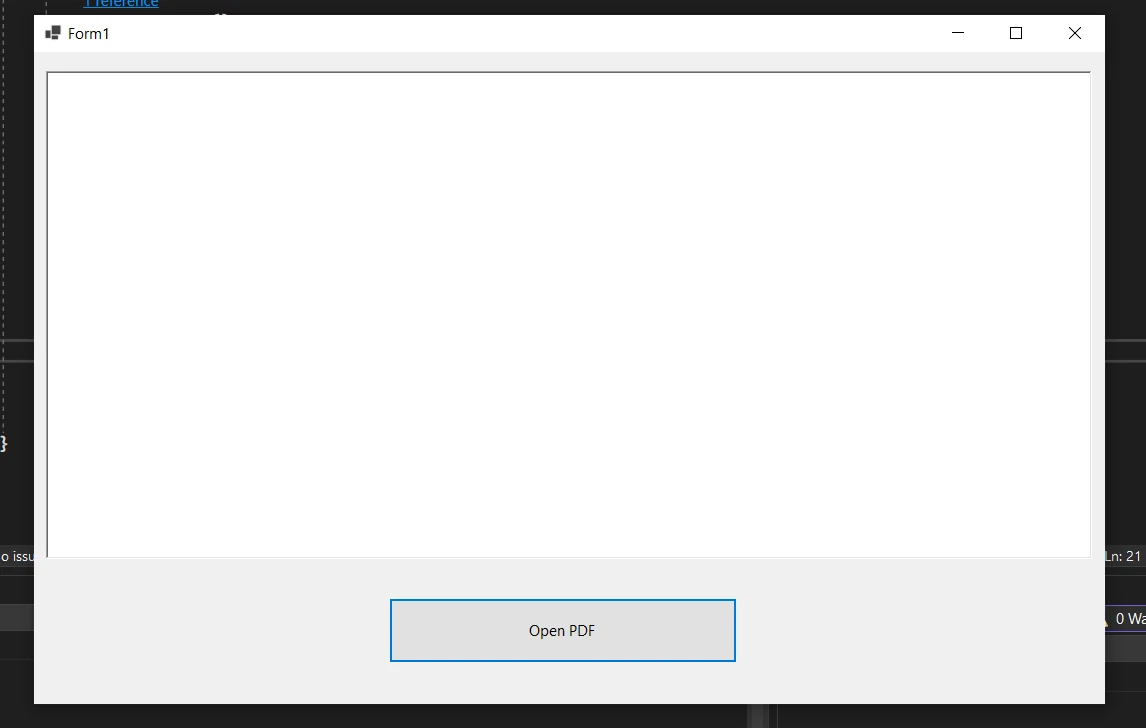
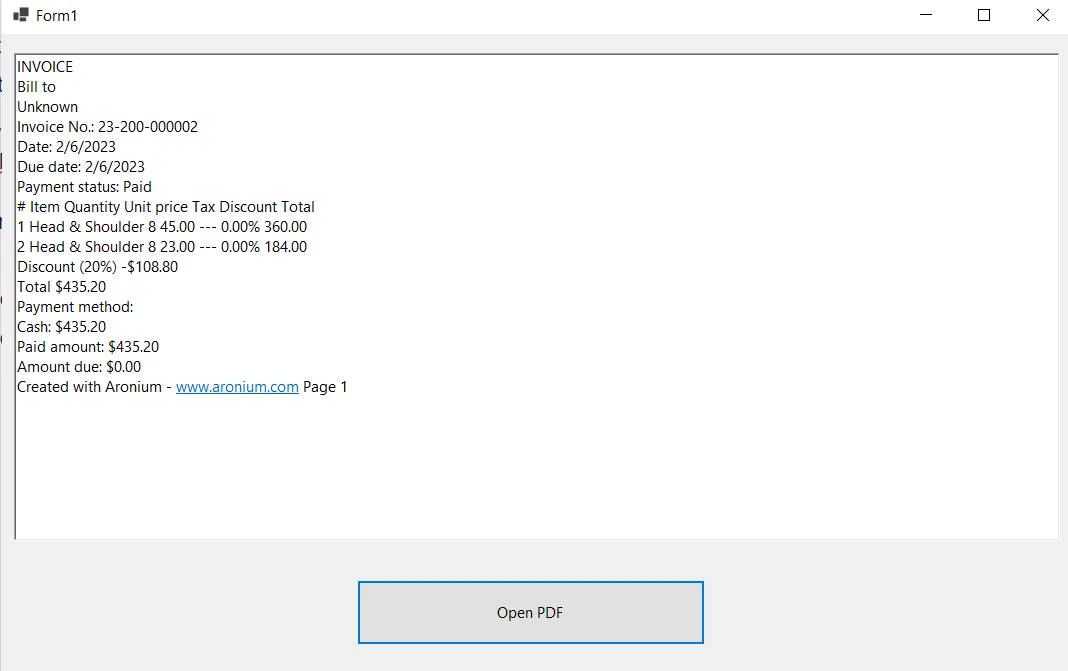
IRONPDF 사용 C# Tutorial: Build a PDF Text Content Viewer with IronPDF (Windows Forms) 커티스 차우 업데이트됨:6월 22, 2025 다운로드 IronPDF NuGet 다운로드 DLL 다운로드 윈도우 설치 프로그램 무료 체험 시작하기 LLM용 사본 LLM용 사본 LLM용 마크다운 형식으로 페이지를 복사하세요 ChatGPT에서 열기 ChatGPT에 이 페이지에 대해 문의하세요 제미니에서 열기 제미니에게 이 페이지에 대해 문의하세요 Grok에서 열기 Grok에게 이 페이지에 대해 문의하세요 혼란 속에서 열기 Perplexity에게 이 페이지에 대해 문의하세요 공유하다 페이스북에 공유하기 트위터에 공유하기 LinkedIn에 공유하기 URL 복사 이메일로 기사 보내기 In today's digital era, PDF files are integral to many workflows across education, business, and personal use. They are a standard format for sharing and presenting diverse data, including text, images, and tables. While displaying full PDF documents with complete visual fidelity within a C# Windows Forms application can involve dedicated rendering components, developers often have other needs. Sometimes, the goal is to read PDF text in C#, extract data, or display the textual content of a PDF for quick review, indexing, or accessibility. This article will guide you through creating an application that focuses on this specific task: building a simple C# PDF text content viewer using IronPDF, a powerful .NET library. You'll learn how to use IronPDF to load a PDF and effectively extract and display its text content in a Windows Forms application. What is IronPDF? IronPDF is a comprehensive C# library that empowers .NET developers to create, edit, and process PDF files within their applications. It allows users to convert HTML, images, and SVG to PDF documents, and importantly for this tutorial, to read and extract content from existing PDFs. IronPDF is designed for ease of use and provides a wide range of features to manipulate PDF files. Requirements for Building a PDF Text Viewer To create this C# PDF text display application, you will need: Visual Studio: An Integrated Development Environment (IDE) for creating Windows Forms applications. IronPDF: A NuGet package that provides the functionality to read, create, and manipulate PDF documents, including text extraction. IronPDF can also create PDFs from HTML, a separate feature from the text extraction shown in this tutorial. Steps to Create a PDF Text Content Viewer in C# with IronPDF Step 1: Create a New Windows Forms Application in Visual Studio To begin, launch Visual Studio and click on "Create a new project." Select "Windows Forms App (.NET Framework)" or a similar .NET template from the list. Visual Studio New Project Creation Next, provide a name for your project (e.g., CSharpPdfTextReader) and click the Create button. This will set up a new Windows Forms Application project. Step 2: Install the IronPDF Library Using NuGet Package Manager GUI In Solution Explorer, right-click on your project and select "Manage NuGet Packages..." Go to the "Browse" tab and search for "IronPdf". Select the IronPdf package and click "Install". Installing IronPDF via NuGet Package Manager Using NuGet Package Manager Console Alternatively, open the Package Manager Console (Tools > NuGet Package Manager > Package Manager Console) and run the command: Install-Package IronPdf This will download and install IronPDF and its dependencies into your project. Step 3: Add a RichTextBox to Your Form for Text Display We will use a RichTextBox control to display the extracted text content from the PDF. A RichTextBox is suitable for showing formatted text, though for this tutorial, its primary role is to present the plain text extracted by IronPDF. It effectively shows the textual information without attempting to render the PDF's original visual layout. To add a RichTextBox: Open your form in the Designer view. Go to the Toolbox (View > Toolbox). Find RichTextBox under "Common Controls," drag it onto your form. Adjust its size and position as needed. In the Properties window, you can set its Name (e.g., pdfDataRichTextBox) and set its Dock property to Fill if you want it to take up most of the form. Adding a RichTextBox to Form1 to display extracted PDF text Step 4: Add a Button to Select the PDF File Add a Button control to your form. Users will click this button to open a file dialog and select a PDF file for text extraction. Drag a Button from the Toolbox onto your form. In the Properties window, set its Name (e.g., openBtn) and Text (e.g., "Open PDF & Display Text"). Adding a Button to Form1 to trigger PDF selection Step 5: Add C# Code to Load PDF and Extract Text Double-click the button you just added ("Open PDF & Display Text") to create its Click event handler in Form1.cs. First, ensure you have the IronPDF namespace imported at the top of your Form1.cs file: using IronPdf; using System; // For EventArgs, Exception using System.Windows.Forms; // For OpenFileDialog, MessageBox, DialogResult, etc. using IronPdf; using System; // For EventArgs, Exception using System.Windows.Forms; // For OpenFileDialog, MessageBox, DialogResult, etc. $vbLabelText $csharpLabel Now, implement the event handler for the button click. This code will: Prompt the user to select a PDF file. Use IronPDF to load the selected PDF. Use IronPDF's ExtractAllText() method to get all text from the PDF. Display this extracted text in the RichTextBox. private void openBtn_Click(object sender, EventArgs e) { // Create an OpenFileDialog to open PDF files var openFileDialog = new OpenFileDialog { Filter = "PDF files (*.pdf)|*.pdf|All files (*.*)|*.*", // Filter to show only PDFs Title = "Select a PDF file to extract text from" // Dialog title }; // Show dialog and check if the user selected a file if (openFileDialog.ShowDialog() == DialogResult.OK) { try { // It's recommended to set your license key once at application startup. // License.LicenseKey = "YourIronPdfLicenseKey"; // If no key is set, IronPDF runs in trial mode (watermarks on output, time limits). // For text extraction, the trial is fully functional for development. // Load the selected PDF using IronPDF var pdf = PdfDocument.FromFile(openFileDialog.FileName); // Extract all text content from the PDF using IronPDF string extractedText = pdf.ExtractAllText(); // Display the extracted text in the RichTextBox // (Assuming your RichTextBox is named pdfDataRichTextBox, change if different) pdfDataRichTextBox.Text = extractedText; } catch (Exception ex) { // Show error message if an exception occurs MessageBox.Show("An error occurred while processing the PDF file: " + ex.Message, "Error", MessageBoxButtons.OK, MessageBoxIcon.Error); } } } private void openBtn_Click(object sender, EventArgs e) { // Create an OpenFileDialog to open PDF files var openFileDialog = new OpenFileDialog { Filter = "PDF files (*.pdf)|*.pdf|All files (*.*)|*.*", // Filter to show only PDFs Title = "Select a PDF file to extract text from" // Dialog title }; // Show dialog and check if the user selected a file if (openFileDialog.ShowDialog() == DialogResult.OK) { try { // It's recommended to set your license key once at application startup. // License.LicenseKey = "YourIronPdfLicenseKey"; // If no key is set, IronPDF runs in trial mode (watermarks on output, time limits). // For text extraction, the trial is fully functional for development. // Load the selected PDF using IronPDF var pdf = PdfDocument.FromFile(openFileDialog.FileName); // Extract all text content from the PDF using IronPDF string extractedText = pdf.ExtractAllText(); // Display the extracted text in the RichTextBox // (Assuming your RichTextBox is named pdfDataRichTextBox, change if different) pdfDataRichTextBox.Text = extractedText; } catch (Exception ex) { // Show error message if an exception occurs MessageBox.Show("An error occurred while processing the PDF file: " + ex.Message, "Error", MessageBoxButtons.OK, MessageBoxIcon.Error); } } } $vbLabelText $csharpLabel Code Breakdown: openFileDialog: A standard dialog for file selection, filtered for PDF files. PdfDocument.FromFile(openFileDialog.FileName): This IronPDF method loads the chosen PDF into a PdfDocument object. pdf.ExtractAllText(): This is the key IronPDF function for this tutorial. It reads through the entire PDF and extracts all discernible text content into a single string. This is incredibly useful for C# parse PDF text scenarios. pdfDataRichTextBox.Text = extractedText;: The extracted text is then assigned to the Text property of your RichTextBox (ensure the name pdfDataRichTextBox matches the name you gave your RichTextBox control). This demonstrates how IronPDF simplifies reading PDF text in C#, allowing developers to access PDF content programmatically with minimal effort. Step 6: Build and Run Your C# PDF Text Viewer Application In Visual Studio, go to the "Build" menu and select "Build Solution." Once the build is successful, press "F5" or click the "Start" button to run the application. Your application window will appear. Click the "Open PDF & Display Text" button, select a PDF file from your computer, and click "Open." Running the C# PDF Text Viewer Application The RichTextBox will then display the text content extracted from the selected PDF file. Text content extracted from the PDF and displayed in the RichTextBox For information on visually rendering PDFs in MAUI applications (which is different from this tutorial's text extraction focus), you might explore "PDF Viewing in MAUI Tutorial". Conclusion: Accessing PDF Text Content Made Easy with C# and IronPDF By following these steps, you've created a C# Windows Forms application that effectively extracts and displays text content from PDF files using IronPDF. This approach is valuable when you need to programmatically access the textual information within PDFs for display, analysis, or further processing in your .NET applications. IronPDF provides robust capabilities for C# PDF text extraction, and it's just one part of its comprehensive feature set. You can also use IronPDF for more advanced tasks like text searching within PDFs, adding annotations, printing PDF documents, PDF encryption and decryption, and editing PDF forms. Remember, this tutorial focused on one specific use case: making PDF text accessible in a C# application. You can adapt and expand upon this foundation to meet more complex requirements. If you're interested in exploring the full potential of IronPDF: Dive into the IronPDF documentation for detailed guides and examples. To use IronPDF in your production applications without trial limitations, a license key is required. You can purchase a license from the IronPDF website. Licenses start from $799. You can also evaluate the full commercial version with a free trial. 자주 묻는 질문 C# 애플리케이션의 PDF에서 텍스트를 추출하려면 어떻게 해야 하나요? IronPDF의 ExtractAllText() 메서드를 사용하여 C# 애플리케이션의 PDF 문서에서 식별 가능한 모든 텍스트 콘텐츠를 효율적으로 추출할 수 있습니다. C#으로 PDF 텍스트 뷰어를 만들려면 어떤 도구가 필요하나요? C#으로 PDF 텍스트 뷰어를 만들려면 개발 환경으로 Visual Studio가 필요하며, NuGet 패키지 관리자를 통해 설치할 수 있는 IronPDF 라이브러리가 필요합니다. 추출한 PDF 텍스트를 Windows Forms 애플리케이션에 표시하려면 어떻게 해야 하나요? Windows 서식 지정 텍스트 표시를 허용하는 PDF에서 추출된 텍스트 콘텐츠를 표시하기 위해 Windows 서식 서식 지정 텍스트 상자 컨트롤을 사용할 수 있습니다. C# 애플리케이션에서 PDF 파일을 선택하는 절차는 무엇인가요? PDF 파일을 선택하려면 파일 대화 상자를 여는 버튼 컨트롤을 양식에 추가합니다. 이렇게 하면 사용자가 처리할 PDF 파일을 찾아보고 선택할 수 있습니다. C#에서 PDF를 처리하는 동안 발생하는 오류는 어떻게 처리하나요? try-catch 블록 내에 PDF 처리 코드를 캡슐화하여 오류를 처리하고 예외가 발생하면 MessageBox.Show를 사용하여 오류 메시지를 표시할 수 있습니다. IronPDF는 어떤 추가 기능을 제공하나요? IronPDF는 HTML을 PDF로 변환, 주석 추가, 텍스트 검색, PDF 암호화 및 암호 해독, 인쇄, PDF 양식 편집 등 텍스트 추출 이상의 기능을 제공합니다. PDF 처리를 위해 Visual Studio에서 새 Windows Forms 프로젝트를 설정하려면 어떻게 해야 하나요? Visual Studio에서 '새 프로젝트 만들기'를 선택하고 'Windows Forms 앱(.NET Framework)'을 선택합니다 프로젝트 이름을 지정하고 '만들기'를 클릭하여 PDF 처리를 위한 프로젝트를 설정합니다. C#에서 PDF 텍스트 뷰어 애플리케이션을 실행하려면 어떤 단계가 필요하나요? Visual Studio의 빌드 메뉴에서 '솔루션 빌드'를 선택한 다음 F5 키를 누르거나 '시작'을 클릭하여 애플리케이션을 실행합니다. 버튼을 사용하여 PDF 파일을 선택하고 텍스트를 표시합니다. HTML을 PDF로 변환하는 데 IronPDF를 사용할 수 있나요? 예, IronPDF는 HTML 문자열의 경우 RenderHtmlAsPdf 또는 HTML 파일의 경우 RenderHtmlFileAsPdf와 같은 메서드를 사용하여 HTML을 PDF로 변환할 수 있습니다. PDF 텍스트 추출의 일반적인 문제 해결 시나리오는 무엇인가요? 일반적인 문제로는 비표준 글꼴 또는 암호화된 PDF를 처리하는 것이 있습니다. PDF 파일이 비밀번호로 보호되어 있지 않은지 확인하고 텍스트 추출에 실패할 경우 글꼴 호환성을 확인합니다. IronPDF는 .NET 10과 호환되나요? 예 - IronPDF는 이전 버전(.NET 9, 8, 7, 6, .NET Core, .NET Standard 및 .NET Framework 등)과 함께 .NET 10을 지원하므로 호환성 문제 없이 .NET 10 프로젝트에서 IronPDF를 사용하여 Windows Forms 텍스트 뷰어를 빌드할 수 있습니다. 커티스 차우 지금 바로 엔지니어링 팀과 채팅하세요 기술 문서 작성자 커티스 차우는 칼턴 대학교에서 컴퓨터 과학 학사 학위를 취득했으며, Node.js, TypeScript, JavaScript, React를 전문으로 하는 프론트엔드 개발자입니다. 직관적이고 미적으로 뛰어난 사용자 인터페이스를 만드는 데 열정을 가진 그는 최신 프레임워크를 활용하고, 잘 구성되고 시각적으로 매력적인 매뉴얼을 제작하는 것을 즐깁니다. 커티스는 개발 분야 외에도 사물 인터넷(IoT)에 깊은 관심을 가지고 있으며, 하드웨어와 소프트웨어를 통합하는 혁신적인 방법을 연구합니다. 여가 시간에는 게임을 즐기거나 디스코드 봇을 만들면서 기술에 대한 애정과 창의성을 결합합니다. 관련 기사 업데이트됨 1월 22, 2026 How to Create PDF Documents in .NET with IronPDF: Complete Guide Discover effective methods to create PDF files in C# for developers. Enhance your coding skills and streamline your projects. Read the article now! 더 읽어보기 업데이트됨 1월 21, 2026 How to Merge PDF Files in VB.NET: Complete Tutorial Merge PDF VB NET with IronPDF. Learn to combine multiple PDF files into one document using simple VB.NET code. Step-by-step examples included. 더 읽어보기 업데이트됨 1월 21, 2026 C# PDFWriter Tutorial: Create PDF Documents in .NET Learn to create PDFs efficiently using C# PDFWriter with this step-by-step guide for developers. Read the article to enhance your skills today! 더 읽어보기 How to Read PDF Table in C#How to Convert Word (Docx) to PDF i...

업데이트됨 1월 22, 2026 How to Create PDF Documents in .NET with IronPDF: Complete Guide Discover effective methods to create PDF files in C# for developers. Enhance your coding skills and streamline your projects. Read the article now! 더 읽어보기
업데이트됨 1월 21, 2026 How to Merge PDF Files in VB.NET: Complete Tutorial Merge PDF VB NET with IronPDF. Learn to combine multiple PDF files into one document using simple VB.NET code. Step-by-step examples included. 더 읽어보기
업데이트됨 1월 21, 2026 C# PDFWriter Tutorial: Create PDF Documents in .NET Learn to create PDFs efficiently using C# PDFWriter with this step-by-step guide for developers. Read the article to enhance your skills today! 더 읽어보기