푸터 콘텐츠로 바로가기
IRONPDF 사용

PDF to PDFA in C# (Developer Tutorial)

Working with PDF Files in C#

When working with PDF files in C# projects, the crucial aspect of long-term file preservation cannot be overlooked. The emergence of PDF/A has been a game changer, especially for developers working with electronic documents. We'll delve into the process of converting PDF files to PDF/A using the IronPDF library, a significant step towards ensuring the longevity of your digital documents.

How to Convert PDF to PDF/A

  1. Install the PDF library using NuGet Package Manager.
  2. Load the PDF document into the program.
  3. Convert the PDF to PDF/A and save it.

Understanding PDF/A

PDF/A isn't just a slight variation of the Portable Document Format we know. It's a specialized version designed with a primary purpose: the long-term preservation of electronic documents. As you learn more about it, you will find that PDF/A addresses some key challenges in digital archiving.

The PDF/A standard ensures that documents remain readable and accessible for a long time, regardless of the software or hardware used to create them. This is particularly important for industries such as law, finance, and government, where document integrity over time is non-negotiable.

There are different conformance levels in PDF/A, each with its own set of requirements. PDF/A-1 is the base level, while PDF/A-2 and PDF/A-3 add support for additional features, such as JPEG2000 compression and the embedding of other file formats. PDF/A-3 is most often used as it offers the most flexibility while still maintaining strict archival standards.

Why Convert to PDF/A?

While converting regular PDFs to PDF/A format may require some additional effort, the benefits it offers are significant. Here are the main advantages:

  • Self-containment: All the necessary components to display the document correctly, including fonts, color information, and document details, are stored within the file itself. This means you don't have to worry about missing fonts or changed layouts when you open the document on different types of machines, such as Windows, Mac, iPhone, or Android.

  • Seamless Invoice Compliance and Automation: When dealing with a large volume of invoices, the ability to quickly scale and extract data is crucial for enterprise-level operations. This is especially true for tasks involving invoices. Converting to PDF/A, in combination with the ZUGFeRD format, allows developers to embed other file types, such as XML data. This functionality enables systems to extract invoice data directly from XML files, significantly streamlining automation processes and eliminating unnecessary parsing steps. Moreover, it complies with legal regulations for archiving invoices, ensuring adherence to invoice mandates across EU nations.

  • Improved searchability: PDF/A file rules say that you must be able to copy text from the document. This makes it easy to search for words or phrases in the document. In working with an extensive collection of documents, this will save a significant amount of time. Following ISO standards is often necessary for many types of work.

IronPDF C# Library

After extensive experimentation with various PDF libraries, we found the IronPDF library to be the most comprehensive solution for any PDF-related tasks. IronPDF, a .NET library, makes working with PDFs in C# incredibly straightforward, including the process of converting a PDF document to PDF/A, as well as its other variations, and ensuring compliance with ZUGFeRD. You can perform a multitude of PDF tasks using IronPDF, with its primary feature being the creation of PDF files from HTML, all within a reliable and trusted product favored by many.

Getting Started with IronPDF

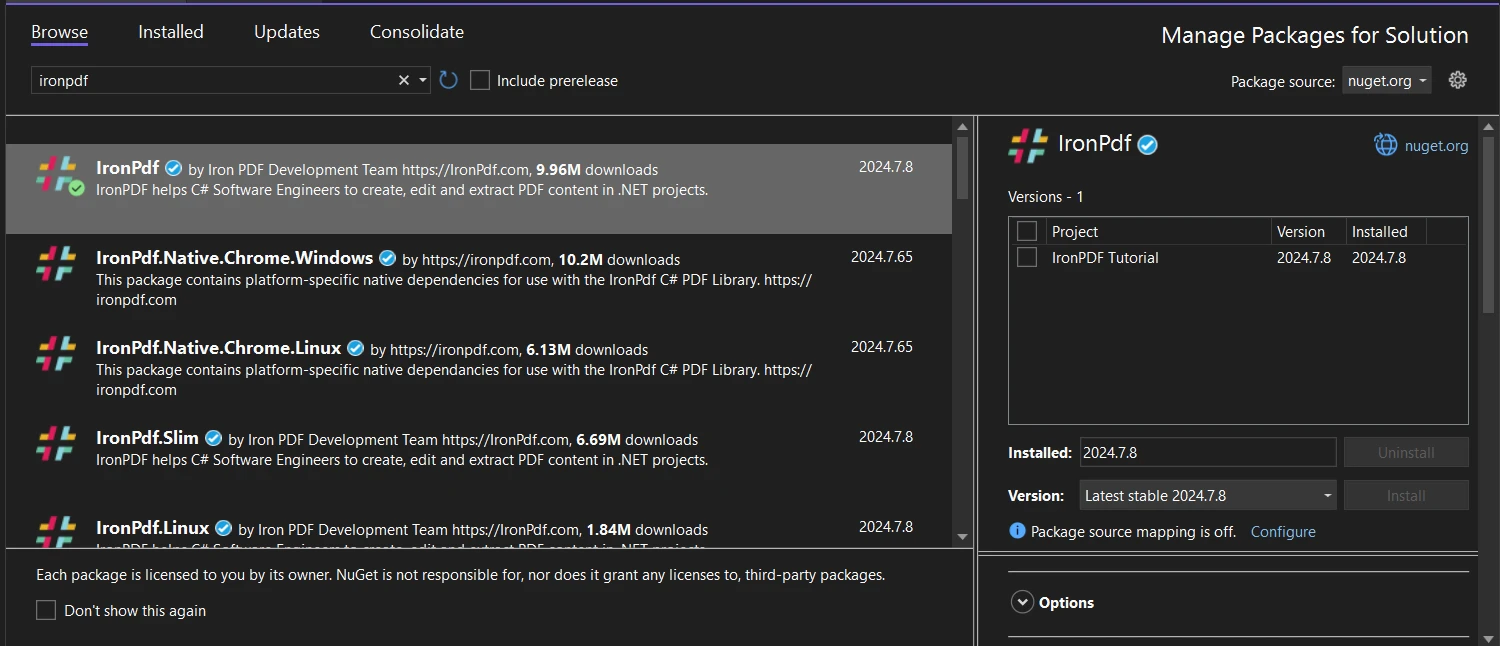
To begin using IronPDF in your C# project, you'll first need to install it. You can easily do this through the NuGet Package Manager. Here's how:

  1. Open your project in Visual Studio.
  2. Right-click on your project in the Solution Explorer and select "Manage NuGet Packages."
  3. Search for "IronPDF" and install the latest version.

PDF to PDFA in C# (Developer Tutorial) | IronPDF: Figure 1 - IronPDF

Alternatively, you can use the Package Manager Console and run:

Install-Package IronPdf

Once installed, you're ready to start working with PDFs in your C# code.

Converting PDF to PDF/A: A Step-by-Step Guide

Now, let's analyze the process of converting your PDF to PDF/A using IronPDF. We'll break it down into manageable steps and explain each part of the code.

Step 1: Setting Up Your Project

First, make sure you have a C# project set up and IronPDF installed. At the top of your C# file, you'll need to include the IronPDF namespace:

using IronPdf;
using IronPdf;
$vbLabelText   $csharpLabel

Step 2: Loading the PDF

The next step is to load your existing PDF file. IronPDF makes this incredibly simple:

PdfDocument pdf = PdfDocument.FromFile("path/to/your/file.pdf");
$vbLabelText   $csharpLabel

This line creates a PdfDocument object from your existing PDF file. Replace "path/to/your/file.pdf" with the actual path to your PDF file.

Step 3: Converting to PDF/A

Now comes the magic part – converting your PDF to PDF/A format. IronPDF provides a straightforward method for this:

pdf.SaveAsPdfA("output-pdf-a3.pdf", PdfAVersions.PdfA3);
$vbLabelText   $csharpLabel

This line does two crucial things:

  1. It specifies the output file name ("output-pdf-a3.pdf" in this case).
  2. It sets the PDF/A version to PDF/A-3.

Putting It All Together

Here's the complete code snippet that brings all these steps together:

using IronPdf;

class Program
{
    static void Main()
    {
        // Load the PDF document
        PdfDocument pdf = PdfDocument.FromFile("input.pdf");

        // Convert the PDF to PDF/A and save it
        pdf.SaveAsPdfA("output-pdf-a3.pdf", PdfAVersions.PdfA3);

        // Output success message
        Console.WriteLine("PDF converted to PDF/A-3 successfully.");
    }
}
using IronPdf;

class Program
{
    static void Main()
    {
        // Load the PDF document
        PdfDocument pdf = PdfDocument.FromFile("input.pdf");

        // Convert the PDF to PDF/A and save it
        pdf.SaveAsPdfA("output-pdf-a3.pdf", PdfAVersions.PdfA3);

        // Output success message
        Console.WriteLine("PDF converted to PDF/A-3 successfully.");
    }
}
$vbLabelText   $csharpLabel

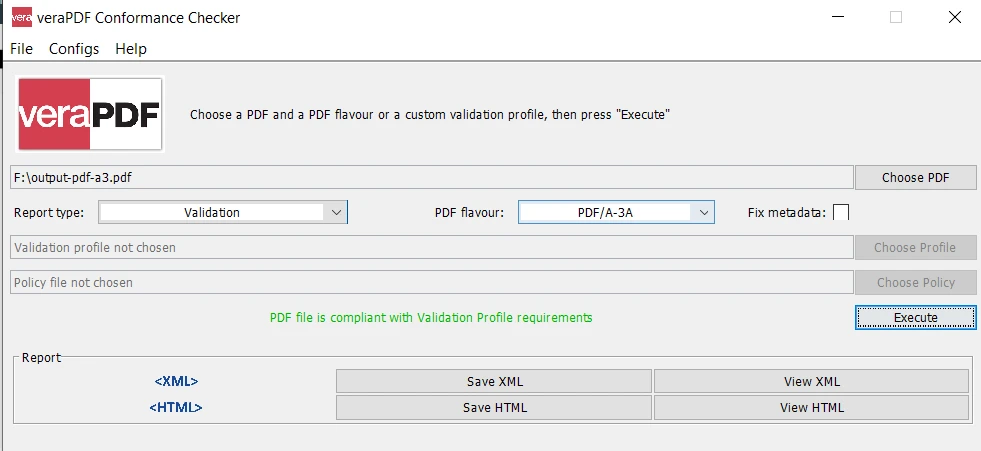
It's that simple! With just a few lines of code, you've converted a regular PDF to a PDF/A-3 file. For validation of the converted PDF file, a tool like veraPDF can be used. It's simple: choose a file, specify the PDF flavor, and execute validation.

PDF to PDFA in C# (Developer Tutorial) | IronPDF: Figure 2 - veraPDF

Advanced Techniques and Considerations

Handling Conversion Errors

Not all PDFs can be converted to PDF/A without issues. Some common problems include unsupported fonts, embedded files that don't meet PDF/A standards, and the use of transparency effects in older PDF/A versions. It's a good practice to implement error handling:

try
{
    // Convert the PDF to PDF/A
    pdf.SaveAsPdfA("output-pdf-a3.pdf", PdfAVersions.PdfA3);
    Console.WriteLine("Conversion successful!");
}
catch (Exception ex)
{
    Console.WriteLine($"Conversion failed: {ex.Message}");
}
try
{
    // Convert the PDF to PDF/A
    pdf.SaveAsPdfA("output-pdf-a3.pdf", PdfAVersions.PdfA3);
    Console.WriteLine("Conversion successful!");
}
catch (Exception ex)
{
    Console.WriteLine($"Conversion failed: {ex.Message}");
}
$vbLabelText   $csharpLabel

Choosing the Right PDF/A Version

Depending on your requirements, you might need to use a specific PDF/A version. IronPDF supports multiple versions:

pdf.SaveAsPdfA("output-pdf-a1b.pdf", PdfAVersions.PdfA1b);
pdf.SaveAsPdfA("output-pdf-a2b.pdf", PdfAVersions.PdfA2b);
pdf.SaveAsPdfA("output-pdf-a3.pdf", PdfAVersions.PdfA3);
pdf.SaveAsPdfA("output-pdf-a1b.pdf", PdfAVersions.PdfA1b);
pdf.SaveAsPdfA("output-pdf-a2b.pdf", PdfAVersions.PdfA2b);
pdf.SaveAsPdfA("output-pdf-a3.pdf", PdfAVersions.PdfA3);
$vbLabelText   $csharpLabel

Choose the version that best fits your needs. PDF/A-3 is the most flexible, but some systems require earlier versions for compatibility. IronPDF not only converts your PDF files to PDF/A and functions as a PDF/A converter, but also helps you integrate advanced electronic signatures, watermarking, PDF encryption, and many other PDF tools.

For more information on more real-life examples and more in-depth consideration on which format to choose, you can refer to this extensive how-to-guide.

Best Practices for PDF/A Conversion

Through my experience working with PDF/A conversions, I've developed some best practices that might help you:

  1. Always validate your PDF/A files after conversion. While IronPDF does a great job, it's good to double-check.
  2. Keep your original PDFs. The conversion process is generally lossless, but it's always safe to retain the originals.
  3. Be mindful of file size. PDF/A files can be larger due to embedded fonts and other resources. If file size is a concern, consider using compression techniques where appropriate.
  4. Regularly update your IronPDF library. The developers frequently release updates that improve conversion quality and add support for new features.
  5. For batch conversions, consider implementing a progress indicator to track the conversion process. This can be especially helpful when dealing with large numbers of files.

Conclusion

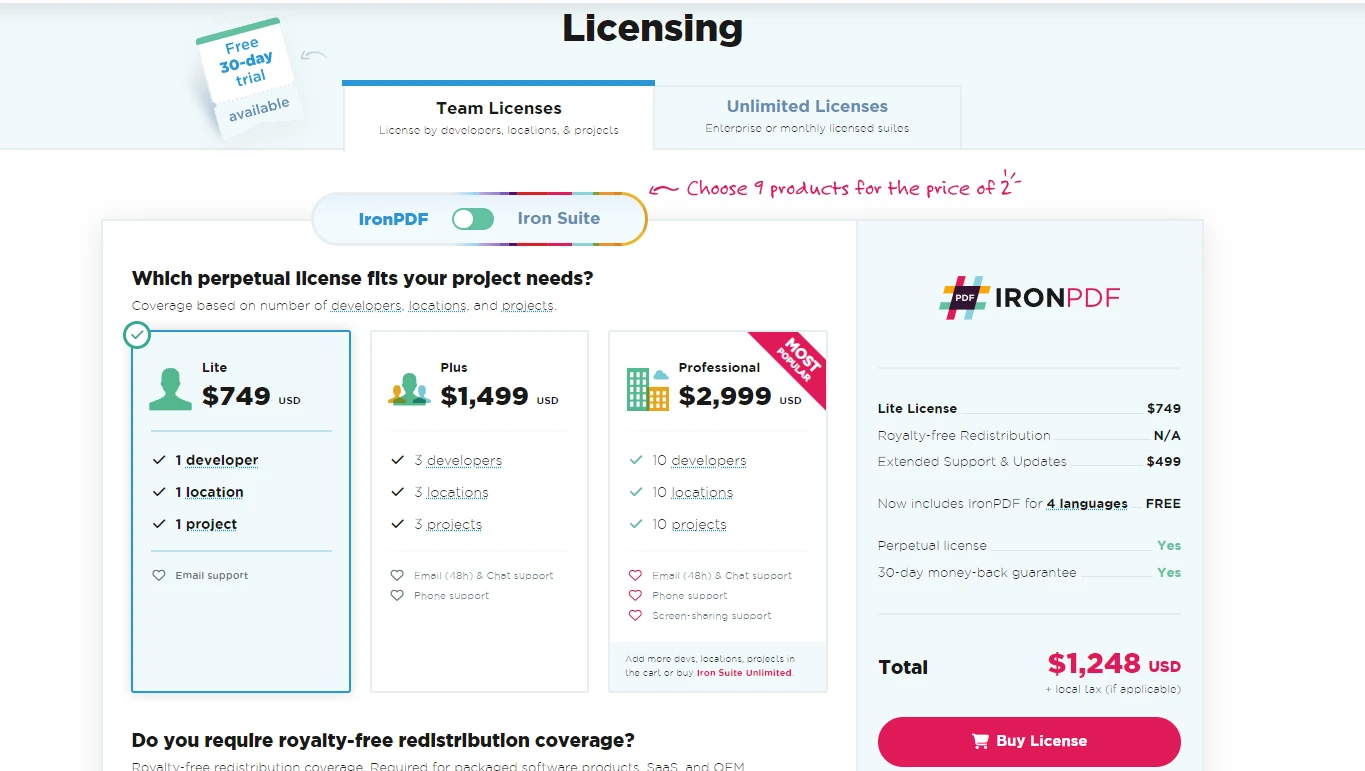
PDF to PDFA in C# (Developer Tutorial) | IronPDF: Figure 3 - Licensing

In conclusion, this article has examined various scenarios and considerations for converting documents to PDF/A, guiding us in selecting the most appropriate formats for different situations. While the conversion process can be complex, IronPDF emerges as a standout solution, streamlining the task with just a single line of code. By effectively bridging the gap between immediate documentation needs and the stringent requirements of long-term preservation, IronPDF not only simplifies the process but also ensures that your documents remain accessible and reliable over time along.

As you continue to work with PDF/A, you'll likely discover even more benefits and use cases. The world of digital document preservation is vast and evolving, and tools like IronPDF are at the forefront, making it accessible to developers like us. IronPDF also provides a free trial and its license starts from affordable pricing options.

So, next time you're working on a project involving document management, consider the long-term impact of your choices. With PDF/A and IronPDF in your toolkit, you're well-equipped to create solutions that stand the test of time.

자주 묻는 질문

PDF/A 형식은 어떤 용도로 사용되나요?

PDF/A는 전자 문서를 장기 보존하는 데 사용되어 소프트웨어나 하드웨어 변경에 관계없이 시간이 지나도 가독성과 접근성을 보장합니다.

C#에서 PDF를 PDF/A로 변환하려면 어떻게 해야 하나요?

NuGet을 통해 라이브러리를 설치하고, PDF 파일을 로드한 다음, SaveAsPdfA 메서드를 사용하여 문서를 PDF/A 형식으로 저장하면 IronPDF를 사용하여 C#에서 PDF를 PDF/A로 변환할 수 있습니다.

문서 관리에 PDF/A가 중요한 이유는 무엇인가요?

PDF/A는 법률, 금융, 정부 등의 분야에서 필수적인 문서 접근성과 가독성을 장기간 유지할 수 있기 때문에 문서 관리에 매우 중요합니다.

PDF를 PDF/A로 변환할 때 변환 오류를 처리하려면 어떻게 해야 하나요?

C# 코드의 try-catch 블록을 사용하여 PDF에서 PDF/A로 변환하는 과정에서 예외를 포착하고 적절하게 관리하여 IronPDF에서 변환 오류를 처리하세요.

PDF/A의 다양한 적합성 수준과 그 이점은 무엇인가요?

PDF/A에는 여러 가지 적합성 수준이 있습니다: PDF/A-1은 기본 수준이며, PDF/A-2와 PDF/A-3은 JPEG2000 압축 및 다른 파일 형식 포함과 같은 추가 기능을 도입합니다. PDF/A-3은 가장 뛰어난 유연성을 제공합니다.

PDF를 PDF/A로 변환할 때 어떤 모범 사례를 따라야 하나요?

변환 후 파일 유효성 검사, 원본 PDF 유지, 파일 크기 고려, IronPDF 정기 업데이트, 일괄 변환에 진행률 표시기 사용 등의 모범 사례를 따르세요.

C#에서 PDF 변환을 위해 .NET 라이브러리를 사용하려면 어떻게 시작하나요?

C# 프로젝트에서 IronPDF를 사용하려면 NuGet 패키지 관리자를 통해 설치하고, C# 파일에 IronPDF 네임스페이스를 포함시킨 다음 튜토리얼 단계에 따라 PDF 문서를 로드하고 변환하세요.

구매하기 전에 .NET PDF 라이브러리를 평가할 수 있나요?

예, IronPDF는 무료 평가판을 제공하므로 구매를 결정하기 전에 기능을 평가할 수 있습니다.

.NET PDF 라이브러리는 변환 외에 어떤 추가 기능을 제공하나요?

IronPDF는 PDF 변환 외에도 전자 서명, 암호화 등 다양한 기능을 제공하므로 C#에서 다양한 PDF 관련 작업을 처리할 수 있는 다목적 도구입니다.

PDF를 PDF/A로 변환할 때 IronPDF는 .NET 10과 완벽하게 호환되나요?

예. IronPDF는 해결 방법이나 더 이상 사용되지 않는 API 없이 SaveAsPdfA 또는 ConvertToPdfA와 같은 방법을 사용하여 PDF를 PDF/A 형식으로 변환하는 등 모든 기능에서 .NET 10과 완벽하게 호환됩니다. .NET 10에 대한 지원은 공식적으로 문서화되어 있습니다.

커티스 차우
기술 문서 작성자

커티스 차우는 칼턴 대학교에서 컴퓨터 과학 학사 학위를 취득했으며, Node.js, TypeScript, JavaScript, React를 전문으로 하는 프론트엔드 개발자입니다. 직관적이고 미적으로 뛰어난 사용자 인터페이스를 만드는 데 열정을 가진 그는 최신 프레임워크를 활용하고, 잘 구성되고 시각적으로 매력적인 매뉴얼을 제작하는 것을 즐깁니다.


커티스는 개발 분야 외에도 사물 인터넷(IoT)에 깊은 관심을 가지고 있으며, 하드웨어와 소프트웨어를 통합하는 혁신적인 방법을 연구합니다. 여가 시간에는 게임을 즐기거나 디스코드 봇을 만들면서 기술에 대한 애정과 창의성을 결합합니다.