푸터 콘텐츠로 바로가기
JAVA용 IRONPDF 사용

Java로 PDF를 생성하는 방법

This article will discuss how to generate PDF files using a Java PDF library.

1. IronPDF for Java

IronPDF for Java is a library that simplifies the generation of PDF documents within Java applications. It offers a straightforward and user-friendly API that allows developers to easily create and manipulate PDF documents. Some of the notable features of IronPDF include the ability to create new PDF documents, convert HTML pages to PDF, add text, images, and tables to a PDF document, generate PDF forms, and extract content.

IronPDF provides an extensive range of features for generating, formatting, and editing PDF files. The library is compatible with various options and is not an open-source Java library. With IronPDF, users can create PDF documents from XML documents and image files, or edit and add bookmarks to existing PDFs.

2. Prerequisites

Before implementing a PDF file generator in Java, there are some essential requirements that must be fulfilled. These prerequisites include:

  1. Java must be installed on your system and its path must be set in the environment variables. In case you haven't installed Java yet, you can follow this download link from the Java website to install it.
  2. You'll need a Java IDE such as Eclipse or IntelliJ to write and execute your code. If you don't have any of these installed, you can download Eclipse from this download link or IntelliJ from this JetBrains download link.
  3. Maven should be integrated with your Java IDE to manage dependencies and build the project. If you need help integrating Maven with your IDE, this tutorial from JetBrains can assist you.

Once you have fulfilled these prerequisites, you are ready to set up your project and start creating PDF files in Java.

3. IronPDF for Java Installation

With all the necessary requirements met, adding IronPDF to your Java project becomes a straightforward task, even for those new to Java development. This guide will use JetBrains IntelliJ IDEA as the main Java IDE to install the library and run the code examples.

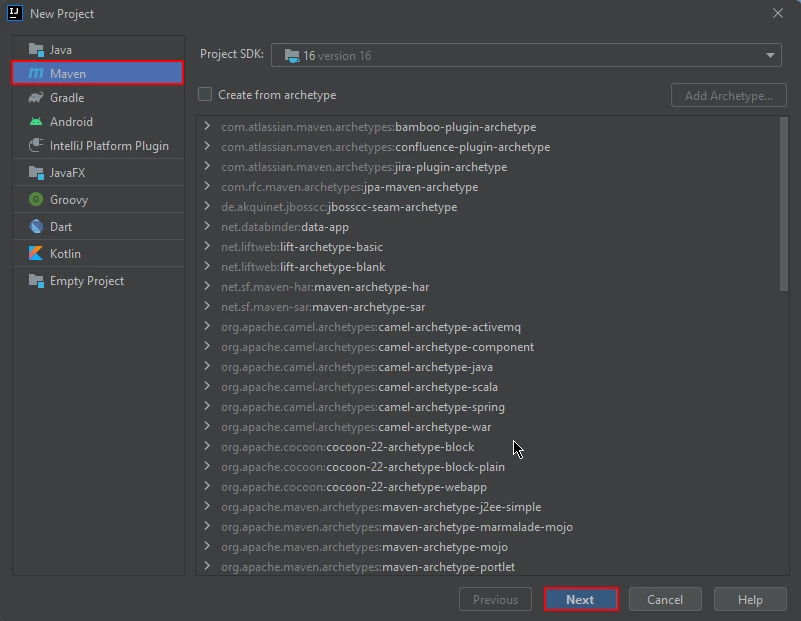
To get started, open JetBrains IntelliJ IDEA and create a new Maven project.

How to Generate PDF in Java, Figure 1: Create a new Maven project Create a new Maven project

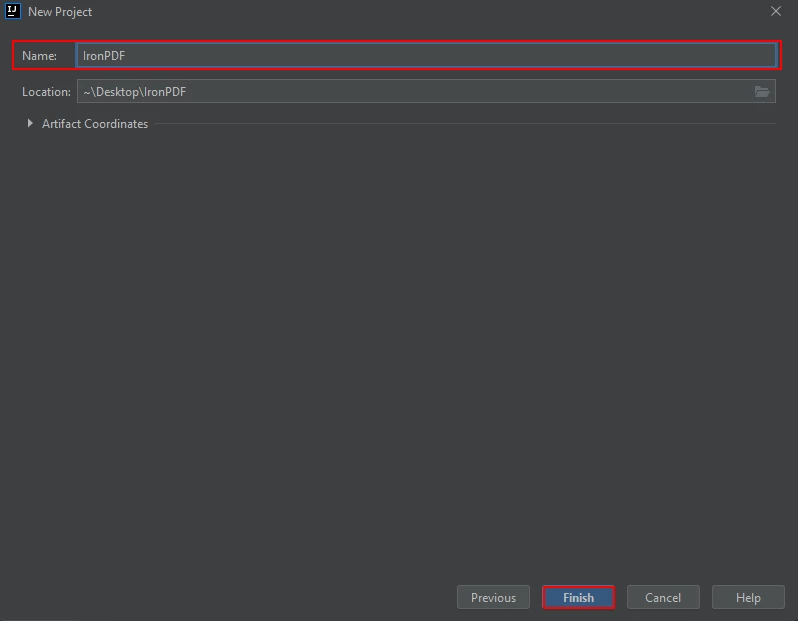
When you initiate the process of creating a new project in JetBrains IntelliJ IDEA, a new window will pop up. This window will prompt you to enter the name of your project. Once you have entered an appropriate name, simply click on the "Finish" button to proceed.

How to Generate PDF in Java, Figure 2: Name your project Name your project

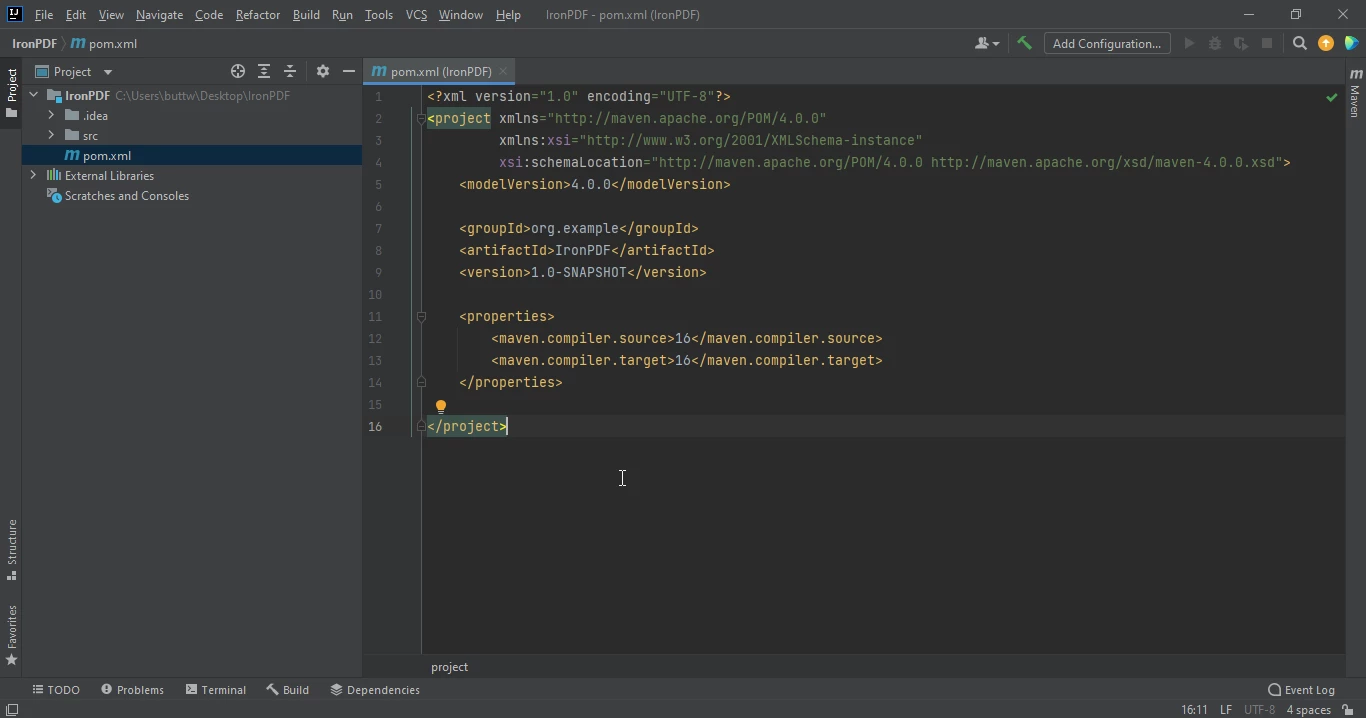
Once you have clicked the "Finish" button, a new project will be opened in JetBrains IntelliJ IDEA, and you will be presented with the pom.xml file. This file will be used to add dependencies required for the Maven project.

How to Generate PDF in Java, Figure 3: The pom.xml file The pom.xml file

Add the following dependencies in the pom.xml file. By adding these dependencies, we can ensure that all the necessary libraries and packages are available for the project to run smoothly.

<dependency>
    <groupId>com.ironsoftware</groupId>
    <artifactId>ironpdf</artifactId>
    <version>latest.version</version>
</dependency>
<dependency>
    <groupId>com.ironsoftware</groupId>
    <artifactId>ironpdf</artifactId>
    <version>latest.version</version>
</dependency>
XML

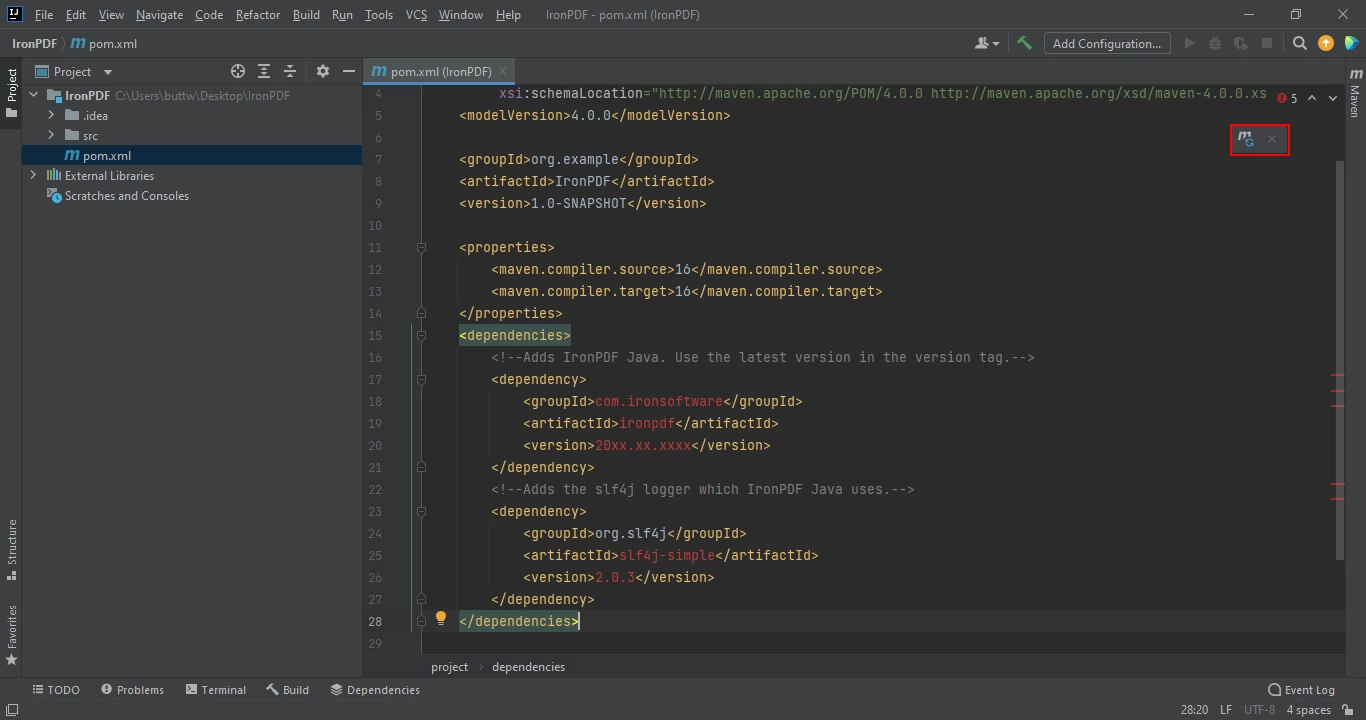
After you have successfully added the above dependencies to the pom.xml file, you will notice a small icon appears in the top right corner of the file.

How to Generate PDF in Java, Figure 4: Install missing dependencies Install missing dependencies

Simply click on this icon to install dependencies. This process should only take a few minutes, depending on the speed of your internet connection.

4. Generating PDF Files

This section will discuss how to generate PDF files using IronPDF for Java. There are many ways to generate PDF files using IronPDF, but these two have proven to be the most optimal approaches.

  1. Create a PDF File
  2. Generate a password-protected PDF file

4.1. Create PDF Documents

There are numerous ways to generate PDF files using IronPDF. However, this article will only discuss two of them:

  1. URL to PDF
  2. HTML String to PDF

4.1.1. URL to PDF

One of IronPDF's key features is its ability to convert a URL into a PDF file. This feature makes it simple for developers to convert web pages into PDFs for use within their applications. Below is example code that creates a new document using a URL.

import com.ironsoftware.ironpdf.PdfDocument;
import java.io.IOException;
import java.nio.file.Paths;

public class Main { // Class names should be capitalized
    public static void main(String[] args) throws IOException {
        // Convert a URL to a PDF document
        PdfDocument myPdf = PdfDocument.renderUrlAsPdf("https://www.pinterest.com/?show_error=true#top");
        // Save the generated PDF to a file
        myPdf.saveAs(Paths.get("url.pdf"));
    }
}
import com.ironsoftware.ironpdf.PdfDocument;
import java.io.IOException;
import java.nio.file.Paths;

public class Main { // Class names should be capitalized
    public static void main(String[] args) throws IOException {
        // Convert a URL to a PDF document
        PdfDocument myPdf = PdfDocument.renderUrlAsPdf("https://www.pinterest.com/?show_error=true#top");
        // Save the generated PDF to a file
        myPdf.saveAs(Paths.get("url.pdf"));
    }
}
JAVA

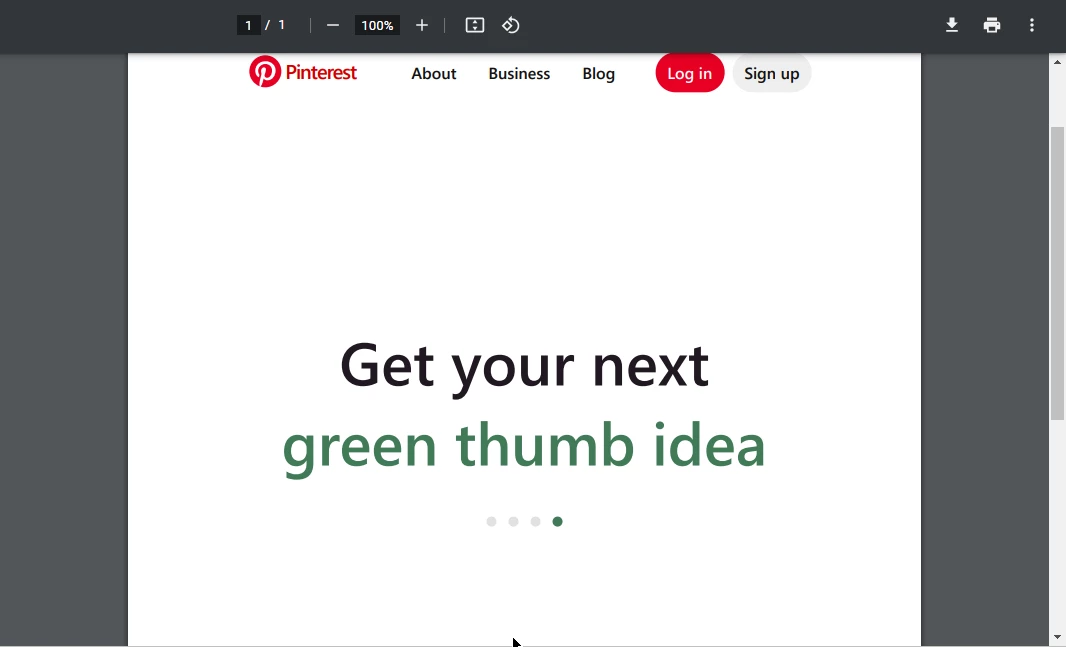
The resulting PDF file shows the PDF created by converting the URL to a PDF file.

How to Generate PDF in Java, Figure 5: The output PDF file The output PDF file

4.1.2. HTML String to PDF

In this source code, a new PDF file is created by converting an HTML string to PDF.

import com.ironsoftware.ironpdf.PdfDocument;
import java.io.IOException;
import java.nio.file.Paths;

public class Main {
    public static void main(String[] args) throws IOException {
        // Convert an HTML string to a PDF document
        PdfDocument myPdf = PdfDocument.renderHtmlAsPdf("<h1> ~Hello World~ </h1> Made with IronPDF!");
        // Save the generated PDF to a file
        myPdf.saveAs(Paths.get("html_saved.pdf"));
    }
}
import com.ironsoftware.ironpdf.PdfDocument;
import java.io.IOException;
import java.nio.file.Paths;

public class Main {
    public static void main(String[] args) throws IOException {
        // Convert an HTML string to a PDF document
        PdfDocument myPdf = PdfDocument.renderHtmlAsPdf("<h1> ~Hello World~ </h1> Made with IronPDF!");
        // Save the generated PDF to a file
        myPdf.saveAs(Paths.get("html_saved.pdf"));
    }
}
JAVA

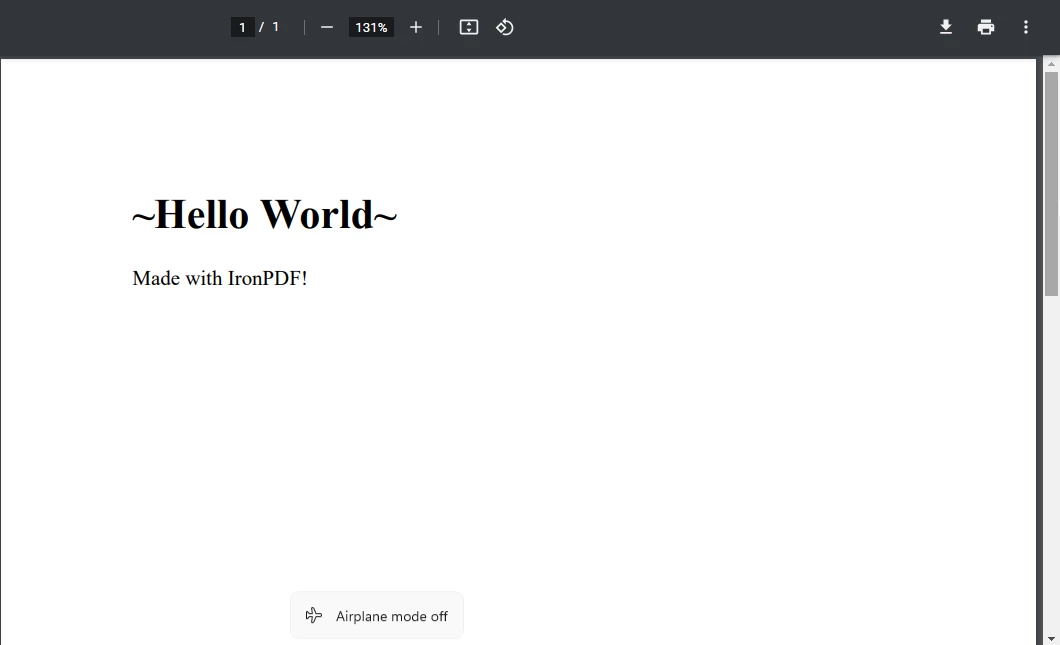
The following image shows the output of the above code, creating a PDF file from an HTML string.

How to Generate PDF in Java, Figure 6: The output PDF file The output PDF file

4.2. Generate a Password-protected PDF File

IronPDF can be used to generate password-protected PDF files in Java. To generate a password-protected PDF file using IronPDF, just follow the below code example:

import com.ironsoftware.ironpdf.PdfDocument;
import com.ironsoftware.ironpdf.security.SecurityManager;
import com.ironsoftware.ironpdf.security.SecurityOptions;
import java.io.IOException;
import java.nio.file.Paths;

public class Main {
    public static void main(String[] args) throws IOException {
        // Convert an HTML string to a PDF document
        PdfDocument myPdf = PdfDocument.renderHtmlAsPdf("<h1> ~Hello World~ </h1> Secured file Made with IronPDF!");
        // Setup security options for the PDF document
        SecurityOptions securityOptions = new SecurityOptions();
        securityOptions.setOwnerPassword("123abc");  // Set the owner password
        securityOptions.setUserPassword("secretPassword");  // Set the user password
        // Apply security options to the PDF document
        SecurityManager securityManager = myPdf.getSecurity();
        securityManager.setSecurityOptions(securityOptions);
        // Save the password-protected PDF to a file
        myPdf.saveAs(Paths.get("secured.pdf"));
    }
}
import com.ironsoftware.ironpdf.PdfDocument;
import com.ironsoftware.ironpdf.security.SecurityManager;
import com.ironsoftware.ironpdf.security.SecurityOptions;
import java.io.IOException;
import java.nio.file.Paths;

public class Main {
    public static void main(String[] args) throws IOException {
        // Convert an HTML string to a PDF document
        PdfDocument myPdf = PdfDocument.renderHtmlAsPdf("<h1> ~Hello World~ </h1> Secured file Made with IronPDF!");
        // Setup security options for the PDF document
        SecurityOptions securityOptions = new SecurityOptions();
        securityOptions.setOwnerPassword("123abc");  // Set the owner password
        securityOptions.setUserPassword("secretPassword");  // Set the user password
        // Apply security options to the PDF document
        SecurityManager securityManager = myPdf.getSecurity();
        securityManager.setSecurityOptions(securityOptions);
        // Save the password-protected PDF to a file
        myPdf.saveAs(Paths.get("secured.pdf"));
    }
}
JAVA

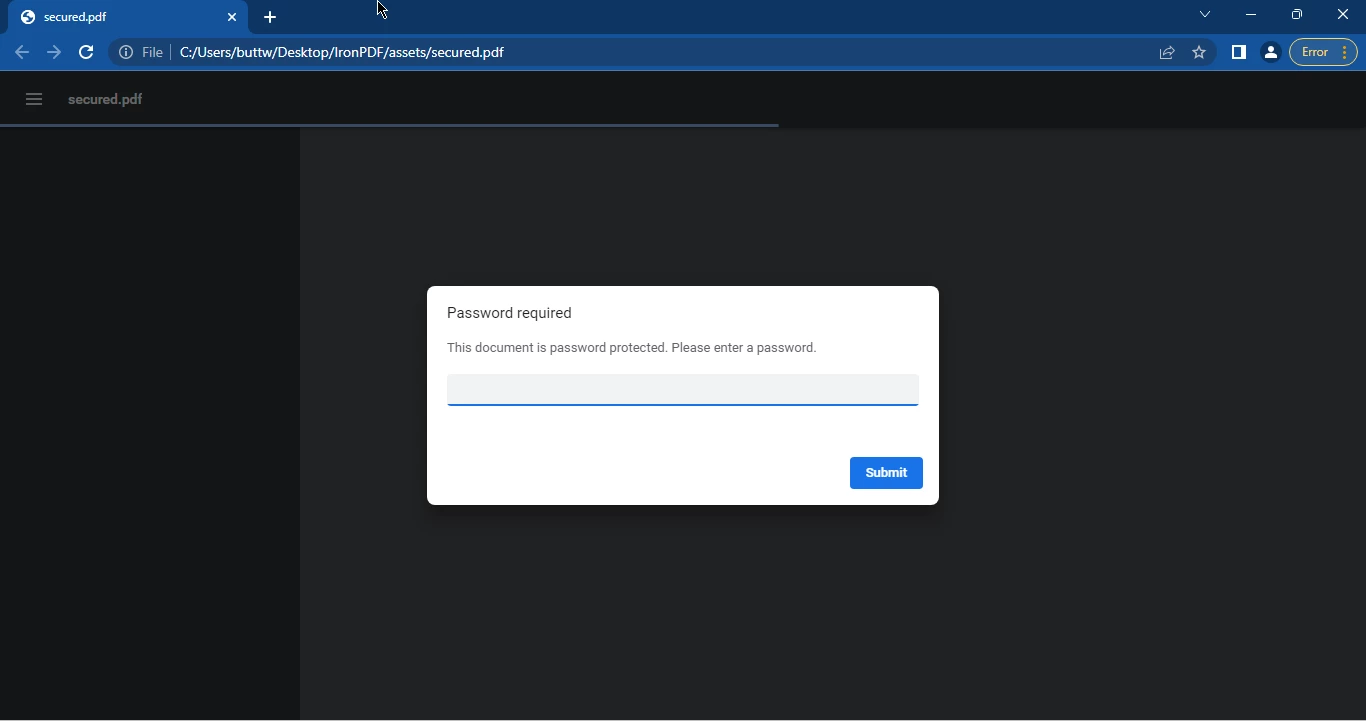
How to Generate PDF in Java, Figure 7: The password required PDF file The password required PDF file

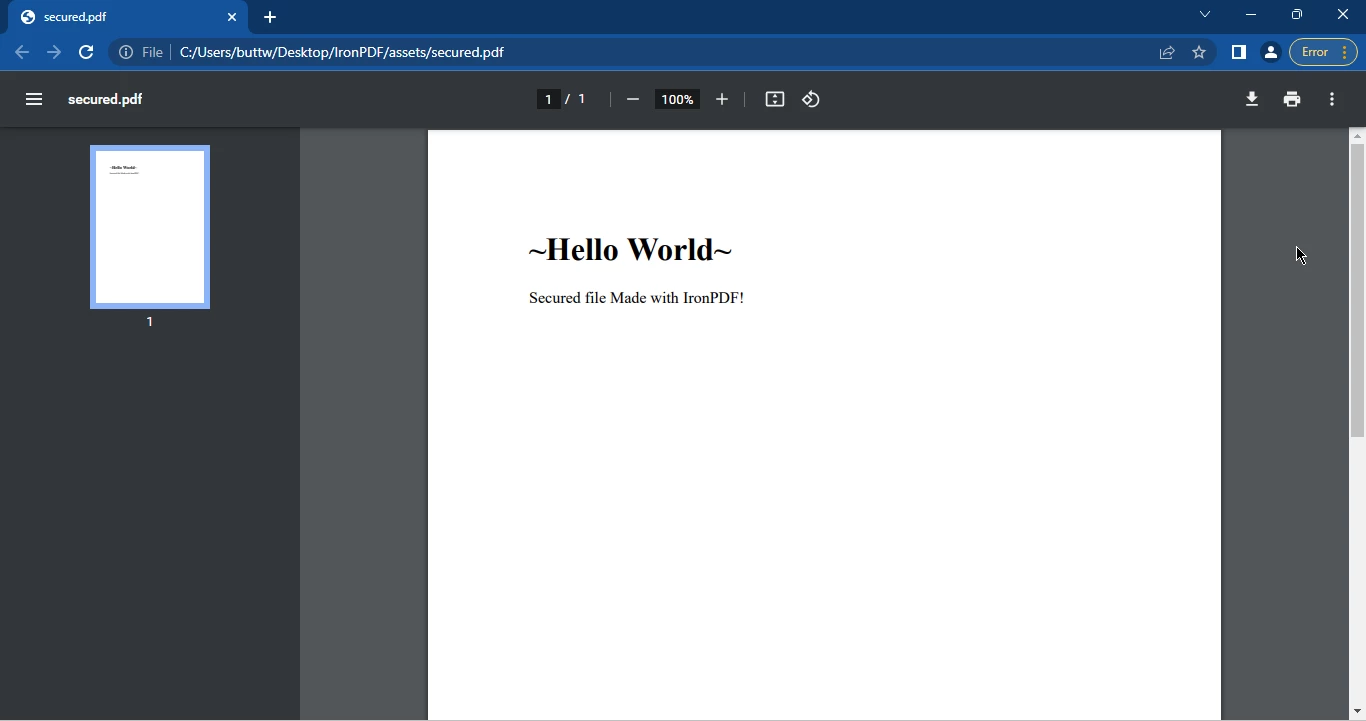
Once you enter the correct password you can access the PDF file.

How to Generate PDF in Java, Figure 8: The output PDF file The output PDF file

5. Conclusion

Generating PDF files in Java has become a crucial aspect of many Java projects. IronPDF for Java is a library that provides a simple API, making it easy for developers to create and manipulate PDF documents. To get started with IronPDF, you will need to have Java, a Java IDE, and Maven integrated with your IDE. Once you have met these prerequisites, you can add the necessary dependencies to your Maven project and create PDF files.

IronPDF offers several ways to generate PDFs, such as converting a URL to PDF, converting an HTML string to PDF, and creating password-protected or digitally-signed PDF files. With IronPDF, generating PDF files in Java has never been easier.

IronPDF for Java is available for free for development purposes, but a license is required for commercial use. However, you can get a free 30-day trial license to test IronPDF for Java's functionality.

자주 묻는 질문

Java의 HTML 문자열에서 PDF를 생성하려면 어떻게 해야 하나요?

IronPDF의 PdfDocument.renderHtmlAsPdf() 메서드를 사용하여 HTML 문자열을 PDF 문서로 변환할 수 있습니다. 렌더링이 완료되면 saveAs() 메서드를 사용하여 PDF를 저장할 수 있습니다.

PDF 생성을 위한 Java 프로젝트를 설정하려면 어떤 단계가 필요하나요?

IronPDF를 사용하여 PDF 생성을 위한 Java 프로젝트를 설정하려면 Java가 설치되어 있는지 확인하고, IntelliJ 또는 Eclipse와 같은 Java IDE를 구성하고, pom.xml 파일에 IronPDF 의존성을 추가하여 의존성 관리를 위해 Maven을 통합해야 합니다.

웹 페이지 URL을 Java에서 PDF로 변환하려면 어떻게 해야 하나요?

IronPDF를 사용하면 PdfDocument.renderUrlAsPdf() 메서드를 사용하여 웹 페이지 URL을 PDF로 변환한 다음 saveAs() 메서드를 사용하여 생성된 PDF를 저장할 수 있습니다.

보안 기능이 강화된 PDF 문서를 만들 수 있나요?

예, IronPDF를 사용하면 비밀번호 보호 및 디지털 서명과 같은 강화된 보안 기능을 갖춘 PDF 문서를 SecurityManager 클래스를 사용하여 만들 수 있습니다.

Java용 IronPDF는 오픈 소스인가요?

Java용 IronPDF는 오픈 소스가 아닙니다. 하지만 암호로 보호되고 디지털 서명된 PDF를 생성하는 기능을 포함하여 광범위한 PDF 서식 지정 및 편집 기능을 제공합니다.

Java에서 PDF 라이브러리를 사용하기 위한 라이선스 요건은 무엇인가요?

Java용 IronPDF는 개발 목적으로는 무료이지만 프로덕션용으로 사용하려면 상용 라이선스가 필요합니다. 평가를 위해 30일 무료 평가판을 사용할 수 있습니다.

내 IDE가 Java의 PDF 라이브러리와 호환되는지 확인하려면 어떻게 해야 하나요?

IronPDF는 프로젝트 종속성을 효과적으로 관리하기 위해 Maven을 지원하는 Eclipse 및 IntelliJ와 같은 인기 있는 Java IDE와 호환됩니다.

Java PDF 라이브러리는 문서 조작을 위해 어떤 기능을 제공하나요?

IronPDF는 HTML 및 URL을 PDF로 변환, 텍스트 및 이미지 추가, 양식 생성, PDF에서 콘텐츠 추출 등 문서 조작을 위한 다양한 기능을 제공합니다.

Java에서 특정 레이아웃의 PDF를 생성하려면 어떻게 해야 하나요?

IronPDF를 사용하여 Java에서 특정 레이아웃의 PDF를 생성하려면 HTML에서 원하는 레이아웃을 정의하거나 CSS 스타일을 사용한 다음 PdfDocument.renderHtmlAsPdf() 메서드를 사용하여 PDF로 변환할 수 있습니다.

커티스 차우
기술 문서 작성자

커티스 차우는 칼턴 대학교에서 컴퓨터 과학 학사 학위를 취득했으며, Node.js, TypeScript, JavaScript, React를 전문으로 하는 프론트엔드 개발자입니다. 직관적이고 미적으로 뛰어난 사용자 인터페이스를 만드는 데 열정을 가진 그는 최신 프레임워크를 활용하고, 잘 구성되고 시각적으로 매력적인 매뉴얼을 제작하는 것을 즐깁니다.


커티스는 개발 분야 외에도 사물 인터넷(IoT)에 깊은 관심을 가지고 있으며, 하드웨어와 소프트웨어를 통합하는 혁신적인 방법을 연구합니다. 여가 시간에는 게임을 즐기거나 디스코드 봇을 만들면서 기술에 대한 애정과 창의성을 결합합니다.