푸터 콘텐츠로 바로가기
NODE.JS용 IRONPDF 사용
Node.js에서 PDF 파일을 생성하는 방법

Node.js에서 PDF 파일을 생성하는 방법

This article endeavors to delve deep into the nuanced intricacies of IronPDF, guiding readers through every facet from the initial installation process to its practical implementation in real-world scenarios.

1. How to use Node.js PDF Generator?

  1. Install the IronPDF for Node.js PDF Generator Library.
  2. Import the required Dependencies.
  3. Render HTML as PDF using PdfDocument.fromHtml function.
  4. Generate PDF from URL using PdfDocument.fromUrl method.
  5. Convert Images into PDF files using imageToPdf method.
  6. Save the Created PDF files using saveAs method.

2. Exploring IronPDF For Node.js

IronPDF from Iron Software stands as a formidable PDF library meticulously crafted for Node.js, endowing developers with the seamless capability to effortlessly generate PDF files. Boasting an extensive array of features, IronPDF proves its versatility, catering to a spectrum of use cases that span from document generation and report creation to content rendering. Among its standout attributes lies the remarkable prowess to seamlessly convert an HTML template and images into PDF files, showcasing the library's adaptability and efficiency in handling diverse content sources.

2.1. Installing IronPDF

Before diving into the world of PDF generation, you need to install IronPDF. The process is straightforward, thanks to npm - Node.js's package manager. Open your terminal and run the following command:

 npm과 @ironsoftware/ironpdf

This command fetches and installs the IronPDF package, making it available for use in your Node.js project.

To install the IronPDF engine that is required for using the IronPDF library, run the following command on the console.

npm install @ironsoftware/ironpdf-engine-windows-x64
SHELL

3. Adding Required Packages

Once IronPDF is installed, you need to include the necessary packages in your project using the import statement. This ensures that you have access to the functionalities provided by IronPDF. Consider the following example:

import { PdfDocument } from "@ironsoftware/ironpdf";
JAVASCRIPT

This import statement brings in the PdfDocument class, a fundamental building block for generating PDF files with IronPDF.

4. Generating PDF Files

Now that IronPDF is set up in your project, let's explore the basic process of generating a PDF file using the PDF creator package. There are many ways to create PDF files using IronPDF, but this article will discuss a few of them.

  1. HTML String to PDF
  2. URL to PDF
  3. Images to PDF

4.1. Convert HTML to PDF Document Using IronPDF

One of IronPDF's standout features is its ability to convert HTML into PDF files effortlessly. This is particularly useful when you have dynamic content generated on the server and want to present it in a PDF format. Here's a simple example:

import { PdfDocument } from "@ironsoftware/ironpdf";

(async () => {
  // Create a PDF from an HTML string
  const pdf = await PdfDocument.fromHtml(
    "<h1>Hello Developers This is an Example PDF created with IronPDF</h1>"
  );

  // Export the PDF to a file
  await pdf.saveAs("output.pdf");
})();
import { PdfDocument } from "@ironsoftware/ironpdf";

(async () => {
  // Create a PDF from an HTML string
  const pdf = await PdfDocument.fromHtml(
    "<h1>Hello Developers This is an Example PDF created with IronPDF</h1>"
  );

  // Export the PDF to a file
  await pdf.saveAs("output.pdf");
})();
JAVASCRIPT

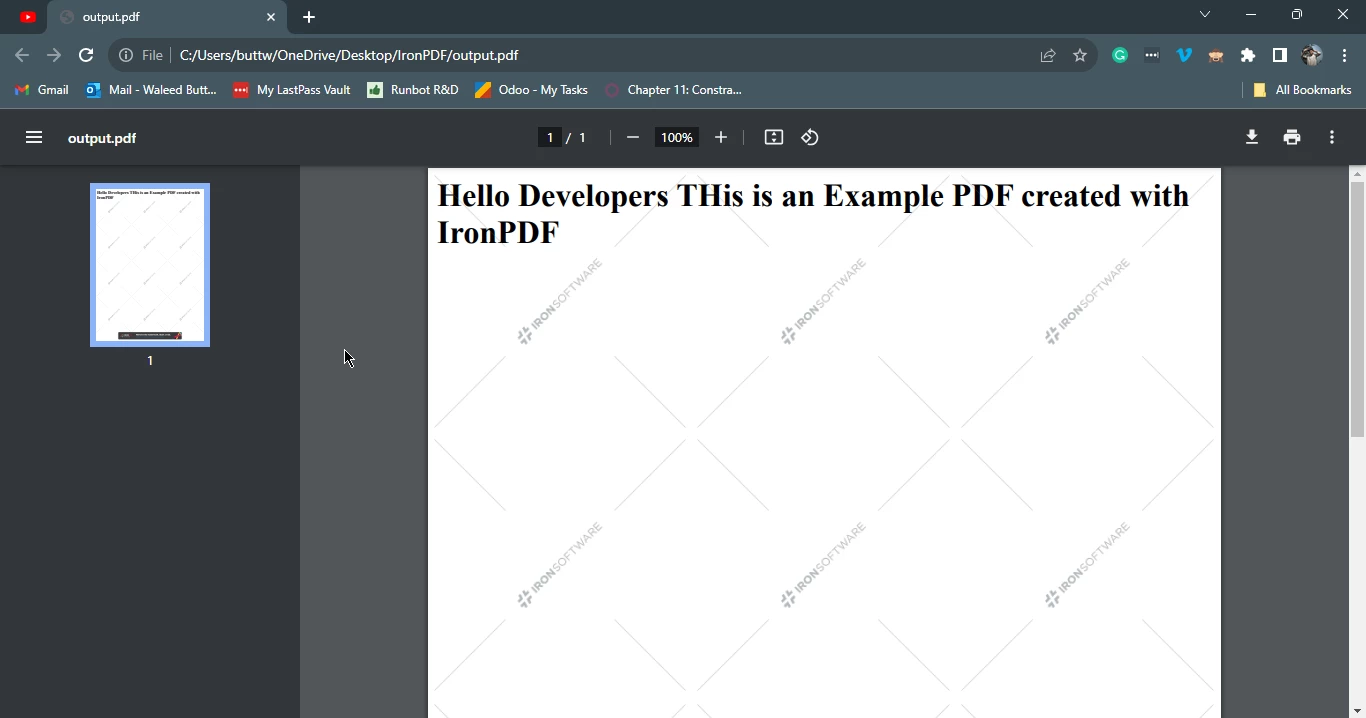
This code snippet utilizes IronPDF, a Node.js library, to dynamically generate a PDF document from a specified HTML string. It begins by importing the PdfDocument class from the IronPDF package. The subsequent asynchronous function employs the fromHtml method to create a PDF document, using a simple heading element in this instance. The saveAs method is then utilized to export the generated PDF to a file named "output.pdf".

The asynchronous nature of the code is managed through the use of the async/await syntax, ensuring that the PDF data generation and saving processes occur in a non-blocking manner. Overall, this succinct example demonstrates how IronPDF streamlines the creation and manipulation of PDFs in a Node.js environment.

Output

How to Generate a PDF File in Node.js, Figure 1: Output PDF generated from an HTML string using IronPDF library Output PDF generated from an HTML string using IronPDF library

4.2. Create PDF Files from a URL Using IronPDF

Creating PDF files from a URL using IronPDF in Node.js is a powerful feature that allows you to convert web content into PDF documents programmatically. Here's an example code snippet that demonstrates how to achieve this:

import { PdfDocument } from "@ironsoftware/ironpdf";

(async () => {
  // URL of the web page to convert to PDF
  const url = "https://google.com";

  // Create a PDF doc from the specified URL
  const pdf = await PdfDocument.fromUrl(url);

  // Save the PDF to a file
  await pdf.saveAs("output_from_url.pdf");
})();
import { PdfDocument } from "@ironsoftware/ironpdf";

(async () => {
  // URL of the web page to convert to PDF
  const url = "https://google.com";

  // Create a PDF doc from the specified URL
  const pdf = await PdfDocument.fromUrl(url);

  // Save the PDF to a file
  await pdf.saveAs("output_from_url.pdf");
})();
JAVASCRIPT

In this code:

  1. The PdfDocument class is imported from the IronPDF package.
  2. Inside an asynchronous function (wrapped in an immediately-invoked function expression), a variable url is defined with the URL of the web page you want to convert to a PDF.
  3. The fromUrl method is then used to create a PDF document from the specified URL. IronPDF fetches the content from the URL and converts it into a PDF document.
  4. Finally, the saveAs method is employed to save the generated PDF to a file named "output_from_url.pdf."

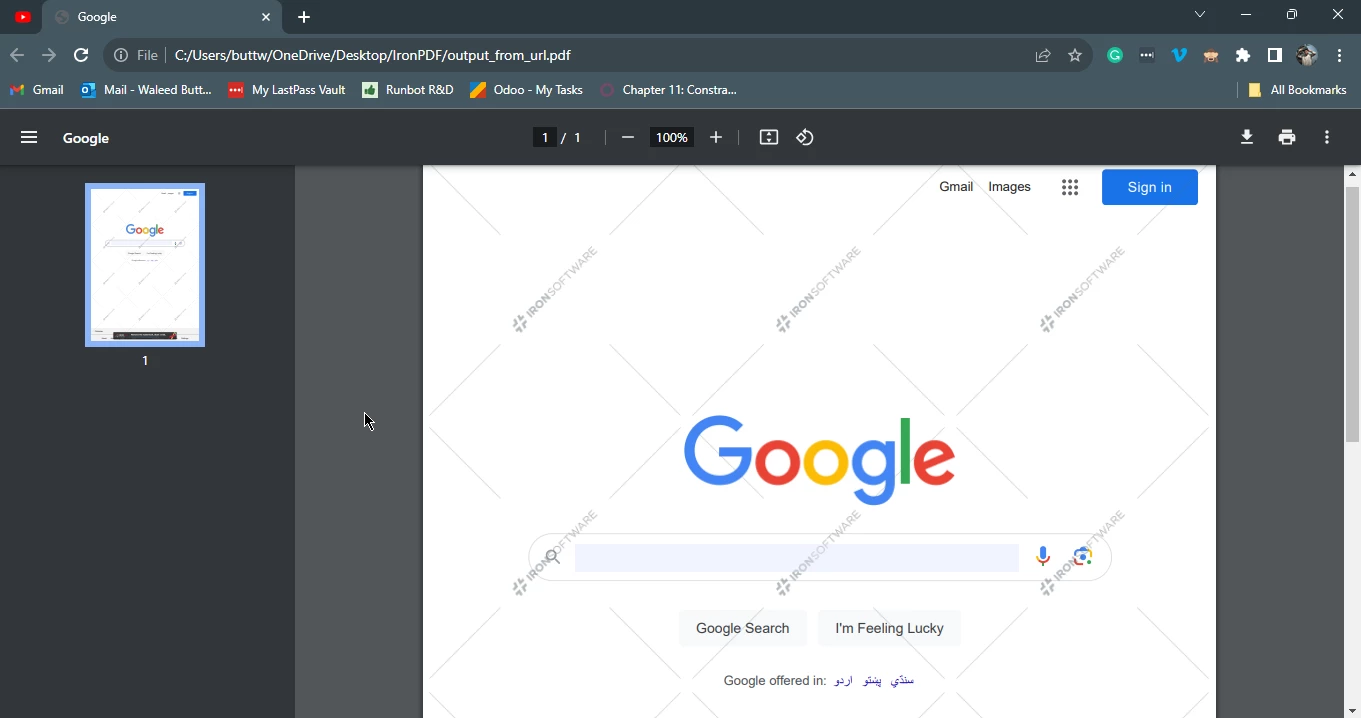
This example showcases the simplicity of using IronPDF to convert web content from a URL into a PDF file, making it a valuable tool for scenarios where dynamic web content needs to be archived or shared in a PDF format.

How to Generate a PDF File in Node.js, Figure 2: Output PDF generated from a URL using IronPDF library Output PDF generated from a URL using IronPDF library

4.3. Generating PDF File from Images Using IronPDF

In addition to HTML, IronPDF provides functionality to generate PDF files from images. This is particularly useful when dealing with scenarios where images need to be compiled into a single PDF document. Let's explore a simple example:

import { PdfGenerator } from "@ironsoftware/ironpdf";
import fs from "fs";

(async () => {
  // Specify the directory path
  const directoryPath = "./images";

  // Read the contents of the directory
  fs.readdir(directoryPath, (err, files) => {
    if (err) {
      console.error("Error reading directory:", err);
      return;
    }

    // Filter file names to include only .jpg and .jpeg extensions
    const jpegFiles = files.filter(
      (file) =>
        file.toLowerCase().endsWith(".jpg") || file.toLowerCase().endsWith(".jpeg")
    );

    // Construct full file paths for the filtered files
    const filePaths = jpegFiles.map((file) => `${directoryPath}/${file}`);

    // Converts the images to a PDF and save it.
    PdfGenerator.imageToPdf(filePaths).then((returnedPdf) => {
      returnedPdf.saveAs("composite.pdf");
    });

    // Also see PdfDocument.rasterizeToImageFiles() method to flatten a PDF to images or thumbnails
  });
})();
import { PdfGenerator } from "@ironsoftware/ironpdf";
import fs from "fs";

(async () => {
  // Specify the directory path
  const directoryPath = "./images";

  // Read the contents of the directory
  fs.readdir(directoryPath, (err, files) => {
    if (err) {
      console.error("Error reading directory:", err);
      return;
    }

    // Filter file names to include only .jpg and .jpeg extensions
    const jpegFiles = files.filter(
      (file) =>
        file.toLowerCase().endsWith(".jpg") || file.toLowerCase().endsWith(".jpeg")
    );

    // Construct full file paths for the filtered files
    const filePaths = jpegFiles.map((file) => `${directoryPath}/${file}`);

    // Converts the images to a PDF and save it.
    PdfGenerator.imageToPdf(filePaths).then((returnedPdf) => {
      returnedPdf.saveAs("composite.pdf");
    });

    // Also see PdfDocument.rasterizeToImageFiles() method to flatten a PDF to images or thumbnails
  });
})();
JAVASCRIPT

This code utilizes IronPDF, a Node.js library, to convert a collection of JPEG images in a specified directory into a single PDF document. Initially, the code specifies the directory path containing the images. It then reads the contents of the directory using the fs.readdir function. Subsequently, it filters the file names to include only those with ".jpg" or ".jpeg" extensions.

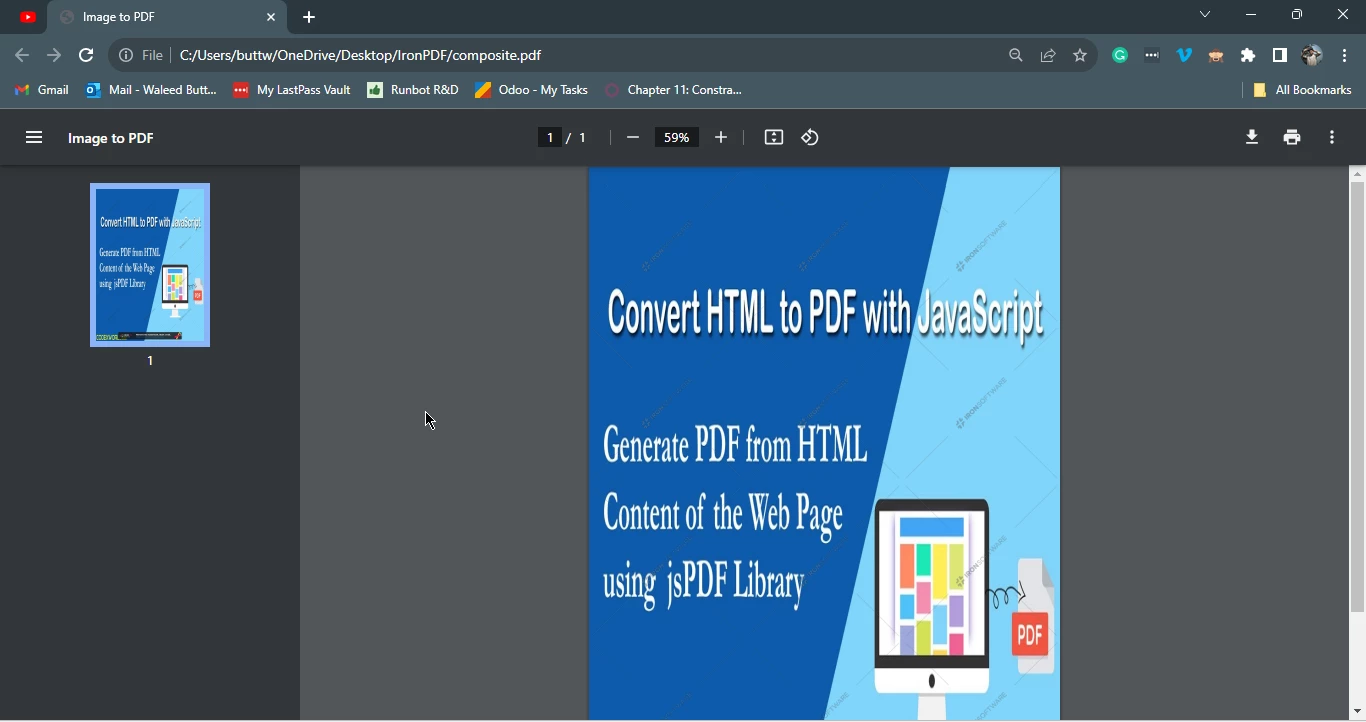
The full file paths for the filtered images are constructed, and the PdfGenerator.imageToPdf method is employed to convert these images into a PDF document. The resulting PDF is then saved as "composite.pdf." This script demonstrates the streamlined process offered by IronPDF for converting a batch of images into a consolidated PDF file, providing a practical solution for scenarios where image content needs to be compiled and presented in a single document.

How to Generate a PDF File in Node.js, Figure 3: Output PDF generated from Images using IronPDF library Output PDF generated from Images using IronPDF library

5. Conclusion

Node.js, coupled with IronPDF, opens up a world of possibilities for dynamic PDF creation. From simple text-based documents to complex reports with dynamic content, IronPDF simplifies the process and enhances the capabilities of your Node.js applications. Whether you're converting HTML to PDF, populating templates, or compiling images into a PDF file, IronPDF provides a versatile and efficient solution for your PDF generation needs.

As you continue to explore and implement these features, you'll find that IronPDF Node.js library is a valuable tool in your developer toolkit, streamlining the process of creating dynamic and visually appealing PDF documents.

IronPDF for Node.js offers a free trial for their users. To get started with IronPDF visit this documentation page. The code example and complete tutorial of HTML to PDF conversion can be found at the following tutorial page.

자주 묻는 질문

Node.js용 PDF 라이브러리는 어떻게 설치하나요?

Node.js용 IronPDF를 설치하려면 터미널에서 `npm i @ironsoftware/ironpdf`를 실행하여 핵심 라이브러리를 가져옵니다. 그런 다음 Windows 시스템의 경우 `npm install @ironsoftware/ironpdf-engine-windows-x64`로 필요한 엔진을 설치합니다.

Node.js용으로 설계된 PDF 라이브러리의 주요 기능은 무엇인가요?

IronPDF는 HTML 및 웹 페이지를 PDF로 변환하고, 이미지를 PDF로 컴파일하고, 다양한 애플리케이션을 위한 동적 콘텐츠 렌더링을 지원하는 등 포괄적인 PDF 생성 기능을 제공합니다.

HTML 콘텐츠를 PDF 문서로 변환하려면 어떻게 해야 하나요?

IronPDF의 PdfDocument.fromHtml 메서드를 사용하여 HTML 콘텐츠를 PDF로 변환할 수 있습니다. PdfDocument 클래스를 가져와 HTML 문자열에서 PDF를 만든 다음 saveAs 메서드를 사용하여 저장합니다.

Node.js의 웹 페이지 URL에서 PDF를 생성할 수 있나요?

예, IronPDF를 사용하면 PdfDocument.fromUrl 메서드를 사용하여 웹 페이지 URL에서 PDF를 생성할 수 있습니다. 변환하려는 웹 페이지의 URL을 입력한 다음 saveAs 메서드를 사용하여 PDF를 저장하세요.

여러 이미지를 하나의 PDF 파일로 컴파일할 수 있나요?

IronPDF를 사용하면 PdfGenerator.imageToPdf 메서드를 사용하여 여러 이미지를 단일 PDF로 컴파일할 수 있습니다. 변환할 이미지 경로를 지정하고 saveAs 메서드를 사용하여 결과를 PDF로 저장합니다.

프로젝트에서 Node.js PDF 라이브러리를 사용하는 과정은 무엇인가요?

이 과정에는 IronPDF를 설치하고, PdfDocument와 같은 필요한 클래스를 가져오고, fromHtml 또는 fromUrl 등의 메서드를 사용하여 PDF를 생성하고, saveAs 메서드로 파일을 저장하는 것이 포함됩니다.

Node.js에서 비동기 PDF 작업을 처리하려면 어떻게 해야 하나요?

IronPDF는 비동기/대기 구문을 사용하여 비동기 작업을 지원하므로 실행 흐름을 차단하지 않고도 PDF 생성 및 저장과 같은 작업을 수행할 수 있습니다.

Node.js용 PDF 라이브러리 사용에 대한 추가 리소스는 어디에서 찾을 수 있나요?

더 많은 리소스, 튜토리얼 및 예제를 보려면 HTML을 PDF로 변환하는 데 중점을 둔 광범위한 문서와 튜토리얼 페이지를 제공하는 IronPDF 웹사이트를 방문하세요.

PDF 라이브러리의 기능을 살펴볼 수 있는 무료 평가판이 있나요?

예, IronPDF는 무료 평가판을 제공하여 사용자가 기능을 살펴볼 수 있도록 합니다. 자세한 내용을 확인하고 평가판을 시작하려면 문서 페이지를 방문하세요.

Node.js 애플리케이션에서 PDF 라이브러리를 사용하면 어떤 이점이 있나요?

Node.js 애플리케이션에서 IronPDF를 사용하면 다양한 콘텐츠 유형에서 PDF를 생성하고 동적 콘텐츠를 지원하며 JavaScript 라이브러리와의 간편한 통합을 제공함으로써 문서 처리를 향상시킬 수 있습니다.

커티스 차우
기술 문서 작성자

커티스 차우는 칼턴 대학교에서 컴퓨터 과학 학사 학위를 취득했으며, Node.js, TypeScript, JavaScript, React를 전문으로 하는 프론트엔드 개발자입니다. 직관적이고 미적으로 뛰어난 사용자 인터페이스를 만드는 데 열정을 가진 그는 최신 프레임워크를 활용하고, 잘 구성되고 시각적으로 매력적인 매뉴얼을 제작하는 것을 즐깁니다.

커티스는 개발 분야 외에도 사물 인터넷(IoT)에 깊은 관심을 가지고 있으며, 하드웨어와 소프트웨어를 통합하는 혁신적인 방법을 연구합니다. 여가 시간에는 게임을 즐기거나 디스코드 봇을 만들면서 기술에 대한 애정과 창의성을 결합합니다.