Node.js에서 PDF를 텍스트로 변환하는 방법
PDF to text conversion in Node.js is a common task in many applications, especially when dealing with data analysis, content management systems, or even simple conversion utilities. With the Node.js environment and the IronPDF library, developers can effortlessly convert PDF documents into usable text data. This tutorial aims to guide beginners through the process of setting up a Node.js project to extract text from PDF page files using IronPDF, focusing on key aspects like installation details, PDF parse implementation, error handling, and practical applications.
How To Convert PDF To Text in NodeJS
- Create a Node.js application in your IDE.
- Install the PDF library using npm.
- Load the PDF pages into the application.
- Extract text using the extractText method.
- Use the extracted text for processing and return data.
Prerequisites
Before embarking on this journey, ensure you have the following:
- Node.js is installed on your machine.
- A basic understanding of JavaScript.
- A PDF file for testing the extraction process.
Setting Up Your Node.js Project
Step 1: Initializing Your Node.js Application
Create a new directory for your project and initiate a Node.js application:
mkdir pdf-to-text-node
cd pdf-to-text-node
npm init -ymkdir pdf-to-text-node
cd pdf-to-text-node
npm init -yStep 2: Installing IronPDF
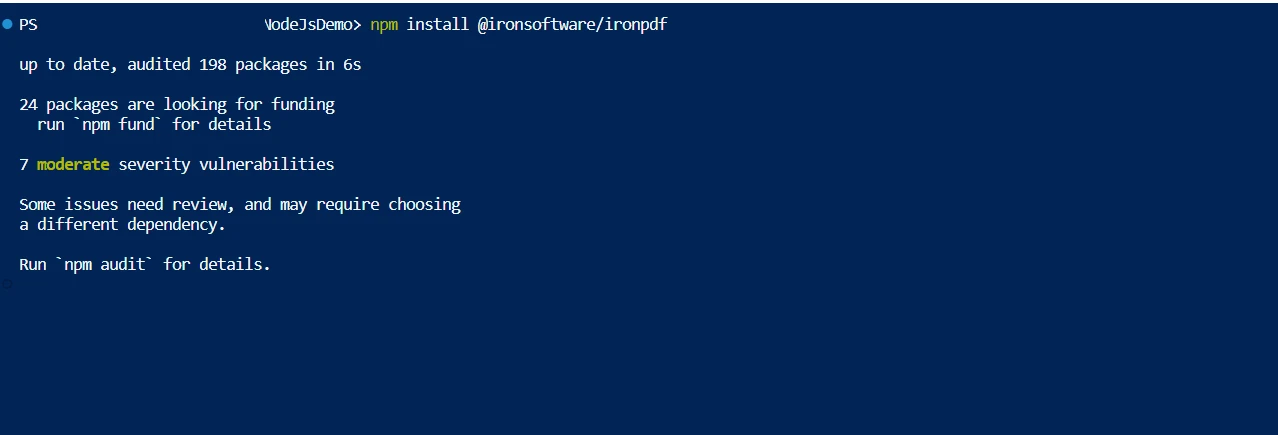
Install IronPDF using npm:
npm install ironpdfnpm install ironpdfImplementing PDF to Text Conversion with IronPDF
Step 1: Importing Necessary Modules
import { PdfDocument } from "@ironpdf/ironpdf";
import { IronPdfGlobalConfig } from "@ironpdf/ironpdf";
import fs from "fs";import { PdfDocument } from "@ironpdf/ironpdf";
import { IronPdfGlobalConfig } from "@ironpdf/ironpdf";
import fs from "fs";In this first step, you import the necessary modules. PdfDocument and IronPdfGlobalConfig are imported from the @ironpdf/ironpdf package, which are essential for working with PDF documents and configuring IronPDF, respectively. The fs module, a core Node.js module, is also imported for handling file system operations.
Step 2: Setting Up an Asynchronous Function
(async function createPDFs() {
// ...
})();(async function createPDFs() {
// ...
})();Here, an asynchronous anonymous function named createPDFs is defined and immediately invoked. This setup allows for the use of await within the function, facilitating the handling of asynchronous operations, which are common when dealing with file I/O and external libraries like IronPDF.
Step 3: Applying the License Key
const IronPdfConfig = {
licenseKey: "Your-License-Key",
};
IronPdfGlobalConfig.setConfig(IronPdfConfig);const IronPdfConfig = {
licenseKey: "Your-License-Key",
};
IronPdfGlobalConfig.setConfig(IronPdfConfig);In this step, you create a configuration object for IronPDF, including the license key, and apply this configuration using IronPdfGlobalConfig.setConfig. This is crucial for enabling all features of IronPDF, particularly if you're using a licensed version.
Step 4: Loading the PDF Document
const pdf = await PdfDocument.fromFile("old-report.pdf");const pdf = await PdfDocument.fromFile("old-report.pdf");In this step, the code correctly uses the fromFile method from the PdfDocument class to load an existing PDF document. This is an asynchronous operation, hence the use of await. By specifying the path to your PDF file (in this case, "old-report.pdf"), the pdf variable becomes a representation of your PDF document, fully loaded and ready for text extraction. This step is crucial as it's where the PDF file is parsed and prepared for any operations you wish to perform on it, such as extracting text.
Step 5: Extract Text from the PDF
const text = await pdf.extractText();const text = await pdf.extractText();Here, the extractText method is called on the pdf object. This asynchronous operation extracts all text from the loaded PDF document, storing it in the text variable.
Step 6: Processing the Extracted Text
const wordCount = text.split(/\s+/).length;
console.log("Word Count:", wordCount);const wordCount = text.split(/\s+/).length;
console.log("Word Count:", wordCount);In this step, the extracted text is processed to count the number of words. This is achieved by splitting the text string into an array of words using a regular expression that matches one or more whitespace characters and then counting the length of the resulting array.
Step 7: Saving the Extracted Text to a File
fs.writeFileSync("extracted_text.txt", text);fs.writeFileSync("extracted_text.txt", text);This corrected line uses the writeFileSync method of the fs module to synchronously write the extracted text to a file.
Step 8: Error Handling
} catch (error) {
console.error("An error occurred:", error); // Log error
}} catch (error) {
console.error("An error occurred:", error); // Log error
}Finally, the code includes a try-catch block for error handling. If any part of the asynchronous operations within the try block fails, the catch block will catch the error, and the message will be logged to the console. This is important for debugging and ensuring your application can handle unexpected issues gracefully.
Full Code
Below is the complete code that encapsulates all the steps we've discussed for extracting text from a PDF document using IronPDF in a Node.js environment:
import { PdfDocument } from "@ironpdf/ironpdf";
import { IronPdfGlobalConfig } from "@ironpdf/ironpdf";
import fs from "fs";
(async function createPDFs() {
try {
// Input the license key
const IronPdfConfig = {
licenseKey: "Your-License-Key",
};
// Set the config with the license key
IronPdfGlobalConfig.setConfig(IronPdfConfig);
// Import existing PDF document
const pdf = await PdfDocument.fromFile("old-report.pdf");
// Get all text to put in a search index
const text = await pdf.extractText();
// Process the extracted text
// Example: Count words
const wordCount = text.split(/\s+/).length;
console.log("Word Count:", wordCount);
// Save the extracted text to a text file
fs.writeFileSync("extracted_text.txt", text);
console.log("Extracted text saved to extracted_text.txt");
} catch (error) {
// Handle errors here
console.error("An error occurred:", error);
}
})();import { PdfDocument } from "@ironpdf/ironpdf";
import { IronPdfGlobalConfig } from "@ironpdf/ironpdf";
import fs from "fs";
(async function createPDFs() {
try {
// Input the license key
const IronPdfConfig = {
licenseKey: "Your-License-Key",
};
// Set the config with the license key
IronPdfGlobalConfig.setConfig(IronPdfConfig);
// Import existing PDF document
const pdf = await PdfDocument.fromFile("old-report.pdf");
// Get all text to put in a search index
const text = await pdf.extractText();
// Process the extracted text
// Example: Count words
const wordCount = text.split(/\s+/).length;
console.log("Word Count:", wordCount);
// Save the extracted text to a text file
fs.writeFileSync("extracted_text.txt", text);
console.log("Extracted text saved to extracted_text.txt");
} catch (error) {
// Handle errors here
console.error("An error occurred:", error);
}
})();This script includes all the necessary components for extracting text from a PDF file: setting up IronPDF with a license key, loading the PDF document, extracting the text, performing a simple text analysis (word count in this case), and saving the extracted text to a file. The code is wrapped in an asynchronous function to handle the asynchronous nature of file operations and PDF processing in Node.js.
Analyzing the Output: PDF and Extracted Text
Once you have run the script, you'll end up with two key components to analyze: the original PDF file and the text file containing the extracted text. This section will guide you through understanding and evaluating the output of the script.
The Original PDF Document
The PDF file you choose for this process, in this case, named "old-report.pdf", is the starting point. PDF documents can vary greatly in complexity and content. They might contain simple, straightforward text, or they could be rich with images, tables, and various text formats. The structure and complexity of your PDF will directly impact the extraction process.

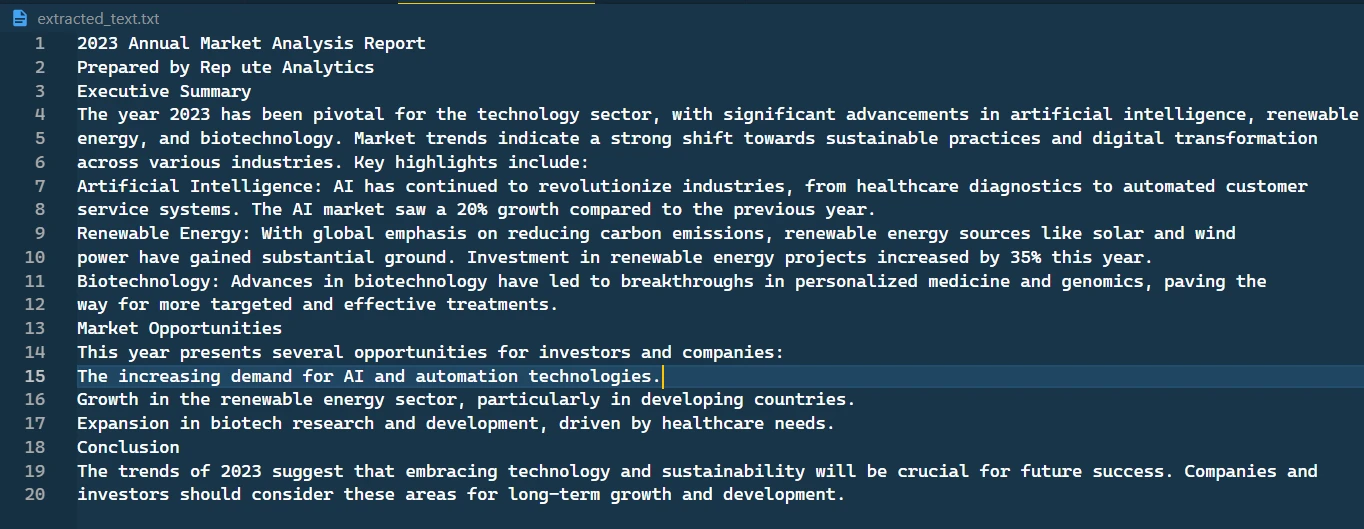
Extracted Text File
After running the script, a new text file named "extracted_text.txt" will be created. This file contains all the text that was extracted from the PDF document.

And this is the output on the console:

Practical Applications and Use Cases
Data Mining and Analysis
Extracting text from PDFs is particularly useful in data mining and analysis. Whether it's extracting financial reports, research papers, or any other PDF documents, the ability to convert PDFs to text is crucial for data analysis tasks.
Content Management Systems
In content management systems, you often need to handle various file formats. IronPDF can be a key component in a system that manages, archives, and retrieves content stored in PDF format.
Conclusion

This comprehensive guide has walked you through the process of setting up a Node.js project to extract text from PDF documents using IronPDF. From handling basic text extraction to diving into more complex features like text object extraction and performance optimization, you're now equipped with the knowledge to implement efficient PDF text extraction in your Node.js applications.
Remember, the journey doesn't end here. The field of PDF processing and text extraction is vast, with many more features and techniques to explore. Embrace the challenge and continue to enhance your skills in this exciting domain of software development.
It's worth noting that IronPDF offers a free trial for users. For those looking to integrate IronPDF into a professional setting, licensing options are available.
자주 묻는 질문
PDF 텍스트 추출을 위해 Node.js 프로젝트를 설정하려면 어떻게 해야 하나요?
PDF 텍스트 추출을 위한 Node.js 프로젝트를 설정하려면 먼저 컴퓨터에 Node.js가 설치되어 있는지 확인하세요. 그런 다음, 새 Node.js 애플리케이션을 만들고 다음 명령어를 사용하여 npm을 사용하여 IronPDF 라이브러리를 설치합니다: npm install ironpdf.
Node.js에서 IronPDF를 사용하여 PDF에서 텍스트를 추출하려면 어떤 방법을 사용해야 하나요?
Node.js에서는 IronPDF의 PdfDocument 객체에서 extractText 메서드를 사용하여 로드된 PDF 문서에서 텍스트를 추출할 수 있습니다.
Node.js에서 PDF 라이브러리를 사용하려면 라이선스 키가 필요한 이유는 무엇인가요?
특히 프로덕션 환경에서 IronPDF 라이브러리의 모든 기능을 잠금 해제하려면 라이선스 키가 필요하므로 전체 기능에 액세스할 수 있어야 합니다.
PDF 텍스트 추출 과정에서 오류가 발생하면 어떻게 해야 하나요?
트라이 캐치 블록을 사용하여 PDF 텍스트 추출 중 오류를 처리하세요. 이 접근 방식을 사용하면 오류를 포착하고 기록할 수 있으므로 Node.js 애플리케이션이 문제를 원활하게 관리할 수 있습니다.
Node.js에서 PDF를 텍스트로 변환하는 실제적인 용도는 무엇인가요?
Node.js에서 PDF를 텍스트로 변환하는 것은 데이터 마이닝, 콘텐츠 관리 시스템 자동화, 변환 유틸리티와의 통합을 통해 다양한 파일 형식을 처리하는 데 유용합니다.
라이선스를 구매하지 않고 PDF 라이브러리를 사용해 볼 수 있나요?
예, IronPDF는 무료 평가판을 제공하여 개발자가 전문적인 사용을 위한 라이선스 옵션을 결정하기 전에 라이브러리의 기능을 살펴볼 수 있도록 합니다.
비동기 프로그래밍이 Node.js에서 PDF 처리에 어떤 이점이 있나요?
비동기 프로그래밍은 파일 I/O 및 IronPDF와 같은 외부 라이브러리 사용에 중요한 Node.js에서 비차단 작업을 가능하게 하여 성능과 효율성을 향상시킵니다.