

Python용 IronPDF와 PyPDF의 비교

PDFs (Portable Document Format) are a widely used file format for preserving the layout and formatting of document information across different platforms. They are highly popular in various industries due to their ability to maintain consistent appearance regardless of the device or operating system used to open them. PDFs are commonly employed for sharing reports, invoices, forms, e-books, custom data, and other important documents.
Working with PDF files in Python has become a crucial aspect of many projects. Python offers several libraries that simplify the manipulation of PDF files, making it easier to extract information, create new documents, merge or split existing ones, and perform other PDF-related tasks.
In this article, we will conduct a comprehensive comparison of two renowned Python libraries designed to manipulate PDF files: PyPDF and IronPDF. By evaluating the features and capabilities of both libraries, we aim to provide developers with valuable insights to help them make a conscious decision on which one best suits their specific software application needs.
These libraries offer robust tools to streamline working with PDFs, empowering developers to efficiently handle PDF documents within their Python applications. So, let's dive deep into the comparison and explore the strengths of each library to facilitate your PDF-related tasks.
PyPDF - Pure Python PDF Library
PyPDF is a pure Python PDF library that provides basic functionalities for reading, writing, decrypting PDF files, and manipulating PDF documents. It allows developers to extract text and images from PDFs, merge multiple PDF files, split large PDFs into smaller ones, and more. PyPDF is known for its simplicity and ease of use, making it a suitable choice for straightforward PDF tasks.
It provides a comprehensive set of features for working with PDF documents, making it an excellent choice for a wide range of PDF-related tasks.
Features
PyPDF is a Python PDF library capable of the following features:
- Read PDF Files: Extract text, images, and metadata from existing PDF files.
- Write PDF Files: Create new PDFs from scratch or modify existing ones with text and images.
- Merge PDF Files: Combine multiple PDF files into a single document.
- Split PDF Files: Divide a PDF into separate files, each containing one or more pages.
- Rotate and Overlay Pages: Rotate pages and add watermarks or overlays to PDFs.
- Encrypting and Decrypting PDF Files: Add security to PDFs by encrypting and decrypting them.
- Extracting Text: Get plain text from PDFs or specific regions within a page.
- Extracting Images: Retrieve images embedded within PDFs.
- Manipulate PDF Files: Copy, delete, or rearrange pages within a PDF file.
- Form Field Filling: Populate form fields in PDFs programmatically.
IronPDF - Python PDF Library
IronPDF is a comprehensive PDF manipulation library for Python, built on top of IronPDF's .NET library. It offers a powerful API with advanced capabilities, such as converting HTML to PDF, handling PDF annotations and form fields, and performing complex PDF operations efficiently. IronPDF is favored for projects requiring robust PDF processing, performance, and extensive feature support.
IronPDF is a Python PDF library capable of handling PDF processing tasks seamlessly. It provides a reliable and feature-rich PDF manipulation solution for Python developers. With IronPDF, you can effortlessly generate, modify, and extract content from multiple pages within a PDF, making it an excellent choice for various PDF-related applications.
Features
Here are some prominent features of IronPDF:
- PDF Generation: IronPDF allows developers to create PDF documents from scratch or convert HTML content into PDF format, making it easy to generate dynamic and visually appealing reports and documents.
- Advanced Text and Image Manipulation: Developers can easily manipulate text and images within PDF files. IronPDF offers functionalities to add, edit, and format text, as well as insert, resize, and position images with precision.
- PDF Merging and PDF Splitting: IronPDF enables merging multiple PDF files into a single document and splitting a PDF into multiple separate files, providing flexibility in managing PDF content.
- PDF Form Support: With IronPDF, developers can work with PDF forms, allowing them to fill form fields, extract form data, and create interactive PDFs.
- PDF Security and Encryption: IronPDF offers features to add password protection and encryption to PDF documents, ensuring data security and confidentiality.
- PDF Annotations: Developers can add annotations such as comments, highlights, and bookmarks to enhance collaboration and readability within PDFs.
- Header and Footer: IronPDF allows the addition of headers and footers to PDF pages, providing branding and context to the document.
- Barcode Generation: IronPDF facilitates generating various types of barcodes and QR codes directly into PDF documents using HTML.
- High Performance: Built on top of IronPDF's .NET library, IronPDF provides high performance and efficiency in handling large PDF files and complex operations.
The article now goes as follows:
- Create a Python Project
- PyPDF Installation
- IronPDF Installation
- Creating PDF Documents
- Merging PDF Files
- Splitting PDF Files
- Extracting Text from PDF Files
- Licensing
- Conclusion
1. Create a Python Project
Using an Integrated Development Environment (IDE) for Python projects can significantly enhance productivity. Among popular choices, I'm going to use PyCharm, as it stands out for its intelligent code completion, powerful debugging, and seamless integration with version control systems. If you don't have it installed, you can download it from the JetBrains website PyCharm, or you can use any IDE/Text editor for Python programming such as VS Code.
To create a Python project in PyCharm:
Launch PyCharm and click "Create New Project" on the PyCharm welcome screen, or go to File > New Project from the menu.
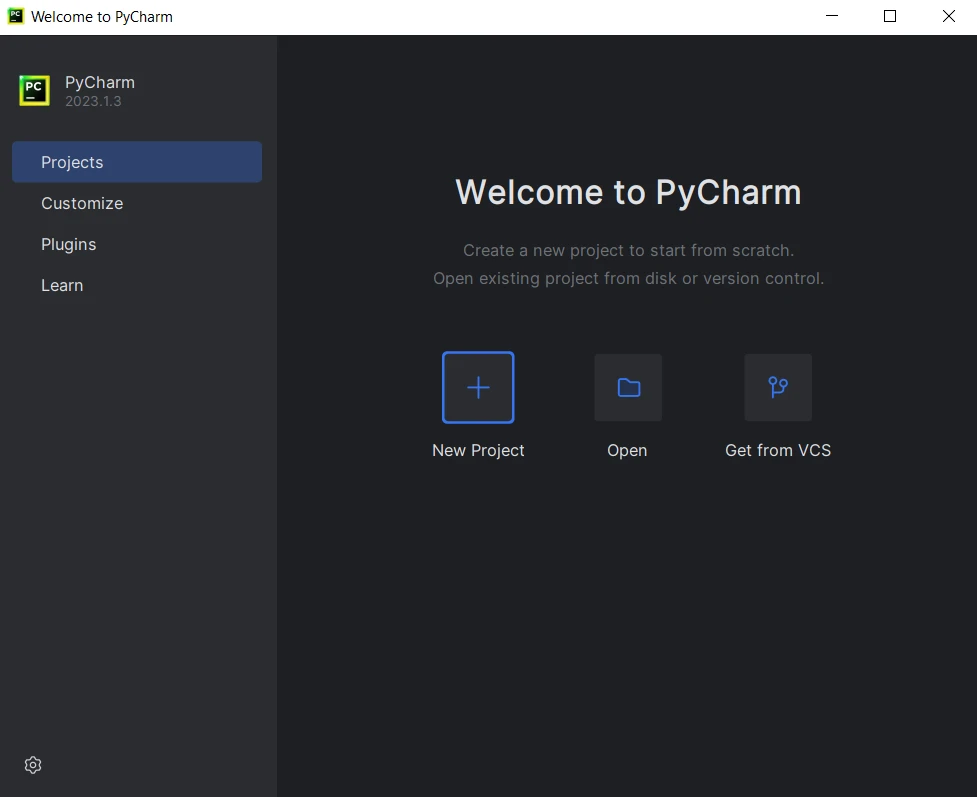
- Choose the Python interpreter. If you haven't set up an interpreter, click on the gear icon and configure a new one.
- Select the project location and template.
Provide the project name and settings, then click Create.
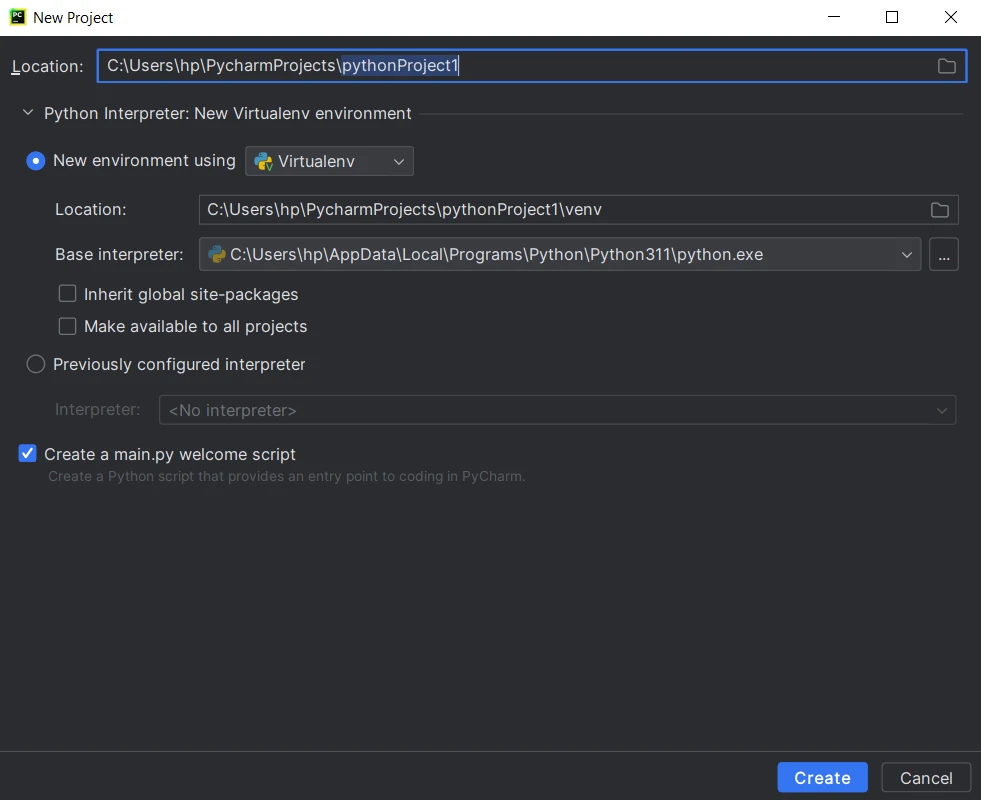
- Start coding, running, and debugging your Python project.
2. PyPDF Installation
PyPDF, a pure Python library, can be installed in multiple ways. We can install it using both the Command Prompt and PyCharm.
2.1. Using Command Prompt
- Open the Command Prompt or terminal on your computer.
To install PyPDF, use the following pip command:
pip install pypdfpip install pypdfSHELL- Wait for the PyPDF installation to complete. You should see a success message indicating that PyPDF has been installed.
You can use the same process to install PyPDF in the PyCharm Terminal.
Note: Python must be added to the System PATH Environment variable.
2.2. Using PyCharm
- Open PyCharm IDE.
- Create a new Python project or open an existing one.
- Once inside the project, click on File in the top menu and select Settings.
- In the settings window, navigate to "Project:
" and click on "Python Interpreter." In the Python Interpreter window, click on the "+" icon to add a new package.
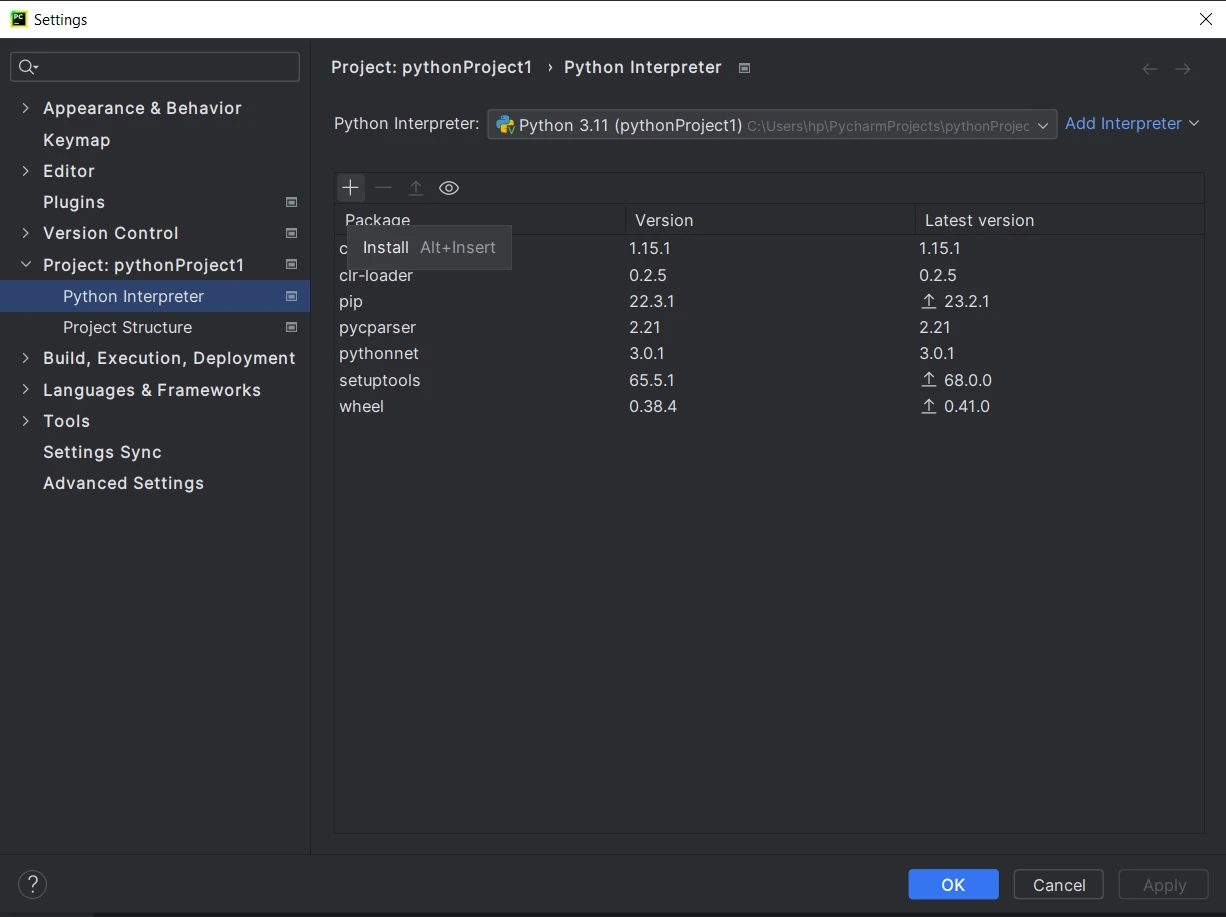
In the "Available Packages" window, search for "PyPDF."
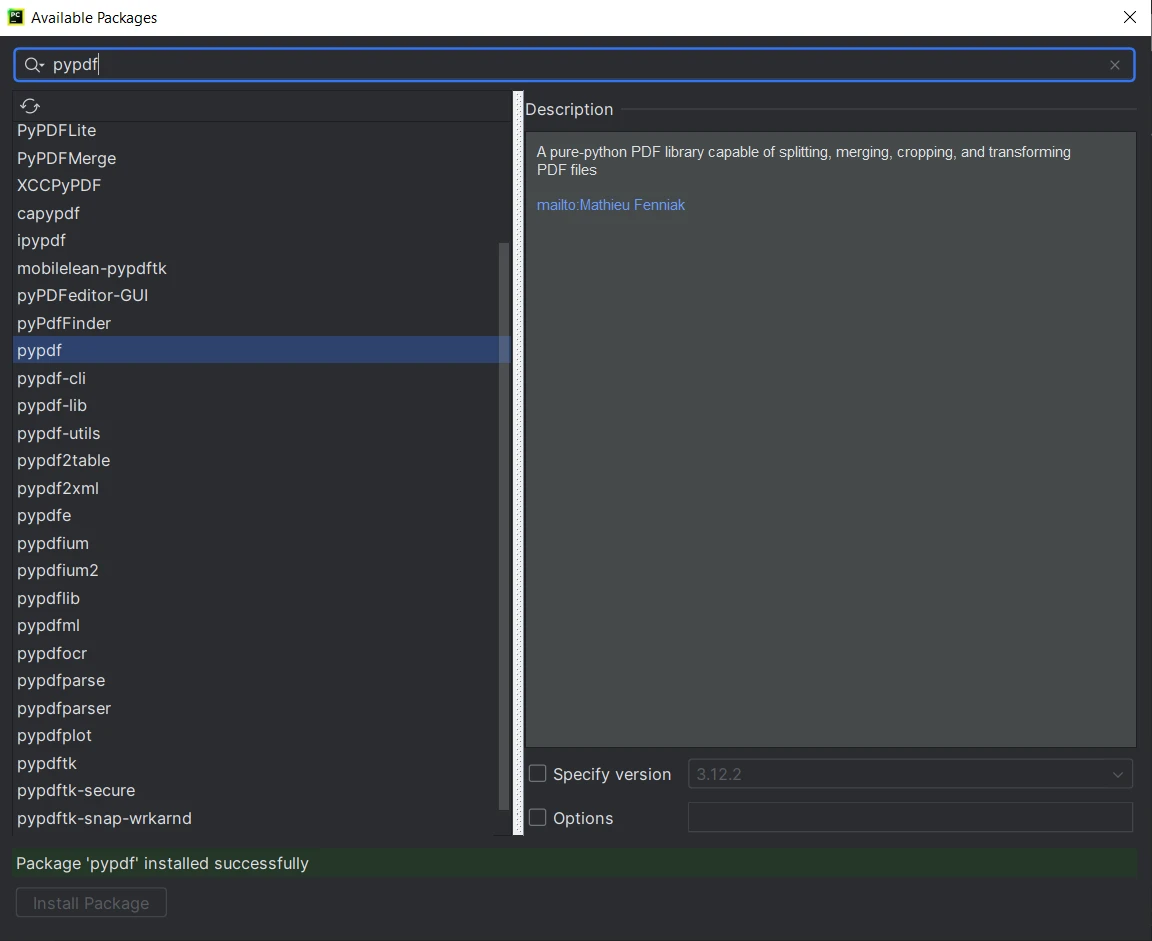
- Select "PyPDF" from the list and click on the "Install Package" button.
- Wait for PyCharm to download and install PyPDF.
3. IronPDF Installation
Pre-requisite
IronPDF for Python leverages the powerful .NET 6.0 technology as its foundation. Consequently, to utilize IronPDF for Python effectively, it is essential to have the .NET 6.0 runtime installed on your system. Linux and Mac users may need to download and install .NET from the official Microsoft website (https://dotnet.microsoft.com/en-us/download/dotnet/6.0) before proceeding to work with this Python package. Ensuring the presence of the .NET 6.0 runtime will enable seamless integration and optimal performance when using IronPDF for Python for PDF processing tasks.
3.1. Using Command Prompt
- Open the Command Prompt or terminal on your computer.
To install IronPDF, use the following pip command:
pip install ironpdfpip install ironpdfSHELL- Wait for the installation to complete. You should see a success message indicating that IronPDF has been installed.
3.2. Using PyCharm
- Open PyCharm IDE on your computer.
- Create a new Python project or open an existing one.
- Once inside the project, click on "File" in the top menu and select "Settings".
- In the settings window, navigate to "Project:
" and click on "Python Interpreter." - In the Python Interpreter window, click on the "+" icon to add a new package.
From the "Available Packages" window, search for "ironpdf."
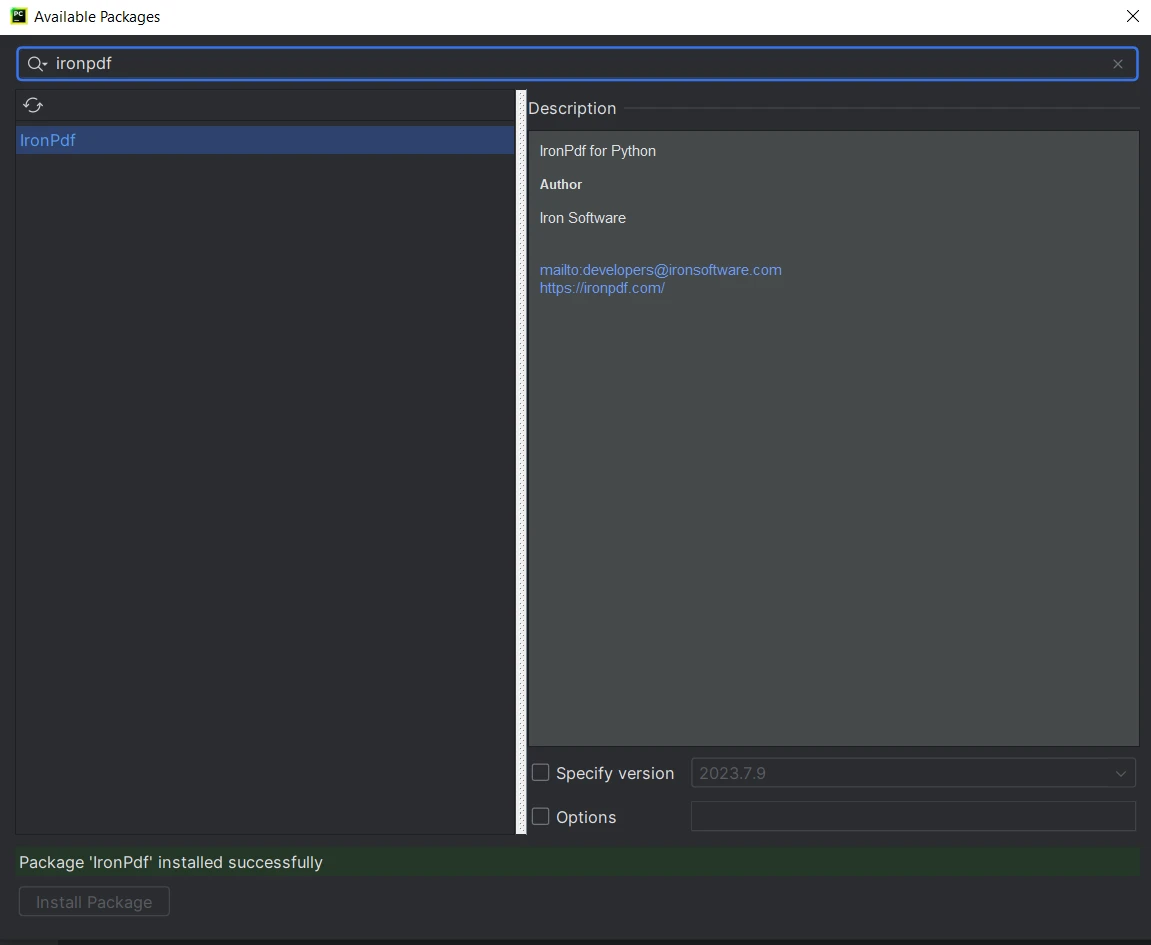
- Select "ironpdf" from the list and click on the "Install Package" button.
- Wait for IronPDF to download and install. A success message will appear that IronPDF is installed.
Now, both the libraries are installed and ready to use. Let's move to the comparison itself.
4. Creating PDF Documents
4.1. Using PyPDF
PyPDF provides basic capabilities to create new PDF files. However, it does not have a built-in method for directly converting HTML content to PDF. To create a new PDF using PyPDF, we need to add content to an existing PDF or create a new blank PDF and then add text or images to it. The following code helps to achieve this task of creating PDF files:
from pypdf import PdfWriter, PdfReader

# Create a new PDF file
pdf_output = PdfWriter()

# Add a new blank page
page = pdf_output.add_blank_page(width=610, height=842)  # Width and height are in points (1 inch = 72 points)

# Read content from an existing PDF
with open('input.pdf', 'rb') as existing_pdf:
    existing_pdf_reader = PdfReader(existing_pdf)
    # Merge content from the first page of the existing PDF
    page.merge_page(existing_pdf_reader.pages[0])

# Save the new PDF to a file
with open('output.pdf', 'wb') as output_file:
    pdf_output.write(output_file)
from pypdf import PdfWriter, PdfReader
# Create a new PDF file
pdf_output = PdfWriter()
# Add a new blank page
page = pdf_output.add_blank_page(width=610, height=842) # Width and height are in points (1 inch = 72 points)
# Read content from an existing PDF
with open('input.pdf', 'rb') as existing_pdf:
existing_pdf_reader = PdfReader(existing_pdf)
# Merge content from the first page of the existing PDF
page.merge_page(existing_pdf_reader.pages[0])
# Save the new PDF to a file
with open('output.pdf', 'wb') as output_file:
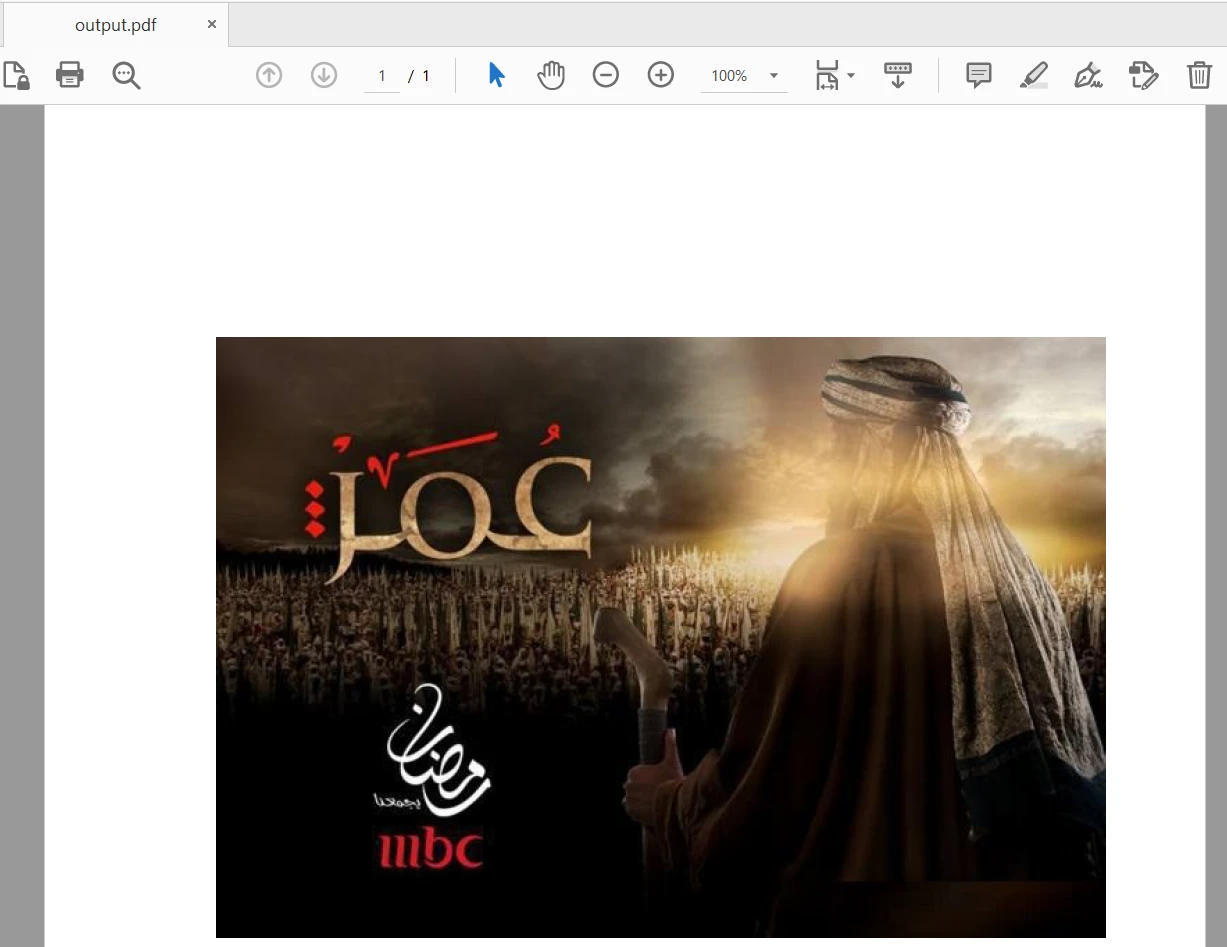
pdf_output.write(output_file)The input file contains 28 pages and only the first page is added to the new PDF file. The output is as follows:
4.2. Using IronPDF
IronPDF offers advanced capabilities to create new PDF files directly from HTML content. This makes it convenient for generating dynamic reports and documents without the need for additional steps. Here is the sample code:
import ironpdf

# Set IronPDF license key to unlock full features
ironpdf.License.LicenseKey = "YOUR-LICENSE-KEY-HERE"

# Create a PDF from an HTML string using Python
renderer = ironpdf.ChromePdfRenderer()
pdf = renderer.RenderHtmlAsPdf("<h1>Hello World</h1><p>This PDF is created using IronPDF for Python</p>")

# Export to a file or stream
pdf.SaveAs("output.pdf")

# Advanced Example with HTML Assets
# Load external html assets Images, CSS, and JavaScript.
# An optional BasePath 'C:\site\assets\' is set as the file location to load assets from
myAdvancedPdf = renderer.RenderHtmlAsPdf("<img src='icons/iron.png'>", "C:\\site\\assets")
myAdvancedPdf.SaveAs("html-with-assets.pdf")
import ironpdf
# Set IronPDF license key to unlock full features
ironpdf.License.LicenseKey = "YOUR-LICENSE-KEY-HERE"
# Create a PDF from an HTML string using Python
renderer = ironpdf.ChromePdfRenderer()
pdf = renderer.RenderHtmlAsPdf("<h1>Hello World</h1><p>This PDF is created using IronPDF for Python</p>")
# Export to a file or stream
pdf.SaveAs("output.pdf")
# Advanced Example with HTML Assets
# Load external html assets Images, CSS, and JavaScript.
# An optional BasePath 'C:\site\assets\' is set as the file location to load assets from
myAdvancedPdf = renderer.RenderHtmlAsPdf("<img src='icons/iron.png'>", "C:\\site\\assets")
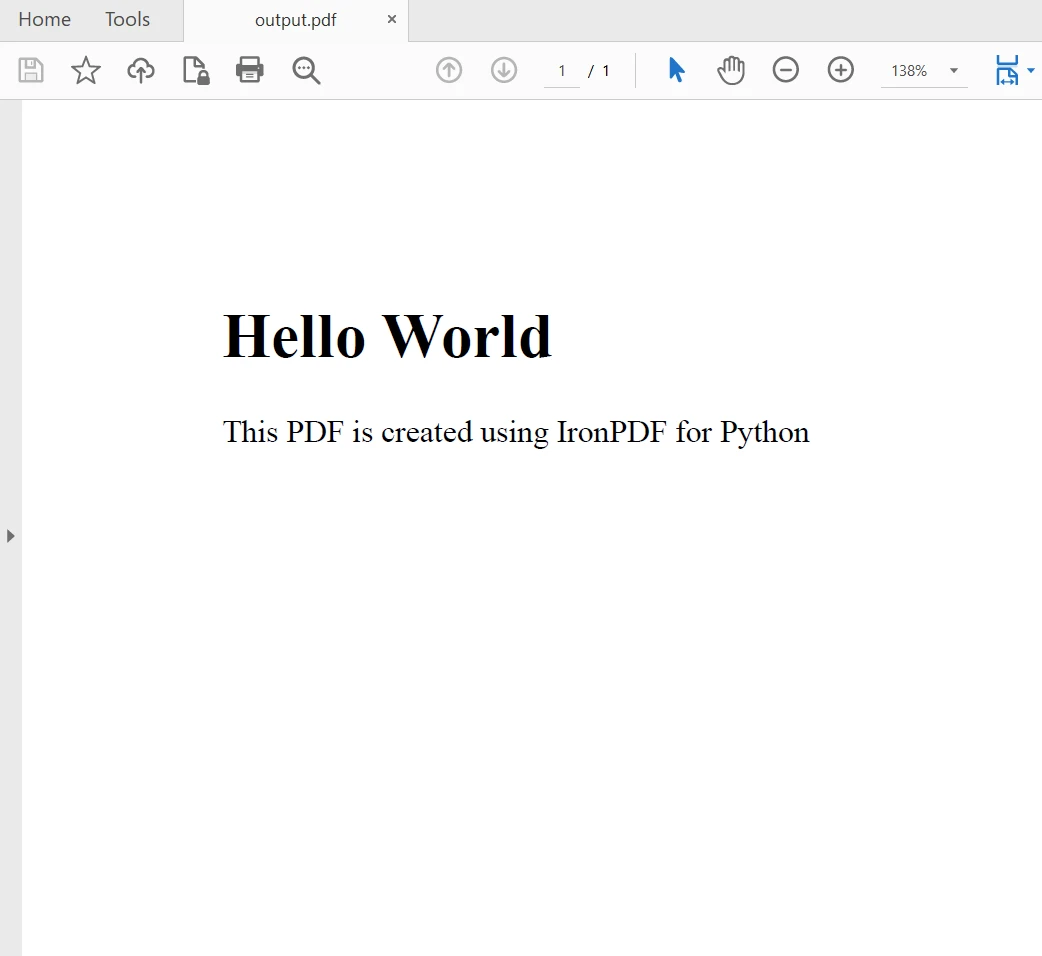
myAdvancedPdf.SaveAs("html-with-assets.pdf")In the above code, we first applied the license key to utilize IronPDF's full power. You can also use it without a license key, but watermarks will appear in created PDF files. Then, we create two PDF documents, first using an HTML string as the content and second using assets. The output is as follows:
5. Merging PDF Files
5.1. Using PyPDF
PyPDF allows merging multiple pages/documents into a single PDF by appending pages from one PDF to another. Add the input paths of all the PDF files in the list and use the append method to merge and generate a single file.
from pypdf import PdfWriter

merger = PdfWriter()

for pdf in ["file1.pdf", "file2.pdf", "file3.pdf"]:
    merger.append(pdf)

merger.write("merged-pdf.pdf")
merger.close()
from pypdf import PdfWriter
merger = PdfWriter()
for pdf in ["file1.pdf", "file2.pdf", "file3.pdf"]:
merger.append(pdf)
merger.write("merged-pdf.pdf")
merger.close()5.2. Using IronPDF
IronPDF also provides similar capabilities for merging documents into one, making it easy to consolidate content from different PDF sources.
import ironpdf

ironpdf.License.LicenseKey = "YOUR-LICENSE-KEY-HERE"

html_a = """<p> [PDF_A] </p>
            <p> [PDF_A] 1st Page </p>
            <div style='page-break-after: always;'></div>
            <p> [PDF_A] 2nd Page</p>"""

html_b = """<p> [PDF_B] </p>
            <p> [PDF_B] 1st Page </p>
            <div style='page-break-after: always;'></div>
            <p> [PDF_B] 2nd Page</p>"""

renderer = ironpdf.ChromePdfRenderer()

pdfdoc_a = renderer.RenderHtmlAsPdf(html_a)
pdfdoc_b = renderer.RenderHtmlAsPdf(html_b)
merged = ironpdf.PdfDocument.Merge([pdfdoc_a, pdfdoc_b])

merged.SaveAs("Merged.pdf")
import ironpdf
ironpdf.License.LicenseKey = "YOUR-LICENSE-KEY-HERE"
html_a = """<p> [PDF_A] </p>
<p> [PDF_A] 1st Page </p>
<div style='page-break-after: always;'></div>
<p> [PDF_A] 2nd Page</p>"""
html_b = """<p> [PDF_B] </p>
<p> [PDF_B] 1st Page </p>
<div style='page-break-after: always;'></div>
<p> [PDF_B] 2nd Page</p>"""
renderer = ironpdf.ChromePdfRenderer()
pdfdoc_a = renderer.RenderHtmlAsPdf(html_a)
pdfdoc_b = renderer.RenderHtmlAsPdf(html_b)
merged = ironpdf.PdfDocument.Merge([pdfdoc_a, pdfdoc_b])
merged.SaveAs("Merged.pdf")6. Splitting PDF Files
6.1. Using PyPDF
PyPDF is a Python library capable of splitting a single PDF into multiple separate PDFs, each containing one or more PDF pages.
from pypdf import PdfReader, PdfWriter

# Open the PDF file
pdf_file = open('input.pdf', 'rb')

# Create a PdfFileReader object
pdf_reader = PdfReader(pdf_file)

# Split each page into separate PDFs
for page_num in range(len(pdf_reader.pages)):
    pdf_writer = PdfWriter()
    pdf_writer.add_page(pdf_reader.pages[page_num])
    output_filename = f'page_{page_num + 1}_pypdf.pdf'
    with open(output_filename, 'wb') as output_file:
        pdf_writer.write(output_file)

# Close the PDF file
pdf_file.close()
from pypdf import PdfReader, PdfWriter
# Open the PDF file
pdf_file = open('input.pdf', 'rb')
# Create a PdfFileReader object
pdf_reader = PdfReader(pdf_file)
# Split each page into separate PDFs
for page_num in range(len(pdf_reader.pages)):
pdf_writer = PdfWriter()
pdf_writer.add_page(pdf_reader.pages[page_num])
output_filename = f'page_{page_num + 1}_pypdf.pdf'
with open(output_filename, 'wb') as output_file:
pdf_writer.write(output_file)
# Close the PDF file
pdf_file.close()The above code splits the 28-page PDF document to separate it into single pages and save them as 28 new PDF files.
6.2. Using IronPDF
IronPDF also provides similar capabilities for splitting PDFs, allowing users to divide a single PDF into several PDF files, each having a single PDF page. It allows us to split a specific page from a PDF with multiple pages. The following code helps to split documents into multiple files:
import ironpdf

ironpdf.License.LicenseKey = "YOUR-LICENSE-KEY-HERE"

html = """<p> Hello Iron </p>
            <p> This is 1st Page </p>
            <div style='page-break-after: always;'></div>
            <p> This is 2nd Page</p>
            <div style='page-break-after: always;'></div>
            <p> This is 3rd Page</p>"""

renderer = ironpdf.ChromePdfRenderer()
pdf = renderer.RenderHtmlAsPdf(html)

# take the first page
page1doc = pdf.CopyPage(0)
page1doc.SaveAs("Split1.pdf")

# take the pages 2 & 3
page23doc = pdf.CopyPages(1, 2)
page23doc.SaveAs("Split2.pdf")
import ironpdf
ironpdf.License.LicenseKey = "YOUR-LICENSE-KEY-HERE"
html = """<p> Hello Iron </p>
<p> This is 1st Page </p>
<div style='page-break-after: always;'></div>
<p> This is 2nd Page</p>
<div style='page-break-after: always;'></div>
<p> This is 3rd Page</p>"""
renderer = ironpdf.ChromePdfRenderer()
pdf = renderer.RenderHtmlAsPdf(html)
# take the first page
page1doc = pdf.CopyPage(0)
page1doc.SaveAs("Split1.pdf")
# take the pages 2 & 3
page23doc = pdf.CopyPages(1, 2)
page23doc.SaveAs("Split2.pdf")For more detailed information on IronPDF about reading PDF files, rotating PDF pages, cropping pages, setting owner/user passwords, and other security options, please visit this IronPDF for Python code examples page.
7. Extracting Text from PDF Files
7.1. Using PyPDF
PyPDF provides a straightforward method to extract text from PDFs. It offers the PdfReader class, which allows users to read the text content from the PDF.
from pypdf import PdfReader

reader = PdfReader("input.pdf")
page = reader.pages[0]
print(page.extract_text())
from pypdf import PdfReader
reader = PdfReader("input.pdf")
page = reader.pages[0]
print(page.extract_text())7.2. Using IronPDF
IronPDF also supports extracting text from PDFs using the PdfDocument class. It provides a method called ExtractAllText to get the text content from the PDF. However, the free version of IronPDF only extracts a few characters from the PDF document. To extract the full text from PDFs, IronPDF needs to be licensed. Here is the code sample to extract content from PDF files:
import ironpdf

ironpdf.License.LicenseKey = "YOUR-LICENSE-KEY-HERE"

# Load existing PDF document
pdf = ironpdf.PdfDocument.FromFile("input.pdf")
# Extract text from PDF document
all_text = pdf.ExtractAllText()
print(all_text)
import ironpdf
ironpdf.License.LicenseKey = "YOUR-LICENSE-KEY-HERE"
# Load existing PDF document
pdf = ironpdf.PdfDocument.FromFile("input.pdf")
# Extract text from PDF document
all_text = pdf.ExtractAllText()
print(all_text)To learn more about extracting text, please visit this PDF Text to Python example.
8. Licensing
PyPDF
PyPDF is distributed under the MIT License, which is an open-source software license known for its permissive terms. The MIT License allows users to freely use, modify, distribute, and sublicense the PyPDF library without any restrictions. Users are not required to disclose the source code of their applications that use PyPDF, making it suitable for both personal and commercial projects.
The complete text of the MIT License is usually included in the PyPDF source code, and users can find it in the "LICENSE" file within the library's distribution. Additionally, the PyPDF GitHub repository (https://github.com/py-pdf/pypdf) serves as the primary source for accessing the latest version of the library and its associated licensing information.
IronPDF
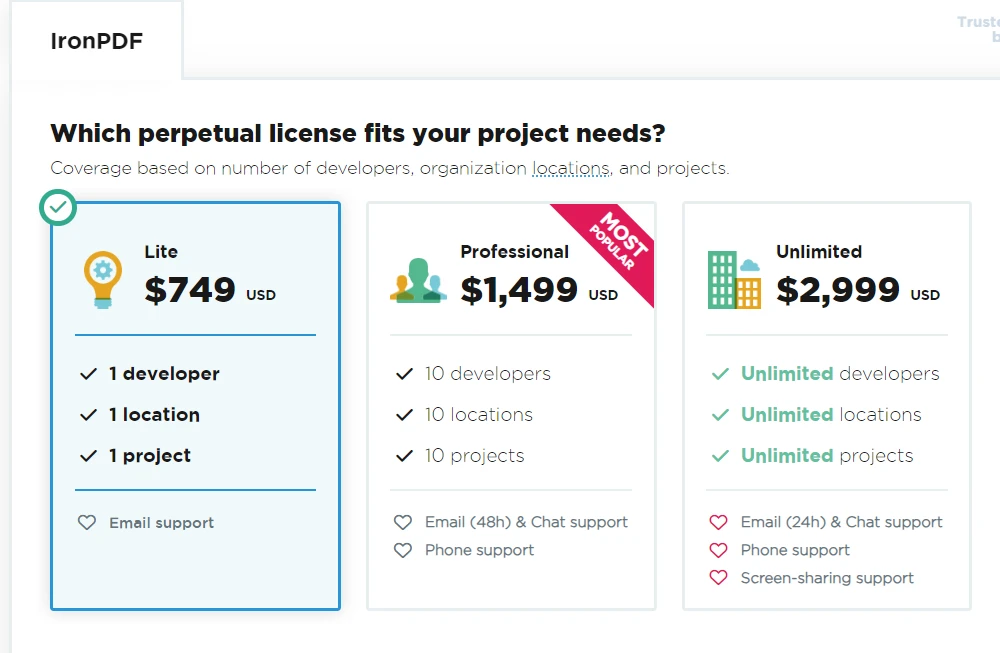
IronPDF is a commercial library and is not open-source. It is developed and distributed by Iron Software. The usage of IronPDF requires a valid license from Iron Software. There are different types of licenses available, including trial versions for evaluation purposes and paid licenses for commercial use.
As IronPDF is a commercial product, it offers additional features and technical support compared to open-source alternatives. To obtain a license for IronPDF, users can visit the official website to explore available licensing options, pricing, and support details. Its Lite package starts from NVIDIA_64_LICENSE and is a perpetual license.
9. Conclusion
Summary
PyPDF is a powerful and user-friendly Python library for working with PDF files. Its features for reading, writing, merging, and splitting PDFs make it an essential tool for PDF manipulation tasks. Whether you need to extract text from a PDF, create new PDFs from scratch, or merge and split existing documents, PyPDF provides a reliable and efficient solution. By leveraging PyPDF's capabilities, Python developers can streamline their PDF-related workflows and enhance their productivity.
IronPDF is a comprehensive and efficient PDF manipulation library for Python, providing a wide range of features for reading, creating, merging, and splitting PDF files. Whether you need to generate dynamic PDF reports, extract document information from existing PDFs, or merge multiple documents, IronPDF offers a reliable and easy-to-use solution. By leveraging the capabilities of IronPDF, Python developers can streamline their PDF-related workflows and enhance their productivity.
In overall comparison, PyPDF is a lightweight and easy-to-use library suitable for basic PDF operations. It is a good choice for projects with simple PDF requirements. On the other hand, IronPDF provides a more extensive API and robust performance, making it ideal for projects that demand advanced PDF processing capabilities, handling large PDF files, and performing complex tasks.
Conclusion
Both libraries have good coding facilities for common PDF tasks. PyPDF is suitable for simple operations and quick implementations, while IronPDF provides a more extensive and versatile API for handling complex PDF-related tasks.
In terms of performance, IronPDF is likely to outperform PyPDF, especially when dealing with substantial PDF files or tasks requiring complex PDF manipulations.
The choice between the two libraries depends on the specific needs of the project and the complexity of the PDF-related tasks involved.
IronPDF is also available for a free trial to test out its complete functionality in commercial mode. Download IronPDF for Python from here.
자주 묻는 질문
Python에서 PDF 조작을 위한 PyPDF와 IronPDF의 주요 차이점은 무엇인가요?
PyPDF는 PDF 읽기, 쓰기, 병합과 같은 기본적인 PDF 조작 기능을 제공하는 순수 Python 라이브러리입니다. 반면, IronPDF는 IronPDF의 .NET 라이브러리를 기반으로 하며 HTML을 PDF로 변환, 양식 처리 및 복잡한 PDF 작업을 위한 고성능 작업과 같은 고급 기능을 제공합니다.
Python에서 HTML을 PDF로 변환하려면 어떻게 해야 하나요?
IronPDF를 사용하여 Python에서 HTML을 PDF로 변환할 수 있습니다. 이 도구는 HTML 문자열을 변환하는 RenderHtmlAsPdf와 HTML 파일을 PDF로 변환하는 RenderHtmlFileAsPdf와 같은 메서드를 제공합니다.
Python 프로젝트에서 IronPDF를 사용하기 위한 설치 요구 사항은 무엇인가요?
Python과 함께 IronPDF를 사용하려면 시스템에 .NET 6.0 런타임이 설치되어 있어야 합니다. IronPDF는 pip install ironpdf 명령을 사용하여 pip를 통해 설치할 수 있습니다.
PyPDF를 사용하여 PDF에서 텍스트와 이미지를 추출할 수 있나요?
예, PyPDF를 사용하면 PDF에서 텍스트와 이미지를 추출할 수 있습니다. 텍스트 추출, PDF 병합 및 분할과 같은 기본적인 PDF 조작 작업을 위해 설계되었습니다.
복잡한 PDF 작업에 IronPDF를 사용하면 어떤 이점이 있나요?
IronPDF는 HTML에서 PDF로의 변환, 양식 처리, 고급 텍스트 및 이미지 조작, 대용량 파일에 대한 고성능 등 복잡한 PDF 작업을 위한 강력한 성능과 광범위한 기능을 제공합니다.
IronPDF를 사용하여 PDF 파일을 병합하고 분할할 수 있나요?
예, IronPDF는 PDF 파일을 효율적으로 병합하고 분할하는 기능을 제공하여 Python 애플리케이션 내에서 복잡한 PDF 작업을 관리할 수 있는 포괄적인 솔루션을 제공합니다.
다양한 산업 분야에서 PDF를 사용하는 일반적인 사용 사례는 무엇인가요?
PDF는 다양한 플랫폼과 디바이스에서 일관된 모양을 유지하기 때문에 다양한 산업 분야에서 보고서, 송장, 양식, 전자책과 같은 문서를 공유하는 데 일반적으로 사용됩니다.
IronPDF의 라이선스 옵션은 무엇인가요?
IronPDF는 Iron Software의 유효한 라이선스가 필요한 상용 제품입니다. 평가판을 포함하여 다양한 라이선스 옵션이 제공되므로 프로젝트의 요구 사항에 맞게 선택할 수 있습니다.







 무료로 시작하세요
 무료로 시작하세요
 무료 라이브 데모 예약하기



 신용카드나 계정 생성은 필요하지 않습니다.









