푸터 콘텐츠로 바로가기
PYTHON용 IRONPDF 사용

Python에서 스캔한 PDF를 읽는 방법

In the era of digital transformation, the indispensability of PDF documents for sharing and preserving information cannot be overstated.

However, the prevalence of scanned PDFs, which often contain images rather than searchable text, presents a significant challenge when it comes to extracting valuable data.

This is where Python emerges as a versatile and potent solution, establishing itself as a go-to programming language for automating diverse tasks, with information extraction from scanned documents being a prime example.

Python's flexibility and robust capabilities empower users to efficiently navigate through the complexities of scanned content, providing a streamlined approach to accessing and utilizing data from image-based PDFs.

Python is one of the most used programming languages with its advanced functionality. Visit the Python Wikipedia page to learn about Python programming language and its structured format.

In this article, we will discuss how to read scanned PDFs in the Python Programming Language with the help of IronPDF for the Python PDF Library.

How to read scanned PDF in Python

  1. Create a new project in PyCharm.
  2. To read the scanned PDF file first, install the IronPDF PDF Library.
  3. Import the required dependencies.
  4. Load the scanned PDF file using the PdfDocument.FromFile method.
  5. Extract all text from the scanned PDF using the ExtractAllText method.
  6. Print all the text from the PDF file using the print() method.

IronPDF for Python

IronPDF for Python is a robust library developed by Iron Software, enabling seamless integration of PDF generation and manipulation capabilities into Python applications.

This versatile tool empowers developers to effortlessly create, modify, and interact with PDF documents, supporting tasks such as dynamic report generation, HTML-to-PDF conversion, and content extraction from existing PDF files.

With a user-friendly API, comprehensive documentation, and a range of features, IronPDF simplifies the process of incorporating advanced PDF functionality into Python projects, making it an invaluable resource for developers looking to enhance their applications with professional-grade document processing capabilities.

IronPDF Features

IronPDF for Python comes equipped with a range of features that make it a powerful tool for PDF generation and text file structure manipulation.

Some of its key features include:

  1. HTML to PDF Conversion: Convert HTML content, including CSS and images, into high-quality PDF documents, allowing developers to leverage existing web-based content in their PDF generation processes and create searchable PDF files.
  2. Text and Image Manipulation: Easily add and manipulate text, images, and other elements within PDF documents, providing fine-grained control over the layout and appearance of generated PDFs.
  3. Document Merging and Splitting: Combine multiple PDF documents into a single file or split large PDFs into smaller, more manageable files, offering flexibility in document organization.
  4. PDF Forms: Create and fill interactive PDF forms programmatically, facilitating the automation of form-related tasks in business applications.
  5. Security Features: Implement encryption and password protection to secure PDF documents, ensuring sensitive information remains confidential and protected from unauthorized access.
  6. Text Extraction: Extract text content from PDF documents for analysis or indexing purposes, enabling developers to work with the textual data contained within PDF files with IronPDF's text recognition ability.

Installing IronPDF for Python

Before getting started with the code tutorial, let’s first see how you can install IronPDF for Python.

First, make sure Python is installed in the system, and you have a good Python IDE like PyCharm. Also, PIP should be installed to install IronPDF for Python.

  1. First, create a new Python project or open an existing one.
  2. Open the console and run the following command and press enter.

    pip install ironpdf
    pip install ironpdf
    SHELL
  3. Just like that, IronPDF for Python is integrated into your Python project.

Reading Scanned PDF Files Using IronPDF For Python

In this section, we will see how you can extract text from scanned PDF files using IronPDF.

from ironpdf import *  # Import everything from ironpdf

# Set the license key for IronPDF
License.LicenseKey = "Your License Key"

# Load the scanned PDF document
pdf = PdfDocument.FromFile("C:/Users/buttw/INV_2023_00008.pdf")

# Extract all text from the PDF document
all_text = pdf.ExtractAllText()

# Print the extracted text
print(all_text)
from ironpdf import *  # Import everything from ironpdf

# Set the license key for IronPDF
License.LicenseKey = "Your License Key"

# Load the scanned PDF document
pdf = PdfDocument.FromFile("C:/Users/buttw/INV_2023_00008.pdf")

# Extract all text from the PDF document
all_text = pdf.ExtractAllText()

# Print the extracted text
print(all_text)
PYTHON

The above code example extracts text from scanned PDF files. Below is the breakdown of the above code:

  1. Import the IronPDF Module:

    from ironpdf import *
    from ironpdf import *
    PYTHON

    This line imports the necessary modules and classes from the IronPDF library. The asterisk (*) indicates that all classes and functions from the module should be imported.

  2. Set the License Key:

    License.LicenseKey = "Your License Key"
    License.LicenseKey = "Your License Key"
    PYTHON

    This line sets the license key for IronPDF. You need to replace "Your License Key" with the actual license key you obtained from Iron Software.

    The license key is necessary for using IronPDF and is typically provided when you purchase the product.

  3. Load a Scanned PDF Document:

    pdf = PdfDocument.FromFile("C:/Users/buttw/INV_2023_00008.pdf")
    pdf = PdfDocument.FromFile("C:/Users/buttw/INV_2023_00008.pdf")
    PYTHON

    This line loads a scanned PDF document located at the specified file path ("C:/Users/buttw/INV_2023_00008.pdf"). The PdfDocument.FromFile method is used to create a PdfDocument object from the given file.

  4. Extract Text from PDF Document:

    all_text = pdf.ExtractAllText()
    all_text = pdf.ExtractAllText()
    PYTHON

    This line extracts all text content from the loaded PDF document using the ExtractAllText method from all the pages. The extracted text is then stored in the all_text variable.

  5. Print Extracted Text:

    print(all_text)
    print(all_text)
    PYTHON

    Finally, this line prints the extracted text to the console. The all_text variable contains the text content of the scanned PDF document.

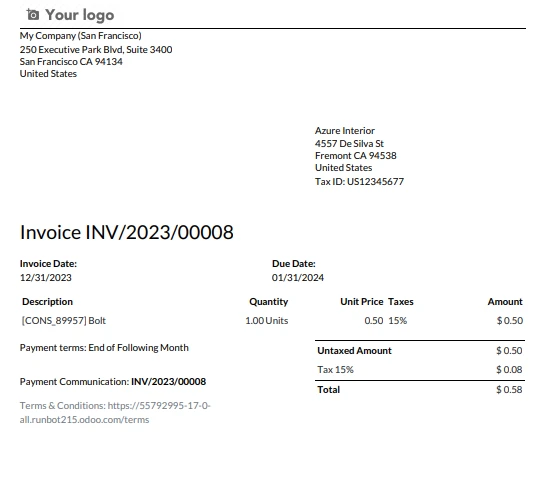
Input PDF

How to Read Scanned PDF in Python (Developer Tutorial): Figure 1

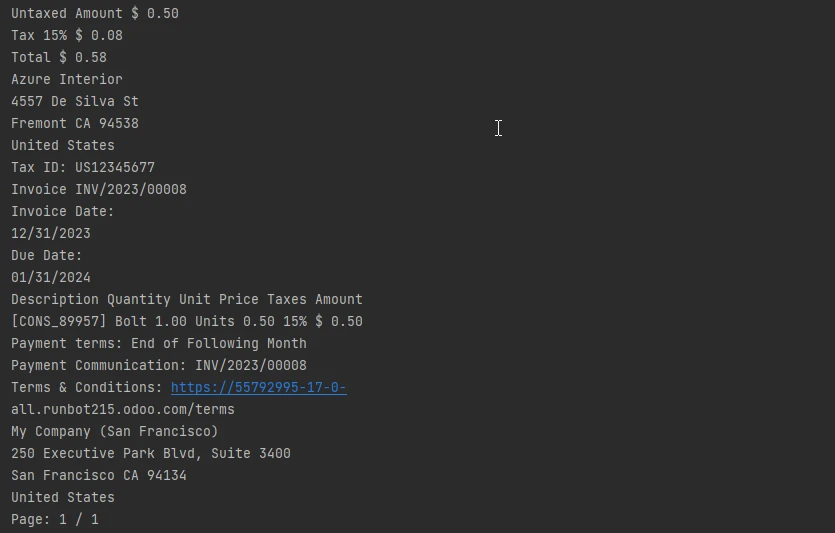
Output text

How to Read Scanned PDF in Python (Developer Tutorial): Figure 2

Conclusion

In the realm of digital document processing, the Python programming language emerges as a versatile solution for overcoming the challenges posed by scanned PDFs containing images instead of searchable text.

The synergy between Python's flexibility and IronPDF for Python's robust capabilities provides a compelling avenue for developers to seamlessly integrate PDF generation, manipulation, and extraction functionalities into their projects.

IronPDF, developed by Iron Software, proves instrumental in this regard, offering features like converting PDF files from various document types, HTML to PDF page conversion, text and image manipulation, and OCR-based text extraction from scanned PDFs.

The showcased code example demonstrates the straightforward implementation of IronPDF to read text from a scanned PDF page, showcasing the potential for efficient data extraction and enhancing document processing capabilities in Python applications.

As the demand for sophisticated PDF handling continues to rise, IronPDF for Python stands as a valuable tool empowering developers to navigate the intricacies of scanned content with ease.

IronPDF for Python offers a trial license, which is a great opportunity for developers to get to know the features of IronPDF.

The complete tutorial on extracting text from scanned PDFs can be found here.

자주 묻는 질문

스캔한 PDF의 텍스트를 Python으로 읽으려면 어떻게 해야 하나요?

Python에서 스캔한 PDF의 텍스트를 읽으려면 IronPDF의 OCR 기능을 사용할 수 있습니다. 먼저 pip install ironpdf로 IronPDF를 설치합니다. 그런 다음 PdfDocument.FromFile을 사용하여 PDF를 로드하고 ExtractAllText 메서드를 사용하여 텍스트를 추출합니다.

스캔한 PDF의 텍스트 추출에는 어떤 어려움이 있나요?

스캔한 PDF는 콘텐츠를 검색 가능한 텍스트가 아닌 이미지로 저장하는 경우가 많기 때문에 텍스트를 추출하고 관리 가능한 형식으로 변환하려면 IronPDF의 OCR과 같은 전문 도구가 필요합니다.

IronPDF는 어떻게 Python에서 PDF 조작을 용이하게 하나요?

IronPDF는 텍스트 추출, HTML을 PDF로 변환, 문서 병합 및 분할, 대화형 PDF 양식 작업 등 PDF 조작을 위한 도구 모음을 제공하여 Python 애플리케이션의 문서 처리 기능을 향상시킵니다.

Python 환경에서 IronPDF를 설정하려면 무엇이 필요하나요?

Python에서 IronPDF를 설정하려면 시스템에 Python과 PIP가 설치되어 있는지 확인하세요. 그런 다음 pip install ironpdf를 실행하여 라이브러리를 설치하면 Python 프로젝트에서 PDF 조작을 시작할 수 있습니다.

IronPDF는 Python에서 HTML 콘텐츠를 PDF로 변환할 수 있나요?

예, IronPDF는 CSS 및 이미지를 포함한 HTML 콘텐츠를 고품질 PDF 문서로 변환할 수 있으므로 웹 콘텐츠에서 PDF를 생성해야 하는 개발자를 위한 다용도 도구입니다.

구매하기 전에 IronPDF를 사용해 볼 수 있는 방법이 있나요?

IronPDF는 개발자가 구매를 결정하기 전에 OCR 및 PDF 조작을 포함한 모든 기능을 살펴볼 수 있는 평가판 라이선스를 제공합니다.

스캔한 PDF를 처리하는 데 Python이 좋은 이유는 무엇인가요?

Python은 유연성과 텍스트 추출 및 PDF 조작과 같은 작업을 간소화하는 IronPDF와 같은 강력한 라이브러리를 사용할 수 있기 때문에 스캔한 PDF를 처리하는 데 선호되는 언어입니다.

Python용 IronPDF의 주요 기능은 무엇인가요?

Python용 IronPDF의 주요 기능으로는 스캔한 PDF의 OCR, HTML을 PDF로 변환, 문서 병합 및 분할, 텍스트 및 이미지 조작, 대화형 양식 처리 등이 있으며, 포괄적인 PDF 처리 솔루션을 제공합니다.

커티스 차우
기술 문서 작성자

커티스 차우는 칼턴 대학교에서 컴퓨터 과학 학사 학위를 취득했으며, Node.js, TypeScript, JavaScript, React를 전문으로 하는 프론트엔드 개발자입니다. 직관적이고 미적으로 뛰어난 사용자 인터페이스를 만드는 데 열정을 가진 그는 최신 프레임워크를 활용하고, 잘 구성되고 시각적으로 매력적인 매뉴얼을 제작하는 것을 즐깁니다.


커티스는 개발 분야 외에도 사물 인터넷(IoT)에 깊은 관심을 가지고 있으며, 하드웨어와 소프트웨어를 통합하는 혁신적인 방법을 연구합니다. 여가 시간에는 게임을 즐기거나 디스코드 봇을 만들면서 기술에 대한 애정과 창의성을 결합합니다.