using IronPdf;

// Disable local disk access or cross-origin requests
Installation.EnableWebSecurity = true;

// Instantiate Renderer
var renderer = new ChromePdfRenderer();

// Create a PDF from a HTML string using C#
var pdf = renderer.RenderHtmlAsPdf("<h1>Hello World</h1>");

// Export to a file or Stream
pdf.SaveAs("output.pdf");

// Advanced Example with HTML Assets
// Load external html assets: Images, CSS and JavaScript.
// An optional BasePath 'C:\site\assets\' is set as the file location to load assets from
var myAdvancedPdf = renderer.RenderHtmlAsPdf("<img src='icons/iron.png'>", @"C:\site\assets\");
myAdvancedPdf.SaveAs("html-with-assets.pdf");
using IronPdf;// Disable local disk access or cross-origin requestsInstallation.EnableWebSecurity = true;// Instantiate Renderervar renderer = new ChromePdfRenderer();// Create a PDF from a HTML string using C#var pdf = renderer.RenderHtmlAsPdf("<h1>Hello World</h1>");// Export to a file or Streampdf.SaveAs("output.pdf");// Advanced Example with HTML Assets// Load external html assets: Images, CSS and JavaScript.// An optional BasePath 'C:\site\assets\' is set as the file location to load assets fromvar myAdvancedPdf = renderer.RenderHtmlAsPdf("<img src='icons/iron.png'>", @"C:\site\assets\");myAdvancedPdf.SaveAs("html-with-assets.pdf");
PM >Install-Package IronPdf
Install-Package IronPdf
POMOC .NET
C# Operator reszty z dzielenia (Jak to dziala dla programistow)
Pliki PDF są powszechnie stosowanym formatem wymiany dokumentów ze względu na ich zdolność do zachowania formatowania na różnych platformach. W różnych zastosowaniach programowe odczytywanie zawartości plików PDF staje się nieocenione.
W tym artykule nauczymy się, jak wyświetlać tekst z plików PDF w C++ używając narzędzia wiersza poleceń `Xpdf`. `Xpdf` oferuje zestaw narzędzi wiersza poleceń i bibliotek C++ do pracy z plikami PDF, w tym do ekstrakcji tekstu. Poprzez integrację `Xpdf` w naszym programie do przeglądania plików PDF w C++, możemy efektywnie wyświetlać zawartość tekstową z plików PDF i przetwarzać ją programistycznie.
## `Xpdf` - Biblioteka C++ i Narzędzia wiersza poleceń
[Xpdf](https://www.xpdfreader.com/) to suite oprogramowania typu open source, która oferuje szereg narzędzi i bibliotek do pracy z plikami PDF. Obejmuje ona różne narzędzia wiersza poleceń oraz biblioteki C++, które umożliwiają korzystanie z funkcji związanych z plikami PDF, takich jak parsowanie, renderowanie, drukowanie i wyodrębnianie tekstu. Narzędzia wiersza poleceń Xpdf oferują również możliwości przeglądania plików PDF bezpośrednio z terminala.
Jednym z kluczowych komponentów Xpdf jest `pdftotext`, który jest głównie znany z ekstrakcji zawartości tekstowej z plików PDF. Jednakże, w połączeniu z innymi narzędziami, takimi jak `pdftops` i `pdfimages`, `Xpdf` pozwala użytkownikom wyświetlać zawartość PDF na różne sposoby. Narzędzie `pdftotext` okazuje się cenne do ekstrakcji informacji tekstowych z PDF-ów do dalszego przetwarzania lub analizy i oferuje opcje określenia, z których stron wyodrębnić tekst.
## Wymagania wstępne
Zanim zaczniemy, upewnij się, że spełniasz następujące wymagania wstępne:
1. Kompilator C++, taki jak GCC lub Clang, zainstalowany w systemie. W tym celu będziemy korzystać ze [środowiska Code::Blocks IDE](http://www.codeblocks.org/).
2. Narzędzia wiersza poleceń Xpdf zainstalowane i dostępne z wiersza poleceń. [Pobierz Xpdf](https://www.xpdfreader.com/download.html) i zainstaluj wersję odpowiednią dla swojego środowiska. Następnie należy ustawić katalog bin programu Xpdf w ścieżce zmiennych środowiskowych systemu, aby uzyskać do niego dostęp z dowolnego miejsca w systemie plików.
## Tworzenie projektu przeglądarki plików PDF
1. **Otwórz Code::Blocks:** Uruchom IDE Code::Blocks na swoim komputerze.
2. **Utwórz nowy projekt:** Kliknij "Plik" w górnym menu i wybierz "Nowy" z menu rozwijanego. Następnie kliknij "Projekt" w podmenu.
3. **Wybierz typ projektu:** W oknie "Nowy z szablonu" wybierz "Aplikacja konsolowa" i kliknij "Przejdź". Następnie wybierz język "C/C++" i kliknij "Dalej".
4. **Wprowadź Szczegóły Projektu:** W polu 'Tytuł projektu', nadaj swojemu projektowi nazwę (np. 'PDFViewer'). Wybierz lokalizację, gdzie chcesz zapisać pliki projektu, i kliknij 'Dalej'.
5. **Wybierz Kompilator:** Wybierz kompilator, który chcesz użyć dla swojego projektu. Domyślnie, Code::Blocks powinno automatycznie wykryć dostępne kompilatory w Twoim systemie. Jeśli nie, wybierz odpowiedni kompilator z listy, i kliknij 'Zakończ'.
## Kroki do Przeglądania Tekstu z PDF w C++
### Zawierać Wszystkie Potrzebne Nagłówki
Najpierw, dodajmy wymagane pliki nagłówkowe do naszego pliku **main.cpp**:
```cpp
#include <cstdlib>
#include <iostream>
#include <fstream>
#include <cstdio>

using namespace std; // Use standard namespace for convenience
```
### Ustawianie Ścieżek Wejściowych i Wyjściowych
```cpp
string pdfPath = "input.pdf";
string outputFilePath = "output.txt";
```
W funkcji `main` deklarujemy dwa ciągi znaków: `pdfPath` i `outputFilePath`. `pdfPath` przechowuje ścieżkę do wejściowego pliku PDF, a `outputFilePath` przechowuje ścieżkę, gdzie wyodrębniony tekst zostanie zapisany jako plik tekstowy.
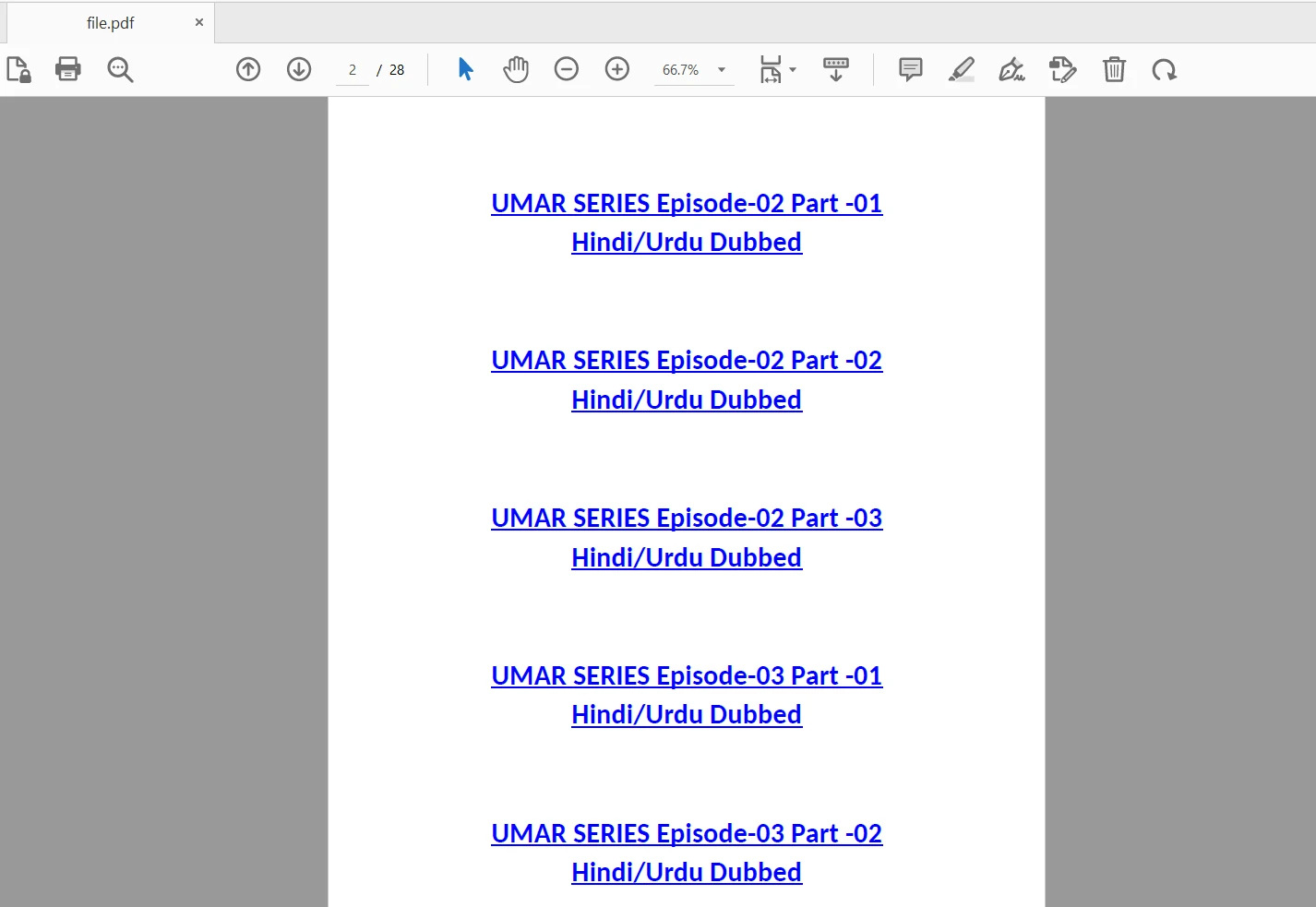
Plik wejściowy wygląda następująco:
### Wykonaj polecenie `pdftotext`
```cpp
// Construct the command to execute pdftotext with input and output paths
string command = "pdftotext " + pdfPath + " " + outputFilePath;
// Execute the command using system function and capture the status
int status = system(command.c_str());
```
Tutaj konstruujemy polecenie `pdftotext` przy użyciu zmiennych `pdfPath` i `outputFilePath`, aby otworzyć plik PDF do przeglądania jego zawartości. Następnie wywoływana jest funkcja `system` w celu wykonania polecenia, a jej wartość zwracana jest przechowywana w zmiennej `status`.
### Sprawdź status ekstrakcji tekstu
```cpp
if (status == 0)
{
cout << "Text extraction successful." << endl;
}
else
{
cout << "Text extraction failed." << endl;
}
```
Sprawdzamy zmienną `status`, aby sprawdzić, czy polecenie `pdftotext` zostało wykonane pomyślnie. Jeżeli `status` jest równe 0, oznacza to, że ekstrakcja tekstu była pomyślna, i wyświetlamy wiadomość o powodzeniu. Jeśli `status` jest różne od zera, wskazuje to na błąd, i wyświetlamy wiadomość o błędzie.
### Przeczytaj wyekstrahowany tekst i wyświetl
```cpp
// Open the output file to read the extracted text
ifstream outputFile(outputFilePath);
if (outputFile.is_open())
{
string textContent;
string line;
while (getline(outputFile, line))
{
textContent += line + "\n"; // Concatenate each line to the text content
}
outputFile.close();
cout << "Text content extracted from PDF:" << endl;
cout << textContent << endl;
}
else
{
cout << "Failed to open output file." << endl;
}
```
W powyższym przykładowym kodzie otwieramy plik `outputFile` (plik tekstowy wygenerowany przez `pdftotext`), czytamy jego zawartość linia po linii i przechowujemy w ciągu znaków `textContent`. Na koniec zamykamy plik i wyświetlamy wyekstrahowaną zawartość tekstową na konsoli.
### Usuń plik wyjściowy
Jeśli nie potrzebujesz edytowalnego pliku tekstowego z wynikami lub chcesz zwolnić miejsce na dysku, na końcu programu po prostu usuń go za pomocą następującego polecenia przed zakończeniem funkcji głównej:
```cpp
// Remove the output file to free up disk space and if output is not needed
remove(outputFilePath.c_str());
```
### Kompilacja i uruchamianie programu
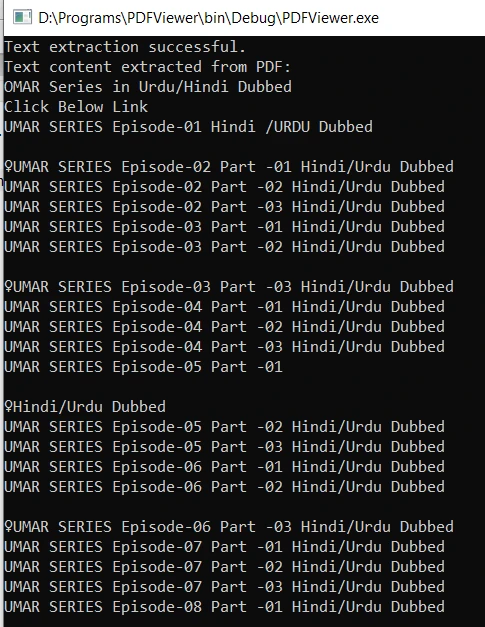
Skopiuj kod przy użyciu skrótu klawiszowego 'Ctrl+F9'. Po pomyślnej kompilacji, uruchomienie pliku wykonywalnego wyodrębni zawartość tekstową z określonego dokumentu PDF i wyświetli ją na konsoli. Oto wynik:
## View PDF files in C#
[IronPDF .NET C# Library](/) to potężna biblioteka PDF dla .NET C#, która pozwala użytkownikom łatwo wyświetlać pliki PDF w aplikacjach C#. Wykorzystując silnik przeglądarki internetowej Chromium, IronPDF precyzyjnie renderuje i wyświetla zawartość PDF, w tym obrazy, czcionki i złożone formatowanie. Dzięki przyjaznemu interfejsowi użytkownika i rozbudowanym funkcjom, deweloperzy mogą bezproblemowo integrować IronPDF w swoich projektach C#, umożliwiając użytkownikom efektywne i interaktywne przeglądanie dokumentów PDF. Niezależnie od tego, czy chodzi o wyświetlanie raportów, faktur czy jakiejkolwiek innej zawartości PDF, IronPDF oferuje solidne rozwiązanie do tworzenia bogatych w funkcje przeglądarek PDF w C#.
Aby zainstalować pakiet IronPDF NuGet w programie Visual Studio, wykonaj następujące kroki:
1. **Otwórz Visual Studio:** Uruchom Visual Studio lub jakiekolwiek inne środowisko IDE według własnego uznania.
2. **Utwórz lub otwórz swój projekt:** Utwórz nowy projekt C# lub otwórz istniejący, w którym chcesz zainstalować pakiet IronPDF.
3. **Otwórz Menedżera Pakietów NuGet:** W Visual Studio przejdź do "Narzędzia" > "Menedżer Pakietów NuGet" > "Zarządzaj pakietami NuGet dla rozwiązania". Alternatywnie, kliknij eksploratora rozwiązań, a następnie wybierz "Zarządzaj pakietami NuGet dla rozwiązania".
4. **Wyszukaj IronPDF:** W oknie "Menedżera Pakietów NuGet" kliknij zakładkę "Przeglądaj", a następnie wyszukaj "IronPDF" w pasku wyszukiwania. Alternatywnie odwiedź [pakiet NuGet IronPDF](https://www.nuget.org/packages/IronPdf/) i bezpośrednio pobierz najnowszą wersję "IronPDF".
5. **Wybierz pakiet IronPDF:** Znajdź pakiet "IronPDF" i kliknij na niego, aby wybrać go dla swojego projektu.
6. **Zainstaluj IronPDF:** Kliknij przycisk "Zainstaluj", aby zainstalować wybrany pakiet.
7. Możesz także zainstalować IronPDF przy użyciu konsoli Menedżera Pakietów NuGet za pomocą następującego polecenia:
```shell
:ProductInstall
```
Korzystając z IronPDF, możemy wykonywać operacje takie jak [wyodrębnianie tekstu i obrazów z dokumentów PDF](/examples/reading-pdf-text/) i wyświetlanie ich na konsoli do przeglądania. Poniższy kod pomaga w realizacji tego zadania:
```csharp
using IronPdf;
using IronSoftware.Drawing;
using System.Collections.Generic;
// Extracting Image and Text content from Pdf Documents
// Open a 128-bit encrypted PDF
var pdf = PdfDocument.FromFile("encrypted.pdf", "password");
// Get all text to put in a search index
string text = pdf.ExtractAllText();
// Get all Images
var allImages = pdf.ExtractAllImages();
// Or even find the precise text and images for each page in the document
for (var index = 0 ; index < pdf.PageCount ; index++)
{
int pageNumber = index + 1;
text = pdf.ExtractTextFromPage(index);
List<AnyBitmap> images = pdf.ExtractBitmapsFromPage(index);
// Further processing here...
}
```
Aby uzyskać więcej szczegółowych informacji na temat IronPDF, odwiedź [Dokumentację IronPDF](/docs/).
## Wnioski
W tym artykule dowiedzieliśmy się, jak wyodrębniać i przeglądać zawartość dokumentu PDF w C++ przy użyciu narzędzia wiersza poleceń Xpdf. To podejście pozwala nam przetwarzać i analizować wyodrębniony tekst w naszych aplikacjach C++ bezproblemowo.
[Bezpłatna licencja próbna](trial-license) jest dostępna do testowania w celach komercyjnych.
Pliki PDF są powszechnie stosowanym formatem wymiany dokumentów ze względu na ich zdolność do zachowania formatowania na różnych platformach. W różnych zastosowaniach programowe odczytywanie zawartości plików PDF staje się nieocenione.
W tym artykule nauczymy się, jak wyświetlać tekst z plików PDF w C++ używając narzędzia wiersza poleceń Xpdf. Xpdf oferuje zestaw narzędzi wiersza poleceń i bibliotek C++ do pracy z plikami PDF, w tym do ekstrakcji tekstu. Poprzez integrację Xpdf w naszym programie do przeglądania plików PDF w C++, możemy efektywnie wyświetlać zawartość tekstową z plików PDF i przetwarzać ją programistycznie.
Xpdf - Biblioteka C++ i Narzędzia wiersza poleceń
Xpdf to suite oprogramowania typu open source, która oferuje szereg narzędzi i bibliotek do pracy z plikami PDF. Obejmuje ona różne narzędzia wiersza poleceń oraz biblioteki C++, które umożliwiają korzystanie z funkcji związanych z plikami PDF, takich jak parsowanie, renderowanie, drukowanie i wyodrębnianie tekstu. Narzędzia wiersza poleceń Xpdf oferują również możliwości przeglądania plików PDF bezpośrednio z terminala.
Jednym z kluczowych komponentów Xpdf jest pdftotext, który jest głównie znany z ekstrakcji zawartości tekstowej z plików PDF. Jednakże, w połączeniu z innymi narzędziami, takimi jak pdftops i pdfimages, Xpdf pozwala użytkownikom wyświetlać zawartość PDF na różne sposoby. Narzędzie pdftotext okazuje się cenne do ekstrakcji informacji tekstowych z PDF-ów do dalszego przetwarzania lub analizy i oferuje opcje określenia, z których stron wyodrębnić tekst.
Wymagania wstępne
Zanim zaczniemy, upewnij się, że spełniasz następujące wymagania wstępne:
Kompilator C++, taki jak GCC lub Clang, zainstalowany w systemie. W tym celu będziemy korzystać ze środowiska Code::Blocks IDE.
Narzędzia wiersza poleceń Xpdf zainstalowane i dostępne z wiersza poleceń. Pobierz Xpdf i zainstaluj wersję odpowiednią dla swojego środowiska. Następnie należy ustawić katalog bin programu Xpdf w ścieżce zmiennych środowiskowych systemu, aby uzyskać do niego dostęp z dowolnego miejsca w systemie plików.
Tworzenie projektu przeglądarki plików PDF
Otwórz Code::Blocks: Uruchom IDE Code::Blocks na swoim komputerze.
Utwórz nowy projekt: Kliknij "Plik" w górnym menu i wybierz "Nowy" z menu rozwijanego. Następnie kliknij "Projekt" w podmenu.
Wybierz typ projektu: W oknie "Nowy z szablonu" wybierz "Aplikacja konsolowa" i kliknij "Przejdź". Następnie wybierz język "C/C++" i kliknij "Dalej".
Wprowadź Szczegóły Projektu: W polu 'Tytuł projektu', nadaj swojemu projektowi nazwę (np. 'PDFViewer'). Wybierz lokalizację, gdzie chcesz zapisać pliki projektu, i kliknij 'Dalej'.
Wybierz Kompilator: Wybierz kompilator, który chcesz użyć dla swojego projektu. Domyślnie, Code::Blocks powinno automatycznie wykryć dostępne kompilatory w Twoim systemie. Jeśli nie, wybierz odpowiedni kompilator z listy, i kliknij 'Zakończ'.
Kroki do Przeglądania Tekstu z PDF w C++
Zawierać Wszystkie Potrzebne Nagłówki
Najpierw, dodajmy wymagane pliki nagłówkowe do naszego pliku main.cpp:
#include <cstdlib>#include <iostream>#include <fstream>#include <cstdio>using namespace std; // Use standard namespace for convenience
#include <cstdlib>
#include <iostream>
#include <fstream>
#include <cstdio>

using namespace std; // Use standard namespace for convenience
W funkcji main deklarujemy dwa ciągi znaków: pdfPath i outputFilePath. pdfPath przechowuje ścieżkę do wejściowego pliku PDF, a outputFilePath przechowuje ścieżkę, gdzie wyodrębniony tekst zostanie zapisany jako plik tekstowy.
Plik wejściowy wygląda następująco:
Wykonaj polecenie pdftotext
// Construct the command to execute pdftotext with input and output pathsstring command = "pdftotext " + pdfPath + " " + outputFilePath;// Execute the command using system function and capture the statusint status = system(command.c_str());
// Construct the command to execute pdftotext with input and output paths
string command = "pdftotext " + pdfPath + " " + outputFilePath;

// Execute the command using system function and capture the status
int status = system(command.c_str());
Text
Tutaj konstruujemy polecenie pdftotext przy użyciu zmiennych pdfPath i outputFilePath, aby otworzyć plik PDF do przeglądania jego zawartości. Następnie wywoływana jest funkcja system w celu wykonania polecenia, a jej wartość zwracana jest przechowywana w zmiennej status.
Sprawdzamy zmienną status, aby sprawdzić, czy polecenie pdftotext zostało wykonane pomyślnie. Jeżeli status jest równe 0, oznacza to, że ekstrakcja tekstu była pomyślna, i wyświetlamy wiadomość o powodzeniu. Jeśli status jest różne od zera, wskazuje to na błąd, i wyświetlamy wiadomość o błędzie.
Przeczytaj wyekstrahowany tekst i wyświetl
// Open the output file to read the extracted textifstream outputFile(outputFilePath);if (outputFile.is_open()) { string textContent; string line; while (getline(outputFile, line)) { textContent += line + "\n"; // Concatenate each line to the text content } outputFile.close(); cout << "Text content extracted from PDF:" << endl; cout << textContent << endl;} else { cout << "Failed to open output file." << endl;}
// Open the output file to read the extracted text
ifstream outputFile(outputFilePath);
if (outputFile.is_open())
{
    string textContent;
    string line;
    while (getline(outputFile, line))
    {
        textContent += line + "\n"; // Concatenate each line to the text content
    }
    outputFile.close();
    cout << "Text content extracted from PDF:" << endl;
    cout << textContent << endl;
}
else
{
    cout << "Failed to open output file." << endl;
}
Text
W powyższym przykładowym kodzie otwieramy plik outputFile (plik tekstowy wygenerowany przez pdftotext), czytamy jego zawartość linia po linii i przechowujemy w ciągu znaków textContent. Na koniec zamykamy plik i wyświetlamy wyekstrahowaną zawartość tekstową na konsoli.
Usuń plik wyjściowy
Jeśli nie potrzebujesz edytowalnego pliku tekstowego z wynikami lub chcesz zwolnić miejsce na dysku, na końcu programu po prostu usuń go za pomocą następującego polecenia przed zakończeniem funkcji głównej:
// Remove the output file to free up disk space and if output is not neededremove(outputFilePath.c_str());
// Remove the output file to free up disk space and if output is not needed
remove(outputFilePath.c_str());
Text
Kompilacja i uruchamianie programu
Skopiuj kod przy użyciu skrótu klawiszowego 'Ctrl+F9'. Po pomyślnej kompilacji, uruchomienie pliku wykonywalnego wyodrębni zawartość tekstową z określonego dokumentu PDF i wyświetli ją na konsoli. Oto wynik:
View PDF files in C#
IronPDF .NET C# Library to potężna biblioteka PDF dla .NET C#, która pozwala użytkownikom łatwo wyświetlać pliki PDF w aplikacjach C#. Wykorzystując silnik przeglądarki internetowej Chromium, IronPDF precyzyjnie renderuje i wyświetla zawartość PDF, w tym obrazy, czcionki i złożone formatowanie. Dzięki przyjaznemu interfejsowi użytkownika i rozbudowanym funkcjom, deweloperzy mogą bezproblemowo integrować IronPDF w swoich projektach C#, umożliwiając użytkownikom efektywne i interaktywne przeglądanie dokumentów PDF. Niezależnie od tego, czy chodzi o wyświetlanie raportów, faktur czy jakiejkolwiek innej zawartości PDF, IronPDF oferuje solidne rozwiązanie do tworzenia bogatych w funkcje przeglądarek PDF w C#.
Aby zainstalować pakiet IronPDF NuGet w programie Visual Studio, wykonaj następujące kroki:
Otwórz Visual Studio: Uruchom Visual Studio lub jakiekolwiek inne środowisko IDE według własnego uznania.
Utwórz lub otwórz swój projekt: Utwórz nowy projekt C# lub otwórz istniejący, w którym chcesz zainstalować pakiet IronPDF.
Otwórz Menedżera Pakietów NuGet: W Visual Studio przejdź do "Narzędzia" > "Menedżer Pakietów NuGet" > "Zarządzaj pakietami NuGet dla rozwiązania". Alternatywnie, kliknij eksploratora rozwiązań, a następnie wybierz "Zarządzaj pakietami NuGet dla rozwiązania".
Wyszukaj IronPDF: W oknie "Menedżera Pakietów NuGet" kliknij zakładkę "Przeglądaj", a następnie wyszukaj "IronPDF" w pasku wyszukiwania. Alternatywnie odwiedź pakiet NuGet IronPDF i bezpośrednio pobierz najnowszą wersję "IronPDF".
Wybierz pakiet IronPDF: Znajdź pakiet "IronPDF" i kliknij na niego, aby wybrać go dla swojego projektu.
Zainstaluj IronPDF: Kliknij przycisk "Zainstaluj", aby zainstalować wybrany pakiet.
Możesz także zainstalować IronPDF przy użyciu konsoli Menedżera Pakietów NuGet za pomocą następującego polecenia:
PM > Install-Package IronPdf
Install-Package IronPdf
Korzystając z IronPDF, możemy wykonywać operacje takie jak wyodrębnianie tekstu i obrazów z dokumentów PDF i wyświetlanie ich na konsoli do przeglądania. Poniższy kod pomaga w realizacji tego zadania:
using IronPdf;using IronSoftware.Drawing;using System.Collections.Generic;// Extracting Image and Text content from Pdf Documents// Open a 128-bit encrypted PDFvar pdf = PdfDocument.FromFile("encrypted.pdf", "password");// Get all text to put in a search indexstring text = pdf.ExtractAllText();// Get all Imagesvar allImages = pdf.ExtractAllImages();// Or even find the precise text and images for each page in the documentfor (var index = 0 ; index < pdf.PageCount ; index++){ int pageNumber = index + 1; text = pdf.ExtractTextFromPage(index); List<AnyBitmap> images = pdf.ExtractBitmapsFromPage(index); // Further processing here...}
using IronPdf;
using IronSoftware.Drawing;
using System.Collections.Generic;

// Extracting Image and Text content from Pdf Documents
// Open a 128-bit encrypted PDF
var pdf = PdfDocument.FromFile("encrypted.pdf", "password");

// Get all text to put in a search index
string text = pdf.ExtractAllText();

// Get all Images
var allImages = pdf.ExtractAllImages();

// Or even find the precise text and images for each page in the document
for (var index = 0 ; index < pdf.PageCount ; index++)
{
    int pageNumber = index + 1;
    text = pdf.ExtractTextFromPage(index);
    List<AnyBitmap> images = pdf.ExtractBitmapsFromPage(index);
    // Further processing here...
}
ImportsIronPdfImportsIronSoftware.DrawingImportsSystem.Collections.Generic' Extracting Image and Text content from Pdf Documents' Open a 128-bit encrypted PDFPrivate pdf = PdfDocument.FromFile("encrypted.pdf", "password")' Get all text to put in a search indexPrivate text AsString = pdf.ExtractAllText()' Get all ImagesPrivate allImages = pdf.ExtractAllImages()' Or even find the precise text and images for each page in the documentFor index = 0 To pdf.PageCount - 1 Dim pageNumber AsInteger = index + 1 text = pdf.ExtractTextFromPage(index) Dim images AsList(OfAnyBitmap) = pdf.ExtractBitmapsFromPage(index) ' Further processing here...Next index
Imports IronPdf
Imports IronSoftware.Drawing
Imports System.Collections.Generic

' Extracting Image and Text content from Pdf Documents
' Open a 128-bit encrypted PDF
Private pdf = PdfDocument.FromFile("encrypted.pdf", "password")

' Get all text to put in a search index
Private text As String = pdf.ExtractAllText()

' Get all Images
Private allImages = pdf.ExtractAllImages()

' Or even find the precise text and images for each page in the document
For index = 0 To pdf.PageCount - 1
	Dim pageNumber As Integer = index + 1
	text = pdf.ExtractTextFromPage(index)
	Dim images As List(Of AnyBitmap) = pdf.ExtractBitmapsFromPage(index)
	' Further processing here...
Next index
Aby uzyskać więcej szczegółowych informacji na temat IronPDF, odwiedź Dokumentację IronPDF.
Wnioski
W tym artykule dowiedzieliśmy się, jak wyodrębniać i przeglądać zawartość dokumentu PDF w C++ przy użyciu narzędzia wiersza poleceń Xpdf. To podejście pozwala nam przetwarzać i analizować wyodrębniony tekst w naszych aplikacjach C++ bezproblemowo.
Curtis Chau posiada tytuł licencjata z informatyki (Uniwersytet Carleton) i specjalizuje się w front-endowym rozwoju, z ekspertką w Node.js, TypeScript, JavaScript i React. Pasjonuje się tworzeniem intuicyjnych i estetycznie przyjemnych interfejsów użytkownika, Curtis cieszy się pracą z nowoczesnymi frameworkami i tworzeniem dobrze zorganizowanych, atrakcyjnych wizualnie podręczników.















