Microsoft Excel to oprogramowanie do arkuszy kalkulacyjnych, które przechowuje i organizuje dane oraz prezentuje je w różnych formatach. Jest szeroko używane do danych finansowych ze względu na swoje przydatne formuły. Biblioteka IronXL może być używana do importowania i odczytywania plików Excel w C#.
IronXL - biblioteka IronXL
IronXL - .NET Excel Library to biblioteka Excel dla platformy .NET, która stawia na prostotę użycia, dokładność i szybkość dla swoich użytkowników. Pomaga importować i odczytywać dokumenty Excel oraz tworzyć i edytować plik Excela wydajnie przy błyskawicznym działaniu. Działa bez MS Office Interop. Oznacza to, że nawet bez zainstalowanego Excela zapewnia wszystkie funkcje potrzebne do odczytu plików Excel. Czyni to z IronXL potężne narzędzie dla programistów do importowania i odczytywania plików Excel w C#.
IronXL jest dostępny na wszystkich platformach takich jak Windows, Linux, macOS, Docker, Azure i AWS. Jest kompatybilny ze wszystkimi wersjami .NET Framework. IronXL jest uniwersalną biblioteką, która może być zintegrowana z aplikacjami Konsolowymi, Desktopowymi oraz Webowymi ASP.NET. Obsługuje różne formaty książek roboczych jak pliki XLS i XLSX, XSLT i XLSM, CSV i TSV.
Niektóre ważne funkcje
- Otwieranie, odczytywanie plików Excel i przeszukiwanie danych z różnych formatów arkuszy kalkulacyjnych jak pliki XLS/CSV/TSV/XLSX.
- Eksportowanie arkuszy Excel do XLS/XLSX/CSV/TSV/JSON.
- Szyfrowanie i odszyfrowywanie plików XLSM/XLTX/XLSX z hasłami.
- Importować arkusze Excel jako obiekty
System.Data.DataSet i System.Data.DataTable.
- Formuły plików Excel są przeliczane przy każdym edytowaniu arkusza.
- Intuicyjne ustawienia zakresu komórek z łatwą składnią
WorkSheet["A1:B10"].
- Sortowanie zasięgów komórek, kolumn i wierszy.
- Formatowanie komórek – Czcionka, Rozmiar czcionki, Kolor tła, Obramowanie, Wyrównanie i Formatowanie numeracji.
How to Import Excel Workbook in C#
Wymagania wstępne
Aby użyć IronXL w C# do odczytywania plików Excel, pierwszym krokiem jest upewnienie się, że następujące komponenty są zainstalowane na lokalnym komputerze:
- Visual Studio - Jest to oficjalne środowisko IDE do tworzenia aplikacji C# .NET. Możesz pobrać i zainstalować Visual Studio ze strony Visual Studio Download Page.
- IronXL - Jest to biblioteka, która pomaga pracować z arkuszami Excel w C#. Musi być zainstalowana w programie C# przed jej użyciem. IronXL można pobrać z pakietu IronXL NuGet lub zarządzać pakietami NuGet w narzędziach Visual Studio. Możesz także pobrać .NET Excel DLL ze strony internetowej Iron Software.
Dodawanie niezbędnych przestrzeni nazw
Gdy Visual Studio i IronXL są zainstalowane, odwołanie do zestawu IronXL do używania IronXL powinno być włączone w kodzie źródłowym. Dodaj następujący wiersz kodu na początku pliku w nowym projekcie, w którym będą używane funkcje IronXL:
using IronXL;
using IronXL;
Imports IronXL
Imports IronXL
Open an Existing Excel file in C#
Arkusze kalkulacyjne Microsoft Excel są również nazywane workbookami Excel. Każda książka robocza zawiera wiele arkuszy, a pojedynczy arkusz zawiera komórki tabelaryczne z ich wartością. Aby otworzyć i odczytać plik Excel używając IronXL, powinien być załadowany przy użyciu klasy WorkBook i metody Load obecnej w bibliotece IronXL. Kod wygląda następująco:
// Supported Excel spreadsheet formats for reading include: XLSX, XLS, CSV, and TSV
WorkBook workbook = WorkBook.Load("test.xlsx");
// Supported Excel spreadsheet formats for reading include: XLSX, XLS, CSV, and TSV
WorkBook workbook = WorkBook.Load("test.xlsx");
' Supported Excel spreadsheet formats for reading include: XLSX, XLS, CSV, and TSV
Dim workbook As WorkBook = WorkBook.Load("test.xlsx")
' Supported Excel spreadsheet formats for reading include: XLSX, XLS, CSV, and TSV
Dim workbook As WorkBook = WorkBook.Load("test.xlsx")
Powoduje to otwarcie pliku Excel w zmiennej odwołującej się do instancji skoroszytu. Ponieważ może mieć wiele arkuszy, można go użyć do otwarcia określonego arkusza lub wszystkich naraz. Poniższy kod otwiera pierwszy WorkSheet w zmiennej instancji sheet.
WorkSheet sheet = workbook.WorkSheets.First();
WorkSheet sheet = workbook.WorkSheets.First();
Dim sheet As WorkSheet = workbook.WorkSheets.First()
Dim sheet As WorkSheet = workbook.WorkSheets.First()
Spowoduje to otwarcie pierwszego arkusza w pliku Excel, a teraz dane Excelu mogą być odczytywane z tego arkusza i zapisywane w nim.
Otwarty plik Excel
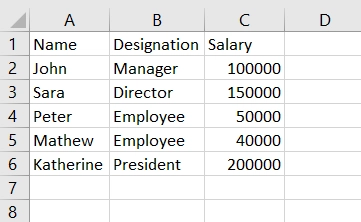 Plik Excel
Odczytywanie danych z zaimportowanego pliku Excel
Gdy plik Excel jest zaimportowany, jest gotowy do odczytu danych. Odczytywanie danych z plików Excel w języku C# przy użyciu IronXL jest bardzo proste i łatwe. Możesz odczytać wartości komórek Excel, po prostu podając numer referencyjny komórki.
Poniższy kod pobiera wartość komórki o numerze odniesienia "C2":
// Select cells easily in Excel-notation and return the value
int cellValue = sheet["C2"].IntValue;

// Display the value
Console.WriteLine(cellValue);
// Select cells easily in Excel-notation and return the value
int cellValue = sheet["C2"].IntValue;

// Display the value
Console.WriteLine(cellValue);
' Select cells easily in Excel-notation and return the value
Dim cellValue As Integer = sheet("C2").IntValue

' Display the value
Console.WriteLine(cellValue)
' Select cells easily in Excel-notation and return the value
Dim cellValue As Integer = sheet("C2").IntValue

' Display the value
Console.WriteLine(cellValue)
Oto wynik:
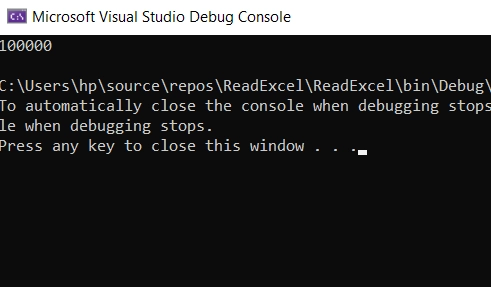 Odczytywanie Excela
Teraz odczytajmy dane z zakresu komórek w otwartym pliku Excel. Kod wygląda następująco:
// Read from a range of cells elegantly.
foreach (var cell in sheet["A2:A6"])
{
    Console.WriteLine("Cell {0} has value '{1}'", cell.AddressString, cell.Text);
}
// Read from a range of cells elegantly.
foreach (var cell in sheet["A2:A6"])
{
    Console.WriteLine("Cell {0} has value '{1}'", cell.AddressString, cell.Text);
}
' Read from a range of cells elegantly.
For Each cell In sheet("A2:A6")
Console.WriteLine("Cell {0} has value '{1}'", cell.AddressString, cell.Text)
Next cell
' Read from a range of cells elegantly.
For Each cell In sheet("A2:A6")
	Console.WriteLine("Cell {0} has value '{1}'", cell.AddressString, cell.Text)
Next cell
Kod jest bardzo prosty, przejrzysty i zrozumiały. Zakres komórek może być odniesiony z użyciem prostej składni jak pokazano w pętli foreach: sheet["A2:A6"] a każda komórka może być iterowana przy użyciu pętli foreach, aby uzyskać jej wartość. Tutaj, zobaczysz nazwiska w kolumnie A od wiersza 2 do wiersza 6 na wyjściu konsoli:
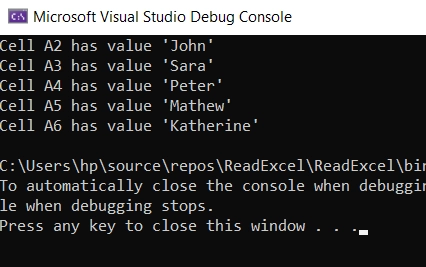 Odczytywanie zakresu komórek
Aby uzyskać więcej informacji na temat odczytu i zapisu wartości komórek, sprawdź ten tutorial na temat jak odczytać plik Excel w C#.
Importowanie wszystkich danych z pliku Excel
IronXL może być używany do odczytu arkuszy Excel jednocześnie przy użyciu indeksów wierszy i kolumn. Poniższe przykłady kodu IronXL pomagają uzyskać wszystkie dane z pliku Excel w tej samej formie na wyjściu konsoli:
WorkBook workbook = WorkBook.Load("test.xlsx");
WorkSheet sheet = workbook.WorkSheets.First();

// Traverse all rows of Excel WorkSheet
for (int i = 0; i < sheet.Rows.Count(); i++)
{
    // Traverse all columns of specific Row
    for (int j = 0; j < sheet.Columns.Count(); j++)
    {
        // Get the value as a string
        string val = sheet.Rows[i].Columns[j].Value.ToString();
        Console.Write("{0}\t", val);
    }
    Console.WriteLine();
}
WorkBook workbook = WorkBook.Load("test.xlsx");
WorkSheet sheet = workbook.WorkSheets.First();

// Traverse all rows of Excel WorkSheet
for (int i = 0; i < sheet.Rows.Count(); i++)
{
    // Traverse all columns of specific Row
    for (int j = 0; j < sheet.Columns.Count(); j++)
    {
        // Get the value as a string
        string val = sheet.Rows[i].Columns[j].Value.ToString();
        Console.Write("{0}\t", val);
    }
    Console.WriteLine();
}
Imports Microsoft.VisualBasic
Dim workbook As WorkBook = WorkBook.Load("test.xlsx")
Dim sheet As WorkSheet = workbook.WorkSheets.First()
' Traverse all rows of Excel WorkSheet
For i As Integer = 0 To sheet.Rows.Count() - 1
' Traverse all columns of specific Row
For j As Integer = 0 To sheet.Columns.Count() - 1
' Get the value as a string
Dim val As String = sheet.Rows(i).Columns(j).Value.ToString()
Console.Write("{0}" & vbTab, val)
Next j
Console.WriteLine()
Next i
Imports Microsoft.VisualBasic

Dim workbook As WorkBook = WorkBook.Load("test.xlsx")
Dim sheet As WorkSheet = workbook.WorkSheets.First()

' Traverse all rows of Excel WorkSheet
For i As Integer = 0 To sheet.Rows.Count() - 1
	' Traverse all columns of specific Row
	For j As Integer = 0 To sheet.Columns.Count() - 1
		' Get the value as a string
		Dim val As String = sheet.Rows(i).Columns(j).Value.ToString()
		Console.Write("{0}" & vbTab, val)
	Next j
	Console.WriteLine()
Next i
Plik wyjściowy
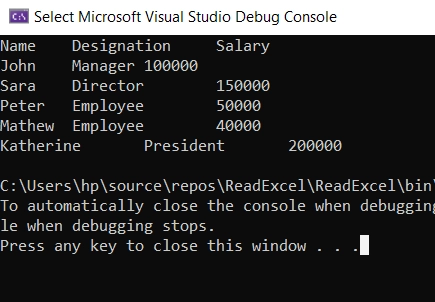 Wyjście konsoli podczas odczytywania pliku Excel
Podsumowanie
W tym artykule dowiedzieliśmy się, jak importować i odczytywać plik Excel w C# bez zainstalowanego Microsoft Excel. Następnie rozważyliśmy różne sposoby na odczyt danych z arkusza kalkulacyjnego Excel. IronXL również pomaga tworzyć pliki Excel w C# bez zainstalowanego Excela.
IronXL zapewnia wszechstronne rozwiązanie dla wszystkich zadań dotyczących dokumentów MS Excel, które mogą być wdrażane programowo. Możesz wykonywać obliczenia formuł, sortowanie ciągów lub liczb, przycinanie i dodawanie, znajdowanie i zastępowanie, scalanie i rozdzielanie, zapisywanie plików itd. Możesz edytować wartości komórek oraz ustawiać formaty danych komórek wraz z walidacją danych arkusza kalkulacyjnego. Obsługuje również pliki CSV i ułatwia pracę z danymi w formacie podobnym do Excela.
Wypróbuj IronXL za darmo i poznaj jego funkcje. Może być licencjonowane do użytku komercyjnego z pakietem Lite zaczynającym się od tylko $999.













