Microsoft Excel is a spreadsheet software that stores and organizes data, and presents it in various formats. It is widely used for financial data due to its useful formulas. The IronXL software library can be used to import and read Excel files in C#.
IronXL - Excel Library
IronXL - .NET Excel Library is a .NET Excel library that prioritizes ease of use, accuracy, and speed for its users. It helps you import and read Excel documents and create and edit an Excel file efficiently with lightning-fast performance. It works without MS Office Interop. This means even without Excel installed, it provides all the functionalities to read Excel files. This makes IronXL a powerful tool for developers to import and read Excel files in C#.
IronXL is available on all platforms like Windows, Linux, macOS, Docker, Azure, and AWS. It is compatible with all .NET Frameworks. IronXL is a versatile library that can be integrated into Console, Desktop, and Web ASP.NET Applications. It supports different workbook formats like XLS and XLSX files, XSLT and XLSM, CSV, and TSV.
Some Important Features
- Open, read Excel files, and search data from different spreadsheet formats like XLS/CSV/TSV/XLSX files.
- Export Excel Worksheets to XLS/XLSX/CSV/TSV/JSON.
- Encrypt and decrypt XLSM/XLTX/XLSX files with passwords.
- Import Excel sheets as
System.Data.DataSet and System.Data.DataTable objects.
- Excel file formulas are recalculated every time a sheet is edited.
- Intuitive cell range settings with a
WorkSheet["A1:B10"] easy syntax.
- Sort Cell Ranges, Columns, and Rows.
- Styling Cells - Font, Font Size, Background color, Border, Alignment, and Numbering formats.
How to Import Excel Workbook in C#
Prerequisites
To use IronXL in C# to read Excel files, the first step is to ensure the following components are installed on the local computer:
- Visual Studio - It is the official IDE for developing C# .NET applications. You can download and install Visual Studio from the Visual Studio Download Page.
- IronXL - It is the library that helps work with Excel sheets in C#. It must be installed in a C# program before using it. IronXL can be downloaded from the IronXL NuGet Package or Manage NuGet packages in Visual Studio tools. You can also download the .NET Excel DLL from Iron Software's website.
Adding Necessary Namespaces
Once Visual Studio and IronXL are installed, the IronXL assembly reference for using IronXL should be included in the source code. Add the following line of code at the top of the file within the new project where IronXL functions will be used:
using IronXL;
using IronXL;
Imports IronXL
Imports IronXL
Open an Existing Excel file in C#
Microsoft Excel Spreadsheets are also referred to as Excel Workbook. Each workbook contains multiple worksheets, and a single worksheet contains tabular cells with its value. To open and read an Excel file using IronXL, it should be loaded using the WorkBook class and Load method present in the IronXL library. The code goes as follows:
// Supported Excel spreadsheet formats for reading include: XLSX, XLS, CSV, and TSV
WorkBook workbook = WorkBook.Load("test.xlsx");
// Supported Excel spreadsheet formats for reading include: XLSX, XLS, CSV, and TSV
WorkBook workbook = WorkBook.Load("test.xlsx");
' Supported Excel spreadsheet formats for reading include: XLSX, XLS, CSV, and TSV
Dim workbook As WorkBook = WorkBook.Load("test.xlsx")
' Supported Excel spreadsheet formats for reading include: XLSX, XLS, CSV, and TSV
Dim workbook As WorkBook = WorkBook.Load("test.xlsx")
This opens the Excel file in the workbook instance reference variable. As it can have multiple worksheets, it can be used to open a specific worksheet or all at once. The following code opens the first WorkSheet in the sheet instance variable:
WorkSheet sheet = workbook.WorkSheets.First();
WorkSheet sheet = workbook.WorkSheets.First();
Dim sheet As WorkSheet = workbook.WorkSheets.First()
Dim sheet As WorkSheet = workbook.WorkSheets.First()
This will open the first sheet in the Excel file, and now Excel data can be read from and written to this sheet.
Opened Excel file
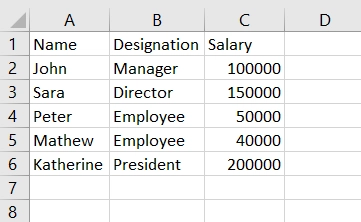 Excel file
Read Data from Imported Excel file
Once the Excel file is imported, it is ready for reading data. Reading Excel file data in C# using IronXL is very simple and easy. You can read Excel cell values by simply mentioning the cell reference number.
The code below retrieves the value of a cell with reference number "C2":
// Select cells easily in Excel-notation and return the value
int cellValue = sheet["C2"].IntValue;

// Display the value
Console.WriteLine(cellValue);
// Select cells easily in Excel-notation and return the value
int cellValue = sheet["C2"].IntValue;

// Display the value
Console.WriteLine(cellValue);
' Select cells easily in Excel-notation and return the value
Dim cellValue As Integer = sheet("C2").IntValue

' Display the value
Console.WriteLine(cellValue)
' Select cells easily in Excel-notation and return the value
Dim cellValue As Integer = sheet("C2").IntValue

' Display the value
Console.WriteLine(cellValue)
The output is as follows:
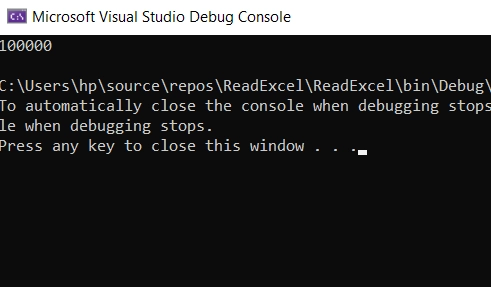 Read Excel
Now, let's read data from a range of cells in the opened Excel file. The code goes as follows:
// Read from a range of cells elegantly.
foreach (var cell in sheet["A2:A6"])
{
    Console.WriteLine("Cell {0} has value '{1}'", cell.AddressString, cell.Text);
}
// Read from a range of cells elegantly.
foreach (var cell in sheet["A2:A6"])
{
    Console.WriteLine("Cell {0} has value '{1}'", cell.AddressString, cell.Text);
}
' Read from a range of cells elegantly.
For Each cell In sheet("A2:A6")
Console.WriteLine("Cell {0} has value '{1}'", cell.AddressString, cell.Text)
Next cell
' Read from a range of cells elegantly.
For Each cell In sheet("A2:A6")
	Console.WriteLine("Cell {0} has value '{1}'", cell.AddressString, cell.Text)
Next cell
The code is very simple, clean, and clear. The range of cells can be referenced with simple syntax as shown in a foreach loop: sheet["A2:A6"] and each cell can be iterated using a foreach loop to get its value. Here, you will see the names in column A from row 2 to row 6 on the console output:
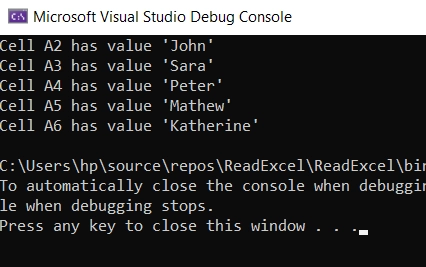 Read Range of Cells
For more details on reading and writing cell values, check this tutorial on reading Excel files in C#.
Import all Data from an Excel file
IronXL can be used to read Excel sheets at once using Rows and Columns indexes. The following IronXL code samples help to get the entire Excel file data in the same format on the console output:
WorkBook workbook = WorkBook.Load("test.xlsx");
WorkSheet sheet = workbook.WorkSheets.First();

// Traverse all rows of Excel WorkSheet
for (int i = 0; i < sheet.Rows.Count(); i++)
{
    // Traverse all columns of specific Row
    for (int j = 0; j < sheet.Columns.Count(); j++)
    {
        // Get the value as a string
        string val = sheet.Rows[i].Columns[j].Value.ToString();
        Console.Write("{0}\t", val);
    }
    Console.WriteLine();
}
WorkBook workbook = WorkBook.Load("test.xlsx");
WorkSheet sheet = workbook.WorkSheets.First();

// Traverse all rows of Excel WorkSheet
for (int i = 0; i < sheet.Rows.Count(); i++)
{
    // Traverse all columns of specific Row
    for (int j = 0; j < sheet.Columns.Count(); j++)
    {
        // Get the value as a string
        string val = sheet.Rows[i].Columns[j].Value.ToString();
        Console.Write("{0}\t", val);
    }
    Console.WriteLine();
}
Imports Microsoft.VisualBasic
Dim workbook As WorkBook = WorkBook.Load("test.xlsx")
Dim sheet As WorkSheet = workbook.WorkSheets.First()
' Traverse all rows of Excel WorkSheet
For i As Integer = 0 To sheet.Rows.Count() - 1
' Traverse all columns of specific Row
For j As Integer = 0 To sheet.Columns.Count() - 1
' Get the value as a string
Dim val As String = sheet.Rows(i).Columns(j).Value.ToString()
Console.Write("{0}" & vbTab, val)
Next j
Console.WriteLine()
Next i
Imports Microsoft.VisualBasic

Dim workbook As WorkBook = WorkBook.Load("test.xlsx")
Dim sheet As WorkSheet = workbook.WorkSheets.First()

' Traverse all rows of Excel WorkSheet
For i As Integer = 0 To sheet.Rows.Count() - 1
	' Traverse all columns of specific Row
	For j As Integer = 0 To sheet.Columns.Count() - 1
		' Get the value as a string
		Dim val As String = sheet.Rows(i).Columns(j).Value.ToString()
		Console.Write("{0}" & vbTab, val)
	Next j
	Console.WriteLine()
Next i
Output File
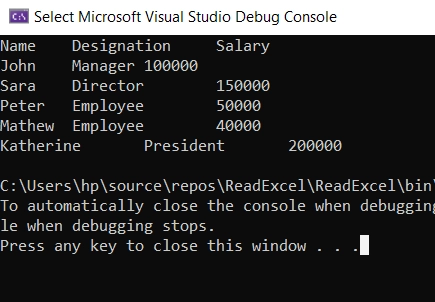 The Console output of reading an Excel file
Summary
In this article, we learned how to import and read an Excel file in C# without any Microsoft Excel installed. Then we considered multiple ways to read data from an Excel spreadsheet. IronXL also helps create Excel files in C# without any Excel installed.
IronXL provides an all-in-one solution for all MS Excel document-related tasks to be implemented programmatically. You can perform formula calculation, string or number sorting, trimming and appending, find and replace, merge and unmerge, save files, etc. You can edit cell values and also set cell data formats along with validating spreadsheet data. It also supports CSV files and helps you to work with Excel-like data.
Try IronXL for Free and explore its features. It can be licensed for commercial use with its Lite package starting at only $999.